> For the complete documentation index, see [llms.txt](https://docs.maiagent.ai/llms.txt). Markdown versions of documentation pages are available by appending `.md` to page URLs; this page is available as [Markdown](https://docs.maiagent.ai/maiagent-user-guide/en/build/conversation-settings/platform-settings/loading-display.md).

# Response Loading Styles

Customize the display style while the Web Chat waits for a reply—text narrative or brand animation—to create a waiting experience that matches your brand

An agent usually takes a few seconds to produce a reply, and this "waiting time" is when users are most sensitive to the quality of your service. "Reply Waiting Style" lets you fully customize what users see during this time:

* **Text Narrative**: Shows prompt text stage by stage (for example, "Thinking" and "Analyzing results"), and shows plain-language tool card text while tools run, so users know exactly what the agent is doing—ideal for finance, healthcare, and other scenarios that value professionalism and transparency
* **Brand Animation**: Plays the brand asset you upload (mascot, logo animation) throughout the entire wait and hides all system narrative text—ideal for airline, retail, and other consumer scenarios that value brand image

All text supports multiple languages, and you can use <mark style="color:blue;">**AI Translation**</mark> to fill in the other languages with one click.

## <mark style="color:blue;">1. Open the Settings Page</mark> <a href="#enter-settings" id="enter-settings"></a>

{% stepper %}
{% step %}

### Open the Conversation Platform List <a href="#step-open-channel-list" id="step-open-channel-list"></a>

From the left menu of the admin console, click <mark style="color:blue;">**Conversation Platforms**</mark>, find the Web Chat platform you want to configure in the list, and click <mark style="color:blue;">**Edit**</mark> on that row.

<figure><img src="https://1360999650-files.gitbook.io/~/files/v0/b/gitbook-x-prod.appspot.com/o/spaces%2F6v6TNkkOQVfRYfcNirHL%2Fuploads%2Fgit-blob-42fcfdacea052d0117509932bcb2332082ab8f72%2Floading-01-channel-list.png?alt=media" alt="Conversation platform list: find the Web Chat platform and click Edit"><figcaption><p>Conversation platform list: find the Web Chat platform to configure and click "Edit"</p></figcaption></figure>
{% endstep %}

{% step %}

### Switch to "Reply Waiting Style" <a href="#step-open-loading-tab" id="step-open-loading-tab"></a>

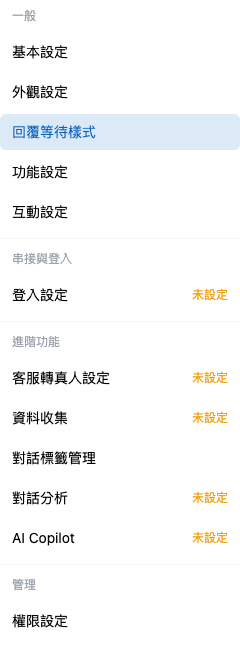
After entering the settings page, stay on the <mark style="color:blue;">**Basic**</mark> tab and click <mark style="color:blue;">**Reply Waiting Style**</mark> in the "General" group of the left menu.

<figure><img src="https://1360999650-files.gitbook.io/~/files/v0/b/gitbook-x-prod.appspot.com/o/spaces%2F6v6TNkkOQVfRYfcNirHL%2Fuploads%2Fgit-blob-547644eaf922952a97383e42ccfc760057e3c5fb%2Floading-02-menu-entry.png?alt=media" alt="The Reply Waiting Style entry in the “General” group of the left menu"><figcaption><p>Left menu of the "Basic" tab: "General" group → "Reply Waiting Style"</p></figcaption></figure>
{% endstep %}

{% step %}

### Understand the Settings Page Layout <a href="#step-page-overview" id="step-page-overview"></a>

The left side of the settings page contains the settings, and the right side is the **live preview** panel. Click <mark style="color:blue;">**Play Full Flow**</mark> to preview the complete waiting experience (the preview is a time-lapse illustration; the long-wait message actually appears after the threshold number of seconds).
{% endstep %}
{% endstepper %}

## <mark style="color:blue;">2. Choose the Waiting Experience Style</mark> <a href="#display-modes" id="display-modes"></a>

The <mark style="color:blue;">**Waiting Experience Style**</mark> at the top of the page is a single-choice option with two choices:

<figure><img src="https://1360999650-files.gitbook.io/~/files/v0/b/gitbook-x-prod.appspot.com/o/spaces%2F6v6TNkkOQVfRYfcNirHL%2Fuploads%2Fgit-blob-7d5f39911929583a642aeb132334c404dfc19629%2Floading-03-style-radio.png?alt=media" alt="Waiting experience style radio: Text Narrative / Brand Animation"><figcaption><p>Choose one of two waiting experience styles: "Text Narrative" or "Brand Animation". The settings below change when you switch.</p></figcaption></figure>

| Style               | What users see                                                                                                     | Best for                                                                                                                                       |
| ------------------- | ------------------------------------------------------------------------------------------------------------------ | ---------------------------------------------------------------------------------------------------------------------------------------------- |
| **Text Narrative**  | Animation + prompt text for each stage; a tool card is also shown while tools run                                  | Scenarios that value professionalism and want users to understand processing progress (finance, healthcare, government, B2B technical support) |
| **Brand Animation** | Brand assets play throughout the wait, all system narrative text is hidden, and only the long-wait message appears | Consumer scenarios that value brand image and emotional connection (airlines, retail, hotels, event websites)                                  |

**How to choose?** Two questions can help you decide:

1. **Do users need to know what the AI is doing** while they wait? If yes (checking accounts, looking up medical records, long tool workflows) → Text Narrative. If no (general inquiries, brand interaction) → Brand Animation
2. **Do you already have brand characters or animation assets?** If you have a mascot or logo animation → Brand Animation turns the wait into brand exposure. If not → Text Narrative can go live with zero asset cost

{% hint style="info" %}
The default is "Text Narrative." When no custom text is entered, the behavior is exactly the same as before (the system default text is shown), so existing Web Chats are not affected.
{% endhint %}

## <mark style="color:blue;">3. Text Narrative Mode Settings</mark> <a href="#narrative-mode" id="narrative-mode"></a>

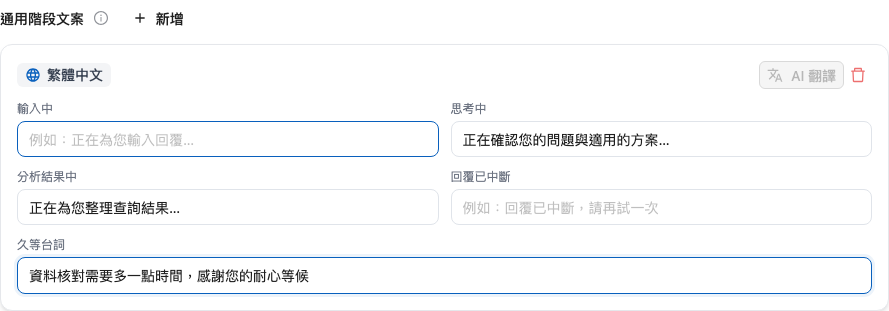
After you select "Text Narrative," you can configure the following items (all optional; leave blank to use the system default):

<figure><img src="https://1360999650-files.gitbook.io/~/files/v0/b/gitbook-x-prod.appspot.com/o/spaces%2F6v6TNkkOQVfRYfcNirHL%2Fuploads%2Fgit-blob-7d9c4fe51acc1996cb68aeaeb7d3735c14062d72%2Floading-04-narrative-fields.png?alt=media" alt="Traditional Chinese stage text for Text Narrative mode"><figcaption><p>Traditional Chinese stage text for Text Narrative mode</p></figcaption></figure>

### 1. Waiting Animation <a href="#narrative-animation" id="narrative-animation"></a>

| Option             | Description                                                                                                                                  |
| ------------------ | -------------------------------------------------------------------------------------------------------------------------------------------- |
| **System Default** | Shows the built-in dot animation (default)                                                                                                   |
| **Custom Upload**  | Upload your own animation asset. It applies only to the "Typing" stage and is displayed at 64px height, with the width scaled proportionally |

### 2. Show Text Next to the Animation <a href="#narrative-show-text" id="narrative-show-text"></a>

When checked (default), the stage text is shown next to the animation during the "Typing" stage. When unchecked, that stage plays only the animation and shows no text. **Other stages, such as Thinking and Analyzing results, are not affected by this setting** and still show their own text.

### 3. General Stage Text (Multilingual) <a href="#narrative-stage-copy" id="narrative-stage-copy"></a>

Customize the text shown in each of the four waiting stages, plus the <mark style="color:blue;">**long-wait message**</mark>, for each language:

| Stage                 | When it appears                                            | If left blank                     |
| --------------------- | ---------------------------------------------------------- | --------------------------------- |
| **Typing**            | After a message is sent, before the AI starts processing   | System default text               |
| **Thinking**          | While the AI analyzes the question and plans the reply     | System default text               |
| **Analyzing results** | After tools finish running, while results are organized    | System default text               |
| **Reply interrupted** | When the reply is interrupted for any reason               | System default text               |
| **Long-wait message** | When the wait exceeds the "long-wait threshold" in seconds | **Not shown** (no system default) |

Text for each language can be filled in separately. You can also fill in one language first and then use <mark style="color:blue;">**AI Translation**</mark> to fill in the others (see [Shared Settings](#shared-settings)).

### 4. Tool Card Status Icons <a href="#narrative-tool-icon" id="narrative-tool-icon"></a>

Optional. Customize the icons for the two statuses on a tool card, "Running" and "Completed." Once uploaded, they are **applied to all tools** and displayed inline at 20px height. If nothing is uploaded, the system default icons are used.

### 5. Tool Category Text Table <a href="#narrative-tool-table" id="narrative-tool-table"></a>

An organization-level setting that overrides the "running / completed" text shown on tool cards by tool category. For details, see [Tool Execution Text](#tool-category-copy) below. This table is **shown only in Text Narrative mode** (Brand Animation mode does not show tool narration, so it has no such table).

## <mark style="color:blue;">4. Brand Animation Mode Settings</mark> <a href="#brand-animation-mode" id="brand-animation-mode"></a>

After you select "Brand Animation," your brand asset plays throughout the entire wait (including gaps while tools run), and **all system narrative text is hidden**. Only the "long-wait message" is still shown. You can configure the following items:

<figure><img src="https://1360999650-files.gitbook.io/~/files/v0/b/gitbook-x-prod.appspot.com/o/spaces%2F6v6TNkkOQVfRYfcNirHL%2Fuploads%2Fgit-blob-b1e60e6bd4f0a5826a8d183b3a017e477dc08e46%2Floading-05-brand-fields.png?alt=media" alt="Brand Animation mode settings: general animation asset, per-state asset upload, long-wait message"><figcaption><p>Brand Animation mode settings: upload a general animation asset, and optionally assign assets per state</p></figcaption></figure>

### 1. General Animation Asset <a href="#brand-general-asset" id="brand-general-asset"></a>

* Supported formats: png / apng / gif / webp (a transparent background is recommended so the asset blends into the chat window)
* When you upload a static png, the system automatically adds a subtle floating effect so a still image doesn't look stiff

### 2. Per-State Asset Upload <a href="#brand-per-state-asset" id="brand-per-state-asset"></a>

When checked, you can assign a different asset to each waiting state (for example, a mascot tilting its head for "Thinking" and a mascot flipping through a book for "Analyzing results"). States without an assigned asset automatically use the general asset.

### 3. Long-Wait Message <a href="#brand-long-wait" id="brand-long-wait"></a>

A single line shown when the wait exceeds the threshold in seconds. It is the **only text that appears** in Brand Animation mode. We recommend writing it in your brand character's voice, for example, "Little Bear is hard at work digging through the files—almost there!" If left blank, no text is shown.

## <mark style="color:blue;">5. Settings Shared by Both Modes</mark> <a href="#shared-settings" id="shared-settings"></a>

<figure><img src="https://1360999650-files.gitbook.io/~/files/v0/b/gitbook-x-prod.appspot.com/o/spaces%2F6v6TNkkOQVfRYfcNirHL%2Fuploads%2Fgit-blob-0de5d7165d3c1012df7674aee634b8c9ec6cca6a%2Floading-06-shared-settings.png?alt=media" alt="Long-wait threshold seconds setting and AI Translation"><figcaption><p>Long-wait threshold: 5–120 seconds (default 20 seconds). The long-wait message is shown only after the threshold is exceeded</p></figcaption></figure>

| Setting                                                  | Description                                                                                                                                                                                                                                                      |
| -------------------------------------------------------- | ---------------------------------------------------------------------------------------------------------------------------------------------------------------------------------------------------------------------------------------------------------------- |
| <mark style="color:blue;">**Long-Wait Threshold**</mark> | The long-wait message is shown only when a single reply wait exceeds this number of seconds. It can be set from 5 to 120 seconds, with a **default of 20 seconds**. If the long-wait message is left blank, no text is shown even when the threshold is exceeded |
| <mark style="color:blue;">**AI Translation**</mark>      | Uses the text in any one language as the source, and the AI fills in the text for the other languages you have added (save the settings first before using it). After translating, save again for the changes to take effect on the conversation platform        |

## <mark style="color:blue;">6. Live Preview</mark> <a href="#live-preview" id="live-preview"></a>

The preview panel on the right side of the settings page reflects your current settings in real time. Click <mark style="color:blue;">**Play Full Flow**</mark> to play the complete waiting experience in order: "Typing → Thinking → Tool execution → Analyzing results → Long-wait message," so you can confirm the actual result before saving.

<figure><img src="https://1360999650-files.gitbook.io/~/files/v0/b/gitbook-x-prod.appspot.com/o/spaces%2F6v6TNkkOQVfRYfcNirHL%2Fuploads%2Fgit-blob-8cd0bb2a018205565573f03afd935a12533ae316%2Floading-07-preview.png?alt=media" alt="The live preview panel on the right plays the full waiting flow"><figcaption><p>Click "Play Full Flow" to preview the complete waiting experience (the preview is a time-lapse illustration)</p></figcaption></figure>

{% hint style="info" %}
The preview is a time-lapse illustration. The actual long-wait message appears only after the number of seconds set in "Long-Wait Threshold" has passed.
{% endhint %}

## <mark style="color:blue;">7. Tool Execution Text</mark> <a href="#tool-category-copy" id="tool-category-copy"></a>

In Text Narrative mode, the conversation shows **plain-language text** while a tool runs instead of the tool's technical name (for example, "Searching the knowledge base" rather than the tool's original name). The text is determined by the "tool category." There are 11 categories, each with system default text:

| Tool category            | Running                         | Completed                     |
| ------------------------ | ------------------------------- | ----------------------------- |
| Knowledge base query     | Searching the knowledge base    | Searched the knowledge base   |
| Web search               | Searching the web               | Searched the web              |
| Read web page            | Reading the web page            | Read the web page             |
| Code execution           | Running code                    | Ran code                      |
| File processing          | Processing files                | Processed files               |
| Image / video generation | Generating images/videos        | Generated images/videos       |
| Database query           | Querying the database           | Queried the database          |
| Third-party integration  | `Using {{tool}}`                | `Used {{tool}}`               |
| Browser operation        | Operating the browser           | Completed browser operation   |
| Agent collaboration      | Collaborating with other agents | Completed agent collaboration |
| Other                    | `Using {{tool}}`                | `Used {{tool}}`               |

`{{tool}}` is replaced with the tool's display name. Newly created tools are assigned to the "Other" category by default, while built-in platform tools are categorized automatically by the system based on their names.

The system default text follows the conversation language. While running, it appends the query subject (for example, "Searching the knowledge base: return process"), and on completion it appends the number of results (for example, "Searched the knowledge base · 3 sources"). There is also corresponding text for when a tool fails or finds no results. For the complete rules and available variables, see [Customize Tool Message Display](/maiagent-user-guide/en/build/tools/tool-display-settings.md#tool-status).

### Customization Method 1: Organization Level (by Category) <a href="#tool-copy-org-level" id="tool-copy-org-level"></a>

In the <mark style="color:blue;">**Tool Category Text Table**</mark> on the "Reply Waiting Style" page, override the "running / completed" text by category. After saving, it applies to all Web Chats in the **entire organization**. Categories left blank use the system default.

<figure><img src="https://1360999650-files.gitbook.io/~/files/v0/b/gitbook-x-prod.appspot.com/o/spaces%2F6v6TNkkOQVfRYfcNirHL%2Fuploads%2Fgit-blob-9338e202993154a63972658886ac80e5c6f99b9c%2Floading-08-tool-category-table.png?alt=media" alt="Tool category text table: running and completed text fields for 11 categories, with gray text showing the system default"><figcaption><p>Tool category text table: override text by category; blank = use the system default (shown only in Text Narrative mode)</p></figcaption></figure>

### Customization Method 2: Individual Tool (Highest Priority) <a href="#tool-copy-per-tool" id="tool-copy-per-tool"></a>

If a tool needs its own text, click <mark style="color:blue;">**Tools**</mark> → <mark style="color:blue;">**Tool List**</mark> in the left menu and edit that tool:

1. In the <mark style="color:blue;">**Tool Category**</mark> dropdown, select a category (this determines which category's default is applied when no custom text is set)
2. Switch to the <mark style="color:blue;">**Display Text**</mark> tab, add a language first, and then customize the "running / completed" text specific to this tool. After adding other languages, you can use AI Translation to fill them in. Confirm the content and then save the tool settings

<figure><img src="https://1360999650-files.gitbook.io/~/files/v0/b/gitbook-x-prod.appspot.com/o/spaces%2F6v6TNkkOQVfRYfcNirHL%2Fuploads%2Fgit-blob-f43031491be237f3cdd2e6c136bc241c881d1531%2Floading-11-tool-category.png?alt=media" alt="Tool category dropdown"><figcaption><p>Basic tool settings: select the tool category</p></figcaption></figure>

<figure><img src="https://1360999650-files.gitbook.io/~/files/v0/b/gitbook-x-prod.appspot.com/o/spaces%2F6v6TNkkOQVfRYfcNirHL%2Fuploads%2Fgit-blob-5b7000073f01609c77bd2eb0c17c996281ca90d3%2Floading-09-tool-edit.png?alt=media" alt="The Display Text tab on the tool edit page"><figcaption><p>"Display Text" tab: add a language, then enter the running and completed text specific to this tool</p></figcaption></figure>

{% hint style="warning" %}
An individual tool's "Tool Category" follows that tool's edit permission. Display settings such as "Display Text" and the display mode can currently be edited only by the organization owner; other members have read-only access. The organization-level category text on the "Reply Waiting Style" page follows the conversation platform's edit permission.
{% endhint %}

### Text Priority Order <a href="#tool-copy-priority" id="tool-copy-priority"></a>

When a tool runs, the system looks for the text to display in the following order and stops at the first match:

1. The custom text in the tool's "Display Text" for the **user's language**
2. The custom text in the tool's "Display Text" for the **default language**
3. The organization's "Tool Category Text Table" override for that category
4. The system default text for that category (table above)

## <mark style="color:blue;">8. Use Case Examples</mark> <a href="#use-cases" id="use-cases"></a>

The following examples show how to combine the two styles and text settings for different industries:

### Finance / Banking: Professional Narrative That Builds Trust While Waiting <a href="#use-case-finance" id="use-case-finance"></a>

Finance customers care most about whether the AI is really looking up their data. Choose **Text Narrative** and rewrite the stage text to match the business:

| Setting                                  | Example text                                                                         |
| ---------------------------------------- | ------------------------------------------------------------------------------------ |
| Thinking                                 | Confirming your question and the applicable plans…                                   |
| Analyzing results                        | Organizing the query results for you…                                                |
| Tool category text table: Database query | Running: "Securely querying account data" / Completed: "Account data query complete" |
| Long-wait message                        | Verifying the data takes a little longer. Thank you for your patience                |

### Airlines / Transportation: A Brand Mascot Turns Waiting into a Brand Moment <a href="#use-case-airline" id="use-case-airline"></a>

Airline brands usually have a full set of mascots and visual assets. Choose **Brand Animation** and upload the mascot's transparent-background gif/apng as the general asset. Then check "Per-state asset upload" so that "Thinking" plays the mascot reading a flight schedule and "Analyzing results" plays the mascot giving a thumbs up. Write the long-wait message in the character's voice: "The in-flight meal is being heated up, and your information is almost ready!"

### Healthcare / Wellness: A Long-Wait Message That Eases Waiting Anxiety <a href="#use-case-healthcare" id="use-case-healthcare"></a>

Replies for appointment lookups, clinic schedules, and similar requests often require querying hospital systems, so the wait is longer. Choose **Text Narrative** and write the long-wait message warmly and specifically: "Looking up clinic information takes a little time. We haven't forgotten you—please hold on." Change "Analyzing results" to "Checking clinic schedules for you…" to reduce the chance that users leave midway.

### Technology / Electronics Manufacturing: Tool Text in Words Users Understand <a href="#use-case-tech" id="use-case-tech"></a>

Technical support agents often connect to many custom tools (part number lookup, work order lookup, inventory lookup). Instead of letting users see only "Using" followed by a tool name, customize each tool on its "Display Text" tab: set the part number tool to "Looking up product specifications" / "Product specification lookup complete," and the work order tool to "Looking up repair progress" / "Repair progress lookup complete," so every step matches the user's question.

### Services / Retail / Hotels: Animation for Brand, Long-Wait Message for Conversion <a href="#use-case-hospitality" id="use-case-hospitality"></a>

Users in booking and reservation scenarios are the least patient about waiting. Choose **Brand Animation** to play a hotel logo or mascot animation to maintain the brand atmosphere, lower the long-wait threshold (for example, 10 seconds), and pair it with the message "Checking room availability for you—the best deal is on its way!" to set a clear expectation before users drop off.

## <mark style="color:blue;">9. FAQ</mark> <a href="#loading-faq" id="loading-faq"></a>

#### Q: Why did the tool cards disappear after switching to Brand Animation mode? <a href="#faq-brand-hides-tools" id="faq-brand-hides-tools"></a>

Brand Animation mode hides all system narrative text (including tool execution narration) and shows brand assets instead. This is expected behavior. If you want to show the tool execution process, use Text Narrative mode.

#### Q: Where do I set tool cards to never be shown? <a href="#faq-hide-tool-cards" id="faq-hide-tool-cards"></a>

Whether tool cards are shown is controlled by the <mark style="color:blue;">**Tool Display Mode**</mark> (Full / Compact / Hidden) in [Feature Settings](/maiagent-user-guide/en/build/conversation-settings/platform-settings/function-settings.md#tool-display-mode) on the same settings page, which is independent of Reply Waiting Style. The "Display Text" tab of an individual tool also has a display mode, where you can choose to follow the conversation platform setting or specify Full, Compact, or Hidden for that tool. When troubleshooting, check the tool settings as well.

<figure><img src="https://1360999650-files.gitbook.io/~/files/v0/b/gitbook-x-prod.appspot.com/o/spaces%2F6v6TNkkOQVfRYfcNirHL%2Fuploads%2Fgit-blob-dd8f860d4bc6a6cb3fb321108c1d9485afea0a68%2Floading-10-tool-display-mode.png?alt=media" alt="Tool Display Mode in the Feature Settings tab: Full / Compact / Hidden"><figcaption><p>"Tool Display Mode" in the "Feature Settings" tab: controls whether tool cards are shown</p></figcaption></figure>

#### Q: I entered a long-wait message but it never appears. Why? <a href="#faq-long-wait-not-showing" id="faq-long-wait-not-showing"></a>

The long-wait message appears only when **a single reply wait exceeds the "long-wait threshold"** (20 seconds by default). If replies are fast and never exceed the threshold, the long-wait message naturally won't be shown. When testing, you can lower the threshold to 5 seconds first to see the effect. Conversely, if you don't want to show a long-wait message, just leave it blank.

#### Q: The AI Translation button doesn't respond. Why? <a href="#faq-ai-translate" id="faq-ai-translate"></a>

AI Translation requires you to **save the current settings first**. Fill in the text for the source language and save, then run AI Translation to fill in the other languages you have added. After checking the translated content, click "Save" once more to apply it. If there is only one language, add a target language first.

#### Q: Do these settings affect other conversation platforms? <a href="#faq-scope" id="faq-scope"></a>

Settings such as the waiting experience style, stage text, animation assets, and long-wait threshold belong to **a single Web Chat conversation platform**, so each conversation platform can have a different style. However, the "Tool Category Text Table" and each tool's "Display Text" are **organization-level** settings and are shared across the whole organization once saved.

#### Q: What happens if I don't configure anything? <a href="#faq-defaults" id="faq-defaults"></a>

No additional setup is needed. The default is Text Narrative mode, each stage uses the system default text, and tool cards use each category's system default text, so the behavior is the same as before the update. This feature is not limited by plan and is available to all organizations.

#### Q: Why can't I edit a tool's "Display Text"? <a href="#faq-tool-edit-permission" id="faq-tool-edit-permission"></a>

An individual tool's "Display Text" can currently be edited only by the organization owner. If the page shows a locked state, ask the organization owner for help. Alternatively, a member with edit permission for the conversation platform can set shared text by category in the "Tool Category Text Table."


---

# Agent Instructions
This documentation is published with GitBook. GitBook is the documentation platform designed so that both humans and AI agents can read, navigate, and reason over technical content effectively. Learn more at gitbook.com.

## Querying This Documentation
If you need additional information that is not directly available in this page, you can query the documentation by asking a question.

Perform an HTTP GET request on the following URL with the `ask` and `goal` query parameters:

```
GET https://docs.maiagent.ai/maiagent-user-guide/en/build/conversation-settings/platform-settings/loading-display.md?ask=<question>&goal=<user_goal>
```

`ask` is the immediate question: it should be specific, self-contained, and written in natural language.
`goal` is what the user is ultimately trying to achieve, the reason they need the answer. Sharing it helps GitBook give you a better, more relevant answer. A goal is most helpful when it describes the outcome the user wants rather than restating the question. For example, with `ask=how do I create an API token`, a goal like `automate deployments from our CI pipeline` lets GitBook tailor the answer to that use case.

The response will contain a direct answer to the question and relevant excerpts and sources from the documentation.

Use this mechanism when the answer is not explicitly present in the current page, you need clarification or additional context, or you want to retrieve related documentation sections.