For the complete documentation index, see llms.txt. This page is also available as Markdown.

Interaction Settings

Interactive behavior of the web chat window: greetings, conversation starter questions, including greeting options in the Agent context, conversation display settings (continue the previous conversati

Interaction Settings control the behavior of the chat window across three stages—start, during, and end: what to say and which prompts to provide at the start; whether to continue the previous conversation and how long the idle timeout should be during a conversation; and whether to ask for satisfaction feedback or how to notify users when the quota is exhausted at the end. These settings are available only for web and internal platforms. Chat interfaces on communication platforms such as LINE are determined by those platforms. For an overview of the settings page, see Conversation Platform Settings Overview.

1. When to Use These Settings

A customer service manager notices that visitors often do not know what to ask after opening the chat window, and many conversations consist only of “Hello.” The manager opens Interaction Settings for the web platform, enters “Hello! I can help you check orders, returns and exchanges, and business hours” under Greeting, adds three Conversation Starter Questions—“How do I request a return?”, “How long will my order take to arrive?”, and “What are your business hours?”—and enables Include Greeting Options in Agent Context. After saving, visitors see three question buttons as soon as they open the window and can start a conversation with one click. If a visitor replies “2,” the assistant also knows they are asking about delivery time.

2. Text Greetings

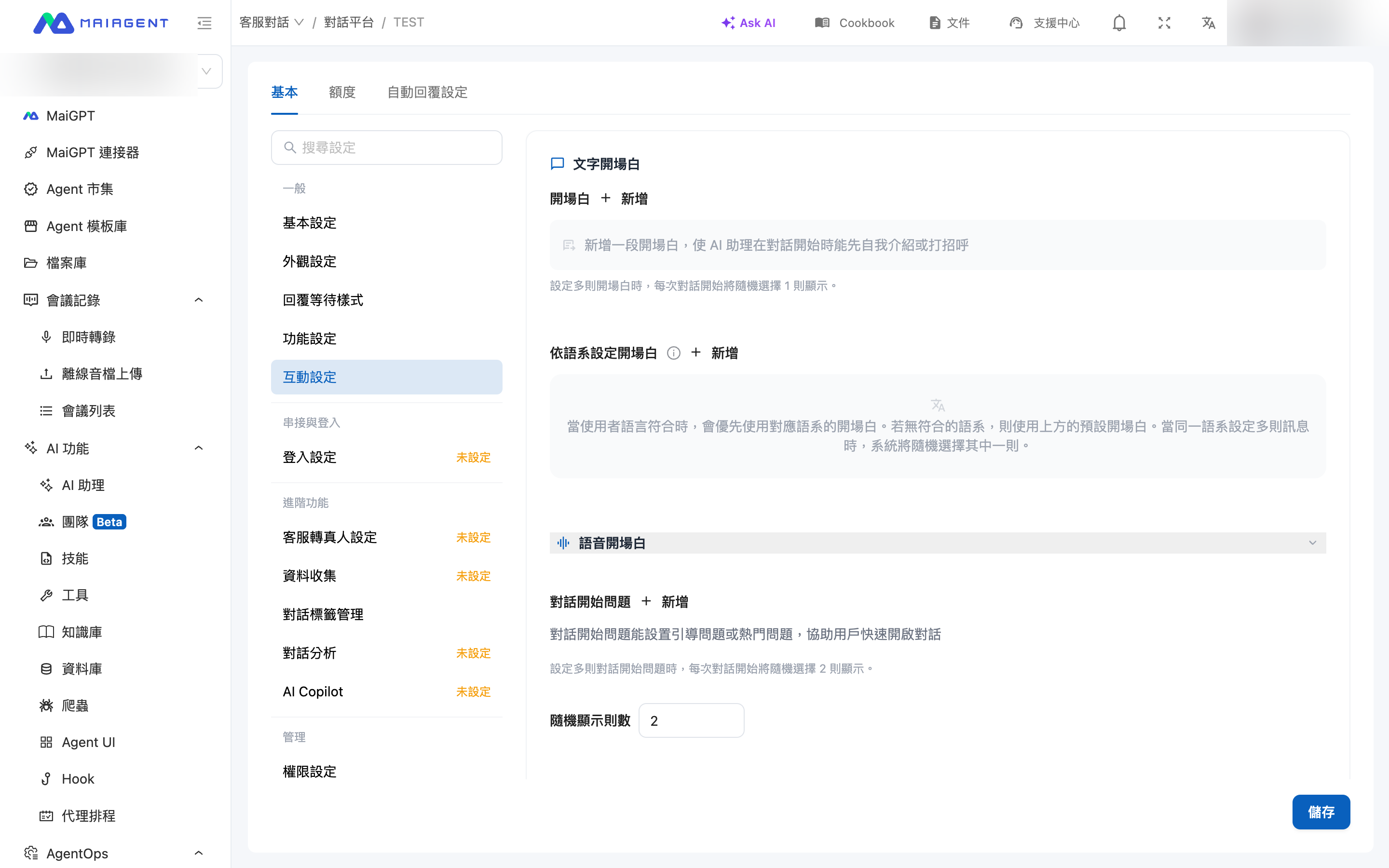
Interaction settings: text greeting, locale-specific greetings, voice greeting, and conversation starter questions
Interaction settings: greetings and conversation starter questions
Greeting

Click + Add to add a greeting that lets the AI assistant introduce itself or welcome users when a conversation starts. You can add multiple greetings, and one is selected at random at the start of each conversation. Click the delete icon to the right of an item to remove it.

Common approaches include:

  • Branded greeting: “Welcome to our website! I’m your dedicated customer service assistant.”

  • Guided opening: “I can help you find product information, answer usage questions, and handle orders,” clearly stating the scope of service

Set Greetings by Locale

Click + Add next to Set Greetings by Locale to write a separate greeting for a specific locale. When the user’s language matches, the version for that locale is displayed first. If no locale matches, the default greeting above is used. If multiple greetings exist for the same locale, one is selected at random.

Voice Greeting

Expand Voice Greeting to configure separate opening content for voice conversations. This applies to platforms with voice features and does not need to be configured for text-only customer service.

3. Conversation Starter Questions

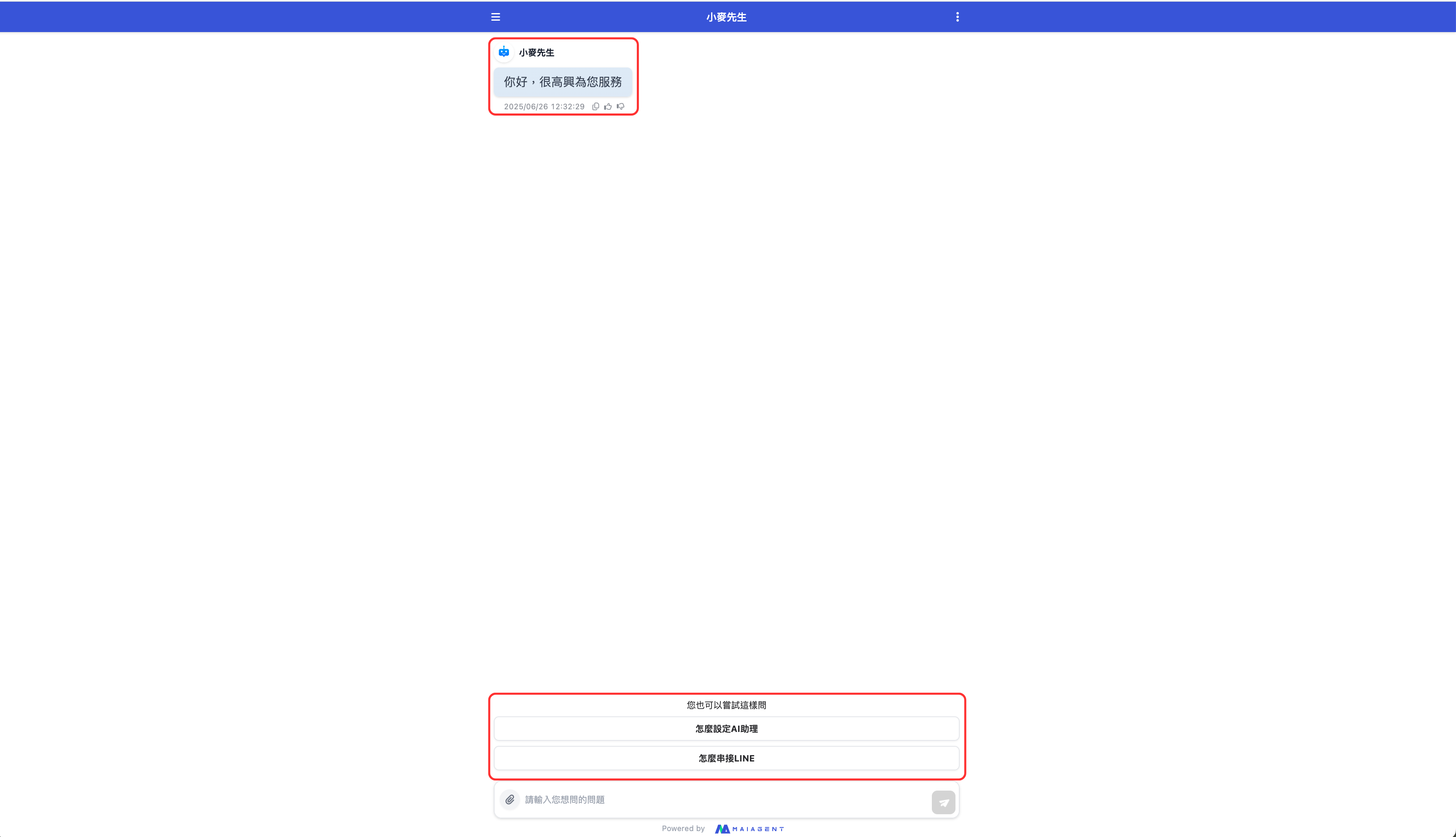
Click + Add next to Conversation Starter Questions to add guided or frequently asked questions, such as “How do I request a return?” and “What are your business hours?” These questions appear as buttons at the beginning of a conversation. Users can click one to send it without typing.

  • Number to Display Randomly: When multiple questions are configured, sets how many are randomly displayed at the start of each conversation (default: 2)

  • Set Conversation Starter Questions by Locale: As with greetings, questions for the matching locale are displayed first

Chat window showing the greeting and conversation starter question buttons
Greeting and conversation starter questions at the beginning of the chat window
4. Include Greeting Options in Agent Context

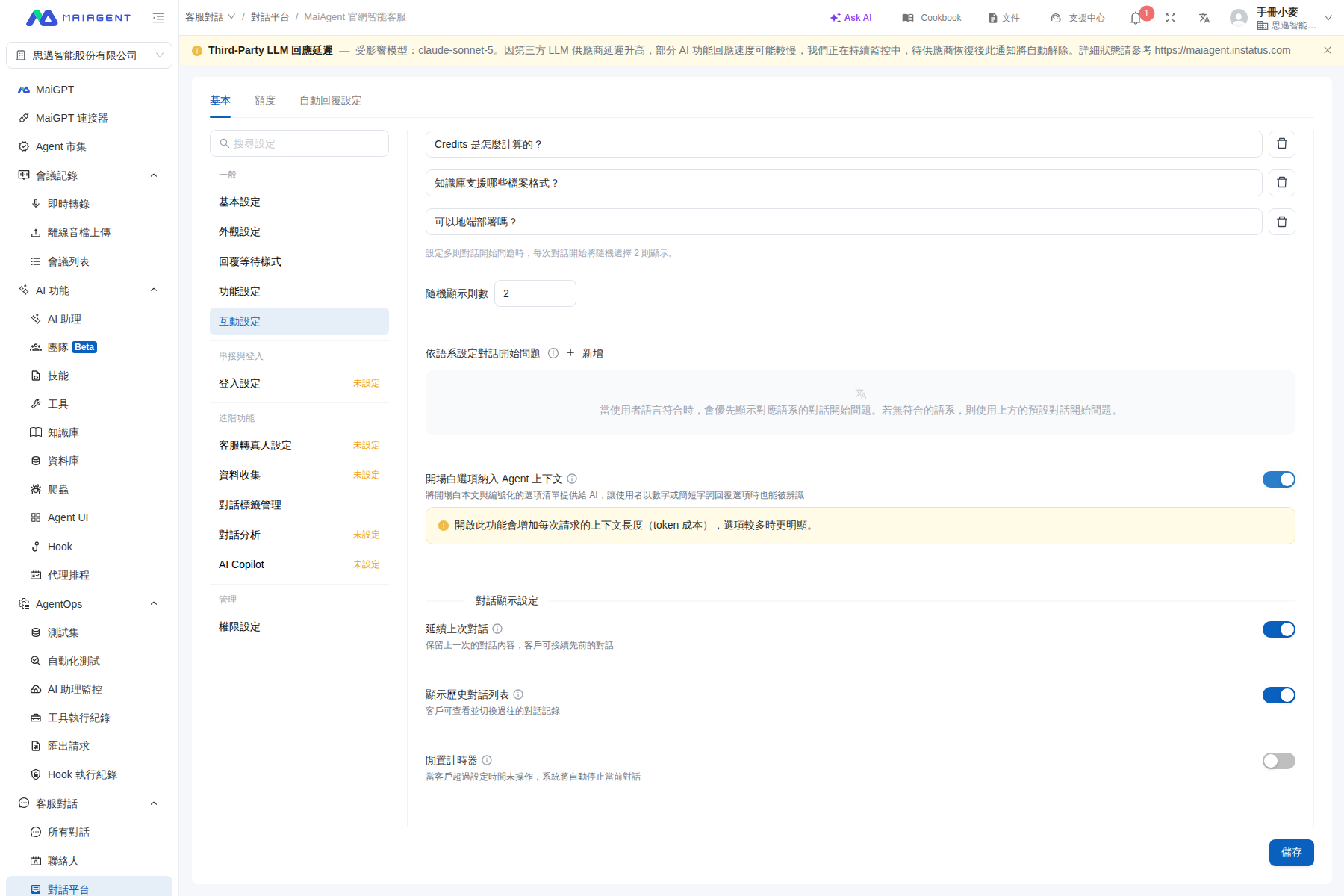
Include Greeting Options in Agent Context is disabled by default. When enabled, the system provides the greeting text and a numbered list of options to the AI, allowing it to recognize when users respond to an option with a number or a short phrase.

The “Include Greeting Options in Agent Context” toggle in Interaction Settings
The “Include Greeting Options in Agent Context” toggle

Before and After Enabling

Consider an airline customer service example. The greeting is set to “How can we help you?”, and the conversation starter questions are “Flight Search,” “Baggage Rules,” and “Membership Miles,” in that order. After the feature is enabled, the system automatically numbers them in order. If a visitor enters only “2”:

Item
Disabled (default)
Enabled

What visitors see

The greeting plus some randomly selected starter questions

The greeting plus all starter questions displayed in their configured order

Information available to the AI

Only the greeting text, without the list of options

The greeting text plus the numbered list of options

When a visitor replies “2”

The AI does not know which option “2” refers to and may ask, “What would you like to know?”

The AI understands that “2” means baggage rules and responds with the relevant information directly

How starter questions are displayed

Randomly shuffled and limited by Number to Display Randomly

All questions are displayed in order, and the Number to Display Randomly setting does not apply

Use Cases

Enable this feature whenever you use a greeting with multiple conversation starter questions as menu-style guidance so visitors can choose from a fixed set of services:

  • Finance/banking: Greeting: “Welcome to online customer service. Please select a service.” Options: “Check Account Balance,” “Credit Card Application Status,” “Insurance Policy Search,” and “Transfer to an Agent.” When a customer replies “3,” the AI proceeds directly to the insurance policy search process

  • Healthcare/clinic: Greeting: “Hello, which service do you need?” Options: “Outpatient Hours,” “Book an Appointment,” “Appointment Status,” and “Health Education Information.” If a patient replies “appointment,” the AI can also match it to option 2

  • Government/public sector: Greeting: “Please select the item you want to apply for.” Options: “Subsidy Application,” “Event Registration,” and “Service Location Search.” When a citizen replies “1,” the AI continues by asking which type of subsidy they want to apply for

Your guidance method
Recommendation

Menu-style guidance: You have configured multiple conversation starter questions and want visitors to follow a fixed flow by replying with a number or short phrase

✅ Recommended

Open-ended conversation: You only have a general greeting and have not configured conversation starter questions

❌ Not necessary; disabling it saves Token costs

Notes After Enabling

  1. “Number to Display Randomly” no longer applies: To ensure that the numbers visitors see match the numbers understood by the AI, conversation starter questions are no longer shuffled or limited after this feature is enabled. All questions are displayed in their configured order. Before enabling it, make sure the number of questions is appropriate

  2. Higher Token costs: After enabling this feature, a yellow warning appears to remind you that it increases the context length of each request. The more options you add, the greater the additional cost

When this feature is disabled, behavior remains unchanged: the AI can still see the greeting text, but it does not receive the numbered list of options. If a user replies only “1,” the AI may be unable to match it to an option.

5. Conversation Display Settings

Conversation display settings, satisfaction survey settings, and quota-exhausted message
Toggle
Description
Example

Continue Previous Conversation

Retains the previous conversation so users can continue it when they reopen the window

A customer asked, “When will my item arrive?” yesterday and can still see yesterday’s conversation when opening the window today

Show Conversation History List

Allows users to view and switch between previous conversation records or start a new conversation

A customer can view previous conversations such as “Today’s Order Question” and “Last Week’s Usage Inquiry”

Idle Timer

Automatically ends the current conversation when the user has been inactive for longer than the configured time

A customer leaves for 10 minutes after asking a question, and the conversation is marked as ended

Enabling Idle Timer displays two additional settings:

  • Idle Time (minutes): From 3 to 60 minutes

  • Show Reminder Window: When disabled, the conversation resets immediately after timing out. When enabled, the system first displays the reminder “The conversation has timed out. Please reopen the conversation,” and the user must click Start New Conversation to begin a new one. The settings page provides a Reminder Window Preview; the actual colors follow the theme color

The idle timer counts only substantive conversation. A greeting such as “Hello” sent by the user does not start the timer; timing begins only after the user asks a substantive question. If the user leaves and returns, they can continue the same conversation as long as the idle time has not been exceeded.

6. Satisfaction Survey Settings

After Enable Satisfaction Survey is enabled, a satisfaction survey automatically appears when a conversation has been idle for a set time. Users can provide a rating from 1 to 5 (Very Dissatisfied, Dissatisfied, Neutral, Satisfied, or Very Satisfied), leave feedback, or skip the survey. You can configure:

  • Delay (minutes): How long a conversation must remain idle before the survey appears

  • Survey Title: Leave blank to use the default, “How satisfied are you with this conversation overall?”, displayed according to the user’s locale

  • Survey Preview: Preview the survey’s appearance in real time

7. Quota-Exhausted Message

When the platform’s Credits quota is exhausted or no valid quota is available, users who send a message receive the notification configured here instead of receiving no response. Enter text under Default Message, such as “This service has currently exhausted its quota. Please try again later or contact customer service.” Click + Add next to Set Messages by Locale to override the message based on the visitor’s locale. Locales without a configured message use the default text. You can save a message for future use even if no quota has been configured yet. The quota itself is configured on the Quota main tab at the top of the settings page. See Conversation Platform Credits Quota Management.

8. Frequently Asked Questions

Q: Is the greeting sent to the AI?

The AI can see the greeting text. The list of options is provided only when Include Greeting Options in Agent Context is enabled. See Section 4.

Q: Are old conversations retained after “Continue Previous Conversation” is disabled?

Yes. Disabling this setting only determines whether the previous conversation continues when users open the window. Complete records remain available under All Conversations in the admin console.

Q: Can I configure a greeting for the LINE platform?

Interaction Settings are available only for web and internal platforms. Configure LINE welcome messages in the LINE Official Account Manager.

Last updated

Was this helpful?