> For the complete documentation index, see [llms.txt](https://docs.maiagent.ai/llms.txt). Markdown versions of documentation pages are available by appending `.md` to page URLs; this page is available as [Markdown](https://docs.maiagent.ai/maiagent-user-guide/en/build/conversation-settings/platform-settings/function-settings.md).

# Feature Settings

Conversation platform function settings: basic functions, AI interaction features, Hook processing markers, question option display modes, AI awareness settings (using system time, sender names, and l

<mark style="color:blue;">Function Settings</mark> has the most switches of any category on the conversation platform settings page. It determines what users can do and see in a conversation, and what the AI knows when responding. Web and API platforms have all five sections; the internal platform does not have “Question Option Display Mode.” Messaging platforms such as LINE and Microsoft Teams only have “AI Interaction Features” (<mark style="color:blue;">Enable OCR</mark>, <mark style="color:blue;">Reply Only When @Mentioned</mark>, and [platform-specific switches](#messaging-platform-switches)) and “AI Awareness Settings.”

{% hint style="info" %}
**Solution guide**: This page covers one step in configuring a conversation platform. For the complete text customer service launch process, see [Text Customer Service: From Setup to Launch](/maiagent-user-guide/en/serve/text-service.md).
{% endhint %}

{% hint style="warning" %}
These settings **belong to each conversation platform, rather than the Agent**. If an Agent connects to both the web and LINE, configure each platform separately. For the overall settings page structure and how to access it, see [Conversation Platform Settings Overview](/maiagent-user-guide/en/build/conversation-settings/platform-settings.md).
{% endhint %}

## 1. When to Use These Settings <a href="#when-to-use" id="when-to-use"></a>

A clinic uses an Agent on LINE to answer appointment questions. A patient asks, “Can I still book an appointment this afternoon?” but the Agent responds, “What is today's date?” The administrator opens <mark style="color:blue;">Function Settings</mark> for the LINE platform, enables <mark style="color:blue;">Use System Time in Responses</mark>, keeps the time zone as Asia/Taipei, and clicks <mark style="color:blue;">Save</mark>. When asked again, the Agent answers directly: “Today is Friday. Afternoon consultations start at 14:00, and appointments are still available.” The Agent's role instructions have not changed at all.

## 2. Basic Functions <a href="#basic-functions" id="basic-functions"></a>

<figure><img src="https://1360999650-files.gitbook.io/~/files/v0/b/gitbook-x-prod.appspot.com/o/spaces%2F6v6TNkkOQVfRYfcNirHL%2Fuploads%2Fgit-blob-0c70e66268aa842a00483f1b0317c79433f6d409%2Fplatform-function-settings-handoff-context-usage.png?alt=media" alt="Basic Functions in the web platform&#x27;s Function Settings, with six switches: Enabled, Allow File Uploads, Allow Conversation Sharing, Allow Font Size Changes, Enable Conversation Handoff, and Show Context Usage"><figcaption><p>Web platform Function Settings: the last row of Basic Functions contains Enable Conversation Handoff and Show Context Usage</p></figcaption></figure>

| Switch                          | Description                                                                                                                                                                                                                                                                                                                                                                                                                                                                               |
| ------------------------------- | ----------------------------------------------------------------------------------------------------------------------------------------------------------------------------------------------------------------------------------------------------------------------------------------------------------------------------------------------------------------------------------------------------------------------------------------------------------------------------------------- |
| **Enabled**                     | Turning this off stops the platform from serving users; users who open the conversation page cannot send messages                                                                                                                                                                                                                                                                                                                                                                         |
| **Allow File Uploads**          | Users can upload images or files in a conversation for AI analysis                                                                                                                                                                                                                                                                                                                                                                                                                        |
| **Allow Conversation Sharing**  | Users can generate a sharing link for a conversation                                                                                                                                                                                                                                                                                                                                                                                                                                      |
| **Allow Font Size Changes**     | Provides font size controls in the conversation window                                                                                                                                                                                                                                                                                                                                                                                                                                    |
| **Enable Conversation Handoff** | When MaiAgent has enabled conversation handoff globally, this platform's Web Chat displays a handoff banner once context usage reaches 80% and can generate a handoff summary card. The global switch is not available in the admin console; contact MaiAgent to enable it. Without global activation, turning on this switch produces no visible change. Off by default. See [Conversation Handoff](/maiagent-user-guide/en/work/maigpt/chat/conversation-handoff.md#enable-on-web-chat) |
| **Show Context Usage**          | Displays the context usage percentage below the input box in this platform's Web Chat. Independent of conversation handoff; either can be enabled on its own. Off by default                                                                                                                                                                                                                                                                                                              |

{% hint style="info" %} <mark style="color:blue;">Enable Conversation Handoff</mark> and <mark style="color:blue;">Show Context Usage</mark> appear only on web and API platforms. The internal platform's settings page does not show these switches. MaiGPT requires no configuration: context usage is always displayed, and conversation handoff depends only on the global switch. For how both features work in conversations, see [Conversation Handoff](/maiagent-user-guide/en/work/maigpt/chat/conversation-handoff.md).
{% endhint %}

### Default Activation and Permissions <a href="#activation-default-and-permission" id="activation-default-and-permission"></a>

* **Who can change it**: Members who can edit this conversation platform can toggle <mark style="color:blue;">Enabled</mark>. Their role must have <mark style="color:blue;">Conversation Platform Permissions</mark> and <mark style="color:blue;">Edit</mark> access to this platform under <mark style="color:blue;">Assign Conversation Platforms</mark>. Members with read-only access cannot change it. See [Role Permission Management](/maiagent-user-guide/en/org/roles/role-permission.md#assign-inboxes) and [Role Resource Visibility Control](/maiagent-user-guide/en/org/roles/group-resource-visibility.md) for configuration details.
* **Defaults for new Agents**: When creating an Agent, use [Conversation Platform Activation](/maiagent-user-guide/en/build/agent/setup.md#channel-activation) in the creation dialog to decide whether to enable web and API platforms. The switches initially follow the organization settings. New Agents created through other methods, such as duplication, apply the organization settings directly. By default, only the internal platform is enabled for new Agents; web and API platforms start disabled. Members with Organization Overview Permissions can change this to enabled by default in [Edit Organization](/maiagent-user-guide/en/org/overview/organization-overview.md#new-agent-channel-default). Changes affect only Agents created or duplicated afterward; existing Agents keep their current state. The internal platform is always enabled.
* **What visitors see when disabled**: Web Chat immediately displays “This page is temporarily unavailable,” without first requesting login or a pre-chat form.

## 3. AI Interaction Features <a href="#ai-interaction" id="ai-interaction"></a>

| Switch                                               | Description                                                                                                                                                                                                                                                                                                                                                                                                                                                                                |
| ---------------------------------------------------- | ------------------------------------------------------------------------------------------------------------------------------------------------------------------------------------------------------------------------------------------------------------------------------------------------------------------------------------------------------------------------------------------------------------------------------------------------------------------------------------------ |
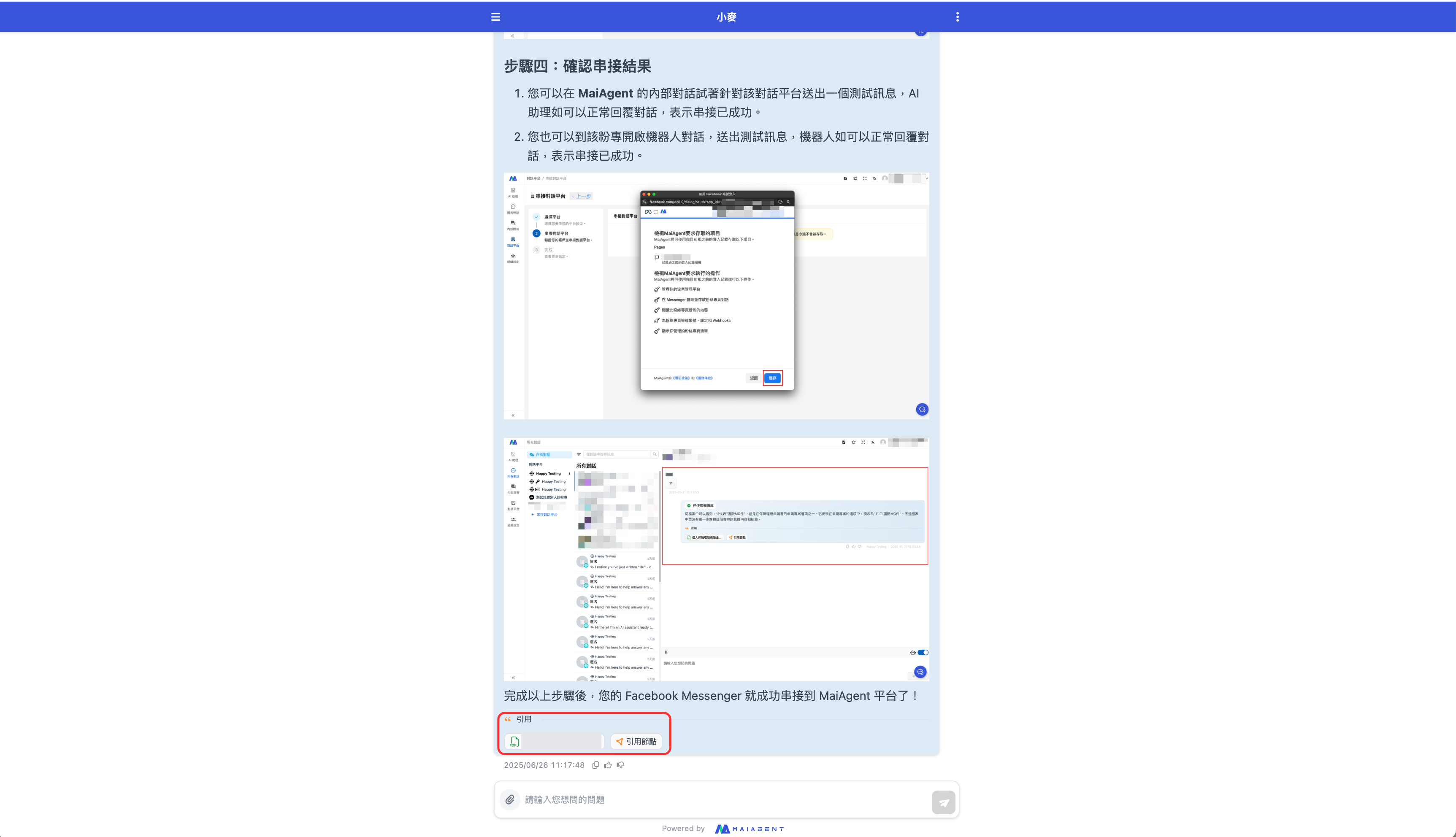
| **Show Cited Documents**                             | Lists the knowledge base sources referenced in AI responses. Users can click a citation to view the document excerpt                                                                                                                                                                                                                                                                                                                                                                       |
| **Allow Cited Document Downloads**                   | Users can download cited files                                                                                                                                                                                                                                                                                                                                                                                                                                                             |
| **Enable OCR**                                       | Recognizes text in uploaded images so the AI can read screenshots or scanned documents                                                                                                                                                                                                                                                                                                                                                                                                     |
| **Show Thinking Process**                            | Displays the AI's reasoning process in conversations                                                                                                                                                                                                                                                                                                                                                                                                                                       |
| **Allow Users to Adjust Thinking Effort**            | Users can adjust the AI's thinking depth in the conversation window. For the thinking effort button to appear, **Show Thinking Process must also be enabled**, and the Agent's model must support thinking. Set the Agent's default level in [Create an Agent: Set Thinking Effort](/maiagent-user-guide/en/build/agent/setup.md#thinking-effort). For what “Default” does in the user menu, see [MaiGPT Chat: Thinking Effort](/maiagent-user-guide/en/work/maigpt/chat.md#deep-thinking) |
| **Show Knowledge Base File and FAQ Selection Lists** | Available only on the internal platform and enabled by default. When enabled, members can select files and FAQs from the Agent's linked knowledge bases in internal conversations, and the Agent searches only the selected scope. When disabled, the lists are hidden and the Agent always searches all linked knowledge bases                                                                                                                                                            |

<figure><img src="https://1360999650-files.gitbook.io/~/files/v0/b/gitbook-x-prod.appspot.com/o/spaces%2F6v6TNkkOQVfRYfcNirHL%2Fuploads%2Fgit-blob-cf55d79da78aa33d7ff99449439a86bc807ccced%2F%E4%B8%8B%E8%BC%89%E6%96%87%E4%BB%B6display.png?alt=media" alt="Conversation window showing cited documents and download buttons"><figcaption><p>Conversation view with Show Cited Documents and Allow Cited Document Downloads enabled</p></figcaption></figure>

Decide whether to expose citations based on your use case: public customer service can show all citations to build trust; internal support can disable downloads to protect confidential documents; educational institutions can display learning resources for students to consult.

### The Web Chat Thinking Effort Button <a href="#web-chat-thinking-effort" id="web-chat-thinking-effort"></a>

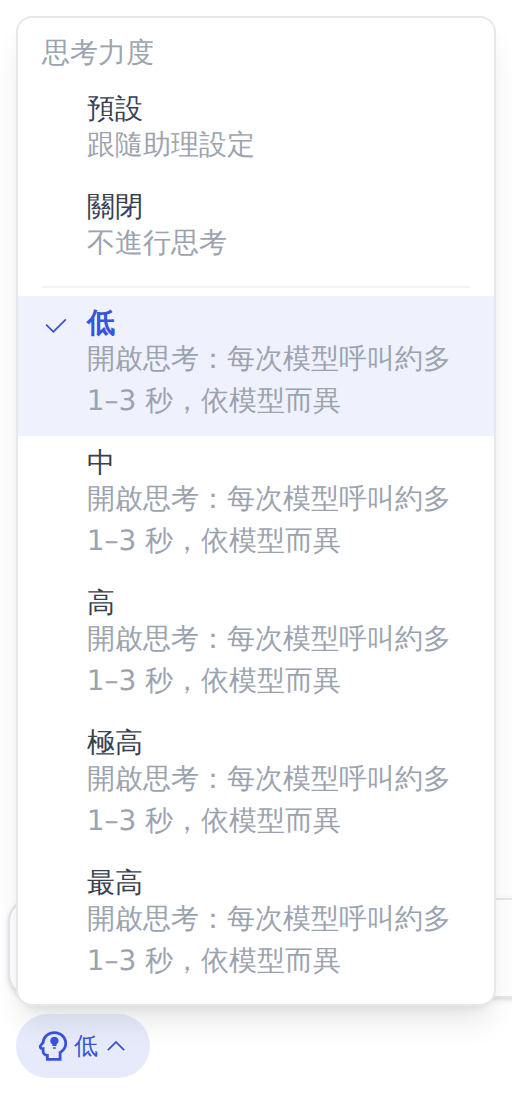
The thinking effort button appears below the Web Chat input box only when all three conditions are met: <mark style="color:blue;">Show Thinking Process</mark> is enabled, <mark style="color:blue;">Allow Users to Adjust Thinking Effort</mark> is enabled, and the Agent's model supports thinking.

The button displays the level currently applied to the conversation. Open it to see <mark style="color:blue;">Default</mark> and <mark style="color:blue;">Off</mark> at the top (Off appears only if the model allows thinking to be disabled), followed by the levels supported by the Agent's model. Once a visitor selects a level, subsequent responses in this conversation use that level. Configure the Agent's own default in [Create an Agent: Set Thinking Effort](/maiagent-user-guide/en/build/agent/setup.md#thinking-effort).

If the Agent has a default level, the menu shows “Follow assistant settings” below <mark style="color:blue;">Default</mark>. If no level is set, <mark style="color:blue;">Default</mark> is labeled <mark style="color:blue;">Default (no thinking · fastest)</mark> or <mark style="color:blue;">Default (model decides when to think)</mark> according to the model's behavior. See [MaiGPT Chat: Thinking Effort](/maiagent-user-guide/en/work/maigpt/chat.md#deep-thinking). Every thinking level includes the description “Enable thinking: adds approximately 1–3 seconds per model call, depending on the model.”

<figure><img src="https://1360999650-files.gitbook.io/~/files/v0/b/gitbook-x-prod.appspot.com/o/spaces%2F6v6TNkkOQVfRYfcNirHL%2Fuploads%2Fgit-blob-8996a41a29e59f76f010f4d0f5ca4f5c196551ea%2Fwebchat-thinking-effort-menu.png?alt=media" alt="Web Chat thinking effort menu: Default (follow assistant settings), Off (no thinking), and Low, Medium, High, Extra High, and Maximum. Each level says Enable thinking: adds approximately 1–3 seconds per model call, depending on the model. Low is selected"><figcaption><p>Web Chat thinking effort menu: when the Agent has a configured level, Default shows Follow assistant settings</p></figcaption></figure>

### Messaging Platform Switches <a href="#messaging-platform-switches" id="messaging-platform-switches"></a>

On the <mark style="color:blue;">Function Settings</mark> tab for LINE, Telegram, Microsoft Teams, Slack, Viber, and other messaging platforms, the AI Interaction Features section includes <mark style="color:blue;">Enable OCR</mark> and switches supported by each platform:

| Switch                                                           | Platforms                                                                                                  | Description                                                                                                                                                                                                                                                                                                                                                                           |
| ---------------------------------------------------------------- | ---------------------------------------------------------------------------------------------------------- | ------------------------------------------------------------------------------------------------------------------------------------------------------------------------------------------------------------------------------------------------------------------------------------------------------------------------------------------------------------------------------------- |
| <mark style="color:blue;">Reply Only When @Mentioned</mark>      | Platforms with group chats (LINE, Telegram, etc.; corresponding creation options for Slack and LINE WORKS) | Replies in groups only when @mentioned; one-to-one conversations are unaffected                                                                                                                                                                                                                                                                                                       |
| <mark style="color:blue;">AI Assistant Thinking Animation</mark> | LINE                                                                                                       | Enabled by default. Shows a thinking/loading animation in LINE while the AI generates a response after the user sends a message. Works only in one-to-one chats, not groups. This LINE switch is on the <mark style="color:blue;">Basic Settings</mark> tab. See [LINE: AI Assistant Thinking Animation](/maiagent-user-guide/en/build/choose-channel/line.md#line-loading-animation) |
| <mark style="color:blue;">Enable Typing Indicator</mark>         | Telegram                                                                                                   | Shows Telegram's native “typing…” indicator while the bot processes a response                                                                                                                                                                                                                                                                                                        |
| <mark style="color:blue;">Waiting Notification Message</mark>    | Microsoft Teams, Slack, Telegram, Viber                                                                    | Sends a text notification while the AI is still processing; see the table below                                                                                                                                                                                                                                                                                                       |

**Waiting Notification Message** fields:

| Field                                                                                 | Description                                                                                                                                                                                   |
| ------------------------------------------------------------------------------------- | --------------------------------------------------------------------------------------------------------------------------------------------------------------------------------------------- |
| <mark style="color:blue;">Enable Waiting Notification Message</mark>                  | Sends a notification after the user sends a message while the AI is still processing                                                                                                          |
| <mark style="color:blue;">Notification Text</mark>                                    | Required when enabled, for example, “AI is processing, please wait...”                                                                                                                        |
| <mark style="color:blue;">Initial Notification Delay (Seconds)</mark>                 | Seconds to wait before the first notification. Recommended: 1–3 seconds. If too short, the notification may be unnecessary when the AI responds quickly                                       |
| <mark style="color:blue;">Notification Repeat Interval (Seconds)</mark>               | While the AI is still processing, updates the notification text at this interval and includes the elapsed seconds                                                                             |
| <mark style="color:blue;">Automatically Delete Notifications After AI Response</mark> | Deletes earlier notifications after the AI sends its response. Works only on platforms that support message deletion (Teams, Slack, Telegram). Viber notifications remain in the conversation |

{% hint style="info" %}
Web platforms do not have these switches. The Web Chat waiting experience is controlled by [Response Waiting Style](/maiagent-user-guide/en/build/conversation-settings/platform-settings/loading-display.md).
{% endhint %}

## 4. Hook Processing Markers <a href="#hook-markers" id="hook-markers"></a>

Enable <mark style="color:blue;">Show Hook Processing Markers</mark> to display a marker when a message is processed by a Hook, such as masking sensitive information. You can customize the marker text. For Hook configuration, see [Hook Message Interception](/maiagent-user-guide/en/build/hook.md).

## 5. Tool Display Mode (Moved to Response Waiting Style) <a href="#tool-display-mode" id="tool-display-mode"></a>

Configure tool display mode (full, compact, or hidden tool cards when the AI calls tools) under <mark style="color:blue;">Response Waiting Style</mark> → <mark style="color:blue;">When Calling Tools</mark> on the same settings page, alongside tool execution text and the “Calling tools” assets for brand animations. See [Response Waiting Style: When Calling Tools](/maiagent-user-guide/en/build/conversation-settings/platform-settings/loading-display.md#narrative-tool-display) for instructions.

## 6. Question Option Display Mode <a href="#ask-option-display-mode" id="ask-option-display-mode"></a>

Once the Agent has the built-in <mark style="color:blue;">Agent UI Question Tool</mark> configured, it can ask users questions in a conversation. For example, it can ask “Which topic would you like to learn about?” with several options, then respond based on the user's selection. This section controls how those options appear in Web Chat. Select one of the two cards; the selection is submitted when you <mark style="color:blue;">Save</mark> the page:

| Mode                 | Effect in the Conversation Window                                                                                                                  |
| -------------------- | -------------------------------------------------------------------------------------------------------------------------------------------------- |
| **Floating Buttons** | Options appear as a floating row of buttons above the input box, which remains usable. Typing and sending a message counts as ignoring the options |
| **Option Panel**     | An option panel covers the input area. Users return to the input box after answering or closing the panel                                          |

<figure><img src="https://1360999650-files.gitbook.io/~/files/v0/b/gitbook-x-prod.appspot.com/o/spaces%2F6v6TNkkOQVfRYfcNirHL%2Fuploads%2Fgit-blob-89bc073d6c90a1c02a4292b0f0477b4ea8c904ee%2Fplatform-settings-ask-option-display-mode.png?alt=media" alt="Question Option Display Mode in Function Settings: Floating Buttons and Option Panel cards side by side"><figcaption><p>Question Option Display Mode: two cards with thumbnail previews; select one and save the page</p></figcaption></figure>

A customer service manager's Agent starts conversations by asking visitors to choose from “Product Features,” “Pricing Plans,” and “Technical Support.” After launch, a visitor reports, “I want to type my question directly, but the option panel is blocking the input box.” The manager opens the web platform's <mark style="color:blue;">Function Settings</mark>, selects <mark style="color:blue;">Floating Buttons</mark> under Question Option Display Mode, and clicks <mark style="color:blue;">Save</mark>. When visitors reopen the conversation window, options appear as a row of buttons above the input box. They can click an option or type freely without closing a panel first.

{% hint style="info" %}
The default is Option Panel for both new and existing platforms; switch it manually to use floating buttons. This setting affects only Web Chat on web and API platforms. Internal platform test conversations always use the option panel, so this section does not appear on its settings page.
{% endhint %}

### Have the Agent Ask Questions: Role Instruction Examples <a href="#ask-prompt-examples" id="ask-prompt-examples"></a>

To have the Agent ask questions, first configure the built-in <mark style="color:blue;">Agent UI Question Tool</mark> on the <mark style="color:blue;">Tools</mark> tab under <mark style="color:blue;">AI Features</mark> → <mark style="color:blue;">AI Assistant</mark>. The tool tells the AI which fields each question supports. Your role instructions only need to specify three things: **when to ask, what to ask, and whether to allow free text input**. There is no “Allow Other” switch in the admin console. Role instructions determine these choices, and the AI includes them each time it generates a question.

Available fields for each question:

| Field          | Purpose                                                                                                                                                               | When Omitted                |
| -------------- | --------------------------------------------------------------------------------------------------------------------------------------------------------------------- | --------------------------- |
| `label`        | Question text                                                                                                                                                         | Required                    |
| `options`      | List of options; 2 to 5 recommended                                                                                                                                   | Required                    |
| `multi_select` | Allows multiple selections                                                                                                                                            | Single selection            |
| `allow_other`  | Allows an “Other” free text answer: adds an Other input field in the option panel, or changes the input placeholder to “Enter another answer” in floating button mode | Users must select an option |
| `skippable`    | Set to false to require an answer: hides the Skip button in the option panel and disables the Esc key                                                                 | Can be skipped              |

**Example 1: Clarify Ambiguous Requests First (Single Selection)**

{% code title="Role instruction excerpt" overflow="wrap" %}

```
When a user's question could refer to multiple plans and you cannot determine which to answer about, call the Agent UI Question Tool to clarify first. Do not guess.
For example, if the user says “I'd like to learn about plans,” ask “Which plan would you like to learn about?” with the options Starter, Professional, and Enterprise.
Ask no more than 2 questions at a time, with 2 to 5 options each. Answer directly after receiving the answers; do not ask the same question again.
```

{% endcode %}

**Example 2: Allow “Other” and Multiple Selections**

{% code title="Role instruction excerpt" overflow="wrap" %}

```
When asking about the user's industry, provide Finance, Retail, and Manufacturing as options, and allow an Other answer for free text input (set allow_other to true).
When asking which features the user wants to learn about, allow multiple selections (set multi_select to true), with the options Knowledge Base, Workflows, Multiple Languages, and API Integration.
```

{% endcode %}

**Example 3: Ask Only Once at the Start of the Conversation**

{% code title="Role instruction excerpt" overflow="wrap" %}

```
In the first response of the conversation, call the Agent UI Question Tool to ask “Which topic would you like to learn about?” with the options Product Features, Pricing Plans, and Technical Support.
Do not proactively ask further questions unless the user says “Choose again.”
```

{% endcode %}

**Example 4: Required Questions (Cannot Be Skipped)**

{% code title="Role instruction excerpt" overflow="wrap" %}

```
Every question in the quiz must be answered (set skippable to false).
If the user types directly or closes the question instead of selecting an option, explain in one sentence that this question must be answered, then ask the same question again.
```

{% endcode %}

{% hint style="warning" %}
`skippable: false` only affects the option panel's Skip button and Esc key. Users can still click ✕ to close the panel. Floating button mode has no Skip button, and typing directly counts as ignoring the options. To enforce required answers, role instructions must explicitly tell the Agent to ask again if the user has not answered, as in Example 4.
{% endhint %}

The AI generates questions like this from the instructions above (automatically generated for reference; you do not need to include this in role instructions):

{% code title="First question from Example 2" %}

```json
{ "id": "industry", "label": "What is your industry?", "options": ["Finance", "Retail", "Manufacturing"], "allow_other": true }
```

{% endcode %}

After the user answers, Web Chat sends the result in the format “Q: Question” and “A: Answer.” Multiple selections are joined with “、”, and free text Other answers use the same format. Use this format in role instructions to route responses based on answers.

{% hint style="warning" %}
Do not write “click Skip” or “close the panel” in role instructions or question text: floating button mode has neither button. Typing and sending a message means ignoring the options; if `allow_other` is enabled for the question, the typed message is treated as an Other answer.
{% endhint %}

## 7. AI Awareness Settings <a href="#ai-awareness" id="ai-awareness"></a>

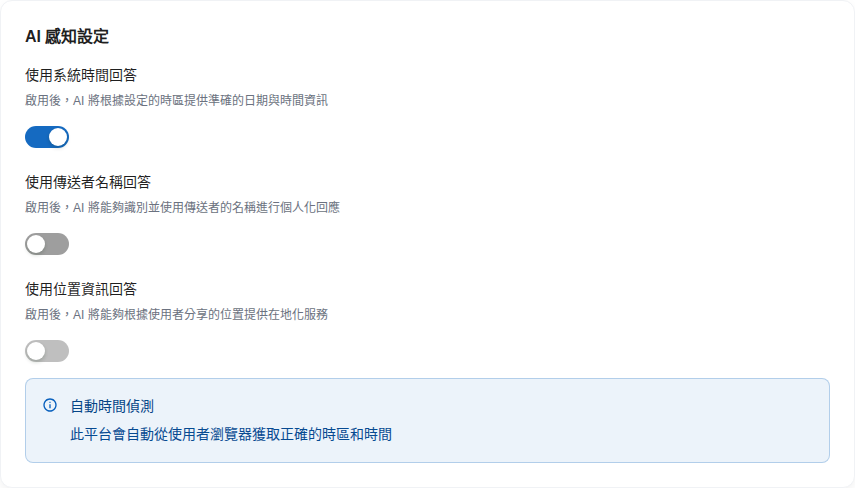
AI Awareness Settings let the Agent know the current time, who it is talking to, and where the other person is. When enabled, the system automatically adds the relevant information to the AI's context before every response. You do not need to change role instructions or connect additional tools. Configure the three switches independently on each platform. <mark style="color:blue;">Use System Time in Responses</mark> is enabled by default on newly created conversation platforms, including web, internal, and API platforms generated when creating an Agent, and all channels such as LINE and Messenger added through Connect Conversation Platform. Turn it off in the creation form or settings page if unnecessary. Existing platforms retain their settings. <mark style="color:blue;">Use Sender Name in Responses</mark> and <mark style="color:blue;">Use Location in Responses</mark> are off by default.

| Switch                           | What the AI Knows                                  | Suitable Scenarios                                                                                        | Available Platforms      |
| -------------------------------- | -------------------------------------------------- | --------------------------------------------------------------------------------------------------------- | ------------------------ |
| **Use System Time in Responses** | Current date, time, day of the week, and time zone | “What is today's date?”, “What time is it?”, “Are you still open?”, “What day is it three days from now?” | All platforms            |
| **Use Sender Name in Responses** | The other person's name                            | Addressing customers by name, personalized greetings                                                      | All platforms            |
| **Use Location in Responses**    | Coordinates shared by the user                     | “Which store is closest to me?”, “Are there service locations nearby?”                                    | Web, internal, API, LINE |

### Use System Time in Responses <a href="#system-time" id="system-time"></a>

Scroll to <mark style="color:blue;">AI Awareness Settings</mark> and enable <mark style="color:blue;">Use System Time in Responses</mark>. Web and internal platforms display “Automatic time detection” when enabled. The time zone comes from the user's browser and requires no manual configuration.

<figure><img src="https://1360999650-files.gitbook.io/~/files/v0/b/gitbook-x-prod.appspot.com/o/spaces%2F6v6TNkkOQVfRYfcNirHL%2Fuploads%2Fgit-blob-e98c22467e67fcfedfdefa0ca159f3038d031e37%2Fplatform-settings-ai-awareness-web.png?alt=media" alt="AI Awareness Settings on a web platform, showing Automatic time detection after Use System Time in Responses is enabled"><figcaption><p>Web platform: Automatic time detection appears when enabled; the time zone comes from the user's browser</p></figcaption></figure>

On API and messaging platforms such as LINE, enabling this adds a <mark style="color:blue;">Time Zone</mark> dropdown. The <mark style="color:blue;">Current Time</mark> in that zone appears below it in real time for verification. The default is Asia/Taipei (Taipei time, UTC+8); search to select another zone.

<figure><img src="https://1360999650-files.gitbook.io/~/files/v0/b/gitbook-x-prod.appspot.com/o/spaces%2F6v6TNkkOQVfRYfcNirHL%2Fuploads%2Fgit-blob-124cdad343b0272ab7d84843a4f858c16f4a29d1%2Fplatform-settings-ai-awareness-api.png?alt=media" alt="AI Awareness Settings on an API platform, showing a time zone dropdown and current time after Use System Time in Responses is enabled"><figcaption><p>API platform: select the time zone manually; its current time is displayed below</p></figcaption></figure>

#### How the Time Zone Is Determined <a href="#timezone-resolution" id="timezone-resolution"></a>

The injected time is converted to the user's time zone. The source of that zone varies by platform:

| Platform                                                            | Time Zone Source                                                                                                                                                                   | Manual Configuration Needed?                              |
| ------------------------------------------------------------------- | ---------------------------------------------------------------------------------------------------------------------------------------------------------------------------------- | --------------------------------------------------------- |
| Web, internal                                                       | Automatically uses the user's browser time zone, sent with each message                                                                                                            | No; the screen displays Automatic time detection          |
| API                                                                 | The caller includes `timezone` in message metadata (IANA format, such as `America/New_York`); otherwise, the platform's <mark style="color:blue;">Time Zone</mark> setting is used | Recommended as the fallback when no time zone is provided |
| Messaging platforms such as LINE, Microsoft Teams, Slack, and Email | Always uses the platform's <mark style="color:blue;">Time Zone</mark> setting                                                                                                      | Yes; choose the relevant zone if most users are overseas  |

{% hint style="info" %}
Messaging platforms cannot obtain the user's time zone. If one LINE platform serves users in multiple countries, the AI can only respond using one fixed time zone. For users in multiple regions, consider creating a separate platform for each region.
{% endhint %}

Example of including a time zone in an API message:

```json
{
  "message": {
    "content": "What time is it?",
    "metadata": { "timezone": "America/New_York" }
  }
}
```

If the time zone string is invalid, the API rejects the request and returns a validation error.

### Use Sender Name in Responses <a href="#sender-name" id="sender-name"></a>

When enabled, the AI knows the other person's name and uses it when appropriate. The name comes from the conversation's contact name, as shown under <mark style="color:blue;">Customer Service Conversations</mark> → <mark style="color:blue;">Contacts</mark>. On messaging platforms, it is automatically created from the user's platform display name. On web platforms, it comes from the logged-in user or information entered in the [pre-chat form](/maiagent-user-guide/en/build/choose-channel/web-chat.md#pre-chat-form). If the contact has no name, the AI responds normally.

### Use Location in Responses <a href="#gps-location" id="gps-location"></a>

When enabled, the AI uses the user's coordinates to provide localized responses, such as recommending the nearest store. In web conversations, the browser requests location permission and includes the location with messages. On API platforms, the caller includes `latitude` and `longitude` in message metadata. This switch is currently available on web, internal, API, and LINE platforms.

## 8. Frequently Asked Questions <a href="#faq" id="faq"></a>

### Q: Why does the AI still give the wrong date after enabling Use System Time in Responses? <a href="#faq-still-wrong" id="faq-still-wrong"></a>

First, confirm you enabled it on the platform the user actually uses. For example, if the issue occurs on LINE, enable the LINE platform switch rather than the web platform switch. Then check that the messaging platform's <mark style="color:blue;">Time Zone</mark> is correct.

### Q: Do I need to add “Today is \[date]” to role instructions? <a href="#faq-prompt" id="faq-prompt"></a>

No, and it is not recommended. The system automatically supplies the time each time. Hard-coding a date in role instructions can give the AI two conflicting dates.

### Q: Does the AI call an external service to check the time? <a href="#faq-external" id="faq-external"></a>

No. The time comes from the platform server's clock, is converted to the relevant time zone, and is provided directly to the AI without calling any external API.

### Q: Is daylight saving time handled automatically? <a href="#faq-dst" id="faq-dst"></a>

Yes. Time zones are configured with IANA names, such as `America/New_York`, and the system automatically handles daylight saving time transitions.

### Q: Is this time zone the same as the service hours time zone in Human Handoff Settings? <a href="#faq-service-hours" id="faq-service-hours"></a>

These are two separate settings. The time zone here is used for AI responses; the service hours in [Human Handoff Settings](/maiagent-user-guide/en/build/conversation-settings/human-handoff.md) have their own time zone, which determines when human support agents are on duty.

### Q: Will AI still use tools if I hide tool cards in Tool Display Mode? <a href="#faq-tool-hidden" id="faq-tool-hidden"></a>

Yes. “Hidden” only hides tool execution blocks in the conversation; it does not disable tools. Configure Tool Display Mode in [Reply Loading Style](/maiagent-user-guide/en/build/conversation-settings/platform-settings/loading-display.md#narrative-tool-display). To prevent AI from calling a specific tool, remove it from the Agent's Tools configuration.


---

# Agent Instructions
This documentation is published with GitBook. GitBook is the documentation platform designed so that both humans and AI agents can read, navigate, and reason over technical content effectively. Learn more at gitbook.com.

## Querying This Documentation
If you need additional information that is not directly available in this page, you can query the documentation by asking a question.

Perform an HTTP GET request on the following URL with the `ask` and `goal` query parameters:

```
GET https://docs.maiagent.ai/maiagent-user-guide/en/build/conversation-settings/platform-settings/function-settings.md?ask=<question>&goal=<user_goal>
```

`ask` is the immediate question: it should be specific, self-contained, and written in natural language.
`goal` is what the user is ultimately trying to achieve, the reason they need the answer. Sharing it helps GitBook give you a better, more relevant answer. A goal is most helpful when it describes the outcome the user wants rather than restating the question. For example, with `ask=how do I create an API token`, a goal like `automate deployments from our CI pipeline` lets GitBook tailor the answer to that use case.

The response will contain a direct answer to the question and relevant excerpts and sources from the documentation.

Use this mechanism when the answer is not explicitly present in the current page, you need clarification or additional context, or you want to retrieve related documentation sections.