> For the complete documentation index, see [llms.txt](https://docs.maiagent.ai/llms.txt). Markdown versions of documentation pages are available by appending `.md` to page URLs; this page is available as [Markdown](https://docs.maiagent.ai/maiagent-user-guide/en/build/conversation-settings/platform-settings/appearance-settings.md).

# Appearance Settings

Web chat window appearance: brand assets (Logo, avatar, support Logo, and chat button icon), display settings, light and dark theme colors and effects, with a live preview on the right.

<mark style="color:blue;">Appearance Settings</mark> determine how the web chat window looks, including the Logo and color of the title bar, the Agent avatar, message bubble colors, and whether users can switch to dark mode. The page is divided into two columns: settings on the left and a <mark style="color:blue;">live preview</mark> on the right. The preview updates whenever you change a color, so you can confirm the result before saving. These settings are available only for the web and internal platforms. The interfaces of messaging platforms such as LINE are determined by those platforms.

## 1. When to Use This <a href="#when-to-use" id="when-to-use"></a>

A brand designer receives the company's new visual guidelines and needs to update the customer service window on the official website. She opens <mark style="color:blue;">Appearance Settings</mark> for the web platform, uploads the new Logo and mascot avatar, changes the <mark style="color:blue;">theme color</mark> to the brand's blue, changes the <mark style="color:blue;">title text color</mark> to white, and sets the Agent message bubble background to light gray. The preview on the right immediately displays the new color scheme. After confirming that the title bar and message bubbles comply with the guidelines, she clicks <mark style="color:blue;">Save</mark>. The customer service window on the official website adopts the new appearance after the page is refreshed, without any changes to the embed code.

{% hint style="info" %}
**The API and internal platforms have Simplified Mode only.** These platforms do not have a public chat window, so the Appearance Settings page shows only a “<mark style="color:blue;">Simplified Mode</mark>” notice: “In API and internal modes, only the AI Assistant avatar needs to be set; the other appearance settings do not apply.” The only adjustable item is the Agent avatar; the Logo, color, and theme sections below apply only to the web platform.
{% endhint %}

## 2. Brand Assets <a href="#brand-assets" id="brand-assets"></a>

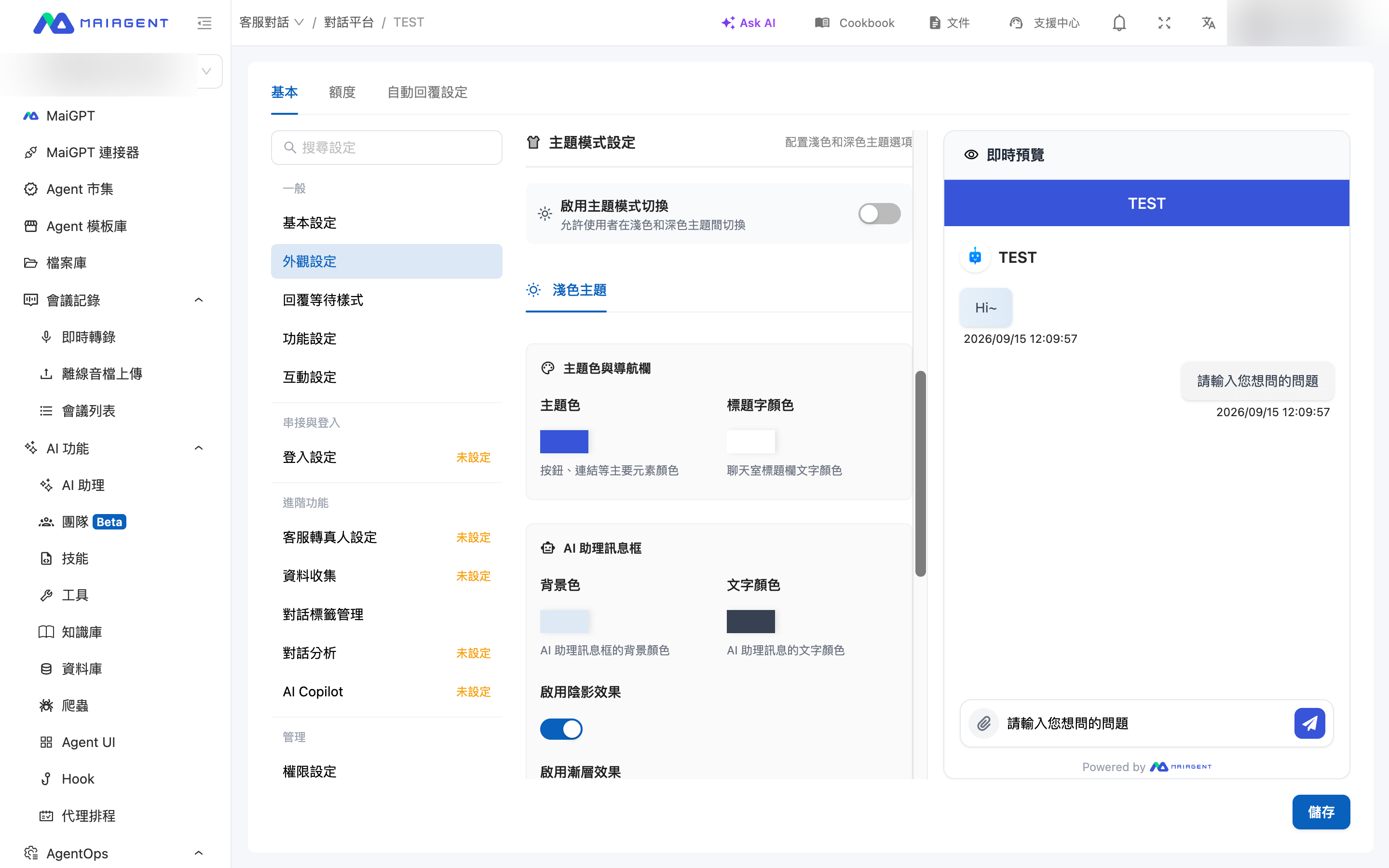
<figure><img src="https://1360999650-files.gitbook.io/~/files/v0/b/gitbook-x-prod.appspot.com/o/spaces%2F6v6TNkkOQVfRYfcNirHL%2Fuploads%2Fgit-blob-a854efca7eb795ea01581e34e387c2cb55f5e277%2Fplatform-appearance-settings.png?alt=media" alt="Brand assets and display settings in Appearance Settings, with a live preview on the right"><figcaption><p>Appearance Settings: brand assets and display settings on the left, with a live preview on the right</p></figcaption></figure>

For each of the four image fields, click <mark style="color:blue;">Upload</mark> to select a file. A preview appears after upload, and you can delete the image and upload it again:

| Field                | Where It Appears                                                                                                |
| -------------------- | --------------------------------------------------------------------------------------------------------------- |
| **Logo**             | The branding displayed when a user launches Web Chat                                                            |
| **Avatar**           | The avatar beside each Agent message                                                                            |
| **Support Logo**     | The brand logo at the bottom of the chat room (requires "Show Support Logo" to be enabled)                      |
| **Chat Button Icon** | The chat button in the lower-right corner of the embedded website; the uploaded image replaces the default icon |

## 3. Display Settings <a href="#display-settings" id="display-settings"></a>

Control whether the following elements appear in the chat room:

| Toggle                       | Description                                                    |
| ---------------------------- | -------------------------------------------------------------- |
| **Show AI Assistant Avatar** | Displays the Agent avatar in messages                          |
| **Show AI Assistant Name**   | Displays the Agent name in messages                            |
| **Show Support Logo**        | Displays the support brand logo at the bottom of the chat room |

## 4. Theme Mode Settings <a href="#theme-settings" id="theme-settings"></a>

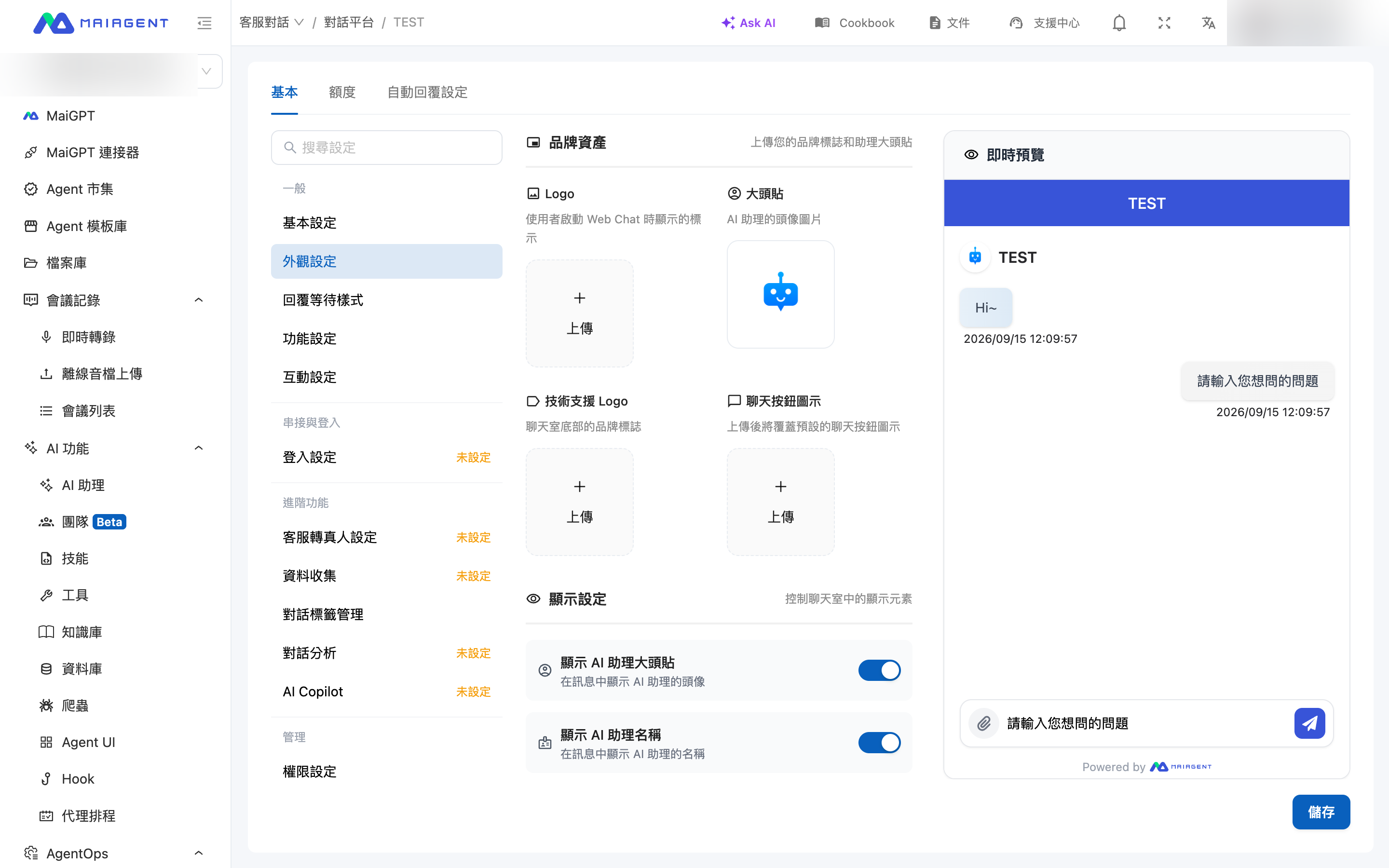
<figure><img src="https://1360999650-files.gitbook.io/~/files/v0/b/gitbook-x-prod.appspot.com/o/spaces%2F6v6TNkkOQVfRYfcNirHL%2Fuploads%2Fgit-blob-f049bf23bf90627004a7126d659fe0a27a9fb1f2%2Fplatform-appearance-theme.png?alt=media" alt="Theme mode settings: enable theme mode switching and configure the theme and message bubble colors for the light theme"><figcaption><p>Theme mode settings: colors and effects for the light theme</p></figcaption></figure>

### Enable Theme Mode Switching <a href="#theme-toggle" id="theme-toggle"></a>

After enabling <mark style="color:blue;">Enable Theme Mode Switching</mark>, users can switch between light and dark themes in the chat window. A <mark style="color:blue;">Dark Theme</mark> tab also appears on the settings page, allowing you to configure a separate set of colors. When this option is disabled, only the light theme is available.

### Colors and Effects <a href="#colors" id="colors"></a>

You can configure the following settings separately for the light theme (and dark theme):

| Section                            | Item                                         | Description                                                                   |
| ---------------------------------- | -------------------------------------------- | ----------------------------------------------------------------------------- |
| **Theme Color and Navigation Bar** | Theme color                                  | Color of primary elements such as buttons and links, as well as the title bar |
|                                    | Title text color                             | Text color in the chat room title bar                                         |
| **AI Assistant Message Bubble**    | Background color, text color                 | Colors of AI response bubbles                                                 |
|                                    | Enable shadow effect, enable gradient effect | Visual effects for the bubbles                                                |
| **User Message Bubble**            | Background color, text color                 | Colors of user message bubbles                                                |
|                                    | Enable shadow effect, enable gradient effect | Visual effects for the bubbles                                                |
| **Chat Background**                | Background color                             | Background color of the entire chat area                                      |

{% hint style="info" %}
The text and animated assets displayed while waiting for a response are configured elsewhere. Go to [Response Waiting Style](/maiagent-user-guide/en/build/conversation-settings/platform-settings/loading-display.md).
{% endhint %}

<div align="left"><figure><img src="https://1360999650-files.gitbook.io/~/files/v0/b/gitbook-x-prod.appspot.com/o/spaces%2F6v6TNkkOQVfRYfcNirHL%2Fuploads%2Fgit-blob-05cb64cb7654a5b0284e7f98cfb881dbcf3de0f5%2F%E6%88%AA%E5%9C%96%202025-07-02%20%E4%B8%8B%E5%8D%885.40.05%20(1)%20(1)%20(1).png?alt=media" alt="How avatars, color themes, and the dark theme appear in the chat window" width="299"><figcaption><p>Example of avatars, color themes, and the dark theme</p></figcaption></figure></div>

## 5. Frequently Asked Questions <a href="#faq" id="faq"></a>

### Q: Why Hasn't the Window on the Website Changed After Saving? <a href="#faq-not-updated" id="faq-not-updated"></a>

Ask the user to refresh the page. Appearance settings load with the chat page, so an already-open window does not update immediately.

### Q: Do I Need to Configure Colors Separately for the Dark Theme? <a href="#faq-dark" id="faq-dark"></a>

Yes. After enabling <mark style="color:blue;">Enable Theme Mode Switching</mark>, open the <mark style="color:blue;">Dark Theme</mark> tab and configure the color of each item. Items you do not adjust use the system's default dark theme colors.


---

# Agent Instructions
This documentation is published with GitBook. GitBook is the documentation platform designed so that both humans and AI agents can read, navigate, and reason over technical content effectively. Learn more at gitbook.com.

## Querying This Documentation
If you need additional information that is not directly available in this page, you can query the documentation by asking a question.

Perform an HTTP GET request on the following URL with the `ask` and `goal` query parameters:

```
GET https://docs.maiagent.ai/maiagent-user-guide/en/build/conversation-settings/platform-settings/appearance-settings.md?ask=<question>&goal=<user_goal>
```

`ask` is the immediate question: it should be specific, self-contained, and written in natural language.
`goal` is what the user is ultimately trying to achieve, the reason they need the answer. Sharing it helps GitBook give you a better, more relevant answer. A goal is most helpful when it describes the outcome the user wants rather than restating the question. For example, with `ask=how do I create an API token`, a goal like `automate deployments from our CI pipeline` lets GitBook tailor the answer to that use case.

The response will contain a direct answer to the question and relevant excerpts and sources from the documentation.

Use this mechanism when the answer is not explicitly present in the current page, you need clarification or additional context, or you want to retrieve related documentation sections.