For the complete documentation index, see llms.txt. This page is also available as Markdown.

Appearance Settings

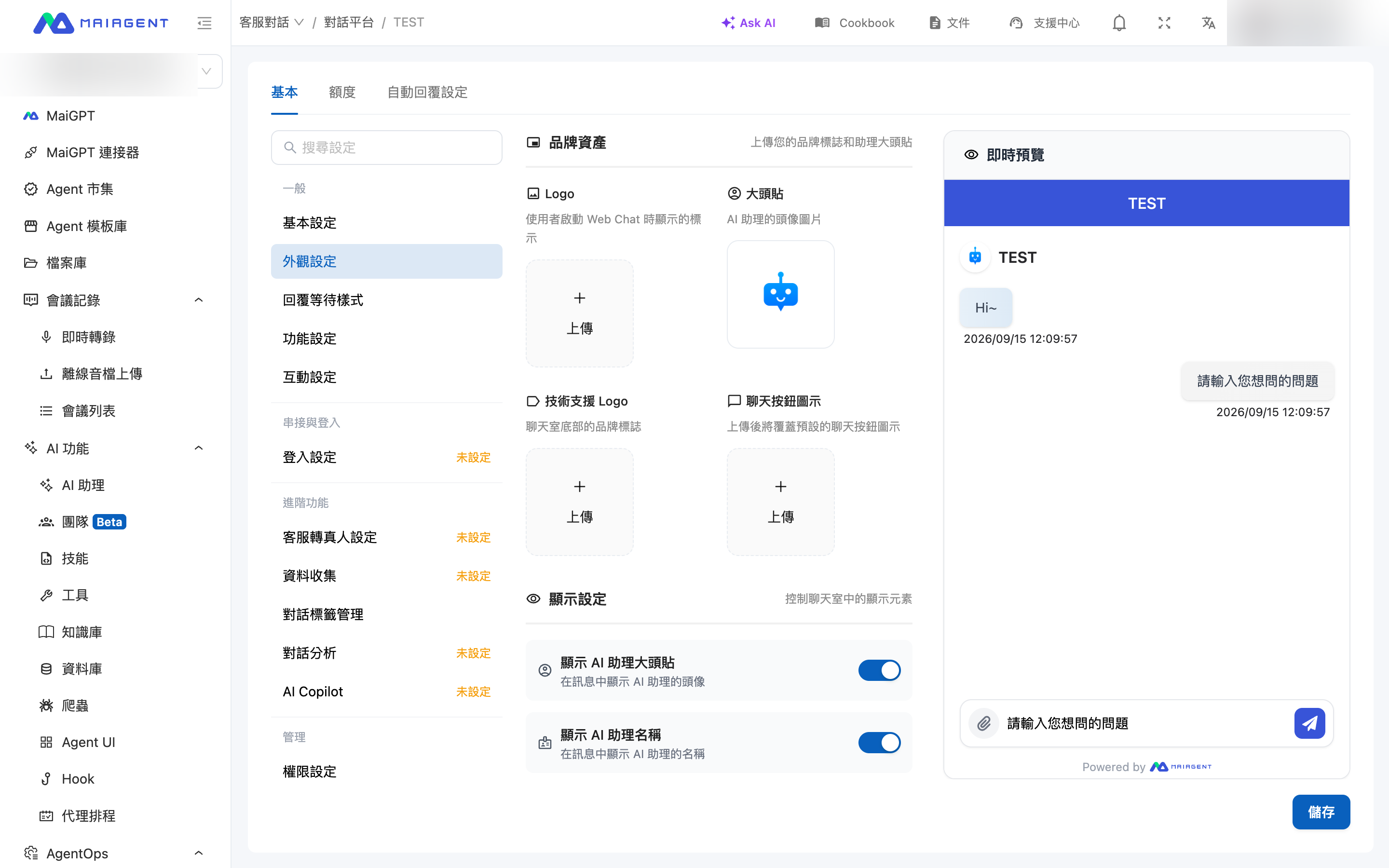
Web chat window appearance: brand assets (Logo, avatar, support Logo, and chat button icon), display settings, light and dark theme colors and effects, with a live preview on the right.

Appearance Settings determine how the web chat window looks, including the Logo and color of the title bar, the AI Assistant avatar, message bubble colors, and whether users can switch to dark mode. The page is divided into two columns: settings on the left and a live preview on the right. The preview updates whenever you change a color, so you can confirm the result before saving. These settings are available only for the web and internal platforms. The interfaces of messaging platforms such as LINE are determined by those platforms.

1. When to Use This

A brand designer receives the company's new visual guidelines and needs to update the customer service window on the official website. She opens Appearance Settings for the web platform, uploads the new Logo and mascot avatar, changes the theme color to the brand's blue, changes the title text color to white, and sets the AI Assistant message bubble background to light gray. The preview on the right immediately displays the new color scheme. After confirming that the title bar and message bubbles comply with the guidelines, she clicks Save. The customer service window on the official website adopts the new appearance after the page is refreshed, without any changes to the embed code.

2. Brand Assets

Brand assets and display settings in Appearance Settings, with a live preview on the right
Appearance Settings: brand assets and display settings on the left, with a live preview on the right
For each of the four image fields, click Upload to select a file. A preview appears after upload, and you can delete the image and upload it again:

Field
Where It Appears

Logo

The branding displayed when a user launches Web Chat

Avatar

The avatar beside each AI Assistant message

Support Logo

The brand logo at the bottom of the chat room (requires "Show Support Logo" to be enabled)

Chat Button Icon

The chat button in the lower-right corner of the embedded website; the uploaded image replaces the default icon

3. Display Settings

Control whether the following elements appear in the chat room:

Toggle
Description

Show AI Assistant Avatar

Displays the AI Assistant avatar in messages

Show AI Assistant Name

Displays the AI Assistant name in messages

Show Support Logo

Displays the support brand logo at the bottom of the chat room

4. Theme Mode Settings

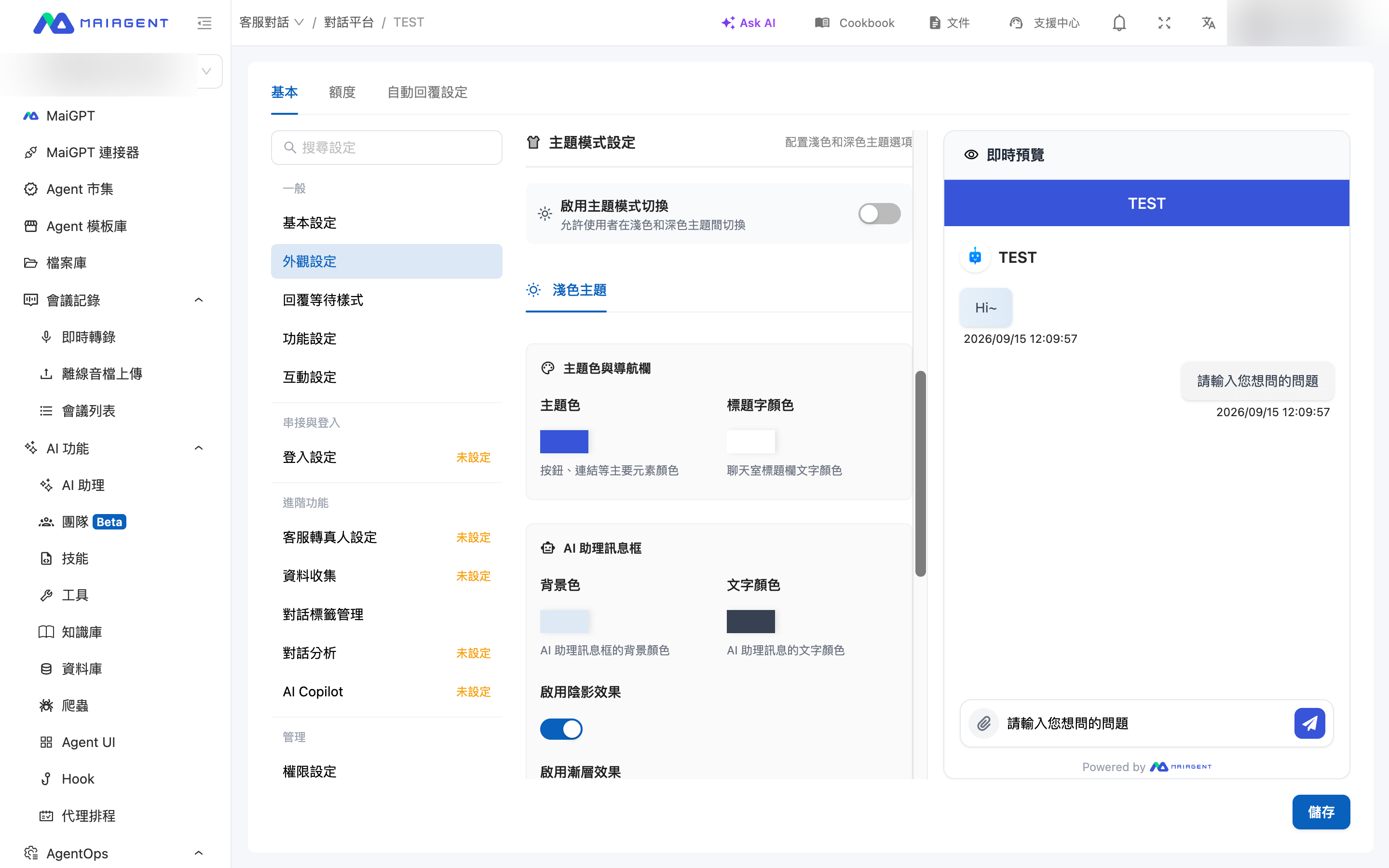
Theme mode settings: enable theme mode switching and configure the theme and message bubble colors for the light theme
Theme mode settings: colors and effects for the light theme

Enable Theme Mode Switching

After enabling Enable Theme Mode Switching, users can switch between light and dark themes in the chat window. A Dark Theme tab also appears on the settings page, allowing you to configure a separate set of colors. When this option is disabled, only the light theme is available.

Colors and Effects

You can configure the following settings separately for the light theme (and dark theme):

Section
Item
Description

Theme Color and Navigation Bar

Theme color

Color of primary elements such as buttons and links, as well as the title bar

Title text color

Text color in the chat room title bar

AI Assistant Message Bubble

Background color, text color

Colors of AI response bubbles

Enable shadow effect, enable gradient effect

Visual effects for the bubbles

User Message Bubble

Background color, text color

Colors of user message bubbles

Enable shadow effect, enable gradient effect

Visual effects for the bubbles

Chat Background

Background color

Background color of the entire chat area

The text and animated assets displayed while waiting for a response are configured elsewhere. Go to Response Waiting Style.

How avatars, color themes, and the dark theme appear in the chat window
Example of avatars, color themes, and the dark theme

5. Frequently Asked Questions

Q: Why Hasn't the Window on the Website Changed After Saving?

Ask the user to refresh the page. Appearance settings load with the chat page, so an already-open window does not update immediately.

Q: Do I Need to Configure Colors Separately for the Dark Theme?

Yes. After enabling Enable Theme Mode Switching, open the Dark Theme tab and configure the color of each item. Items you do not adjust use the system's default dark theme colors.

Last updated

Was this helpful?