Messaging Platform Settings Overview
A map of the tabs on the conversation platform settings page: how to access it, what each tab controls, which tabs are available for each platform, and detailed pages for the five categories in the Ge
Each conversation platform (Web, Internal, API, LINE, Microsoft Teams, etc.) has its own settings for appearance, feature toggles, interaction behavior, human agent handoff, and permissions. These settings belong to the conversation platform, not the AI assistant. If the same AI assistant is connected to three platforms, it has three independent sets of settings. This page explains the structure of the settings page and what each tab controls. Each of the five categories in the General group also has a dedicated page with detailed information:
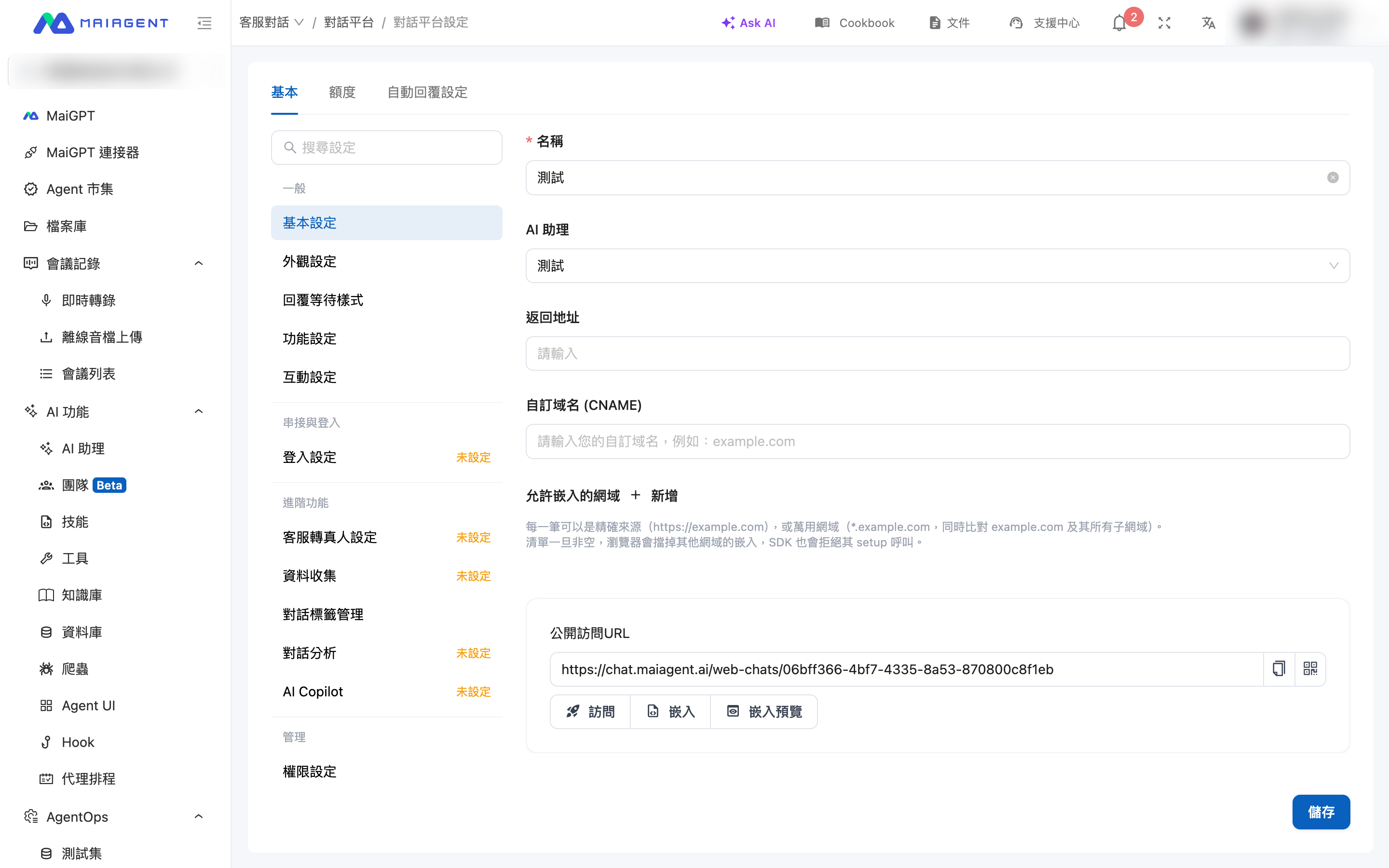
Basic Settings: Name, AI assistant, return URL, custom domain, allowed embedding domains, public access URL, and embedding
Appearance Settings: Brand assets, display settings, and light and dark theme colors
Reply Loading Style: Text narrative or brand animation shown while waiting for a reply
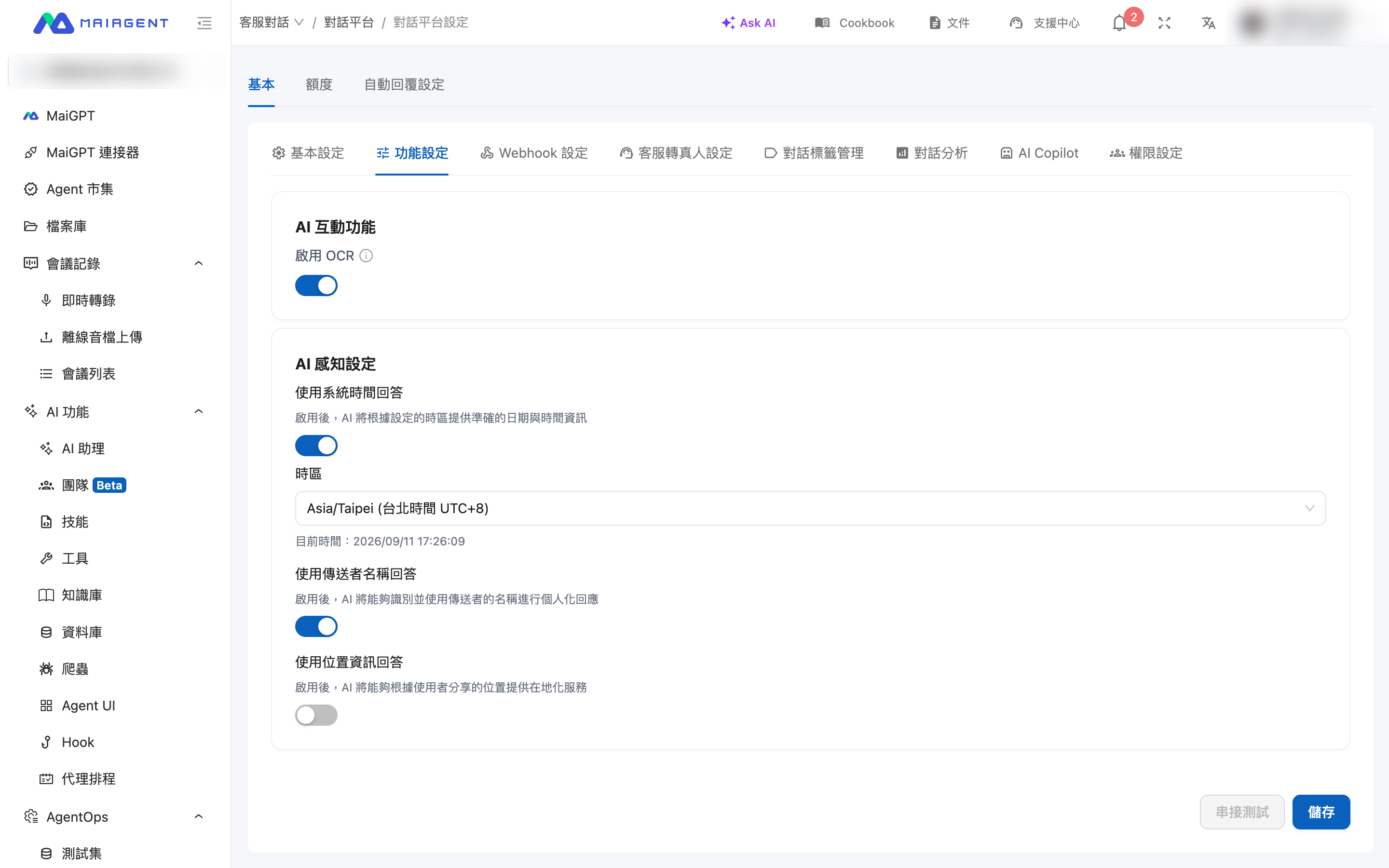
Feature Settings: Basic features, AI interaction features, Hook processing indicators, tool display mode, question set option display mode, and AI awareness settings
Interaction Settings: Welcome message, conversation starter questions, conversation display settings, satisfaction survey, and quota-exhausted message
For connection instructions for each platform, see the corresponding “Connect a Conversation Platform” page.
1. When to Use These Settings
A customer service manager connected the company’s AI assistant to its official website and LINE Official Account. After launch, a colleague reported, “The assistant can answer ‘What is today’s date?’ on the website, but on LINE it asks the user for the month and day.” The manager opened Customer Service → Conversation Platforms and found that Use System Time in Responses was enabled for the Web platform but disabled for LINE. Each platform has its own settings. After enabling the toggle for LINE, confirming that the time zone was set to Taipei time, and saving the settings, the assistant could answer the date correctly on LINE without any changes to the assistant’s role instructions.
2. Open the Settings Page
Both of the following paths lead to the same settings page:
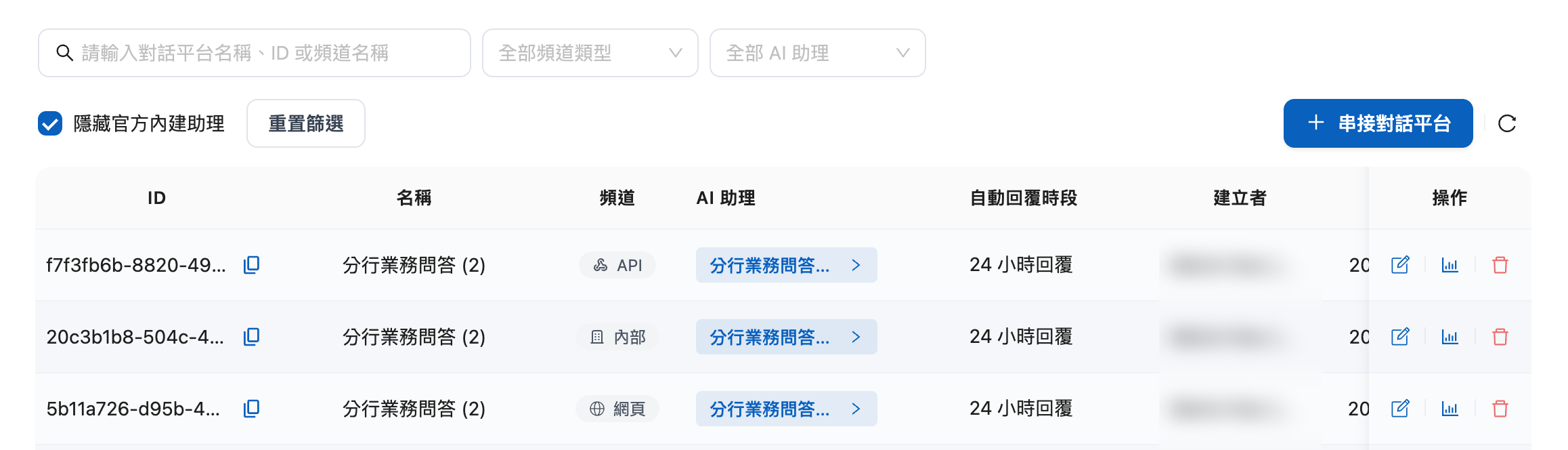
From the conversation platform list: In the left menu, click Customer Service → Conversation Platforms. Find the platform you want to configure, then click Edit in the Actions column. If there are many platforms, use the filters above the list to narrow the results. For details, see Filter the Conversation Platform List below.
From an AI assistant: Go to AI Features → AI Assistants, select an assistant, and switch to the Conversation Platforms tab. On the platform card, click Platform Settings. When you are finished, use Back to AI Assistant Settings at the top of the page to return to the assistant.
Filter the Conversation Platform List
After an organization enables official built-in Agents, each Agent automatically includes Web, Internal, and API conversation platforms. These appear in the same list as platforms for custom AI assistants. You can combine the filters above the list:
Search box (Enter a conversation platform name, ID, or channel name)
Search by keywords in the name, ID, or channel name
All Channel Types
Show only platforms of the specified channel type, such as Web, LINE, or Messenger
All AI Assistants
Show only platforms connected to the specified AI assistant
Hide Official Built-in Assistants
When selected, show only platforms for the organization’s custom AI assistants. All Web, Internal, and API platforms for official built-in Agents are hidden, and the total count is updated accordingly
All conditions apply at the same time. Selecting or clearing Hide Official Built-in Assistants returns the list to page 1.
When Hide Official Built-in Assistants is selected, the All AI Assistants dropdown also lists only the organization’s custom assistants. If an official built-in Agent was previously selected, that selection is cleared automatically.
Filter conditions are preserved when you open a platform settings or conversation platform analytics page and then return to the list. Click Reset Filters to clear all conditions, including Hide Official Built-in Assistants.
Filters only control which platforms appear in the list. They do not change any platform’s enabled status or settings.

3. Settings Page Layout
The top of the settings page always has three main tabs: Basic, Quota, and Auto-reply Settings. Within Basic, the layout varies by platform type:
Web, Internal, and API platforms: The navigation on the left is divided into four groups: General, Connection and Login, Advanced Features, and Management. Selecting a category displays its settings on the right. Use Search Settings above the navigation to find toggles by keyword.
Communication platforms such as LINE, Microsoft Teams, Slack, and Email: There is no left-side navigation. Instead, use the row of tabs at the top to switch between settings.


4. Tab Map
Basic Settings
Platform name, connected AI assistant, and platform-specific fields (Web: return URL, custom domain, allowed embedding domains, and public access URL; LINE: Channel credentials; Teams: Bot credentials, etc.)
Basic Settings and the connection page for each platform
Reply Loading Style
Text or animation shown in the chat window while an AI reply is being generated
Feature Settings
Feature toggles for file uploads, document citations, OCR, tool display mode, question set option display mode, and AI awareness settings
Interaction Settings
Welcome message, conversation starter questions, conversation display settings, satisfaction survey, and quota-exhausted message
Login Settings
Whether users must log in before starting a conversation and available login methods
Human Agent Handoff Settings
Handoff conditions, messages, service hours, assignment, and notifications
Data Collection
A pre-conversation form that collects contact information before the conversation begins
Conversation Tag Management
Conversation tags available on this platform
—
Conversation Analytics
Automatically analyze conversation content during human agent handoff and apply category tags
—
AI Copilot
Automatically generate suggested replies to incoming messages for human agents
—
Permission Settings
Which members can view and manage this platform
—
Quota (main tab)
The Credits quota available to this platform
Auto-reply Settings (main tab)
When AI replies automatically (24 hours a day or during specified periods)
For the tabs available on each platform, see the platform support matrix in Section 6.
5. Feature Settings Summary
The Feature Settings for Web and API platforms are divided into six sections. The Internal platform does not include “Question Set Option Display Mode.” Communication platforms only include Enable OCR under “AI Interaction Features” and “AI Awareness Settings.”
Basic Features
Whether the platform is enabled, file uploads are allowed, conversations can be shared, and users can change the font size
AI Interaction Features
Display cited documents, allow cited documents to be downloaded, enable OCR, display the reasoning process, and allow users to adjust reasoning effort
Hook Processing Indicator
Whether to display an indicator when a message has been processed by a Hook
Tool Display Mode
Show full, compact, or hidden information when AI calls a tool
Question Set Option Display Mode
Present options as floating buttons or in an options panel when AI asks a question
AI Awareness Settings
Use the system time, sender name, and location information in responses
For descriptions of each toggle, time zone rules, and frequently asked questions, see Feature Settings.
6. Platform Support Matrix
Appearance Settings, Reply Loading Style, Interaction Settings, Data Collection
✓
✓
—
—
—
—
Login Settings
✓
—
—
—
—
—
Webhook Settings
—
✓
✓
✓
—
✓
Feature Settings: all six sections
✓
✓
—
—
—
—
Feature Settings: Question Set Option Display Mode
Web ✓ / Internal —
✓
—
—
—
—
Feature Settings: OCR + AI Awareness Settings
✓
✓
✓
✓
✓
✓
Use Location Information in Responses
✓
✓
✓
—
—
—
Human Agent Handoff Settings
✓
✓
✓
—
✓
✓
Conversation Analytics
✓
✓
✓
—
✓
✓
Conversation Tag Management, AI Copilot, Permission Settings
✓
✓
✓
✓
✓
✓
“Other Communication Platforms” refers to Microsoft Teams, Telegram, FB Messenger, Email, LINE WORKS, and Team+.
7. Frequently Asked Questions
Q: Why can’t I find these toggles in the assistant settings?
These settings belong to the conversation platform, not the AI assistant. Go to Customer Service → Conversation Platforms, or open the assistant’s Conversation Platforms tab and click Platform Settings.
Q: Why doesn’t LINE know the date even though “Use System Time in Responses” is enabled for the Web platform?
Each platform has its own settings. Open the LINE platform’s Feature Settings tab and enable it there as well. For time zone rules, see Feature Settings.
Q: Why is a tab missing from my platform?
Different platform types support different tabs. See Section 6. On Web platforms, the “Advanced Features” group appears only after you save the basic settings and finish creating the platform.
Q: Do I need to re-embed or reconnect the platform after changing its settings?
No. Changes take effect immediately after you click Save. You do not need to reset the Web embed code or the communication platform’s Webhook.
Last updated
Was this helpful?