> For the complete documentation index, see [llms.txt](https://docs.maiagent.ai/llms.txt). Markdown versions of documentation pages are available by appending `.md` to page URLs; this page is available as [Markdown](https://docs.maiagent.ai/maiagent-user-guide/en/serve/human-handoff/handoff-notification.md).

# Human Agent Handoff Notifications

Notify internal staff through the notification center and Email when conversations are assigned to human agents; notify external systems through Webhook when handoff is triggered, assigned, returned t

When a conversation moves from AI to a human and is **assigned to a support agent**, MaiAgent can send notifications through <mark style="color:blue;">Email</mark>, the <mark style="color:blue;">Notification Center</mark>, and <mark style="color:blue;">Webhook Notifications (System Integration)</mark>. The first two channels notify agents and supervisors. Webhook allows external systems such as dispatch, alerting, or CRM systems to continue processing. It also sends events when AI determines that a human handoff is needed, when a conversation returns to AI, and when the queue times out, allowing external systems with their own human support agents to take over the full workflow.

{% hint style="info" %}
This feature is part of **Human Handoff Settings**. Notifications are sent only after <mark style="color:blue;">Enable Human Handoff</mark> is turned on for the conversation platform.
{% endhint %}

## When Are Notifications Sent? <a href="#when-notified" id="when-notified"></a>

Notifications include three channels that can be enabled or disabled independently. **Email and the Notification Center** send notifications when a conversation is assigned to an agent (Human Assigned). **Webhook** covers the following four events in the human handoff lifecycle:

* **Email Notifications**: Sent to the assigned agent. Copy recipients (such as supervisors) also receive a copy of the same email, with all recipients visible to one another.
* **Notification Center Announcements**: A “Human Handoff Notification” announcement is sent to the assigned agent and copy recipients through the bell icon (Notification Center) at the top right of the admin interface. It includes a link to the conversation.
* **Webhook Notifications (System Integration)**: Sends JSON events from the human handoff lifecycle to the HTTPS URL configured by an administrator so external systems can automatically create tickets, take over, or issue alerts: `handoff.requested` when AI determines that a human handoff is needed; `handoff.assigned` when the conversation is assigned to an agent; `handoff.returned_to_ai` when an agent clicks <mark style="color:blue;">Return to AI Agent</mark> to hand the conversation back to AI; and `handoff.queue_timeout` when a queue timeout automatically returns the conversation to AI. These four events correspond to “Handoff Triggered,” “Human Agent Took Over,” “Return to AI Agent,” and “Queue Timeout” on the conversation timeline.

{% hint style="warning" %}
**Email and the Notification Center** send notifications only when a conversation is **assigned**. If a conversation has entered the human handoff queue but has **not yet been assigned** to a specific agent, these two channels do not send notifications. An enabled **Webhook** still sends `handoff.requested` when AI determines that a human handoff is needed.
{% endhint %}

### What Notifications Do Not Do <a href="#what-it-does-not-do" id="what-it-does-not-do"></a>

* Clicking a link in an email or announcement only **opens the conversation**. It **does not** automatically switch the conversation to human response mode. After opening the conversation, the agent must still click <mark style="color:blue;">I'll Take Over</mark> above the conversation to stop automatic AI replies and take over.
* Notifications are not sent to customers. They are reminders **for internal staff only** and do not affect the human handoff messages customers see.
* Webhook sends only the identifying information required for the event and the link to the conversation in the admin interface. It does not include conversation text or provide dedicated adapters for specific third-party systems.

## Use Case <a href="#scenario" id="scenario"></a>

A support supervisor wants every human handoff to enter the company's dispatch system automatically, without relying on staff to monitor announcements or emails. She opens <mark style="color:blue;">Human Handoff Settings</mark> for the conversation platform, enables <mark style="color:blue;">Webhook Notifications (System Integration)</mark> on the <mark style="color:blue;">Notifications</mark> tab, enters the dispatch system's HTTPS receiver URL, and saves. The next time a conversation is assigned to an agent, the dispatch system immediately receives a `handoff.assigned` event and automatically creates a ticket. When the agent finishes and clicks “Return to AI Agent,” the dispatch system receives `handoff.returned_to_ai` and automatically closes the ticket. The supervisor does not need to manually relay any information throughout this process.

## How to Configure Notifications <a href="#setup" id="setup"></a>

{% stepper %}
{% step %}

### Open Notification Settings <a href="#enter-settings" id="enter-settings"></a>

1. Go to <mark style="color:blue;">Customer Conversations</mark> → <mark style="color:blue;">Conversation Platforms</mark>, then click <mark style="color:blue;">Edit</mark> for the platform you want to configure.
2. Under “Advanced Features” in the settings menu on the left, click <mark style="color:blue;">Human Handoff Settings</mark>. First confirm that <mark style="color:blue;">Enable Human Handoff</mark> at the top is turned on.
3. Click the <mark style="color:blue;">Notifications</mark> subtab.

{% hint style="info" %}
If human handoff is not enabled, <mark style="color:blue;">Human Handoff Settings</mark> in the left menu shows “Not Configured.” The page displays only the <mark style="color:blue;">Enable Human Handoff</mark> switch, and subtabs such as <mark style="color:blue;">Notifications</mark> do not appear. Enable human handoff and save before proceeding with the settings below.
{% endhint %}
{% endstep %}

{% step %}

### Choose Notification Channels <a href="#channels" id="channels"></a>

The Notifications tab provides three independent switches that you can enable or disable as needed:

* <mark style="color:blue;">Notification Center Announcements</mark>: Sends an announcement to the assigned agent and copy recipients in the Notification Center when a conversation is assigned.
* <mark style="color:blue;">Email Notifications</mark>: Emails the assigned agent and sends copies to the specified recipients when a conversation is assigned.
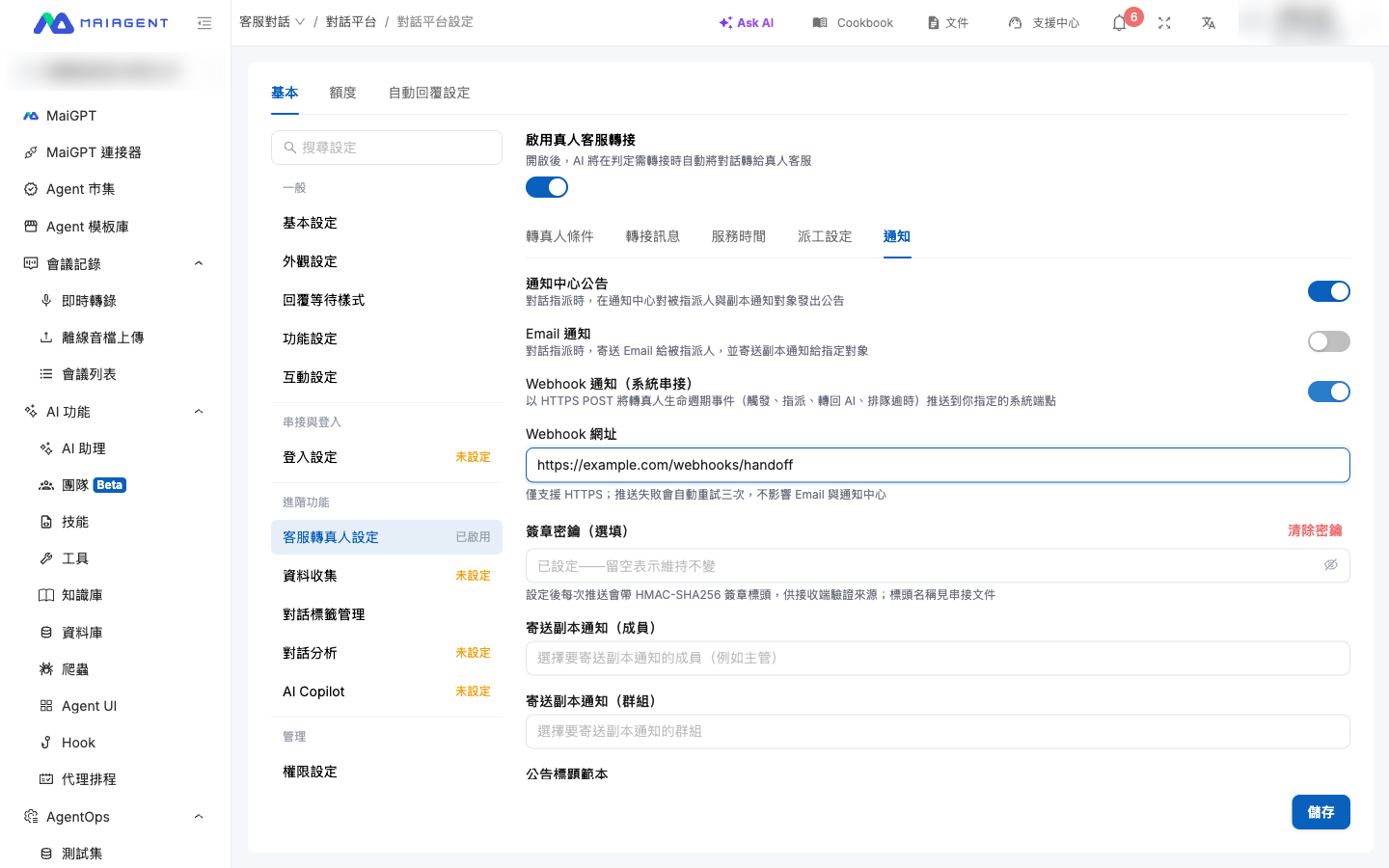
* <mark style="color:blue;">Webhook Notifications (System Integration)</mark>: Sends events to the specified external system when AI determines that a human handoff is needed, when a conversation is assigned, when it returns to AI, and when the queue times out. **Disabled by default**; enable it when you need an integration.

Disabling one channel does not stop other enabled channels from sending notifications.

<figure><img src="https://1360999650-files.gitbook.io/~/files/v0/b/gitbook-x-prod.appspot.com/o/spaces%2F6v6TNkkOQVfRYfcNirHL%2Fuploads%2Fgit-blob-9bfb10b279b20accd92ea73ee04f8236a1948139%2Fhandoff-notification-channels.png?alt=media" alt="Notifications subtab in human handoff settings"><figcaption><p>Human Handoff Settings → Notifications subtab: three channel switches, copy recipients, and notification templates</p></figcaption></figure>
{% endstep %}

{% step %}

### Configure Webhook (Optional) <a href="#webhook" id="webhook"></a>

1. Enable <mark style="color:blue;">Webhook Notifications (System Integration)</mark> to expand the Webhook fields below.
2. Enter the external system's receiver URL in <mark style="color:blue;">Webhook URL</mark>. The URL must start with `https://`. Leaving it empty displays “A Webhook URL is required when Webhook is enabled”; entering `http://` displays “The Webhook URL must use HTTPS.” You cannot save in either case.
3. If the receiver needs to verify the event source, enter a shared secret agreed upon by both parties in <mark style="color:blue;">Signing Secret (Optional)</mark>. When signing is enabled, every delivery includes the `X-MaiAgent-Signature-256` header.

<figure><img src="https://1360999650-files.gitbook.io/~/files/v0/b/gitbook-x-prod.appspot.com/o/spaces%2F6v6TNkkOQVfRYfcNirHL%2Fuploads%2Fgit-blob-3badb22c7c48cd5e0a21af1a1acde0bae07922e0%2Fhandoff-notification-webhook.png?alt=media" alt="URL and signing secret fields after enabling Webhook notifications"><figcaption><p>The “Webhook URL” and “Signing Secret (Optional)” fields expanded after enabling Webhook Notifications (System Integration)</p></figcaption></figure>

**Managing the Secret After Setup**:

* After the secret is saved, it **is not displayed again**. The field instead shows “Configured—leave blank to keep unchanged.” To replace the secret, enter a new value and save. Leaving the field blank preserves the existing secret.
* To stop signing, click <mark style="color:blue;">Clear Secret</mark> beside the field and confirm. Subsequent deliveries no longer include the signature header. If the receiver is verifying signatures, it will start rejecting deliveries, so adjust the receiver before clearing the secret.

{% hint style="info" %}
For event fields, signature verification, and retry behavior, integration developers should refer to [Human Handoff Webhook Events](https://docs.maiagent.ai/api/preparation/handoff-webhook) in the API documentation. If human agents will reply through your own support system, the “Let an External System Take Over Conversations After Human Handoff” section on the same page explains how to combine the conversation platform's <mark style="color:blue;">Webhook</mark> (message delivery and reception) with the message API for two-way synchronization.
{% endhint %}

{% hint style="warning" %}
The receiver should ensure that only appropriate personnel can view identifying information and links to conversations in the admin interface included in events. Disable Webhook notifications if you no longer use this integration.
{% endhint %}
{% endstep %}

{% step %}

### Configure Copy Recipients (Optional) <a href="#copy-recipients" id="copy-recipients"></a>

To keep supervisors or others informed about human handoffs, configure copy recipients:

* <mark style="color:blue;">Send Notification Copies (Members)</mark>: Select the members who should receive copies (such as supervisors).
* <mark style="color:blue;">Send Notification Copies (Groups)</mark>: Select the groups that should receive copies. Each group automatically expands to include all its members.

The assigned agent is automatically excluded from copy recipients to avoid receiving a duplicate copy.
{% endstep %}

{% step %}

### Customize Notification Templates (Optional) <a href="#templates" id="templates"></a>

Four template fields let you customize notification text. Default templates are populated when human handoff is enabled:

* <mark style="color:blue;">Announcement Title Template</mark>
* <mark style="color:blue;">Announcement Body Template</mark>
* <mark style="color:blue;">Email Subject Template</mark>
* <mark style="color:blue;">Email Body Template</mark>

You can use the following **variables** in templates. They are automatically replaced with actual values from the conversation when a notification is sent:

| Variable            | Replacement Value                                   |
| ------------------- | --------------------------------------------------- |
| `{agentName}`       | Name of the assigned support agent                  |
| `{inboxName}`       | Name of the conversation platform (support channel) |
| `{customerName}`    | Name of the customer (visitor)                      |
| `{conversationUrl}` | Link to the conversation                            |

<figure><img src="https://1360999650-files.gitbook.io/~/files/v0/b/gitbook-x-prod.appspot.com/o/spaces%2F6v6TNkkOQVfRYfcNirHL%2Fuploads%2Fgit-blob-e8a5d6b0e7eb74e9dfcd8ec9e386fd2fe9fbe5a8%2Fhandoff-notification-templates.png?alt=media" alt="Editing notification templates"><figcaption><p>Four template fields and hints for available variables</p></figcaption></figure>

<details>

<summary>Default Template Reference</summary>

**Email Subject Template**

```
[Human Handoff] A conversation has been assigned to you — {inboxName}
```

**Email Body Template**

```
Hello {agentName},

A conversation from {customerName} in the support channel “{inboxName}” has been assigned to you.
Click the following link to open the conversation in the admin interface:
{conversationUrl}
```

**Announcement Title Template**

```
Conversation assigned: {customerName}
```

**Announcement Body Template**

```
A conversation from {customerName} in the support channel “{inboxName}” has been assigned to {agentName}. Please open the admin interface to check it.
```

</details>
{% endstep %}

{% step %}

### Save Settings <a href="#save" id="save"></a>

Save when finished; the settings take effect immediately. The system then sends notifications according to each channel's switch and event scope: Email and the Notification Center send notifications only on assignment; Webhook sends events when AI determines that a human handoff is needed, on assignment, on return to AI, and on queue timeout.

{% hint style="info" %}
Turning off <mark style="color:blue;">Enable Human Handoff</mark> also stops notifications, but the notification settings are **preserved**. Enabling human handoff again restores the existing settings.
{% endhint %}
{% endstep %}
{% endstepper %}

## What Agents and Supervisors Receive <a href="#what-recipients-see" id="what-recipients-see"></a>

### Email Notifications <a href="#email" id="email"></a>

The assigned agent receives a MaiAgent-branded email with a subject and body generated from the templates and a link to the conversation. Configured copy recipients receive the same email as **CC recipients**, with all recipients visible to one another.

### Notification Center Announcements <a href="#notification-center" id="notification-center"></a>

Click the bell icon at the top right of the admin interface to open the <mark style="color:blue;">Notification Center</mark>, then switch to the <mark style="color:blue;">Organization Announcements</mark> tab to see announcements of type <mark style="color:blue;">Human Handoff Notification</mark>. Click <mark style="color:blue;">Go to Take Over</mark> in an announcement to open the conversation directly.

{% hint style="info" %}
Human handoff notifications are frequent transactional events. To keep the announcement list from becoming overwhelmed, these announcements **automatically expire 7 days** after they are sent.
{% endhint %}

### What External Systems Receive <a href="#what-webhook-receives" id="what-webhook-receives"></a>

External systems receive a JSON event containing only identifying information: the event name, event ID and occurrence time; IDs for the conversation, conversation platform, organization, customer, and agent assigned at the time of the event; and a link to the conversation in the admin interface. It contains no conversation text. All four event types share the same fields. For events without an assigned agent (handoff requested, return to AI, and queue timeout), the assigned agent is empty. For detailed fields and verification examples, see [Human Handoff Webhook Events](https://docs.maiagent.ai/api/preparation/handoff-webhook) in the API documentation.

## Notes <a href="#notes" id="notes"></a>

* **Permissions**: Only users with permission to configure the conversation platform can view and edit notification settings. Existing human handoff settings permissions apply.
* **Agent Has No Email Address**: If the assigned agent has no email address configured, the system automatically skips the Email channel, but **Notification Center announcements are still sent as usual**. Other recipients are not affected.
* **Independent Channels**: Email, the Notification Center, and Webhook operate independently. A delivery failure in one channel does not affect other channels or the conversation assignment process.
* **Webhook Failure Handling**: If the external endpoint times out or returns an error, the system automatically retries three times in the background. Human handoff and other notification channels continue to operate during this time. Receivers should deduplicate events using the event ID.
* **Different from the Conversation Platform's “Webhook”**: The conversation platform has a separate [Webhook](/maiagent-user-guide/en/serve/webhook.md) feature that sends conversation messages themselves. The human handoff Webhook sends only handoff status events. Their settings and secrets are independent and do not affect each other.
* **Taking Over Is Still Required After Opening a Conversation**: As described above, links only open the conversation. To actually take over, click <mark style="color:blue;">I'll Take Over</mark> above the conversation.


---

# Agent Instructions
This documentation is published with GitBook. GitBook is the documentation platform designed so that both humans and AI agents can read, navigate, and reason over technical content effectively. Learn more at gitbook.com.

## Querying This Documentation
If you need additional information that is not directly available in this page, you can query the documentation by asking a question.

Perform an HTTP GET request on the following URL with the `ask` and `goal` query parameters:

```
GET https://docs.maiagent.ai/maiagent-user-guide/en/serve/human-handoff/handoff-notification.md?ask=<question>&goal=<user_goal>
```

`ask` is the immediate question: it should be specific, self-contained, and written in natural language.
`goal` is what the user is ultimately trying to achieve, the reason they need the answer. Sharing it helps GitBook give you a better, more relevant answer. A goal is most helpful when it describes the outcome the user wants rather than restating the question. For example, with `ask=how do I create an API token`, a goal like `automate deployments from our CI pipeline` lets GitBook tailor the answer to that use case.

The response will contain a direct answer to the question and relevant excerpts and sources from the documentation.

Use this mechanism when the answer is not explicitly present in the current page, you need clarification or additional context, or you want to retrieve related documentation sections.