> For the complete documentation index, see [llms.txt](https://docs.maiagent.ai/llms.txt). Markdown versions of documentation pages are available by appending `.md` to page URLs; this page is available as [Markdown](https://docs.maiagent.ai/maiagent-user-guide/en/serve/human-handoff.md).

# Human Agent Handoff Settings

Configure AI assistants to hand conversations over to human support when needed, including transfer conditions, messages and the queue experience, service hours, assignment modes, agent availability,

When a user's question exceeds what the AI assistant can handle (such as an explicit request for human support or a question involving sensitive information), the platform can transfer the conversation to a human support agent, who takes over replies in the admin interface. This page explains how to enable and configure handoff. For agents' daily operations, see [Taking Over and Replying as a Human Support Agent](/maiagent-user-guide/en/serve/human-handoff/human-handoff-operations.md).

{% hint style="info" %}
All conversation platforms (web, internal, LINE, Microsoft Teams, and others) support human support handoff. The difference is how users receive replies afterward: web and internal platforms support real-time exchanges; the API platform has no chat interface, so you must build your own frontend to receive replies.
{% endhint %}

## Where to Configure <a href="#where-to-configure" id="where-to-configure"></a>

Go to <mark style="color:blue;">“Conversation Platforms”</mark>, select the platform to enable, and switch to the <mark style="color:blue;">“Human Support Handoff Settings”</mark> tab. Turn on <mark style="color:blue;">“Enable Human Support Handoff”</mark> first to display the five configuration subtabs: <mark style="color:blue;">Transfer Conditions</mark>, <mark style="color:blue;">Transfer Messages</mark>, <mark style="color:blue;">Service Hours</mark>, <mark style="color:blue;">Assignment Settings</mark>, and <mark style="color:blue;">Notifications</mark>.

## Transfer Conditions <a href="#transfer-conditions" id="transfer-conditions"></a>

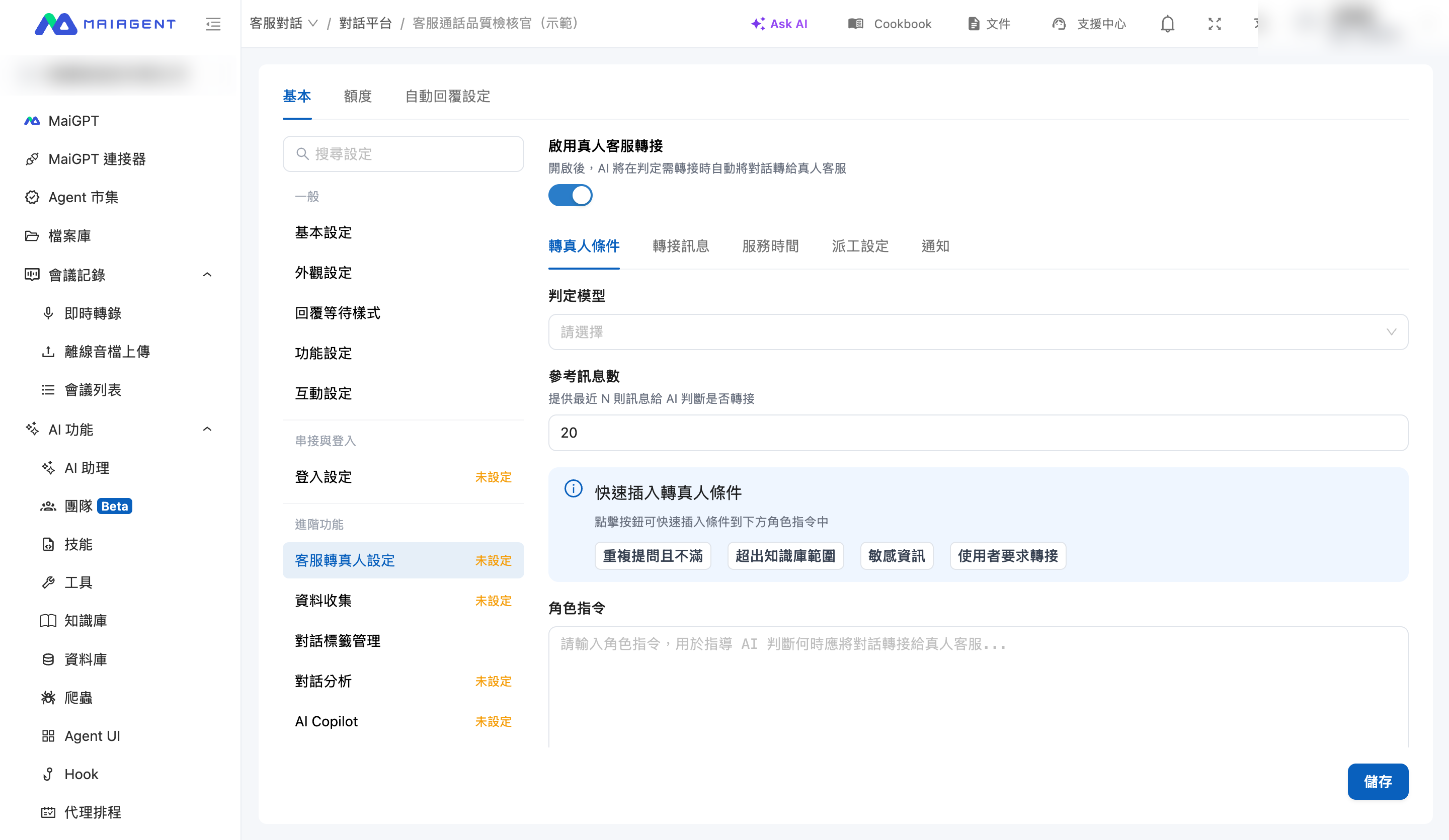
After you turn on <mark style="color:blue;">“Enable Human Support Handoff”</mark>, AI evaluates whether a transfer is needed whenever a user message arrives.

<figure><img src="https://1360999650-files.gitbook.io/~/files/v0/b/gitbook-x-prod.appspot.com/o/spaces%2F6v6TNkkOQVfRYfcNirHL%2Fuploads%2Fgit-blob-0f4d50b4a7b8eb5c56d5a5ca9b36d1cac3b6d224%2Fhandoff-transfer-conditions.png?alt=media" alt="Transfer conditions settings screen"><figcaption><p>Transfer conditions: enable switch, evaluation model, and quick-insert conditions</p></figcaption></figure>

The evaluation is based on <mark style="color:blue;">“Role Instructions”</mark>: describe when to transfer to a human. The <mark style="color:blue;">“Evaluation Model”</mark> decides based on recent conversation messages (the number is controlled by <mark style="color:blue;">“Reference Message Count”</mark>).

The page provides four common conditions you can insert into the role instructions with one click:

* **User requests a transfer**: The user explicitly asks to speak to a human support agent
* **Outside the knowledge base**: The question is outside the knowledge base and AI cannot answer effectively
* **Repeated questions and dissatisfaction**: The user repeatedly asks the same question and expresses dissatisfaction
* **Sensitive information**: The conversation involves sensitive matters such as personal information changes, billing, or legal issues

{% hint style="info" %}
In addition to automatic AI evaluation, support managers can manually take over any conversation in “All Conversations” at any time, regardless of transfer conditions.
{% endhint %}

## Transfer Messages <a href="#transfer-messages" id="transfer-messages"></a>

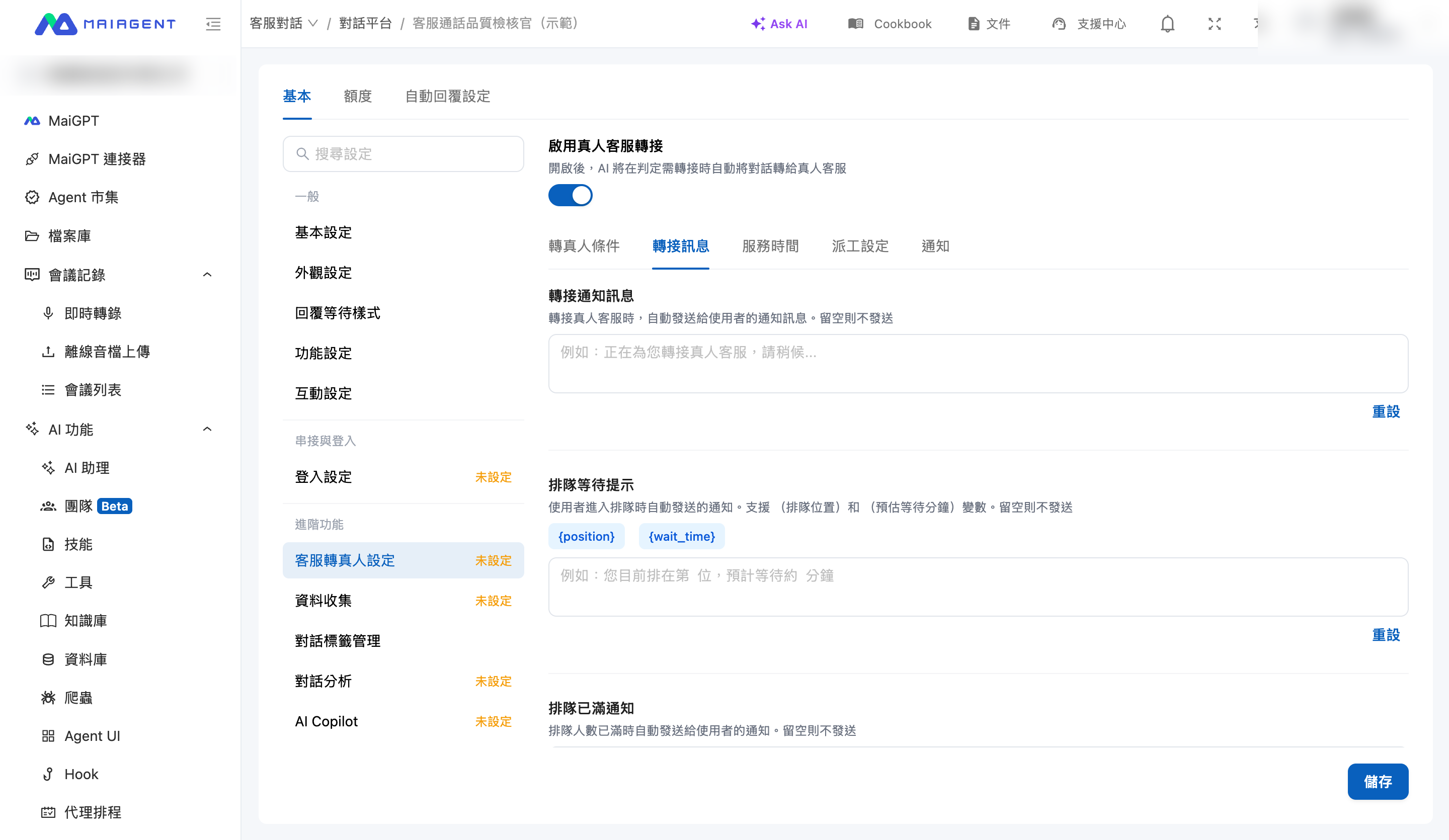
Customize the messages sent to users at each transfer stage (leave a field blank to send no message):

| Message                     | When Sent                                           | Available Variables                                                  |
| --------------------------- | --------------------------------------------------- | -------------------------------------------------------------------- |
| Transfer notification       | When human support handoff is triggered             | —                                                                    |
| Queue waiting message       | When the user enters the queue                      | `{position}` queue position, `{wait_time}` estimated wait in minutes |
| Successful transfer message | After an agent is successfully assigned             | `{agent_name}` agent name                                            |
| Queue full notification     | When the queue reaches capacity                     | —                                                                    |
| Timeout notification        | When a queue timeout returns the conversation to AI | —                                                                    |

<figure><img src="https://1360999650-files.gitbook.io/~/files/v0/b/gitbook-x-prod.appspot.com/o/spaces%2F6v6TNkkOQVfRYfcNirHL%2Fuploads%2Fgit-blob-bfb296d7c058394b5742f475287a28dc58473989%2Fhandoff-transfer-messages.png?alt=media" alt="Transfer messages settings screen"><figcaption><p>Transfer messages: messages at each stage and available variables</p></figcaption></figure>

### While in the Queue <a href="#queue-period" id="queue-period"></a>

By default, users who send another message while waiting for human support receive no reply, which can make them feel their message has been read and ignored. The <mark style="color:blue;">“While in the Queue”</mark> section at the bottom of the <mark style="color:blue;">“Transfer Messages”</mark> subtab provides two switches (both off by default) that you can enable separately:

* <mark style="color:blue;">“Repeat Reminder While Queued”</mark>: When a queued user sends another message, the system replies with a waiting reminder to let them know they are still queued
* <mark style="color:blue;">“Allow Users to Cancel Human Handoff”</mark>: Queued users can click <mark style="color:blue;">“Let AI Answer”</mark> or enter a cancellation keyword to return to AI service themselves instead of continuing to wait

<figure><img src="https://1360999650-files.gitbook.io/~/files/v0/b/gitbook-x-prod.appspot.com/o/spaces%2F6v6TNkkOQVfRYfcNirHL%2Fuploads%2Fgit-blob-b5bfac3e4701d135bc10834191bd28cd8a48dbfa%2Fhandoff-queue-period.png?alt=media" alt="While in the Queue section in the Transfer Messages subtab"><figcaption><p>The “While in the Queue” section at the bottom of the “Transfer Messages” subtab: both switches are off by default</p></figcaption></figure>

This scenario illustrates the combined effect:

> A support supervisor notices that during the evening peak, users often wait too long and repeatedly ask, “Is anyone there?” She enables both switches under “While in the Queue” for the web platform and saves the default text. When a queued user sends another message, they receive “You have been transferred to human support. Please wait” and a “Let AI Answer” button. A user who only wants to check business hours clicks the button and immediately receives “AI will now assist you.” AI then answers the question they asked while queued, without requiring them to wait for an agent.

#### Repeat Reminder While Queued <a href="#queue-reminder" id="queue-reminder"></a>

After enabling this setting, you can configure:

| Setting               | Description                                                                                                                                                                                                                                                                                           |
| --------------------- | ----------------------------------------------------------------------------------------------------------------------------------------------------------------------------------------------------------------------------------------------------------------------------------------------------- |
| Waiting reminder text | The reply sent when a queued user sends another message. Enabling the switch fills in the default text, “You have been transferred to human support. Please wait”                                                                                                                                     |
| Reminder cooldown     | The minimum interval between two waiting reminders in the same conversation (10–3600 seconds; default 60 seconds). The “Queue waiting message” sent on entering the queue also starts the cooldown, preventing repeated reminders from flooding the chat when users send messages in quick succession |

The waiting reminder is fixed text sent directly by the system, without AI generation.

{% hint style="info" %}
If “Allow Users to Cancel Human Handoff” is also enabled, the system automatically appends cancellation guidance to each waiting reminder. You do not need to include it in the reminder text (it is not appended to the initial “Queue waiting message” sent on entering the queue): web chat and LINE display a cancel button below the reminder; other platforms append a line of guidance (for example, enter “Let AI Answer” to receive help from the AI assistant instead).
{% endhint %}

#### Allow Users to Cancel Human Handoff <a href="#queue-cancel" id="queue-cancel"></a>

The cancel button and text guidance are appended only to waiting reminders sent by “Repeat Reminder While Queued.” Enable both switches so users can see how to cancel.

After enabling this setting, you can configure:

| Setting               | Description                                                                                                                                                                                                                                                            |
| --------------------- | ---------------------------------------------------------------------------------------------------------------------------------------------------------------------------------------------------------------------------------------------------------------------- |
| Cancel button text    | Text of the quick-reply button below the waiting reminder. Defaults to “Let AI Answer,” with a maximum of 20 characters. Clicking the button sends this text as a message                                                                                              |
| Cancellation keywords | Cancellation occurs only when the user's message (with leading and trailing whitespace removed) **exactly matches** a keyword; fuzzy matching is not used. Defaults are “Let AI Answer,” “I won't wait,” and “AI is fine.” Set 1–10 keywords, each up to 20 characters |
| Return message        | System reply after the user cancels. Defaults to “AI will now assist you”                                                                                                                                                                                              |

After a user cancels:

1. The conversation leaves the queue and returns to AI replies, and the return message is sent
2. AI answers the last message the user sent while queued, so they need not ask again. The message that triggered human handoff is excluded; if the user sent no messages while queued, AI waits for their next message before replying

{% hint style="warning" %}
Cancellation is available only while the conversation is still queued and has not been assigned to an agent. Once automatic assignment assigns it, it counts as assigned even if the agent has not replied yet. After assignment, cancellation keywords are treated as ordinary messages and passed to the agent. No separate notification is sent to agents when a user cancels.
{% endhint %}

Saved settings take effect immediately and apply to the next message sent while queued. Turning off <mark style="color:blue;">“Enable Human Support Handoff”</mark> also hides this section.

## Service Hours <a href="#service-hours" id="service-hours"></a>

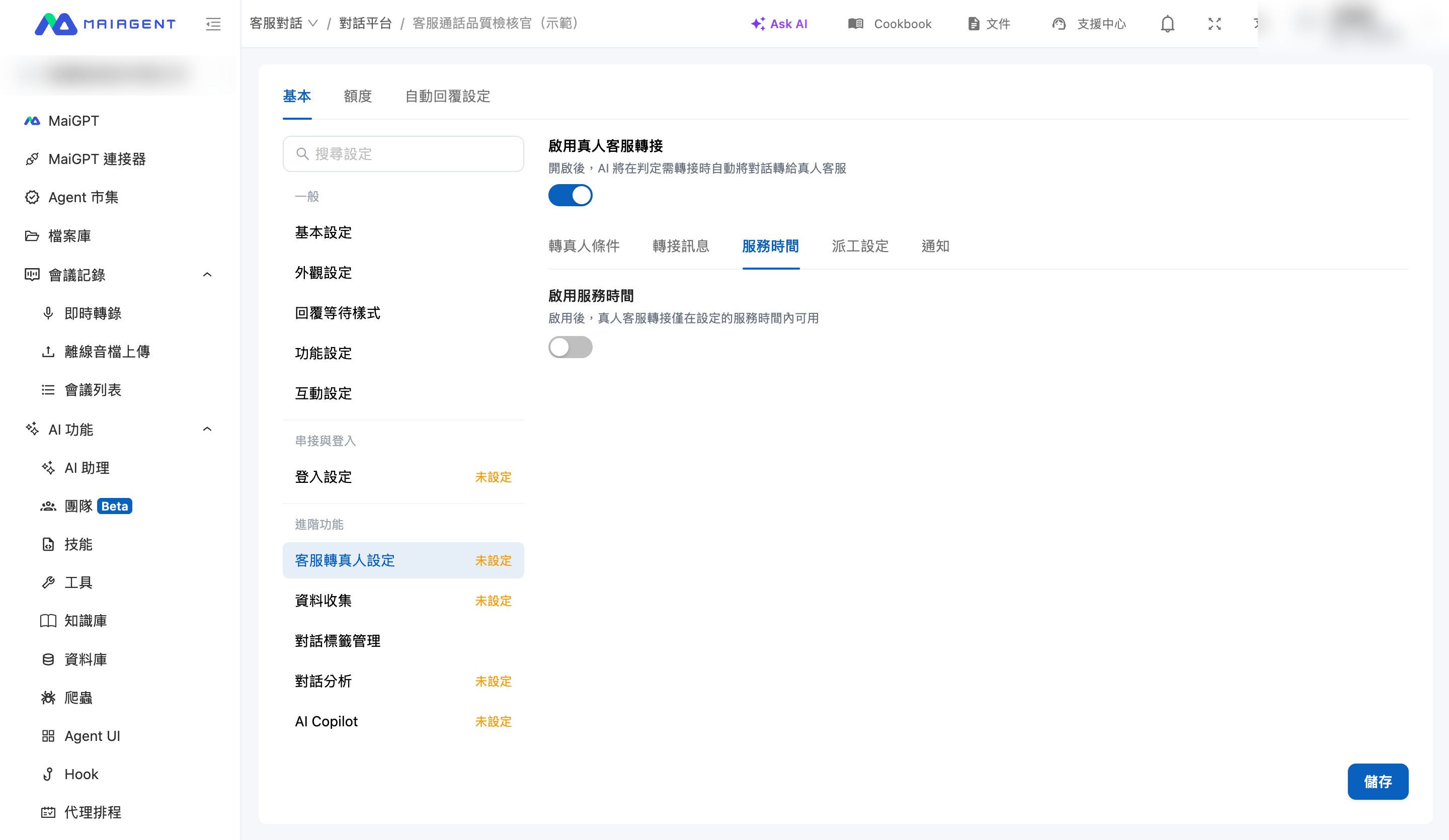
After you turn on <mark style="color:blue;">“Enable Service Hours”</mark>, human support handoff operates only during the configured hours. Set the <mark style="color:blue;">time zone</mark> and start and end times for each day of the week, or quickly apply <mark style="color:blue;">“Monday–Friday 09:00-18:00”</mark>.

When human handoff is triggered outside service hours, <mark style="color:blue;">“Offline Behavior”</mark> determines how it is handled:

* **Show offline message**: Do not transfer; send the offline message and end the current reply. AI continues to answer subsequent general questions
* **Accept messages**: Show the offline message and place the conversation in the “Unassigned” queue for an agent to take over during service hours

<figure><img src="https://1360999650-files.gitbook.io/~/files/v0/b/gitbook-x-prod.appspot.com/o/spaces%2F6v6TNkkOQVfRYfcNirHL%2Fuploads%2Fgit-blob-797fb69be8d3c084b426603c9b179399f5413cf9%2Fhandoff-service-hours.png?alt=media" alt="Service hours settings screen"><figcaption><p>Service hours: weekly schedule and offline behavior</p></figcaption></figure>

## Assignment Settings <a href="#dispatch-settings" id="dispatch-settings"></a>

### Assignment Mode <a href="#dispatch-mode" id="dispatch-mode"></a>

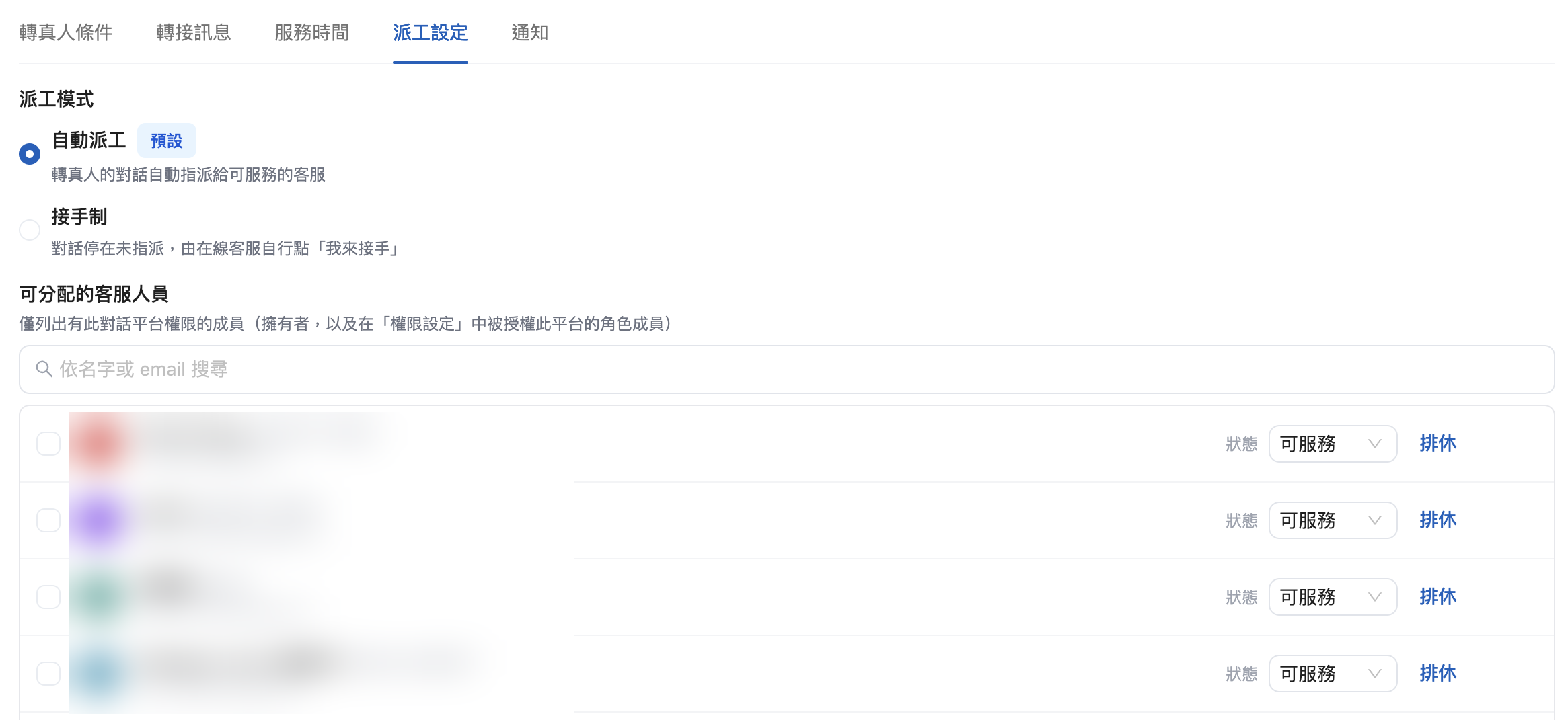
Under <mark style="color:blue;">“Assignment Mode”</mark>, choose how transferred conversations reach agents:

* **Automatic assignment** (default): The system automatically assigns transferred conversations to available agents based on the routing model
* **Claim mode**: The system does not assign conversations automatically. They remain in the “Unassigned” list until an online agent clicks <mark style="color:blue;">“I'll Take Over”</mark> to claim them

In claim mode, <mark style="color:blue;">“Routing Model”</mark>, <mark style="color:blue;">“Tag Routing”</mark>, and <mark style="color:blue;">“Reassign on Timeout”</mark> are hidden and unused. You can still manually assign or transfer conversations on the conversation page: use <mark style="color:blue;">“Assign Agent”</mark> for unassigned conversations and <mark style="color:blue;">“Transfer”</mark> for conversations with an owner. In claim mode, select <mark style="color:blue;">“No Timeout”</mark> to keep conversations waiting until an agent takes over, without returning to AI due to a queue timeout (see [Capacity and Timeout Settings](#capacity-and-queue)).

<figure><img src="https://1360999650-files.gitbook.io/~/files/v0/b/gitbook-x-prod.appspot.com/o/spaces%2F6v6TNkkOQVfRYfcNirHL%2Fuploads%2Fgit-blob-b25b38fbffbd5c4f1079fd1310e77f69239510a4%2Fhandoff-dispatch-claim-mode.png?alt=media" alt="Assignment mode screen with claim mode selected"><figcaption><p>Assignment mode: selecting claim mode displays a notice that routing models, tag routing, and reassignment on timeout are not used</p></figcaption></figure>

### Selecting Support Agents <a href="#assignable-members" id="assignable-members"></a>

Under <mark style="color:blue;">“Assignable Support Agents”</mark>, select the support roster for this platform. Automatic assignment assigns conversations only to agents who meet **all** of these conditions:

1. They are on the assignable roster
2. Their account is enabled and has support permissions for this conversation platform
3. Their availability status is “Available,” and they are not in a scheduled time-off period (see [Agent Availability](#agent-availability))
4. Their active conversation count is below the “Maximum Concurrent Conversations per Agent” limit

Each agent's current status (paused or on scheduled time off) appears beside their name and can be adjusted directly. See [Agent Availability](#agent-availability).

### Routing Model <a href="#routing-model" id="routing-model"></a>

Displayed only in “Automatic assignment” mode.

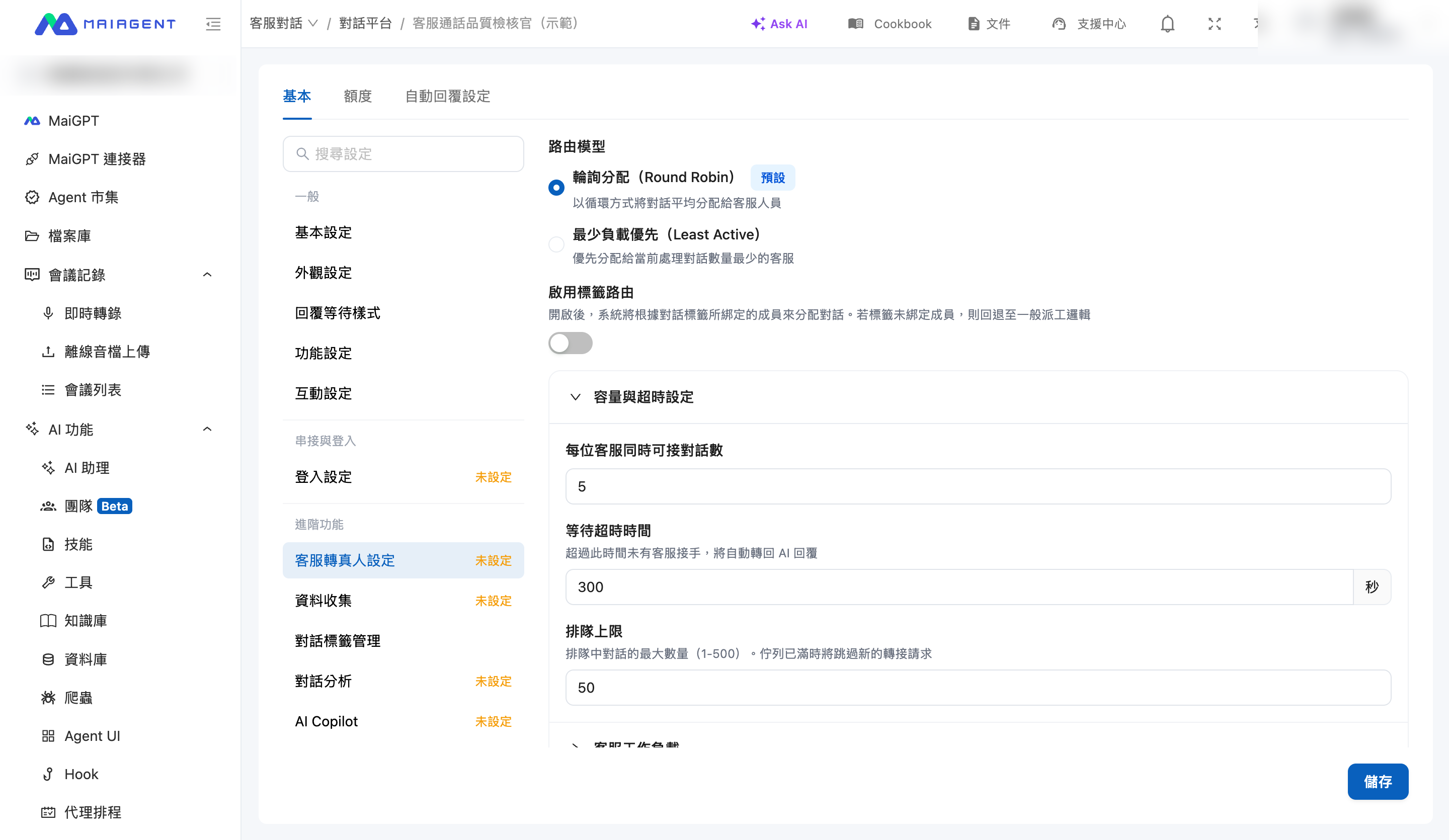
* **Round Robin**: Distribute conversations evenly among agents in a rotating sequence
* **Least Active**: Prioritize the agent currently handling the fewest conversations

### Capacity and Timeout Settings <a href="#capacity-and-queue" id="capacity-and-queue"></a>

| Setting                                    | Description                                                                                                                                                                                               |
| ------------------------------------------ | --------------------------------------------------------------------------------------------------------------------------------------------------------------------------------------------------------- |
| Maximum concurrent conversations per agent | Maximum conversations an agent can handle simultaneously; no more are assigned once this limit is reached                                                                                                 |
| Waiting timeout                            | If no agent takes over within this time (1–3600 seconds), the conversation returns to AI replies and a timeout notification is sent. In claim mode, select “No Timeout” to wait until an agent takes over |
| Reassign on timeout                        | Automatic assignment mode only. A timeout reassigns the conversation to the next available agent instead of returning directly to AI; see below                                                           |
| Queue capacity                             | Maximum queued conversations; new transfer requests are skipped when the queue is full                                                                                                                    |

<figure><img src="https://1360999650-files.gitbook.io/~/files/v0/b/gitbook-x-prod.appspot.com/o/spaces%2F6v6TNkkOQVfRYfcNirHL%2Fuploads%2Fgit-blob-e3188794a19f2825351be430f7cf06b8444fae58%2Fhandoff-dispatch-routing.png?alt=media" alt="Assignment settings screen"><figcaption><p>Assignment settings: routing model, tag routing, and capacity and timeout settings</p></figcaption></figure>

{% hint style="info" %}
With “No Timeout” selected, there is no estimated waiting time, so `{wait_time}` in the “Queue waiting message” is blank. Avoid using it. When switching from claim mode to automatic assignment, a previously selected “No Timeout” setting resets the waiting timeout to the default 300 seconds.
{% endhint %}

### Reassign on Timeout <a href="#reassign-on-timeout" id="reassign-on-timeout"></a>

After you enable <mark style="color:blue;">“Reassign on Timeout”</mark> (off by default, automatic assignment mode only), both of these cases reassign the conversation to the next available agent, skipping agents already assigned:

* **Queue timeout**: No one takes over before the waiting timeout expires
* **Assigned but no reply**: An automatically assigned agent does not reply to the user before the waiting timeout expires

If no other available agents remain who have not already been assigned, the conversation returns to AI and a timeout notification is sent. Conversations assigned or transferred manually, or claimed by agents themselves, are not automatically reassigned.

{% hint style="info" %}
To leave conversations in “Unassigned” for agents to claim, set <mark style="color:blue;">“Assignment Mode”</mark> to <mark style="color:blue;">“Claim mode”</mark>. Do not empty the “Assignable Support Agents” roster to achieve this.
{% endhint %}

### Tag Routing <a href="#tag-routing" id="tag-routing"></a>

After you turn on <mark style="color:blue;">“Enable Tag Routing”</mark>, the system assigns conversations to members associated with the conversation's tags (for example, “Billing” conversations go to billing team members). First create conversation tags and assign tags to members. Enabling “Conversation Analysis” is recommended to automatically tag conversations during handoff. If a tag has no associated members, the system falls back to standard assignment logic.

### Agent Availability <a href="#agent-availability" id="agent-availability"></a>

Agents can indicate whether they can accept new conversations now, so automatic assignment routes only to those who can handle them. Availability has two layers; either of the following prevents automatic assignment:

* **Availability status**: “Available” or “Paused.” Automatic assignment skips paused agents; switching back to available immediately restores eligibility
* **Scheduled time off**: Set leave or off-duty periods in advance (to the minute; multiple non-overlapping periods are supported). No conversations are automatically assigned during these periods; eligibility resumes when they end

Agents can change their own status and configure “My Time Off” on the conversation page. See [Setting Your Availability Status](/maiagent-user-guide/en/serve/human-handoff/human-handoff-operations.md#my-availability). Conversation platform administrators can also adjust an agent's <mark style="color:blue;">“Status”</mark> directly in <mark style="color:blue;">“Assignable Support Agents”</mark>, or click <mark style="color:blue;">“Time Off”</mark> to schedule periods for them. To change another agent's status or time off, you must be the organization owner or have edit permissions for at least one conversation platform whose assignment roster includes that agent.

<figure><img src="https://1360999650-files.gitbook.io/~/files/v0/b/gitbook-x-prod.appspot.com/o/spaces%2F6v6TNkkOQVfRYfcNirHL%2Fuploads%2Fgit-blob-eb41d7c72e028ef8df4dd201b39dd8b3a4a72382%2Fhandoff-dispatch-mode-member-status.png?alt=media" alt="Assignable support agents roster and status dropdown"><figcaption><p>Assignable support agents: adjust “Status” or click “Time Off” beside each agent</p></figcaption></figure>

This scenario illustrates scheduled time off:

> A support supervisor learns that an agent will be on leave all day next Wednesday. She finds the colleague in the roster under “Assignment Settings,” clicks “Time Off,” adds all of Wednesday, and saves. On Wednesday, new human handoff conversations are no longer assigned to that agent. When the period ends, the agent automatically becomes eligible again, without anyone needing to remember to switch them back.

{% hint style="info" %}
Scheduled time off and the platform's [Service Hours](#service-hours) apply together. When administrators configure time off under “Assignment Settings,” times are displayed in the service hours time zone. Paused status and time off affect only automatic assignment of new conversations: ongoing conversations are unaffected, and manual assignment, transfers, and agents claiming conversations from “Unassigned” remain available.
{% endhint %}

### Agent Workload <a href="#agent-workload" id="agent-workload"></a>

The <mark style="color:blue;">“Agent Workload”</mark> panel at the bottom shows each agent's active and resolved conversation counts and status, plus the current queue size, in real time, helping administrators track workload. Statuses appear in this priority order: On time off > Paused > At capacity > Available for assignment.

## Notifications <a href="#notifications" id="notifications"></a>

When a conversation is assigned to an agent, the system uses <mark style="color:blue;">“Notification Center Announcements”</mark> and <mark style="color:blue;">“Email Notifications”</mark> to notify the assignee and copied recipients (such as supervisors). Templates are customizable. For complete setup instructions, template variables, and common questions, see [Human Support Handoff Notifications](/maiagent-user-guide/en/serve/human-handoff/handoff-notification.md).

{% hint style="warning" %}
Notifications are sent when a conversation is assigned to an agent. In message-taking mode or claim mode (where conversations remain in “Unassigned”), no Email notification is sent at this stage. Arrange for agents to check “Unassigned” regularly.
{% endhint %}


---

# Agent Instructions
This documentation is published with GitBook. GitBook is the documentation platform designed so that both humans and AI agents can read, navigate, and reason over technical content effectively. Learn more at gitbook.com.

## Querying This Documentation
If you need additional information that is not directly available in this page, you can query the documentation by asking a question.

Perform an HTTP GET request on the following URL with the `ask` and `goal` query parameters:

```
GET https://docs.maiagent.ai/maiagent-user-guide/en/serve/human-handoff.md?ask=<question>&goal=<user_goal>
```

`ask` is the immediate question: it should be specific, self-contained, and written in natural language.
`goal` is what the user is ultimately trying to achieve, the reason they need the answer. Sharing it helps GitBook give you a better, more relevant answer. A goal is most helpful when it describes the outcome the user wants rather than restating the question. For example, with `ask=how do I create an API token`, a goal like `automate deployments from our CI pipeline` lets GitBook tailor the answer to that use case.

The response will contain a direct answer to the question and relevant excerpts and sources from the documentation.

Use this mechanism when the answer is not explicitly present in the current page, you need clarification or additional context, or you want to retrieve related documentation sections.