> For the complete documentation index, see [llms.txt](https://docs.maiagent.ai/llms.txt). Markdown versions of documentation pages are available by appending `.md` to page URLs; this page is available as [Markdown](https://docs.maiagent.ai/maiagent-user-guide/en/serve/daily-operations/supervisor-guide.md).

# Customer Service Supervisor Guide

Support supervisor guide: what to check daily and weekly, scheduling and availability, workload and reassignment, quality spot checks, turning wrong answers into FAQs, how to read Inbox Analysis, and

This page is for people who lead a support team: scheduling, watching workload, spot-checking quality, fixing questions the AI answered incorrectly, and granting permissions to new support agents. Day-to-day operations for support agents are in the [Support Agent Handbook](https://docs.maiagent.ai/maiagent-user-guide/en/serve/daily-operations/agent-handbook.md); platform settings such as handoff conditions and dispatch modes are in [Human Support Handoff Settings](https://docs.maiagent.ai/maiagent-user-guide/en/build/conversation-settings/human-handoff.md).

## Daily and Weekly Rhythm <a href="#cadence" id="cadence"></a>

### Daily <a href="#daily" id="daily"></a>

| When                | What to do                                                                                                                                                    | Where                                                                                                                                                 |
| ------------------- | ------------------------------------------------------------------------------------------------------------------------------------------------------------- | ----------------------------------------------------------------------------------------------------------------------------------------------------- |
| Before shift        | See who can be assigned today: the status of each support agent on the list (Available / Paused / On Time Off), and whether people on leave have time off set | [Support Agent Availability](https://docs.maiagent.ai/maiagent-user-guide/en/build/conversation-settings/human-handoff.md#agent-availability)         |
| Before shift        | Check the <mark style="color:blue;">Unassigned</mark> tab for messages left overnight (status bar shows "Waiting for Human Agent")                            | [Unassigned Conversations](https://docs.maiagent.ai/maiagent-user-guide/en/serve/daily-operations/human-handoff-operations.md#unassigned-queue)       |
| During shift        | Watch <mark style="color:blue;">Agent Workload</mark>: queue size, conversations in progress per person, and who is at full capacity                          | [Agent Workload](https://docs.maiagent.ai/maiagent-user-guide/en/build/conversation-settings/human-handoff.md#agent-workload)                         |
| During shift        | Reassign manually when the queue wait is too long or someone is at full capacity                                                                              | [Workload and Reassignment](#workload-and-reassign) on this page                                                                                      |
| Before end of shift | Use <mark style="color:blue;">Filter by Status</mark> to select "In Progress," and batch-change conversations that are finished but not closed to Resolved    | [Batch Status Updates](https://docs.maiagent.ai/maiagent-user-guide/en/serve/daily-operations/reply.md#batch-update)                                  |
| Before end of shift | Check the quality scores in AgentOps conversation records, and review low-scoring conversations the same day                                                  | [AI Customer Service Quality Management](https://docs.maiagent.ai/maiagent-user-guide/en/serve/ai-quality-guide.md#quick-start-three-quality-metrics) |

### Weekly <a href="#weekly" id="weekly"></a>

| What to do                                                                                                                  | Where                                                                                                                                             |
| --------------------------------------------------------------------------------------------------------------------------- | ------------------------------------------------------------------------------------------------------------------------------------------------- |
| Spot-check a few AI conversations and a few human conversations, scoring them against a fixed checklist                     | [Quality Spot-Check Process](#quality-review) on this page                                                                                        |
| Work through the "AI answered incorrectly" list reported by support agents, and fix the knowledge base or role instructions | [Turn Wrong Answers into FAQs](#fix-wrong-answers) on this page                                                                                   |
| Run an Inbox Analysis and look at changes in topics and resolution rate                                                     | [How to Read Inbox Analysis](#read-inbox-analysis) on this page                                                                                   |
| Check next week's time off: whether people on leave have time off set and whether the dispatch list needs adjusting         | [Support Agent Availability](https://docs.maiagent.ai/maiagent-user-guide/en/build/conversation-settings/human-handoff.md#agent-availability)     |
| Review satisfaction: which conversations received a thumbs-down or a low survey score                                       | [Satisfaction Feedback](https://docs.maiagent.ai/maiagent-user-guide/en/serve/daily-operations/human-handoff-operations.md#satisfaction-feedback) |

## Scheduling and Availability <a href="#scheduling" id="scheduling"></a>

Automatic dispatch only assigns conversations to support agents who are "on the list, with an active account, available, not on time off, and not at full capacity." All four conditions must be met; see [Selecting Support Agents](https://docs.maiagent.ai/maiagent-user-guide/en/build/conversation-settings/human-handoff.md#assignable-members). Scheduling comes down to three things:

1. **Who is on the list**: Each conversation platform has its own <mark style="color:blue;">Assignable Support Agents</mark> list. Update it here when someone joins or moves to another team.
2. **Who is out today**: Support agents switch themselves to <mark style="color:blue;">Pause Assignments</mark> and set time off. If they forget, a supervisor can change their <mark style="color:blue;">Status</mark> directly on the list or click <mark style="color:blue;">Time Off</mark>. Adjusting someone else's status requires being an organization owner, or having edit permission on that platform; see [Support Agent Availability](https://docs.maiagent.ai/maiagent-user-guide/en/build/conversation-settings/human-handoff.md#agent-availability).
3. **What happens outside service hours**: Set which days and hours someone is available in [Service Hours](https://docs.maiagent.ai/maiagent-user-guide/en/build/conversation-settings/human-handoff.md#service-hours). If you choose "Accept messages" for offline behavior, conversations stay in the <mark style="color:blue;">Unassigned</mark> tab until someone handles them at the start of work; if you choose "Show offline message," no handoff happens.

<figure><img src="https://1360999650-files.gitbook.io/~/files/v0/b/gitbook-x-prod.appspot.com/o/spaces%2F6v6TNkkOQVfRYfcNirHL%2Fuploads%2Fgit-blob-9496d88fce21ddb4a8d3fb2d6ec2db39f75bc845%2Fhandoff-dispatch-availability.png?alt=media" alt="Dispatch settings tab: dispatch mode and the list of assignable support agents, with a status dropdown and a time-off button next to each agent"><figcaption><p>Dispatch settings: select the support agents on the list, and change each agent's "Status" or set "Time Off" directly</p></figcaption></figure>

{% hint style="info" %}
If you want conversations to stay in <mark style="color:blue;">Unassigned</mark> for support agents to claim themselves, set the [Dispatch Mode](https://docs.maiagent.ai/maiagent-user-guide/en/build/conversation-settings/human-handoff.md#dispatch-mode) to "Claim mode" instead of emptying the list. In claim mode and message-leaving mode, no email is sent before a conversation is assigned, so arrange for someone to check the tab regularly.
{% endhint %}

## Workload and Reassignment <a href="#workload-and-reassign" id="workload-and-reassign"></a>

### Watch Workload <a href="#watch-workload" id="watch-workload"></a>

The [Agent Workload](https://docs.maiagent.ai/maiagent-user-guide/en/build/conversation-settings/human-handoff.md#agent-workload) panel shows each support agent's in-progress count, resolved count, and status (On Time Off > Paused > At Full Capacity > Available), along with the number of conversations currently in the queue. Here is how to interpret it:

| What you see                                                  | What it means                                                                                                | Action                                                                                                                                                                                              |
| ------------------------------------------------------------- | ------------------------------------------------------------------------------------------------------------ | --------------------------------------------------------------------------------------------------------------------------------------------------------------------------------------------------- |
| The queue stays above 0, but some people are "Available"      | The dispatch mode is claim mode, or these people are not on that platform's list                             | Ask online support agents to claim conversations from <mark style="color:blue;">Unassigned</mark>, or add them to the list                                                                          |
| Most people are "At Full Capacity"                            | The number of concurrent conversations per agent is too low, or everyone is closing conversations too slowly | Raise the [Capacity](https://docs.maiagent.ai/maiagent-user-guide/en/build/conversation-settings/human-handoff.md#capacity-and-queue), or first batch-close conversations that are already finished |
| One person has far more conversations in progress than others | The routing model is round-robin, or others often pause assignments                                          | Switch to "Least busy first," or reassign manually                                                                                                                                                  |
| Queued conversations often time out and return to AI          | The wait timeout is too short, or there is not enough staff                                                  | Adjust the wait timeout and enable [Reassign on Timeout](https://docs.maiagent.ai/maiagent-user-guide/en/build/conversation-settings/human-handoff.md#reassign-on-timeout)                          |

<figure><img src="https://1360999650-files.gitbook.io/~/files/v0/b/gitbook-x-prod.appspot.com/o/spaces%2F6v6TNkkOQVfRYfcNirHL%2Fuploads%2Fgit-blob-19743553e81d868507dab70926c04e50f890ceaf%2Fhandoff-agent-workload.png?alt=media" alt="The Agent Workload panel expanded at the bottom of the dispatch settings tab: each agent&#x27;s in-progress count, resolved count, and status, with the number of queued conversations below"><figcaption><p>"Agent Workload" panel: expand it to see each agent's in-progress count, resolved count, status, and the current queue size</p></figcaption></figure>

### Manual Reassignment <a href="#reassign" id="reassign"></a>

* **Unassigned conversations**: In the <mark style="color:blue;">Unassigned</mark> tab, hover over a conversation and click the assign icon, or open it and use <mark style="color:blue;">Assign Agent</mark>.
* **Conversations that already have an owner**: Open the conversation, click <mark style="color:blue;">Transfer</mark>, choose a colleague, and enter the reason for the transfer.
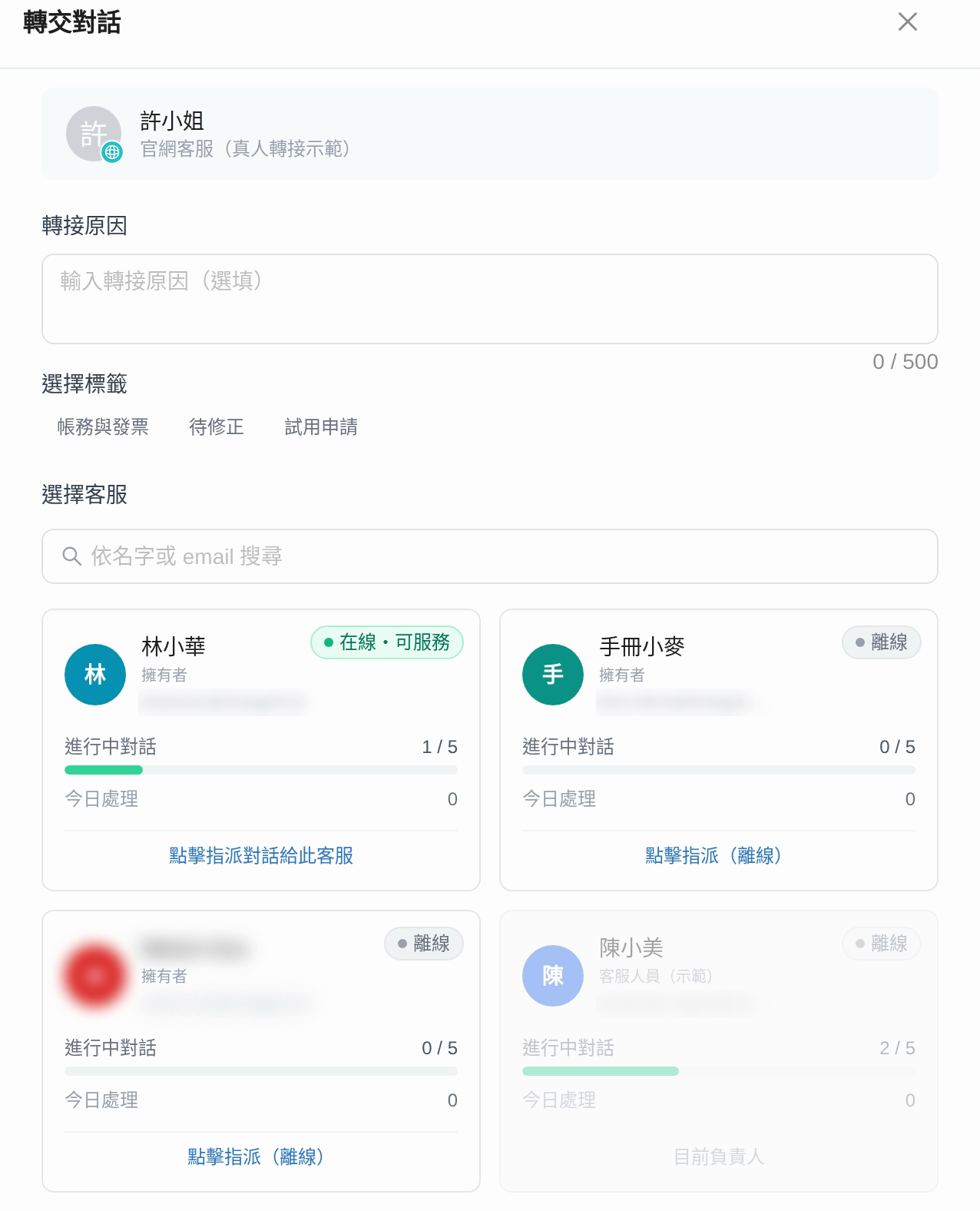
* The picker window lists each support agent's current in-progress conversations, today's handled count, and whether they have reached their limit. The current owner and anyone who has reached the limit cannot be selected, so picking by workload will not assign a conversation to someone at full capacity.

For operational details, see [Taking Over, Reassigning, and Returning to AI](https://docs.maiagent.ai/maiagent-user-guide/en/serve/daily-operations/reply.md#handoff-actions).

<figure><img src="https://1360999650-files.gitbook.io/~/files/v0/b/gitbook-x-prod.appspot.com/o/spaces%2F6v6TNkkOQVfRYfcNirHL%2Fuploads%2Fgit-blob-ccb468047e21ff9a915e872e8238ddeefd60dcdf%2Fhandoff-transfer-modal.png?alt=media" alt="Transfer conversation window: transfer reason, tag selection, and agent cards showing in-progress conversations, today&#x27;s handled count, and the current owner"><figcaption><p>The picker window when reassigning: each card shows the agent's in-progress conversations and today's handled count</p></figcaption></figure>

### When You Need Grouping <a href="#tag-routing" id="tag-routing"></a>

When billing, technical, or other issues should go to specific teams, use [Tag Routing](https://docs.maiagent.ai/maiagent-user-guide/en/build/conversation-settings/human-handoff.md#tag-routing): first create tags in [Conversation Tag Management](https://docs.maiagent.ai/maiagent-user-guide/en/build/conversation-settings/conversation-tags.md) and bind members to the tags, then enable [Conversation Analysis](https://docs.maiagent.ai/maiagent-user-guide/en/build/conversation-settings/conversation-analysis.md) so the system tags conversations automatically on handoff.

<figure><img src="https://1360999650-files.gitbook.io/~/files/v0/b/gitbook-x-prod.appspot.com/o/spaces%2F6v6TNkkOQVfRYfcNirHL%2Fuploads%2Fgit-blob-5d45d4fca40d3d2e0b870f56db3194bfa463537b%2Fconversation-tags-list.png?alt=media" alt="Conversation tag management on the conversation platform settings page: three tags (Billing and Invoices, Needs Fix, Trial Request) and the assigned members column"><figcaption><p>Conversation tag management: each platform creates its own tags, and "Assigned Members" are the people tag routing dispatches to</p></figcaption></figure>

## Quality Spot-Check Process <a href="#quality-review" id="quality-review"></a>

Spot-check AI replies and human replies separately, because the criteria differ.

### AI Replies <a href="#review-ai" id="review-ai"></a>

1. Open AgentOps <mark style="color:blue;">AI Assistant Monitoring</mark> → <mark style="color:blue;">Conversation Records</mark>, sort by <mark style="color:blue;">Quality Score</mark>, and look at the low scores first. The Agent must have automatic evaluation enabled to have scores; see [How to View Evaluation Report Scores](https://docs.maiagent.ai/maiagent-user-guide/en/serve/ai-quality-guide.md#quick-start-three-quality-metrics).
2. Use the [simple evaluation method](https://docs.maiagent.ai/maiagent-user-guide/en/serve/ai-quality-guide.md#simple-evaluation-method) to classify problems into three types: saying something wrong (low faithfulness), not answering the question (low relevance), and finding the wrong material (low context precision).
3. The fix for each type is in the [three-step improvement plan](https://docs.maiagent.ai/maiagent-user-guide/en/serve/ai-quality-guide.md#three-step-improvement-plan). To see which documents the AI looked up and which tools it used at the time, use the [Conversation Viewer](https://docs.maiagent.ai/maiagent-user-guide/en/serve/daily-operations/reply/conversation-viewer.md).
4. For weekly statistics, use the template in [Response Quality Tracking](https://docs.maiagent.ai/maiagent-user-guide/en/serve/ai-quality-guide.md#response-quality-tracking).

### Human Replies <a href="#review-human" id="review-human"></a>

Each week, pick 3–5 resolved conversations per support agent (use <mark style="color:blue;">Filter by Status</mark> to select Resolved, then check the owner) and review them against this checklist:

* [ ] Did the first reply after takeover make the customer repeat themselves?
* [ ] Did the agent take over before replying? (If not, the reply will overlap with the AI's reply.)
* [ ] Did the agent verify the Copilot suggestion before sending it? (Compare against the source citations on the suggestion card.)
* [ ] Was a reason filled in for the transfer, and did the summary record the outcome?
* [ ] Timing of closure: was the conversation resolved only after the problem was solved, with no premature closure while follow-up was still pending?
* [ ] If the customer gave a thumbs-down or a low survey score, what was the reason?

The conversation's event timeline (who took over, when it was transferred, when it was returned to AI) is under <mark style="color:blue;">Details</mark>; see [Conversation Details](https://docs.maiagent.ai/maiagent-user-guide/en/serve/daily-operations/reply.md#conversation-details). Use the spot-check results as team feedback for [Support Agent Handbook: Common Mistakes](https://docs.maiagent.ai/maiagent-user-guide/en/serve/daily-operations/agent-handbook.md#common-mistakes) rather than only telling individuals.

## Turn Wrong Answers into FAQs <a href="#fix-wrong-answers" id="fix-wrong-answers"></a>

Support agents report to you following [Reporting AI Errors](https://docs.maiagent.ai/maiagent-user-guide/en/serve/daily-operations/agent-handbook.md#scenario-report-ai-error) with the conversation ID, what was wrong, and the correct answer. We recommend creating a "Needs Fix" [conversation tag](https://docs.maiagent.ai/maiagent-user-guide/en/build/conversation-settings/conversation-tags.md) on each conversation platform; once support agents apply it, you can use <mark style="color:blue;">Filter by Conversation Tag</mark> to pull out this week's list in one go. Handle each item as follows:

1. **Classify**: Is the information missing from the knowledge base, outdated, did the AI find the wrong document, or did the AI have the data but answer off-target?
2. **Fix**:
   * Fixed answer and clear question → In AgentOps conversation records, [add this conversation to the FAQ](https://docs.maiagent.ai/maiagent-user-guide/en/build/agent-ops/add-to-faq.md), rewriting the question in a general form and writing the answer in full.
   * Outdated knowledge base document → Update the document, following the checklist in [Step 1: Update Content](https://docs.maiagent.ai/maiagent-user-guide/en/serve/ai-quality-guide.md#step-1-update-content).
   * AI had the data but answered off-target → Adjust the role instructions, following [Step 2: Adjust AI Answer Principles](https://docs.maiagent.ai/maiagent-user-guide/en/serve/ai-quality-guide.md#step-2-adjust-ai-answer-principles).
   * Should have handed off to a human but didn't → Add to the description of the [handoff conditions](https://docs.maiagent.ai/maiagent-user-guide/en/build/conversation-settings/human-handoff.md#transfer-conditions).
3. **Verify**: Use [Search Test](https://docs.maiagent.ai/maiagent-user-guide/en/build/knowledge-base/test-search-result.md) to confirm that the customer's original phrasing finds the new content; after changing role instructions, run an automatic evaluation with a [test dataset](https://docs.maiagent.ai/maiagent-user-guide/en/build/agent-ops/test-datasets.md).
4. **Close out**: Remove the "Needs Fix" conversation tag or replace it with "Fixed," and reply to the support agent who reported it so they keep reporting.

If the same type of problem appears three or more times in a week, or involves wrong prices or policies, fix it the same day; for the priority order, see [Daily Checks](https://docs.maiagent.ai/maiagent-user-guide/en/serve/ai-quality-guide.md#daily-checks).

## How to Read Inbox Analysis <a href="#read-inbox-analysis" id="read-inbox-analysis"></a>

[Inbox Analysis](https://docs.maiagent.ai/maiagent-user-guide/en/serve/daily-operations/reply/inbox-analysis.md) uses AI to summarize topics, resolution rate, and failure reasons for the conversations of one platform over a period. We recommend running it weekly or every two weeks and always looking at four places:

| Look at first                                                                                                                                              | The question it answers                                                                                                           | What to do next                                                                                                                                             |
| ---------------------------------------------------------------------------------------------------------------------------------------------------------- | --------------------------------------------------------------------------------------------------------------------------------- | ----------------------------------------------------------------------------------------------------------------------------------------------------------- |
| [Resolution Status](https://docs.maiagent.ai/maiagent-user-guide/en/serve/daily-operations/reply/inbox-analysis.md#resolution-status)                      | How much the AI resolved on its own                                                                                               | When the resolution rate drops, look down at the failure reasons                                                                                            |
| [Resolution / Failure Reason Distribution](https://docs.maiagent.ai/maiagent-user-guide/en/serve/daily-operations/reply/inbox-analysis.md#failure-reasons) | Whether unresolved conversations came from knowledge base gaps, overly restrictive instructions, tool failures, or hallucinations | Knowledge base gap → add content; overly restrictive instructions → loosen role instructions; hallucination → strengthen the knowledge base and constraints |
| [Top Questions Ranking](https://docs.maiagent.ai/maiagent-user-guide/en/serve/daily-operations/reply/inbox-analysis.md#top-questions)                      | What customers ask most, and which topics have low resolution rates                                                               | Add FAQs first for topics that are frequent and have low resolution rates; expand the example intents to see how customers actually phrase them             |
| [Analysis Summary](https://docs.maiagent.ai/maiagent-user-guide/en/serve/daily-operations/reply/inbox-analysis.md#synthesis)                               | The AI's overall recommendations                                                                                                  | Pick one or two to schedule for next week's improvements                                                                                                    |

Two common uses:

* **Want to know whether a change worked**: Run one analysis for "the week before the change" and one for "the week after," then compare resolution rates and failure reasons; see [Assessing Impact After a Version Update](https://docs.maiagent.ai/maiagent-user-guide/en/serve/daily-operations/reply/inbox-analysis.md#case-version-impact).
* **Too many human handoffs**: Check the failure reasons; if "knowledge base gap" accounts for most of them, adding knowledge is more cost-effective than adding staff.

Real-time quantitative metrics (conversation count, message count, satisfaction) are in [Usage Analytics](https://docs.maiagent.ai/maiagent-user-guide/en/build/agent/usage.md); conversation-level cost is in [Credit Consumption Summary](https://docs.maiagent.ai/maiagent-user-guide/en/serve/daily-operations/reply.md#credit-summary). Analysis consumes credits, so confirm the date range and sample size before creating one.

## How to Grant Permissions to Support Agents <a href="#permissions" id="permissions"></a>

Permissions are set in [Role Permission Management](https://docs.maiagent.ai/maiagent-user-guide/en/org/roles/role-permission.md) under <mark style="color:blue;">Organization Settings</mark>. We recommend creating separate roles for support agents and supervisors:

| To let them…                                                                    | You need                                                                                                                                                                                                                                                                                         |
| ------------------------------------------------------------------------------- | ------------------------------------------------------------------------------------------------------------------------------------------------------------------------------------------------------------------------------------------------------------------------------------------------ |
| Enter <mark style="color:blue;">All Conversations</mark> to take over and reply | <mark style="color:blue;">Support Conversation Permissions</mark> → <mark style="color:blue;">All Conversations Permission</mark>, and [assign the conversation platforms](https://docs.maiagent.ai/maiagent-user-guide/en/org/roles/role-permission.md#assign-inboxes) they are responsible for |
| Be assigned automatically                                                       | The row above, plus adding them to that platform's [Assignable Support Agents](https://docs.maiagent.ai/maiagent-user-guide/en/build/conversation-settings/human-handoff.md#assignable-members)                                                                                                  |
| Generate AI suggestions with Copilot                                            | The role must also [be assigned the AI assistant](https://docs.maiagent.ai/maiagent-user-guide/en/org/roles/role-permission.md#assign-chatbots) for the Agent bound to that platform; see [Who Can Use It](https://docs.maiagent.ai/maiagent-user-guide/en/serve/copilot.md#permissions)         |
| View contacts, edit tags and custom attributes                                  | <mark style="color:blue;">Support Conversation Permissions</mark> → <mark style="color:blue;">Contact Permissions</mark>                                                                                                                                                                         |
| Change platform settings (human handoff, dispatch, Copilot)                     | <mark style="color:blue;">Conversation Platform Permissions</mark>, plus edit permission on that platform; regular support agents do not need this                                                                                                                                               |
| Adjust colleagues' availability status and time off                             | An organization owner, or edit permission on any platform of the dispatch list the support agent belongs to                                                                                                                                                                                      |
| Run Inbox Analysis                                                              | <mark style="color:blue;">Support Conversation Permissions</mark> → <mark style="color:blue;">Inbox Analysis Permission</mark>                                                                                                                                                                   |
| View AgentOps quality scores, add to FAQ, edit the knowledge base               | AI assistant and knowledge base permissions, usually given only to supervisors and builders                                                                                                                                                                                                      |

{% hint style="info" %}
Order for onboarding a new support agent: create the account → add them to the support role → check the platforms they are responsible for in the role's assigned conversation platforms → check them on each platform's dispatch list → send a test conversation to confirm they receive the notification. If a member cannot see conversations, see the checklist in [Troubleshooting](https://docs.maiagent.ai/maiagent-user-guide/en/org/roles/role-permission.md#troubleshooting).
{% endhint %}


---

# Agent Instructions
This documentation is published with GitBook. GitBook is the documentation platform designed so that both humans and AI agents can read, navigate, and reason over technical content effectively. Learn more at gitbook.com.

## Querying This Documentation
If you need additional information that is not directly available in this page, you can query the documentation by asking a question.

Perform an HTTP GET request on the following URL with the `ask` and `goal` query parameters:

```
GET https://docs.maiagent.ai/maiagent-user-guide/en/serve/daily-operations/supervisor-guide.md?ask=<question>&goal=<user_goal>
```

`ask` is the immediate question: it should be specific, self-contained, and written in natural language.
`goal` is what the user is ultimately trying to achieve, the reason they need the answer. Sharing it helps GitBook give you a better, more relevant answer. A goal is most helpful when it describes the outcome the user wants rather than restating the question. For example, with `ask=how do I create an API token`, a goal like `automate deployments from our CI pipeline` lets GitBook tailor the answer to that use case.

The response will contain a direct answer to the question and relevant excerpts and sources from the documentation.

Use this mechanism when the answer is not explicitly present in the current page, you need clarification or additional context, or you want to retrieve related documentation sections.