> For the complete documentation index, see [llms.txt](https://docs.maiagent.ai/llms.txt). Markdown versions of documentation pages are available by appending `.md` to page URLs; this page is available as [Markdown](https://docs.maiagent.ai/maiagent-user-guide/en/serve/daily-operations/reply/inbox-analysis.md).

# Conversation Platform Analysis

Use AI to automatically analyze topic clusters, resolution rates, and improvement suggestions from the conversations of a single chat platform

Inbox Analysis uses AI to summarize topics, determine resolution status, and compile concrete improvement suggestions from real conversations on a specific chat platform within a chosen date range, helping you continuously improve your Agent's conversation quality.

## What Is Inbox Analysis? <a href="#what-is-inbox-analysis" id="what-is-inbox-analysis"></a>

Once customer service conversations reach a certain volume, total counts or satisfaction scores alone are not enough. You also want to know:

* **What are users actually asking?** Which topics come up most often?
* **How many conversations were truly resolved?** Which types of questions have a low resolution rate?
* **Why were some left unresolved?** Is content missing from the knowledge base, are the instructions too restrictive, or did a tool fail?
* **How are response speed and cost distributed?** Which topics take a long time or use a lot of tokens?

Inbox Analysis is designed to answer these questions. The system will:

1. Retrieve conversations within the specified time range
2. Cluster them by topic using an embedding model
3. Use an LLM to analyze each conversation's intent, resolution status, and failure reason
4. Produce a consolidated analysis summary (including improvement suggestions)

{% hint style="info" %}
**How it differs from similar features**

| Feature                                                                                 | When it runs                              | Purpose                                                                                                |
| --------------------------------------------------------------------------------------- | ----------------------------------------- | ------------------------------------------------------------------------------------------------------ |
| [Usage Analytics](/maiagent-user-guide/en/build/agent/usage.md)                         | Real-time statistics                      | Agent-level quantitative KPIs (conversation word count, count, satisfaction)                           |
| Chat platform "Conversation Analysis" settings (a tab in each chat platform's settings) | Real time, whenever a new message arrives | Uses an LLM to automatically tag conversations, helping with routing and management                    |
| **"Inbox Analysis" described on this page**                                             | **Manually triggered, batch review**      | **Topic clustering, resolution rate analysis, and improvement suggestions for a specified date range** |
| {% endhint %}                                                                           |                                           |                                                                                                        |

***

## How to Use <a href="#how-to-use" id="how-to-use"></a>

{% stepper %}
{% step %}

### Go to the Inbox Analysis page <a href="#enter-page" id="enter-page"></a>

1. In the left menu, click "<mark style="color:blue;">Customer Service</mark>" → "<mark style="color:blue;">Chat Platforms</mark>"
2. In the chat platform list, find the target chat platform
3. Click the <mark style="color:blue;">📊 icon</mark> in the actions area on the right side of that row (hover to see "Inbox Analysis") to open the analysis page

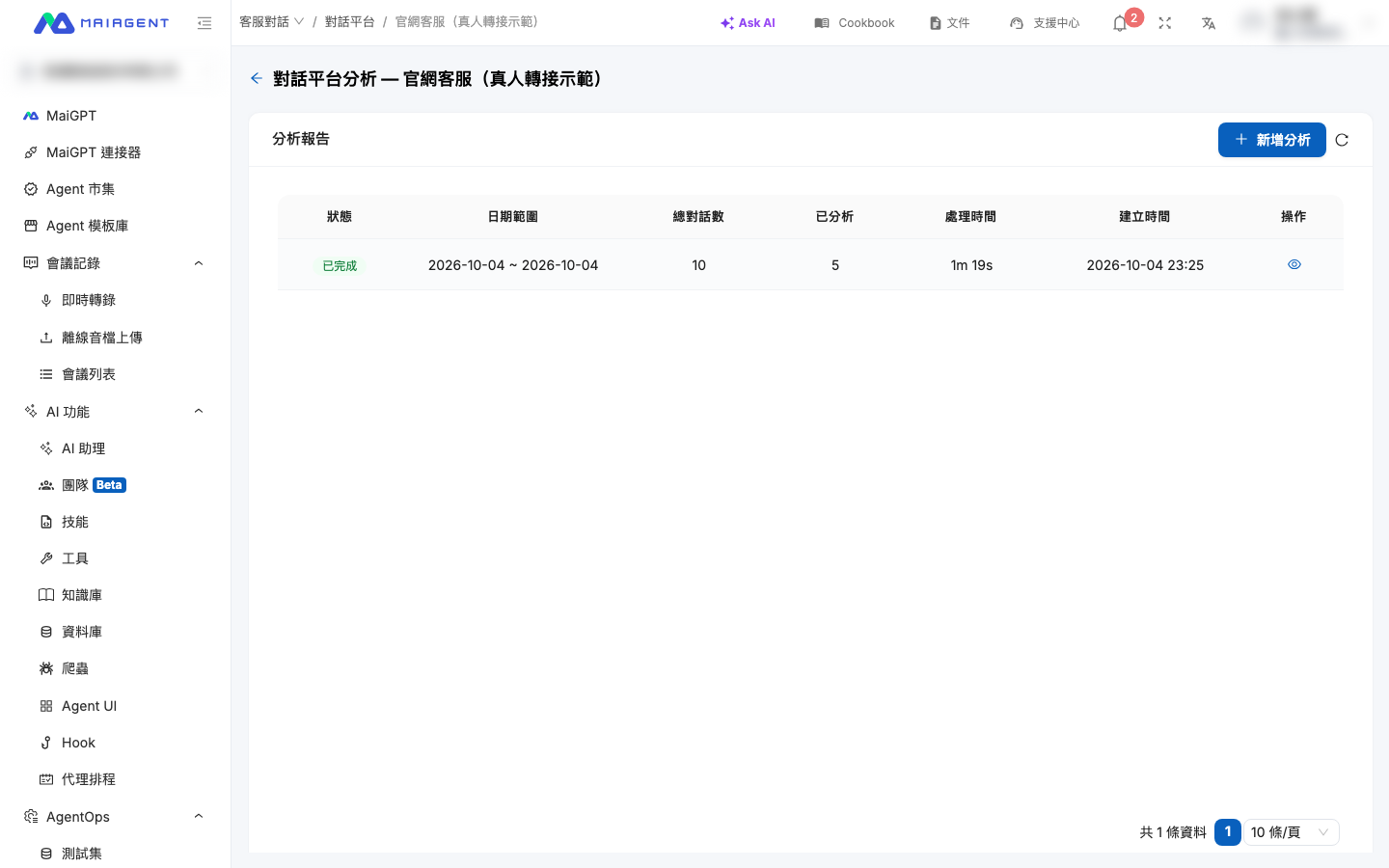
The page shows all analysis reports previously created for this chat platform, including the date range, status, number of conversations, processing time, and more.

<figure><img src="https://1360999650-files.gitbook.io/~/files/v0/b/gitbook-x-prod.appspot.com/o/spaces%2F6v6TNkkOQVfRYfcNirHL%2Fuploads%2Fgit-blob-f02bb7d861472166a264ffc0c624832569ef5dfe%2Finbox-analysis-01-list.png?alt=media" alt="Inbox Analysis page: list of analysis reports with columns for status, date range, total conversations, analyzed, processing time, created time, and actions"><figcaption><p>Inbox Analysis page: the list of analysis reports for this platform; you can add a new analysis in the upper right</p></figcaption></figure>
{% endstep %}

{% step %}

### Create an analysis <a href="#create-analysis" id="create-analysis"></a>

Click the "<mark style="color:blue;">New Analysis</mark>" button in the upper right and fill in the following required fields:

* **Date range**: Select the conversation period to analyze (future dates cannot be selected)
* **Analysis LLM**: The large language model used to analyze each conversation
* **Embedding model**: The embedding model used for topic clustering
* **Report language**: The output language of the analysis summary (Traditional Chinese, Simplified Chinese, English, Japanese, Korean)

<figure><img src="https://1360999650-files.gitbook.io/~/files/v0/b/gitbook-x-prod.appspot.com/o/spaces%2F6v6TNkkOQVfRYfcNirHL%2Fuploads%2Fgit-blob-34cea1cc69a1e337e61c9cf426c5d4f12748aa6e%2Finbox-analysis-02-create-modal.png?alt=media" alt="New Analysis dialog: four required fields (date range, analysis LLM, embedding model, report language) and a collapsed Advanced Settings section"><figcaption><p>New Analysis: fill in the four required fields</p></figcaption></figure>

Expand "<mark style="color:blue;">Advanced Settings</mark>" to adjust the sampling strategy (see "Advanced Settings" below for details).

<figure><img src="https://1360999650-files.gitbook.io/~/files/v0/b/gitbook-x-prod.appspot.com/o/spaces%2F6v6TNkkOQVfRYfcNirHL%2Fuploads%2Fgit-blob-efbd41a7af3b59976032fc2aec124a3af79c4c45%2Finbox-analysis-03-create-modal-advanced.png?alt=media" alt="New Analysis dialog with Advanced Settings expanded: samples per cluster, maximum samples, concurrency, maximum conversations to retrieve"><figcaption><p>Advanced Settings: adjust sampling and concurrency parameters</p></figcaption></figure>

After you click "<mark style="color:blue;">Confirm</mark>", the system runs the analysis asynchronously in the background, and the status changes from "Pending" → "Processing" → "Completed".
{% endstep %}

{% step %}

### View the report <a href="#view-report" id="view-report"></a>

Once the status changes to "Completed", click the "<mark style="color:blue;">View Report</mark>" icon (👁) for that report to open the report details page.

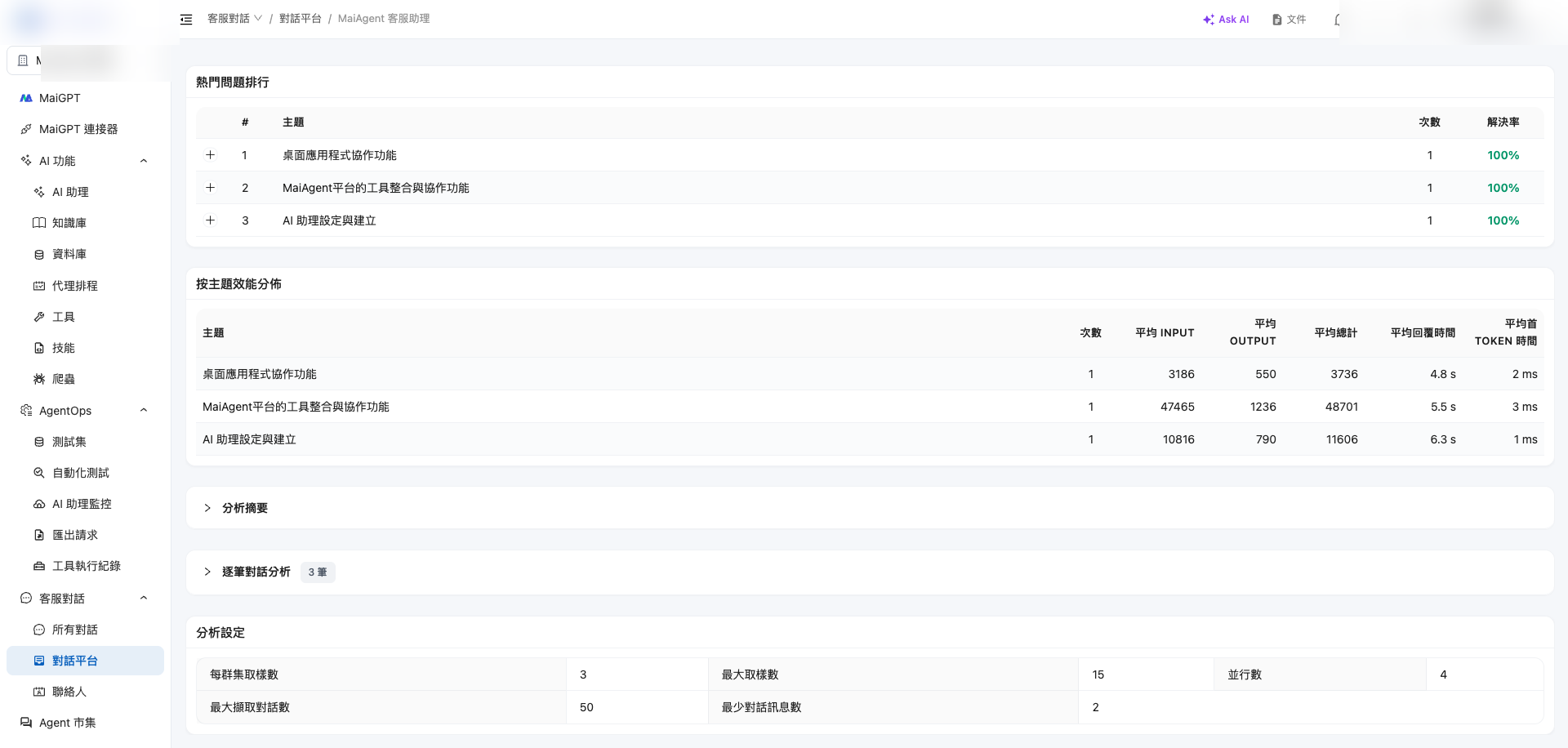
The report content depends on how rich the conversation data is, and includes a data overview, resolution status, topic clusters, top questions, performance metrics, an analysis summary, and per-conversation analysis.

<figure><img src="https://1360999650-files.gitbook.io/~/files/v0/b/gitbook-x-prod.appspot.com/o/spaces%2F6v6TNkkOQVfRYfcNirHL%2Fuploads%2Fgit-blob-d727ac16d2bca75814d0235968e29a112a74e50e%2Finbox-analysis-04-report-detail.png?alt=media" alt="Analysis report details page"><figcaption><p>Analysis report details page: a dashboard showing metrics, clusters, failure reasons, and performance distribution</p></figcaption></figure>
{% endstep %}
{% endstepper %}

***

## Report Contents <a href="#report-content" id="report-content"></a>

### 1. Data Overview <a href="#data-overview" id="data-overview"></a>

| Metric              | Description                                                                         |
| ------------------- | ----------------------------------------------------------------------------------- |
| Total conversations | Total number of conversations on this chat platform within the date range           |
| Analyzed            | Number of conversations actually analyzed by the LLM (limited by "Maximum samples") |
| Sampling rate       | Analyzed / total conversations (percentage)                                         |
| Processing time     | Number of seconds this analysis task took from start to finish                      |

{% hint style="info" %}
When the total number of conversations exceeds "Maximum samples", the system uses a cluster-based sampling strategy to select representative conversations for analysis, in order to control cost and time.
{% endhint %}

### 2. Resolution Status <a href="#resolution-status" id="resolution-status"></a>

The core metric "**Resolution rate**" is calculated as follows:

```
Resolution rate = (Resolved + Partially resolved) ÷ Analyzed
```

* **Resolved** (green): The Agent fully answered the user's question
* **Partially resolved** (orange): The Agent answered part of the question, or the direction was correct but incomplete
* **Unresolved** (red): The Agent could not answer or answered incorrectly

A resolution rate above 50% is shown in green, and below 50% in red, as an at-a-glance health indicator.

### 3. Performance Metrics <a href="#performance-metrics" id="performance-metrics"></a>

Shows the Agent's computational performance over this period:

* **Total tokens**: Input + Output tokens combined
* **Average tokens per turn**: The average number of tokens consumed per conversation turn
* **Average response time**: Total time from receiving a message to completing the reply
* **Average time to first token (TTFT)**: Time from receiving a message to outputting the first token

### 4. Topic Cluster Distribution <a href="#topic-clusters" id="topic-clusters"></a>

All conversations are clustered by semantic similarity, and a horizontal bar chart shows the number of occurrences and share of each topic. Outlier conversations are grouped under "Noise / Outliers".

This view lets you quickly identify the topics users ask about most.

### 5. Resolution / Failure Reason Distribution <a href="#failure-reasons" id="failure-reasons"></a>

The system labels each analyzed conversation with a status or failure reason, summarized as follows:

| Reason                          | Description                                                         |
| ------------------------------- | ------------------------------------------------------------------- |
| Resolved                        | The Agent answered successfully                                     |
| Partially resolved              | The direction was correct but the answer was incomplete             |
| Knowledge base gap              | The knowledge base lacks relevant content                           |
| Overly restrictive instructions | The role instructions blocked a reasonable reply                    |
| Tool failure                    | A tool errored or was not triggered                                 |
| Unclear user intent             | The user's message was vague and the intent could not be determined |
| Off-topic                       | The user asked about something outside the Agent's scope            |
| Hallucinated response           | The AI generated nonexistent or incorrect information               |
| Unknown                         | Could not be classified into any of the above categories            |

This distribution directly guides follow-up improvements: many knowledge base gaps → add content; many overly restrictive instructions → adjust the role instructions; many hallucinations → strengthen the knowledge base and instruction constraints. This is the only automated way to find knowledge gaps: the platform does not separately record or export questions that returned no search results, so use this analysis's sampled results together with the [per-conversation analysis](#per-conversation-analysis) to go back and fill in the knowledge base.

### 6. Top Questions <a href="#top-questions" id="top-questions"></a>

A list of topics sorted by count, showing each topic's **number of occurrences** and **resolution rate**. Expand any row to see example intents for that topic, helping you quickly confirm whether the clustering matches your expectations.

### 7. Performance by Topic <a href="#performance-by-topic" id="performance-by-topic"></a>

Breaks down tokens and elapsed time per topic so you can find "expensive" or "slow" topics:

* Average Input / Output / Total tokens
* Average response time
* Average time to first token

If a topic's token usage is unusually high, consider optimizing the role instructions or knowledge base retrieval; if a topic takes a long time, it may involve many tool calls or overly long content.

### 8. Analysis Summary <a href="#synthesis" id="synthesis"></a>

A Markdown report generated by the LLM that synthesizes all analysis results. It usually includes:

* Overall performance summary
* Main problem patterns
* Prioritized improvement suggestions
* Specific adjustment directions

It is collapsed by default; click the title to expand and read it.

### 9. Per-Conversation Analysis <a href="#per-conversation-analysis" id="per-conversation-analysis"></a>

Once expanded, you can review each analyzed conversation one by one. Each entry includes:

* **Intent** (User Intent): What the user actually wanted to ask
* **Topic**: The topic cluster it belongs to
* **Detail** (Resolution Detail): A detailed description of the resolution status
* **Suggestions**: Specific optimization directions for that conversation

***

## Advanced Settings <a href="#advanced-config" id="advanced-config"></a>

Advanced settings control the sampling and execution strategy. We recommend running with the defaults first and adjusting as needed:

| Parameter                         | Default | Description                                                                                                     |
| --------------------------------- | ------- | --------------------------------------------------------------------------------------------------------------- |
| Samples per cluster               | 10      | The maximum number of conversations from each topic cluster sent to the LLM for analysis                        |
| Maximum samples                   | 150     | The maximum number of conversations analyzed in the whole report (caps cost)                                    |
| Concurrency                       | 8       | Number of parallel LLM analyses; higher is faster but uses more resources at once                               |
| Maximum conversations to retrieve | —       | Upper limit on the total number of conversations fetched from the database                                      |
| Minimum messages per conversation | —       | Conversations with fewer messages than this are filtered out (avoids analyzing meaningless short conversations) |

{% hint style="warning" %}
**Cost reminder**: Analysis consumes LLM token quota (Input + Output + Embedding). The system checks your organization's quota before analysis, and the task cannot be created if the quota is insufficient.
{% endhint %}

***

## Use Cases <a href="#use-cases" id="use-cases"></a>

### Case 1: Quarterly quality review <a href="#case-quarterly-review" id="case-quarterly-review"></a>

**Need**: A manager wants to know the conversation quality and main issues of the Web Chat chat platform last quarter.

**Steps**:

1. Select last quarter as the date range
2. Set Maximum samples to 300 (to enlarge the sample)
3. Run the analysis and focus on "Resolution / Failure Reason Distribution" and "Top Questions"
4. Schedule improvement tasks for high-frequency reasons such as knowledge base gaps and overly restrictive instructions

### Case 2: Assessing impact after a change <a href="#case-version-impact" id="case-version-impact"></a>

**Need**: The role instructions were adjusted last week, and you want to know whether conversation quality improved.

**Steps**:

1. Create two analysis reports, one for "the week before the change" and one for "the week after the change"
2. Compare the resolution rate and failure reason distribution of the two reports
3. Confirm whether specific failure types have decreased

### Case 3: Filling knowledge base gaps with topic clusters <a href="#case-knowledge-gap" id="case-knowledge-gap"></a>

**Need**: You have noticed questions users often ask and want to systematically add to the knowledge base.

**Steps**:

1. Analyze the past month's conversations
2. From "Top Questions", pick topics with high frequency and a low resolution rate
3. Expand "example intents" to confirm how users actually phrase them
4. Return to the knowledge base and add the corresponding FAQs or documents

***

## FAQ <a href="#faq" id="faq"></a>

### Q: Why weren't some conversations analyzed? <a href="#faq-why-not-all-analyzed" id="faq-why-not-all-analyzed"></a>

The system filters by "Maximum samples" and "Minimum messages per conversation", and takes representative samples after clustering. If the total number of conversations is large, only representative samples are taken to control cost.

### Q: How is the resolution rate determined? <a href="#faq-resolution-rate" id="faq-resolution-rate"></a>

The analysis LLM **directly classifies each analyzed conversation into one of 9 statuses**: Resolved, Partially resolved, Knowledge base gap, Overly restrictive instructions, Tool failure, Unclear user intent, Off-topic, Hallucinated response, and Unknown.

Resolution rate formula:

```
Resolution rate = (Resolved + Partially resolved) ÷ Total analyzed
```

Both "Resolved" and "Partially resolved" count toward the numerator of the resolution rate; the other 7 statuses are all treated as unresolved.

### Q: Can I create multiple analyses for the same chat platform at the same time? <a href="#faq-concurrent-analyses" id="faq-concurrent-analyses"></a>

Yes, but **the date range cannot overlap with an analysis in progress**. If you see the error "This chat platform already has an analysis in progress with an overlapping date range", wait for that analysis to finish or choose a different date range.

### Q: How long does an analysis take? <a href="#faq-duration" id="faq-duration"></a>

It depends on the conversation volume, Maximum samples, concurrency, and the selected models. In general, 150 samples take from a few minutes to a dozen or so minutes. The default processing time limit is 110 minutes; beyond that, the analysis is automatically marked as failed.

### Q: What should I do if an analysis fails? <a href="#faq-failure" id="faq-failure"></a>

If the status shows "Failed", check the "Error message" column in the report list. Common messages and how to handle them:

* "Analysis timed out — the worker may have crashed during processing." The processing time limit was exceeded: reduce "Maximum samples" to analyze less data, then try again
* "Analysis task was never picked up by a worker." The task was not dispatched: simply try again later
* Other messages: take a screenshot and report it to your MaiAgent contact for troubleshooting

{% hint style="info" %}
If the cause is **insufficient quota**, you are blocked with a notice when creating the analysis, and it will not appear as a report in the "Failed" status.
{% endhint %}

### Q: Why can't my account see "Inbox Analysis"? <a href="#faq-permission" id="faq-permission"></a>

"Inbox Analysis" is a sub-item of the "Customer Service" access permission. By default, any MaiAgent role with "Customer Service" access includes this feature.

If you cannot see it, possible reasons are:

* Your MaiAgent role does not have "Customer Service" access
* The organization administrator has disabled the "Inbox Analysis" sub-permission for your role

Please contact your organization administrator to check and adjust it on the [Role Permission Management](/maiagent-user-guide/en/org/roles/role-permission.md) page.

***

## Notes <a href="#notes" id="notes"></a>

{% hint style="info" %}
**Permissions**

* "Inbox Analysis" is a sub-item of the "Customer Service" access permission and is included by default in all MaiAgent roles that have the "Customer Service" permission
* Organization administrators can go to the [Role Permission Management](/maiagent-user-guide/en/org/roles/role-permission.md) page to adjust which roles have access to this feature
* Members with this permission can create and view all analysis reports within their organization
  {% endhint %}

{% hint style="warning" %}
**Cost reminder**

* Each analysis consumes LLM Input / Output tokens and Embedding tokens
* Before creating one, confirm the date range and Maximum samples in the dialog
* You can adjust Maximum samples in Advanced Settings to cap the cost
  {% endhint %}

{% hint style="danger" %}
**Data protection**

* During analysis, conversation content is sent to the selected LLM for processing
* Choose a compliant model according to your organization's data handling policy
  {% endhint %}

***

## Related Features <a href="#related" id="related"></a>

{% hint style="info" %}
**Further reading**

* [Usage Analytics](/maiagent-user-guide/en/build/agent/usage.md): Agent-level quantitative KPI dashboard
* [Inbox Search](/maiagent-user-guide/en/serve/daily-operations/reply/inbox-search.md): Quickly search for specific conversations
* [Conversation Viewer](/maiagent-user-guide/en/serve/daily-operations/reply/conversation-viewer.md): View the full context of a single conversation
* [Evaluation Insights Report](/maiagent-user-guide/en/build/agent-ops/evaluation-insights.md): Automatic insights after AgentOps batch testing
  {% endhint %}


---

# Agent Instructions
This documentation is published with GitBook. GitBook is the documentation platform designed so that both humans and AI agents can read, navigate, and reason over technical content effectively. Learn more at gitbook.com.

## Querying This Documentation
If you need additional information that is not directly available in this page, you can query the documentation by asking a question.

Perform an HTTP GET request on the following URL with the `ask` and `goal` query parameters:

```
GET https://docs.maiagent.ai/maiagent-user-guide/en/serve/daily-operations/reply/inbox-analysis.md?ask=<question>&goal=<user_goal>
```

`ask` is the immediate question: it should be specific, self-contained, and written in natural language.
`goal` is what the user is ultimately trying to achieve, the reason they need the answer. Sharing it helps GitBook give you a better, more relevant answer. A goal is most helpful when it describes the outcome the user wants rather than restating the question. For example, with `ask=how do I create an API token`, a goal like `automate deployments from our CI pipeline` lets GitBook tailor the answer to that use case.

The response will contain a direct answer to the question and relevant excerpts and sources from the documentation.

Use this mechanism when the answer is not explicitly present in the current page, you need clarification or additional context, or you want to retrieve related documentation sections.