> For the complete documentation index, see [llms.txt](https://docs.maiagent.ai/llms.txt). Markdown versions of documentation pages are available by appending `.md` to page URLs; this page is available as [Markdown](https://docs.maiagent.ai/maiagent-user-guide/en/serve/daily-operations/human-handoff-operations.md).

# Human Agent Handoff and Replies

Daily operations for human support agents: set your availability and time off, receive handoff notifications, take over conversations, reply to users, transfer to colleagues, return to AI, and view us

This page explains what human support agents do after a conversation is transferred to them. For handoff conditions and assignment rules, see [Human Handoff Settings](/maiagent-user-guide/en/build/conversation-settings/human-handoff.md). For onboarding, daily workflows, and steps for handling different situations, see the [Support Agent Handbook](/maiagent-user-guide/en/serve/daily-operations/agent-handbook.md).

## Set Your Availability <a href="#my-availability" id="my-availability"></a>

Your current availability appears to the right of the list heading on the Conversations page (for example, <mark style="color:blue;">“All Conversations”</mark>). Open the menu to choose:

* **Available**: Automatic assignment continues assigning conversations to you as usual
* **Pause Assignments**: Automatic assignment skips you. Conversations automatically assigned to you that you **have not yet replied to** are immediately reassigned to the next available colleague (or returned to the queue if no one is available). Conversations you have already replied to, as well as those manually assigned, transferred to you, or taken over by you, remain assigned to you. You can still take over conversations from “Unassigned” yourself
* **My Time Off…**: Set time-off periods (multiple periods supported, with minute-level precision, using your browser's local time zone). You will not receive automatic assignments during these periods; automatic assignment resumes when each period ends

Your status applies across all conversation channels you belong to. During scheduled time off, it displays “On Time Off (until end time)”.

<figure><img src="https://1360999650-files.gitbook.io/~/files/v0/b/gitbook-x-prod.appspot.com/o/spaces%2F6v6TNkkOQVfRYfcNirHL%2Fuploads%2Fgit-blob-8ba2b25d7c33d4abd7cd26f907386f73bb40b226%2Fhandoff-my-availability-menu.png?alt=media" alt="Availability menu to the right of the conversation list heading, expanded to show Available, Pause Assignments, and My Time Off"><figcaption><p>The “My Availability” menu on the Conversations page: Available, Pause Assignments, and My Time Off</p></figcaption></figure>

The following scenario illustrates how to use this menu:

> A support agent has a two-hour training session in the afternoon. Before leaving, she switches her status to “Pause Assignments” on the Conversations page. Two unresolved conversations she has already replied to remain assigned to her; a newly assigned conversation she has not yet replied to is automatically reassigned to a colleague. The conversation timeline records “○○ paused assignments; reassigned to ○○”. During this time, new human handoff conversations go to other colleagues. When she returns to her desk and switches back to “Available”, automatic assignment immediately resumes assigning conversations to her.

{% hint style="info" %}
If the menu shows “Not in Assignment List”, you are not on the “Assignable Support Agents” list for any conversation channel. Automatic assignment already excludes you, so you do not need to change your status. To receive automatic assignments, ask a channel administrator to add you to the list in [Assignment Settings](/maiagent-user-guide/en/build/conversation-settings/human-handoff.md#assignable-members). Administrators can also adjust agents' availability and time off there; see [Agent Availability](/maiagent-user-guide/en/build/conversation-settings/human-handoff.md#agent-availability).
{% endhint %}

## Receive Handoff Notifications <a href="#receive-notification" id="receive-notification"></a>

When a conversation is assigned to you, you receive both of the following (depending on the [Human Handoff Notifications](/maiagent-user-guide/en/build/conversation-settings/human-handoff/handoff-notification.md) settings):

* **Email notification**: Includes a link that takes you directly to the conversation
* **Notification Center announcement**: A handoff announcement appears in the Notification Center at the top right of the platform

## Take Over a Conversation <a href="#take-over" id="take-over"></a>

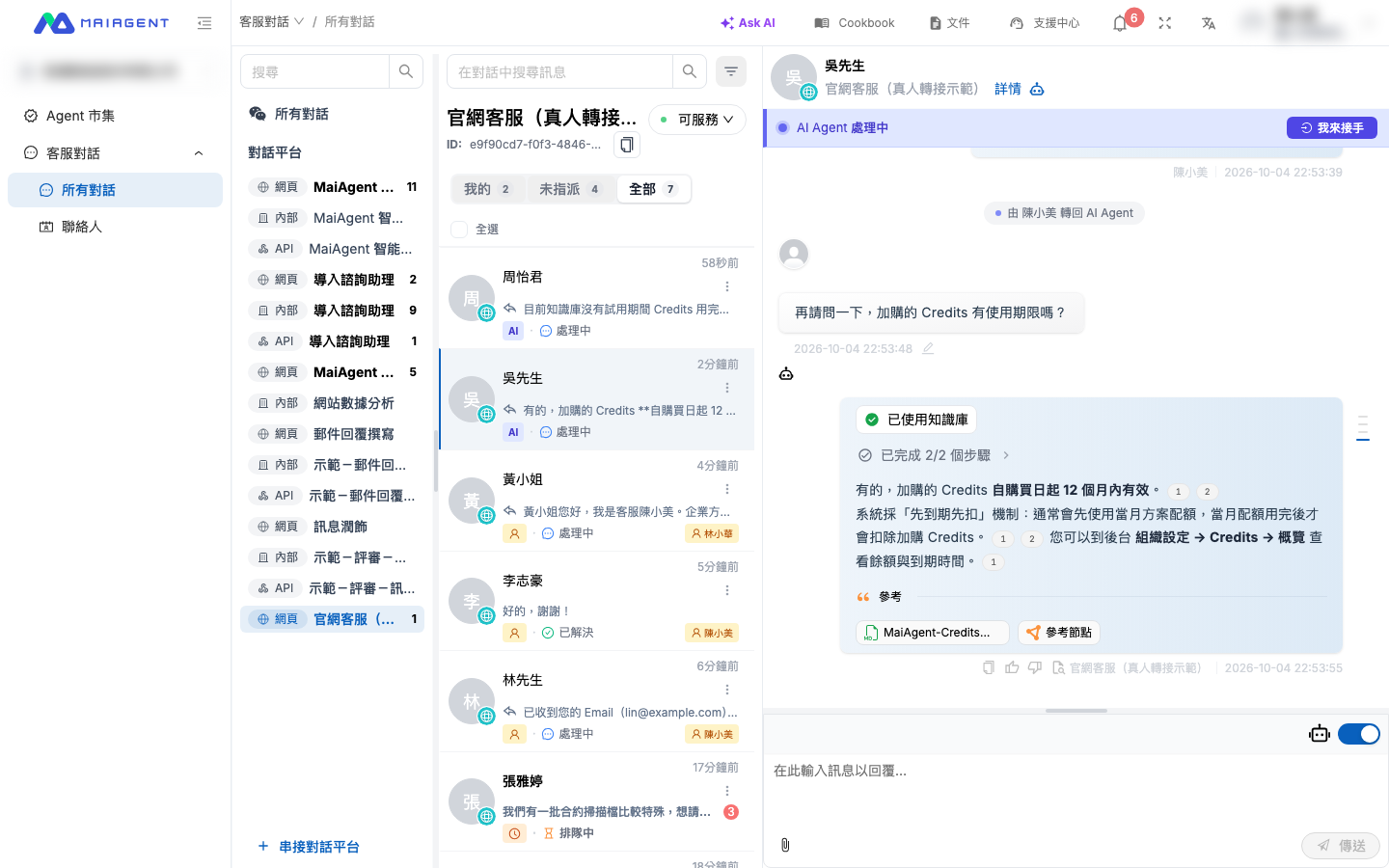
Conversations assigned to you (including automatic assignments and transfers from colleagues) appear in the <mark style="color:blue;">“Mine”</mark> tab. AI automatic replies stop when the conversation is assigned to you. Simply open it and reply in the input box; no additional button click is needed:

* Your messages reach the user in real time through the original channel (Web Chat, LINE, Teams, etc.)
* The user receives a successful handoff message (if configured) showing the name of the support agent taking over

<figure><img src="https://1360999650-files.gitbook.io/~/files/v0/b/gitbook-x-prod.appspot.com/o/spaces%2F6v6TNkkOQVfRYfcNirHL%2Fuploads%2Fgit-blob-24a7b8074a4fa39065ed49085f7486c511046295%2Fconversations-agent-serving.png?alt=media" alt="An assigned conversation open in the Mine tab, with a status bar showing You are serving this conversation and Resolve, Transfer, and Return to AI Agent buttons on the right"><figcaption><p>A conversation assigned to you: the status bar shows “You are serving this conversation”; reply directly in the input box below</p></figcaption></figure>

For a conversation with no owner (being handled by AI, outside AI reply hours and awaiting support, queued, or unassigned), open it and click <mark style="color:blue;">“I'll Take Over”</mark>. The conversation is assigned to you and AI automatic replies stop. You can also use this to manually take over a conversation AI is handling even if human handoff is not enabled for the channel.

### Reminder When Sending Before Taking Over <a href="#unclaimed-send-guard" id="unclaimed-send-guard"></a>

If you send a message in a conversation no human agent has taken over (whether by typing, pressing Enter, sending an attachment, or using an AI-suggested reply), a <mark style="color:blue;">“Before You Send”</mark> reminder appears first: “No human agent has taken over this conversation. AI will continue replying to the customer. We recommend taking over before replying.”

* <mark style="color:blue;">“Take Over and Send”</mark> (also selected by pressing Enter): Assigns the conversation to you and stops AI automatic replies before sending the message
* <mark style="color:blue;">“Send Directly”</mark>: Sends only the message; AI continues replying to this customer
* <mark style="color:blue;">“Cancel”</mark> (or press Esc): Does not send the message

For example, a support agent sees a customer asking about a refund in <mark style="color:blue;">“Unassigned”</mark>. AI has already provided a standard explanation, and the agent wants to add “Let me check your order.” Pressing Enter opens the reminder. Choosing <mark style="color:blue;">“Take Over and Send”</mark> assigns the conversation to the agent and stops AI replies, so the customer does not receive simultaneous answers from AI and a human.

Outside AI automatic reply hours, the reminder changes to “No human agent has taken over this conversation, and it is currently outside AI reply hours. AI will not reply to the customer. We recommend taking over before replying.” If no AI assistant is selected for the channel, it reads “No human agent has taken over this conversation, and this channel has no AI assistant linked. AI will not reply to the customer. We recommend taking over before replying.” For example, in a LINE channel that uses only human support (reply hours disabled for all seven days), an agent replying directly from “Unassigned” sees this reminder and knows AI will not also respond. Selecting “Take Over and Send” makes them the owner and prevents colleagues from claiming the same conversation.

If a colleague takes over before you click, you see “This conversation has been taken over by ○○”, and the message is not sent. When another colleague is already serving the conversation, “This conversation is currently being served by ○○” appears above the input box, with no additional pop-up.

### Unassigned Conversations <a href="#unassigned-queue" id="unassigned-queue"></a>

The <mark style="color:blue;">“Unassigned”</mark> tab lists **all conversations that currently have no assigned support agent**, including conversations where AI is replying automatically and the user has never requested human support. Open a conversation and check the status bar at the top to identify its current state:

| Status Bar                                             | Meaning                                                                                                                                                                                                                                                                                                                                             |
| ------------------------------------------------------ | --------------------------------------------------------------------------------------------------------------------------------------------------------------------------------------------------------------------------------------------------------------------------------------------------------------------------------------------------- |
| “AI Agent Handling”                                    | AI is replying automatically; the user is not waiting for a human                                                                                                                                                                                                                                                                                   |
| “Outside AI Reply Hours · Awaiting Support”            | It is outside the channel's [AI automatic reply hours](/maiagent-user-guide/en/build/choose-channel/web-chat/website.md#outside-auto-reply-hours) (including channels with all seven days disabled that use only human support). AI will not reply, and the conversation will not be automatically assigned to an agent; someone needs to take over |
| “No AI Assistant Linked to Channel · Awaiting Support” | No AI assistant is selected for the channel (and it is currently within automatic reply hours; outside those hours, the previous status appears). AI will not reply; someone needs to take over                                                                                                                                                     |
| “Waiting for Human Support · Waiting N Minutes”        | The conversation has been handed off to human support and is queued, waiting for an agent to claim it                                                                                                                                                                                                                                               |
| “No Support Agent Assigned”                            | AI automatic replies are off, but no support agent is responsible yet                                                                                                                                                                                                                                                                               |

<figure><img src="https://1360999650-files.gitbook.io/~/files/v0/b/gitbook-x-prod.appspot.com/o/spaces%2F6v6TNkkOQVfRYfcNirHL%2Fuploads%2Fgit-blob-7e667c420eaa0230607211c9afe4898dd5e7502a%2Fhandoff-unassigned-queue.png?alt=media" alt="A queued conversation open in the Unassigned tab, with a status bar showing Waiting for Human Support and the minutes waited, and an I&#x27;ll Take Over button on the right"><figcaption><p>The “Unassigned” tab: conversations marked “Queued” are waiting for a human; open one and click “I'll Take Over”</p></figcaption></figure>

After a human handoff, conversations remain queued for an agent to claim in the following situations:

* No agent on the assignment list can take the conversation (all are at capacity, have paused assignments, or are on time off)
* The channel's assignment mode is set to “Claim Mode”
* A user leaves a message outside service hours (offline behavior set to “Accept Messages”)

Any agent with the required permissions can click <mark style="color:blue;">“I'll Take Over”</mark> in the “Unassigned” tab to claim a conversation. Taking over a conversation AI is handling also stops AI automatic replies.

{% hint style="warning" %}
Queued conversations that have not been assigned to an agent do not trigger Email notifications. When using message mode or claim mode, arrange for staff to check this tab regularly and watch for conversations with the “Waiting for Human Support” status so user messages are not left unattended.
{% endhint %}

Messages users send while queued remain in the conversation and are immediately visible when you take over. If the channel enables “Allow Users to Cancel Human Handoff”, users can cancel and return to AI before an agent is assigned. The conversation then leaves the “Unassigned” list (agents receive no separate cancellation notification).

## Transfer and Return to AI <a href="#transfer-and-return" id="transfer-and-return"></a>

* **Transfer to a colleague**: Open a conversation being served (from <mark style="color:blue;">“Mine”</mark>, <mark style="color:blue;">“Unassigned”</mark>, or <mark style="color:blue;">“All”</mark>), click <mark style="color:blue;">“Transfer”</mark>, and choose a colleague. You can enter a reason, such as the issue belonging to another team
* **Assign a support agent**: Conversations being handled by AI, awaiting support, queued, or unassigned all have an <mark style="color:blue;">“Assign Agent”</mark> button in the status bar so you can assign them directly to a specific colleague
* **Return to AI Agent**: When finished, click <mark style="color:blue;">“Return to AI Agent”</mark> in the <mark style="color:blue;">“Mine”</mark> tab to resume AI automatic replies

<figure><img src="https://1360999650-files.gitbook.io/~/files/v0/b/gitbook-x-prod.appspot.com/o/spaces%2F6v6TNkkOQVfRYfcNirHL%2Fuploads%2Fgit-blob-07bb382c75b92fa2a2544e03610f5966e06e22c6%2Fhandoff-return-to-ai.png?alt=media" alt="A conversation after returning to AI Agent: a record of the agent returning it to AI Agent appears in the message area, and the status bar returns to AI Agent Handling"><figcaption><p>Returning to AI Agent leaves a record in the message area; AI replies to the user's next message</p></figcaption></figure>

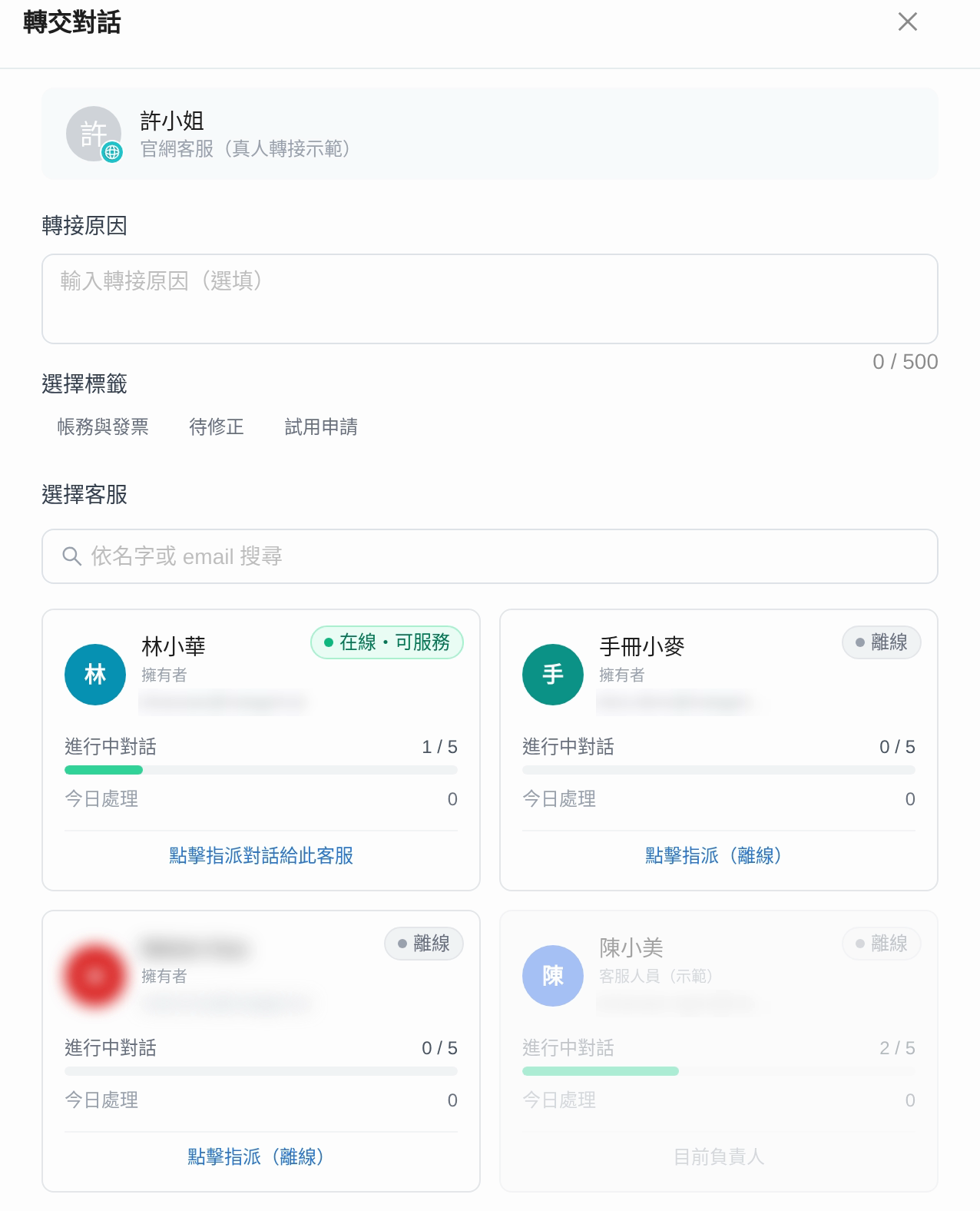
### Understanding the Assignment/Transfer Dialog <a href="#assignment-modal" id="assignment-modal"></a>

“<mark style="color:blue;">Assign Agent</mark>” and “<mark style="color:blue;">Transfer Conversation</mark>” open the same dialog. From top to bottom, it contains:

* <mark style="color:blue;">**Transfer Reason**</mark> (optional): Appears in the conversation details and event timeline.
* <mark style="color:blue;">**Select Tags**</mark>: Apply [conversation tags](/maiagent-user-guide/en/build/conversation-settings/conversation-tags.md) during transfer so the colleague taking over can identify the type of conversation at a glance.
* <mark style="color:blue;">**Select Agent**</mark>: Lists members who can take over, searchable by name or email. Each member's online status appears at the top right (see the table below). The card shows their role, <mark style="color:blue;">Active Conversations</mark> count and load bar (displayed as “active/limit”, or “—” when no limit is set; the color changes to a warning color as the limit approaches), and <mark style="color:blue;">Handled Today</mark> count. The current owner is marked <mark style="color:blue;">Current Assignee</mark>. Members who have reached their concurrent conversation limit are marked <mark style="color:blue;">At Capacity</mark> and cannot be selected. Click any other member to assign the conversation (the hint reads “Click to assign this conversation to this agent”).

<figure><img src="https://1360999650-files.gitbook.io/~/files/v0/b/gitbook-x-prod.appspot.com/o/spaces%2F6v6TNkkOQVfRYfcNirHL%2Fuploads%2Fgit-blob-ccb468047e21ff9a915e872e8238ddeefd60dcdf%2Fhandoff-transfer-modal.png?alt=media" alt="Transfer Conversation dialog: Transfer Reason, Select Tags, and Select Agent from top to bottom; agent cards show Online · Available or Offline at the top right, plus role, Active Conversations (such as 1 / 5), and Handled Today; the current assignee&#x27;s card is grayed out"><figcaption><p>The Transfer Conversation dialog: online status appears at the top right of each card; the current assignee's card is disabled, and clicking another colleague completes the transfer</p></figcaption></figure>

The selection list shows each colleague's current status so you can avoid those who are offline:

| Label                                                                                                                | Meaning                                                                      |
| -------------------------------------------------------------------------------------------------------------------- | ---------------------------------------------------------------------------- |
| <mark style="color:blue;">Online · Available</mark>                                                                  | Has a backend page open and is available for assignments                     |
| <mark style="color:blue;">Online · Assignments Paused</mark> / <mark style="color:blue;">Online · On Time Off</mark> | Has a backend page open but is not currently accepting automatic assignments |
| <mark style="color:blue;">Offline</mark>                                                                             | Has no backend page open                                                     |

Members are sorted by “Online and available → Paused/on time off → Offline”. Paused and offline colleagues can still be selected; their status is simply indicated. “Online” means **a MaiAgent backend page (any page) is currently open**, regardless of login status. Closing all backend tabs makes the member appear offline. The [Agent Workload](/maiagent-user-guide/en/build/conversation-settings/human-handoff.md#agent-workload) panel has the same “Online” column.

For example, a support supervisor wants to transfer a VIP complaint to a senior colleague. The transfer dialog shows the intended colleague as <mark style="color:blue;">Offline</mark>, while another senior colleague is <mark style="color:blue;">Online · Available</mark> with “1 / 5” active conversations. The supervisor transfers to the online colleague so the customer does not have to wait for the offline colleague to return.

For concurrent conversation limits and automatic assignment rules, see [Human Handoff Settings](/maiagent-user-guide/en/build/conversation-settings/human-handoff.md).

If [Reassign on Timeout](/maiagent-user-guide/en/build/conversation-settings/human-handoff.md#reassign-on-timeout) is enabled for the channel, a conversation automatically assigned to you is reassigned to the next available colleague if you have not replied to the user before the wait timeout. Send your first reply promptly after receiving an assignment.

If [Automatically Return to AI When a Human Agent Does Not Reply](/maiagent-user-guide/en/build/conversation-settings/human-handoff.md#agent-reply-timeout) is enabled, a conversation you own automatically returns to AI when no agent replies to a customer message within the configured number of seconds. AI continues answering and you are no longer responsible for the conversation. If you cannot handle it immediately, reply to the customer first or transfer it to a colleague.

If [Assign Returning Customers to the Previous Assignee](/maiagent-user-guide/en/build/conversation-settings/human-handoff.md#return-to-previous-assignee) is enabled, a conversation you marked “Resolved” reopens and is assigned directly back to you when the customer sends another message within the return window, provided you can take it at that time. AI does not reply first. If you are offline, have paused assignments, or are on time off, normal assignment rules apply instead.

Every transfer, takeover, and return is recorded in the conversation's event timeline (for example, “Human agent took over”, “Queue timeout; returned to AI Agent”, “○○ paused assignments; reassigned to ○○”, “○○ paused assignments; no agents available; returned to queue position N”, “○○ did not reply within N seconds; automatically returned to AI Agent”, and “Customer sent another message within N hours of resolution; automatically reassigned to previous assignee ○○”) so you can trace how the conversation was handled.

{% hint style="info" %}
After a conversation returns to AI, the Agent can see the messages exchanged between the customer and human support during the handoff and continue with that context. The customer does not need to repeat themselves.
{% endhint %}

## What the User Sees <a href="#end-user-experience" id="end-user-experience"></a>

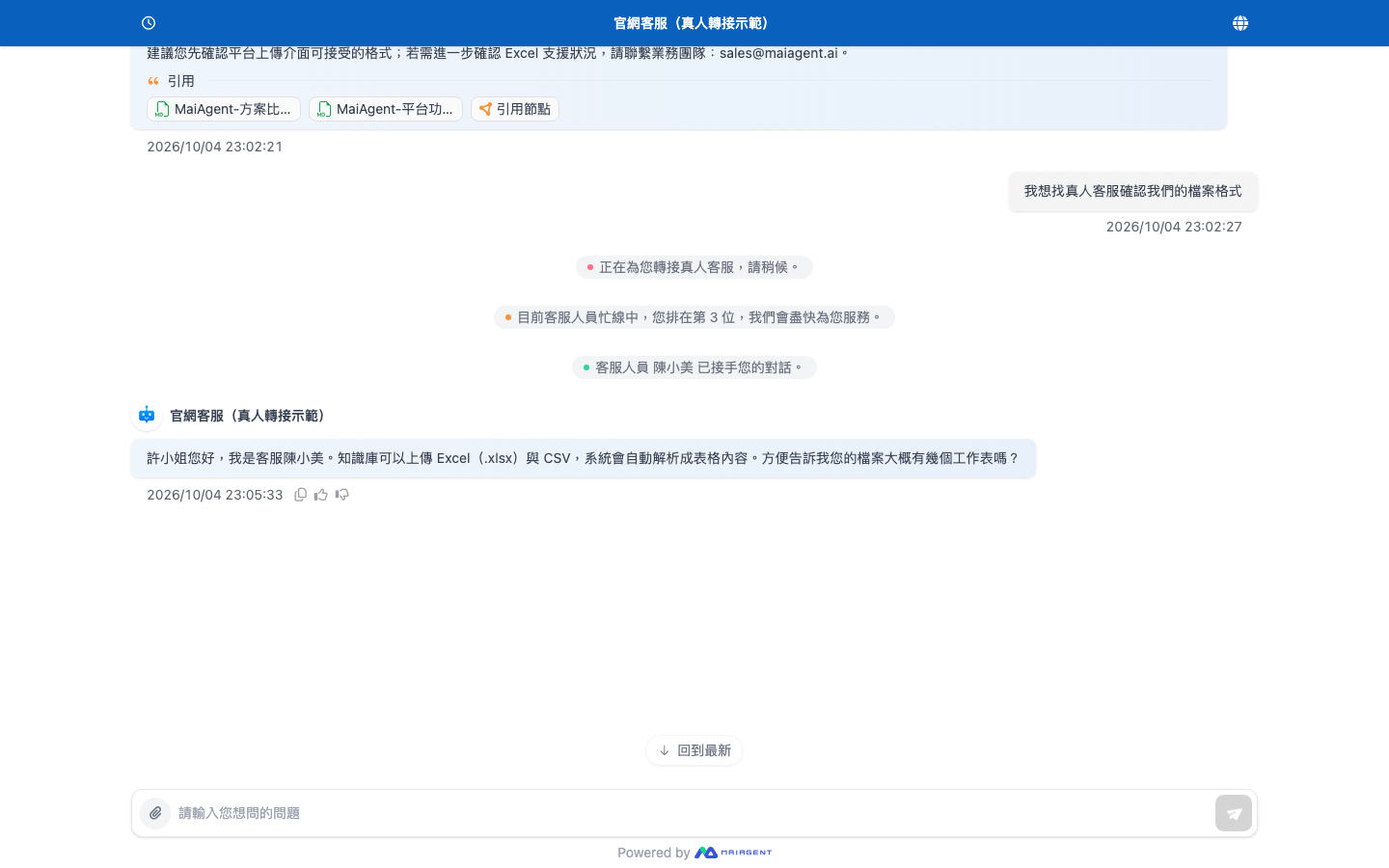
During the handoff, users receive prompts for each stage (customize the content in [Transfer Messages](/maiagent-user-guide/en/build/conversation-settings/human-handoff.md#transfer-messages)):

1. Handoff triggered → Transfer notification (for example, “Connecting you to a human support agent. Please wait.”)
2. Enter queue → Queue prompt (can show queue position and estimated wait time)
3. Send another message while queued → Waiting reminder (requires [Queue Reminder](/maiagent-user-guide/en/build/conversation-settings/human-handoff.md#queue-reminder); shown only once per cooldown period)
4. User cancels → After clicking “Let AI Answer” or entering a cancellation keyword, the user receives a return message. AI then answers the last message the user sent while queued (requires [Allow Users to Cancel Human Handoff](/maiagent-user-guide/en/build/conversation-settings/human-handoff.md#queue-cancel))
5. Agent takes over → Successful handoff message (can display the agent's name)
6. Queue timeout → Timeout notification and return to AI for continued service (if reassignment on timeout is enabled, the system first tries other currently available agents who have not already been assigned this conversation; it returns to AI only if no one is available)
7. Outside service hours → Offline message
8. No agent reply after takeover within the configured number of seconds → Return-to-AI message; AI then answers the user's last unanswered message (requires [Automatically Return to AI When a Human Agent Does Not Reply](/maiagent-user-guide/en/build/conversation-settings/human-handoff.md#agent-reply-timeout))

<figure><img src="https://1360999650-files.gitbook.io/~/files/v0/b/gitbook-x-prod.appspot.com/o/spaces%2F6v6TNkkOQVfRYfcNirHL%2Fuploads%2Fgit-blob-7b4bdf77370a3469ccc772c21f1f3375aa855910%2Fhandoff-visitor-view.png?alt=media" alt="The handoff process in Web Chat: transfer notification, queue position prompt, agent takeover message, followed by the human agent&#x27;s reply"><figcaption><p>The handoff process for Web Chat users: transfer notification, queue prompt, agent takeover message, and human agent replies</p></figcaption></figure>

## Satisfaction Feedback <a href="#satisfaction-feedback" id="satisfaction-feedback"></a>

Users can provide feedback on service quality in two ways:

### Message Feedback (Thumbs Up/Down) <a href="#message-feedback" id="message-feedback"></a>

Users can give each reply a thumbs up or down and add written suggestions. View their feedback in the conversation history.

### Conversation Satisfaction Survey (1–5) <a href="#satisfaction-survey" id="satisfaction-survey"></a>

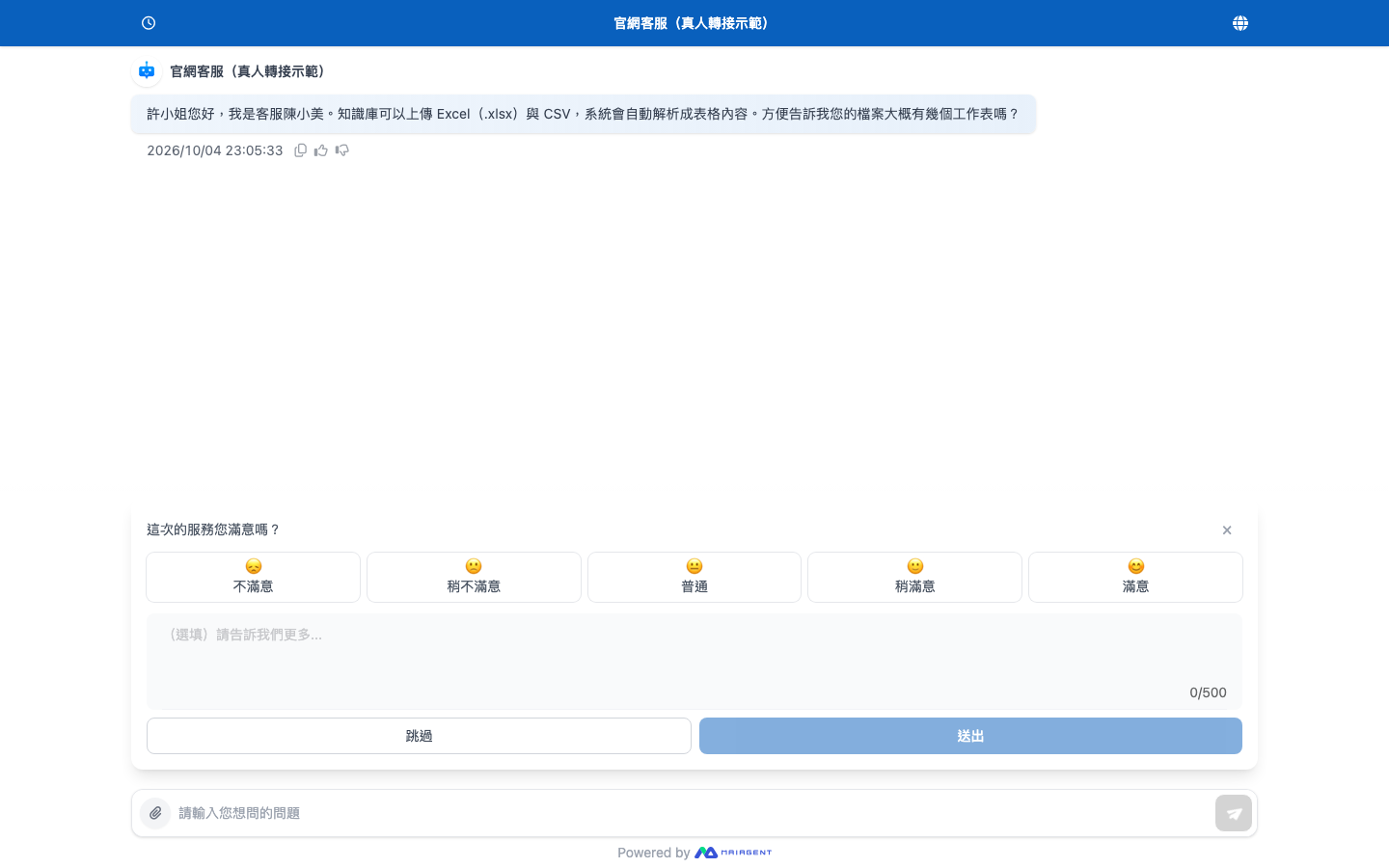
Web Chat supports an overall satisfaction survey: after a conversation has been idle for a while, a 1–5 rating (dissatisfied to satisfied) and an optional comment field appear automatically. Each conversation can be rated only once.

<figure><img src="https://1360999650-files.gitbook.io/~/files/v0/b/gitbook-x-prod.appspot.com/o/spaces%2F6v6TNkkOQVfRYfcNirHL%2Fuploads%2Fgit-blob-4b69c5ffefbdf5b46df2bded149a3ea66f5237d0%2Fwebchat-satisfaction-survey-visitor.png?alt=media" alt="A satisfaction survey above the Web Chat input box, with five options from dissatisfied to satisfied, an optional comment field, and Skip and Submit buttons"><figcaption><p>The satisfaction survey users see in Web Chat</p></figcaption></figure>

Go to <mark style="color:blue;">“Conversation Channels”</mark> → select a web channel → <mark style="color:blue;">“Satisfaction Survey Settings”</mark>. Enable <mark style="color:blue;">“Enable Satisfaction Survey”</mark> to adjust <mark style="color:blue;">“Delay (Minutes)”</mark> and <mark style="color:blue;">“Survey Title Text”</mark>.

<figure><img src="https://1360999650-files.gitbook.io/~/files/v0/b/gitbook-x-prod.appspot.com/o/spaces%2F6v6TNkkOQVfRYfcNirHL%2Fuploads%2Fgit-blob-5f113d624c370a34f7fe10054e2fe8b63bb54114%2Fwebchat-satisfaction-survey.png?alt=media" alt="Satisfaction Survey Settings screen"><figcaption><p>Satisfaction survey settings for a web channel</p></figcaption></figure>

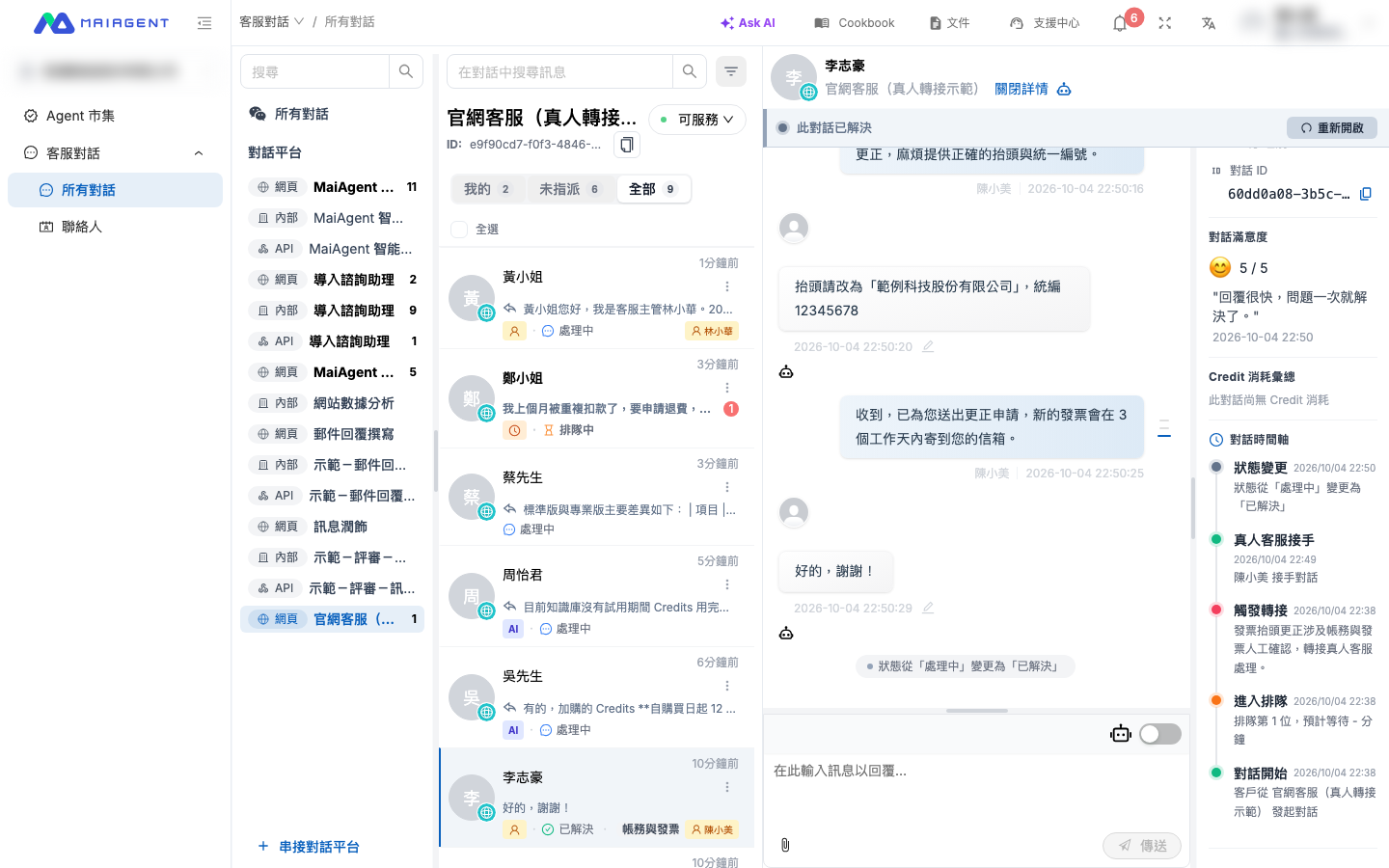
Results appear in the <mark style="color:blue;">“Conversation Satisfaction”</mark> section of the conversation's <mark style="color:blue;">“Details”</mark> panel, including the score, comment, and submission time. “Not Yet Rated” appears until the user submits a rating.

<figure><img src="https://1360999650-files.gitbook.io/~/files/v0/b/gitbook-x-prod.appspot.com/o/spaces%2F6v6TNkkOQVfRYfcNirHL%2Fuploads%2Fgit-blob-e18c6208191164b2716aa24436980ca70c86a527%2Fconversations-details-satisfaction.png?alt=media" alt="Lower part of the conversation details panel: Conversation Satisfaction shows 5 / 5 and the user&#x27;s comment, with Credit usage totals and the conversation timeline below"><figcaption><p>The “Conversation Satisfaction” section in conversation details, with the conversation timeline below</p></figcaption></figure>


---

# Agent Instructions
This documentation is published with GitBook. GitBook is the documentation platform designed so that both humans and AI agents can read, navigate, and reason over technical content effectively. Learn more at gitbook.com.

## Querying This Documentation
If you need additional information that is not directly available in this page, you can query the documentation by asking a question.

Perform an HTTP GET request on the following URL with the `ask` and `goal` query parameters:

```
GET https://docs.maiagent.ai/maiagent-user-guide/en/serve/daily-operations/human-handoff-operations.md?ask=<question>&goal=<user_goal>
```

`ask` is the immediate question: it should be specific, self-contained, and written in natural language.
`goal` is what the user is ultimately trying to achieve, the reason they need the answer. Sharing it helps GitBook give you a better, more relevant answer. A goal is most helpful when it describes the outcome the user wants rather than restating the question. For example, with `ask=how do I create an API token`, a goal like `automate deployments from our CI pipeline` lets GitBook tailor the answer to that use case.

The response will contain a direct answer to the question and relevant excerpts and sources from the documentation.

Use this mechanism when the answer is not explicitly present in the current page, you need clarification or additional context, or you want to retrieve related documentation sections.