> For the complete documentation index, see [llms.txt](https://docs.maiagent.ai/llms.txt). Markdown versions of documentation pages are available by appending `.md` to page URLs; this page is available as [Markdown](https://docs.maiagent.ai/maiagent-user-guide/en/serve/daily-operations/agent-handbook.md).

# Customer Service Agent Handbook

Customer service agent handbook: getting started on your first day, the daily workflow, conversation status and tab definitions, steps for common scenarios, common mistakes, and a printable checklist.

This page is for agents who handle customer conversations in <mark style="color:blue;">Customer Conversations</mark> every day. Start with “Your First Day” to understand the interface and statuses, then follow “The Daily Workflow.” For specific situations, go straight to [Handling Scenarios](#scenarios) for the steps you need. Existing pages explain each feature in full; this page tells you what to do and when.

Supervisors can find shift scheduling, workload management, quality spot checks, and permission settings in the [Customer Service Supervisor Guide](https://docs.maiagent.ai/maiagent-user-guide/en/serve/daily-operations/supervisor-guide.md).

## Your First Day <a href="#first-day" id="first-day"></a>

### 1. Sign In and Find Your Workspace <a href="#login" id="login"></a>

After signing in to the admin console, open <mark style="color:blue;">Customer Conversations</mark> → <mark style="color:blue;">All Conversations</mark> from the left menu. If you cannot see this menu, your role does not yet have <mark style="color:blue;">Customer Conversations Permission</mark> and its child permission, <mark style="color:blue;">All Conversations Permission</mark>. Ask your supervisor to follow [Supervisor Guide: Configuring Permissions](https://docs.maiagent.ai/maiagent-user-guide/en/serve/daily-operations/supervisor-guide.md#permissions).

### 2. Understand the Interface <a href="#understand-screen" id="understand-screen"></a>

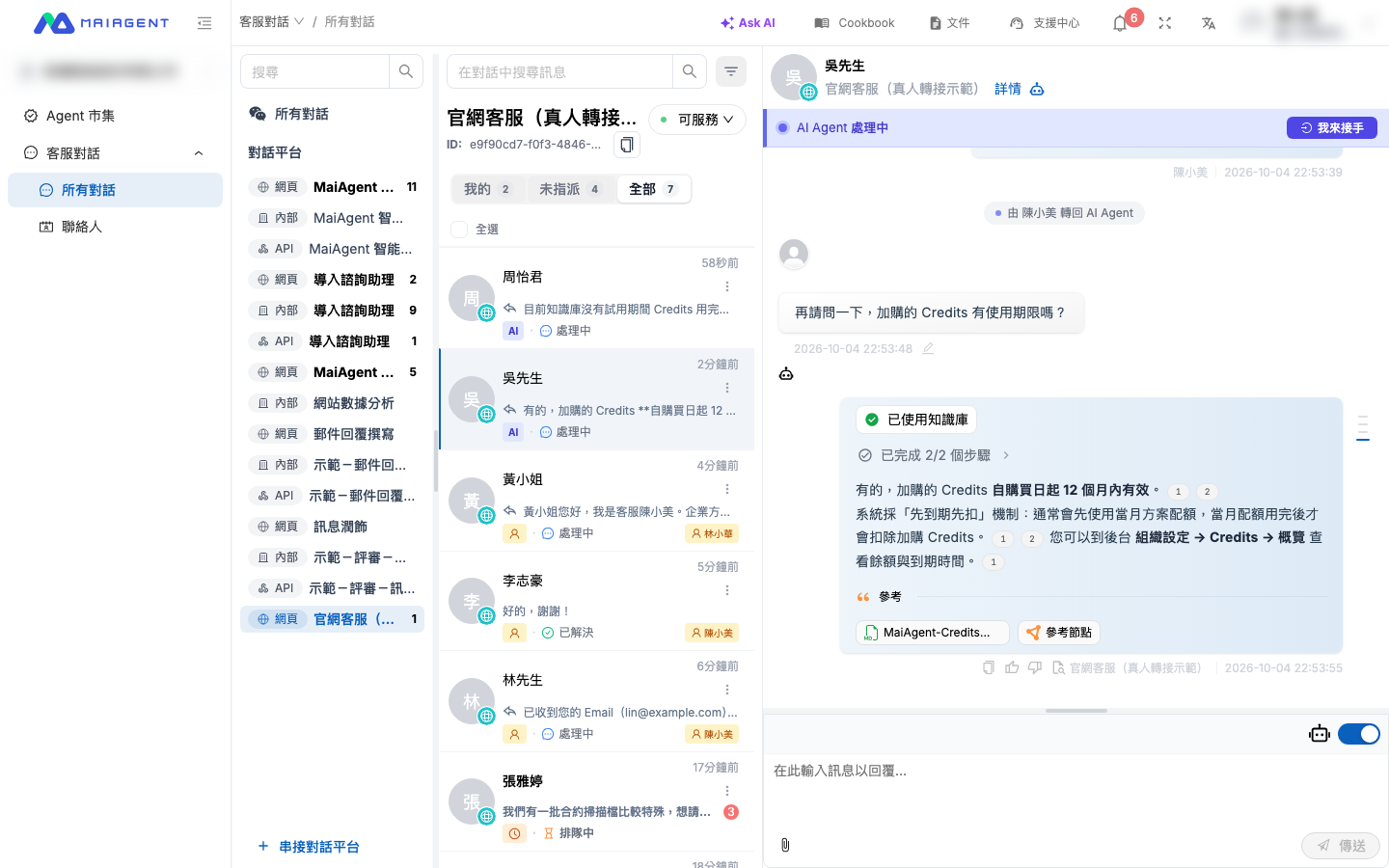
The interface has three columns, from left to right: platform → conversation → conversation content:

| Area            | What You Will Use                                                                                                                                                                                                                           |
| --------------- | ------------------------------------------------------------------------------------------------------------------------------------------------------------------------------------------------------------------------------------------- |
| Leftmost column | <mark style="color:blue;">All Conversations</mark> at the top shows all platforms. Individual <mark style="color:blue;">Conversation Platforms</mark> (website, LINE, Teams, etc.) appear below; click one to view only that platform       |
| Middle column   | The <mark style="color:blue;">Mine</mark> / <mark style="color:blue;">Unassigned</mark> / <mark style="color:blue;">All</mark> tabs, search box, and filter button; each conversation shows who is currently handling it                    |
| Right side      | The contact name, <mark style="color:blue;">Details</mark>, and Copilot icon at the top; the status bar and messages in the middle; the message box and the conversation’s <mark style="color:blue;">Auto Reply</mark> toggle at the bottom |

<figure><img src="https://1360999650-files.gitbook.io/~/files/v0/b/gitbook-x-prod.appspot.com/o/spaces%2F6v6TNkkOQVfRYfcNirHL%2Fuploads%2Fgit-blob-24a7b8074a4fa39065ed49085f7486c511046295%2Fconversations-agent-serving.png?alt=media" alt="An agent opens a conversation assigned to them on the All Conversations page: conversation platforms on the left, the Mine tab in the middle, and the status bar and messages on the right"><figcaption><p>The three columns on the All Conversations page: conversation platforms on the far left, tabs and the conversation list in the middle, and the status bar, messages, and message box on the right</p></figcaption></figure>

For full descriptions of the fields and buttons, see [All Conversations: Page Layout](https://docs.maiagent.ai/maiagent-user-guide/en/serve/daily-operations/reply.md#page-layout).

### 3. Set Your Availability <a href="#set-availability" id="set-availability"></a>

Your availability appears to the right of the list heading in the middle column. Switch to <mark style="color:blue;">Available</mark> when your shift starts, to <mark style="color:blue;">Pause Assignments</mark> when you leave your desk, and use <mark style="color:blue;">My Time Off…</mark> to set a time range for leave. Your status applies to all conversation platforms you belong to. For instructions and the effects of each status, see [Set Your Availability](https://docs.maiagent.ai/maiagent-user-guide/en/serve/daily-operations/human-handoff-operations.md#my-availability).

<figure><img src="https://1360999650-files.gitbook.io/~/files/v0/b/gitbook-x-prod.appspot.com/o/spaces%2F6v6TNkkOQVfRYfcNirHL%2Fuploads%2Fgit-blob-8ba2b25d7c33d4abd7cd26f907386f73bb40b226%2Fhandoff-my-availability-menu.png?alt=media" alt="The availability menu with three options: Available, Pause Assignments, and My Time Off"><figcaption><p>Availability menu: Available, Pause Assignments, and My Time Off</p></figcaption></figure>

{% hint style="info" %}
If the menu shows “Not on Assignment List,” the system does not automatically assign conversations to you, so there is no need to switch your status. You can still take over conversations from the <mark style="color:blue;">Unassigned</mark> tab. To receive automatic assignments, ask your supervisor to add you to the platform’s [Assignment List](https://docs.maiagent.ai/maiagent-user-guide/en/build/conversation-settings/human-handoff.md#assignable-members).
{% endhint %}

### 4. Check That You Receive Notifications <a href="#check-notifications" id="check-notifications"></a>

When a conversation is assigned to you, you receive an email and a notification in the notification center at the top right (depending on the [Human Handoff Notification](https://docs.maiagent.ai/maiagent-user-guide/en/build/conversation-settings/human-handoff/handoff-notification.md) settings). On your first day, ask your supervisor to assign you a test conversation and confirm that you receive both notifications.

{% hint style="warning" %}
Conversations waiting in the <mark style="color:blue;">Unassigned</mark> tab that have not been assigned to anyone **do not** trigger emails. If your platform uses manual pickup or accepts messages left by customers, check this tab regularly. See [Unassigned Conversations](https://docs.maiagent.ai/maiagent-user-guide/en/serve/daily-operations/human-handoff-operations.md#unassigned-queue).
{% endhint %}

## The Daily Workflow <a href="#daily-workflow" id="daily-workflow"></a>

| Step                    | What to Do                                                                                                                                                                                                                                                              | Details                                                                                                                                                                                                                                                                 |
| ----------------------- | ----------------------------------------------------------------------------------------------------------------------------------------------------------------------------------------------------------------------------------------------------------------------- | ----------------------------------------------------------------------------------------------------------------------------------------------------------------------------------------------------------------------------------------------------------------------- |
| Start your shift        | Set your availability to <mark style="color:blue;">Available</mark>; check the <mark style="color:blue;">Mine</mark> tab for unresolved conversations from yesterday                                                                                                    | [Set Your Availability](https://docs.maiagent.ai/maiagent-user-guide/en/serve/daily-operations/human-handoff-operations.md#my-availability)                                                                                                                             |
| Check the queue         | Switch to the <mark style="color:blue;">Unassigned</mark> tab and look for conversations whose status bar says “Waiting for a Human Agent”; take the longest-waiting ones first                                                                                         | [Unassigned Conversations](https://docs.maiagent.ai/maiagent-user-guide/en/serve/daily-operations/human-handoff-operations.md#unassigned-queue)                                                                                                                         |
| Take over               | Conversations assigned by the system appear directly in <mark style="color:blue;">Mine</mark>; open one to reply. To claim a conversation yourself, click <mark style="color:blue;">Take Over</mark>                                                                    | [Take Over a Conversation](https://docs.maiagent.ai/maiagent-user-guide/en/serve/daily-operations/human-handoff-operations.md#take-over)                                                                                                                                |
| Review the context      | Before replying, open <mark style="color:blue;">Details</mark> at the top of the conversation to review the transfer reason, conversation summary, contact information, and tags                                                                                        | [Conversation Details](https://docs.maiagent.ai/maiagent-user-guide/en/serve/daily-operations/reply.md#conversation-details)                                                                                                                                            |
| Reply                   | Reply in the message box. If Copilot is enabled for the platform, you can first <mark style="color:blue;">Generate AI Suggestion</mark>, then review it before sending or editing                                                                                       | [Customer Service Copilot: Using Suggestions](https://docs.maiagent.ai/maiagent-user-guide/en/serve/copilot.md#use-suggestions)                                                                                                                                         |
| Transfer / return to AI | If you cannot handle the issue, <mark style="color:blue;">Transfer</mark> it to a colleague and enter a reason. Once your work is done and AI can handle follow-up questions, select <mark style="color:blue;">Return to AI Agent</mark>                                | [Transfer and Return to AI](https://docs.maiagent.ai/maiagent-user-guide/en/serve/daily-operations/human-handoff-operations.md#transfer-and-return)                                                                                                                     |
| Resolve                 | Once the customer’s issue is resolved, click <mark style="color:blue;">Resolve</mark> on the status bar. First use <mark style="color:blue;">Edit Summary</mark> if you need to preserve context. If unsure, see [Unsure Whether to Resolve](#scenario-when-to-resolve) | [Take Over, Transfer, and Return to AI](https://docs.maiagent.ai/maiagent-user-guide/en/serve/daily-operations/reply.md#handoff-actions), [Edit the Conversation Summary](https://docs.maiagent.ai/maiagent-user-guide/en/serve/daily-operations/reply.md#edit-summary) |
| End your shift          | Resolve or transfer the conversations you are handling, then set your availability to <mark style="color:blue;">Pause Assignments</mark>. Leave conversations you will return to tomorrow in <mark style="color:blue;">Mine</mark>                                      | See the [Checklist](#checklist) below                                                                                                                                                                                                                                   |

{% hint style="info" %}
Send your first reply as soon as possible after receiving an assignment. If [Reassign on Timeout](https://docs.maiagent.ai/maiagent-user-guide/en/build/conversation-settings/human-handoff.md#reassign-on-timeout) is enabled, conversations assigned by the system that you have not replied to within the waiting timeout are automatically reassigned to a colleague.
{% endhint %}

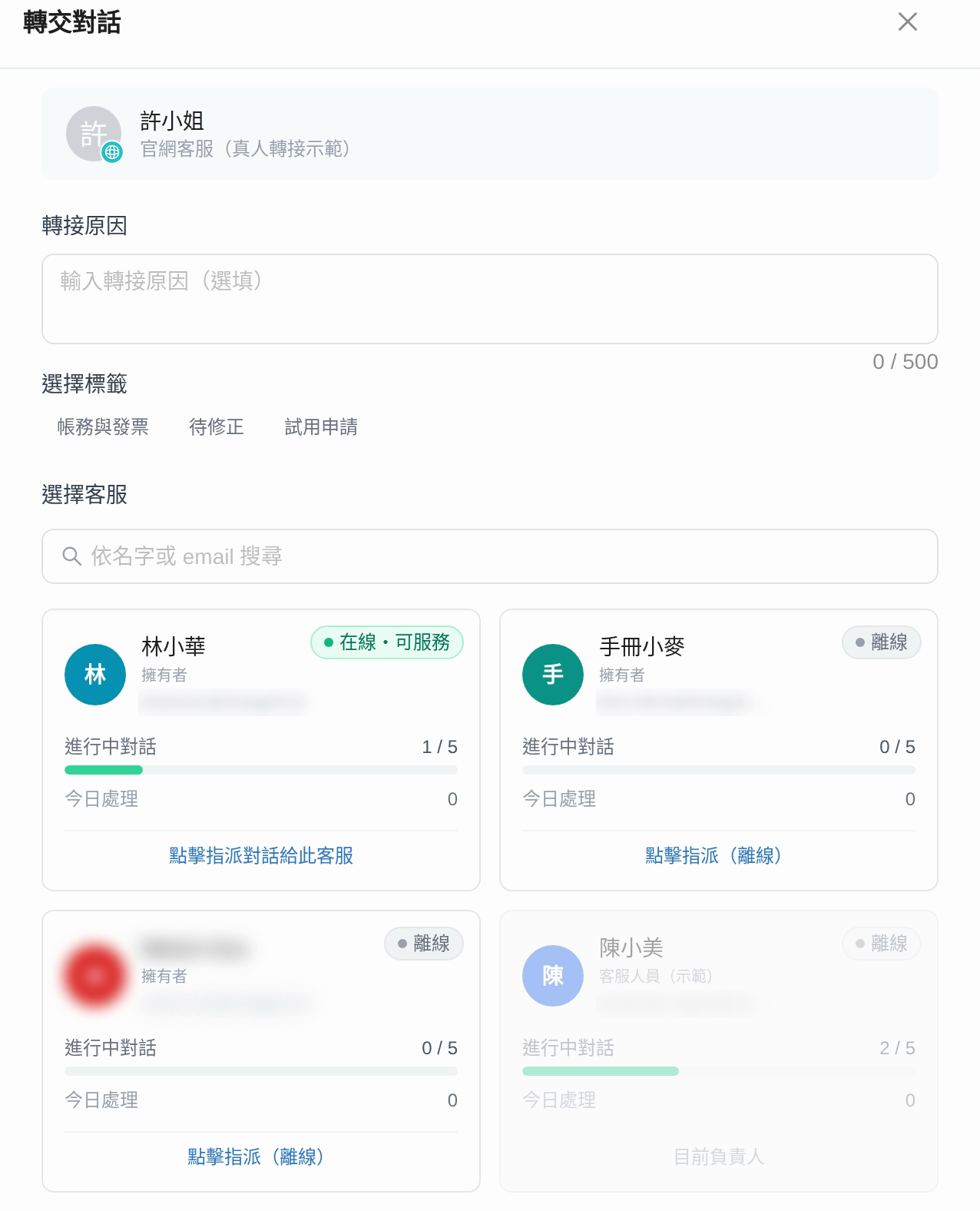
Clicking <mark style="color:blue;">Transfer</mark> opens the dialog below. Enter a transfer reason, select tags if needed, then click a colleague’s card to transfer the conversation to them.

<figure><img src="https://1360999650-files.gitbook.io/~/files/v0/b/gitbook-x-prod.appspot.com/o/spaces%2F6v6TNkkOQVfRYfcNirHL%2Fuploads%2Fgit-blob-ccb468047e21ff9a915e872e8238ddeefd60dcdf%2Fhandoff-transfer-modal.png?alt=media" alt="Transfer Conversation dialog: transfer reason and tag selection at the top, with colleague cards and their active conversation counts under Select Agent below"><figcaption><p>Transfer a conversation: enter the transfer reason, then click a colleague’s card to complete the transfer</p></figcaption></figure>

## Status and Tab Definitions <a href="#status-reference" id="status-reference"></a>

### Conversation Status <a href="#conversation-status" id="conversation-status"></a>

Each conversation has one of three statuses. Use <mark style="color:blue;">Filter by Status</mark> to find them:

| Status                                       | Meaning                                                                                     | How It Starts                                                                                                 | How It Ends                                                                                         |
| -------------------------------------------- | ------------------------------------------------------------------------------------------- | ------------------------------------------------------------------------------------------------------------- | --------------------------------------------------------------------------------------------------- |
| <mark style="color:blue;">In Progress</mark> | The conversation is ongoing and handled by AI or an agent                                   | The default for new conversations; resolved conversations return here when the customer sends another message | Click <mark style="color:blue;">Resolve</mark>                                                      |
| <mark style="color:blue;">Queued</mark>      | Human handoff has been triggered, and the conversation is waiting for an agent to take over | AI determines that human handoff is needed, or a customer leaves a message outside service hours              | Someone takes over, the customer cancels, or the queue times out and the conversation returns to AI |
| <mark style="color:blue;">Resolved</mark>    | The issue has been handled                                                                  | Click <mark style="color:blue;">Resolve</mark>, or a supervisor updates conversations in bulk                 | Click <mark style="color:blue;">Reopen</mark>, or a new customer message automatically reopens it   |

{% hint style="warning" %}
If a customer sends another message in a resolved conversation, it automatically returns to In Progress and AI auto reply resumes. The previously assigned agent is cleared. To track this customer’s follow-up, use [Filter by Contact](https://docs.maiagent.ai/maiagent-user-guide/en/serve/daily-operations/reply.md#search-and-filter).
{% endhint %}

### Status Bar and List Indicators <a href="#status-bar" id="status-bar"></a>

When you open a conversation, the status bar above the messages tells you who is handling it and what you can do:

| Status Bar Text                                                                                                                                               | Meaning                                                                                                                                                                                                                                                                                               | Available Actions                                                                                                                                                                                              |
| ------------------------------------------------------------------------------------------------------------------------------------------------------------- | ----------------------------------------------------------------------------------------------------------------------------------------------------------------------------------------------------------------------------------------------------------------------------------------------------- | -------------------------------------------------------------------------------------------------------------------------------------------------------------------------------------------------------------- |
| <mark style="color:blue;">AI Agent Handling</mark>                                                                                                            | AI is replying automatically; the customer is not waiting for a human                                                                                                                                                                                                                                 | Click <mark style="color:blue;">Take Over</mark> if you need to intervene                                                                                                                                      |
| <mark style="color:blue;">Outside AI Reply Hours · Awaiting Agent</mark>, <mark style="color:blue;">No AI Assistant Linked to Channel · Awaiting Agent</mark> | AI will not reply (outside [AI Auto Reply Hours](https://docs.maiagent.ai/maiagent-user-guide/en/build/choose-channel/web-chat/website.md#outside-auto-reply-hours), or no AI assistant is selected for the conversation platform); the conversation is not automatically assigned to an agent either | Click <mark style="color:blue;">Take Over</mark> or <mark style="color:blue;">Assign Agent</mark>. All new conversations on platforms using only human agents have this status                                 |
| <mark style="color:blue;">Waiting for a Human Agent · Waiting N Minutes</mark>                                                                                | Human handoff has occurred, and the conversation is queued                                                                                                                                                                                                                                            | Click <mark style="color:blue;">Take Over</mark>; take the longest-waiting conversations first                                                                                                                 |
| <mark style="color:blue;">No Agent Assigned</mark>                                                                                                            | AI auto reply is off, but no agent is responsible for the conversation                                                                                                                                                                                                                                | Click <mark style="color:blue;">Take Over</mark>; in the <mark style="color:blue;">Unassigned</mark> tab, you can also use the assignment icon in the list to assign it to a colleague                         |
| <mark style="color:blue;">You Are Handling This Conversation</mark>                                                                                           | This conversation is yours                                                                                                                                                                                                                                                                            | Reply or <mark style="color:blue;">Resolve</mark>; the <mark style="color:blue;">Mine</mark> tab also offers <mark style="color:blue;">Transfer</mark> and <mark style="color:blue;">Return to AI Agent</mark> |
| “○○ Is Handling This Conversation”                                                                                                                            | A colleague is responsible                                                                                                                                                                                                                                                                            | Avoid interrupting; if necessary, <mark style="color:blue;">Transfer</mark> it to yourself or someone else                                                                                                     |
| <mark style="color:blue;">This Conversation Is Resolved</mark>                                                                                                | The conversation is closed                                                                                                                                                                                                                                                                            | Click <mark style="color:blue;">Reopen</mark> if further handling is needed                                                                                                                                    |

<figure><img src="https://1360999650-files.gitbook.io/~/files/v0/b/gitbook-x-prod.appspot.com/o/spaces%2F6v6TNkkOQVfRYfcNirHL%2Fuploads%2Fgit-blob-b122065d8694e3eb4bc20d1dd8b2314c9521dd65%2Fconversations-status-bars.png?alt=media" alt="Six status bars from top to bottom: AI Agent Handling, Waiting for a Human Agent, No Agent Assigned, You Are Handling This Conversation, a colleague is handling this conversation, and This Conversation Is Resolved"><figcaption><p>The six status bars and their buttons (corresponding to the rows above except “Awaiting Agent”)</p></figcaption></figure>

The indicators in the middle column’s list convey the same information: “AI” means the Agent is replying automatically, a person icon means a human agent is handling the conversation, a clock means it is queued for a human, and the red Awaiting Agent icon means AI will not reply and someone needs to take over (hover over it to see why). The assigned agent’s name appears on the right.

### The Three Tabs <a href="#tabs" id="tabs"></a>

| Tab                                         | Contents                                                                                                                                                | When to Check                                                                          |
| ------------------------------------------- | ------------------------------------------------------------------------------------------------------------------------------------------------------- | -------------------------------------------------------------------------------------- |
| <mark style="color:blue;">Mine</mark>       | Conversations assigned to you                                                                                                                           | Keep it open throughout the day; this is your to-do list                               |
| <mark style="color:blue;">Unassigned</mark> | Conversations with no assigned agent, **including those where AI is replying automatically**; use the status bar to identify who is waiting for a human | At the start of your shift, at regular intervals, and when your supervisor reminds you |
| <mark style="color:blue;">All</mark>        | All conversations within the currently selected platform scope (the default tab)                                                                        | When looking up a customer’s past conversations or conversations handled by colleagues |

### Availability Status <a href="#availability-status" id="availability-status"></a>

| Status                                             | Automatic Assignment                                                       | Current Conversations                                                                                                                                                                                                      | Manual Pickup |
| -------------------------------------------------- | -------------------------------------------------------------------------- | -------------------------------------------------------------------------------------------------------------------------------------------------------------------------------------------------------------------------- | ------------- |
| <mark style="color:blue;">Available</mark>         | You receive assignments                                                    | Unaffected                                                                                                                                                                                                                 | Allowed       |
| <mark style="color:blue;">Pause Assignments</mark> | You are skipped                                                            | Conversations automatically assigned by the system that you have not yet replied to are reassigned to colleagues; conversations you have replied to and those manually assigned, transferred, or taken over are unaffected | Allowed       |
| On time off (until the end time)                   | You are skipped; availability is restored automatically when time off ends | Unaffected                                                                                                                                                                                                                 | Allowed       |
| Not on assignment list                             | You do not receive automatic assignments in the first place                | Unaffected                                                                                                                                                                                                                 | Allowed       |

## Handling Scenarios <a href="#scenarios" id="scenarios"></a>

Each scenario provides steps in the form of a decision followed by an action. Follow them as listed; links lead to the relevant pages for details.

### A Customer Requests a Human <a href="#scenario-request-human" id="scenario-request-human"></a>

1. Check the status bar:
   * “Waiting for a Human Agent” or “No Agent Assigned” → Click <mark style="color:blue;">Take Over</mark> and reply directly.
   * “AI Agent Handling” (the platform did not detect the need for human handoff) → Also click <mark style="color:blue;">Take Over</mark>; AI stops replying at the same time.
2. Introduce yourself in your first reply and confirm the issue without making the customer repeat it. First read the transfer reason and conversation summary in <mark style="color:blue;">Details</mark>.
3. If you later find that AI should have handed off the conversation but did not, follow [Report Incorrect AI Answers](#scenario-report-ai-error) so your supervisor can adjust the [Handoff Conditions](https://docs.maiagent.ai/maiagent-user-guide/en/build/conversation-settings/human-handoff.md#transfer-conditions).

### A Customer Is Upset <a href="#scenario-angry-customer" id="scenario-angry-customer"></a>

1. Take over first (<mark style="color:blue;">Take Over</mark>) to ensure AI does not respond again.
2. Reply in this order: acknowledge the customer’s feelings and problem → restate your understanding in one sentence → explain what you will do now and when you will respond → offer a concrete next step or options. Do not explain the system or argue about who is right.
3. Before discussing refunds, compensation, or commitments, check whether you have the authority. If not, <mark style="color:blue;">Transfer</mark> to your supervisor and clearly describe the request and the customer’s emotional state in the transfer reason.
4. Once handled, use <mark style="color:blue;">Edit Summary</mark> to record commitments and timing, then click <mark style="color:blue;">Resolve</mark>. Keep conversations open if they need follow-up.

### A Customer Keeps Asking the Same Question <a href="#scenario-repeated-question" id="scenario-repeated-question"></a>

1. Scroll up to review AI’s previous replies:
   * AI answered correctly, but the customer did not understand → Take over, rephrase the answer, and break it into steps.
   * AI answered incorrectly or missed the question → Take over, provide the correct answer, and follow [Report Incorrect AI Answers](#scenario-report-ai-error).
2. If a queued customer keeps asking “Is anyone there?”, queue reminders may be disabled or the wait may be too long. Apologize after taking over, then address the issue, and ask your supervisor to enable [Queue Reminders](https://docs.maiagent.ai/maiagent-user-guide/en/build/conversation-settings/human-handoff.md#queue-reminder).

### A Customer Wants to Look Up Past Records <a href="#scenario-lookup-history" id="scenario-lookup-history"></a>

1. For other conversations with the same customer, use <mark style="color:blue;">Filter by Contact</mark> in the <mark style="color:blue;">All</mark> tab and select the contact. See [Search and Filter](https://docs.maiagent.ai/maiagent-user-guide/en/serve/daily-operations/reply.md#search-and-filter).
2. If you only remember a keyword (order number or product name), use the search box. See [Inbox Search](https://docs.maiagent.ai/maiagent-user-guide/en/serve/daily-operations/reply/inbox-search.md).
3. Basic customer information, tags, and custom attributes (membership tier, contract number, etc.) appear under contact information in <mark style="color:blue;">Details</mark>. To change the information, go to [Contacts](https://docs.maiagent.ai/maiagent-user-guide/en/serve/daily-operations/contact.md).
4. To inspect what AI retrieved and which documents it cited for each message, use the [Conversation Viewer](https://docs.maiagent.ai/maiagent-user-guide/en/serve/daily-operations/reply/conversation-viewer.md).

{% hint style="info" %}
If a website visitor is not signed in, each conversation creates a new anonymous contact, so filtering by contact may not connect their conversations. Use keyword search instead. See [Contact Types](https://docs.maiagent.ai/maiagent-user-guide/en/serve/daily-operations/contact.md#contact-types).
{% endhint %}

### Unsure Whether to Resolve <a href="#scenario-when-to-resolve" id="scenario-when-to-resolve"></a>

Ask yourself these three questions in order:

1. Does the customer’s issue have a clear answer or outcome? If not → Leave it In Progress.
2. Do you still have follow-up work to do (look up information or wait for another department)? If so → Leave it In Progress and use <mark style="color:blue;">Edit Summary</mark> to record the to-do items first.
3. Is the customer still online and likely to ask more general questions?
   * Yes, and AI can answer → Click <mark style="color:blue;">Return to AI Agent</mark>. The conversation stays In Progress, and AI continues serving the customer.
   * No (the customer has left, or the issue is a complaint or requires individual case handling) → Click <mark style="color:blue;">Resolve</mark> and clearly record the outcome in the summary so whoever takes over after it reopens can understand.

<figure><img src="https://1360999650-files.gitbook.io/~/files/v0/b/gitbook-x-prod.appspot.com/o/spaces%2F6v6TNkkOQVfRYfcNirHL%2Fuploads%2Fgit-blob-07bb382c75b92fa2a2544e03610f5966e06e22c6%2Fhandoff-return-to-ai.png?alt=media" alt="A conversation after returning to AI Agent: the message area records the return from the agent to AI Agent, the status bar returns to AI Agent Handling, and AI answers the customer’s next question"><figcaption><p>After returning to AI Agent: the status bar returns to “AI Agent Handling,” and AI answers the customer’s next question</p></figcaption></figure>

If the customer has not replied for a while and their question has been answered, you can resolve the conversation. A new customer message automatically reopens it and returns it to AI, so it will not be missed.

### Copilot’s Suggestion Is Incorrect <a href="#scenario-copilot-wrong" id="scenario-copilot-wrong"></a>

1. Do not send it directly. Click <mark style="color:blue;">Edit</mark> to place the suggestion in the message box and correct it, or click <mark style="color:blue;">Regenerate</mark> to compare another version. See [Switch Versions](https://docs.maiagent.ai/maiagent-user-guide/en/serve/copilot.md#switch-versions).

   <figure><img src="https://1360999650-files.gitbook.io/~/files/v0/b/gitbook-x-prod.appspot.com/o/spaces%2F6v6TNkkOQVfRYfcNirHL%2Fuploads%2Fgit-blob-d8c2aea0752d0fcc0f95e2eb0d19a47bfc24d438%2Fcopilot-suggestion-versions.png?alt=media" alt="An AI suggestion card below a customer message, with a 2 / 2 version selector and regenerate icon in the header, and Edit and Send at the bottom right"><figcaption><p>AI suggestion card: switch versions and regenerate at the top right; choose Edit or Send at the bottom right</p></figcaption></figure>
2. If the suggestion cites sources, check them first. If the source itself is outdated or incorrect, the knowledge base needs updating. Follow [Report Incorrect AI Answers](#scenario-report-ai-error).
3. If suggestions for the same type of question are repeatedly incorrect, or their status stays at <mark style="color:blue;">Failed</mark>, summarize the problem in one sentence for your supervisor. See [FAQ](https://docs.maiagent.ai/maiagent-user-guide/en/serve/copilot.md#faq).

### Report Incorrect AI Answers <a href="#scenario-report-ai-error" id="scenario-report-ai-error"></a>

Your reports help improve AI. Give your supervisor three things:

1. **Conversation ID**: Copy it from the location information in <mark style="color:blue;">Details</mark>. See [Conversation Details](https://docs.maiagent.ai/maiagent-user-guide/en/serve/daily-operations/reply.md#conversation-details).
2. **What was wrong**: What AI said, what the correct answer is, and how the customer originally phrased the question.
3. **Tag the conversation**: If your supervisor has created a [Conversation Tag](https://docs.maiagent.ai/maiagent-user-guide/en/build/conversation-settings/conversation-tags.md) such as “Needs Correction,” apply it under conversation tags in <mark style="color:blue;">Details</mark>. Your supervisor can then use <mark style="color:blue;">Filter by Conversation Tag</mark> to find all of them at once.

Your supervisor will then follow [Supervisor Guide: Turn Incorrect Answers into FAQs](https://docs.maiagent.ai/maiagent-user-guide/en/serve/daily-operations/supervisor-guide.md#fix-wrong-answers) to update the knowledge base or role instructions.

### A Customer Contacts Me in a Conversation a Colleague Is Handling <a href="#scenario-colleague-handling" id="scenario-colleague-handling"></a>

If the status bar shows “○○ Is Handling This Conversation,” do not reply yet; two people replying at once will confuse the customer. Confirm that your colleague is away (on time off or has paused assignments) or has asked you to take over, then click <mark style="color:blue;">Transfer</mark> to transfer the conversation to yourself. See [Transfer and Return to AI](https://docs.maiagent.ai/maiagent-user-guide/en/serve/daily-operations/human-handoff-operations.md#transfer-and-return).

### A Customer Returns After Resolution <a href="#scenario-customer-returns" id="scenario-customer-returns"></a>

The conversation automatically reopens, AI auto reply resumes, and the assigned agent is cleared, so it will not appear in your <mark style="color:blue;">Mine</mark> tab. If you know the customer will return (for example, you promised to reply after looking something up), check periodically using <mark style="color:blue;">Filter by Contact</mark>, or ask your supervisor to manually <mark style="color:blue;">Assign Agent</mark> to you when the conversation reopens.

## Common Mistakes <a href="#common-mistakes" id="common-mistakes"></a>

| Mistake                                                                                   | What Happens                                                                                                                                          | Correct Approach                                                                                                                                                                             |
| ----------------------------------------------------------------------------------------- | ----------------------------------------------------------------------------------------------------------------------------------------------------- | -------------------------------------------------------------------------------------------------------------------------------------------------------------------------------------------- |
| Replying in the message box without taking over                                           | Auto reply remains on, so AI answers the customer’s next message and overlaps with your replies                                                       | Click <mark style="color:blue;">Take Over</mark> first. See [Intervene and Auto Reply](https://docs.maiagent.ai/maiagent-user-guide/en/serve/daily-operations/reply.md#reply-and-auto-reply) |
| Leaving your desk without switching to <mark style="color:blue;">Pause Assignments</mark> | The system keeps assigning conversations to you while customers wait; timeout reassignment, if enabled, reassigns them                                | Change your status before leaving; use time off for leave                                                                                                                                    |
| Only checking the <mark style="color:blue;">Mine</mark> tab                               | Conversations under manual pickup or message mode remain in <mark style="color:blue;">Unassigned</mark>, with no email notification, and go unnoticed | Check the Unassigned tab regularly                                                                                                                                                           |
| Closing the page after handling an issue                                                  | The conversation stays In Progress and uses up your concurrent conversation capacity                                                                  | Click <mark style="color:blue;">Resolve</mark>, or return it to AI and then resolve                                                                                                          |
| Transferring without a reason                                                             | The colleague taking over has to ask the customer to repeat the issue                                                                                 | Enter a transfer reason and edit the summary first if needed                                                                                                                                 |
| Sending Copilot suggestions directly                                                      | If the cited information is outdated, an incorrect answer is sent in your name                                                                        | Check the cited sources and content before sending                                                                                                                                           |
| Using “Delete Conversation” to close a case                                               | The conversation disappears permanently and cannot be restored or analyzed                                                                            | Use <mark style="color:blue;">Resolve</mark>. See [Rename and Delete Conversations](https://docs.maiagent.ai/maiagent-user-guide/en/serve/daily-operations/reply.md#rename-and-delete)       |

## One-Page Checklist <a href="#checklist" id="checklist"></a>

Print this section and keep it beside your desk.

**Start Your Shift**

* [ ] Set your availability to <mark style="color:blue;">Available</mark>
* [ ] Check the <mark style="color:blue;">Mine</mark> tab: handle conversations left over from yesterday first
* [ ] Check the <mark style="color:blue;">Unassigned</mark> tab: if anyone is “Waiting for a Human Agent,” take the longest-waiting conversation

**Every Conversation**

* [ ] Click <mark style="color:blue;">Take Over</mark> first (or confirm it is assigned to me)
* [ ] Read <mark style="color:blue;">Details</mark>: transfer reason, summary, and contact information
* [ ] Send the first reply promptly without making the customer repeat the issue
* [ ] Check Copilot’s cited sources before sending a suggestion
* [ ] If I cannot handle it → <mark style="color:blue;">Transfer</mark> and enter a reason
* [ ] Once handled → <mark style="color:blue;">Edit Summary</mark> if needed → <mark style="color:blue;">Return to AI Agent</mark> if the customer is still there and AI can help; otherwise <mark style="color:blue;">Resolve</mark>
* [ ] If AI answers incorrectly → Copy the conversation ID, tag the conversation, and report it to my supervisor

**End Your Shift**

* [ ] No conversations in <mark style="color:blue;">Mine</mark> have been handled but left In Progress
* [ ] Summaries clearly explain conversations that will carry over to the next day
* [ ] Set your availability to <mark style="color:blue;">Pause Assignments</mark>; schedule time off in advance for leave


---

# Agent Instructions
This documentation is published with GitBook. GitBook is the documentation platform designed so that both humans and AI agents can read, navigate, and reason over technical content effectively. Learn more at gitbook.com.

## Querying This Documentation
If you need additional information that is not directly available in this page, you can query the documentation by asking a question.

Perform an HTTP GET request on the following URL with the `ask` and `goal` query parameters:

```
GET https://docs.maiagent.ai/maiagent-user-guide/en/serve/daily-operations/agent-handbook.md?ask=<question>&goal=<user_goal>
```

`ask` is the immediate question: it should be specific, self-contained, and written in natural language.
`goal` is what the user is ultimately trying to achieve, the reason they need the answer. Sharing it helps GitBook give you a better, more relevant answer. A goal is most helpful when it describes the outcome the user wants rather than restating the question. For example, with `ask=how do I create an API token`, a goal like `automate deployments from our CI pipeline` lets GitBook tailor the answer to that use case.

The response will contain a direct answer to the question and relevant excerpts and sources from the documentation.

Use this mechanism when the answer is not explicitly present in the current page, you need clarification or additional context, or you want to retrieve related documentation sections.