> For the complete documentation index, see [llms.txt](https://docs.maiagent.ai/llms.txt). Markdown versions of documentation pages are available by appending `.md` to page URLs; this page is available as [Markdown](https://docs.maiagent.ai/maiagent-user-guide/en/serve/daily-operations/contact.md).

# Contacts

What contacts are: data cards that record end-customer identity and permissions, with a comparison of contact types, setup, permission management, and automation integration.

## What Is a Contact? <a href="#what-is-contact" id="what-is-contact"></a>

A **Contact** is one of MaiAgent's core features, functioning like an enterprise's "customer card file." It lets businesses create a dedicated identity profile for each customer, so every conversation can deliver a personalized service experience.

{% hint style="info" %}
**In simple terms:**

A contact is like a "customer data card" that records the customer's identity and permissions. When a customer visits, the Agent uses this card to decide which services and content to provide.
{% endhint %}

<figure><img src="https://1360999650-files.gitbook.io/~/files/v0/b/gitbook-x-prod.appspot.com/o/spaces%2F6v6TNkkOQVfRYfcNirHL%2Fuploads%2Fgit-blob-1634b51135220c90d53ad7711e213c0d38ff3ca5%2Fimage%20(1)%20(2).png?alt=media" alt=""><figcaption><p>Identity recognition example</p></figcaption></figure>

Imagine a customer interacting with you through the website chat window. The system can immediately recognize "This is Mr. Zhang, a VIP member" or "This is a new visitor who can only access some documents," and provide the corresponding service content and permissions.

## Why Do You Need the Contact Feature? <a href="#why-contact-feature" id="why-contact-feature"></a>

### **Personalized Service Experience** <a href="#personalized-service" id="personalized-service"></a>

Every customer has unique needs and a unique background. The contact feature lets the Agent:

* Remember the conversation history with that customer
* Provide appropriate information based on the customer's identity
* Avoid asking again for information it already knows

### **Precise Permission Management** <a href="#precise-permission-management" id="precise-permission-management"></a>

Different customers should see different content:

* VIP members can view exclusive offers
* Regular members see standard service content
* Visitors can only use public information

### **Data Security Protection** <a href="#data-security" id="data-security"></a>

* Ensures customers can only access their own data, preventing information leaks.

## How Do Contacts Work? <a href="#how-contact-works" id="how-contact-works"></a>

When a user opens the chat window, the conversation request is sent to the enterprise's internal system for processing, which determines whether member information has been passed in. Based on the result, the system finds or creates a contact (anonymous or non-anonymous). Whichever path is taken, a personalized conversation begins, ensuring every user gets a personalized experience.

Contact workflow diagram

<figure><img src="https://1360999650-files.gitbook.io/~/files/v0/b/gitbook-x-prod.appspot.com/o/spaces%2F6v6TNkkOQVfRYfcNirHL%2Fuploads%2Fgit-blob-81445826ddf96daa6f4a304ada67f70a5f8a8403%2Fplayma%20(4)%20(1).png?alt=media" alt=""><figcaption><p>Contact workflow diagram</p></figcaption></figure>

## Contact Types <a href="#contact-types" id="contact-types"></a>

MaiAgent's contact system has two types, based on how the user's identity is recognized:

{% hint style="info" %}
**In simple terms:**

* **Anonymous contact** = a visitor who is not logged in; the system does not know who they are
* **Non-anonymous contact** = a logged-in member; the system knows their identity and data
  {% endhint %}

## Contact Type Comparison <a href="#contact-type-comparison" id="contact-type-comparison"></a>

<table><thead><tr><th width="104.83331298828125">Item</th><th>Anonymous Contact</th><th>Non-Anonymous Contact</th></tr></thead><tbody><tr><td><strong>When It Applies</strong></td><td>Visitors who enter directly from a web page without logging in to the enterprise member system, so there is no account from which to retrieve user data</td><td>Members who are logged in, or who enter through another platform account (such as Facebook or LINE); the system can obtain the user's name and account information</td></tr><tr><td><strong>Identity Recognition</strong></td><td>No specific personal information can be obtained</td><td>Has clear identity information (such as name and profile picture)</td></tr><tr><td><strong>System Setting</strong></td><td>Set to "Anonymous" within the MaiAgent system</td><td>The original member account ID is converted into a Source ID</td></tr><tr><td><strong>Permission Management</strong></td><td>Knowledge base file permissions, channel management</td><td>Same for both</td></tr><tr><td><strong>Data Mapping</strong></td><td>No Source ID, so the contact cannot be mapped to enterprise member data</td><td>The Source ID ensures the contact is always mapped to the correct user</td></tr><tr><td><strong>How It Is Created</strong></td><td>When a visitor (without member identity) enters, a new anonymous contact is automatically created for each conversation</td><td>Automatically created or updated through the MaiAgent API based on member login information<br>For integration details, see: <a href="https://docs.maiagent.ai/tech/serve/contacts">Technical Handbook—Contacts: Introduction and Integration</a></td></tr><tr><td><strong>Record Keeping</strong></td><td>The system records the user's conversation history based on cache</td><td>Conversation continuity is maintained through the Source ID and contact mapping</td></tr></tbody></table>

{% hint style="info" %}
**Why the Source ID (Source ID) Matters**

The **Source ID** is the key bridge between a MaiAgent contact and the enterprise member system. When users interact with the enterprise through different channels (website, app, social platforms), the system can correctly recognize the user's identity through the Source ID, ensuring conversation continuity and a personalized experience.

**In simple terms:** The Source ID is like a "member number" that lets the system recognize the same customer across different platforms.
{% endhint %}

## Set Up Contacts <a href="#setup-contact" id="setup-contact"></a>

### Contact List Filters and Columns <a href="#contact-list-filters" id="contact-list-filters"></a>

Go to <mark style="color:blue;">Customer Conversations</mark> → <mark style="color:blue;">Contacts</mark> from the left menu. At the top of the list you can <mark style="color:blue;">search contacts</mark> (by name), <mark style="color:blue;">filter by channel type</mark> (first choose a type such as Web or LINE, then choose a specific <mark style="color:blue;">channel</mark>), and <mark style="color:blue;">filter by tag</mark>. In the upper right are <mark style="color:blue;">Tag Management</mark>, <mark style="color:blue;">Bulk Import</mark>, <mark style="color:blue;">Add Contact</mark>, and <mark style="color:blue;">Refresh</mark>. The columns are:

| Column                                                                                     | Description                                                                                                              |
| ------------------------------------------------------------------------------------------ | ------------------------------------------------------------------------------------------------------------------------ |
| <mark style="color:blue;">ID</mark>                                                        | The contact's identifier, used by the API and by Source ID login-free conversations                                      |
| <mark style="color:blue;">Contact</mark>                                                   | Avatar and name; anonymous users show a system-generated name                                                            |
| <mark style="color:blue;">Phone Number</mark>                                              | Imported from the messaging platform or entered manually                                                                 |
| <mark style="color:blue;">Channel</mark>                                                   | Which channels this contact appears in                                                                                   |
| <mark style="color:blue;">Source ID</mark>                                                 | The user identifier from the enterprise or messaging platform; see [Non-Anonymous Users](#non-anonymous-user)            |
| <mark style="color:blue;">Query Metadata</mark>                                            | Limits the range of documents this contact can query; see [Query Metadata](/maiagent-user-guide/en/org/querymetadata.md) |
| <mark style="color:blue;">Tags</mark>                                                      | Applied [contact tags](#contact-tags)                                                                                    |
| <mark style="color:blue;">Created At</mark>, <mark style="color:blue;">Last Updated</mark> |                                                                                                                          |
| <mark style="color:blue;">Actions</mark>                                                   | Edit, delete (you are asked to confirm before deleting)                                                                  |

After selecting multiple contacts, "N contacts selected" appears at the top along with <mark style="color:blue;">Bulk Add Tags</mark> / <mark style="color:blue;">Bulk Remove Tags</mark>; see [Tag Contacts](#tag-contacts).

### Anonymous Users <a href="#anonymous-user" id="anonymous-user"></a>

When a user starts a new conversation, the system automatically creates a new anonymous user in the background (each conversation is one anonymous user) ⬇️

<div><figure><img src="https://1360999650-files.gitbook.io/~/files/v0/b/gitbook-x-prod.appspot.com/o/spaces%2F6v6TNkkOQVfRYfcNirHL%2Fuploads%2Fgit-blob-66446e9ecf9b0fdfc64b0150b17c97376dcda59e%2Fimage%20(2)%20(2).png?alt=media" alt=""><figcaption></figcaption></figure> <figure><img src="https://1360999650-files.gitbook.io/~/files/v0/b/gitbook-x-prod.appspot.com/o/spaces%2F6v6TNkkOQVfRYfcNirHL%2Fuploads%2Fgit-blob-e5bc6154a4a421dbb3c1874f40380bbb1062231c%2Fcontact-list.png?alt=media" alt="Contact list: one row per visitor, with anonymous visitors shown as anonymous; columns are ID, Contact, Phone Number, Channel, and Source ID"><figcaption><p>Contact list: Web Chat visitors without a Source ID are shown as "Anonymous"</p></figcaption></figure></div>

The record includes the contact ID, channel history, creation time, and more.

You can click Edit to manually edit the anonymous contact's information:

<div><figure><img src="https://1360999650-files.gitbook.io/~/files/v0/b/gitbook-x-prod.appspot.com/o/spaces%2F6v6TNkkOQVfRYfcNirHL%2Fuploads%2Fgit-blob-957075f466edbc2dbd3c0565cdb32c0689a27f09%2F%E8%9E%A2%E5%B9%95%E6%93%B7%E5%8F%96%E7%95%AB%E9%9D%A2%202025-08-25%20105311.png?alt=media" alt=""><figcaption></figcaption></figure> <figure><img src="https://1360999650-files.gitbook.io/~/files/v0/b/gitbook-x-prod.appspot.com/o/spaces%2F6v6TNkkOQVfRYfcNirHL%2Fuploads%2Fgit-blob-b4f32c14ab93fbef1aa8fb1044435ebd3b1eedc9%2Fimage%20(6)%20(2).png?alt=media" alt=""><figcaption></figcaption></figure></div>

**By editing**, you can:

* Link member information: enter a Source ID to link the anonymous contact to member data
* Update the permission level: open up or restrict the range of documents they can read
* Add basic details such as the customer's name and contact information

### Non-Anonymous Users <a href="#non-anonymous-user" id="non-anonymous-user"></a>

{% hint style="info" %}
If Web Chat has both login and the data collection form enabled, the form data entered by a logged-in user is tied to their login account, so they do not have to fill it in again on another device. For details, see [Web Chat Overview: Data Collection (Pre-chat Form)](/maiagent-user-guide/en/build/choose-channel/web-chat.md#pre-chat-with-login).
{% endhint %}

When a user enters through another channel (such as LINE, FB Messenger, or Telegram):

The back end automatically creates the corresponding non-anonymous user based on the user's FB information (including Source ID, contact name, profile picture, and more):

<div><figure><img src="https://1360999650-files.gitbook.io/~/files/v0/b/gitbook-x-prod.appspot.com/o/spaces%2F6v6TNkkOQVfRYfcNirHL%2Fuploads%2Fgit-blob-4830d3547d2988fb903e5255e2ab9b87351ca354%2F%E8%9E%A2%E5%B9%95%E6%93%B7%E5%8F%96%E7%95%AB%E9%9D%A2%202025-08-25%20112216%20(1).png?alt=media" alt=""><figcaption></figcaption></figure> <figure><img src="https://1360999650-files.gitbook.io/~/files/v0/b/gitbook-x-prod.appspot.com/o/spaces%2F6v6TNkkOQVfRYfcNirHL%2Fuploads%2Fgit-blob-1e302413e8c24274078e7574d15ff7e33438a3ec%2Fcontact-list-platform-filter.png?alt=media" alt="Contact list filtered by channel, where every contact has a name and a Source ID"><figcaption><p>Filtered by channel: contacts with a Source ID show their names</p></figcaption></figure></div>

You can still click the Edit button to edit the non-anonymous contact's information.

<figure><img src="https://1360999650-files.gitbook.io/~/files/v0/b/gitbook-x-prod.appspot.com/o/spaces%2F6v6TNkkOQVfRYfcNirHL%2Fuploads%2Fgit-blob-f1658e219053b618b2323630fd4fc92da6173821%2Fcontact-edit-modal.png?alt=media" alt="Basic Information tab of the Edit Contact window: name, avatar, phone number, email, channel, and tags, with additional tabs above for Custom Properties, API Credentials, MCP Credentials, and Connector Authorizations"><figcaption><p>Edit contact: Basic Information tab</p></figcaption></figure>

**By editing, you can:**

Complete and correct data

* Correct the Query Metadata settings (update the open range according to permissions)
* Change the Source ID within the enterprise to link the correct contact information and member information

{% hint style="danger" %}
Contacts rely on the Source ID for mapping, so when editing, make sure the Source ID stays in sync with the enterprise's internal systems. Otherwise, data mapping errors may occur later when programs synchronize with internal enterprise information.
{% endhint %}

### Add a Contact <a href="#add-contact" id="add-contact"></a>

The Add Contact feature is mainly used to **proactively create customer profiles with preset permissions**. If you have not specified a permission scope in Web Chat, you can create the contact in advance and complete the permission configuration and service preparation before the customer actually starts a conversation.

{% hint style="info" %}
To specify the permission scope with a JavaScript snippet when initializing Web Chat, see: [Technical Handbook: Getting Started—Using JSON Format](https://docs.maiagent.ai/tech/identity-and-access/zhi-shi-guan-li-quan-xian-query-metadata-cha-xun-yuan-zi-liao-zong-lan/json-interfaces#webchat-chu-shi-hua-she-ding)
{% endhint %}

#### Core Features <a href="#core-features" id="core-features"></a>

By creating contacts manually, system administrators can set up user profiles for specific identities in the customer service system in advance and configure the corresponding **Query Metadata permissions**. When these pre-created contacts later interact with customer service through a **specified channel**, the system uses its **automatic Source ID matching mechanism** to immediately apply the preset permission level, ensuring they can access data appropriate to their identity.

{% hint style="info" %}
**In simple terms:**

It is like "preparing the customer's permission settings ahead of time." When this customer visits for the first time, the system already knows what data they can and cannot see.
{% endhint %}

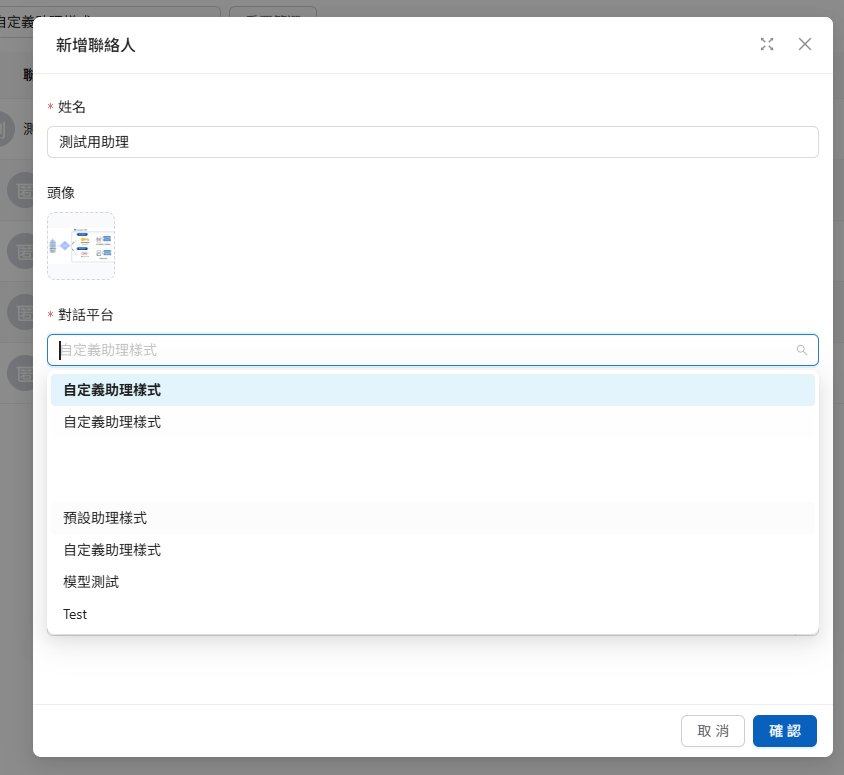
You can click Add Contact to open the edit page and enter the information:

<div><figure><img src="https://1360999650-files.gitbook.io/~/files/v0/b/gitbook-x-prod.appspot.com/o/spaces%2F6v6TNkkOQVfRYfcNirHL%2Fuploads%2Fgit-blob-e5bc6154a4a421dbb3c1874f40380bbb1062231c%2Fcontact-list.png?alt=media" alt="The Add Contact button in the upper right of the contact list"><figcaption><p>Click "Add Contact" in the upper right of the contact list</p></figcaption></figure> <figure><img src="https://1360999650-files.gitbook.io/~/files/v0/b/gitbook-x-prod.appspot.com/o/spaces%2F6v6TNkkOQVfRYfcNirHL%2Fuploads%2Fgit-blob-578394d5ba7f58c884e7b1e1377d7f4815574bee%2Fimage%20(10)%20(2).png?alt=media" alt=""><figcaption></figcaption></figure></div>

On this page, you can enter the contact's name, specify channels, and more:

<figure><img src="https://1360999650-files.gitbook.io/~/files/v0/b/gitbook-x-prod.appspot.com/o/spaces%2F6v6TNkkOQVfRYfcNirHL%2Fuploads%2Fgit-blob-edffa3b7bacd2fefb987e11d32de93791ef29986%2F%E8%9E%A2%E5%B9%95%E6%93%B7%E5%8F%96%E7%95%AB%E9%9D%A2%202025-08-25%20123401.png?alt=media" alt=""><figcaption></figcaption></figure>

#### Basic Information Fields <a href="#basic-fields" id="basic-fields"></a>

| Field                                                                                 | Description                                                                                                                                                                                                                                                                                                                                                           |
| ------------------------------------------------------------------------------------- | --------------------------------------------------------------------------------------------------------------------------------------------------------------------------------------------------------------------------------------------------------------------------------------------------------------------------------------------------------------------- |
| Avatar, <mark style="color:blue;">Name</mark>                                         | The display name customer service sees in "All Conversations"                                                                                                                                                                                                                                                                                                         |
| <mark style="color:blue;">Email</mark>, <mark style="color:blue;">Phone Number</mark> | Contact details, shown in the "Contact Information" section of the conversation details; Email is also what bulk import uses to match existing contacts                                                                                                                                                                                                               |
| <mark style="color:blue;">Channel</mark>                                              | Which channels this contact belongs to; multiple selections allowed                                                                                                                                                                                                                                                                                                   |
| <mark style="color:blue;">Source ID</mark>                                            | The contact's identifier in an external system, used for [Source ID login-free access](/maiagent-user-guide/en/build/choose-channel/web-chat/source-id-access.md) and for bulk import matching                                                                                                                                                                        |
| <mark style="color:blue;">Tags</mark>                                                 | Apply one or more [contact tags](#contact-tags)                                                                                                                                                                                                                                                                                                                       |
| <mark style="color:blue;">Query Metadata</mark>                                       | Controls which documents this contact can retrieve from the knowledge base. You can enter JSON directly or switch to the <mark style="color:blue;">Query Builder</mark> to build conditions through the interface; see [Query Metadata](/maiagent-user-guide/en/org/querymetadata.md) and [Query Builder](/maiagent-user-guide/en/org/querymetadata/query-builder.md) |

Other tabs in the edit window: for <mark style="color:blue;">MCP Credentials</mark> and <mark style="color:blue;">API Credentials</mark>, see [Contact MCP Credential Setup](/maiagent-user-guide/en/build/tools/setup-contacts-mcp-credentials.md) and [Set API Credentials for Each Contact](/maiagent-user-guide/en/build/tools/setup_api_tool.md#per-contact-api-credentials); <mark style="color:blue;">Connector Authorizations</mark> and <mark style="color:blue;">Custom Properties</mark> are described below.

#### Custom Properties <a href="#custom-properties" id="custom-properties"></a>

The <mark style="color:blue;">Custom Properties</mark> tab lets you add any "property name = value" pairs to a contact, such as membership level, account manager, or contract number. These properties appear in the "Contact Information" section of the conversation details in "All Conversations," so customer service can see the background information right away when taking over.

* Click <mark style="color:blue;">Add Property</mark> and fill in the <mark style="color:blue;">Property Name</mark> and <mark style="color:blue;">Value</mark> (names must be unique). On the right side of the list you can edit or <mark style="color:blue;">Delete Property</mark>.
* The <mark style="color:blue;">JSON Preview</mark> below shows the JSON of all current properties, making it easy to check when integrating with other systems.

{% hint style="info" %}
The custom properties here belong to the **contact** (the external customer), which is different from the [Custom Attributes](/maiagent-user-guide/en/org/overview/custom-attributes.md) on an organization member's "Profile" page. Custom properties are only for customer service to see and **do not** affect the knowledge base retrieval scope. To limit the documents a contact can query, use "Query Metadata."
{% endhint %}

#### Connector Authorizations <a href="#connector-authorizations" id="connector-authorizations"></a>

When an Agent has an MCP tool that requires individual authorization from each contact (for example, the Google Workspace connector; see [Create an MCP Tool](/maiagent-user-guide/en/build/tools/mcp-setup.md)), the contact completes OAuth authorization within the conversation. The <mark style="color:blue;">Connector Authorizations</mark> tab lists this contact's authorization status for each connector:

| Field                                                                                   | Description                                                                                                                                                                    |
| --------------------------------------------------------------------------------------- | ------------------------------------------------------------------------------------------------------------------------------------------------------------------------------ |
| Status                                                                                  | <mark style="color:blue;">Valid</mark>, <mark style="color:blue;">Expired</mark>, <mark style="color:blue;">Revoked</mark>, or <mark style="color:blue;">Not Authorized</mark> |
| <mark style="color:blue;">Expires At</mark>, <mark style="color:blue;">Last Used</mark> | The authorization's validity period and the last time a tool used it                                                                                                           |
| <mark style="color:blue;">Scopes</mark>                                                 | The permission scopes the contact agreed to                                                                                                                                    |

Actions:

* <mark style="color:blue;">Revoke</mark>: Revokes the authorization immediately. The contact must authorize again the next time they use the tool. Use this when a contact asks to cancel access or an account may have been compromised.
* <mark style="color:blue;">Trigger Re-authorization</mark>: Marks the current authorization as invalid, so the contact is asked to authorize again the next time they use it. Use this when the scopes have changed and the contact needs to consent again.
* No manual action is needed when the status is "Expired": once the access token expires, it is refreshed automatically at the next actual Q\&A, and the contact does not need to authorize again.

When there are no authorizations, "This contact has not authorized any Connector" is displayed.

## Contact Tags <a href="#contact-tags" id="contact-tags"></a>

Contact tags are applied to **people** (for example "VIP," "Distributor," "North Region"). They are used to categorize contacts and to find conversations in "All Conversations" with <mark style="color:blue;">Filter by Contact Tag</mark>. They are separate from the [conversation tags](/maiagent-user-guide/en/build/conversation-settings/conversation-tags.md) applied to **conversations**: conversation tags are managed per channel, whereas contact tags are a single list shared across the whole organization.

### Tag Management Page <a href="#contact-tag-management" id="contact-tag-management"></a>

Go to <mark style="color:blue;">Customer Conversations</mark> → <mark style="color:blue;">Contacts</mark> and click <mark style="color:blue;">Tag Management</mark> in the upper right to open the tag management page, where you can add, edit, and delete contact tags for the whole organization:

* <mark style="color:blue;">Add Tag</mark>: Enter a <mark style="color:blue;">Tag Name</mark> (up to 50 characters) and confirm.
* <mark style="color:blue;">Edit Tag</mark>: Renaming affects all contacts that already have this tag, so there is no need to reapply it one by one.
* <mark style="color:blue;">Delete</mark>: After confirmation, the tag is automatically removed from all contacts, and a message such as "N contacts affected" appears when it finishes.

### Tag Contacts <a href="#tag-contacts" id="tag-contacts"></a>

You can apply tags in three places:

| Location                           | How                                                                                                                                                                                                                                                                                                        |
| ---------------------------------- | ---------------------------------------------------------------------------------------------------------------------------------------------------------------------------------------------------------------------------------------------------------------------------------------------------------- |
| Contact edit window                | Select tags in the <mark style="color:blue;">Tags</mark> field of <mark style="color:blue;">Basic Information</mark>                                                                                                                                                                                       |
| Bulk actions in the contact list   | Select multiple contacts, click <mark style="color:blue;">Bulk Add Tags</mark> or <mark style="color:blue;">Bulk Remove Tags</mark> at the top, choose one or more tags under "<mark style="color:blue;">Select Tags</mark>," and confirm. A message such as "N contacts updated" appears when it finishes |
| Details panel in All Conversations | Add or remove tags directly in the conversation's <mark style="color:blue;">Contact Tags</mark> section; see [Conversation Details](/maiagent-user-guide/en/serve/daily-operations/reply.md#conversation-details)                                                                                          |

At the top of the contact list you can <mark style="color:blue;">filter by tag</mark>, and combine it with <mark style="color:blue;">filter by channel type</mark> and search to quickly find a group of contacts and then tag them in bulk.

### Bulk Import Contacts <a href="#bulk-import-contacts" id="bulk-import-contacts"></a>

When you need to create or update many contacts at once, you can first preview the estimated counts and channel assignment, then confirm the import. The preview does not write any data; the import runs only after you click <mark style="color:blue;">Confirm Import</mark>.

#### Use Case <a href="#bulk-import-scenario" id="bulk-import-scenario"></a>

A customer service supervisor wants to import a list of event contacts, some of whom already belong to the after-sales service channel. She chooses <mark style="color:blue;">Merge</mark>, uploads the completed template, checks the estimated numbers of contacts to be created and updated, and then confirms the import. The existing after-sales assignments are kept, and the event channel selected this time is added, which avoids overwriting existing associations in bulk.

#### Prepare the Import File <a href="#prepare-import-file" id="prepare-import-file"></a>

{% hint style="info" %}
Use the Excel template (`.xlsx`) downloaded from within the window. The file must be smaller than 10 MB and have at most 10,000 rows. `Name`, `Email`, and `Source ID` are required; `Phone Number` is optional.
{% endhint %}

The system matches contacts by `Source ID` and `Email`; Email matching is case-insensitive. If an existing contact is found, its name and phone number are updated. If the same file contains duplicate matching data, only the first entry is used.

#### Import and Preview <a href="#preview-bulk-import" id="preview-bulk-import"></a>

{% stepper %}
{% step %}
Go to <mark style="color:blue;">Contacts</mark>, click <mark style="color:blue;">Bulk Import</mark>, and download the template from the <mark style="color:blue;">Bulk Import Contacts</mark> window.

<figure><img src="https://1360999650-files.gitbook.io/~/files/v0/b/gitbook-x-prod.appspot.com/o/spaces%2F6v6TNkkOQVfRYfcNirHL%2Fuploads%2Fgit-blob-e5bc6154a4a421dbb3c1874f40380bbb1062231c%2Fcontact-list.png?alt=media" alt="The Tag Management, Bulk Import, and Add Contact buttons in the upper right of the Contacts page"><figcaption><p>Open Bulk Import from the upper right of the Contacts page.</p></figcaption></figure>
{% endstep %}

{% step %}
Select at least one <mark style="color:blue;">channel</mark> and set the <mark style="color:blue;">inbox assignment</mark>:

* <mark style="color:blue;">Replace</mark> (default): This selection becomes the complete channel list for these contacts, and existing associations that are not selected are removed.
* <mark style="color:blue;">Merge</mark>: Keeps existing associations and only adds the channels selected this time.

<figure><img src="https://1360999650-files.gitbook.io/~/files/v0/b/gitbook-x-prod.appspot.com/o/spaces%2F6v6TNkkOQVfRYfcNirHL%2Fuploads%2Fgit-blob-91455200fdf8b7b375833f2a3491212b710eb0dd%2Fcontact-bulk-import-configure.png?alt=media" alt="Bulk Import Contacts window: Step 1 download the template, Step 2 choose channels and inbox assignment (Replace or Merge), Step 3 upload the file"><figcaption><p>Bulk Import Contacts: download the template, choose channels and inbox assignment, then upload the Excel file.</p></figcaption></figure>
{% endstep %}

{% step %}
Upload the completed `.xlsx` and click <mark style="color:blue;">Preview Import</mark>.
{% endstep %}

{% step %}
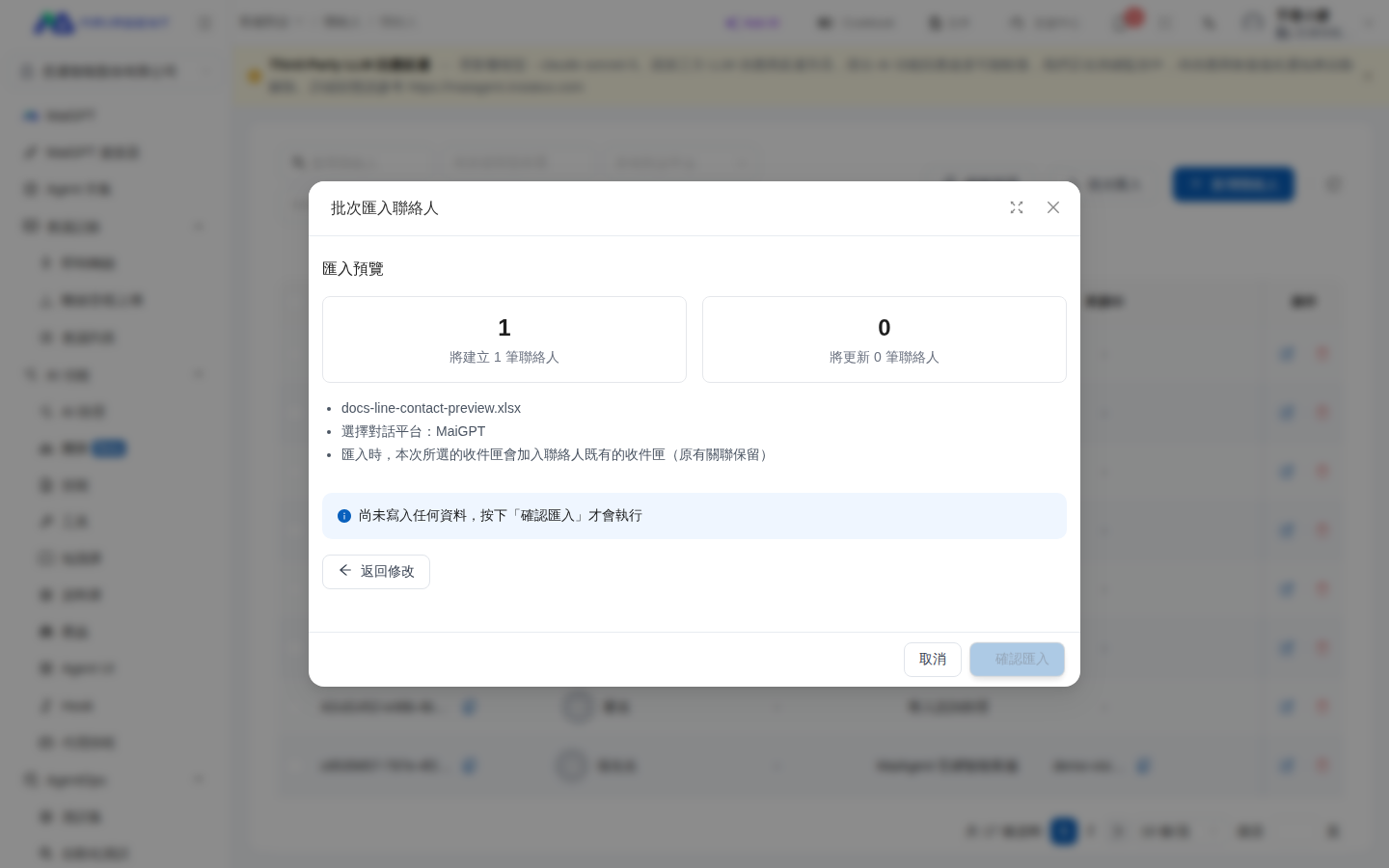
In <mark style="color:blue;">Import Preview</mark>, check the estimated "To be created" and "To be updated" counts, the file name, the channels, and the assignment mode. To make changes, click <mark style="color:blue;">Back to Edit</mark>; once everything looks correct, click <mark style="color:blue;">Confirm Import</mark>.

<figure><img src="https://1360999650-files.gitbook.io/~/files/v0/b/gitbook-x-prod.appspot.com/o/spaces%2F6v6TNkkOQVfRYfcNirHL%2Fuploads%2Fgit-blob-3f08dcf6ec5d20135022add59b7a781d31ab73ed%2Fcontact-bulk-import-preview.png?alt=media" alt="Bulk import preview showing the numbers of contacts to be created and updated"><figcaption><p>Check the estimated create/update counts and the assignment mode before running the import.</p></figcaption></figure>
{% endstep %}
{% endstepper %}

{% hint style="warning" %}
Before choosing <mark style="color:blue;">Replace</mark>, make sure you have selected all the channels you want to keep. If you only want to add channels to existing contacts, choose <mark style="color:blue;">Merge</mark> instead.
{% endhint %}

If the preview shows that there is no data to create or update, go back and check the template contents. If the import fails, the system keeps the settings screen and displays an error; fix the file and preview again.

## Permission Management <a href="#permission-management" id="permission-management"></a>

Depending on your enterprise's needs, you can use Query Metadata to limit the range of documents different contacts can use, for example:

#### Restrict by Membership Level <a href="#restrict-by-membership-level" id="restrict-by-membership-level"></a>

* **VIP members**: Can query all knowledge bases, premium FAQs, and product technical documents
* **Regular members**: Can only query basic FAQs and product user manuals
* **Visitors**: Can only query public FAQs and basic product introductions

#### Restrict by Department Permission <a href="#restrict-by-department-permission" id="restrict-by-department-permission"></a>

* **Internal employees**: Can query internal operation manuals, system maintenance documents, and complete product information
* **Distributors**: Can query product specifications, price lists, and sales materials
* **General customers**: Limited to usage instructions, FAQs, and warranty information

#### Restrict by Product Tag <a href="#restrict-by-product-tag" id="restrict-by-product-tag"></a>

* **Enterprise edition users**: Can query documents tagged "Enterprise Features" and "Advanced Settings"
* **Personal edition users**: Can only query documents tagged "Basic Features" and "Personal Use"
* **Trial users**: Can only query content tagged "Trial Guide" and "Getting Started"

{% hint style="info" %}
To learn more about Query Metadata, see: [Knowledge Management Permissions: Query Metadata](/maiagent-user-guide/en/org/querymetadata.md)
{% endhint %}

When setting Query Metadata for a contact, the system only authorizes settings for the knowledge bases of the channels you have specified. If you configure settings for the knowledge base of another channel, the following warning message appears:

<figure><img src="https://1360999650-files.gitbook.io/~/files/v0/b/gitbook-x-prod.appspot.com/o/spaces%2F6v6TNkkOQVfRYfcNirHL%2Fuploads%2Fgit-blob-65737b3e2692dd905e7f4b0f63c42f0f22fb69f8%2Fimage%20(119).png?alt=media" alt=""><figcaption></figcaption></figure>

## Automation Integration <a href="#automation-integration" id="automation-integration"></a>

For technical teams, MaiAgent also provides API endpoints that integrate seamlessly with the enterprise's existing systems.

{% hint style="info" %}
For details, see: [Technical Manual — Contacts Overview and Integration](https://docs.maiagent.ai/tech/serve/contacts)
{% endhint %}

Regardless of the size of your organization, the contacts feature helps you deliver a better customer service experience while keeping data secure and operations efficient. Through classified management of anonymous and non-anonymous contacts, a precise Source ID mapping mechanism, and flexible creation methods, enterprises can provide the most suitable service experience for different types of users and be fully prepared before customer interactions begin.


---

# Agent Instructions
This documentation is published with GitBook. GitBook is the documentation platform designed so that both humans and AI agents can read, navigate, and reason over technical content effectively. Learn more at gitbook.com.

## Querying This Documentation
If you need additional information that is not directly available in this page, you can query the documentation by asking a question.

Perform an HTTP GET request on the following URL with the `ask` and `goal` query parameters:

```
GET https://docs.maiagent.ai/maiagent-user-guide/en/serve/daily-operations/contact.md?ask=<question>&goal=<user_goal>
```

`ask` is the immediate question: it should be specific, self-contained, and written in natural language.
`goal` is what the user is ultimately trying to achieve, the reason they need the answer. Sharing it helps GitBook give you a better, more relevant answer. A goal is most helpful when it describes the outcome the user wants rather than restating the question. For example, with `ask=how do I create an API token`, a goal like `automate deployments from our CI pipeline` lets GitBook tailor the answer to that use case.

The response will contain a direct answer to the question and relevant excerpts and sources from the documentation.

Use this mechanism when the answer is not explicitly present in the current page, you need clarification or additional context, or you want to retrieve related documentation sections.