> For the complete documentation index, see [llms.txt](https://docs.maiagent.ai/llms.txt). Markdown versions of documentation pages are available by appending `.md` to page URLs; this page is available as [Markdown](https://docs.maiagent.ai/maiagent-user-guide/en/build/choose-channel/web-chat/website.md).
# Connect a Conversation Platform: Website
Connect a website conversation channel: create a Website channel, set its name and Agent, configure auto-reply and login settings, and get the website embed code.
## 1. Open the Settings Page
### 1. Option One: Add a Website Support Conversation
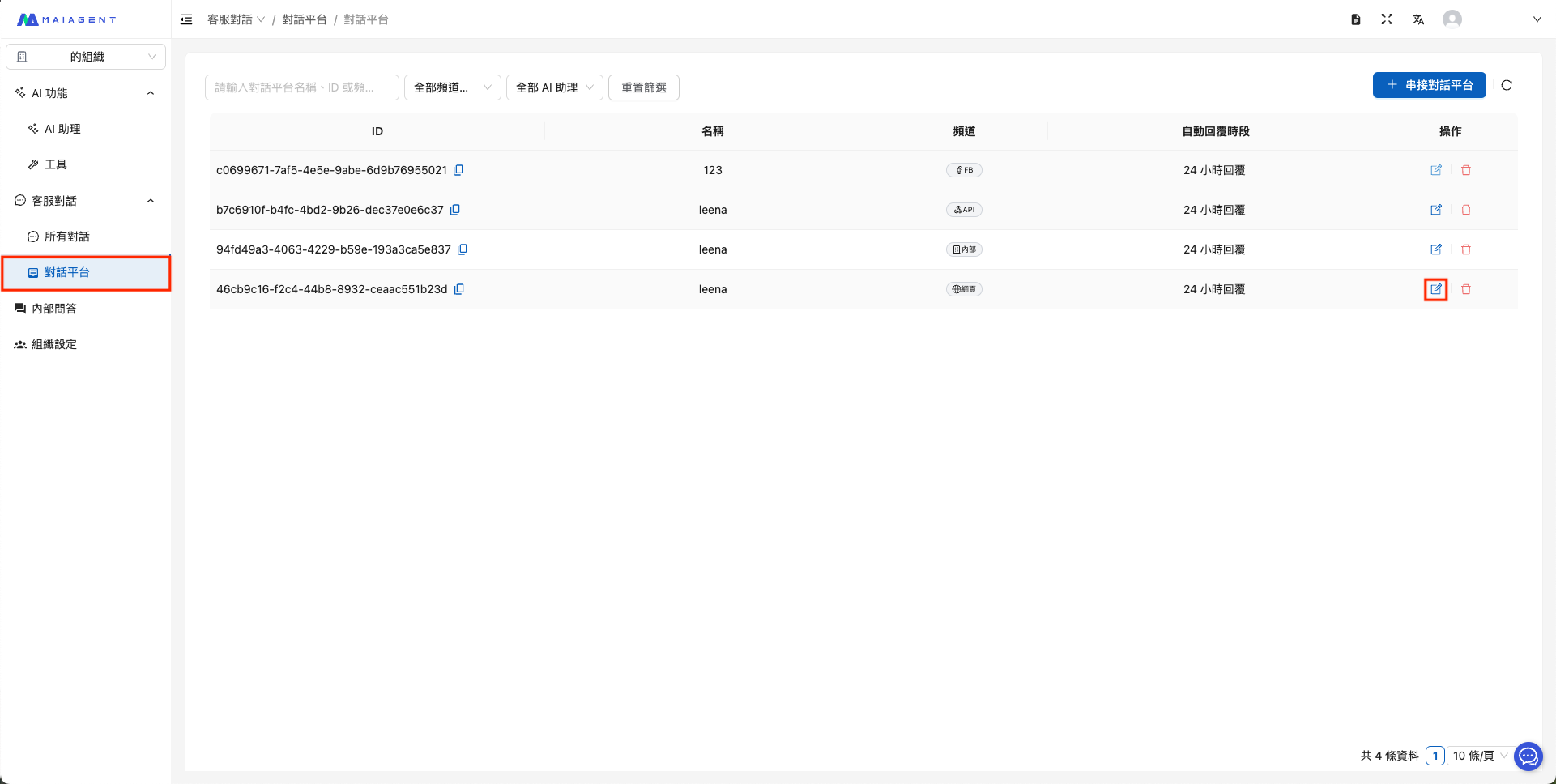
In the left menu, click “Customer Conversations > Conversation Channels”, click “+Connect Conversation Channel” in the upper-right corner, and select “Website”.
### 2. Option Two: Link a Conversation Channel to an AI Assistant
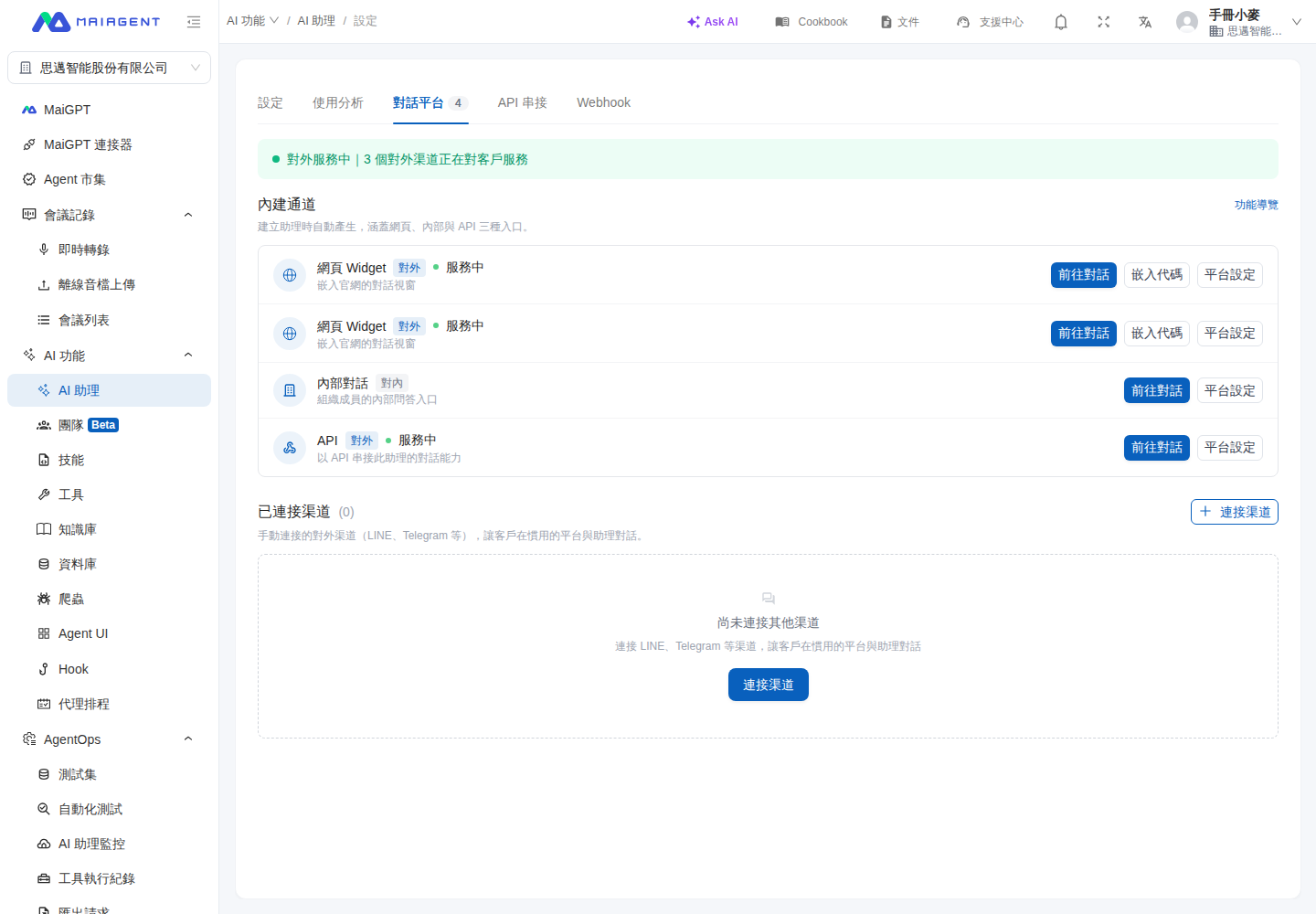
In the left sidebar, go to AI Features → AI Assistants, select the assistant you want to configure, and switch to the Conversation Channels tab. Find the website conversation channel you want to adjust and click Channel Settings.
Click Channel Settings on the AI assistant's Conversation Channels tab.
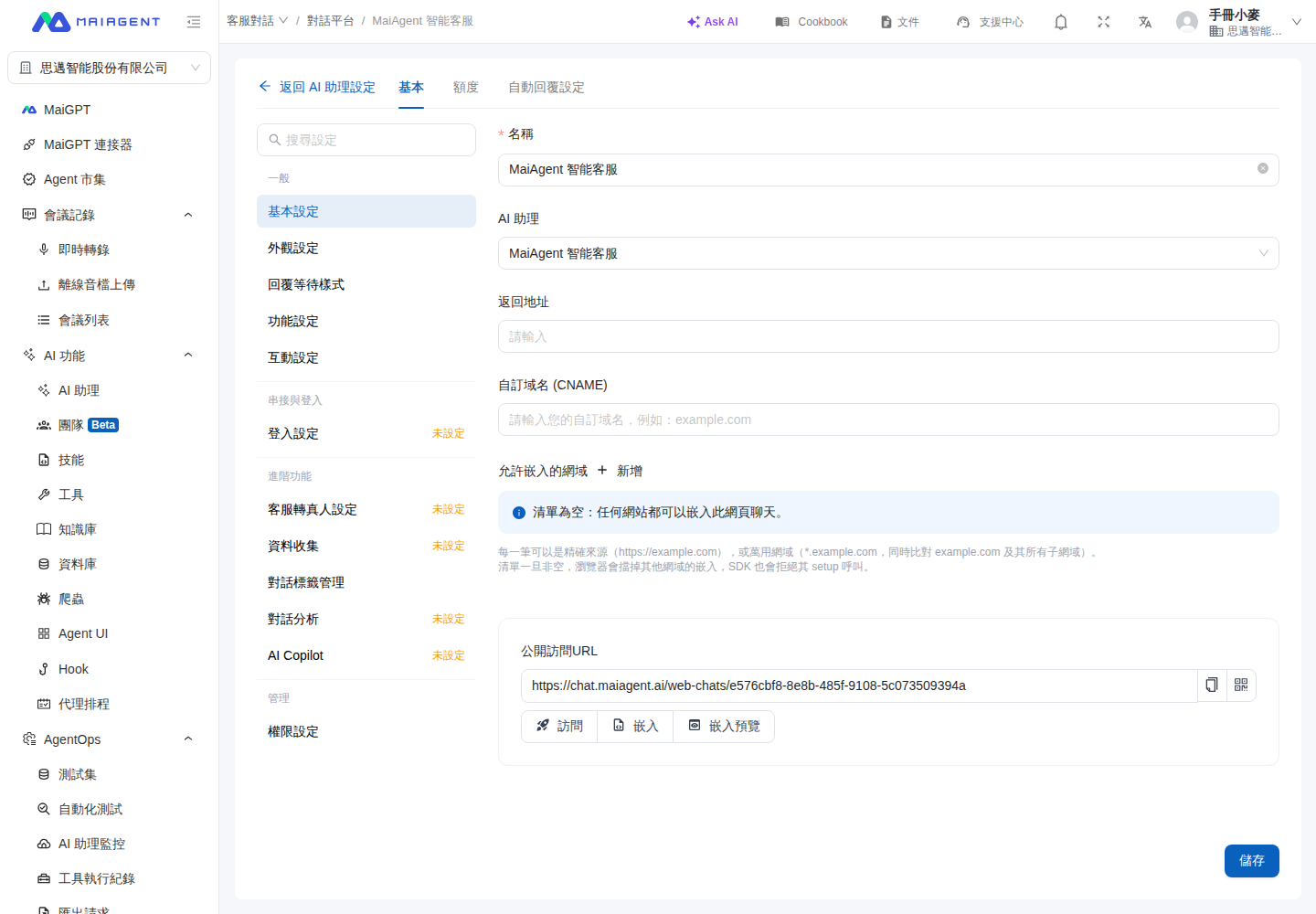
After configuring the channel, click Back to AI Assistant Settings at the top of the page to return to the original assistant's Conversation Channels tab. This return link remains available when switching between Basic, Quota, and Auto-reply Settings.
After configuring the channel, return directly to the original AI assistant's settings page.
{% hint style="info" %} Back to AI Assistant Settings appears only when you enter from the AI assistant's Conversation Channels tab. If you enter directly through Conversation Channels in the left menu, the page retains its original navigation.
{% endhint %}
#### Usage Scenario: Return to the Assistant After Adjusting Website Support
A support manager needs to update the website support settings for the Product Inquiry Assistant. She clicks Channel Settings on that AI assistant's Conversation Channels tab. After making changes, she clicks Back to AI Assistant Settings to return to the same assistant's channel list and check other support entry points, without finding the assistant again in the assistant list.
### 3. Option Three: Conversation Channel Actions
In “Customer Conversations > Conversation Channels” in the left sidebar, select the AI assistant you want to configure and click the “Actions” icon to open the conversation channel configuration.
## 2. Basic Settings
The five categories in the General group on the Basic tab each have a dedicated page with details:
### 1. General Settings
For the channel name, AI assistant, return URL, custom domain, allowed embedding domains, public access URL, and three embedding methods, see [General Settings](/maiagent-user-guide/en/build/conversation-settings/platform-settings/basic-settings.md).
#### Allowed Embedding Domains
For how the embedding allowlist works, setup steps, and the checklist before enabling it, see [General Settings: Allowed Embedding Domains](/maiagent-user-guide/en/build/conversation-settings/platform-settings/basic-settings.md#allowed-embed-origins).
### 2. Appearance Settings
For the logo, avatar, display settings, and light/dark theme colors, see [Appearance Settings](/maiagent-user-guide/en/build/conversation-settings/platform-settings/appearance-settings.md).
### 3. Feature Settings
For enabling the channel, allowing file uploads, document citations, OCR, tool display mode, question set option display mode, and AI awareness settings, see [Feature Settings](/maiagent-user-guide/en/build/conversation-settings/platform-settings/function-settings.md).
### 4. Interaction Settings
For greetings, conversation starter questions, including greeting options in Agent context, conversation display settings, satisfaction surveys, and quota exhaustion messages, see [Interaction Settings](/maiagent-user-guide/en/build/conversation-settings/platform-settings/interaction-settings.md).
#### Include Greeting Options in Agent Context
For behavior before and after enabling this option, applicable scenarios, and considerations, see [Interaction Settings: Include Greeting Options in Agent Context](/maiagent-user-guide/en/build/conversation-settings/platform-settings/interaction-settings.md#include-greeting-in-context).
### 5. Login Settings
**Configure the SSO Login Provider**
* MaiAgent currently supports SSO (Single Sign-On) through Keycloak integration.
* Switch providers using the “Login Provider” dropdown.
* Select Maiagent or Keycloak as the authentication method.
**Conversation Access Without Login from the Embedding Site**
If you embed Web Chat in your own website and users have already logged in to your site, enable “Allow Conversation Access Without Login via Source ID from the Embedding Site” so they can chat directly. For setup and signature integration instructions, see [Conversation Access Without Login via Contact Source ID](/maiagent-user-guide/en/build/choose-channel/web-chat/source-id-access.md).
**Use the Keycloak Login Identity to Call Tools**
When Keycloak is selected as the login provider, enable “Use Keycloak Login Identity to Call Tools” to automatically include the visitor's own Keycloak login credentials when the AI assistant calls MCP/API tools. For setup and considerations, see [Use the Keycloak Login Identity to Call Tools](/maiagent-user-guide/en/build/choose-channel/web-chat.md#keycloak-token-passthrough).
## 3. Auto-reply Settings
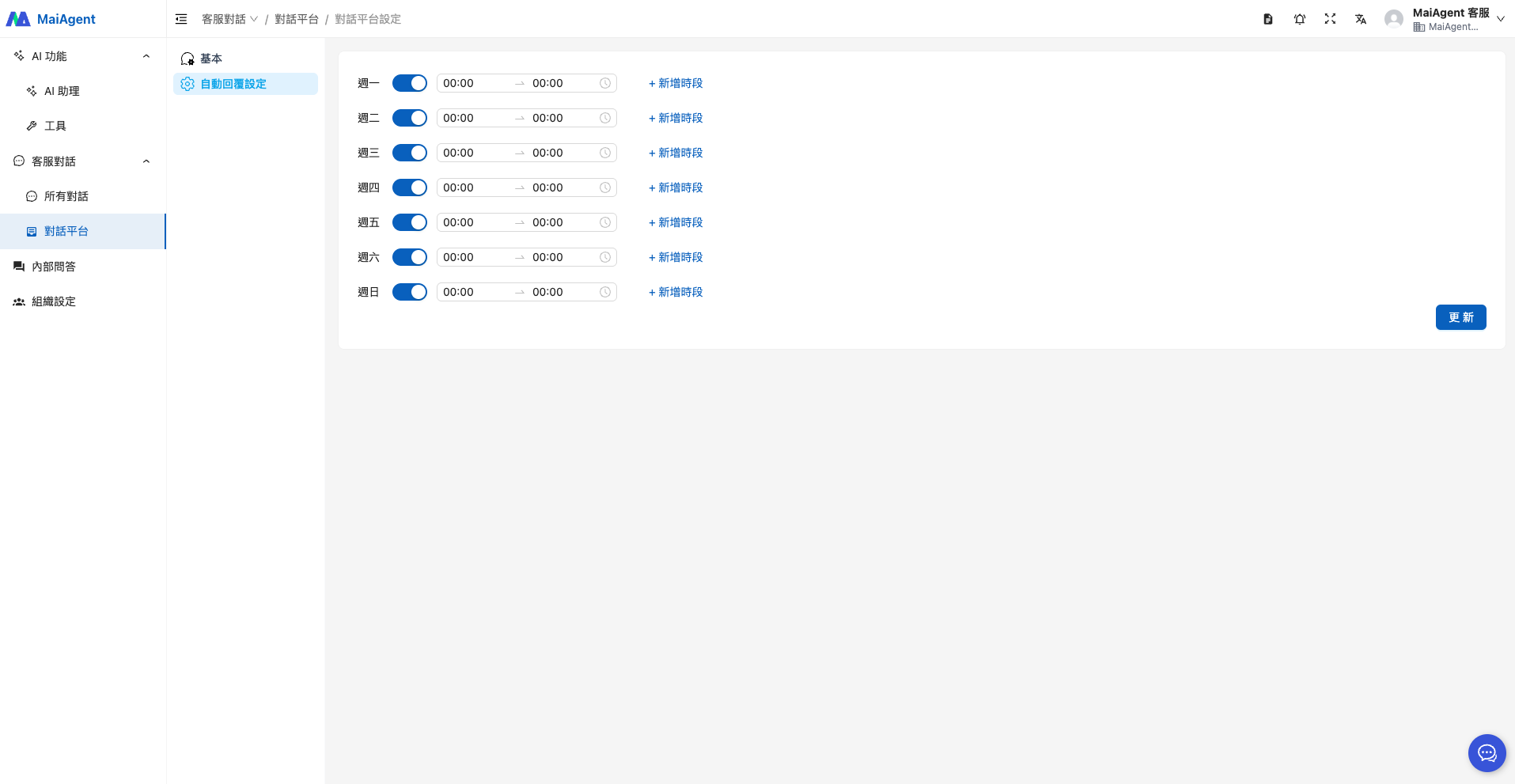
Configure the time periods when the bot replies here.
* Click the toggle next to each day to select which days of the week the bot replies.
* Set a time period: choose the start and end times.
* Add a time period: if you need multiple periods, click “+Add Time Period” and configure the new period.
---
# Agent Instructions
This documentation is published with GitBook. GitBook is the documentation platform designed so that both humans and AI agents can read, navigate, and reason over technical content effectively. Learn more at gitbook.com.
## Querying This Documentation
If you need additional information that is not directly available in this page, you can query the documentation by asking a question.
Perform an HTTP GET request on the following URL with the `ask` and `goal` query parameters:
```
GET https://docs.maiagent.ai/maiagent-user-guide/en/build/choose-channel/web-chat/website.md?ask=&goal=
```
`ask` is the immediate question: it should be specific, self-contained, and written in natural language.
`goal` is what the user is ultimately trying to achieve, the reason they need the answer. Sharing it helps GitBook give you a better, more relevant answer. A goal is most helpful when it describes the outcome the user wants rather than restating the question. For example, with `ask=how do I create an API token`, a goal like `automate deployments from our CI pipeline` lets GitBook tailor the answer to that use case.
The response will contain a direct answer to the question and relevant excerpts and sources from the documentation.
Use this mechanism when the answer is not explicitly present in the current page, you need clarification or additional context, or you want to retrieve related documentation sections.
.png?alt=media)
.png?alt=media)