> For the complete documentation index, see [llms.txt](https://docs.maiagent.ai/llms.txt). Markdown versions of documentation pages are available by appending `.md` to page URLs; this page is available as [Markdown](https://docs.maiagent.ai/maiagent-user-guide/en/build/choose-channel/web-chat/source-id-access.md).

# Chat Without Logging In Using a Contact Source ID

Let users who are already signed in to your website chat directly with their own user ID (Source ID), without signing in again. The platform maps this ID to a contact, and requests not signed by your

When you embed Web Chat on your own website, users have often already signed in to your site. This setting lets them start chatting directly with the user ID from your system, without going through another login screen, while the public chat URL still blocks anonymous access.

In MaiAgent, this ID is called the **Source ID**, and both the admin console and the embed script use this name. When the platform receives a Source ID, it maps it to (or creates) a **contact**, and that user's conversation history is attached to this contact.

## <mark style="color:blue;">1. What This Setting Solves</mark> <a href="#what-it-solves" id="what-it-solves"></a>

Before this setting existed, the login setting was an either-or choice:

* Login setting on: Even though the embedding side has already verified the user's identity, the user is still asked to sign in again.
* Login setting off: Anyone can use the public chat URL anonymously.

With this setting on, both can hold at the same time: users who arrive with a Source ID and a valid signature chat directly, and visits without them are always redirected to the login page.

{% hint style="info" %}
This setting is off by default. When it is off, all existing behavior remains completely unchanged.
{% endhint %}

## <mark style="color:blue;">2. Enable the Setting</mark> <a href="#enable" id="enable"></a>

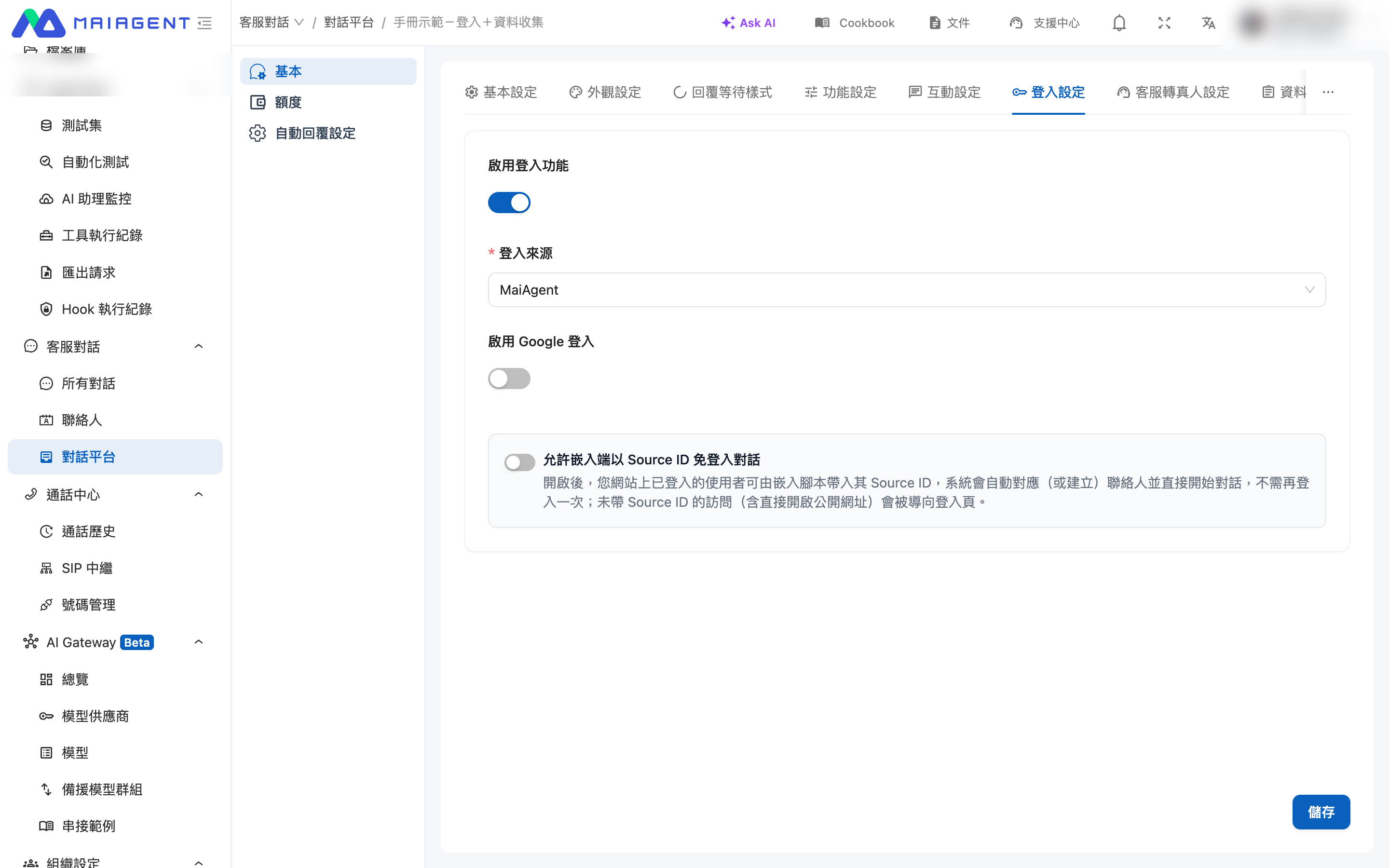
Where to find it: In the left menu, go to "<mark style="color:blue;">Customer Service > Chat Platforms</mark>", select a website-type chat platform, and open the "<mark style="color:blue;">Login Settings</mark>" tab.

### 1. Select a login source first <a href="#prerequisite" id="prerequisite"></a>

This switch depends on the login settings. You must first select a source under "<mark style="color:blue;">Login Source</mark>" (MaiAgent/AD/Keycloak/LINE). Until a source is selected, the switch cannot be clicked, and the screen displays "<mark style="color:blue;">Please select a login source first</mark>".

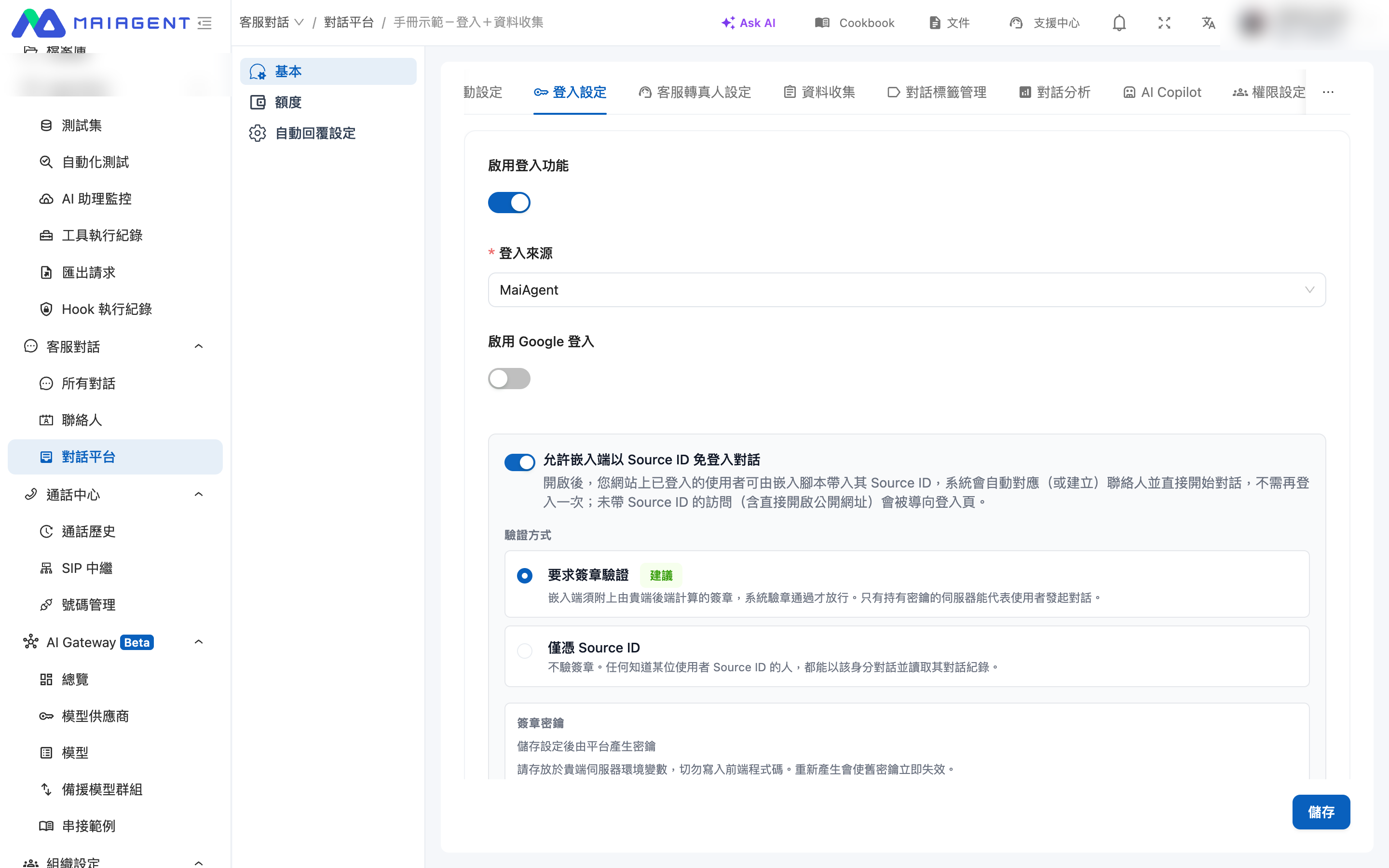
<figure><img src="https://1360999650-files.gitbook.io/~/files/v0/b/gitbook-x-prod.appspot.com/o/spaces%2F6v6TNkkOQVfRYfcNirHL%2Fuploads%2Fgit-blob-0bed4d025474ad42bf838b7e9e00e78f90693425%2Fsourceid-01-default.png?alt=media" alt=""><figcaption><p>Login Settings tab; this switch is off by default</p></figcaption></figure>

### 2. Turn on the switch <a href="#toggle" id="toggle"></a>

Turn on "<mark style="color:blue;">Allow the embedding side to chat without login using a Source ID</mark>". Only after it is on do the verification mode, signing secret, and integration examples appear.

<figure><img src="https://1360999650-files.gitbook.io/~/files/v0/b/gitbook-x-prod.appspot.com/o/spaces%2F6v6TNkkOQVfRYfcNirHL%2Fuploads%2Fgit-blob-95e715c203b5b89846e419419586baad4076301b%2Fsourceid-02-enabled-signature.png?alt=media" alt=""><figcaption><p>The settings section that expands after enabling; the verification mode defaults to "Require signature verification"</p></figcaption></figure>

### 3. Choose a verification mode <a href="#verify-mode" id="verify-mode"></a>

| Verification mode                                                             | Description                                                                                                                                                                                                 | Suitable for                        |
| ----------------------------------------------------------------------------- | ----------------------------------------------------------------------------------------------------------------------------------------------------------------------------------------------------------- | ----------------------------------- |
| <mark style="color:blue;">Require signature verification</mark> (recommended) | The embedding side must attach a signature calculated by your backend, and access is granted only if the signature is valid. Only a server holding the secret can start a conversation on behalf of a user. | Production environments             |
| <mark style="color:blue;">Source ID only</mark>                               | No signature is verified; any request with a Source ID is allowed through.                                                                                                                                  | Testing or closed internal networks |

{% hint style="danger" %}
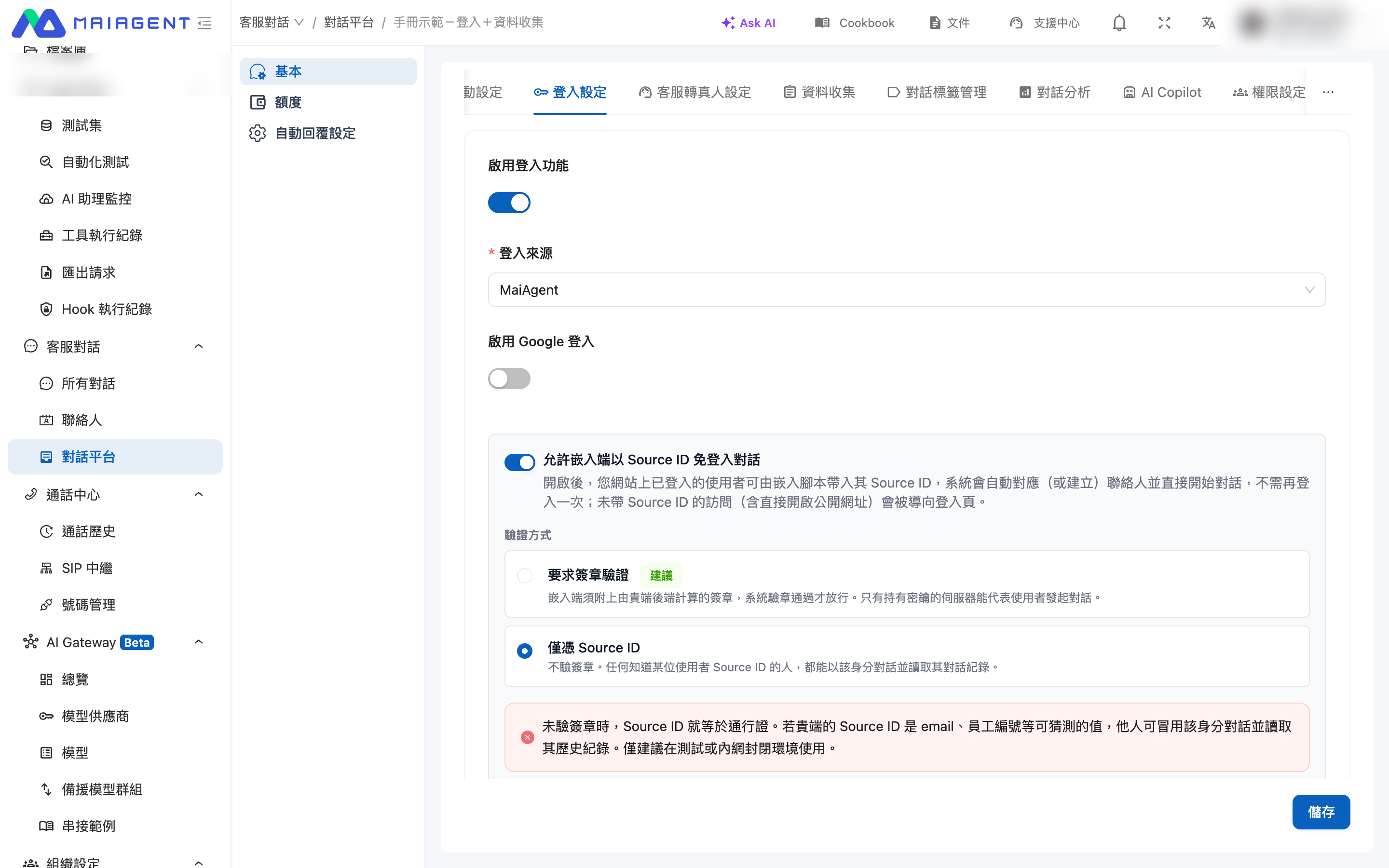
When you choose "Source ID only", the Source ID is effectively a pass. If your Source ID is a guessable value such as an email, student ID, or employee ID, others can impersonate that identity to chat and read its history. For scenarios that require identity assurance, use signature mode, or switch to AD/Keycloak/MaiAgent login.
{% endhint %}

<figure><img src="https://1360999650-files.gitbook.io/~/files/v0/b/gitbook-x-prod.appspot.com/o/spaces%2F6v6TNkkOQVfRYfcNirHL%2Fuploads%2Fgit-blob-8fa84f2e4965e66f8872be1997424f02b47e77c5%2Fsourceid-03-raw-mode-warning.png?alt=media" alt=""><figcaption><p>When "Source ID only" is selected, a red risk warning is displayed</p></figcaption></figure>

### 4. Get the signing secret <a href="#signing-secret" id="signing-secret"></a>

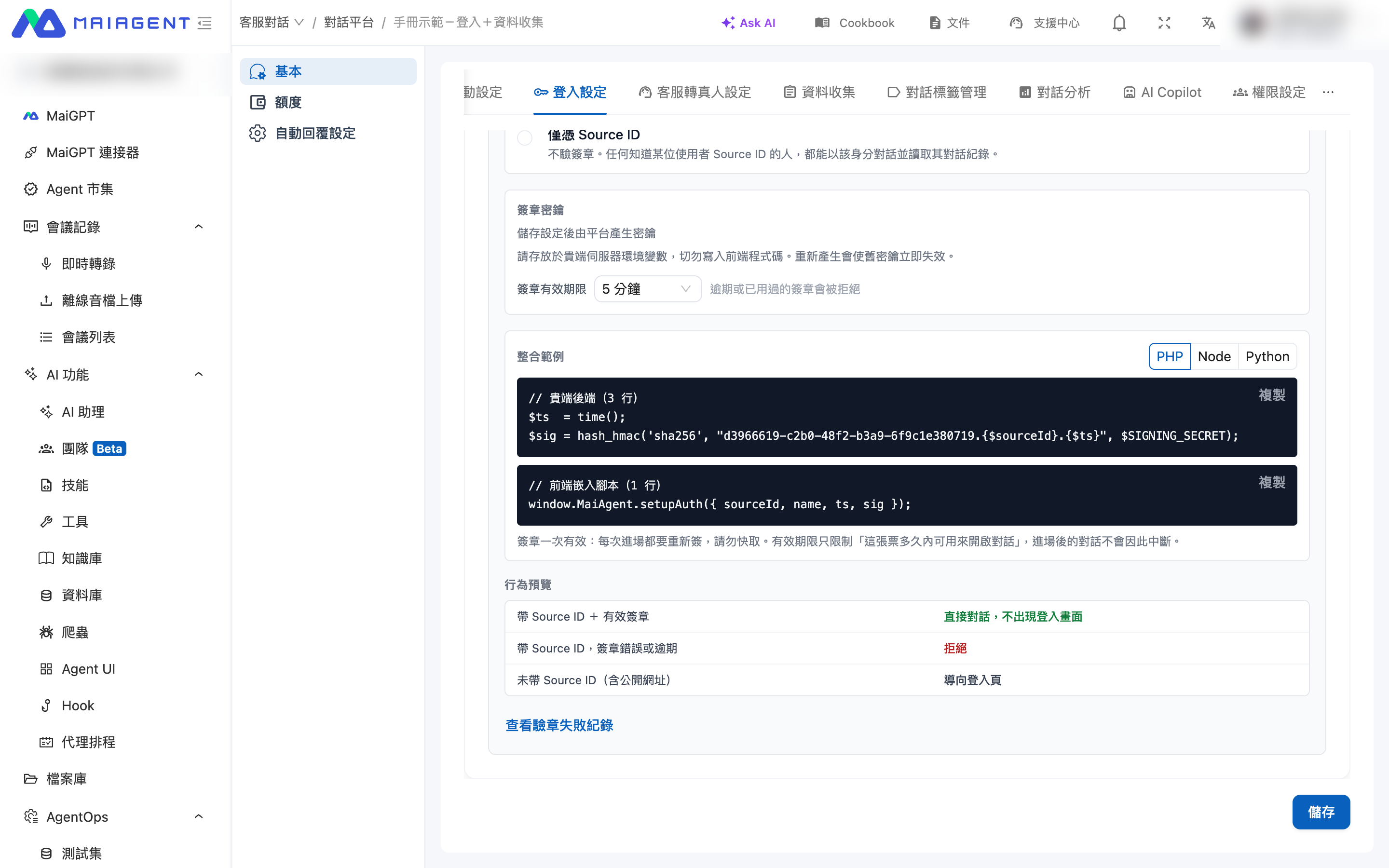
After you select signature mode and save the settings, the platform generates a signing secret. In the secret field, you can:

* Click "<mark style="color:blue;">Show</mark>" to view the full secret (masked by default)
* Click "<mark style="color:blue;">Copy</mark>" to hand it to your engineers
* Click "<mark style="color:blue;">Regenerate</mark>" to issue a new secret

{% hint style="warning" %}
Store the secret in your server's environment variables, and never write it into frontend code. After regeneration, the old secret becomes invalid immediately, and your backend must switch to the new one at the same time; otherwise, every signature fails verification.
{% endhint %}

### 5. Set the signature validity period <a href="#signature-ttl" id="signature-ttl"></a>

You can choose 1, 5, or 15 minutes, with 5 minutes as the default. Expired or already used signatures are rejected.

<figure><img src="https://1360999650-files.gitbook.io/~/files/v0/b/gitbook-x-prod.appspot.com/o/spaces%2F6v6TNkkOQVfRYfcNirHL%2Fuploads%2Fgit-blob-2e4eb936b04e8a0ffea6d1aa0dac6fa5b6ec0407%2Fsourceid-04-secret-ttl-snippets.png?alt=media" alt=""><figcaption><p>Signing secret, signature validity period, integration examples, and behavior preview</p></figcaption></figure>

{% hint style="info" %}
The validity period limits how long a signature can be used to open a conversation; it is not how long the conversation lasts. Once a user has obtained an identity and is chatting, they are not signed out after 5 minutes.
{% endhint %}

## <mark style="color:blue;">3. How Your Engineers Integrate</mark> <a href="#integration" id="integration"></a>

The "<mark style="color:blue;">Integration Examples</mark>" section in the admin console is pre-filled with this chat platform's identifier and provides examples for the backend signature calculation (PHP/Node/Python) and the frontend setup, which you can copy and hand to your engineers. For the full details of the signature algorithm, verification rules, and SDK parameters, ask your engineers to refer to [Web Chat Embedding and SDK › Signature Verification](https://docs.maiagent.ai/tech/serve/web-chat-sdk#source-id-signature) in the technical manual.

### 1. Calculate the signature in the backend <a href="#backend-signature" id="backend-signature"></a>

Each time before a user enters a conversation, your backend uses the signing secret to calculate a timestamp `ts` and a signature `sig`. For the algorithm and examples in three languages, see [Signature Verification](https://docs.maiagent.ai/tech/serve/web-chat-sdk#source-id-signature) in the technical manual.

### 2. Pass them to the embed script in the frontend <a href="#frontend-setup-auth" id="frontend-setup-auth"></a>

The frontend passes the Source ID, together with the `ts` and `sig` calculated by the backend, to the embed script:

{% code overflow="wrap" %}

```javascript
window.MaiAgent.auth.setup({ sourceId, name, ts, sig });
```

{% endcode %}

You can also write them directly in the `auth` field of the embed configuration, and the embed script picks them up automatically after loading. See the technical manual for the syntax.

{% hint style="warning" %}
If the example generated in the admin console shows `setupAuth`, use `auth.setup` instead.
{% endhint %}

### 3. Integration notes <a href="#integration-notes" id="integration-notes"></a>

* **Sign anew on every entry**: A signature can be used successfully only once, so the embedding side must not cache signatures.
* **Calculate the signature in the backend**: Once the secret appears in frontend code, it is effectively public.
* **Keep clocks accurate**: The system allows a clock skew of 60 seconds; timestamps outside this range are rejected.
* **Use the correct chat platform identifier**: The signature includes the chat platform identifier, so a signature calculated with another chat platform's identifier does not pass.

## <mark style="color:blue;">4. Behavior Reference</mark> <a href="#behavior" id="behavior"></a>

| Incoming request                                         | Result                                         |
| -------------------------------------------------------- | ---------------------------------------------- |
| Source ID + valid signature                              | Chats directly; no login screen appears        |
| Source ID with an invalid or expired signature           | Rejected                                       |
| The same signature used repeatedly                       | The first use succeeds; the second is rejected |
| No Source ID (including opening the public URL directly) | Redirected to the login page                   |
| Verification mode is "Source ID only" + Source ID        | Chats directly; no signature is verified       |
| This switch is off                                       | Keeps the original login setting behavior      |

{% hint style="info" %}
All rejection scenarios return the same external response, without revealing the reason for failure or whether a given Source ID exists. The reason appears only in the admin console's verification failure log.
{% endhint %}

## <mark style="color:blue;">5. Verification Failure Log</mark> <a href="#verification-failures" id="verification-failures"></a>

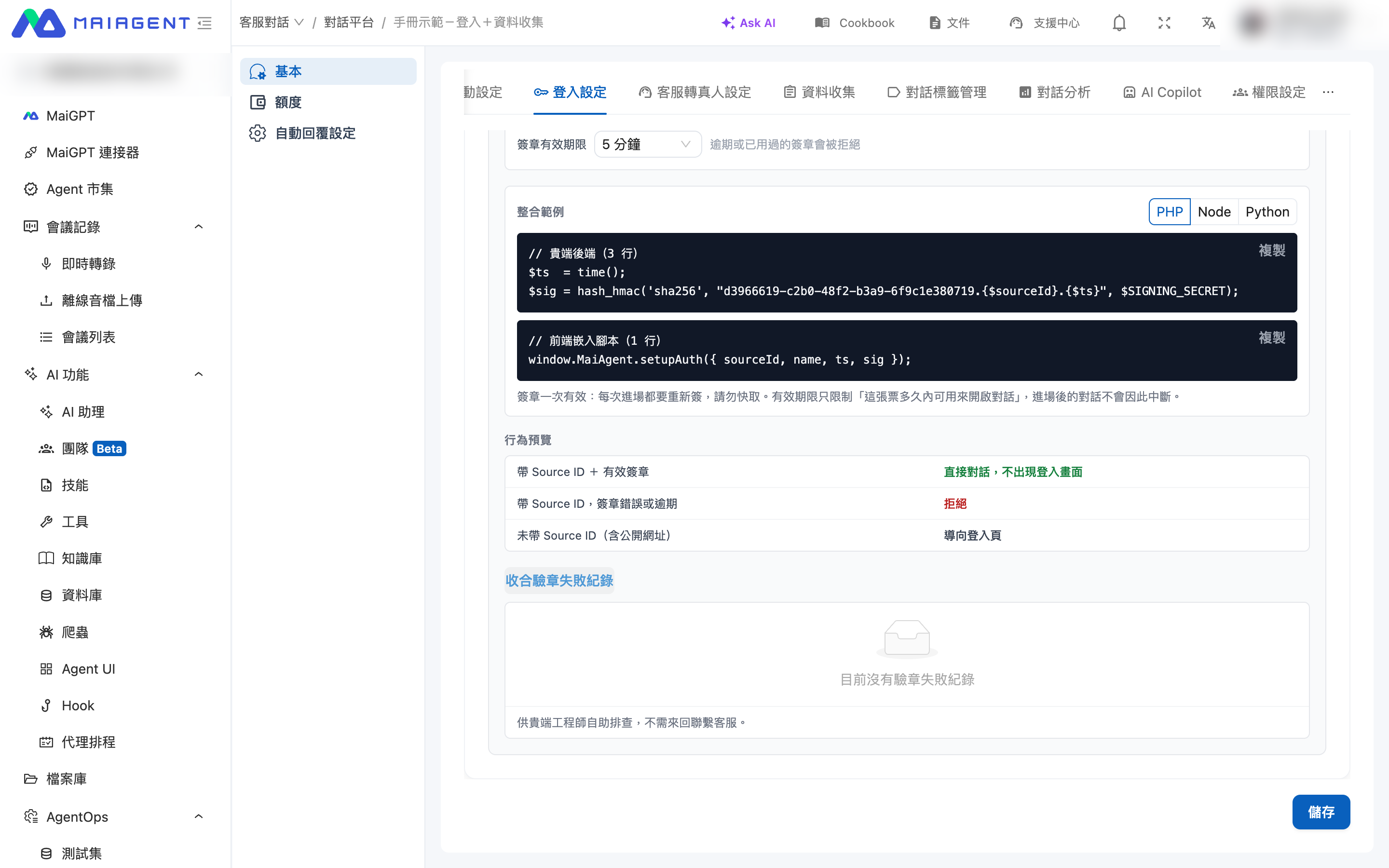
If the integration does not work smoothly, click "<mark style="color:blue;">View verification failure log</mark>" in the settings section to see recent failure events, so your engineers can troubleshoot on their own. The log does not contain the secret or the full signature.

<figure><img src="https://1360999650-files.gitbook.io/~/files/v0/b/gitbook-x-prod.appspot.com/o/spaces%2F6v6TNkkOQVfRYfcNirHL%2Fuploads%2Fgit-blob-97836892fb059355c1a832478e76d6795a3a1719%2Fsourceid-05-verification-failures.png?alt=media" alt=""><figcaption><p>The expanded verification failure log</p></figcaption></figure>

| Reason                                              | Common causes                                                                                                  |
| --------------------------------------------------- | -------------------------------------------------------------------------------------------------------------- |
| Signature expired                                   | Server clock drift, or the embedding side cached the signature                                                 |
| Timestamp beyond the allowed future range           | The server clock is more than 60 seconds ahead                                                                 |
| Signature mismatch (the secret may be inconsistent) | The backend uses a different secret from the admin console, or the signature string is constructed incorrectly |
| Missing timestamp or signature                      | The embedding side did not send `ts` or `sig`                                                                  |
| Signature already used                              | The same signature was sent a second time                                                                      |
| Replay-protection cache unavailable                 | A temporary condition on the platform side; the system rejects rather than allows the request                  |
| Source ID maps to multiple contacts                 | Duplicate contact records with the same Source ID exist on that chat platform                                  |

## <mark style="color:blue;">6. FAQ</mark> <a href="#faq" id="faq"></a>

<details>

<summary>If the signature validity period expires, is the user's conversation interrupted?</summary>

No. The validity period only limits how long a signature can be used to obtain an identity. Once the identity is obtained, the conversation's lifetime follows the existing Web Chat mechanism and is not affected by the signature period.

</details>

<details>

<summary>Can the same Source ID map to multiple contacts?</summary>

Within the same chat platform, one Source ID maps to only one contact. If the same Source ID is used on multiple chat platforms, each platform has its own contact, and the conversation histories are independent of each other.

</details>

<details>

<summary>Does enabling this setting affect existing embeds?</summary>

This setting is off by default, and the behavior of existing chat platforms is completely unchanged. If you choose signature mode after enabling it, requests without `ts` and `sig` are redirected to the login page, so confirm with your engineers that the embedding side has been updated before you enable it.

</details>

<details>

<summary>After a user signs out of my website, can they continue chatting?</summary>

A user who has already obtained an identity can continue that conversation. What you control is the issuing side: once a user signs out, you stop issuing new signatures, so they can no longer obtain an identity. If you need "sign-out takes effect immediately", please contact us, and we will evaluate a separate approach.

</details>

<details>

<summary>When a user arrives with a Source ID, does the AI include their login credentials when calling tools?</summary>

No. "[Call tools with the Keycloak login identity](/maiagent-user-guide/en/build/choose-channel/web-chat.md#keycloak-token-passthrough)" applies only to visitors who actually signed in with Keycloak. The identity is based on the organization member bound when the conversation was created, and the Source ID passed in by the embedding side is not used, so a Source ID cannot be used to impersonate someone else's credentials. If your tool needs to identify the user, you can use Keycloak login together with that feature, or set up [MCP credentials](/maiagent-user-guide/en/build/tools/setup-contacts-mcp-credentials.md) for the contact.

</details>


---

# Agent Instructions
This documentation is published with GitBook. GitBook is the documentation platform designed so that both humans and AI agents can read, navigate, and reason over technical content effectively. Learn more at gitbook.com.

## Querying This Documentation
If you need additional information that is not directly available in this page, you can query the documentation by asking a question.

Perform an HTTP GET request on the following URL with the `ask` and `goal` query parameters:

```
GET https://docs.maiagent.ai/maiagent-user-guide/en/build/choose-channel/web-chat/source-id-access.md?ask=<question>&goal=<user_goal>
```

`ask` is the immediate question: it should be specific, self-contained, and written in natural language.
`goal` is what the user is ultimately trying to achieve, the reason they need the answer. Sharing it helps GitBook give you a better, more relevant answer. A goal is most helpful when it describes the outcome the user wants rather than restating the question. For example, with `ask=how do I create an API token`, a goal like `automate deployments from our CI pipeline` lets GitBook tailor the answer to that use case.

The response will contain a direct answer to the question and relevant excerpts and sources from the documentation.

Use this mechanism when the answer is not explicitly present in the current page, you need clarification or additional context, or you want to retrieve related documentation sections.