> For the complete documentation index, see [llms.txt](https://docs.maiagent.ai/llms.txt). Markdown versions of documentation pages are available by appending `.md` to page URLs; this page is available as [Markdown](https://docs.maiagent.ai/maiagent-user-guide/en/serve/choose-channel/web-chat.md).

# Web Chat Overview

This article introduces Web Chat interaction features and interface customization to help you build a Web Chat service that matches your corporate branding

## <mark style="color:blue;">1. What Is WebChat?</mark> <a href="#what-is-webchat" id="what-is-webchat"></a>

You can embed an AI assistant created in MaiAgent into your website to provide real-time customer support or other conversations. Web Chat also features **a responsive design that adapts seamlessly to desktops, tablets, and phones.**

MaiAgent currently provides the following three embedding options:

### 1. Embed in the Bottom-Right Corner <a href="#embed-widget" id="embed-widget"></a>

* Embed it into your official website as a built-in intelligent assistant
* Let users browse without interruption, with help available whenever needed
* Suitable for general customer support and consultation services

### 2. Full-Screen Embedding <a href="#embed-fullscreen" id="embed-fullscreen"></a>

* Provide a complete conversation experience
* Suitable for complex consultations and service workflows
* Customize the design to meet business needs

### 3. MaiGPT Window Mode Embedding <a href="#embed-maigpt" id="embed-maigpt"></a>

* A complete ChatGPT-style conversation interface (conversation history on the left + main conversation area on the right) that can be embedded directly into a page as its primary UI
* Keep it visible in a specified container, or expand it to full screen when users click a floating button in the bottom-right corner
* Suitable as the main conversation interface for an AI portal, an internal knowledge portal, or a product

{% hint style="info" %}
Select MaiGPT window mode in the “<mark style="color:blue;">Embed</mark>” window in the conversation platform settings. For complete setup steps, see [MaiGPT Window Mode Embedding](/maiagent-user-guide/en/serve/choose-channel/web-chat/maigpt-embed.md).
{% endhint %}

This design offers:

* **Immediate responses**: Visitors receive professional answers without waiting, improving the user experience
* **Convenience**: The bottom-right floating widget keeps browsing uninterrupted and is available whenever needed
* **Cost efficiency**: AI assistants provide 24/7 service, significantly reducing staffing costs
* **A professional image**: Showcase your company's technical capabilities and service quality

## <mark style="color:blue;">2. Build a Web Chat Service with Your Corporate Branding</mark> <a href="#branding" id="branding"></a>

MaiAgent provides customization features for logos, avatars, conversation theme colors, and more to help you build a Web Chat service that matches your corporate branding

You can:

1. Choose the assistant's display name
2. Upload your corporate logo
3. Choose the AI assistant's avatar
4. Choose the Web Chat theme color
5. Choose the message background color for AI assistant replies

Use these features to create your own Web Chat appearance:

This lets you build a Web Chat service that matches your corporate style and color requirements

Web Chat displays the platform's brand logo below the conversation input area. The login, registration, and loading screens also display brand images with consistent proportions, without stretching or distortion.

<figure><img src="https://1360999650-files.gitbook.io/~/files/v0/b/gitbook-x-prod.appspot.com/o/spaces%2F6v6TNkkOQVfRYfcNirHL%2Fuploads%2Fgit-blob-08a452dcf190d99fb18802f136241351607d360a%2Fwebchat-brand-footer.png?alt=media" alt="Powered by and the MaiAgent brand logo displayed below the Web Chat input area"><figcaption><p>The brand logo at the bottom of Web Chat stays clear and proportional</p></figcaption></figure>

### Dark Mode Improvements <a href="#dark-mode" id="dark-mode"></a>

MaiAgent's Web Chat dark mode has been comprehensively improved to provide a more comfortable viewing experience:

**Dynamic color adjustments**

* Automatically adjust theme color brightness to keep colors clear on dark backgrounds
* Intelligently adjust text contrast for optimal readability
* Improve icon and button colors to make them stand out in dark mode

**Contrast improvements**

* Carefully designed message bubble background colors help prevent visual fatigue
* High-contrast colors for links and important information make them easy to identify
* Improved input field and button border colors enhance usability

**Seamless switching**

* Users can switch between light and dark modes at any time
* Conversation content and interaction state are preserved when switching
* The system remembers users' theme preferences

Dark mode is especially suitable for:

* Nighttime use or low-light environments
* Long conversations, to reduce eye strain
* Dark visual styles that match corporate branding

## <mark style="color:blue;">3. Message Customization</mark> <a href="#messages" id="messages"></a>

When users first enter your Web Chat service, you can customize your AI assistant's opening message for scenarios such as the following.

### **1. Customize the Opening Message** <a href="#greeting" id="greeting"></a>

#### **Branded greetings**

Set a message such as “Welcome to our website! I'm your dedicated customer support assistant” to convey your company's professionalism and friendly service

#### **Guided introductions**

Set a message such as “I can help you find product information, answer usage questions, and handle orders” to clearly explain the services available and build users' confidence in your service capabilities

### 2. Guided Starter Questions <a href="#starter-questions" id="starter-questions"></a>

* Set “<mark style="color:blue;">Conversation Starter Questions</mark>” as quick options
* Users can click common questions directly without typing
* **Example questions**:
  * “How do I view the items I've ordered?”
  * “How do I place an order?”
  * “Member points rules”
  * “Business hours”

Users can click a starter question to begin a conversation and get answers faster:

## Stop a Response Being Generated <a href="#stop-generating" id="stop-generating"></a>

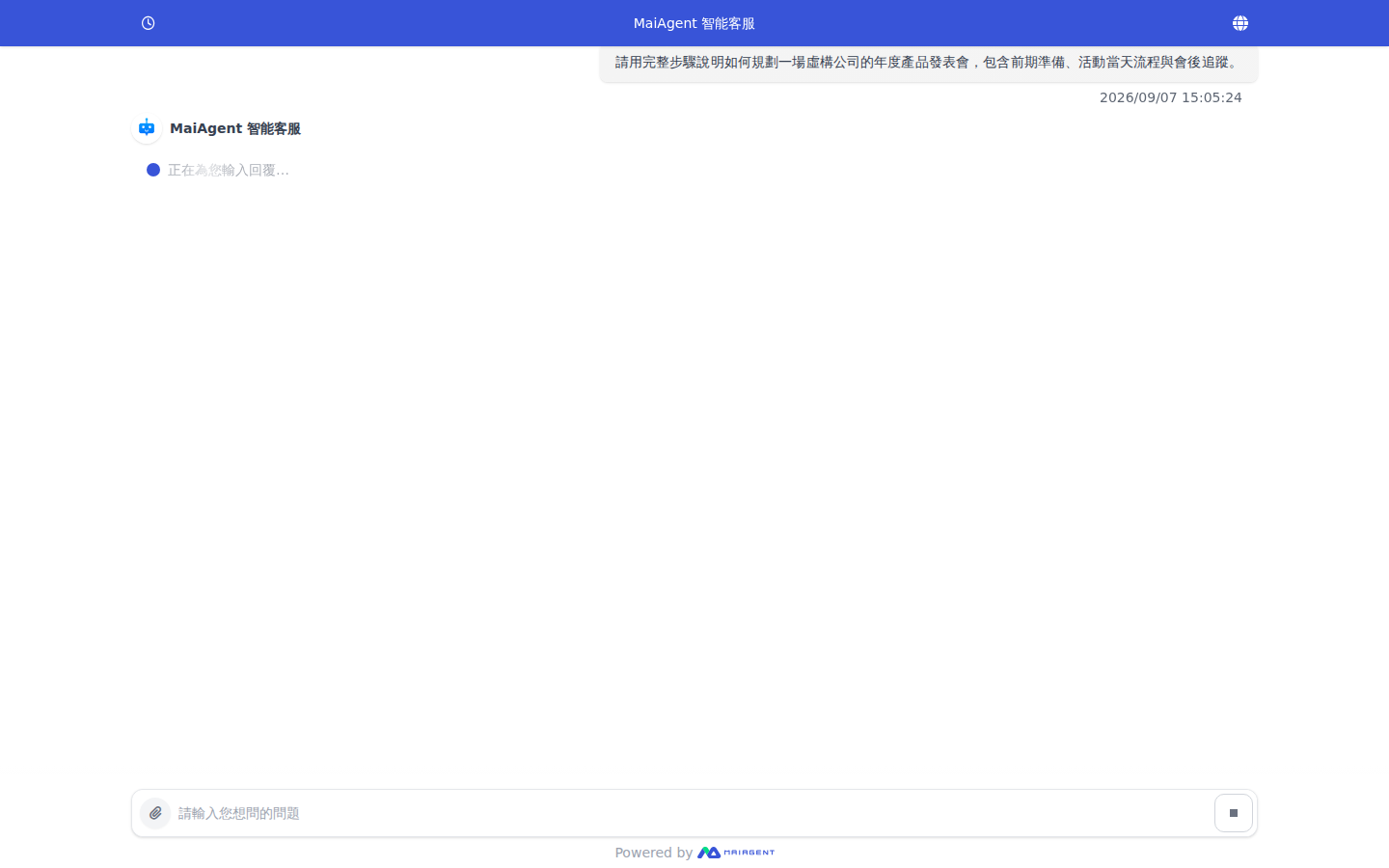
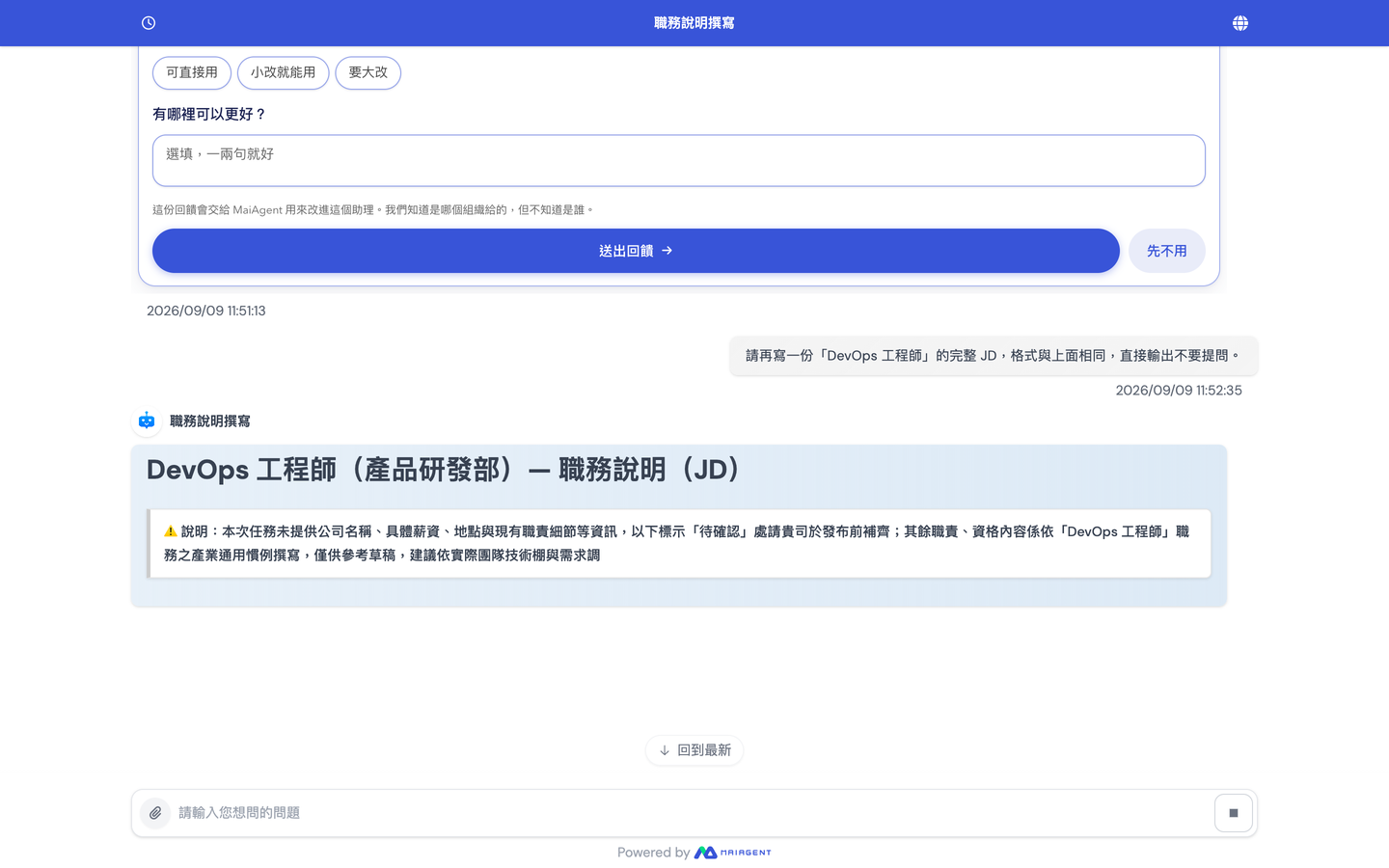
If you notice an error in your question after submitting it, you do not need to wait for the AI assistant to finish its entire response. While a response is being generated, the send button on the right of the input field becomes a square <mark style="color:blue;">Stop</mark> button. Click it to stop the current response, then enter your corrected question.

For example, a customer support representative asks the AI assistant to plan an annual product launch event, then realizes they forgot to specify the budget. They can click <mark style="color:blue;">Stop</mark> while the AI assistant is generating its response, then ask again with the budget and attendee count, avoiding a wait for content that does not meet their needs.

### Stop a Response <a href="#stop-current-response" id="stop-current-response"></a>

{% stepper %}
{% step %}

### 1. Find the Stop Button <a href="#find-stop-button" id="find-stop-button"></a>

After submitting a question, wait for the AI assistant to start generating its response. A square <mark style="color:blue;">Stop</mark> button appears on the right of the input field.

<figure><img src="https://1360999650-files.gitbook.io/~/files/v0/b/gitbook-x-prod.appspot.com/o/spaces%2F6v6TNkkOQVfRYfcNirHL%2Fuploads%2Fgit-blob-5b470980c305488984de0c77295cf0ef2ae6f57f%2Fwebchat-stop-response.png?alt=media" alt="A square Stop button appears on the right of the input field while Web Chat generates a response"><figcaption><p>Click the Stop button on the right of the input field while a response is being generated</p></figcaption></figure>
{% endstep %}

{% step %}

### 2. Stop and Ask Again <a href="#stop-and-ask-again" id="stop-and-ask-again"></a>

Click <mark style="color:blue;">Stop</mark>. Once “Typing a response for you” disappears, enter your corrected question in the input field and submit it again.
{% endstep %}
{% endstepper %}

{% hint style="info" %}
Stopping only interrupts the response currently being generated. It does not delete your submitted question or previous conversation history.
{% endhint %}

## <mark style="color:blue;">4. Diverse Question-and-Answer Content</mark> <a href="#multimodal-qa" id="multimodal-qa"></a>

### 1. Multilingual Support <a href="#multi-language" id="multi-language"></a>

Reply in the user's language to remove communication barriers.

* **Automatic detection**: Choose the assistant's response language based on the language of the user's input

**Manual switching**:

1. Select a language in the Web Chat interface. See [Multilingual](https://docs.maiagent.ai/maiagent-user-guide/en/serve/choose-channel/pages/BaXHx76Xacpa5IBNtuzL#id-2.-web-chat-liao-tian-she-ding)[ Support](https://docs.maiagent.ai/maiagent-user-guide/en/serve/choose-channel/pages/BaXHx76Xacpa5IBNtuzL#id-2.-web-chat-liao-tian-she-ding)[: Web Chat Settings](https://docs.maiagent.ai/maiagent-user-guide/en/serve/choose-channel/pages/BaXHx76Xacpa5IBNtuzL#id-2.-web-chat-liao-tian-she-ding).
2. Specify the AI assistant's response language in the Web Chat initialization script (javascript). See [Technical Manual—Web Chat Initialization](https://docs.maiagent.ai/tech/api-integration/web-chat-chu-shi-hua#e5-9b-9bweb-chat-e5-b5-8c-e5-85-a5-e8-88-87-e8-aa-9e-e8-a8-80-e8-a8-a-d-e5-ae-9a).

{% hint style="info" %}
For the supported languages, see [Multilingual](/maiagent-user-guide/en/build/agent/multi-language-support.md#zhi-yuan-yu-yan-qing-dan)[ Support](/maiagent-user-guide/en/build/agent/multi-language-support.md#zhi-yuan-yu-yan-qing-dan)[: Supported Languages](/maiagent-user-guide/en/build/agent/multi-language-support.md#zhi-yuan-yu-yan-qing-dan)
{% endhint %}

### 2. Multimodal Questions and Answers <a href="#multimodal" id="multimodal"></a>

In addition to text-based questions and answers, AI assistants can support uploads of various file types:

* Spreadsheets: .xls, .xlsx, .csv, .ods
* Word processing documents: .doc, .docx, .odt, .pdf, .md, .txt
* Presentations: .ppt, .pptx, .odp
* Web documents: .html, .htm
* Data formats: .json, .jsonl
* Audio files: .wav, .mp3, .m4a, .aac
* Video files: .mp4

{% hint style="info" %}
You can disable attachment uploads and allow text-only conversations to protect conversation security.
{% endhint %}

#### Image Content Processing

**Image recognition and analysis**

* **Uploaded image analysis**: Users can upload product images for AI to recognize automatically and provide related information
* **Screenshot processing**: Support screenshot analysis to help resolve usage issues
* **Image descriptions**: Automatically generate descriptions of image content and related recommendations

**Image replies**

* **Product images**: Include actual product images in replies
* **Visual instructions**: Provide step-by-step screenshots

Examples:

1. A user asks where to configure a MaiAgent assistant, and the assistant replies with an image of the settings screen
2. A user sends a screenshot to confirm whether the path is correct, and the assistant interprets it correctly before replying

#### Document Processing Capabilities

**Supported document formats**

* **PDF documents**: Automatically parse PDF content and answer related questions
* **Word documents**: Process .doc/.docx documents
* **Excel spreadsheets**: Analyze spreadsheet data and provide insights
* **PowerPoint presentations**: Extract presentation content and answer questions

**Document interaction features**

* **Document queries**: Answer specific questions based on uploaded documents
* **Data analysis**: Automatically analyze tabular data and provide statistics in tables
* **Document summaries**: Generate summaries of key content in long documents

***

Example 1: Ask the AI assistant to present information in a table and provide links to reference materials

Example 2: Ask the assistant to analyze sales content and provide a tabular analysis

Example 3: Upload a docx file and ask the assistant to help analyze issues with CV writing

{% hint style="success" %}
AI assistants use Markdown for all replies to organize response content clearly.
{% endhint %}

## <mark style="color:blue;">5. Conversation Memory and Sharing</mark> <a href="#memory-and-sharing" id="memory-and-sharing"></a>

### **1. Conversation History Memory** <a href="#chat-history" id="chat-history"></a>

To provide a continuous service experience, WebChat automatically remembers users' conversation history so each conversation can build on previous ones.

**What is remembered**

* **Conversation content**: Complete question-and-answer records, including text, images, documents, and more
* **Service status**: Unfinished queries and pending issues

Users can view past conversation records in the conversation list on the left of Web Chat, or start a new conversation

Conversation memory can be used for:

* **Follow-up consultations**: A user asks “What was the tent model you recommended last time?” and AI immediately recalls it and replies
* **Progress tracking**: A user says “Continue my previous order inquiry,” and AI automatically retrieves the relevant information
* **Personalized service**: Provide more accurate recommendations and suggestions based on past conversations

### **2. Conversation Sharing** <a href="#chat-sharing" id="chat-sharing"></a>

If you want to share a conversation with friends or colleagues after consulting an AI assistant, or your internal team needs to collaborate on customer issues, use MaiAgent to generate a conversation sharing link:

Click <mark style="color:blue;">Share</mark> in the upper-right corner of the chat window, then copy the public link in the pop-up and send it to others.

**Shared content**

* **Complete conversation records**: Include all text, images, documents, and other content
* **Conversation summaries**: Automatically generate summaries of key points
* **Related resources**: Product links, documents, and other resources mentioned in the conversation

Conversation sharing can be used for:

* **Customer sharing**: “This camping gear recommendation is great. I'll share it with my hiking group”
* **Internal collaboration**: Customer support representatives share complex issues with the technical support team
* **Training**: Share typical conversation examples as employee training materials

### **3. Conversation Timeout Management** <a href="#chat-timeout" id="chat-timeout"></a>

To ensure conversation quality and system performance, Web Chat includes intelligent conversation timeout management:

**Intelligent filtering**

* **Automatically filter greetings**: The system identifies and filters opening greetings so they are excluded from timeout calculations
* **Correctly reset message counts**: The message counter resets correctly when a conversation restarts
* **Improved timeout detection**: Only substantive conversation content counts toward timeouts, providing more accurate conversation management

**Conversation continuity**

* Ensure users do not encounter unexpected timeouts during normal conversations
* Allow conversations to continue after long pauses or time spent thinking
* The system intelligently determines whether a conversation is still active

**How it works**

1. **Start a conversation**: A user sends a greeting (such as “Hello”), which the system excludes from timeout calculations
2. **Enter the conversation**: The user begins asking substantive questions, and the timeout timer starts
3. **Pause the conversation**: If the user temporarily leaves, the system preserves the conversation state
4. **Resume**: The user returns to continue the conversation, and the message count updates correctly

This improvement makes conversations smoother and more natural, so users do not need to worry about interruptions caused by spending too long thinking.

## <mark style="color:blue;">6. Choose Whether to Display Tools Used and Cited Documents</mark> <a href="#display-tools-and-citations" id="display-tools-and-citations"></a>

### **1. Display the Tools Used** <a href="#show-tools" id="show-tools"></a>

You can choose whether users can see the list of tools the AI assistant uses during reasoning. If enabled, the following screen appears while the AI assistant generates a response:

Use this list to check whether the AI assistant is using the tools correctly.

### **2. Display Cited Documents** <a href="#show-citations" id="show-citations"></a>

Each AI answer automatically generates a list of cited documents, clearly identifying information sources to improve credibility and traceability.

**Display settings**

Businesses can choose whether users can see the list of cited tools and reference document names. If enabled, the following list appears at the bottom of the AI assistant's reply. Click “Citation Node” to view the referenced document excerpt:

Choose whether to disclose citation information according to the use case:

* **Public customer support**: Display all citations to build trust
* **Internal support**: Hide sensitive documents to protect confidential information
* **Educational institutions**: Display learning resources for students to consult

## <mark style="color:blue;">7. Conversation Access Control — A Secure, Controlled Conversation Environment</mark> <a href="#access-control" id="access-control"></a>

### 1. Login Settings <a href="#login-config" id="login-config"></a>

**Require login**

To keep conversation content secure and controlled, businesses can enable login and require users to sign in before using AI assistant services. Once configured, visitors who click WebChat are first taken to a login page. Only users who successfully log in can start a conversation with the AI assistant

**Security benefits**

* **Authentication**: Ensure each conversation user has an identifiable identity
* **Access control**: Provide services according to the user's identity
* **Conversation tracking**: Fully record each user's conversation history
* **Data protection**: Prevent unauthorized access to sensitive information

### 2. Three Login Methods <a href="#login-methods" id="login-methods"></a>

**AD (Active Directory) login**

* **Use case**: Internal employees, integrating with an existing AD system
* **Features**: Single sign-on (SSO) without additional account management
* **Setup**: Configure AD server connection details and synchronization rules
* **Practical application**: Employees sign in directly with their corporate accounts and automatically receive the corresponding permissions

**Keycloak login**

* **Use case**: Businesses that need complex identity management, with support for multiple identity providers
* **Features**: Support standard protocols including OAuth2, SAML, and OpenID Connect
* **Setup**: Configure the Keycloak server, user pool, and identity providers
* **Practical application**: Integrate user identities across multiple systems and manage permissions centrally
* **Extension**: Let the AI assistant use the visitor's Keycloak login identity when calling MCP/API tools. See [Use the Keycloak Login Identity for Tool Calls](#keycloak-token-passthrough)

**MaiAgent login**

* **Use case**: Simple user management requirements and fast deployment
* **Features**: Built-in user management with straightforward, intuitive operation
* **Setup**: Create user accounts and permissions in MaiAgent
* **Practical application**: Create a dedicated login system for a specific group of users

Once enabled, the following screen requires users to log in before starting a conversation:

### 3. Use the Keycloak Login Identity for Tool Calls <a href="#keycloak-token-passthrough" id="keycloak-token-passthrough"></a>

After a visitor logs in to Web Chat through Keycloak, the AI assistant can automatically include **the visitor's own Keycloak login credential** when calling [MCP tools](/maiagent-user-guide/en/build/tools/mcp-setup.md) or [API tools](/maiagent-user-guide/en/build/tools/setup_api_tool.md) on their behalf. When your backend receives the request, it can use the same Keycloak system to verify who the visitor is and return only the data they are allowed to view. You do not need to configure separate accounts for every tool or ask visitors to log in again.

This feature is off by default. When it is off, all tool calls work exactly as before.

#### Use Case <a href="#keycloak-token-passthrough-scenario" id="keycloak-token-passthrough-scenario"></a>

A company's internal service portal uses Keycloak to manage employee accounts and Web Chat as an employee assistant. An IT administrator enables this feature on the conversation platform and adds the host of the company's leave management system to the allowlist. After logging in to Web Chat, an employee asks “How many days of annual leave do I have left?” The AI assistant calls the leave system's API tool with that employee's own login credential in the request. The leave system identifies the employee from the credential and returns only their attendance and leave data. When another employee asks, they receive their own data.

#### Prerequisites <a href="#keycloak-token-passthrough-prerequisites" id="keycloak-token-passthrough-prerequisites"></a>

* Your organization has completed [Keycloak integration](/maiagent-user-guide/en/org/sso/sso-keycloak.md). Visitors must be members of your organization. When they first log in through your organization's configured Keycloak, the system automatically creates an account and adds them to the organization (see [Third-Party Login: First Login](/maiagent-user-guide/en/org/sso.md#first-login)).
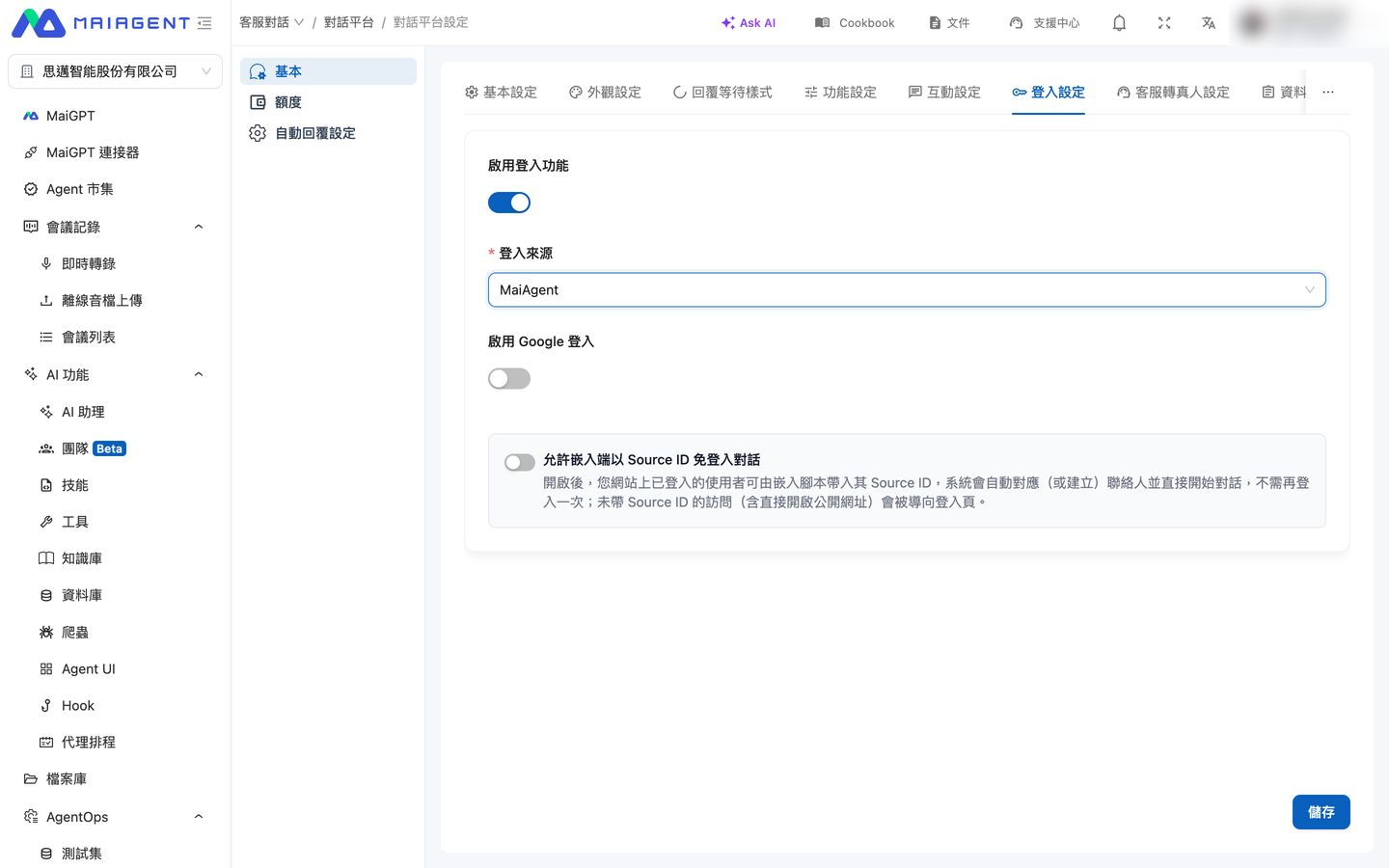
* In the conversation platform's “<mark style="color:blue;">Login Settings</mark>,” “<mark style="color:blue;">Enable Login</mark>” is on, and “<mark style="color:blue;">Login Source</mark>” is set to Keycloak.
* The MCP/API tools that will receive credentials have been created and assigned to the AI assistant used by this conversation platform. The receiving system can validate credentials issued by your Keycloak Realm.

#### Setup Steps <a href="#keycloak-token-passthrough-steps" id="keycloak-token-passthrough-steps"></a>

Settings location: In the left menu, select “<mark style="color:blue;">Customer Conversations > Conversation Platforms</mark>,” choose a website-type conversation platform, and open the “<mark style="color:blue;">Login Settings</mark>” tab. This section appears after you select Keycloak as the login source.

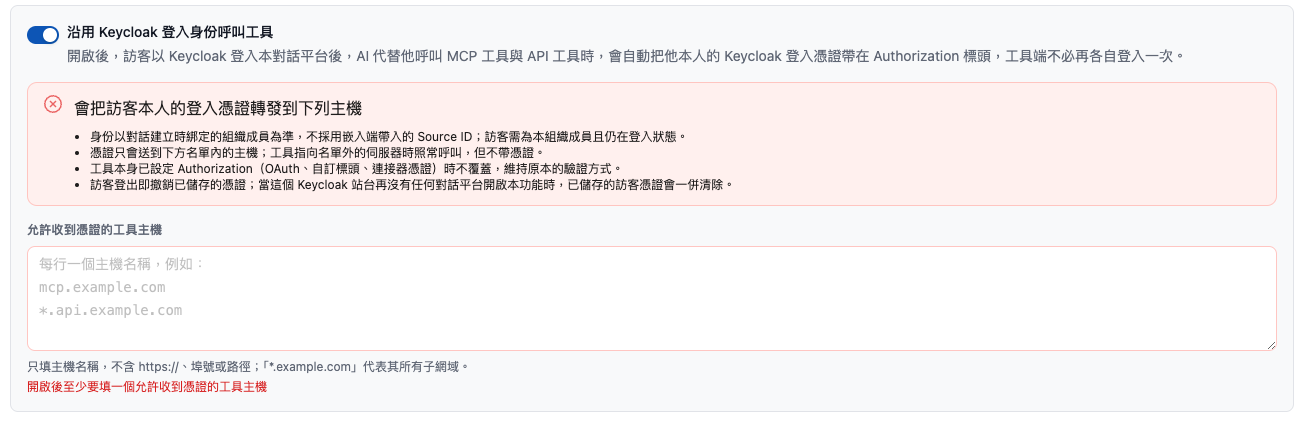
1. Turn on “<mark style="color:blue;">Use the Keycloak Login Identity for Tool Calls</mark>.”
2. Read the red warning below the switch, “<mark style="color:blue;">The visitor's own login credential will be forwarded to the following hosts</mark>,” and confirm that you understand where credentials will be sent.
3. In “<mark style="color:blue;">Tool Hosts Allowed to Receive Credentials</mark>,” enter the tool hosts that should receive credentials, one per line (or separated by commas):
   * Enter only the hostname, without `https://`, a port number, or a path, such as `mcp.example.com`.
   * `*.example.com` matches `example.com` itself and all its subdomains. A hostname without `*.` only matches that exact host.
   * Hostnames are matched against the tool's “MCP Server URL” or “API URL.”
4. Save the settings.

<figure><img src="https://1360999650-files.gitbook.io/~/files/v0/b/gitbook-x-prod.appspot.com/o/spaces%2F6v6TNkkOQVfRYfcNirHL%2Fuploads%2Fgit-blob-affd050ebc568fa2c5cad82c542d3f53cefe8493%2Fwebchat-keycloak-token-passthrough.png?alt=media" alt="Warning and allowed host list after enabling Keycloak login identity for tool calls"><figcaption><p>Enabling the feature displays a credential forwarding warning and requires tool hosts allowed to receive credentials</p></figcaption></figure>

When the switch is on, the list must contain at least one host. If the list is empty or contains an invalid hostname, the screen displays “<mark style="color:blue;">Enter at least one tool host allowed to receive credentials when enabled</mark>” or “<mark style="color:blue;">The following hostnames are invalid</mark>,” and the settings are not submitted.

{% hint style="warning" %}
**After enabling this feature, visitors must log in again.** The platform saves Keycloak credentials only when a visitor logs in, and only if a conversation platform has this feature enabled. Ask visitors who were already logged in before it was enabled to log out and log back in. Subsequent tool calls will then include their credentials.
{% endhint %}

#### What the Receiving System Gets <a href="#keycloak-token-passthrough-request" id="keycloak-token-passthrough-request"></a>

When the AI assistant calls an MCP/API tool on a listed host, the request includes an additional HTTP header:

```
Authorization: Bearer <訪客的 Keycloak access token>
```

This is the standard access token issued to the visitor by your Keycloak Realm. The engineer handling the integration can identify the user through standard Keycloak token validation (verifying the signature, expiration, and Realm). When the credential expires, the platform first renews it with the same Keycloak using the visitor's login session, then sends the request. The tool does not need to handle renewal.

#### When Credentials Are Included and When They Are Not <a href="#keycloak-token-passthrough-behavior" id="keycloak-token-passthrough-behavior"></a>

| Scenario                                                                                                                                                                          | Result                                                                                                                                                                       |
| --------------------------------------------------------------------------------------------------------------------------------------------------------------------------------- | ---------------------------------------------------------------------------------------------------------------------------------------------------------------------------- |
| The visitor has logged in with Keycloak, is still logged in, and the tool host is on the list                                                                                     | Includes the visitor's own credentials                                                                                                                                       |
| The tool host is not on the list                                                                                                                                                  | Calls the tool as usual, without credentials                                                                                                                                 |
| The tool already has `Authorization` configured (OAuth, API tool headers, [contact MCP credentials](/maiagent-user-guide/en/build/tools/setup-contacts-mcp-credentials.md), etc.) | Does not overwrite it; retains the tool's original authentication method                                                                                                     |
| The visitor has logged out or is not a member of this organization                                                                                                                | Does not include credentials                                                                                                                                                 |
| The visitor enters the conversation through [Source ID access without login](/maiagent-user-guide/en/serve/choose-channel/web-chat/source-id-access.md)                           | Does not include credentials; identity is based on the organization member bound when the conversation was created, rather than the Source ID supplied by the embedding site |
| The toggle is off                                                                                                                                                                 | Behaves as it did before this feature was enabled                                                                                                                            |

{% hint style="danger" %}
The visitor's complete login credentials are forwarded. A system that receives them can access other services protected by the same Keycloak instance as that visitor. Only list hosts you trust that actually need to identify users, and avoid overly broad wildcards.
{% endhint %}

{% hint style="info" %}
When a visitor logs out, the platform revokes their stored credentials. When no conversation channel on the same Keycloak site has this feature enabled (because the toggle was turned off, a different login provider was selected, or the channel was deleted), the platform also clears all stored visitor credentials.
{% endhint %}

## <mark style="color:blue;">8. Data Collection (Pre-chat Form)</mark> <a href="#pre-chat-form" id="pre-chat-form"></a>

When data collection is enabled, visitors see a form before starting a conversation and must complete it to enter the chat. Their entries are saved to the visitor's [contact](/maiagent-user-guide/en/serve/contact.md), so support agents can see them directly on the conversation page. This is useful when you need to know who the visitor is first, such as collecting a company name and business registration number for dealer support, or a name and Email for event inquiries.

### 1. Configure the Data Collection Form <a href="#pre-chat-config" id="pre-chat-config"></a>

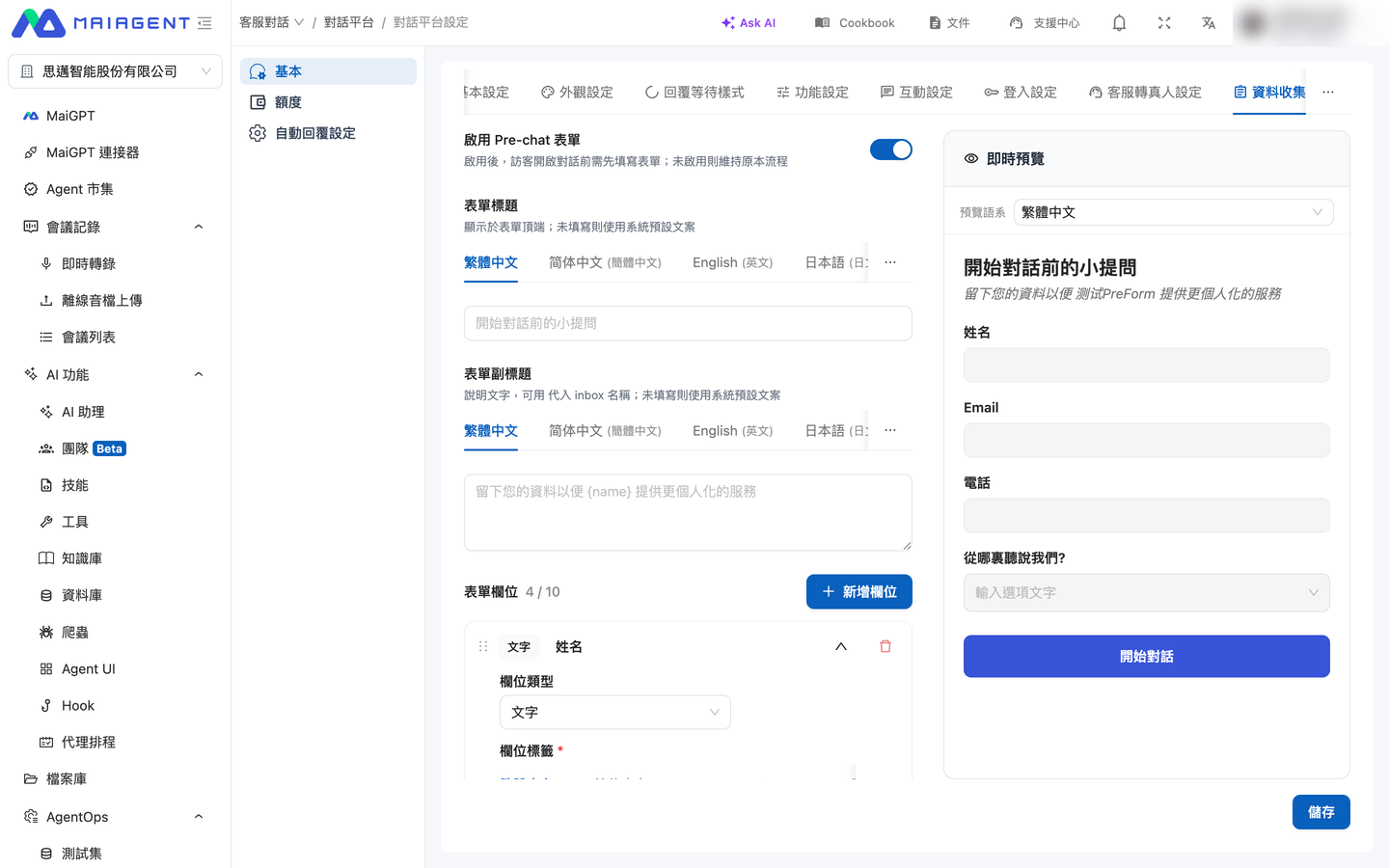
Path: <mark style="color:blue;">Customer Conversations</mark> → <mark style="color:blue;">Conversation Channels</mark> → Select the Web Chat channel → <mark style="color:blue;">Data Collection</mark> tab.

<figure><img src="https://1360999650-files.gitbook.io/~/files/v0/b/gitbook-x-prod.appspot.com/o/spaces%2F6v6TNkkOQVfRYfcNirHL%2Fuploads%2Fgit-blob-fa62f86ab7ff682fcd9c0907a8a126acf6672991%2Fweb-chat-prechat-settings.png?alt=media" alt="Data Collection tab"><figcaption><p>The Data Collection tab: configure the toggle, title, and fields on the left; Live Preview on the right shows the form as you edit it</p></figcaption></figure>

{% stepper %}
{% step %}

### Enable the Form <a href="#pre-chat-enable-form" id="pre-chat-enable-form"></a>

Turn on <mark style="color:blue;">Enable Pre-chat Form</mark>. When disabled, visitors enter the conversation directly, following the original flow.
{% endstep %}

{% step %}

### Set the Title and Subtitle (Optional) <a href="#pre-chat-form-title" id="pre-chat-form-title"></a>

* <mark style="color:blue;">Form Title</mark>: Appears at the top of the form. If left blank, the default text is “A few questions before we start chatting”.
* <mark style="color:blue;">Form Subtitle</mark>: Explanatory text for the form. Use `{name}` to insert the conversation channel name. If left blank, the default text is “Leave your details so {name} can provide more personalized service”.

Both support multiple languages. Switch language tabs to enter each version separately.
{% endstep %}

{% step %}

### Add Fields <a href="#pre-chat-add-fields" id="pre-chat-add-fields"></a>

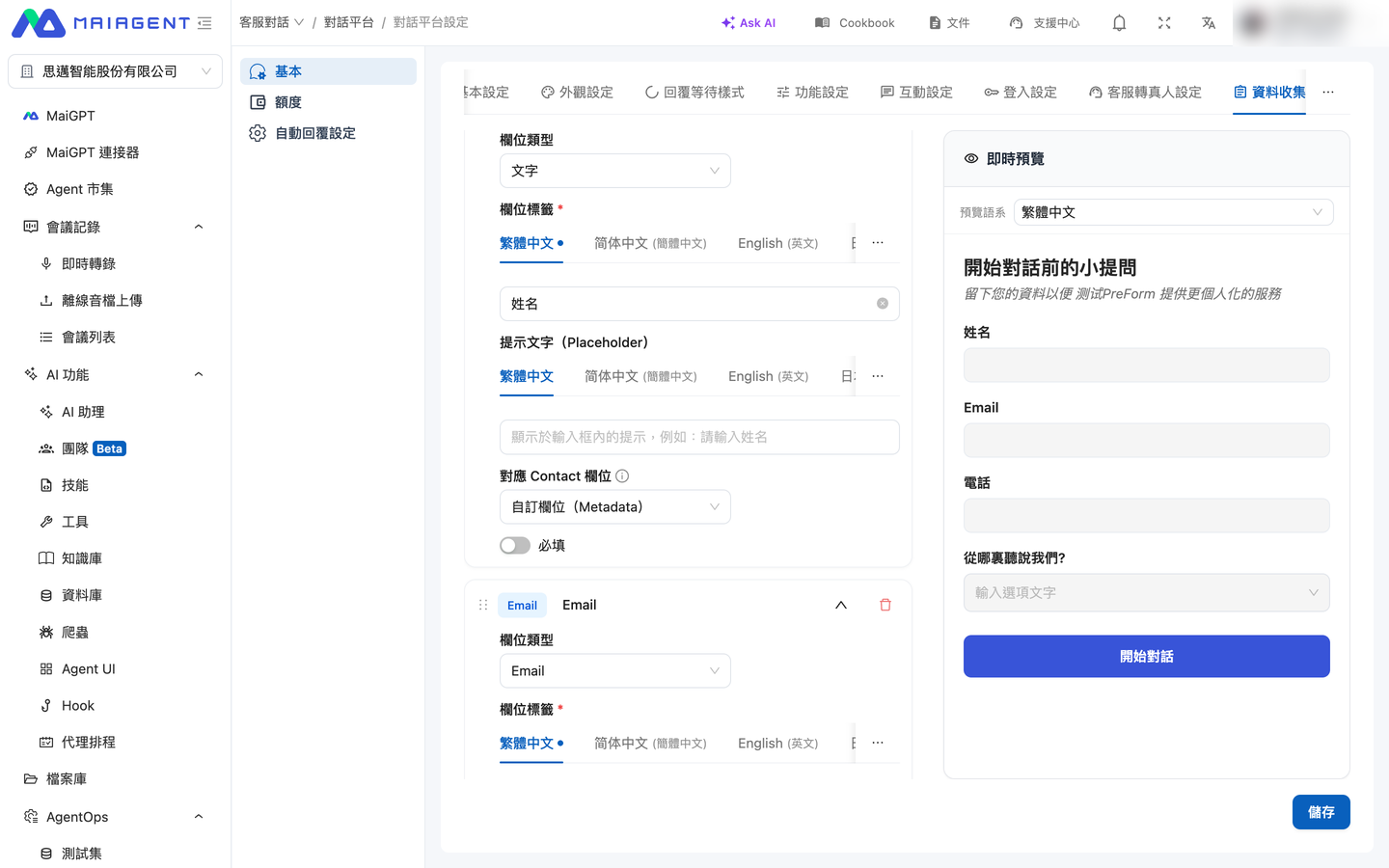
Click <mark style="color:blue;">Add Field</mark>. Each field has these settings:

| Setting                                               | Description                                                                                                                                                                                                                                                                                |
| ----------------------------------------------------- | ------------------------------------------------------------------------------------------------------------------------------------------------------------------------------------------------------------------------------------------------------------------------------------------ |
| <mark style="color:blue;">Field Type</mark>           | Four types: text, Email, phone, and dropdown                                                                                                                                                                                                                                               |
| <mark style="color:blue;">Field Label</mark>          | The field name visitors see; can be set separately for each language                                                                                                                                                                                                                       |
| <mark style="color:blue;">Placeholder</mark>          | Gray hint text inside the field                                                                                                                                                                                                                                                            |
| <mark style="color:blue;">Required</mark>             | When selected, visitors cannot submit without completing the field                                                                                                                                                                                                                         |
| <mark style="color:blue;">Mapped Contact Field</mark> | Determines where the data is saved in the contact: <mark style="color:blue;">Name (Contact.name)</mark>, <mark style="color:blue;">Email (Contact.email)</mark>, <mark style="color:blue;">Phone (Contact.phoneNumber)</mark>, or <mark style="color:blue;">Custom Field (Metadata)</mark> |

Dropdown fields also have an <mark style="color:blue;">Options</mark> list. Select <mark style="color:blue;">Allow Custom Input for “Other”</mark> to let visitors enter their own text after selecting “Other”.

<figure><img src="https://1360999650-files.gitbook.io/~/files/v0/b/gitbook-x-prod.appspot.com/o/spaces%2F6v6TNkkOQVfRYfcNirHL%2Fuploads%2Fgit-blob-6003c1d8c3373fe2ad0ab3686474f5c2d61d442e%2Fweb-chat-prechat-field-editor.png?alt=media" alt="Field editor"><figcaption><p>Configure each field's type, label (multilingual), placeholder, mapped Contact field, and required status</p></figcaption></figure>

Drag fields to reorder them. A form can contain up to 10 fields. The preview on the right updates immediately; switch the <mark style="color:blue;">Preview Language</mark> to check each language version.
{% endstep %}

{% step %}

### Save <a href="#pre-chat-save-form" id="pre-chat-save-form"></a>

After checking the preview, save your settings. They take effect immediately in Web Chat.
{% endstep %}
{% endstepper %}

{% hint style="info" %}
**Contact field mapping restrictions**

* Name can only map to a Text field, Email to an Email field, and Phone to a Phone field. Incompatible types display a disabled-state hint.
* Name, Email, and Phone can each be mapped by only one form field. For other fields (such as business registration number or company name), select Custom Field (Metadata).
  {% endhint %}

### 2. Visitor Form Flow <a href="#pre-chat-visitor-flow" id="pre-chat-visitor-flow"></a>

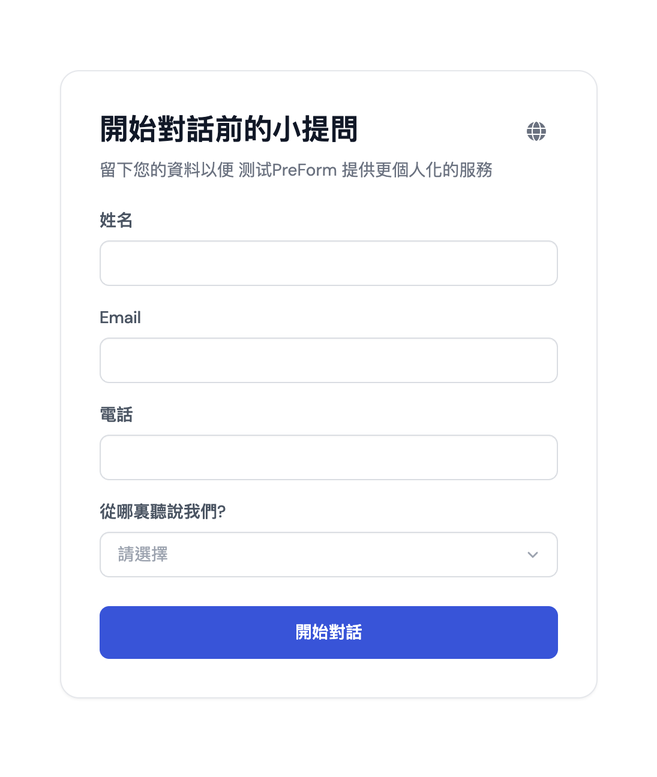
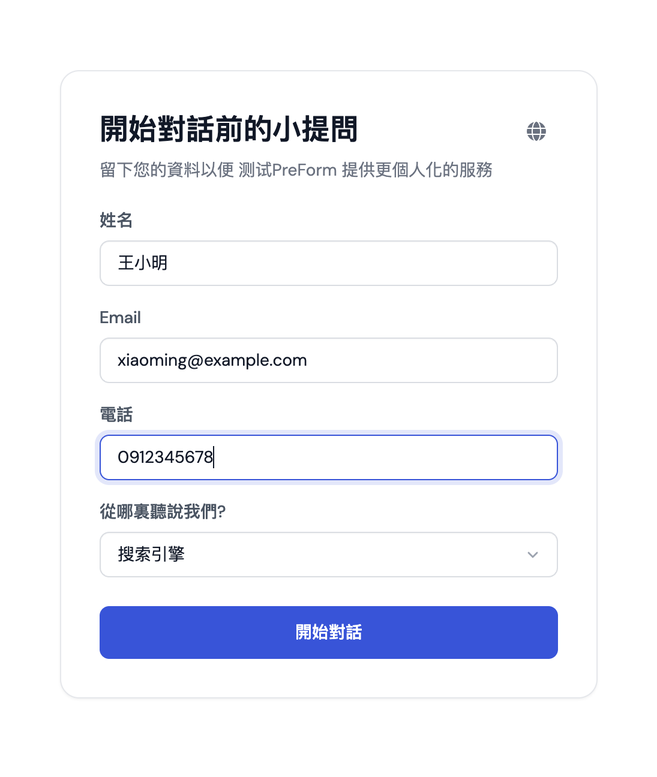
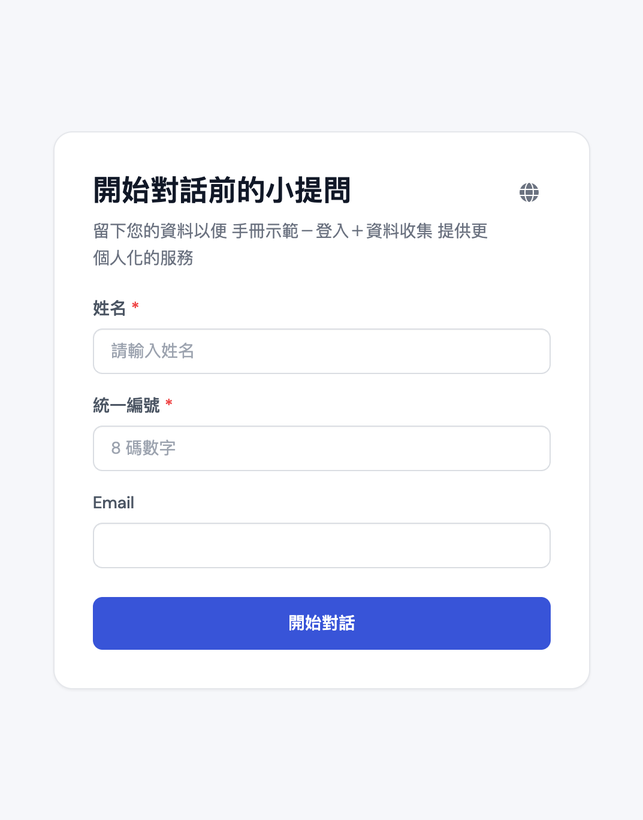
When visitors open Web Chat, they first see the form: its title, subtitle, configured fields, and the language switcher in the upper-right corner. After completing it, they click <mark style="color:blue;">Start Conversation</mark> to enter the chat.

<div><figure><img src="https://1360999650-files.gitbook.io/~/files/v0/b/gitbook-x-prod.appspot.com/o/spaces%2F6v6TNkkOQVfRYfcNirHL%2Fuploads%2Fgit-blob-72d96183b2932a7f3a53fa26e25b0c44693d9976%2Fweb-chat-prechat-form.png?alt=media" alt="Form shown to visitors"><figcaption><p>Visitors see the form first when opening Web Chat</p></figcaption></figure> <figure><img src="https://1360999650-files.gitbook.io/~/files/v0/b/gitbook-x-prod.appspot.com/o/spaces%2F6v6TNkkOQVfRYfcNirHL%2Fuploads%2Fgit-blob-80e055ba2910bb69258325f5f6f23ee481ba7342%2Fweb-chat-prechat-form-filled.png?alt=media" alt="Completed form"><figcaption><p>Click Start Conversation after completing the form</p></figcaption></figure></div>

* If a required field is empty or an Email or phone number has an invalid format, an error appears below the field and submission is blocked.
* Once a visitor completes the form in a browser, they will not be asked to complete it again when reopening the same Web Chat in that browser.
* To correct their information, visitors can select <mark style="color:blue;">Fill In Your Details Again</mark> from the <mark style="color:blue;">⋮</mark> menu in the upper-right corner of Web Chat. The form appears again.

<figure><img src="https://1360999650-files.gitbook.io/~/files/v0/b/gitbook-x-prod.appspot.com/o/spaces%2F6v6TNkkOQVfRYfcNirHL%2Fuploads%2Fgit-blob-cc226e66c15e542470c95f0dd2b494f604ad81ec%2Fweb-chat-prechat-menu-refill.png?alt=media" alt="Fill In Your Details Again"><figcaption><p>Fill In Your Details Again in the upper-right ⋮ menu</p></figcaption></figure>

### 3. Use with Login: Map Data to the Login Account <a href="#pre-chat-with-login" id="pre-chat-with-login"></a>

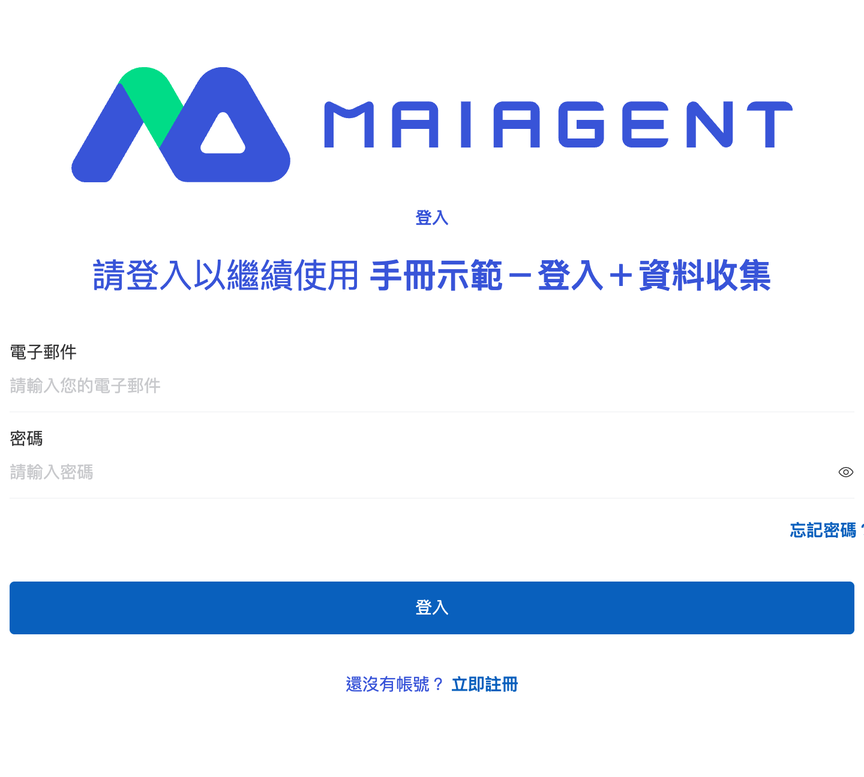
If the same Web Chat has both [login](#login-config) and data collection enabled, the flow is: **Log in → Complete the form → Start the conversation**. The submitted data is linked to the user's login account rather than the browser.

<figure><img src="https://1360999650-files.gitbook.io/~/files/v0/b/gitbook-x-prod.appspot.com/o/spaces%2F6v6TNkkOQVfRYfcNirHL%2Fuploads%2Fgit-blob-b190160bed2cd104cb0e87160c4a63c047689a70%2Fweb-chat-prechat-login-settings.png?alt=media" alt="Login Settings tab"><figcaption><p>The Login Settings tab: turn on Enable Login and select a login provider; this tab is independent of Data Collection</p></figcaption></figure>

<div><figure><img src="https://1360999650-files.gitbook.io/~/files/v0/b/gitbook-x-prod.appspot.com/o/spaces%2F6v6TNkkOQVfRYfcNirHL%2Fuploads%2Fgit-blob-f9c71c232b1bbdd9ee1880cf922a6361d2420e5e%2Fweb-chat-prechat-login-page.png?alt=media" alt="Login screen"><figcaption><p>① Visitors first see the login screen when opening Web Chat</p></figcaption></figure> <figure><img src="https://1360999650-files.gitbook.io/~/files/v0/b/gitbook-x-prod.appspot.com/o/spaces%2F6v6TNkkOQVfRYfcNirHL%2Fuploads%2Fgit-blob-020c77245a78280ffc81ed879bdb2a9613f3cdeb%2Fweb-chat-prechat-login-form.png?alt=media" alt="Form after login"><figcaption><p>② The data collection form appears only after login</p></figcaption></figure></div>

| Scenario                                                                                                    | Web Chat Behavior                                                                    |
| ----------------------------------------------------------------------------------------------------------- | ------------------------------------------------------------------------------------ |
| The account is used for the first time and has not completed the form                                       | Shows the form after login; creates a contact linked to the account after submission |
| The same account logs in on a different device or browser                                                   | Skips the form and starts the conversation with the account's existing data          |
| Someone previously completed the form on this device without logging in, and the account itself has no data | Shows an “Is this your information?” confirmation screen (see below)                 |
| The account already has data, and this device also has data submitted while logged out                      | Uses the account's data without asking or merging                                    |
| A logged-in user clicks <mark style="color:blue;">Fill In Your Details Again</mark>                         | Updates the account's existing contact without creating another one                  |

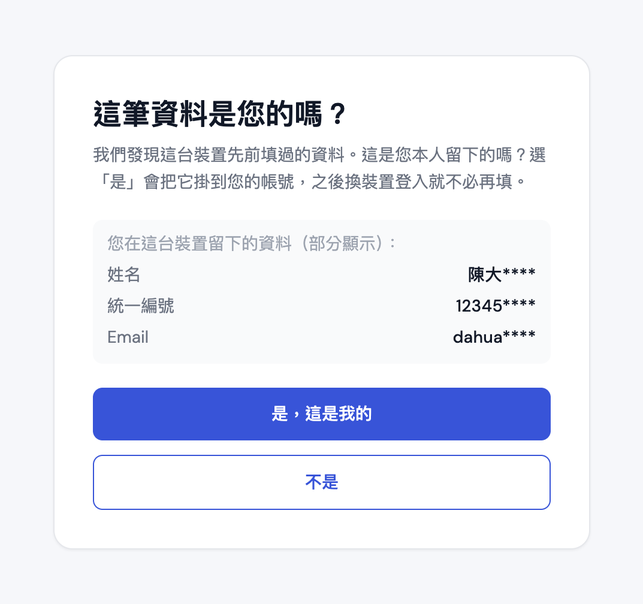
**Confirmation Screen: Is This Your Information?**

If someone previously completed the form on this device without logging in, and the currently logged-in account has no data, the form does not appear immediately after login. Instead, a confirmation screen first shows the previously entered information from this device (partially masked), with two buttons:

* <mark style="color:blue;">Yes, This Is Mine</mark>: Links that information to the current account. The same account will not need to complete the form again on any device.
* <mark style="color:blue;">No</mark>: Does not merge the data and leaves the original record unchanged, then shows the form for the user to complete once.

<figure><img src="https://1360999650-files.gitbook.io/~/files/v0/b/gitbook-x-prod.appspot.com/o/spaces%2F6v6TNkkOQVfRYfcNirHL%2Fuploads%2Fgit-blob-f8d35bfa6b85a7ec60a08eb8e73cc09904338eb6%2Fweb-chat-prechat-claim.png?alt=media" alt="Is this your information? confirmation screen"><figcaption><p>The confirmation screen partially masks the information so users can identify whether they provided it</p></figcaption></figure>

{% hint style="info" %}

* Web Chat channels without login enabled are unaffected; they still use the browser to determine whether the form has been completed.
* The system does not automatically fill the form with account data. The first time an account is used, the user must complete the form even if their data already exists in the admin console.
  {% endhint %}

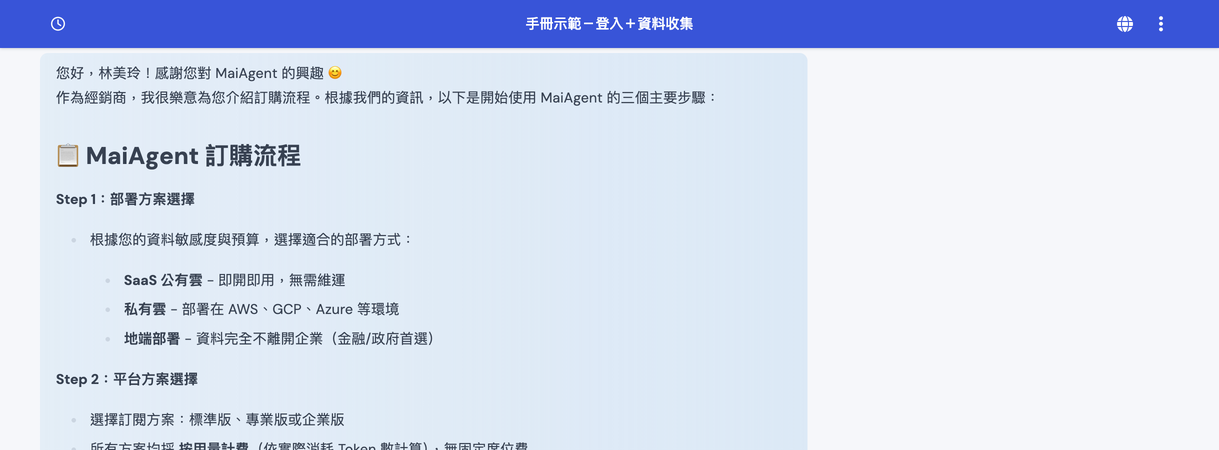
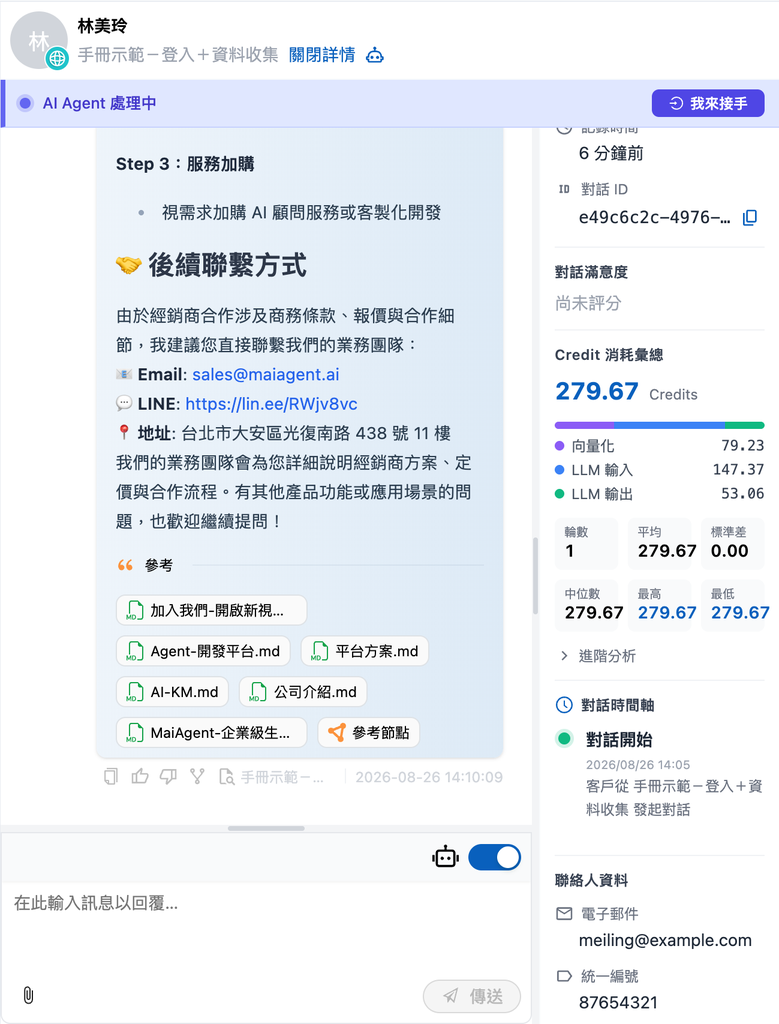
After entering the conversation, both the AI assistant and the support console use this contact linked to the account:

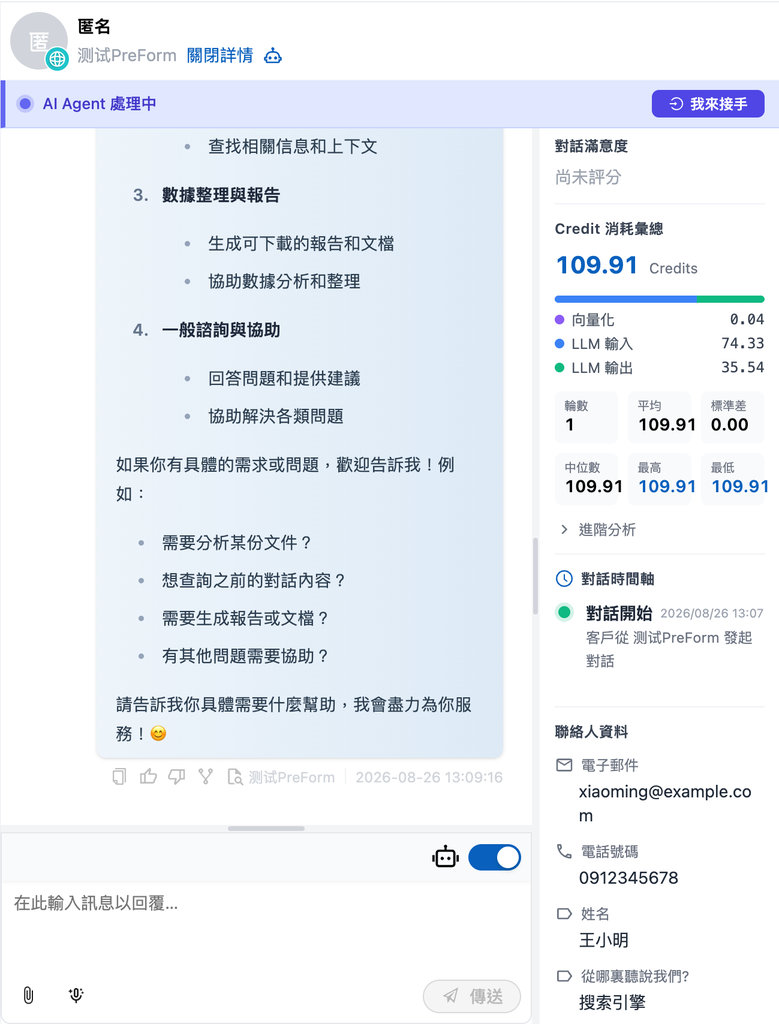
<div><figure><img src="https://1360999650-files.gitbook.io/~/files/v0/b/gitbook-x-prod.appspot.com/o/spaces%2F6v6TNkkOQVfRYfcNirHL%2Fuploads%2Fgit-blob-f9a99f4c93d7d3395efb4d6f27175d2469857745%2Fweb-chat-prechat-login-chat.png?alt=media" alt="Conversation after login"><figcaption><p>The AI assistant addresses the user by the name entered in the form</p></figcaption></figure> <figure><img src="https://1360999650-files.gitbook.io/~/files/v0/b/gitbook-x-prod.appspot.com/o/spaces%2F6v6TNkkOQVfRYfcNirHL%2Fuploads%2Fgit-blob-3236973f772f1fb9b44df23cb6812d8c0980bac6%2Fweb-chat-prechat-conversation-login.png?alt=media" alt="Admin conversation page"><figcaption><p>The admin conversation page shows the contact and the business registration number collected by the form</p></figcaption></figure></div>

### 4. View Collected Data in the Admin Console <a href="#pre-chat-view-data" id="pre-chat-view-data"></a>

**View in a conversation**: <mark style="color:blue;">Customer Conversations</mark> → <mark style="color:blue;">All Conversations</mark> → Open a conversation. The <mark style="color:blue;">Contact Information</mark> section on the right lists each item collected by the form. Fields mapped to Email and Phone appear as “Email” and “Phone Number”; custom fields use the labels you configured.

<figure><img src="https://1360999650-files.gitbook.io/~/files/v0/b/gitbook-x-prod.appspot.com/o/spaces%2F6v6TNkkOQVfRYfcNirHL%2Fuploads%2Fgit-blob-efe6eb93e6c245a6c4dd2e98e793cc07bd69668f%2Fweb-chat-prechat-conversation-contact.png?alt=media" alt="Contact Information section on the right of the conversation page"><figcaption><p>Contact Information on the right of the conversation page lists each item collected by the form</p></figcaption></figure>

{% hint style="info" %}
The Contact column in the contact list shows the Contact's name. If the form's name field maps to Custom Field (Metadata) instead of Name (Contact.name), contacts for visitors who are not logged in appear as “Anonymous”, and their names only appear in custom attributes. To show visitor names directly in the list, map the name field to Name (Contact.name).
{% endhint %}

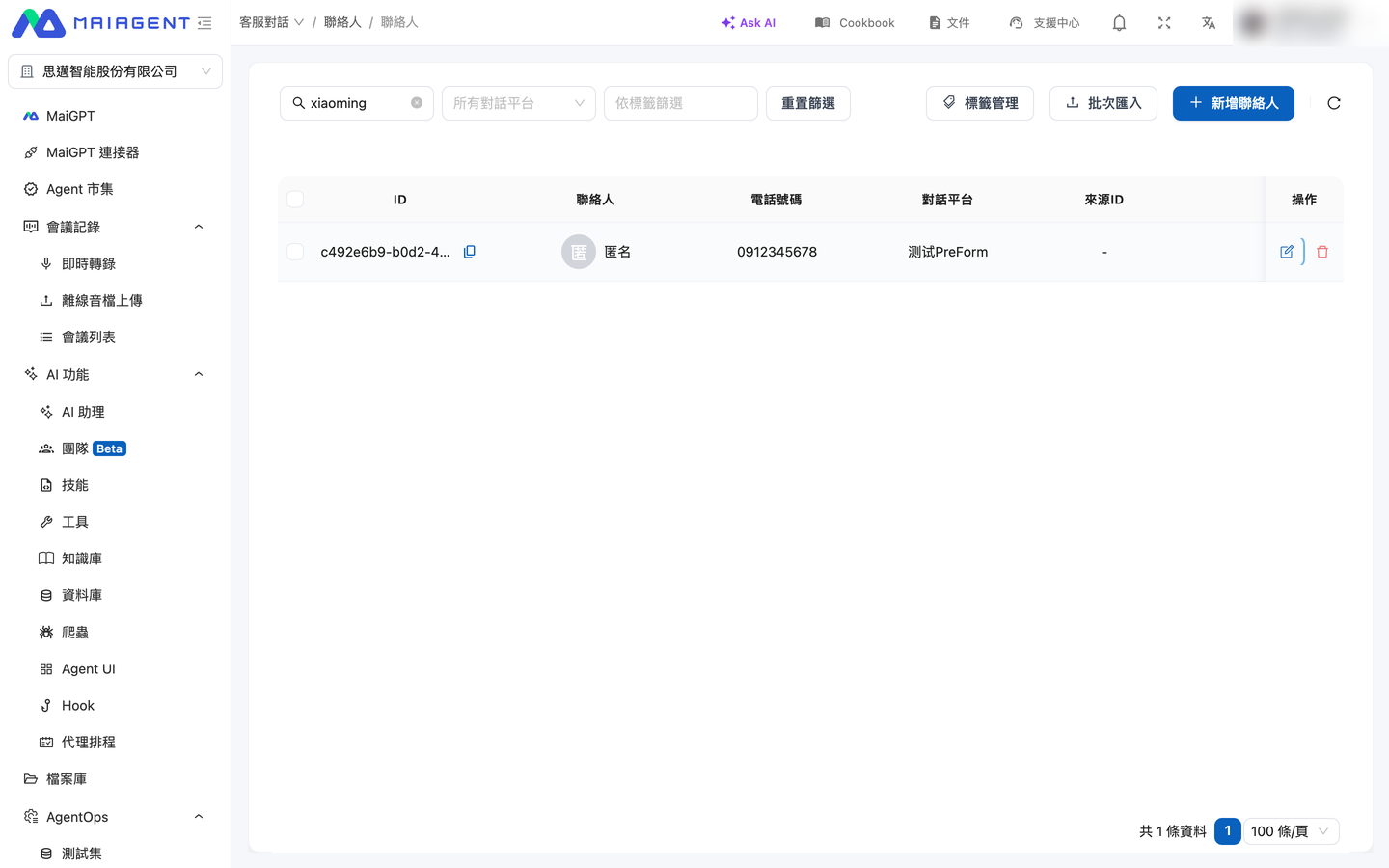
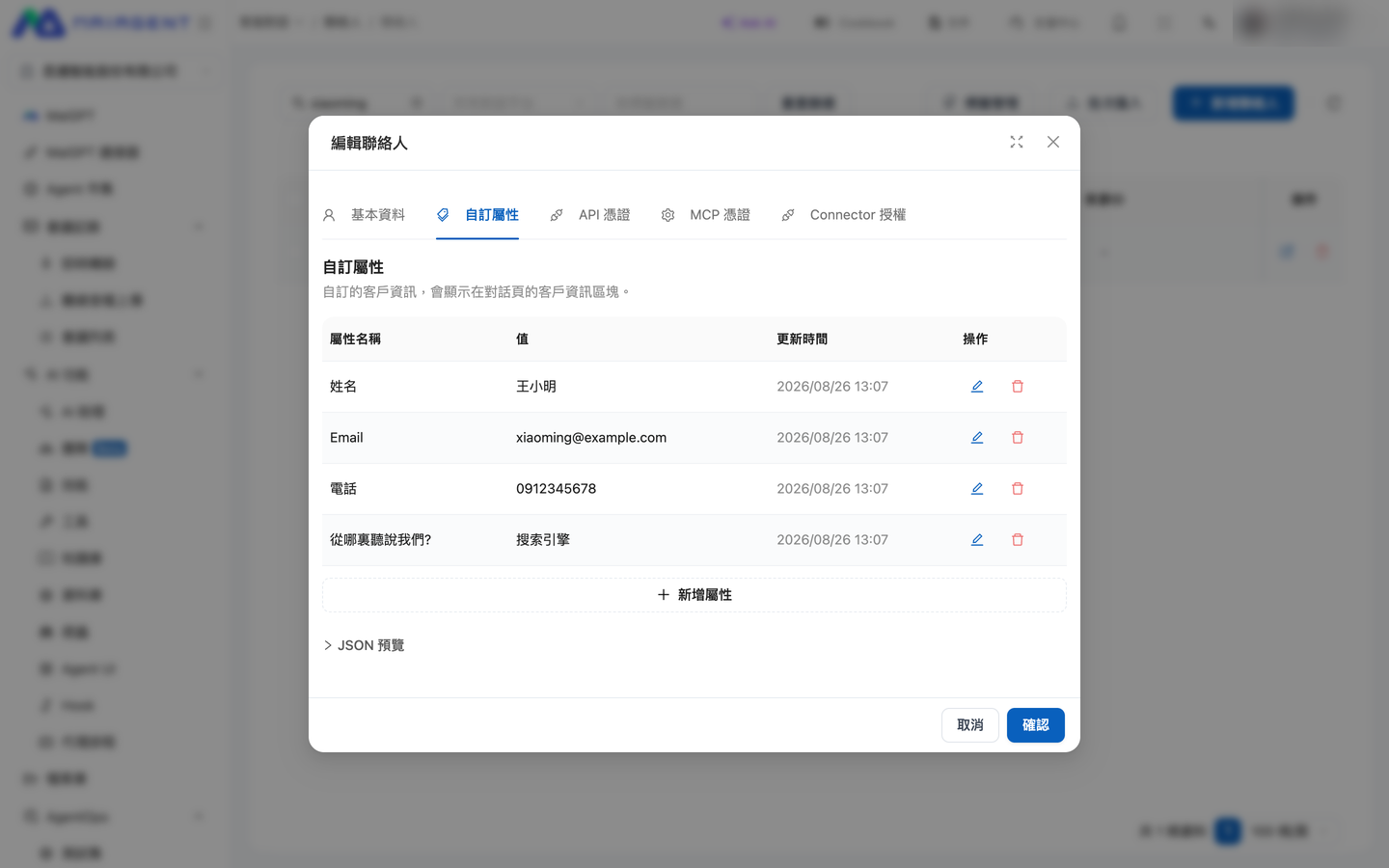
**View on the contact page**: <mark style="color:blue;">Customer Conversations</mark> → <mark style="color:blue;">Contacts</mark> → Open a contact. The <mark style="color:blue;">Basic Information</mark> tab shows the name and phone number, and the <mark style="color:blue;">Custom Attributes</mark> tab shows other form fields.

<div><figure><img src="https://1360999650-files.gitbook.io/~/files/v0/b/gitbook-x-prod.appspot.com/o/spaces%2F6v6TNkkOQVfRYfcNirHL%2Fuploads%2Fgit-blob-45f6d1ebb32ce47284176306f8353e503c88539c%2Fweb-chat-prechat-contacts-list.png?alt=media" alt="Contact list"><figcaption><p>Search the contact list by name, Email, or phone number</p></figcaption></figure> <figure><img src="https://1360999650-files.gitbook.io/~/files/v0/b/gitbook-x-prod.appspot.com/o/spaces%2F6v6TNkkOQVfRYfcNirHL%2Fuploads%2Fgit-blob-9bc3a0bf13c97c7eed1f5223b76a9bca113962f5%2Fweb-chat-prechat-contact-attributes.png?alt=media" alt="Custom Attributes tab"><figcaption><p>The Custom Attributes tab lists the value of each form field</p></figcaption></figure></div>

Data submitted by logged-in users is linked to their accounts, so the contact is no longer an unassigned anonymous contact. The contact name depends on the form settings: if a name field maps to Name (Contact.name), the name entered in the form is shown; if there is no name field, the login account's name is shown.

## What to Do When a Connection Fails <a href="#connection-failure" id="connection-failure"></a>

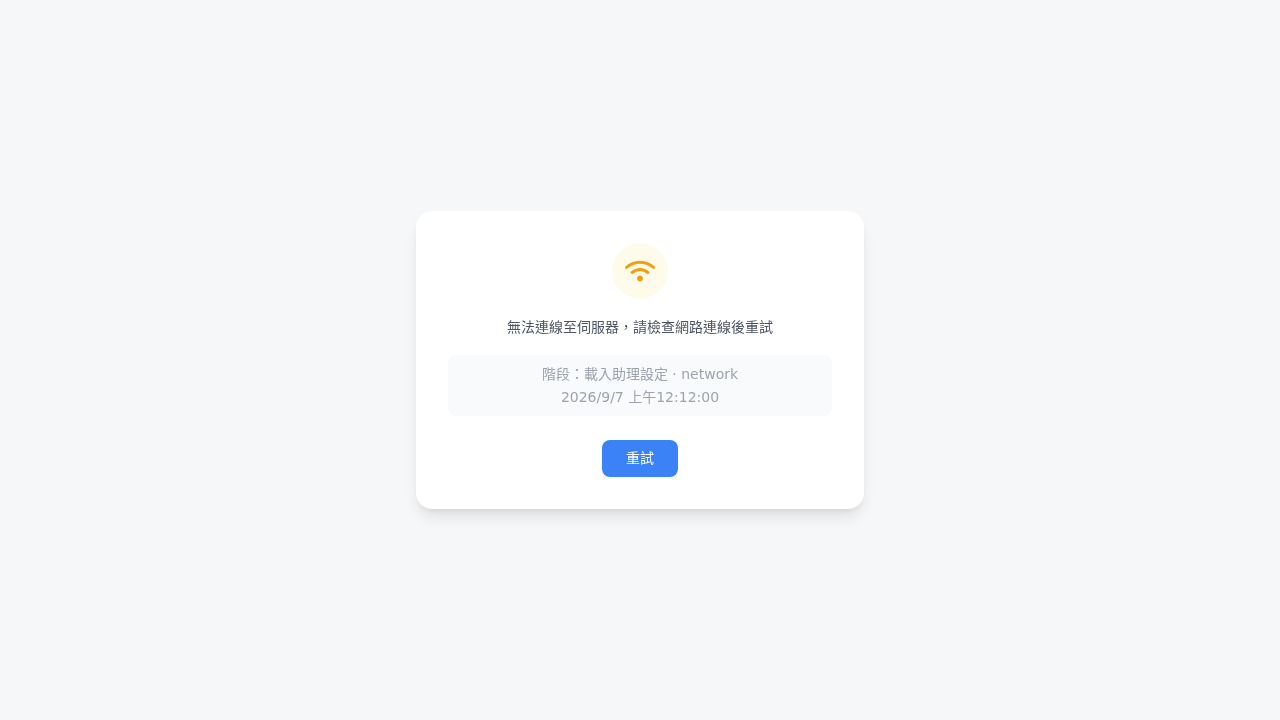
For example, a visitor reports to a website administrator that Web Chat shows a connection error when opened. The visitor first waits for the system to retry automatically. If the error screen remains, they capture the full screen, including the failed stage, error category, and time, and send it to the administrator to help identify the issue faster.

If a network interruption occurs while Web Chat loads the AI assistant settings, it first retries automatically and keeps displaying the loading screen during that time. If the connection still fails after retrying, the error screen shows:

* The loading stage that failed
* The error category, along with the HTTP status code if available
* The local time when the error occurred

<figure><img src="https://1360999650-files.gitbook.io/~/files/v0/b/gitbook-x-prod.appspot.com/o/spaces%2F6v6TNkkOQVfRYfcNirHL%2Fuploads%2Fgit-blob-e24edbd1a83fd7f69430443a8a74158aeb6a117b%2Fweb-chat-connection-failure-network.png?alt=media" alt="Web Chat shows network connection failure diagnostics while loading assistant settings"><figcaption><p>After automatic retries fail, the screen lists the failed stage, error category, and time</p></figcaption></figure>

If the system has received an HTTP error status code, the server has responded. In this case, it displays the diagnostic error screen immediately without automatically retrying.

{% hint style="info" %}
First confirm that the device can access the internet, then click <mark style="color:blue;">Retry</mark> on the error screen. If the problem persists, include all diagnostic information in the screenshot and avoid capturing conversation content or personal data.
{% endhint %}

## Review Earlier Messages While a Reply Is Being Generated <a href="#review-during-generation" id="review-during-generation"></a>

While the AI assistant is still generating a reply, visitors can scroll up to review earlier messages. The reply continues to appear below, but the screen stays where the visitor scrolled instead of being pulled down by new text. Once they move away from the latest content, <mark style="color:blue;">Back to Latest</mark> appears above the input box.

### Usage Scenario <a href="#generation-scroll-scenario" id="generation-scroll-scenario"></a>

A visitor asks the AI assistant to compare several plans at once. Before the answer is finished, she scrolls up to check the first plan's price. The screen stays in place even as more text appears below. After checking, she clicks <mark style="color:blue;">Back to Latest</mark>. The screen returns to her last question so she can continue reading the rest of the comparison.

### Steps <a href="#generation-scroll-steps" id="generation-scroll-steps"></a>

{% stepper %}
{% step %}

### 1. Scroll Up <a href="#scroll-up-during-generation" id="scroll-up-during-generation"></a>

While the AI assistant generates a reply, scroll up using the mouse wheel, touch gestures, or scrollbar.
{% endstep %}

{% step %}

### 2. Read in Place <a href="#read-in-place" id="read-in-place"></a>

The screen stays where you scrolled. Newly generated content does not change your current position.

<figure><img src="https://1360999650-files.gitbook.io/~/files/v0/b/gitbook-x-prod.appspot.com/o/spaces%2F6v6TNkkOQVfRYfcNirHL%2Fuploads%2Fgit-blob-537d8652530560963f91fe83d44727c547068051%2Fwebchat-back-to-latest.png?alt=media" alt="Scrolling up while Web Chat generates a reply shows Back to Latest above the input box"><figcaption><p>The reply is still being generated (the square stop button is on the right of the input box); scrolling up shows Back to Latest above the input box</p></figcaption></figure>
{% endstep %}

{% step %}

### 3. Back to Latest <a href="#press-back-to-latest" id="press-back-to-latest"></a>

Click <mark style="color:blue;">Back to Latest</mark> to return to the last question and resume automatically following the latest content.
{% endstep %}
{% endstepper %}


---

# Agent Instructions
This documentation is published with GitBook. GitBook is the documentation platform designed so that both humans and AI agents can read, navigate, and reason over technical content effectively. Learn more at gitbook.com.

## Querying This Documentation
If you need additional information that is not directly available in this page, you can query the documentation by asking a question.

Perform an HTTP GET request on the following URL with the `ask` and `goal` query parameters:

```
GET https://docs.maiagent.ai/maiagent-user-guide/en/serve/choose-channel/web-chat.md?ask=<question>&goal=<user_goal>
```

`ask` is the immediate question: it should be specific, self-contained, and written in natural language.
`goal` is what the user is ultimately trying to achieve, the reason they need the answer. Sharing it helps GitBook give you a better, more relevant answer. A goal is most helpful when it describes the outcome the user wants rather than restating the question. For example, with `ask=how do I create an API token`, a goal like `automate deployments from our CI pipeline` lets GitBook tailor the answer to that use case.

The response will contain a direct answer to the question and relevant excerpts and sources from the documentation.

Use this mechanism when the answer is not explicitly present in the current page, you need clarification or additional context, or you want to retrieve related documentation sections.