> For the complete documentation index, see [llms.txt](https://docs.maiagent.ai/llms.txt). Markdown versions of documentation pages are available by appending `.md` to page URLs; this page is available as [Markdown](https://docs.maiagent.ai/maiagent-user-guide/en/serve/choose-channel/team-plus.md).
# Connect a Messaging Platform: Team+
Team+ is an enterprise messaging platform. Once integrated, employees can chat with the AI Assistant directly within Team+, without needing to open any other system.
{% hint style="warning" %}
Team+ integration currently **only supports one-on-one conversations**. Adding the AI Assistant to a group chat will not get a reply, and no conversation record will be kept in MaiAgent. If you need group conversations, use a different chat platform instead.
{% endhint %}
## Before You Integrate
* You've already created an "AI Assistant" on the [MaiAgent platform](https://admin.maiagent.ai/)
* You have admin access to the Team+ service channel (able to access that channel's "Feature Settings")
* You've confirmed with your Team+ vendor contact whether your organization uses the test environment or the production environment
{% hint style="warning" %}
**Credentials cannot be modified after the channel is created.** Obtain all three credentials before proceeding to step two.
{% endhint %}
***
## Step 1: Enable the API and Get Credentials in the Team+ Admin Panel
Log in to the Team+ admin panel, and go to Service Channels → select the channel you manage → Feature Settings → API Settings, then **enable the API**.
Once enabled, obtain the following three items on the same page:
| Credential | Description |
| ------------------------ | ----------------------------------------------------------------------------- |
| **Channel ID** | The identifier for this service channel |
| **Channel Secret** | Used to verify that messages sent from Team+ genuinely come from your channel |
| **Channel Access Token** | Used by MaiAgent to call the Team+ API when sending replies |
{% hint style="info" %}
Skip the Webhook field for now. It requires a Webhook URL generated by MaiAgent, which we'll come back to fill in during **Step 3**.
{% endhint %}
***
## Step 2: Create a Team+ Chat Platform in MaiAgent
### 1. Go to Integrate Chat Platform
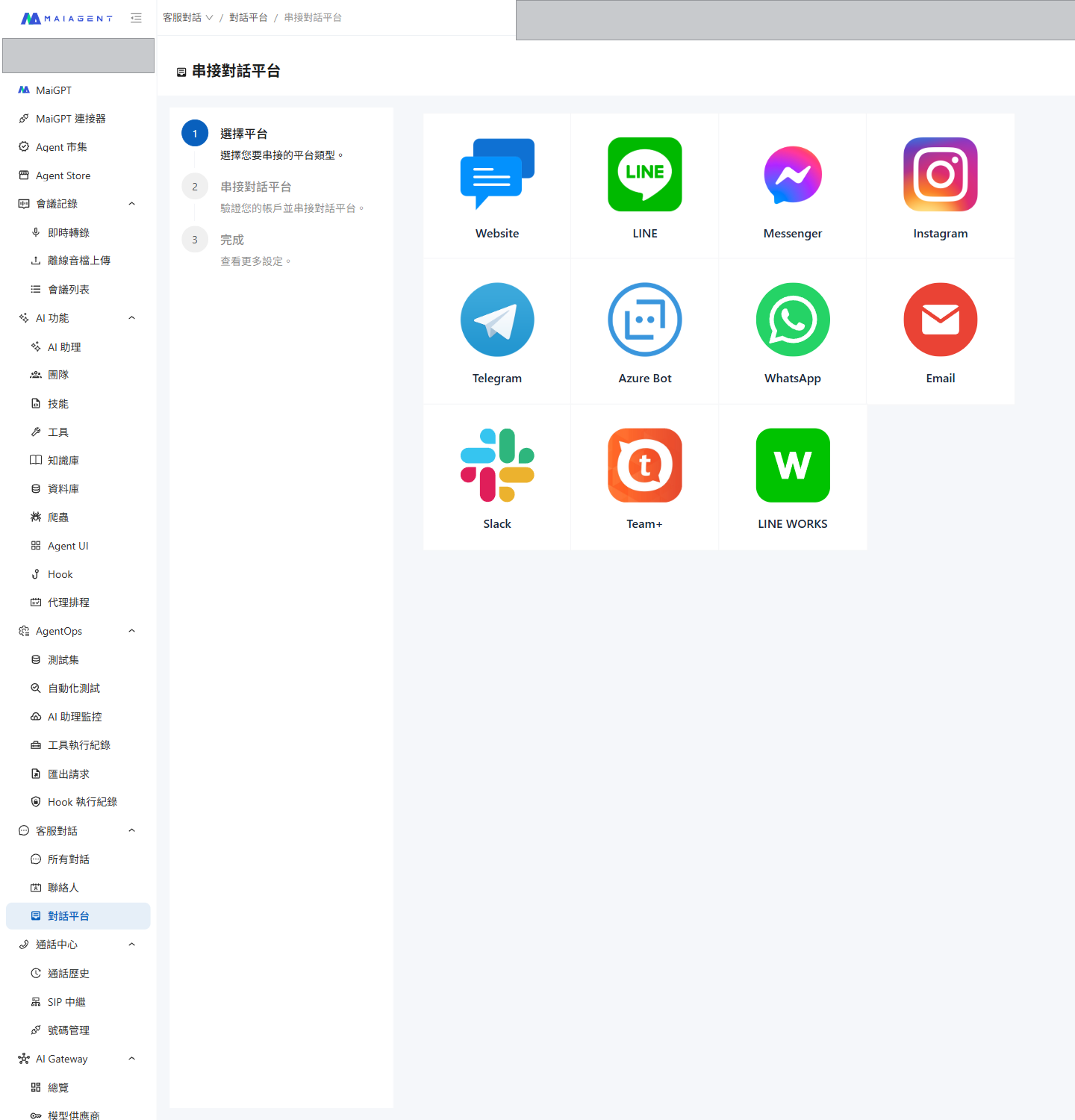
Click Chat Platforms in the left menu of MaiAgent, click Integrate Chat Platform in the top right, and select Team+.
Select Team+ from the platform list
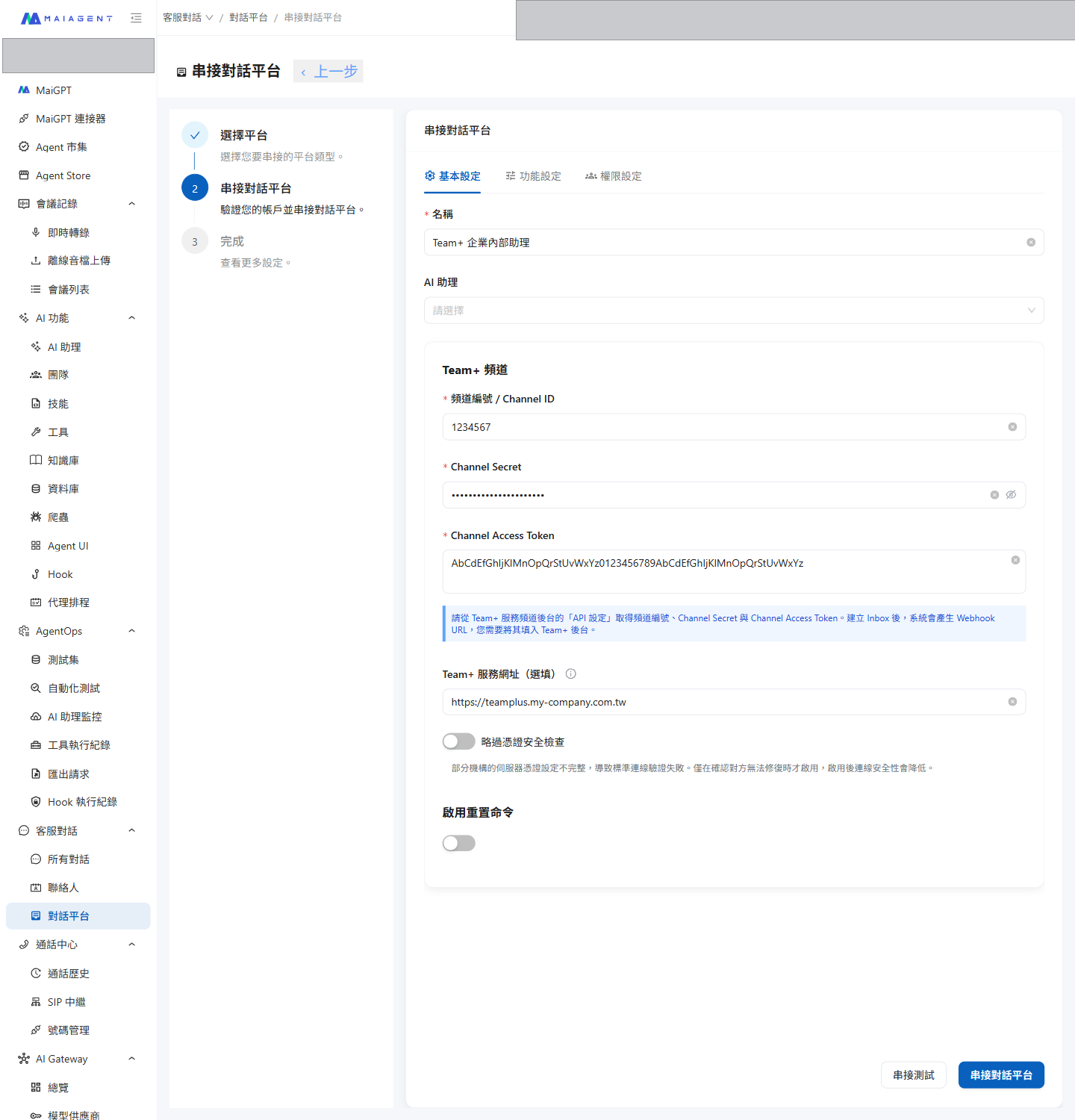
### 2. Fill in the Basic Settings
| Field | Description |
| -------------------------------- | --------------------------------------------------------------------------------- |
| **Name** | Give this integration a name (required). This is just a label on MaiAgent's side. |
| **AI Assistant** | Select the AI Assistant to bind to it |
| **Channel ID** | Obtained in Step 1 (required) |
| **Channel Secret** | Obtained in Step 1 (required) |
| **Channel Access Token** | Obtained in Step 1 (required) |
| **Team+ Service URL (optional)** | See the explanation below |
Team+ creation form (example values shown)
### 3. When You Need to Fill in the "Team+ Service URL"
* **Leave it blank** — Uses the test environment. For general testing scenarios, leaving it blank is fine.
* **Enter a URL** — Your organization uses the production environment, or Team+ is deployed on your own server. Get the URL from your Team+ vendor contact; it must be a full URL starting with `http://` or `https://`.
### 4. Skip Certificate Security Check
The Skip Certificate Security Check option only appears on the form **after you fill in the "Team+ Service URL."**
Some organizations' servers have an incomplete TLS certificate configuration (e.g. missing an intermediate certificate), which causes standard connection validation to fail and prevents MaiAgent from connecting to Team+. Enabling this option skips validation so the integration can work.
{% hint style="danger" %}
Enabling this **reduces the security of the connection** to the Team+ server, as it can no longer confirm that the connection target is genuinely your server. Only enable it after confirming with the server administrator that "the certificate issue cannot be fixed," and turn it off again once the certificate is fixed.
{% endhint %}
### 5. Enable Reset Command
When enabled, you can customize a keyword; users who type that keyword in the conversation can clear the conversation memory and start over.
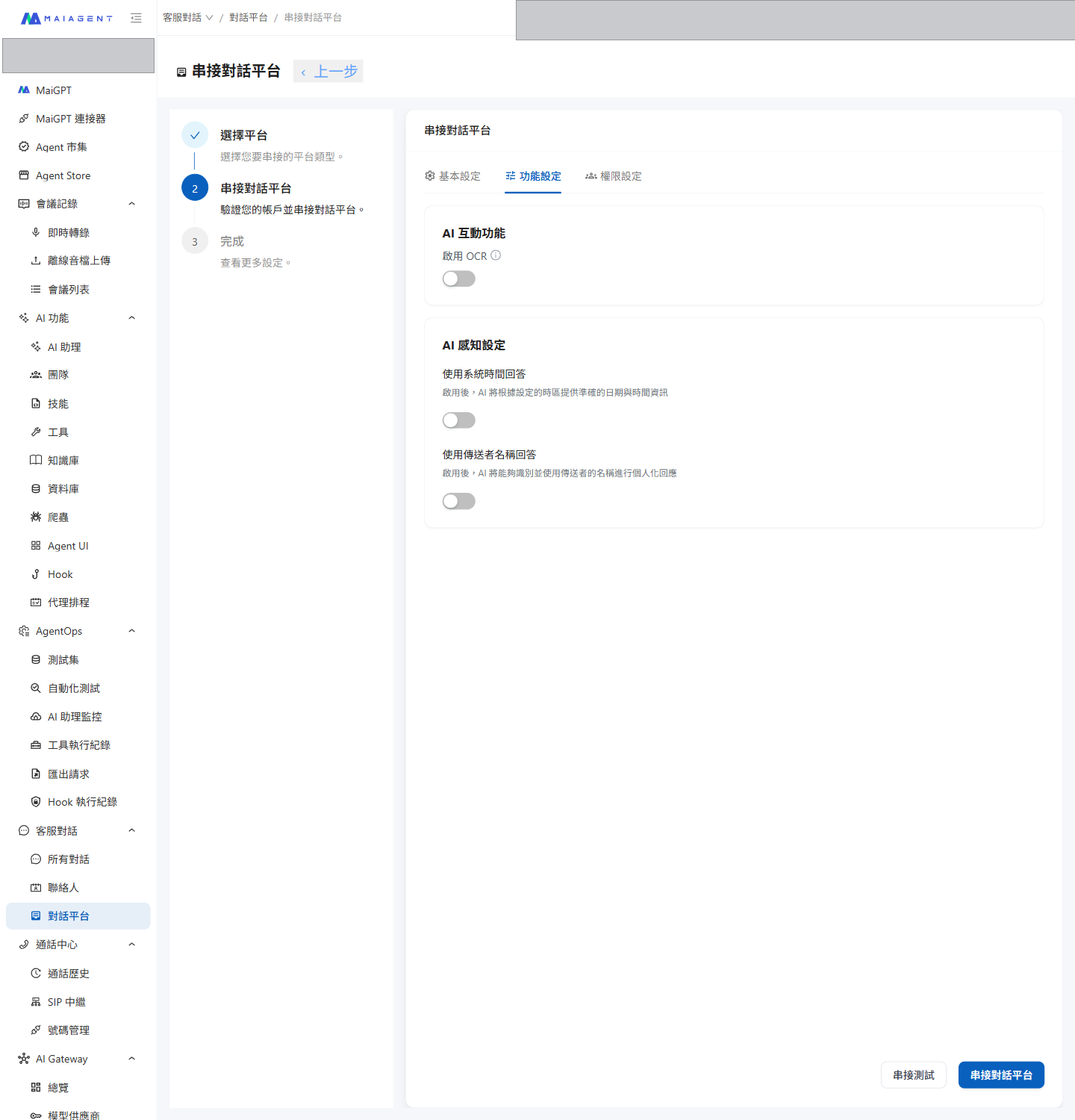
### 6. Feature Settings Tab
Switch to the Feature Settings tab to adjust how the AI Assistant behaves on this chat platform:
The toggles on this tab (Enable OCR, Use System Time to Answer, Use Sender Name to Answer) are shared with other chat platforms. For details about each toggle and the timezone rules, see [Feature Settings](/maiagent-user-guide/en/serve/platform-settings/function-settings.md).
Feature Settings tab
### 7. Test Connection
Click Test Connection; MaiAgent will make an actual call to the Team+ API to confirm the credentials are correct.
If Credential Validation Failed is shown, check the following in order:
* Whether the Channel ID and Channel Secret come from the same service channel
* Whether the API is enabled in the Team+ admin panel
* If a service URL was entered, whether it's reachable from outside; if it's a certificate issue, refer to "Skip Certificate Security Check" above
### 8. Create and Copy the Webhook URL
Click Integrate Chat Platform to finish creating it. The system will generate a **Webhook URL** — copy it for later use.
You can also return to this channel's settings page at any time to copy this URL again.
***
## Step 3: Go Back to the Team+ Admin Panel to Fill in the Webhook URL
Go back to the API Settings page from Step 1, enter the **Webhook URL** generated by MaiAgent into the Webhook field, and save.
Once done, when an employee sends a message to that service channel in Team+, the AI Assistant will reply automatically.
***
## Getting Started
### Supported Message Types
| User sends | How the AI Assistant handles it |
| ------------------------------ | ---------------------------------------------------- |
| Text | Answers directly |
| Image | Can recognize the image content |
| Files (PDF, Excel, Word, etc.) | Reads the content and answers related questions |
| Voice message | Converted to text before processing |
| Video | Saved as an attachment, recorded in the conversation |
| Location | Recorded in the conversation |
The AI Assistant's replies support text and attachments. If a single text message exceeds Team+'s 4,000-character limit, the system automatically splits it into multiple messages — it won't be truncated.
***
## FAQ
### Why doesn't the AI Assistant respond in group chats?
Team+ integration currently only handles one-on-one conversations. Messages in group chats won't trigger a reply, and won't appear in MaiAgent's "All Conversations" either.
This differs from platforms like LINE WORKS, Slack, and Microsoft Teams — those platforms support groups and let you configure "only reply when @ mentioned."
### Why can't credentials be modified?
Credentials are sensitive data. Once saved, MaiAgent never sends them back to the frontend, and the settings page doesn't accept edits either, to avoid re-exposing credentials in transit or on screen. The Channel ID is shown read-only, so you can verify which service channel is currently connected.
If you need to change any credential, delete this channel and recreate it.
### The AI Assistant suddenly stopped replying
Check the following in order:
* Whether the API is still enabled in the Team+ admin panel
* Whether the URL in the Webhook field is still there (it may have been cleared when settings were changed in the admin panel)
* Whether the Channel Access Token has been regenerated in the Team+ admin panel — if so, the old token is now invalid, and you'll need to delete this channel and recreate it with the new credentials
* If you're using your own server, whether the server is still reachable from outside
### Can the test and production environments coexist?
Yes. Create two Team+ chat platforms and enter the respective credentials and service URLs for each. Each has its own independent Webhook URL, and they don't affect each other.
---
# Agent Instructions
This documentation is published with GitBook. GitBook is the documentation platform designed so that both humans and AI agents can read, navigate, and reason over technical content effectively. Learn more at gitbook.com.
## Querying This Documentation
If you need additional information that is not directly available in this page, you can query the documentation by asking a question.
Perform an HTTP GET request on the following URL with the `ask` and `goal` query parameters:
```
GET https://docs.maiagent.ai/maiagent-user-guide/en/serve/choose-channel/team-plus.md?ask=&goal=
```
`ask` is the immediate question: it should be specific, self-contained, and written in natural language.
`goal` is what the user is ultimately trying to achieve, the reason they need the answer. Sharing it helps GitBook give you a better, more relevant answer. A goal is most helpful when it describes the outcome the user wants rather than restating the question. For example, with `ask=how do I create an API token`, a goal like `automate deployments from our CI pipeline` lets GitBook tailor the answer to that use case.
The response will contain a direct answer to the question and relevant excerpts and sources from the documentation.
Use this mechanism when the answer is not explicitly present in the current page, you need clarification or additional context, or you want to retrieve related documentation sections.