For the complete documentation index, see llms.txt. This page is also available as Markdown.

Connect a Messaging Platform: Slack

Pre-Connection Checklist

  • An "AI Assistant" has been created on the MaiAgent platform

  • You have administrator permissions for a Slack Workspace

Quick Install: Use an App Manifest

Go to the Slack API, click Create New App, select From a manifest, and choose the Workspace where you want to install the App. Switch to the YAML tab and paste the complete manifest below:

display_information:
  name: MaiAgentBot
features:
  app_home:
    messages_tab_enabled: true
    messages_tab_read_only_enabled: false
  bot_user:
    display_name: MaiAgentBot
    always_online: false
oauth_config:
  scopes:
    bot:
      - chat:write
      - users:read
      - im:history
      - channels:history
      - groups:history
      - files:read
      - app_mentions:read
settings:
  org_deploy_enabled: false
  socket_mode_enabled: false
  token_rotation_enabled: false

MaiAgentBot is an example name. You can customize display_information.name and features.bot_user.display_name before creating the App.

After creating the App from the manifest, you can skip Steps 1–3 in the manual instructions below (create the App, configure scopes, and enable App Home). You must still continue from Step 4 to create the chat platform in MaiAgent, then complete Event Subscriptions in Step 5 after obtaining the Webhook URL. The Request URL is only available after the MaiAgent chat platform has been created.

Step 1: Create a Slack App

1. Go to Slack API to Create an App

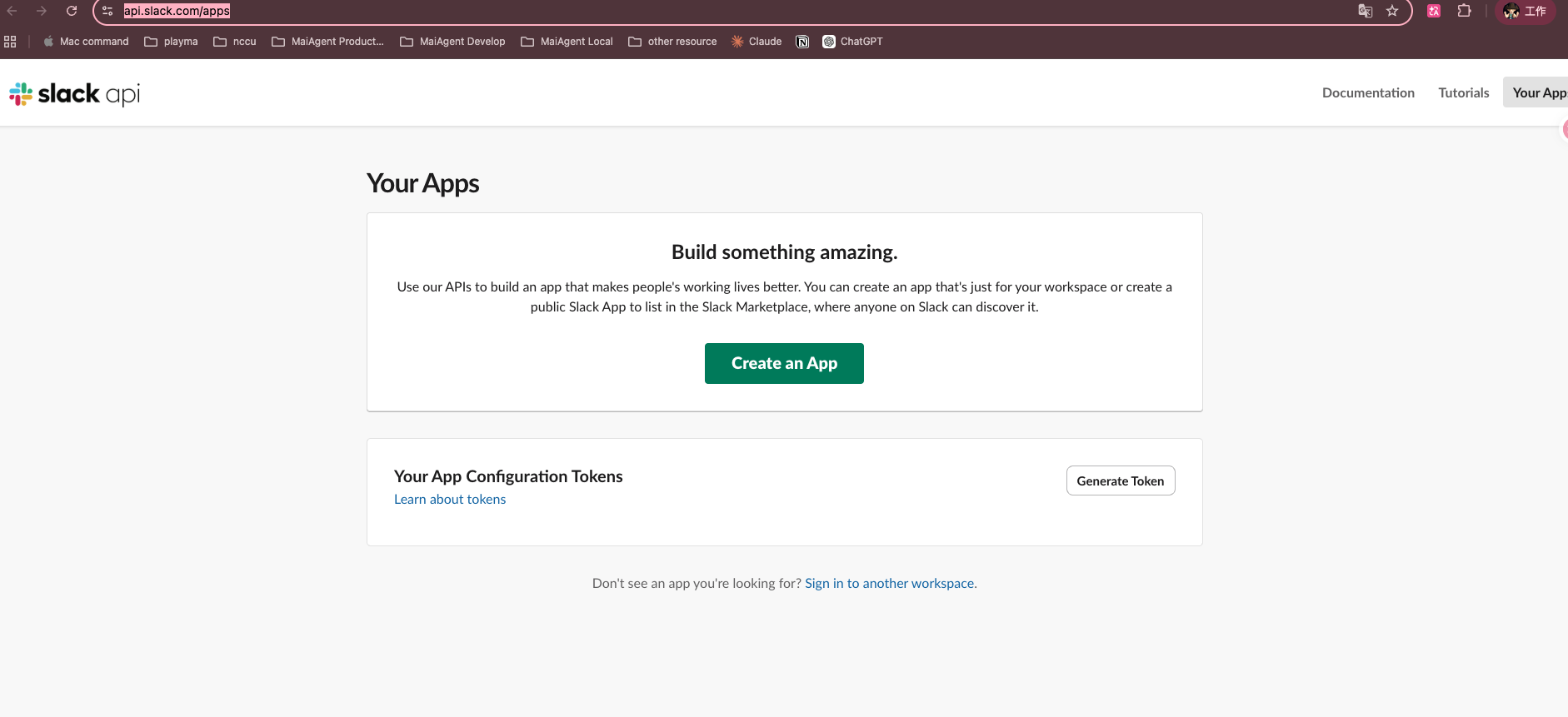
Go to https://api.slack.com/apps and click Create an App.

Slack API — Your Apps page
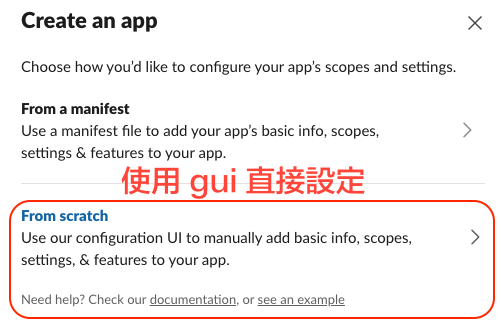
2. Select From scratch

Select From scratch to manually configure using the graphical interface.

Select From scratch creation method

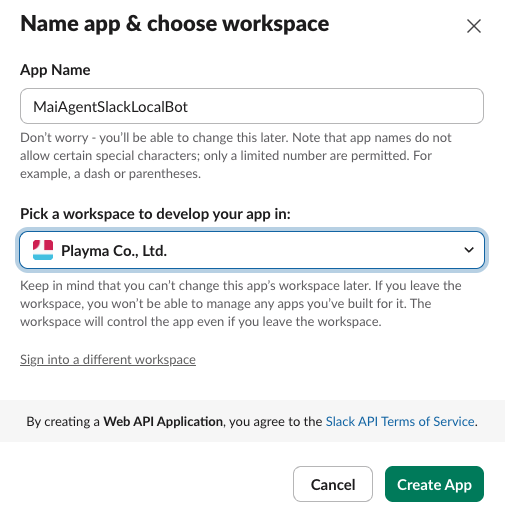
3. Enter App Name and Workspace

Enter the App name (e.g., MaiAgentBot) and select the Slack Workspace to install it in, then click Create App.

Enter App name and select Workspace

4. Obtain the Signing Secret

After creation, go to the Basic Information page and find the Signing Secret in the App Credentials section. Click Show and copy it for later use.


Step 2: Configure Bot Permissions

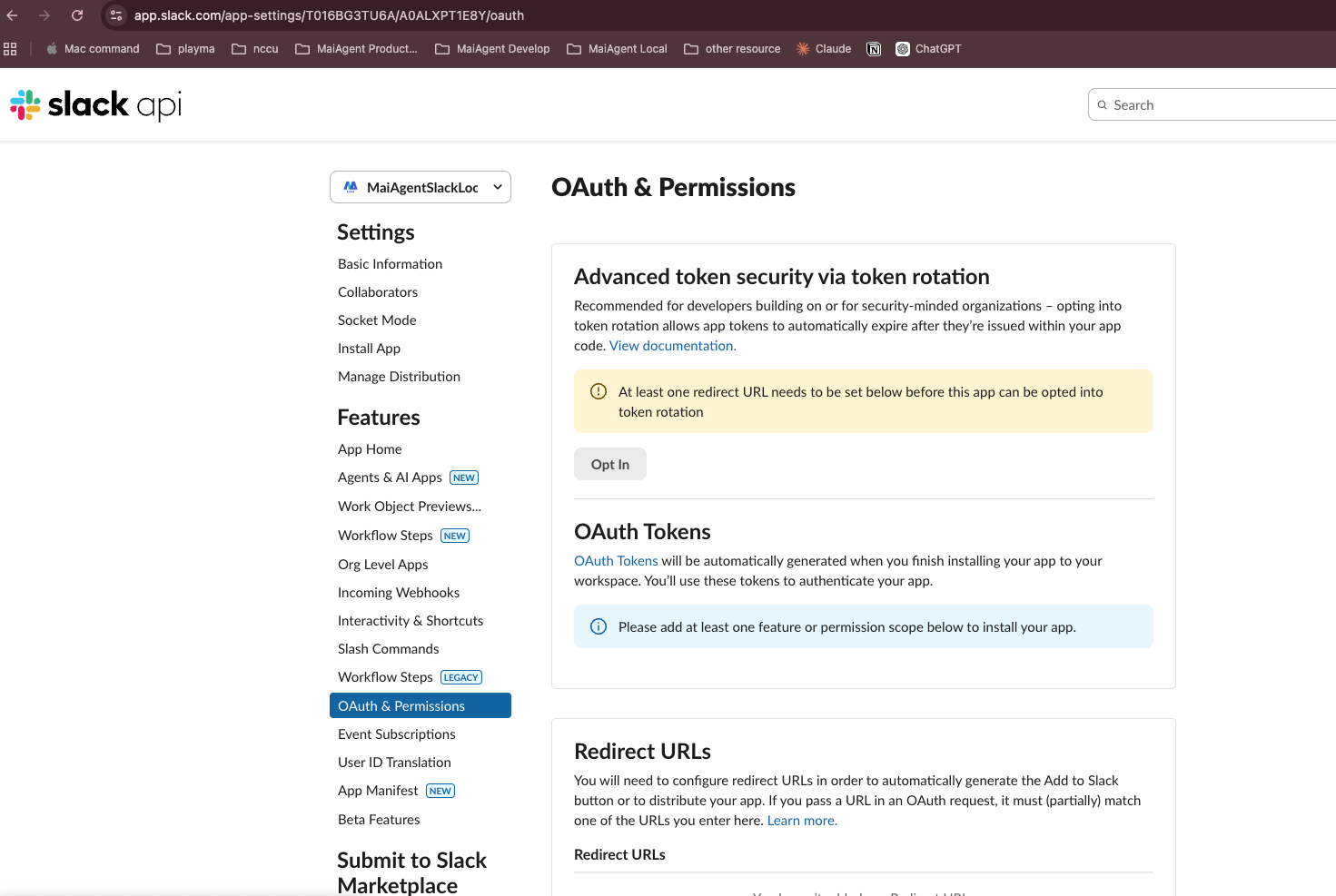
1. Go to OAuth & Permissions

Click OAuth & Permissions in the left menu.

OAuth & Permissions page

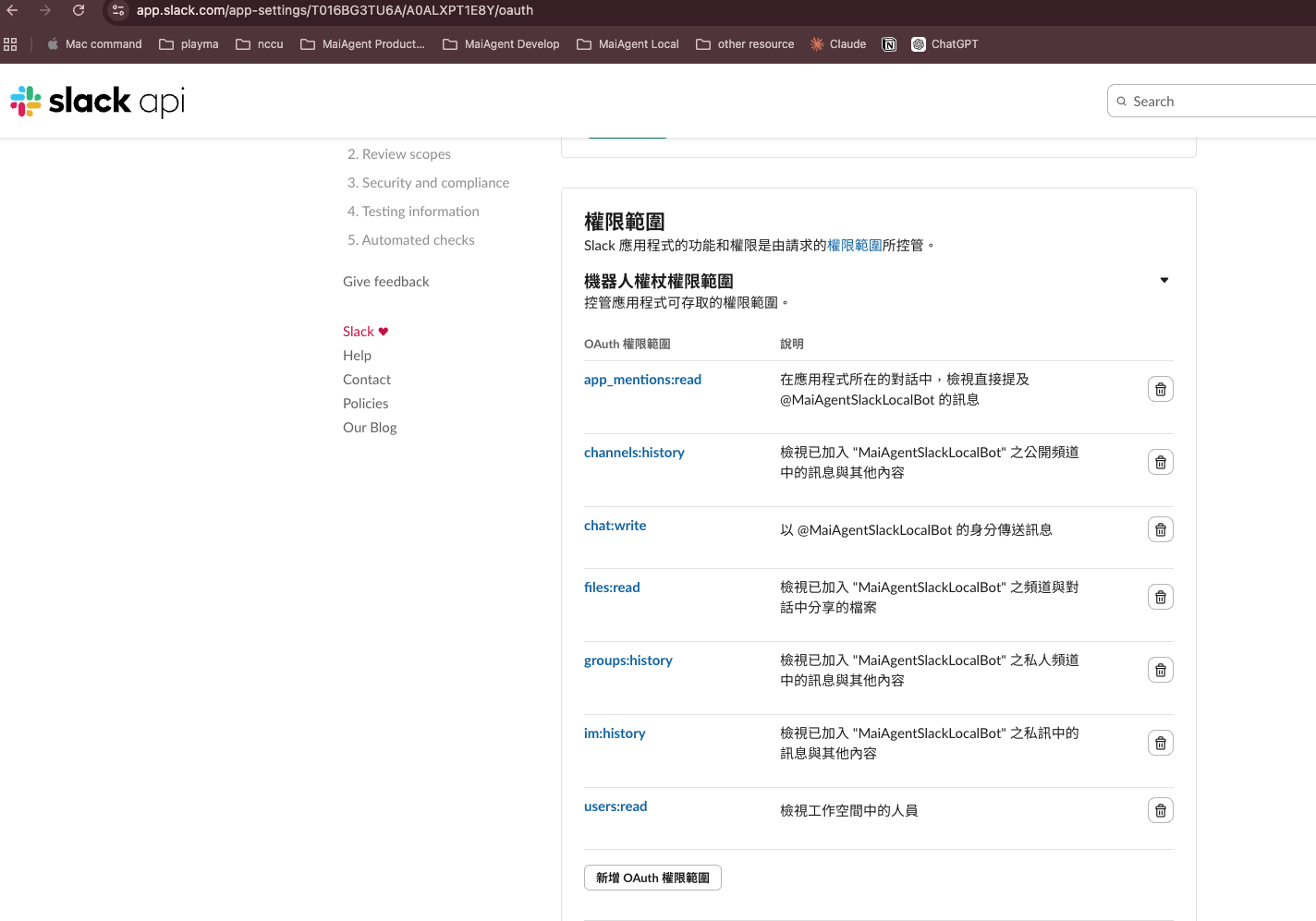
2. Add Bot Token Scopes

Scroll down to the Bot Token Scopes section, click Add an OAuth Scope, and add the following permissions:

Scope
Description

app_mentions:read

Read messages that @ mention the bot

channels:history

Read public channel message history

chat:write

Send messages

files:read

Read files (images/documents)

groups:history

Read private channel message history

im:history

Read direct message history

mpim:history

Read group direct message history

Bot Token Scopes permission settings

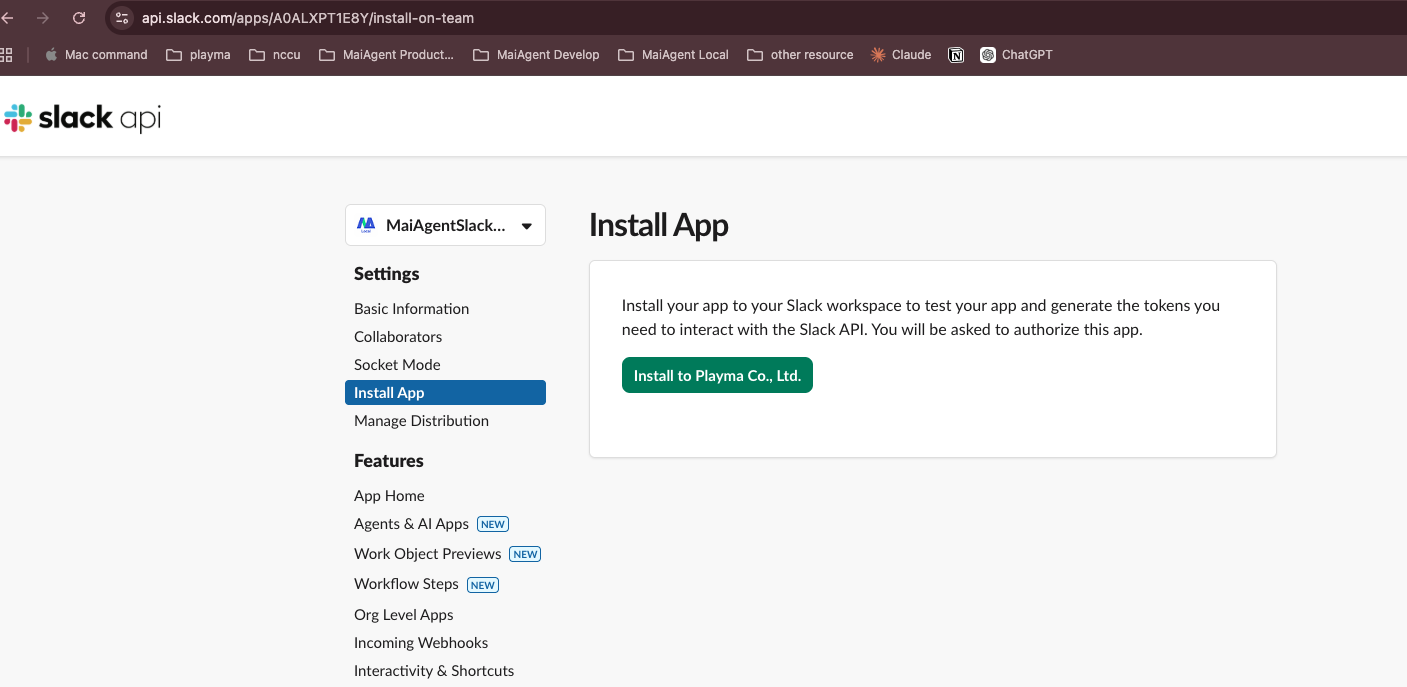
3. Install App to Workspace

Scroll back to the top of the page and click Install to Workspace (or Reinstall to Workspace).

Install App page

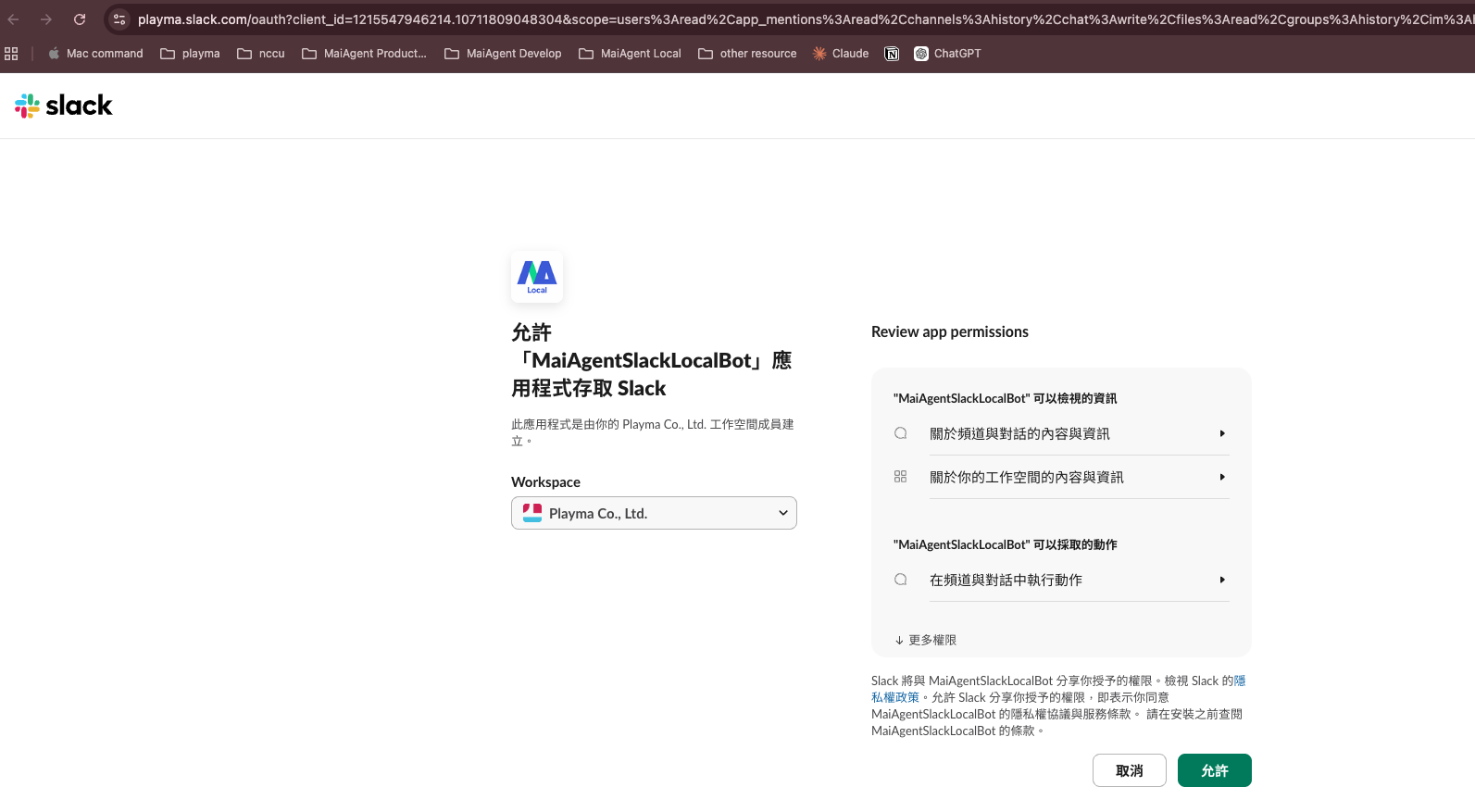
Slack will redirect to the authorization page. After confirming the permissions, click Allow.

Authorize App access to the Workspace
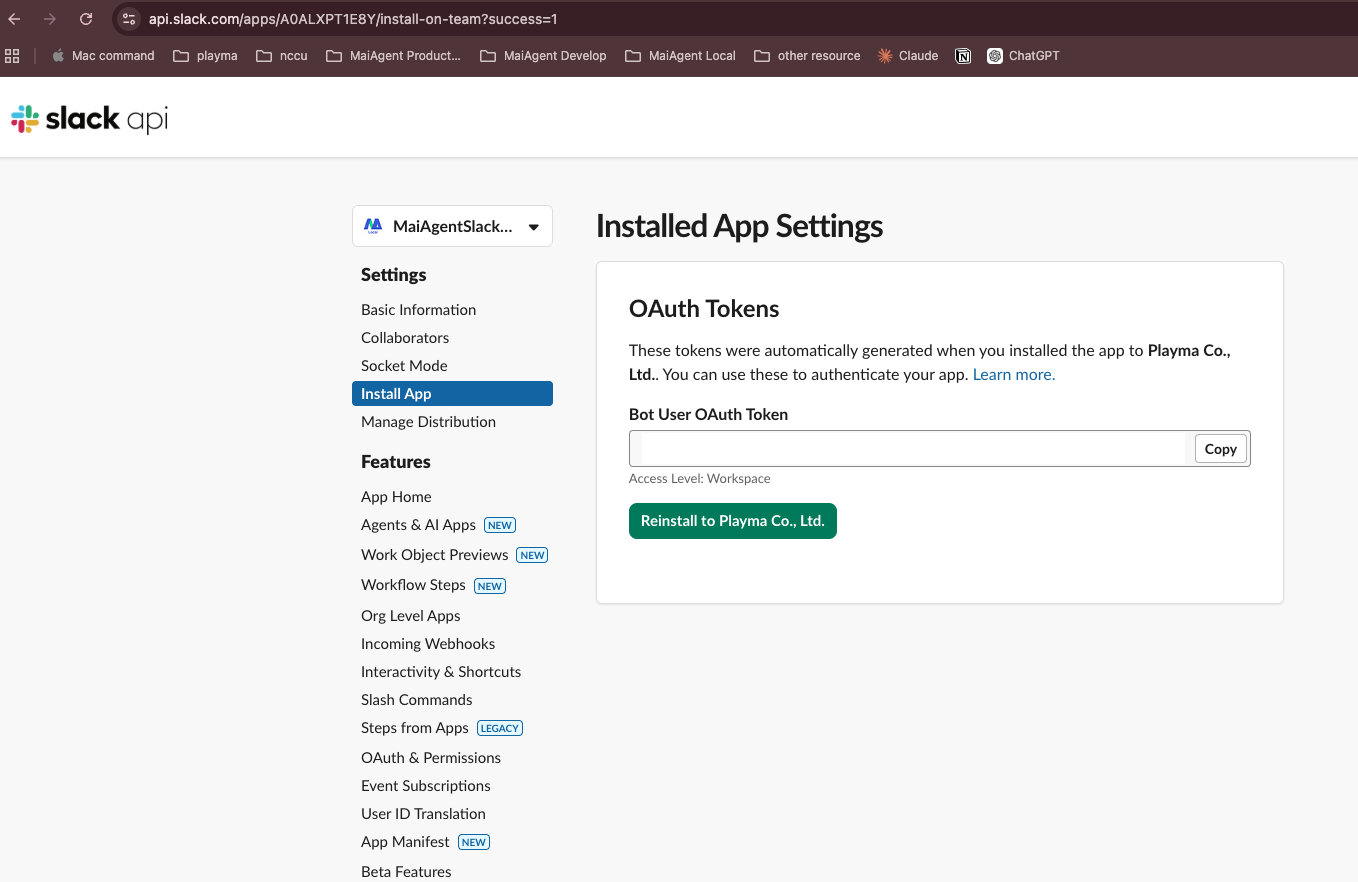
4. Copy the Bot User OAuth Token

After installation, return to the OAuth & Permissions page and copy the Bot User OAuth Token (format: xoxb-...).

Copy Bot User OAuth Token

Step 3: Configure App Home (Enable Direct Messages)

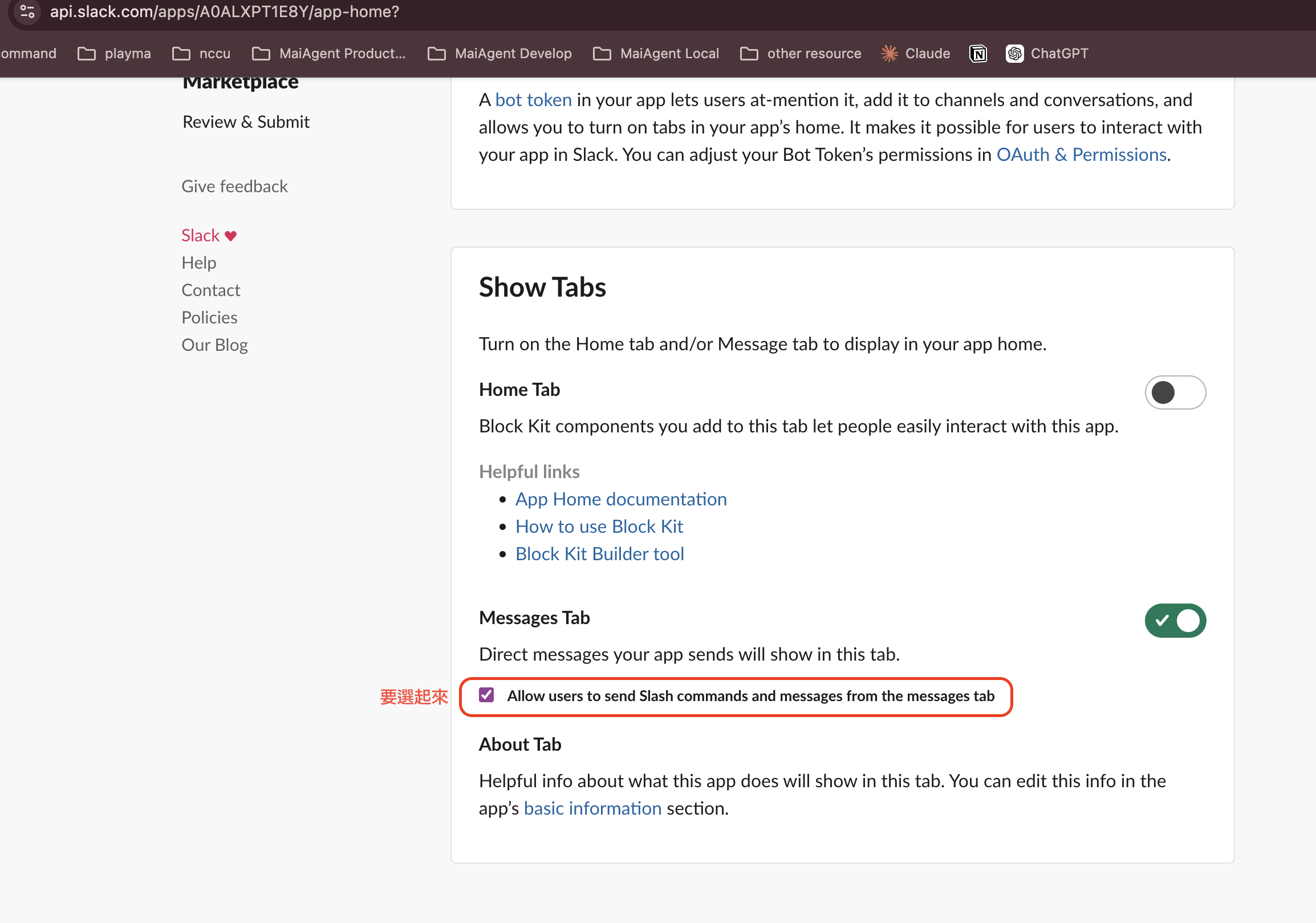
Go to the App Home page in the left menu and in the Show Tabs section:

  1. Enable Messages Tab

  2. Check Allow users to send Slash commands and messages from the messages tab

Enable Messages Tab to allow users to DM the Bot
Step 4: Create a Slack Chat Platform in MaiAgent

1. Go to Connect Chat Platform

Click Chat Platforms in the MaiAgent left menu, then click Connect Chat Platform in the upper right corner and select Slack.

2. Enter Basic Settings

Field
Description

Name

Give this connection a name (required)

AI Assistant

Select the AI Assistant to bind

Bot User OAuth Token

Paste the Bot Token obtained in Step 2 (required)

Signing Secret

Paste the Signing Secret obtained in Step 1 (required)

3. Verify Credentials

Click the Verify Credentials button to confirm the Token and Secret are correct.

4. Chat Room Settings

Setting
Description

Respond only when @ mentioned in groups

When enabled, the Bot only responds in group channels when @ mentioned

Enable reset command

When enabled, users can restart the conversation using a command

5. Save and Obtain the Webhook URL

Click Connect Chat Platform to complete the setup. The system will generate a Webhook URL — copy it for later use.


Step 5: Return to Slack App to Configure Event Subscriptions

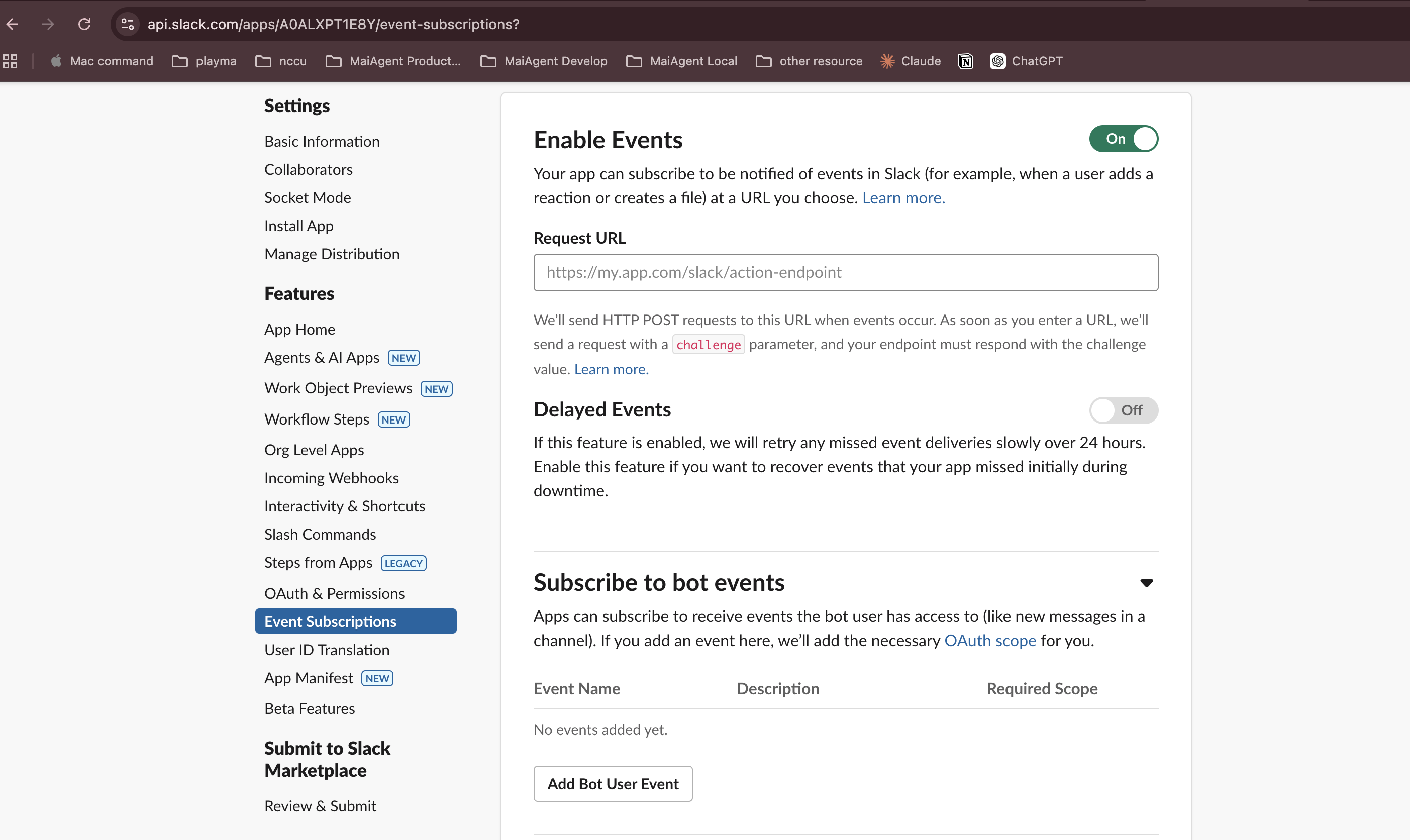
1. Enable Events

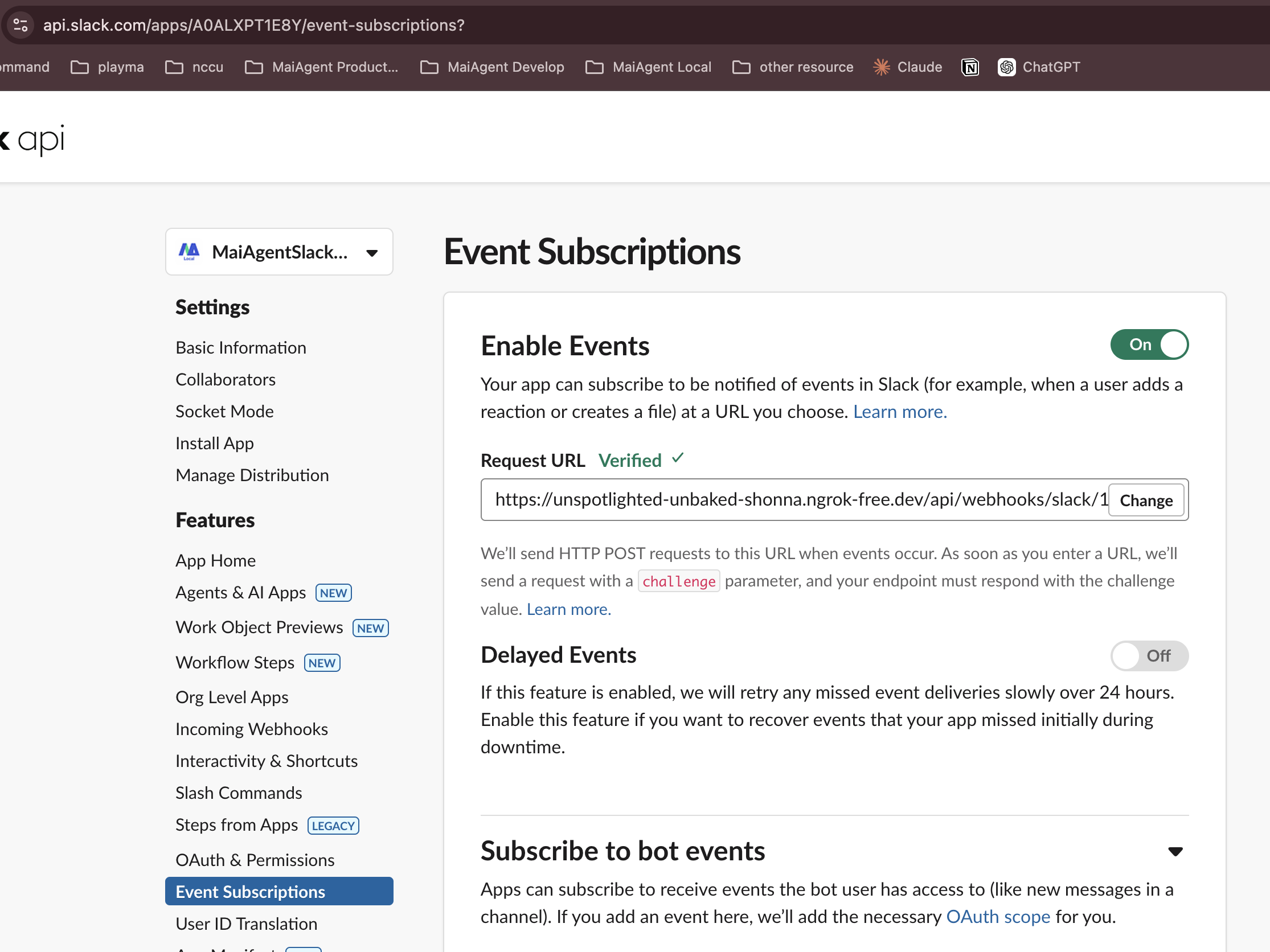
Click Event Subscriptions in the Slack App left menu and turn on Enable Events.

Event Subscriptions settings page

2. Paste the Request URL

Paste the Webhook URL generated by MaiAgent into the Request URL field. Slack will automatically verify it — Verified ✓ indicates the setup is successful.

Request URL verification successful

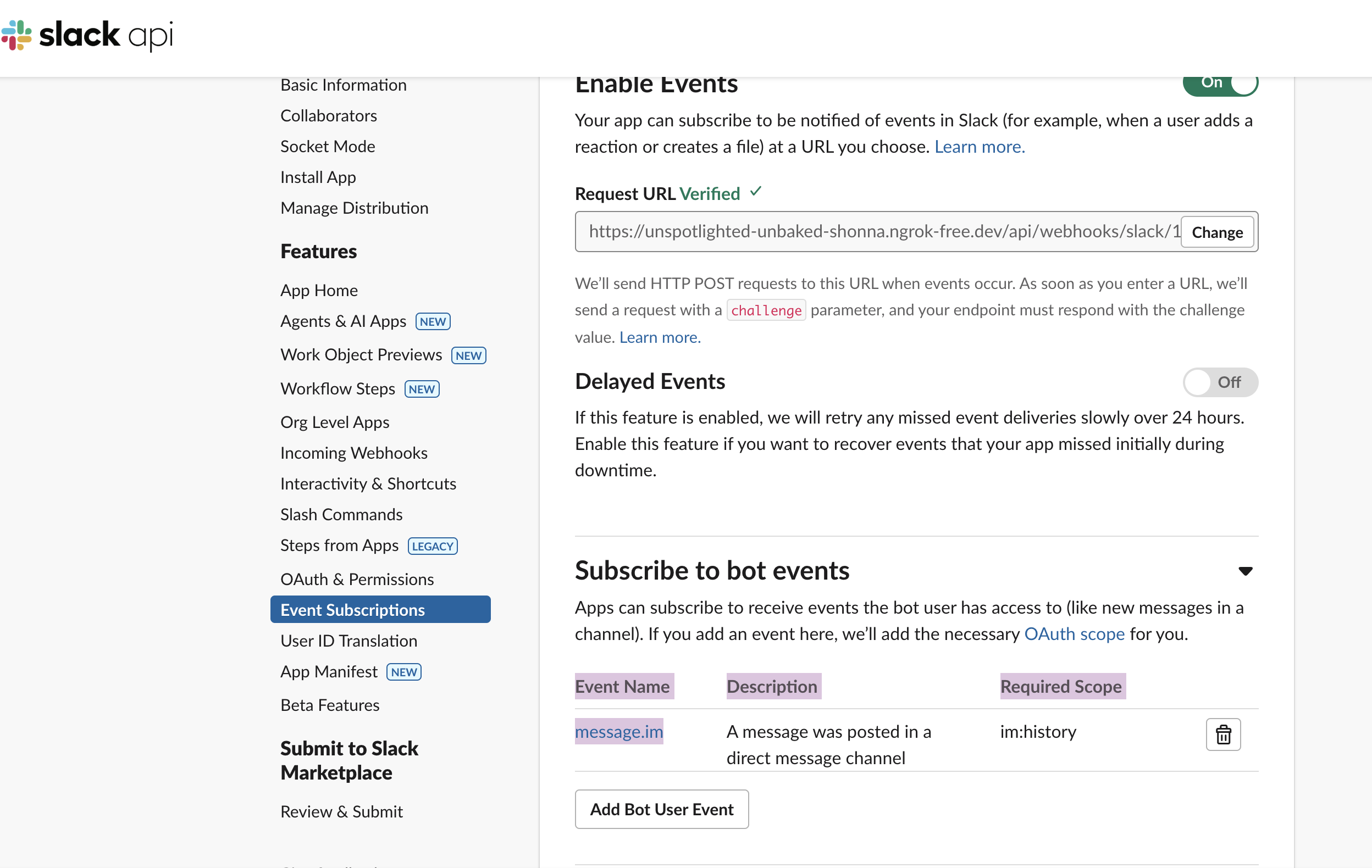
3. Subscribe to Bot Events

Expand the Subscribe to bot events section, click Add Bot User Event, and add the following events:

Event
Description

message.im

New messages in direct messages

message.channels

New messages in public channels

message.groups

New messages in private channels

message.mpim

New messages in group direct messages

app_mention

@ mentioned in a channel

Subscribe to Bot Events

4. Save Changes

Click Save Changes to complete the setup.


Getting Started

After the connection is complete, you can interact with the AI Assistant in the following ways:

Direct Message Conversation

Send a direct message to the Bot in Slack, and the AI Assistant will reply automatically. Supports sending text, images, and files.

File Upload and Analysis

Users can upload Excel, PDF, and other files during conversations. The AI Assistant can read file content and answer related questions.

Channel @ Mention

In a channel, type @BotName your question, and the AI Assistant will reply in the channel.

To add the Bot to a specific channel, type /invite @BotName in that channel, or add it through Channel Settings → Integrations → Add an App.

Last updated

Was this helpful?