> For the complete documentation index, see [llms.txt](https://docs.maiagent.ai/llms.txt). Markdown versions of documentation pages are available by appending `.md` to page URLs; this page is available as [Markdown](https://docs.maiagent.ai/maiagent-user-guide/en/build/choose-channel/line-works.md).

# Connect a Conversation Platform: LINE WORKS

Connect the LINE WORKS chat platform — create a Client App and Bot in the Developer Console, obtain the Service Account and Bot Secret, set the Callback URL, and activate the Bot.

LINE WORKS is the enterprise edition of LINE's messaging tool. Once connected, employees can chat with the Agent directly in LINE WORKS without opening another system. Both one-on-one direct messages and group conversations are supported.

{% hint style="info" %}
LINE WORKS and LINE are two different platforms, with entirely different credentials and setup methods. If you want to connect a consumer-facing LINE Official Account, see [Connect a Chat Platform: LINE](/maiagent-user-guide/en/build/choose-channel/line.md).
{% endhint %}

## Before You Connect <a href="#pre-integration-checklist" id="pre-integration-checklist"></a>

* An "AI Assistant" has been created on the [MaiAgent platform](https://admin.maiagent.ai/)
* You have LINE WORKS administrator privileges (you can log in to the [Admin console](https://admin.worksmobile.com/))
* You can access the [LINE WORKS Developer Console](https://developers.worksmobile.com/)

{% hint style="warning" %}
This integration requires 6 credentials, and **credentials cannot be modified after the channel is created**. Complete Step 1 and Step 2 and have all 6 credentials ready before moving on to Step 3.
{% endhint %}

***

## Step 1: Create a Client App and Obtain the Service Account <a href="#step-create-client-app" id="step-create-client-app"></a>

### 1. Go to the ClientApp Page in the Developer Console <a href="#step-go-to-clientapp" id="step-go-to-clientapp"></a>

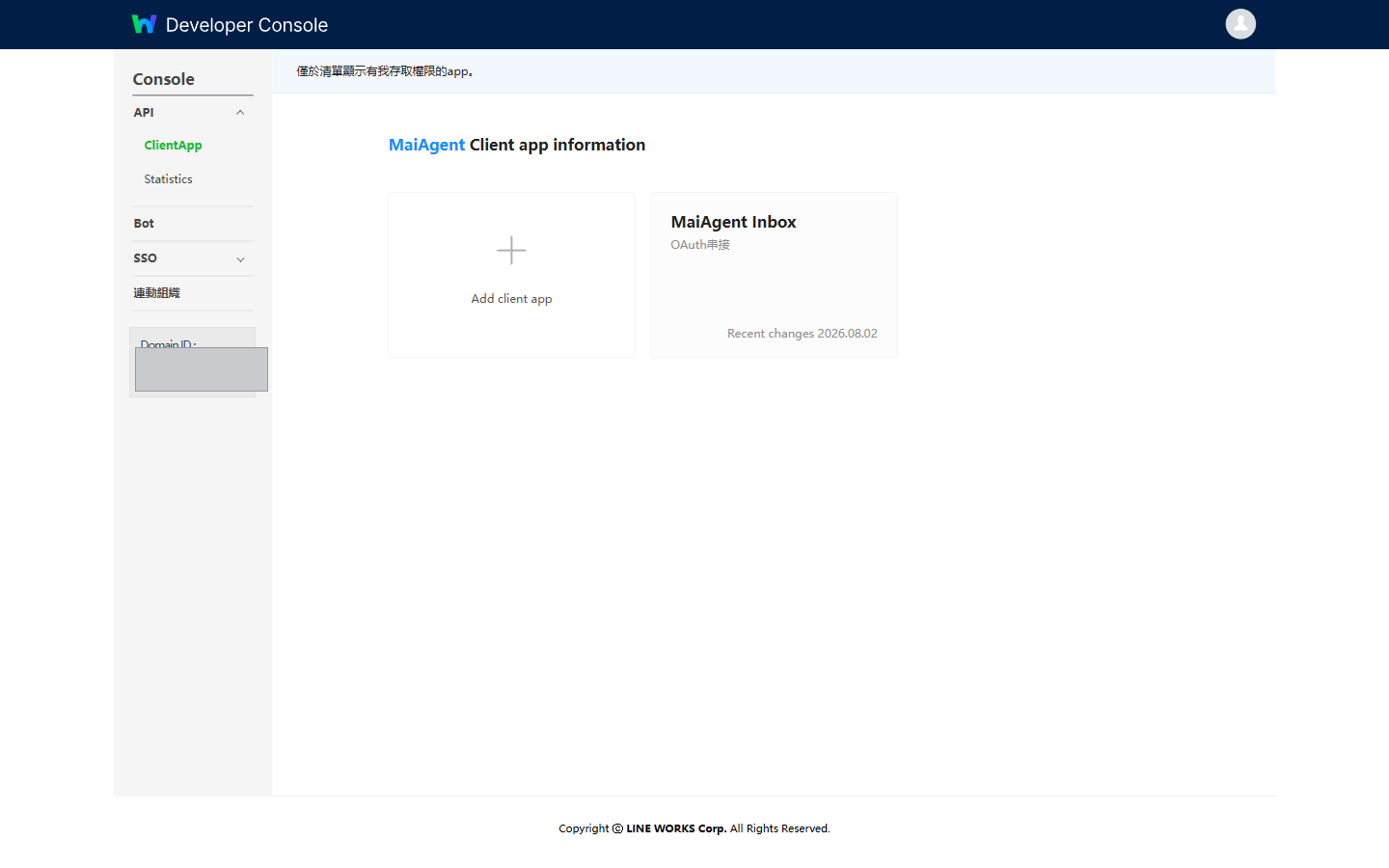
Log in to the [LINE WORKS Developer Console](https://developers.worksmobile.com/), click <mark style="color:blue;">API</mark> → <mark style="color:blue;">ClientApp</mark> in the left menu, then click <mark style="color:blue;">Add client app</mark> to create an app.

<figure><img src="https://1360999650-files.gitbook.io/~/files/v0/b/gitbook-x-prod.appspot.com/o/spaces%2F6v6TNkkOQVfRYfcNirHL%2Fuploads%2Fgit-blob-0d792c7b976ddc8399f167d41ee79992a0caa192%2Flineworks-console-clientapp-list.png?alt=media" alt="ClientApp list page in the Developer Console"><figcaption><p>Developer Console → API → ClientApp</p></figcaption></figure>

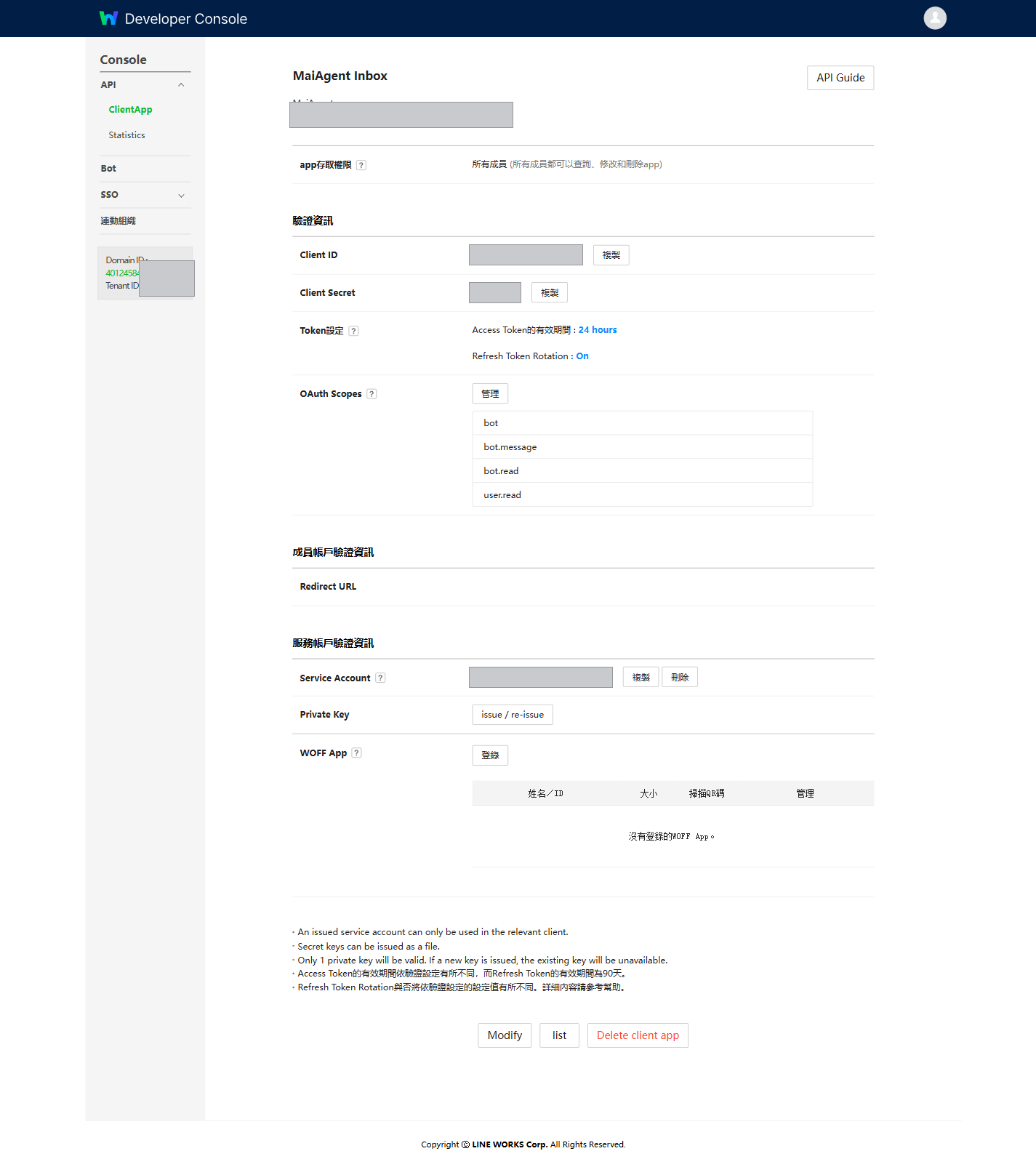
### 2. Obtain the Four Credentials <a href="#step-get-app-credentials" id="step-get-app-credentials"></a>

Open the app's detail page and obtain the following four items:

| Credential          | Location in the Console                                                                                  |
| ------------------- | -------------------------------------------------------------------------------------------------------- |
| **Client ID**       | <mark style="color:blue;">Client ID</mark> field                                                         |
| **Client Secret**   | <mark style="color:blue;">Client Secret</mark> field                                                     |
| **Service Account** | <mark style="color:blue;">Service Account</mark> field, in the format `xxxxx.serviceaccount@your-domain` |
| **Private Key**     | <mark style="color:blue;">Private Key</mark> section; a `.key` file can be downloaded when it is created |

<figure><img src="https://1360999650-files.gitbook.io/~/files/v0/b/gitbook-x-prod.appspot.com/o/spaces%2F6v6TNkkOQVfRYfcNirHL%2Fuploads%2Fgit-blob-22a6737d44f3e40f43a4b72a81fc4568dc81dfc8%2Flineworks-console-clientapp-detail.png?alt=media" alt="Client App detail page, including Client ID, Client Secret, OAuth Scopes, Service Account, and Private Key"><figcaption><p>Client App detail page — all four credentials and the OAuth Scopes are on this page</p></figcaption></figure>

### 3. Set OAuth Scopes <a href="#step-set-oauth-scopes" id="step-set-oauth-scopes"></a>

In the <mark style="color:blue;">OAuth Scopes</mark> section on the same page, grant the following permissions. Otherwise, the Agent cannot send or receive messages or look up member names:

| Scope         | Description                                                                  |
| ------------- | ---------------------------------------------------------------------------- |
| `bot`         | Manage the Bot                                                               |
| `bot.message` | Send messages                                                                |
| `bot.read`    | Read Bot settings                                                            |
| `user.read`   | Read member information (used to display the sender's name in conversations) |

{% hint style="info" %} <mark style="color:blue;">Token設定</mark> (Token Settings) on the same page lets you adjust the validity period of the Access Token. MaiAgent automatically manages token issuance and renewal, so you can keep the default value here.
{% endhint %}

{% hint style="danger" %}
**The Private Key can be downloaded only once.** When you create the Service Account, a `.key` file is offered for download, and you cannot retrieve it after leaving the page. Store it somewhere safe. If it is lost, the only option is to generate a new one — and regenerating it immediately invalidates the existing integration.
{% endhint %}

The private key must be in **unencrypted** PEM format: the first line is a `BEGIN PRIVATE KEY` or `BEGIN RSA PRIVATE KEY` marker (with five hyphens before and after the text), and the last line is the matching `END` marker. If your private key is password-protected, MaiAgent cannot use it; please generate a new unencrypted one.

***

## Step 2: Create a Bot and Obtain the Bot ID and Bot Secret <a href="#step-create-bot" id="step-create-bot"></a>

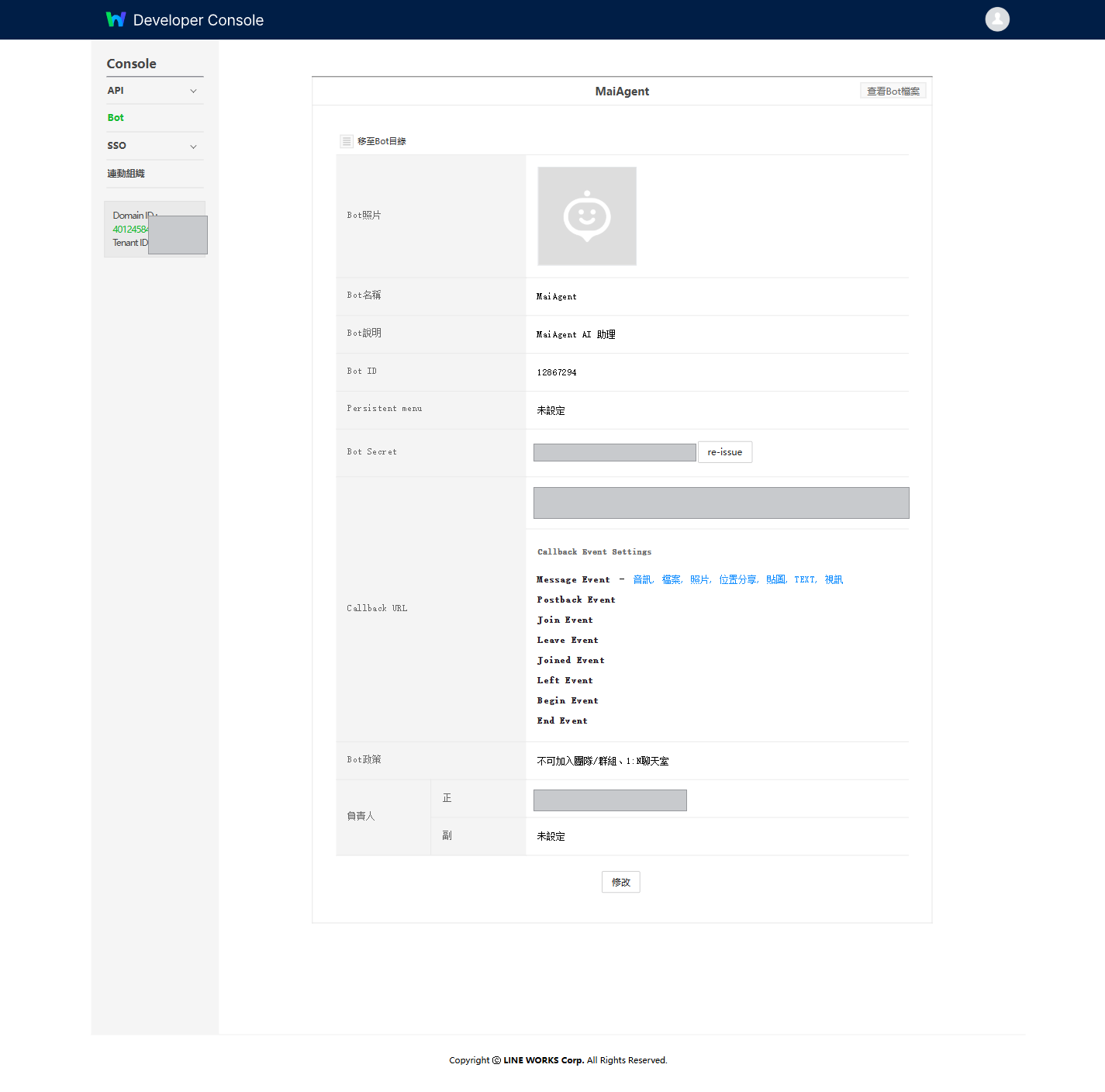
In the left menu of the Developer Console, click <mark style="color:blue;">Bot</mark> and create a Bot to obtain:

| Credential     | Location in the Console                                                                                                      |
| -------------- | ---------------------------------------------------------------------------------------------------------------------------- |
| **Bot ID**     | <mark style="color:blue;">Bot ID</mark> field                                                                                |
| **Bot Secret** | <mark style="color:blue;">Bot Secret</mark> field, used to verify that messages sent by LINE WORKS really come from your Bot |

<figure><img src="https://1360999650-files.gitbook.io/~/files/v0/b/gitbook-x-prod.appspot.com/o/spaces%2F6v6TNkkOQVfRYfcNirHL%2Fuploads%2Fgit-blob-96baaf3f207c58a24ca25d1c10f0a2cdd692913a%2Flineworks-console-bot-detail.png?alt=media" alt="Bot detail page, including Bot name, Bot ID, Bot Secret, Callback URL, and Bot policy"><figcaption><p>Bot detail page — the Bot ID and Bot Secret are here</p></figcaption></figure>

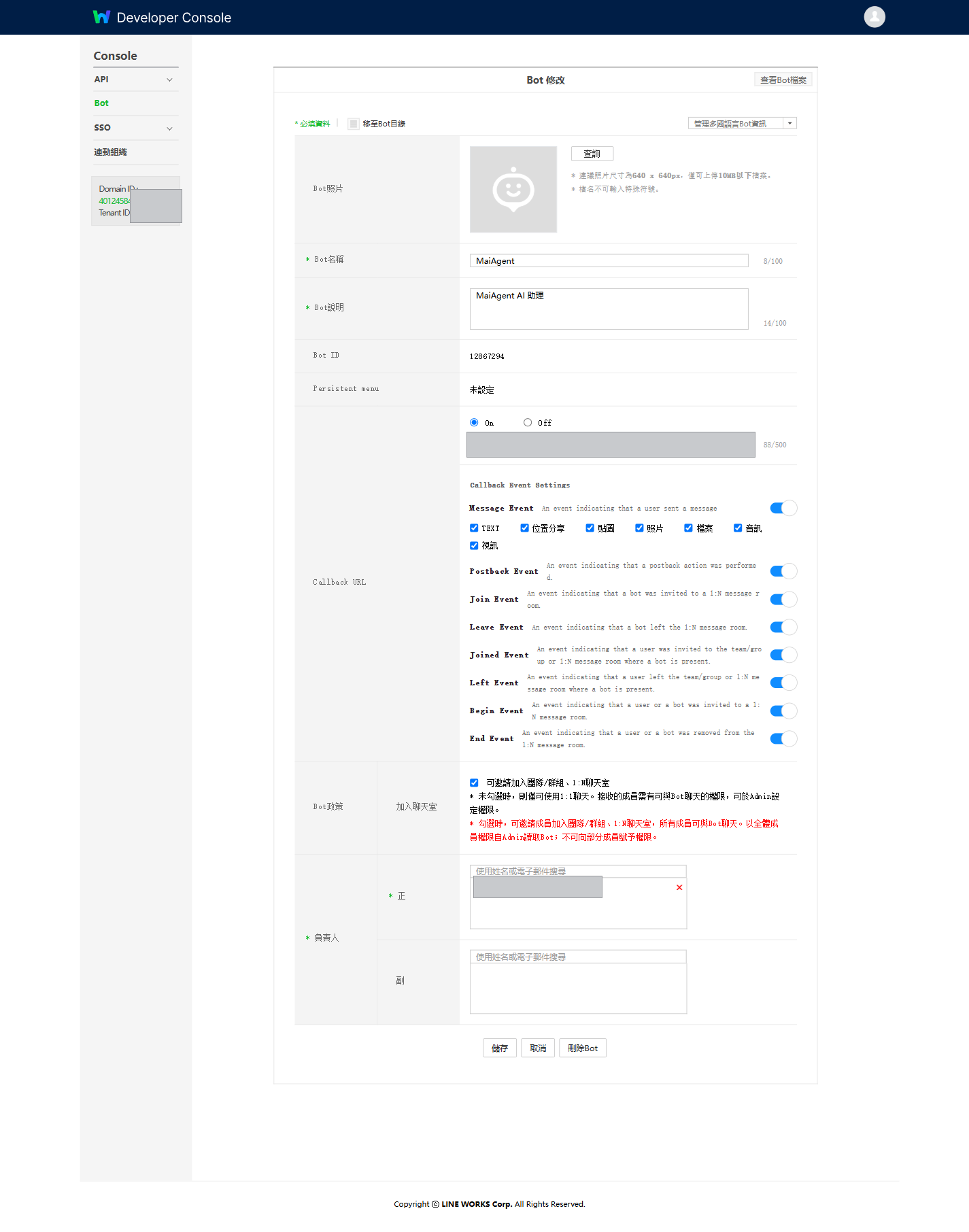
### Required Settings for Group Conversations <a href="#step-enable-group-chat" id="step-enable-group-chat"></a>

On the Bot's <mark style="color:blue;">修改</mark> (Edit) page, find <mark style="color:blue;">Bot政策</mark> (Bot Policy) → <mark style="color:blue;">加入聊天室</mark> (Join Chat Rooms), and check <mark style="color:blue;">可邀請加入團隊/群組、1:N聊天室</mark> (Can be invited to teams/groups and 1:N chat rooms).

If this is not checked, the Bot can only handle one-on-one direct messages and cannot be invited to groups.

{% hint style="warning" %}
The <mark style="color:blue;">Bot政策</mark> (Bot Policy) summary text on the Bot detail page has been observed to be inconsistent with the actual checkbox state in the edit form. If the two disagree, go by the checkbox state in the <mark style="color:blue;">修改</mark> (Edit) form.
{% endhint %}

The **Bot name** is also set on this page. This is the name users type when @-mentioning the Bot in a group, so choose one that is easy to type.

{% hint style="info" %}
Skip the Callback URL for now. It requires the Webhook URL generated by MaiAgent, which you will come back and fill in at **Step 4**.
{% endhint %}

***

## Step 3: Create a LINE WORKS Chat Platform in MaiAgent <a href="#step-create-channel-in-maiagent" id="step-create-channel-in-maiagent"></a>

### 1. Go to Connect Chat Platform <a href="#step-go-to-channel-integration" id="step-go-to-channel-integration"></a>

In the MaiAgent left menu, click <mark style="color:blue;">Chat Platforms</mark>, click <mark style="color:blue;">Connect Chat Platform</mark> in the upper right, and select <mark style="color:blue;">LINE WORKS</mark>.

### 2. Fill In the Basic Settings <a href="#step-fill-basic-settings" id="step-fill-basic-settings"></a>

| Field               | Description                                                                                                                              |
| ------------------- | ---------------------------------------------------------------------------------------------------------------------------------------- |
| **Name**            | Give this integration a name (required). This is only a label on the MaiAgent side and is unrelated to the Bot name shown in LINE WORKS. |
| **AI Assistant**    | Select the Agent to bind                                                                                                                 |
| **Bot ID**          | Obtained in Step 2 (required)                                                                                                            |
| **Bot Secret**      | Obtained in Step 2 (required)                                                                                                            |
| **Client ID**       | Obtained in Step 1 (required)                                                                                                            |
| **Client Secret**   | Obtained in Step 1 (required)                                                                                                            |
| **Service Account** | Obtained in Step 1 (required)                                                                                                            |
| **Private Key**     | Paste the full contents of the `.key` file downloaded in Step 1, including the opening and closing marker lines (required)               |

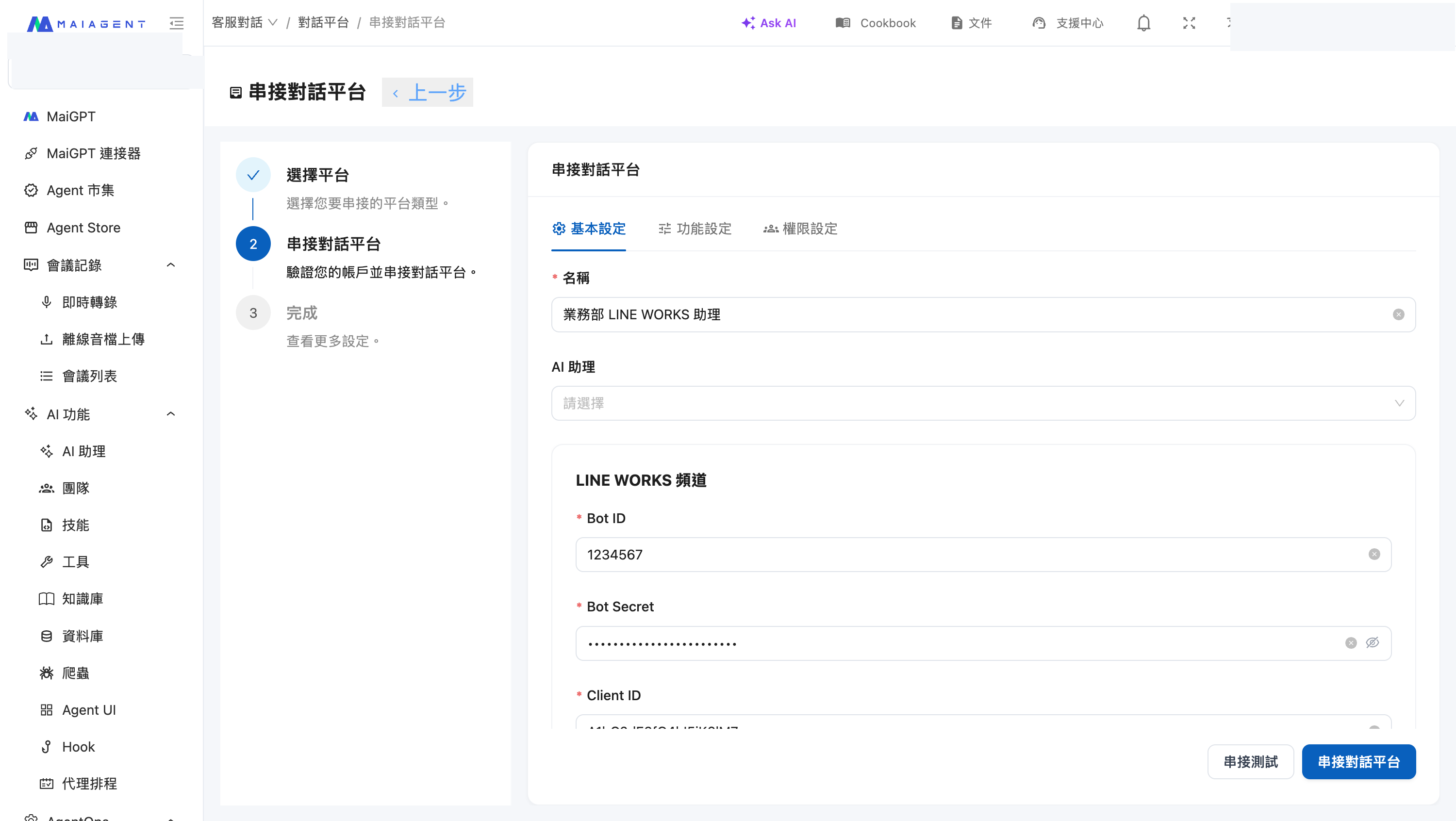
The form has two sections. The upper section contains the name, the Agent, and the Bot ID and Bot Secret obtained in Step 2:

<figure><img src="https://1360999650-files.gitbook.io/~/files/v0/b/gitbook-x-prod.appspot.com/o/spaces%2F6v6TNkkOQVfRYfcNirHL%2Fuploads%2Fgit-blob-684d5f59dd73accc1c7177b4c3bc3b02345ab1a3%2Flineworks-create-form.png?alt=media" alt="Upper part of MaiAgent&#x27;s LINE WORKS creation form, including Name, Agent, Bot ID, and Bot Secret"><figcaption><p>Upper part of the creation form — Name, Agent, Bot ID, Bot Secret (example values shown)</p></figcaption></figure>

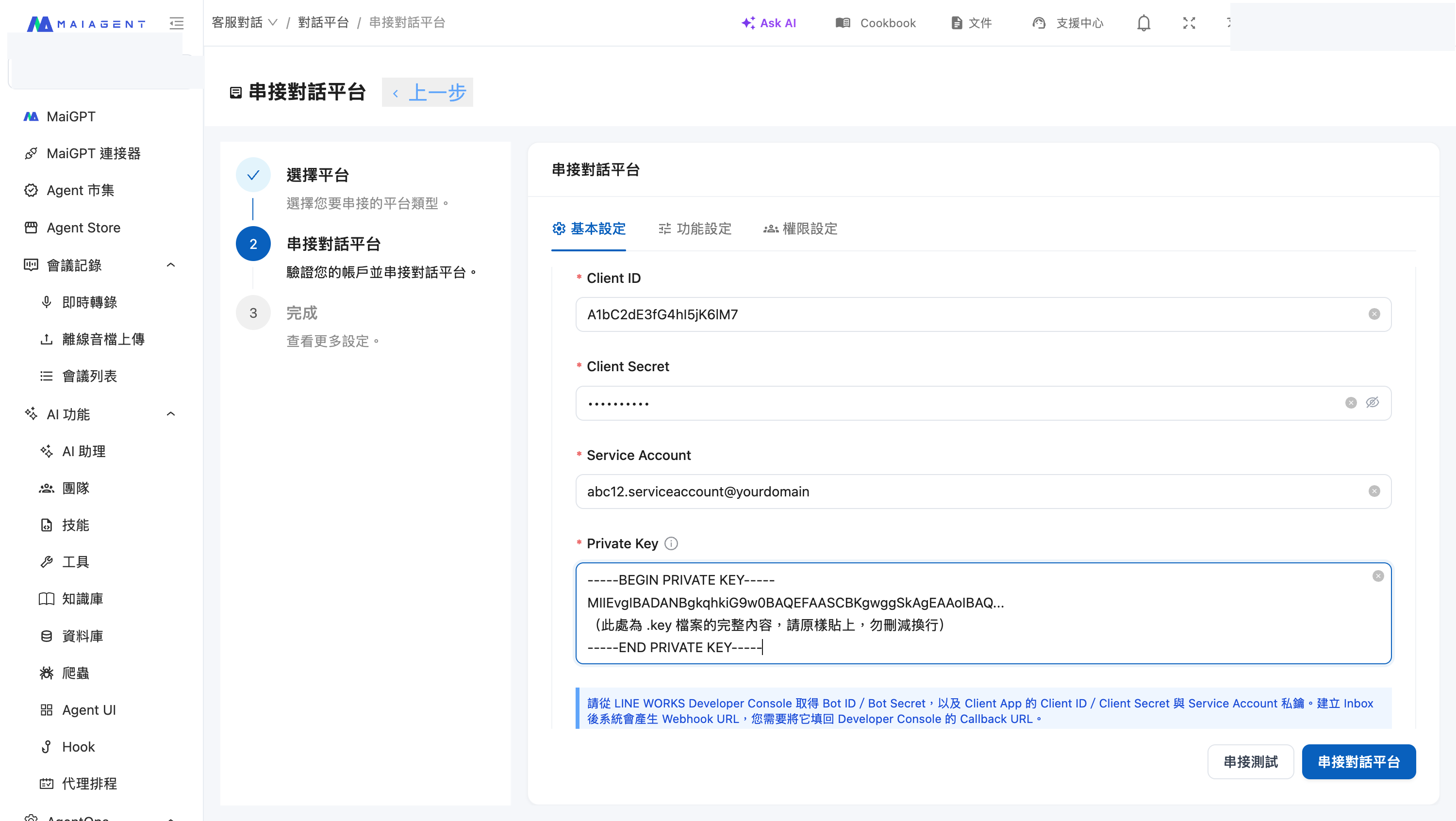
Scroll down to find the three Client App credentials and the private key obtained in Step 1:

<figure><img src="https://1360999650-files.gitbook.io/~/files/v0/b/gitbook-x-prod.appspot.com/o/spaces%2F6v6TNkkOQVfRYfcNirHL%2Fuploads%2Fgit-blob-456748551dd15070854358eaf0ceb8785d9f448d%2Flineworks-create-form-credentials.png?alt=media" alt="Lower part of MaiAgent&#x27;s LINE WORKS creation form, including Client ID, Client Secret, Service Account, and Private Key"><figcaption><p>Lower part of the creation form — Client ID, Client Secret, Service Account, Private Key (example values shown)</p></figcaption></figure>

{% hint style="info" %}
After you enter the Bot Secret and Client Secret, they are masked with dots. Click the eye icon on the right side of the field to check the content. For the Private Key, paste the full contents of the `.key` file as-is; line breaks are preserved.
{% endhint %}

### 3. Chat Room Settings <a href="#step-chat-room-settings" id="step-chat-room-settings"></a>

| Setting                             | Description                                                                                                                                                                                   |
| ----------------------------------- | --------------------------------------------------------------------------------------------------------------------------------------------------------------------------------------------- |
| **Require @Bot to reply in groups** | When enabled, the Bot replies in group conversations only when it is @-mentioned. **We recommend enabling this for group use**; otherwise every message in the group triggers an Agent reply. |
| **Enable reset command**            | When enabled, you can set a custom keyword. When a user enters that keyword, the conversation memory is cleared and the conversation starts over.                                             |

{% hint style="info" %}
"Require @Bot to reply in groups" matches against the **Bot name set in the Developer Console**, not the Inbox name entered in the "Name" field above. If you change the Bot name in the Developer Console, the name to @-mention in groups changes accordingly.
{% endhint %}

### 4. Connection Test <a href="#step-validate-credentials" id="step-validate-credentials"></a>

Click <mark style="color:blue;">Connection Test</mark>. MaiAgent actually requests an access token from LINE WORKS once to confirm that the combination of credentials is correct.

If it fails, the screen shows the specific reason. Two common ones:

* <mark style="color:red;">Credential verification failed</mark> — Check, in order: whether the Private Key was pasted in full (including the opening and closing marker lines, with no line breaks missing in between), whether it is in unencrypted format, whether the Service Account is complete (including the `.serviceaccount@domain` part), whether the Client ID and Client Secret come from the same app, and whether the app has been granted the four scopes listed in Step 1
* <mark style="color:red;">This Bot ID is already bound to another inbox</mark> — A single Bot cannot be attached to two chat platforms at the same time. Use a different Bot, or delete the existing chat platform first

The failure message appears to the left of the button:

<figure><img src="https://1360999650-files.gitbook.io/~/files/v0/b/gitbook-x-prod.appspot.com/o/spaces%2F6v6TNkkOQVfRYfcNirHL%2Fuploads%2Fgit-blob-2861170cf6776a2e293279d60dc83f913bf8b18d%2Flineworks-validate-error.png?alt=media" alt="When the connection test fails, the error message appears to the left of the Connection Test button"><figcaption><p>Where the connection test failure message appears (in this example, the Bot ID is already bound)</p></figcaption></figure>

### 5. Create and Copy the Webhook URL <a href="#step-save-and-get-webhook-url" id="step-save-and-get-webhook-url"></a>

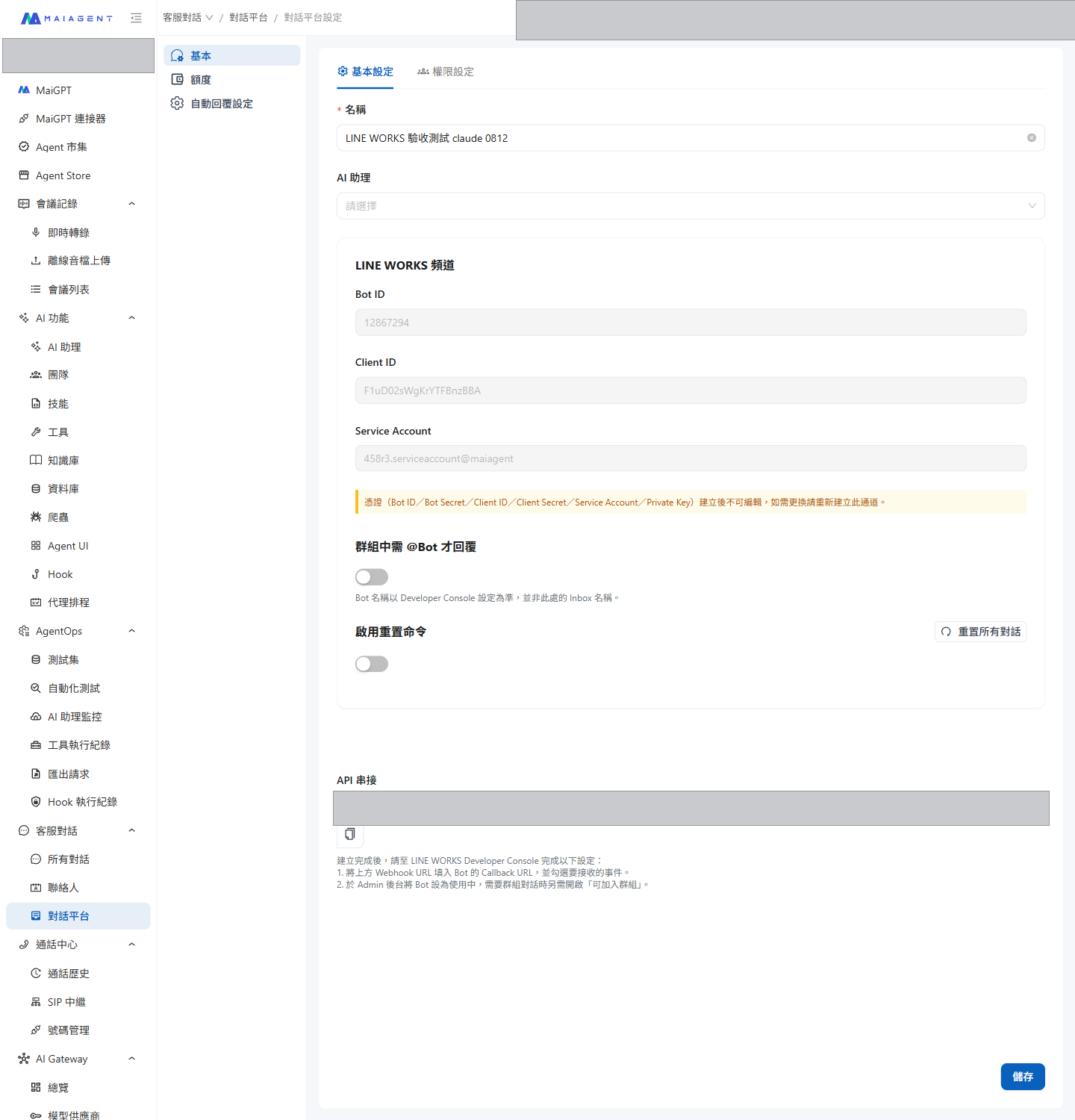
Click <mark style="color:blue;">Connect Chat Platform</mark> to finish creating it. The system generates a **Webhook URL**. Copy it for later — you will fill it back into the Developer Console in the next step.

You can also return to the channel's settings page at any time and copy this URL from the <mark style="color:blue;">API Integration</mark> field.

<figure><img src="https://1360999650-files.gitbook.io/~/files/v0/b/gitbook-x-prod.appspot.com/o/spaces%2F6v6TNkkOQVfRYfcNirHL%2Fuploads%2Fgit-blob-a78d5c06347c503ad3522890174f6e39d536e127%2Flineworks-edit-page.png?alt=media" alt="Settings page of a LINE WORKS channel, with Bot ID, Client ID, and Service Account shown read-only, and the Webhook URL for API integration"><figcaption><p>Settings page after creation — credentials are no longer displayed, and the Webhook URL can be copied at any time</p></figcaption></figure>

***

## Step 4: Set the Callback URL in the Developer Console <a href="#step-configure-callback-url" id="step-configure-callback-url"></a>

Return to the Bot you created in Step 2 and open its <mark style="color:blue;">修改</mark> (Edit) page:

1. Set <mark style="color:blue;">Callback URL</mark> to <mark style="color:blue;">On</mark>, and enter the **Webhook URL** generated by MaiAgent
2. In <mark style="color:blue;">Callback Event Settings</mark>, check the events you want to receive. We recommend checking everything under <mark style="color:blue;">Message Event</mark> so the Agent can handle every type of message:

| Event                                                    | Corresponding user action |
| -------------------------------------------------------- | ------------------------- |
| <mark style="color:blue;">TEXT</mark>                    | Send a text message       |
| <mark style="color:blue;">照片</mark> (Photo)              | Send an image             |
| <mark style="color:blue;">檔案</mark> (File)               | Send a file               |
| <mark style="color:blue;">音訊</mark> (Audio)              | Send a voice message      |
| <mark style="color:blue;">視訊</mark> (Video)              | Send a video              |
| <mark style="color:blue;">位置分享</mark> (Location sharing) | Share a location          |
| <mark style="color:blue;">貼圖</mark> (Sticker)            | Send a sticker            |

3. If the Bot will be used in groups, we also recommend checking <mark style="color:blue;">Join Event</mark> and <mark style="color:blue;">Joined Event</mark>
4. Save the settings

<figure><img src="https://1360999650-files.gitbook.io/~/files/v0/b/gitbook-x-prod.appspot.com/o/spaces%2F6v6TNkkOQVfRYfcNirHL%2Fuploads%2Fgit-blob-b55d63f49e2c97ae83bd1ea6737402a710e03e06%2Flineworks-console-bot-callback.png?alt=media" alt="Callback URL and Callback Event Settings on the Bot edit page"><figcaption><p>Set Callback URL to On and enter the Webhook URL; check the event types below</p></figcaption></figure>

{% hint style="warning" %}
LINE WORKS does not send unchecked event types to MaiAgent, so those messages are treated as if they never happened — the Agent does not reply, and nothing is recorded in the conversation.
{% endhint %}

***

## Step 5: Activate the Bot in the Admin Console <a href="#step-activate-bot" id="step-activate-bot"></a>

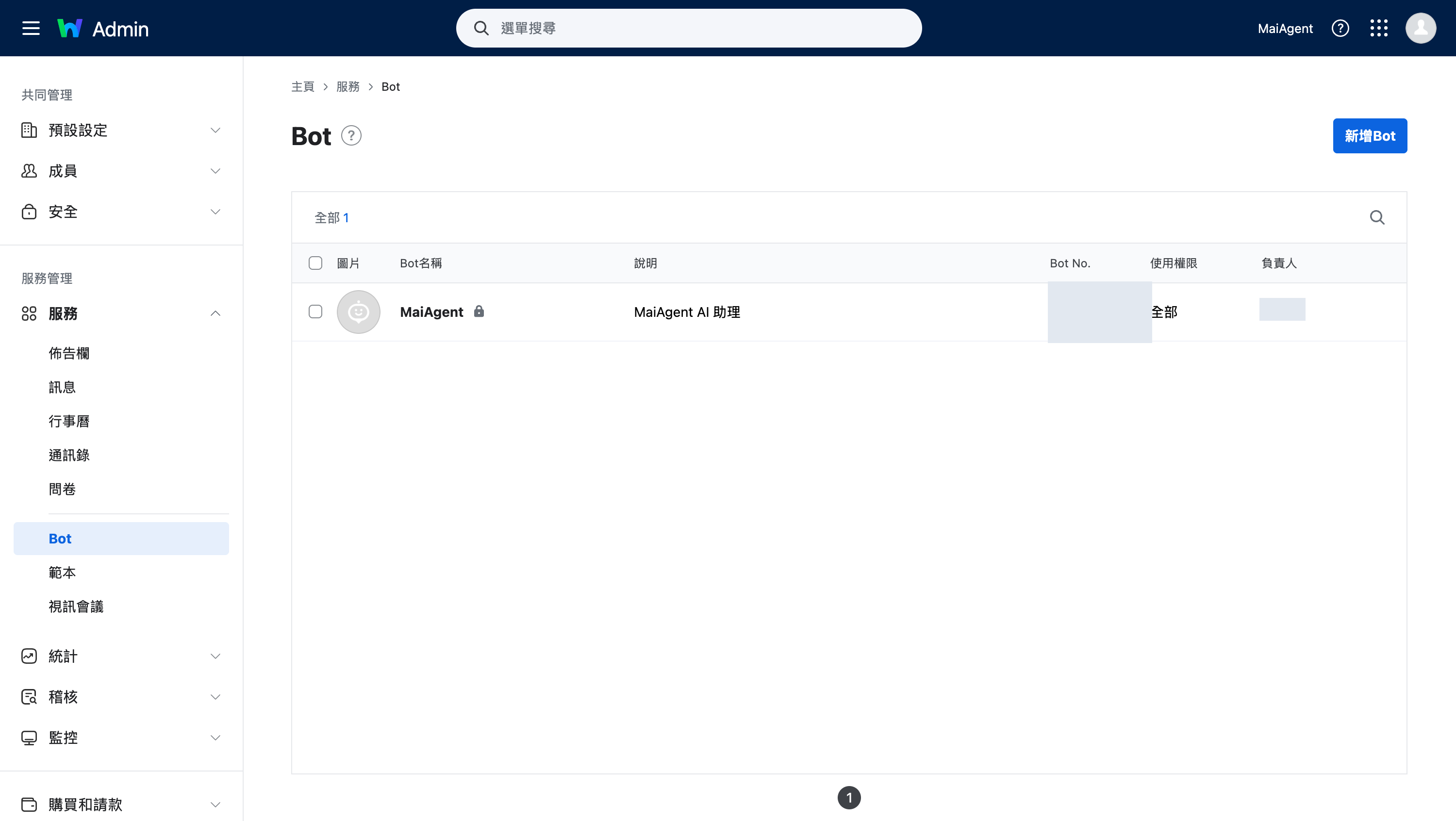
Log in to the [LINE WORKS Admin console](https://admin.worksmobile.com/), go to <mark style="color:blue;">服務</mark> (Services) → <mark style="color:blue;">Bot</mark> in the left menu, click <mark style="color:blue;">新增Bot</mark> (Add Bot) in the upper right, and add the Bot you created in Step 2.

Once added, the Bot is listed on this page, and you can use the <mark style="color:blue;">使用權限</mark> (Permissions) column to set which members can see it (setting it to <mark style="color:blue;">全部</mark> (All) means all members can use it).

<figure><img src="https://1360999650-files.gitbook.io/~/files/v0/b/gitbook-x-prod.appspot.com/o/spaces%2F6v6TNkkOQVfRYfcNirHL%2Fuploads%2Fgit-blob-9bd2b2649536680af45839ab3c239677210c1100%2Flineworks-admin-bot.png?alt=media" alt="Services → Bot page in the LINE WORKS Admin console, listing the added Bot and its permissions"><figcaption><p>Admin console → Services → Bot — add the Bot and set its permissions</p></figcaption></figure>

{% hint style="warning" %}
This step is easy to miss. After a Bot is created in the Developer Console, it **does not yet appear in employees' LINE WORKS**. The tenant administrator must add it in the Admin console before employees can find it by search.
{% endhint %}

***

## Getting Started <a href="#getting-started" id="getting-started"></a>

### One-on-One Direct Messages <a href="#direct-message" id="direct-message"></a>

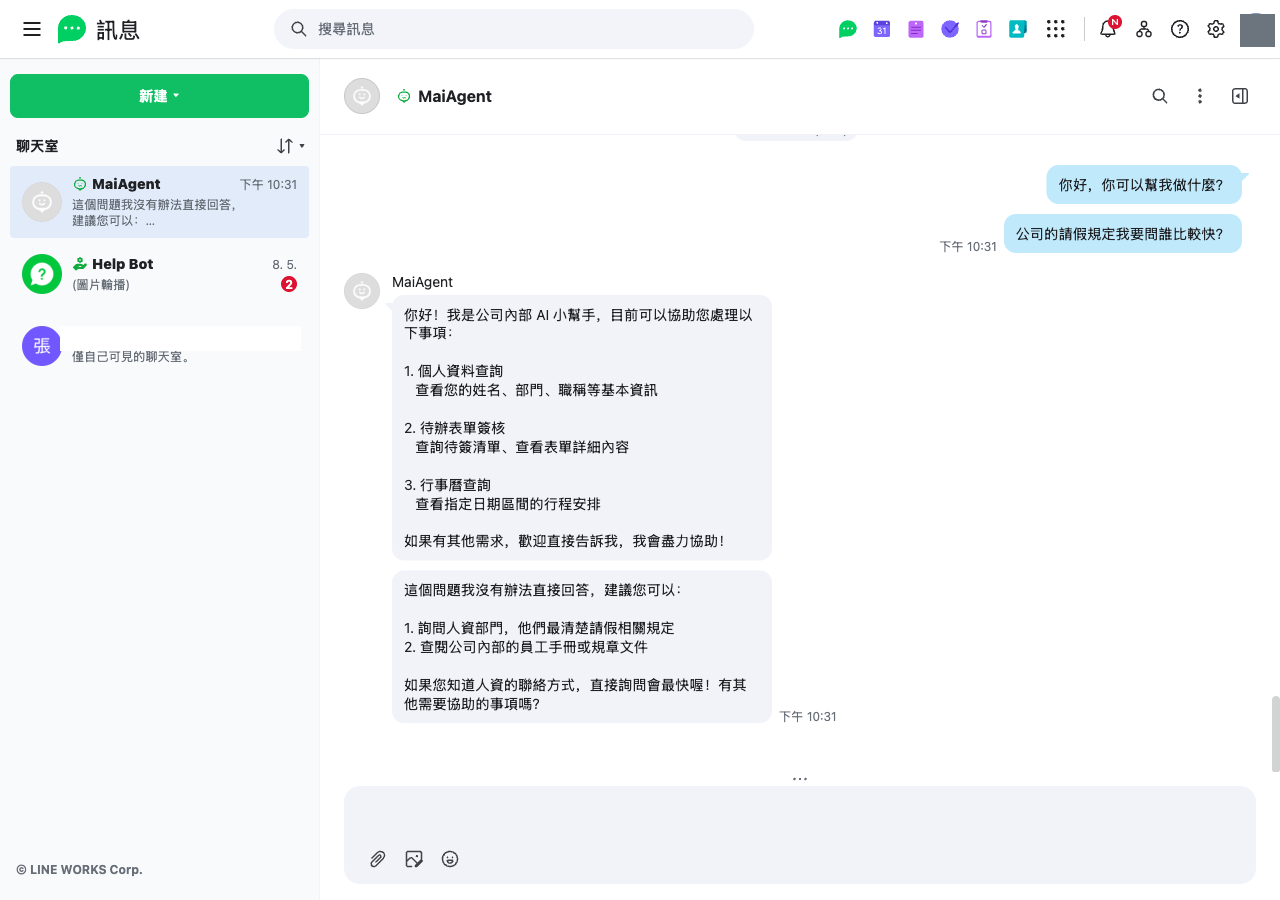
In LINE WORKS, search for the Bot name and start a conversation. The Agent replies automatically.

<figure><img src="https://1360999650-files.gitbook.io/~/files/v0/b/gitbook-x-prod.appspot.com/o/spaces%2F6v6TNkkOQVfRYfcNirHL%2Fuploads%2Fgit-blob-61671de9af211a3e38edec25ce37d9a382dceea4%2Flineworks-chat-demo.png?alt=media" alt="One-on-one conversation with the Agent in a LINE WORKS chat room"><figcaption><p>Chat with the Agent directly in a LINE WORKS chat room</p></figcaption></figure>

{% hint style="info" %}
LINE WORKS chat rooms display plain text only and **do not render Markdown**. If the Agent outputs tables or syntax such as `**bold**` and `###`, users will see the raw symbols. We recommend adding formatting rules to the Agent's role instructions, asking it to present lists with numbering and line breaks and not to use Markdown syntax.
{% endhint %}

### Group Conversations <a href="#group-conversation" id="group-conversation"></a>

Invite the Bot into a group. If "Require @Bot to reply in groups" is enabled, a reply is triggered only when you type `@BotName your question`.

In MaiAgent's <mark style="color:blue;">All Conversations</mark>, a single group appears as **one conversation**, with the sender's name shown on each message. It is not split into multiple parallel conversations just because several people speak in the group.

### Supported Message Types <a href="#supported-message-types" id="supported-message-types"></a>

| What the user sends           | How the Agent handles it                                |
| ----------------------------- | ------------------------------------------------------- |
| Text                          | Answers directly                                        |
| Image                         | Can recognize the image content                         |
| File (PDF, Excel, Word, etc.) | Reads the content and answers related questions         |
| Voice message                 | Converted to text, then processed                       |
| Video                         | Saved as an attachment and recorded in the conversation |
| Location                      | Shown as "📍 Location shared"                           |
| Sticker                       | Shown as "🏷 Sticker"                                   |

The Agent can reply with text and attachments. If a single text message exceeds LINE WORKS's 1,000-character limit, the system automatically splits it into several messages instead of truncating it.

***

## FAQ <a href="#faq" id="faq"></a>

### The Agent suddenly stopped replying <a href="#troubleshoot-no-reply" id="troubleshoot-no-reply"></a>

First, go to the channel's settings page and check whether a <mark style="color:red;">Credentials invalid</mark> warning is displayed.

The most common cause of invalid credentials is **regenerating the private key or Service Account in the Developer Console**. Once the old credentials are replaced, MaiAgent can no longer obtain an access token.

Because credentials cannot be modified in place, create a new LINE WORKS channel and enter the new credentials.

{% hint style="info" %}
The only external symptom of invalid credentials is that the Agent goes quiet — users do not receive any error message. If a colleague reports that "the bot is not responding," this is the first place to look.
{% endhint %}

### Why can't credentials be modified? <a href="#why-credentials-are-immutable" id="why-credentials-are-immutable"></a>

Credentials are sensitive data. After they are stored, MaiAgent never returns them to the frontend, and the settings page does not accept edits, to avoid exposing credentials repeatedly in transit and on screen. The Bot ID, Client ID, and Service Account are displayed read-only so you can verify which Bot is currently connected.

To replace any credential, delete this channel and create it again.

### I @-mentioned the Bot in a group but got no response <a href="#troubleshoot-group-mention" id="troubleshoot-group-mention"></a>

* Confirm that the name you @-mention matches the **Bot name in the Developer Console**, not the MaiAgent Inbox name
* Confirm that, on the Bot's edit page, <mark style="color:blue;">Bot政策</mark> (Bot Policy) → <mark style="color:blue;">加入聊天室</mark> (Join Chat Rooms) has <mark style="color:blue;">可邀請加入團隊/群組、1:N聊天室</mark> (Can be invited to teams/groups and 1:N chat rooms) checked
* Confirm that <mark style="color:blue;">TEXT</mark> is checked in <mark style="color:blue;">Callback Event Settings</mark>

### Do I need to renew the token periodically? <a href="#token-renewal" id="token-renewal"></a>

No. MaiAgent authenticates using a Service Account, and access tokens are issued and renewed automatically by the system; they do not expire over time. As long as the credentials in the Developer Console have not been regenerated, the integration stays valid.


---

# Agent Instructions
This documentation is published with GitBook. GitBook is the documentation platform designed so that both humans and AI agents can read, navigate, and reason over technical content effectively. Learn more at gitbook.com.

## Querying This Documentation
If you need additional information that is not directly available in this page, you can query the documentation by asking a question.

Perform an HTTP GET request on the following URL with the `ask` and `goal` query parameters:

```
GET https://docs.maiagent.ai/maiagent-user-guide/en/build/choose-channel/line-works.md?ask=<question>&goal=<user_goal>
```

`ask` is the immediate question: it should be specific, self-contained, and written in natural language.
`goal` is what the user is ultimately trying to achieve, the reason they need the answer. Sharing it helps GitBook give you a better, more relevant answer. A goal is most helpful when it describes the outcome the user wants rather than restating the question. For example, with `ask=how do I create an API token`, a goal like `automate deployments from our CI pipeline` lets GitBook tailor the answer to that use case.

The response will contain a direct answer to the question and relevant excerpts and sources from the documentation.

Use this mechanism when the answer is not explicitly present in the current page, you need clarification or additional context, or you want to retrieve related documentation sections.