> For the complete documentation index, see [llms.txt](https://docs.maiagent.ai/llms.txt). Markdown versions of documentation pages are available by appending `.md` to page URLs; this page is available as [Markdown](https://docs.maiagent.ai/maiagent-user-guide/en/build/choose-channel/fb.md).
# Connect a Conversation Platform: FB Messenger
Connect your Agent to a Facebook Page's Messenger, including required permissions, authorization steps, and common questions
## Before You Connect
**MaiAgent preparation**
* You have created an "AI Assistant" on the [MaiAgent platform](https://admin.maiagent.ai/)
**Facebook permissions**
* Your Facebook account has been invited to a business portfolio or has created one
* You have "Full control" of that business portfolio
**Facebook Page permissions**
* If the Page is already in the business portfolio: no additional changes are needed
* If the Page is not in the business portfolio: you must be a Page administrator with full control
{% hint style="info" %}
**Don't have a business portfolio yet?** Follow Meta's official instructions to [create a business portfolio](https://www.facebook.com/business/help/1710077379203657). Its creator automatically has full control.
**How do I check whether I have full control?** In [Meta Business Suite](https://business.facebook.com/), go to Settings → Users → People and click your name to view your permissions. If you only have partial access, ask a member with full control of the portfolio to adjust your permissions. See [Meta's official guidance](https://www.facebook.com/business/help/442345745885606) for details.
**Do I need to add the Page to the business portfolio first?** Not necessarily. You can claim the Page during authorization. If you prefer to organize it beforehand, follow [Meta's official instructions](https://www.facebook.com/business/help/720478807965744) to add the Page to the portfolio.
{% endhint %}
{% hint style="warning" %}
**Is your Page connected to another customer service system?** If it is already connected to an app such as Omnichat or Messenger by SHOPLINE, after connecting it to MaiAgent you must also change the default app in Meta Business Suite's "Conversation routing" settings to MaiAgent. Otherwise, the original app will continue handling messages. See [Set up conversation routing for a Page connected to another customer service system](#conversation-routing). For the full migration process, see [Move from another customer service system to MaiAgent](/maiagent-user-guide/en/build/choose-channel/migrate-from-other-platform.md).
{% endhint %}
{% hint style="warning" %}
A Facebook Page can connect to only one channel. To connect it to another Agent, delete the existing channel first, then reconnect. To also connect Instagram direct messages linked to the same Page, create a separate [Instagram](/maiagent-user-guide/en/build/choose-channel/instagram.md) channel.
{% endhint %}
## Start Connecting
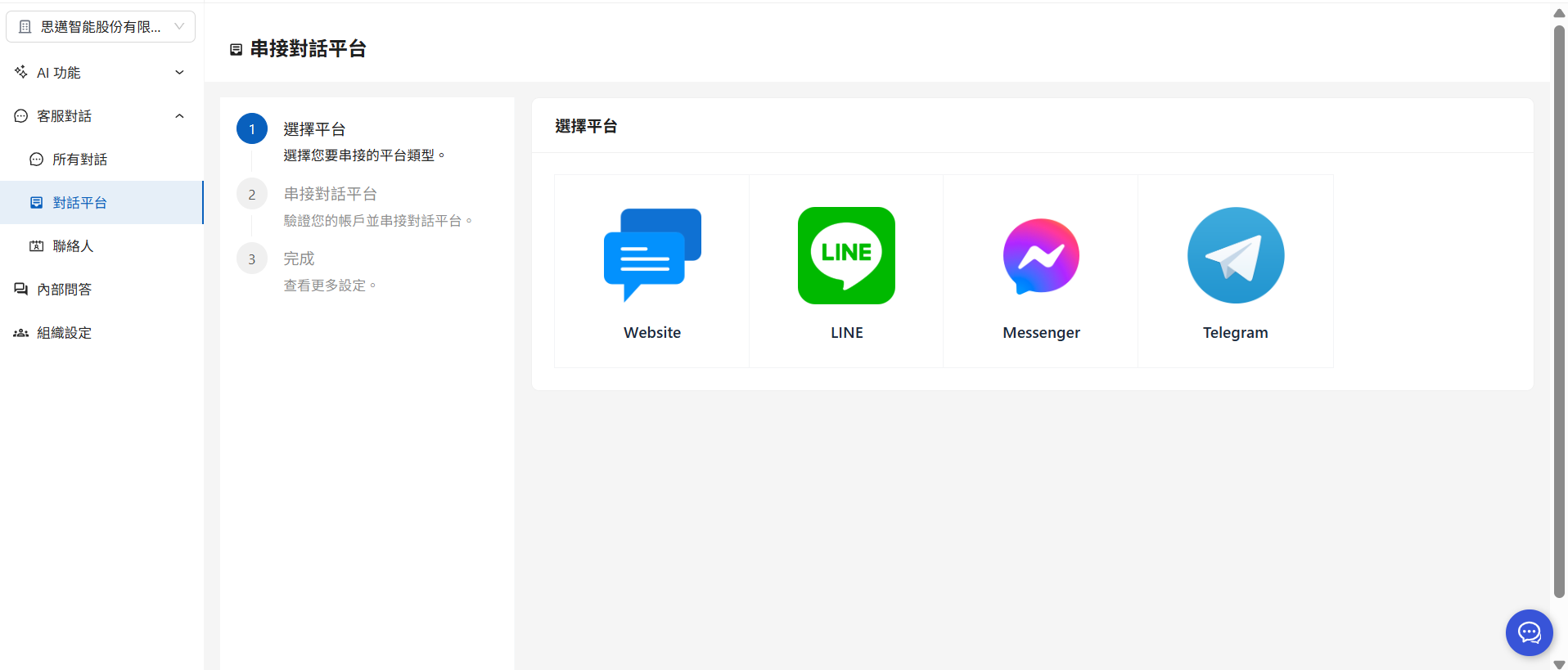
### 1. Go to the Channels page in MaiAgent and click "Connect Channel"
a. Click Connect Channel in the upper-right corner
b. Select Messenger
c. Click Log in with Facebook and sign in with the Facebook account that manages the Page. MaiAgent only accesses messages from Pages you authorize; it does not access your personal messages.
{% hint style="warning" %}
Make sure your browser allows pop-up windows, or the Facebook login window may be blocked.
{% endhint %}
### 2. Select a business and select (claim) a Page.
In the Facebook authorization window, first select the business portfolio you want to authorize, then select the Page you want to manage (claim).
Confirm the authorization. Once creation succeeds, the Page is connected for management.
### 3. Agent settings
| Field | Description |
| ------------------------- | --------------------------------------------------------------------------------------------------------------------------------------------- |
| **Channel name** | Give this connection a name so you can identify it easily |
| **AI Assistant** | Select the Agent that will reply to Messenger messages |
| **Select Page** | Select the Page you just claimed from the list in the Messenger Channel section |
| **Enable reset commands** | (Optional) Enable this to set one or more commands, such as "Start over". When a user sends a command in Messenger, a new conversation starts |
{% hint style="info" %}
If the Page list does not update after authorization, click Reload in the upper-right corner of the Messenger Channel section to authorize again.
{% endhint %}
### 4. Verify the connection
Next, try sending a test message to this channel from MaiAgent's internal conversations. If the Agent replies normally, the connection is successful.
You can also open a conversation with the Agent on the Page and send a test message. If the bot replies normally, the connection is successful.
After connecting successfully, MaiAgent automatically subscribes to the Page's messaging events through Meta. No separate Webhook setup is required.
{% hint style="info" %}
After connecting successfully, click Edit in the channel list to configure more options, including OCR, replies using the system time or sender's name, human handoff, conversation tags, and access control. See [Channel Settings Overview](/maiagent-user-guide/en/build/conversation-settings/platform-settings.md).
{% endhint %}
## Set Up Conversation Routing for a Page Connected to Another Customer Service System
If the Page has been connected to another customer service or marketing app (such as Omnichat or Messenger by SHOPLINE), Meta sends Messenger messages to the **default routing app** configured in "Conversation routing". When MaiAgent is not the default app, the connection in MaiAgent may show as successful, but customer messages still go to the original app: MaiAgent does not receive them, and the Agent does not reply.
After connecting, ask an administrator with full control of the Page to change the default app to MaiAgent in [Meta Business Suite](https://business.facebook.com/):
1. Click Settings → Integrations → Conversation routing
2. Select this Page and click Settings
3. Set Default routing app to MaiAgent and click Continue
Keep the following in mind:
* **Configure Messenger and Instagram separately**: Conversation routing has separate settings for Pages (Messenger) and Instagram accounts. If you are also connecting Instagram direct messages, select the Instagram account on the same page and configure it separately. See [Instagram: Set up conversation routing](/maiagent-user-guide/en/build/choose-channel/instagram.md#conversation-routing).
* **You do not need to remove the original app**: The default app determines who receives conversations that no other app is currently handling. Keeping the original app does not prevent new conversations from reaching MaiAgent.
* **New conversations switch immediately; ongoing conversations may not**: After the change, messages from new customers or customers who have not interacted for a while go to MaiAgent. However, conversations already underway in the original app before the switch remain under that app's control, and follow-up messages continue going there. They switch to MaiAgent only after the original app releases the conversation or the customer has not sent another message for about 24 hours (the original app may extend this to as long as 7 days). Earlier messages and conversation history stay in the original system and are not transferred.
* **Ads and dedicated links may specify a different app**: If the original app assigned an app to handle click-to-Messenger ads or m.me links, conversations from those entry points may still go to that app regardless of the default app. Change the assignment to MaiAgent in the original app or ad settings, or disable those entry points first.
* **Verify each case after switching**: Test a new conversation with an account that has never sent a message. Check the original system for a few days around the switch to ensure follow-up messages in ongoing conversations are handled. If you have active ads or links, send a message through each entry point to confirm it reaches MaiAgent. If ongoing conversations need to switch immediately, ask the original system provider to release or hand over those conversations.
* **Switch back**: Change the default routing app back to the original app. This also takes effect immediately only for new conversations and conversations with no recent interaction. Follow-up messages in conversations already underway in MaiAgent will still go to MaiAgent until about 24 hours of inactivity have passed. Customer service staff should continue replying in MaiAgent during this period. You can keep the MaiAgent channel and repeat this step when you want to switch again later.
For example, an online store's Page was originally connected to Omnichat. After connecting Messenger in MaiAgent, the administrator sends a test message from a personal account, but nothing appears in MaiAgent's All Conversations, while Omnichat receives it. In Business Suite's Conversation routing, the administrator finds that Omnichat is still the default routing app. After changing it to MaiAgent, the administrator tests again using another account that has never sent a message, and the message reaches MaiAgent. However, follow-up messages from customers already chatting with support in Omnichat still go to Omnichat. Support staff finish replying to those customers in Omnichat that day; by the next day, their messages are all going to MaiAgent.
{% hint style="info" %}
The English interface calls this setting "Conversation routing". The reminder on MaiAgent's channel settings page also refers to this conversation routing setting. Menu locations may change as Meta updates its interface. See Meta's official [Conversation Routing](https://developers.facebook.com/docs/messenger-platform/conversation-routing) documentation for how it works. Before changing it, note the original default app (including if none was set) so you can switch back.
{% endhint %}
## Supported Message Types
| Direction | Supported content |
| ------------ | ---------------------------------------------------------------------- |
| User → Agent | Text, images, videos, voice messages, and stickers; images can use OCR |
| Agent → User | Text and images |
* **Automatic Markdown-to-plain-text conversion**: Messenger does not render Markdown. Headings, bold and italic text, links, tables, and other Markdown syntax in Agent replies are automatically converted to plain text before sending (links become "text URL"). Text entered by human support staff is unaffected. See [Message Rendering Improvements: Messaging Channels](/maiagent-user-guide/en/build/choose-channel/web-chat/markdown-rendering.md#messaging-channels-plain-text)
* **Consecutive messages combined into one turn**: When a user sends several images in a row, or sends an image followed by text, the Agent waits for the sequence to arrive before replying once. For image-only messages, it replies after about 4 seconds with no new messages following the last one, up to a maximum wait of about 20 seconds; if text arrives, it replies immediately. Only one turn is processed at a time in the same conversation
* **24-hour reply window**: Meta only allows replies within 24 hours of the user's last message. Messages sent after that window are marked as [Not delivered](/maiagent-user-guide/en/serve/daily-operations/reply.md#delivery-failed) on the conversation page
* **Button events currently do not reach MaiAgent**: When a customer clicks Messenger's "Get Started" button or a menu button, Meta sends a button event (postback), rather than a regular message. These events currently do not reach MaiAgent, do not appear in the conversation, and do not receive an Agent reply. Messages customers type and send are unaffected. For example, if a Page had a "Get Started" welcome flow in the old system, after moving to MaiAgent, new customers clicking "Get Started" receive no response and no entry appears in the conversation history. Once they type a question instead, the message arrives normally
## Frequently Asked Questions
### Q: Why is the Page list empty after authorization?
The Facebook account you signed in with does not have full control of the Page, or you did not select the Page during authorization. First check your permissions using [Before You Connect](#pre-integration-checklist), then sign in again as a Page administrator and make sure you select the correct Page in the authorization window.
### Q: Why does saving show "This Page ID is already in use"?
The same Facebook Page is already connected to another channel in your organization. Delete the existing channel first, then create it again.
### Q: A user sent a message, but MaiAgent did not receive it. Why?
If the Page has been connected to another customer service system, first check that MaiAgent is the default routing app under Conversation routing in Meta Business Suite. See [Set up conversation routing](#conversation-routing). If MaiAgent is already the default but messages still do not arrive, the customer may have an ongoing conversation still controlled by the old system from before the switch, or may have entered through an ad or link assigned to the old system. Test again with an account that has never sent a message.
Next, confirm that the authorized Facebook account is still a Page administrator and that the Page is still in the business portfolio selected during authorization. If authorization has expired or Page permissions were removed, delete the channel and reconnect.
### Q: Why do customers still receive automatic messages such as "Our team will reply during business hours"?
These messages come from Meta Business Suite's built-in automated responses and do not pass through MaiAgent, so they do not appear in MaiAgent's All Conversations. Turning off MaiAgent's AI auto-reply schedule will not stop them either. Pages migrated from other customer service systems often retain these previously configured messages.
In Meta Business Suite, go to Inbox → Automations and check Away message, Instant reply, Frequently asked questions, and Leads one by one. Turn off those you no longer need and update any you want to keep to reflect your current setup.
For example, after a brand switches to human-only customer service, support staff notice that customers messaging at night still immediately receive "Our team will reply during business hours", but the message is absent from MaiAgent's conversation history. This is Business Suite's away message. Turn it off under Inbox → Automations to stop it. Automated responses for Instagram direct messages are configured in the same place.
### Q: Can Messenger and Instagram share the same Agent?
Yes. They are separate channels that can connect to the same Agent, and each can have its own feature settings. For Instagram connection instructions, see [Connect a Channel: Instagram](/maiagent-user-guide/en/build/choose-channel/instagram.md).
### Q: How do I remove (disconnect) Messenger?
In the Channels list, click Delete in the Actions column for the Messenger channel and confirm (the icon is disabled if you do not have delete permission). MaiAgent will then stop receiving and replying to messages from this Page. If you need to keep the conversation history, export it from All Conversations first. MaiAgent does not revoke Facebook authorization for you. To disconnect completely, also remove authorization for the MaiAgent app in the Page's settings. To reconnect later, repeat [Start Connecting](#start-integration).
---
# Agent Instructions
This documentation is published with GitBook. GitBook is the documentation platform designed so that both humans and AI agents can read, navigate, and reason over technical content effectively. Learn more at gitbook.com.
## Querying This Documentation
If you need additional information that is not directly available in this page, you can query the documentation by asking a question.
Perform an HTTP GET request on the following URL with the `ask` and `goal` query parameters:
```
GET https://docs.maiagent.ai/maiagent-user-guide/en/build/choose-channel/fb.md?ask=&goal=
```
`ask` is the immediate question: it should be specific, self-contained, and written in natural language.
`goal` is what the user is ultimately trying to achieve, the reason they need the answer. Sharing it helps GitBook give you a better, more relevant answer. A goal is most helpful when it describes the outcome the user wants rather than restating the question. For example, with `ask=how do I create an API token`, a goal like `automate deployments from our CI pipeline` lets GitBook tailor the answer to that use case.
The response will contain a direct answer to the question and relevant excerpts and sources from the documentation.
Use this mechanism when the answer is not explicitly present in the current page, you need clarification or additional context, or you want to retrieve related documentation sections.
%20(1).png?alt=media)
.png?alt=media)
%20(1)%20(1)%20(1).png?alt=media)
%20(1).png?alt=media)
.png?alt=media)
%20(1).png?alt=media)
%20(1)%20(1)%20(1).png?alt=media)