> For the complete documentation index, see [llms.txt](https://docs.maiagent.ai/llms.txt). Markdown versions of documentation pages are available by appending `.md` to page URLs; this page is available as [Markdown](https://docs.maiagent.ai/maiagent-user-guide/en/serve/choose-channel/fb.md).
# Connect a Messaging Platform: FB Messenger
Connect an AI agent to Messenger for a Facebook Page, including permission prerequisites, the authorization process, and FAQs
## Before You Connect
**MaiAgent preparation**
* You have created an “AI agent” on the [MaiAgent platform](https://admin.maiagent.ai/).
**Facebook permission preparation**
* Your Facebook account has been invited to or has created a business portfolio.
* You have full control of that business portfolio.
**Page permission check**
* If the Page is already in the business portfolio: No additional changes are required.
* If the Page is not in the business portfolio: You must be an administrator of the Page and have full control.
{% hint style="info" %}
**Don't have a business portfolio yet?** Follow Meta's official instructions to [create a business portfolio](https://www.facebook.com/business/help/1710077379203657). The creator automatically receives full control.
**How do I check whether I have full control?** Go to Settings → Users → People in [Meta Business Suite](https://business.facebook.com/), then select your name to view your permissions. If you only have partial access, ask a member with full control of the portfolio to update your permissions. See [Meta's official instructions](https://www.facebook.com/business/help/442345745885606) for details.
**Must I add the Page to the business portfolio first?** Not necessarily. You can claim the Page during authorization. If you prefer to organize it in advance, follow [Meta's official instructions](https://www.facebook.com/business/help/720478807965744) to add the Page to the portfolio.
{% endhint %}
{% hint style="warning" %}
A Page can be connected to only one messaging platform. To connect it to another AI agent, first delete the original messaging platform, then connect it again. To connect Instagram Direct for the same Page, create a separate [Instagram](/maiagent-user-guide/en/serve/choose-channel/instagram.md) messaging platform.
{% endhint %}
## Start Connecting
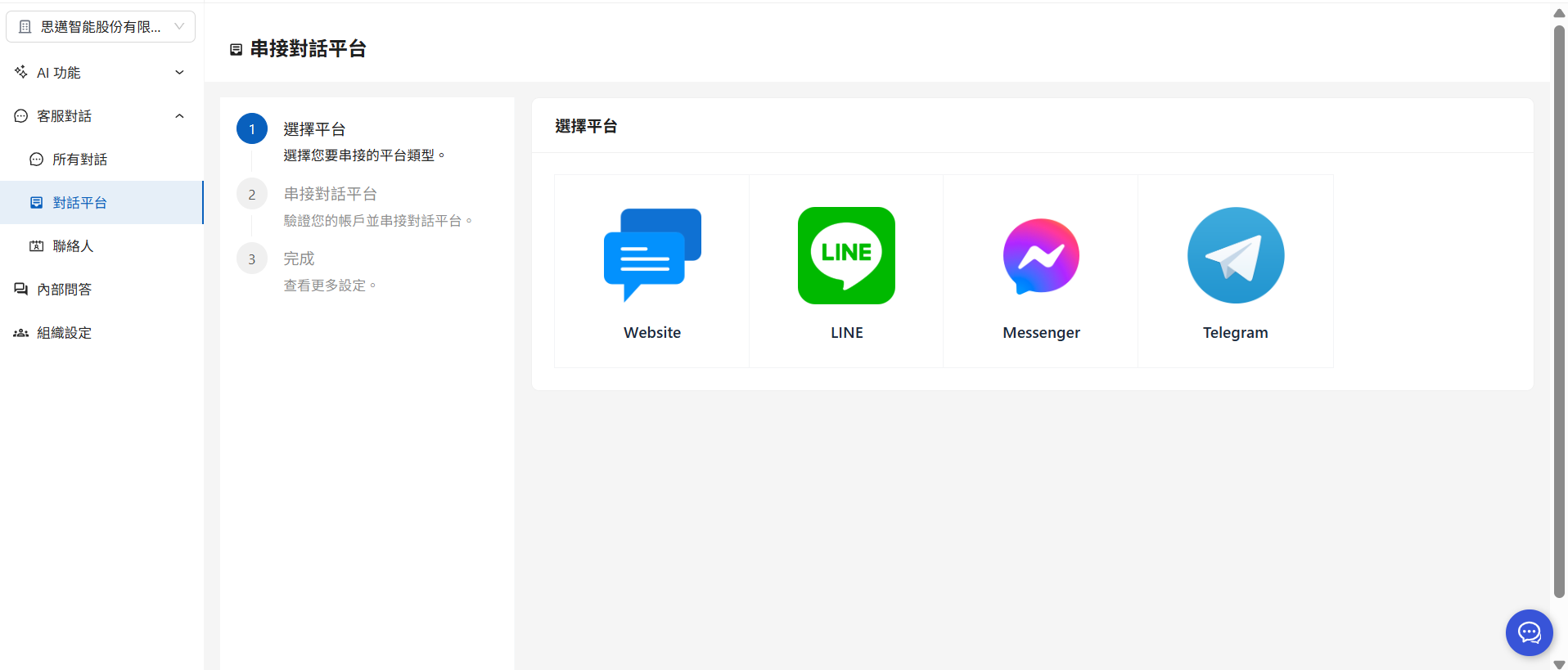
### 1. Go to the messaging platform page in MaiAgent and select “Connect Messaging Platform”
a. Select Connect Messaging Platform in the upper-right corner.
b. Select Messenger.
c. Click Log in with Facebook and sign in with the Facebook account that manages the Page. MaiAgent accesses only messages from the Pages you authorize and does not access your personal messages.
{% hint style="warning" %}
Make sure your browser allows pop-ups. Otherwise, it may block the Facebook login window.
{% endhint %}
### 2. Select a business and select (claim) the Page.
In the Facebook authorization window, first select the business portfolio to authorize, then check the Page you want to host (claim).
Confirm the authorization. Once the connection is created successfully, hosting is complete.
### 3. AI agent settings
| Field | Description |
| --------------------------- | ----------------------------------------------------------------------------------------------------------------------------------------------------------------------- |
| **Messaging platform name** | Give this connection a name so you can identify it easily. |
| **AI agent** | Select the AI agent that will reply to Messenger messages. |
| **Select Page** | In the list under Messenger channel, select the Page you just claimed. |
| **Enable reset commands** | (Optional) When enabled, you can configure one or more commands. When a user sends one of these commands in Messenger, a new conversation begins, such as “Start over.” |
{% hint style="info" %}
If the Page list is not updated after authorization, click Reload in the upper-right corner of the Messenger channel section to authorize it again.
{% endhint %}
### 4. Verify the connection
Next, try sending a test message to this messaging platform from an internal MaiAgent conversation. If the AI agent replies normally, the connection was successful.
You can also open a conversation with the AI agent from the Page and send a test message. If the bot replies normally, the connection was successful.
After the connection succeeds, MaiAgent automatically subscribes to message events for the Page through Meta. You do not need to configure a separate Webhook.
{% hint style="info" %}
After the connection succeeds, click Edit in the messaging platform list to configure additional options, including OCR, answering with the system time or sender name, handoff to a human agent, conversation tags, and access control. For details, see [Messaging Platform Settings Overview](/maiagent-user-guide/en/serve/platform-settings.md).
{% endhint %}
## Supported Message Types
| Direction | Supported content |
| --------------- | -------------------------------------------------------------------------------- |
| User → AI agent | Text, images, videos, voice messages, and stickers; OCR can be used with images. |
| AI agent → User | Text and images |
## FAQ
### Q: Why is the Page list empty after authorization?
The Facebook account you used to log in does not have full control of the Page, or the Page was not selected during authorization. Follow [Before You Connect](#pre-integration-checklist) to check the permissions, log in again as a Page administrator, and make sure the correct Page is selected in the authorization window.
### Q: Why does “This Page ID is already in use” appear when I save?
The same Page is already connected to another messaging platform in the organization. Delete the original messaging platform, then create it again.
### Q: Why hasn't MaiAgent received a user's message?
Make sure the authorized Facebook account is still an administrator of the Page and that the Page remains in the business portfolio selected during authorization. If the authorization has expired or the Page permission has been removed, delete the messaging platform and connect it again.
### Q: Can Messenger and Instagram use the same AI agent?
Yes. They are separate messaging platforms and can be linked to the same AI agent, or you can configure different options for each platform. For instructions on connecting Instagram, see [Connect a Messaging Platform: Instagram](/maiagent-user-guide/en/serve/choose-channel/instagram.md).
---
# Agent Instructions
This documentation is published with GitBook. GitBook is the documentation platform designed so that both humans and AI agents can read, navigate, and reason over technical content effectively. Learn more at gitbook.com.
## Querying This Documentation
If you need additional information that is not directly available in this page, you can query the documentation by asking a question.
Perform an HTTP GET request on the following URL with the `ask` and `goal` query parameters:
```
GET https://docs.maiagent.ai/maiagent-user-guide/en/serve/choose-channel/fb.md?ask=&goal=
```
`ask` is the immediate question: it should be specific, self-contained, and written in natural language.
`goal` is what the user is ultimately trying to achieve, the reason they need the answer. Sharing it helps GitBook give you a better, more relevant answer. A goal is most helpful when it describes the outcome the user wants rather than restating the question. For example, with `ask=how do I create an API token`, a goal like `automate deployments from our CI pipeline` lets GitBook tailor the answer to that use case.
The response will contain a direct answer to the question and relevant excerpts and sources from the documentation.
Use this mechanism when the answer is not explicitly present in the current page, you need clarification or additional context, or you want to retrieve related documentation sections.
%20(1).png?alt=media)
.png?alt=media)
%20(1)%20(1)%20(1).png?alt=media)
%20(1).png?alt=media)
.png?alt=media)
%20(1).png?alt=media)
%20(1)%20(1)%20(1).png?alt=media)