> For the complete documentation index, see [llms.txt](https://docs.maiagent.ai/llms.txt). Markdown versions of documentation pages are available by appending `.md` to page URLs; this page is available as [Markdown](https://docs.maiagent.ai/maiagent-user-guide/en/others/credits/inbox-credit-quota.md).

# Conversation Platform Credits Quota Management

Set Credits spending caps for each conversation platform to control AI usage costs across platforms such as your website and LINE

In addition to [member quotas](/maiagent-user-guide/en/others/credits/member-credit-quota.md), administrators can set a Credits spending cap and validity period for **each conversation platform (Inbox)**. For example, if your website Web Chat has a fixed monthly marketing budget, or your LINE conversation platform needs separate cost control, you can set a quota for each platform individually.

{% hint style="info" %}
**Only available for organizations using the Credits billing system.** Like member quotas, conversation platform quotas are a **spending ceiling, not a sub-wallet**: charges are still deducted from the organization wallet, and the quota only limits how much that conversation platform can spend at most.

Member quotas, role quotas, and conversation platform quotas are **independent and apply at the same time**: once any applicable layer is used up, the next AI request is blocked. The last request that is let through may still exceed the cap; see the Fail-Open explanation below. For how the three layers divide responsibilities, see [How the Three Quota Layers Work Together](#quota-layers) below.
{% endhint %}

## How the Three Quota Layers Work Together <a href="#quota-layers" id="quota-layers"></a>

Credits quota control has three layers, matching the three sub-tabs on the "Quota Allocation" tab. This is the most commonly confused part: the three layers **control different targets** and can be used alone or in combination:

| Layer                           | Target controlled                                                              | Who is blocked when the quota runs out                  | Matching sub-tab            |
| ------------------------------- | ------------------------------------------------------------------------------ | ------------------------------------------------------- | --------------------------- |
| **Member quota**                | An individual member (admin console actions, API Key calls, etc.)              | That member                                             | Member Quota                |
| **Role quota**                  | All members of a MaiAgent role                                                 | Members belonging to that role                          | Role Quota                  |
| **Conversation platform quota** | Visitor conversations on a single conversation platform (Web Chat, LINE, etc.) | All visitor conversations on that conversation platform | Conversation Platform Quota |

How the layers stack:

* **Blocked as soon as any layer runs out**: Each charge checks every applicable quota layer (along with the organization wallet balance). If any one layer has no remaining quota at the time of the check, that AI request is blocked
* **Charged only once**: A quota is a "gauge" on the spending cap, not a separate wallet. No matter how many layers apply, the actual Credits are **deducted from the organization wallet only once**, never twice
* **Conversation platform visitors are not checked against member quotas**: Visitors on external conversation platforms such as LINE are not organization members, so their conversations are checked only against two layers: the organization wallet and the conversation platform quota

For how to set up role quotas and member quotas, see [Member Credits Quota Management](/maiagent-user-guide/en/others/credits/member-credit-quota.md). For how a single charge is recorded across multiple layers and what the numbers on screen mean, see [How the Three Quotas Are Calculated: Scenarios and FAQ](/maiagent-user-guide/en/others/credits/credit-quota-scenarios.md).

## Use Cases <a href="#use-cases" id="use-cases"></a>

* **Finance / Banking — separate budgets per conversation platform**: The website Web Chat lets the public ask about credit cards and loan plans, while the LINE official account focuses on wealth-management member engagement, and the two platforms' marketing budgets belong to different departments. Set a separate quarterly cap for each conversation platform so you can see at a glance how much each one has used, and overspending on one never affects the other.
* **Services / Retail / Hospitality — website cap during campaigns**: During an anniversary sale, a dedicated Web Chat is embedded on the campaign page to answer questions about promotions and reservations. When assigning the quota, set the effective time to the start of the campaign and the expiration time to its end, and note the campaign name in the remarks; the quota expires automatically when the campaign ends, with no need to turn it off manually.
* **Education — admissions platform and department budgets together**: During admissions season, open a LINE conversation platform for enrollment inquiries and set a seasonal quota to control the cost of external inquiries; for internal use, combine it with [role quotas](/maiagent-user-guide/en/others/credits/member-credit-quota.md#role-quota) and allocate budgets per department's MaiAgent role, so the conversation platform and department layers are controlled independently.
* **Technology / Electronics Manufacturing — separating external support from internal use**: Set a monthly quota for the external technical-support Web Chat to keep a flood of spec and pricing inquiries from blowing up costs; internal engineers' usage is controlled through member quotas, and the two layers do not interfere with each other.

## Administrator Operations <a href="#admin-operations" id="admin-operations"></a>

### Open the Conversation Platform Quota Page <a href="#enter-inbox-quota-tab" id="enter-inbox-quota-tab"></a>

1. From the left menu, click <mark style="color:blue;">**Organization Settings**</mark> → <mark style="color:blue;">**Credits**</mark>
2. Switch to the <mark style="color:blue;">**Quota Allocation**</mark> tab. At the top of the page there are three sub-tabs: <mark style="color:blue;">**Member Quota**</mark>, <mark style="color:blue;">**Role Quota**</mark>, and <mark style="color:blue;">**Conversation Platform Quota**</mark>

<figure><img src="https://1360999650-files.gitbook.io/~/files/v0/b/gitbook-x-prod.appspot.com/o/spaces%2F6v6TNkkOQVfRYfcNirHL%2Fuploads%2Fgit-blob-b5776797d962c17a76fd1d2ff896a5e3f4367973%2Fquota-01-credits-quota-entry.png?alt=media" alt="Credits Quota Allocation tab entry"><figcaption><p>Organization Settings → Credits → Quota Allocation: three sub-tabs (Member Quota / Role Quota / Conversation Platform Quota)</p></figcaption></figure>

3. Select the <mark style="color:blue;">**Conversation Platform Quota**</mark> sub-tab

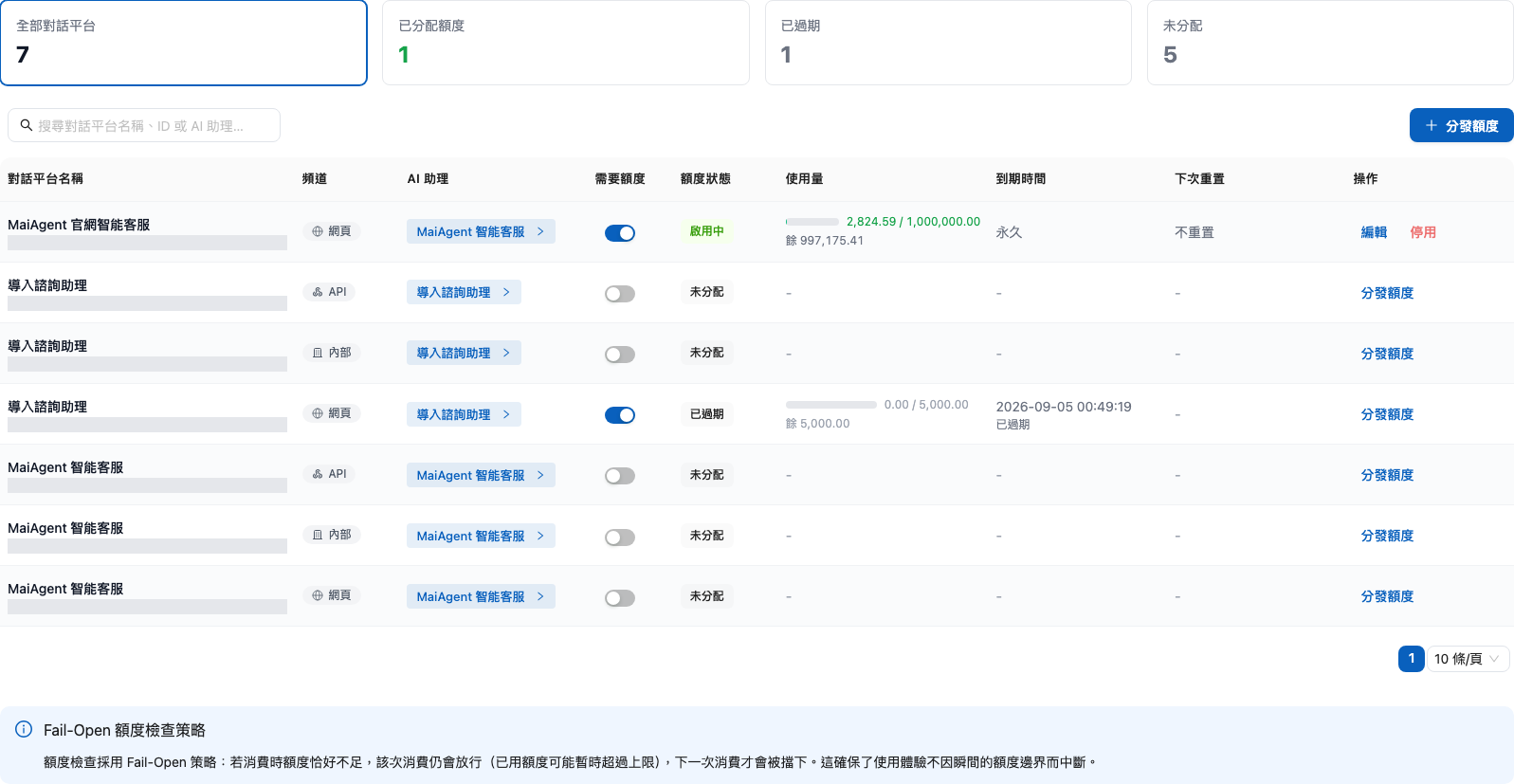
The page shows summary cards (All Conversation Platforms, Allocated Quota, Expired, Unallocated) and a quota list for each conversation platform. You can search by conversation platform name, ID, or Agent name.

<figure><img src="https://1360999650-files.gitbook.io/~/files/v0/b/gitbook-x-prod.appspot.com/o/spaces%2F6v6TNkkOQVfRYfcNirHL%2Fuploads%2Fgit-blob-7d130a3dafcbe1884fbd365961c5aa8484754c42%2Fcredit-quota-inbox-tab.png?alt=media" alt="Conversation Platform Quota sub-tab"><figcaption><p>Quota Allocation → Conversation Platform Quota: summary cards, search, and the Assign Quota button</p></figcaption></figure>

### Assign a Quota <a href="#assign-inbox-quota" id="assign-inbox-quota"></a>

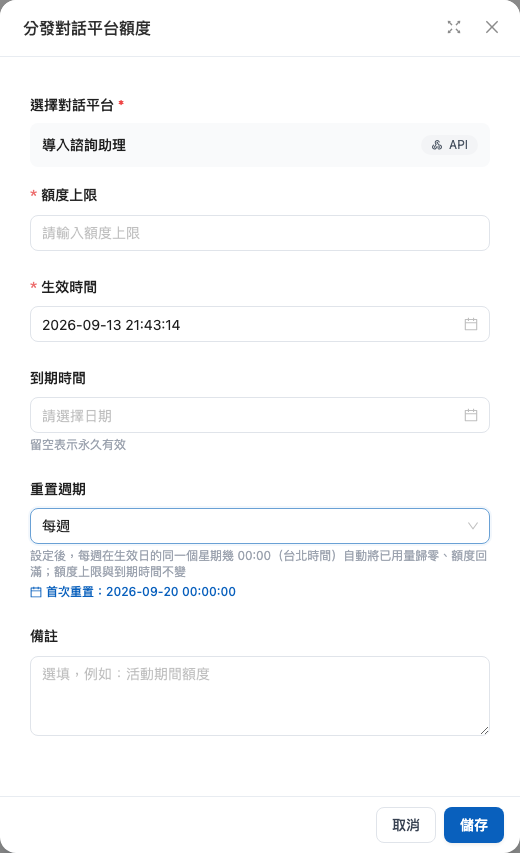
1. Click the <mark style="color:blue;">**Assign Quota**</mark> button and select a conversation platform in the "Assign Conversation Platform Quota" window
2. Enter the **quota cap**, **effective time**, and **expiration time** (leave blank for no expiration), choose a **reset period**, and optionally add a remark (for example: campaign period quota)
3. Confirm and submit

<figure><img src="https://1360999650-files.gitbook.io/~/files/v0/b/gitbook-x-prod.appspot.com/o/spaces%2F6v6TNkkOQVfRYfcNirHL%2Fuploads%2Fgit-blob-1b697c398ff794f23c020bfa77b9511092343aed%2Fquota-02-inbox-assign-modal.png?alt=media" alt="Assign Conversation Platform Quota window"><figcaption><p>Assign Conversation Platform Quota: select a conversation platform, then enter the quota cap and the effective and expiration times</p></figcaption></figure>

{% hint style="info" %}
Each conversation platform can have only one active quota at a time. For a conversation platform that already has an active quota, use "Edit" to adjust it: increases take effect immediately, and decreases cannot go below the amount already consumed.
{% endhint %}

The "Reset period" can be set to No reset, Daily, Weekly, or Monthly. At the start of the next period, the system resets the used amount to zero at 00:00 Taipei time and refills the quota; the quota cap and expiration time stay the same. For details on reset periods, see [Set a Reset Period](/maiagent-user-guide/en/others/credits/member-credit-quota.md#quota-reset-period).

### "Quota Required" Switch <a href="#inbox-quota-required" id="inbox-quota-required"></a>

Each conversation platform row has a <mark style="color:blue;">**Quota Required**</mark> switch:

| Switch state | Description                                                                                                                                                                                |
| ------------ | ------------------------------------------------------------------------------------------------------------------------------------------------------------------------------------------ |
| **On**       | This conversation platform must have an active quota to use AI replies; if there is currently no active quota, AI replies are paused                                                       |
| **Off**      | Removes the quota restriction on this conversation platform and also disables any existing active quota; spending is still governed by the organization wallet and other applicable limits |

When you toggle the switch, the system shows a confirmation window (Require Quota / Remove Quota Restriction) explaining the impact, and the change takes effect only after you confirm.

<figure><img src="https://1360999650-files.gitbook.io/~/files/v0/b/gitbook-x-prod.appspot.com/o/spaces%2F6v6TNkkOQVfRYfcNirHL%2Fuploads%2Fgit-blob-61de335a8c31548af20bfb7468aaa1a815b23ae3%2Fquota-03-inbox-require-confirm.png?alt=media" alt="Quota Required confirmation window"><figcaption><p>Confirmation window when toggling the "Quota Required" switch</p></figcaption></figure>

{% hint style="warning" %}
When a quota is disabled: if "Quota Required" is still on, this conversation platform pauses AI replies until a new quota is assigned or the restriction is removed.
{% endhint %}

## What Visitors See When the Quota Runs Out <a href="#quota-exceeded-behavior" id="quota-exceeded-behavior"></a>

When a conversation platform's quota runs out (or "Quota Required" is on but there is no active quota):

* **The Agent pauses replies**, and the visitor receives a notice. The system default is: "Sorry, this conversation platform has reached its Credit quota limit, and the AI assistant has paused replies. Your message has been received, and a team member will reply as soon as possible." (shown in the visitor's language setting)
* **Visitor messages still arrive in the inbox normally**, so human agents can take over and reply without any impact

The notice can be customized: go to that conversation platform's <mark style="color:blue;">**Conversation Platform Settings**</mark> → <mark style="color:blue;">**Interaction Settings**</mark>, and enter the text to send to users when the quota runs out in the <mark style="color:blue;">**Default Notice Message**</mark> field. You can override it per language (you can also save it in advance before any quota is set).

<figure><img src="https://1360999650-files.gitbook.io/~/files/v0/b/gitbook-x-prod.appspot.com/o/spaces%2F6v6TNkkOQVfRYfcNirHL%2Fuploads%2Fgit-blob-14675fad5509485a7811a39c0a569904b5c9623a%2Fquota-05-interaction-default-message.png?alt=media" alt="Default Notice Message field"><figcaption><p>Conversation Platform Settings → Interaction Settings: "Default Notice Message" lets you customize the reply sent when the quota runs out</p></figcaption></figure>

{% hint style="info" %}
As with member quotas, quota checks use a **Fail-Open** strategy: if the quota happens to be insufficient at the time of a charge, that charge is still allowed through (the used amount may temporarily exceed the cap), and only the next charge is blocked, so the experience is not interrupted at the quota boundary.
{% endhint %}

## View the Quota in Conversation Platform Settings <a href="#view-in-inbox-settings" id="view-in-inbox-settings"></a>

On a single conversation platform's settings page, the <mark style="color:blue;">**Quota**</mark> tab in the left menu shows that platform's used quota, remaining quota, quota status, and expiration time (read-only). Members with Credit management permission can click <mark style="color:blue;">**Go to Manage**</mark> to open the Credits management page, then switch to "Quota Allocation".

<figure><img src="https://1360999650-files.gitbook.io/~/files/v0/b/gitbook-x-prod.appspot.com/o/spaces%2F6v6TNkkOQVfRYfcNirHL%2Fuploads%2Fgit-blob-0221c452e29414a76fb53fb207d682e51f6ae4d2%2Fquota-04-inbox-settings-quota-tab.png?alt=media" alt="Quota tab in conversation platform settings"><figcaption><p>Conversation Platform Settings → Quota: a read-only view of the platform's quota status</p></figcaption></figure>

## FAQ <a href="#faq" id="faq"></a>

#### Q: What do customers see when the quota runs out? <a href="#faq-exceeded-message" id="faq-exceeded-message"></a>

The Agent pauses replies and the visitor receives a notice. If you have not customized it, the system default message is: "Sorry, this conversation platform has reached its Credit quota limit, and the AI assistant has paused replies. Your message has been received, and a team member will reply as soon as possible." You can customize it and override it per language in the "Default Notice Message" field under Interaction Settings. See the [explanation above](#quota-exceeded-behavior) for details.

#### Q: Are human agents affected? <a href="#faq-human-agent" id="faq-human-agent"></a>

**No.** The quota only limits spending on AI replies. After the quota runs out, visitor messages still arrive in the inbox normally, and human agents can take over and reply as usual.

#### Q: Why does "used quota" sometimes slightly exceed the cap? <a href="#faq-fail-open" id="faq-fail-open"></a>

This is normal behavior of the **Fail-Open** mechanism: at check time, the system lets a request through as long as the remaining quota is greater than 0, and the consumption is recorded only after the AI finishes responding. So the last request let through may push the used quota slightly over the cap, and only the **next** request is blocked. This ensures users never receive an AI response and a failure at the same time.

#### Q: What is the difference between a conversation platform quota and the organization wallet? <a href="#faq-quota-vs-wallet" id="faq-quota-vs-wallet"></a>

The organization wallet is the **only pool of funds**, and a quota is a **spending ceiling**. Assigning a quota does not move any Credits out of the wallet, and there is no concept of a "refund" when a quota expires. Conversely, if the organization wallet balance is insufficient, the AI cannot reply even when the conversation platform quota has remaining balance — both the wallet and every quota layer must have room for a charge to be allowed.

## Permissions <a href="#inbox-quota-permission" id="inbox-quota-permission"></a>

* Assigning, editing, and disabling conversation platform quotas requires **Credit management permission** (the same as member quotas), not conversation platform management permission — quotas are a financial control, so the permission is deliberately separate from conversation platform settings
* The read-only "Quota" tab in conversation platform settings can be viewed with conversation platform management permission


---

# Agent Instructions
This documentation is published with GitBook. GitBook is the documentation platform designed so that both humans and AI agents can read, navigate, and reason over technical content effectively. Learn more at gitbook.com.

## Querying This Documentation
If you need additional information that is not directly available in this page, you can query the documentation by asking a question.

Perform an HTTP GET request on the following URL with the `ask` and `goal` query parameters:

```
GET https://docs.maiagent.ai/maiagent-user-guide/en/others/credits/inbox-credit-quota.md?ask=<question>&goal=<user_goal>
```

`ask` is the immediate question: it should be specific, self-contained, and written in natural language.
`goal` is what the user is ultimately trying to achieve, the reason they need the answer. Sharing it helps GitBook give you a better, more relevant answer. A goal is most helpful when it describes the outcome the user wants rather than restating the question. For example, with `ask=how do I create an API token`, a goal like `automate deployments from our CI pipeline` lets GitBook tailor the answer to that use case.

The response will contain a direct answer to the question and relevant excerpts and sources from the documentation.

Use this mechanism when the answer is not explicitly present in the current page, you need clarification or additional context, or you want to retrieve related documentation sections.