> For the complete documentation index, see [llms.txt](https://docs.maiagent.ai/llms.txt). Markdown versions of documentation pages are available by appending `.md` to page URLs; this page is available as [Markdown](https://docs.maiagent.ai/maiagent-user-guide/en/others/credits.md).

# Credits Billing System

Credits billing for the MaiAgent platform — model rate table and pricing in one place, with a single quota covering every AI feature.

{% hint style="success" %}
✨ **MaiAgent uses Credits-based billing** — a single quota covers chat, voice, image generation, document parsing, and every other AI feature. Models are billed by tier, and usage is transparent and traceable.
{% endhint %}

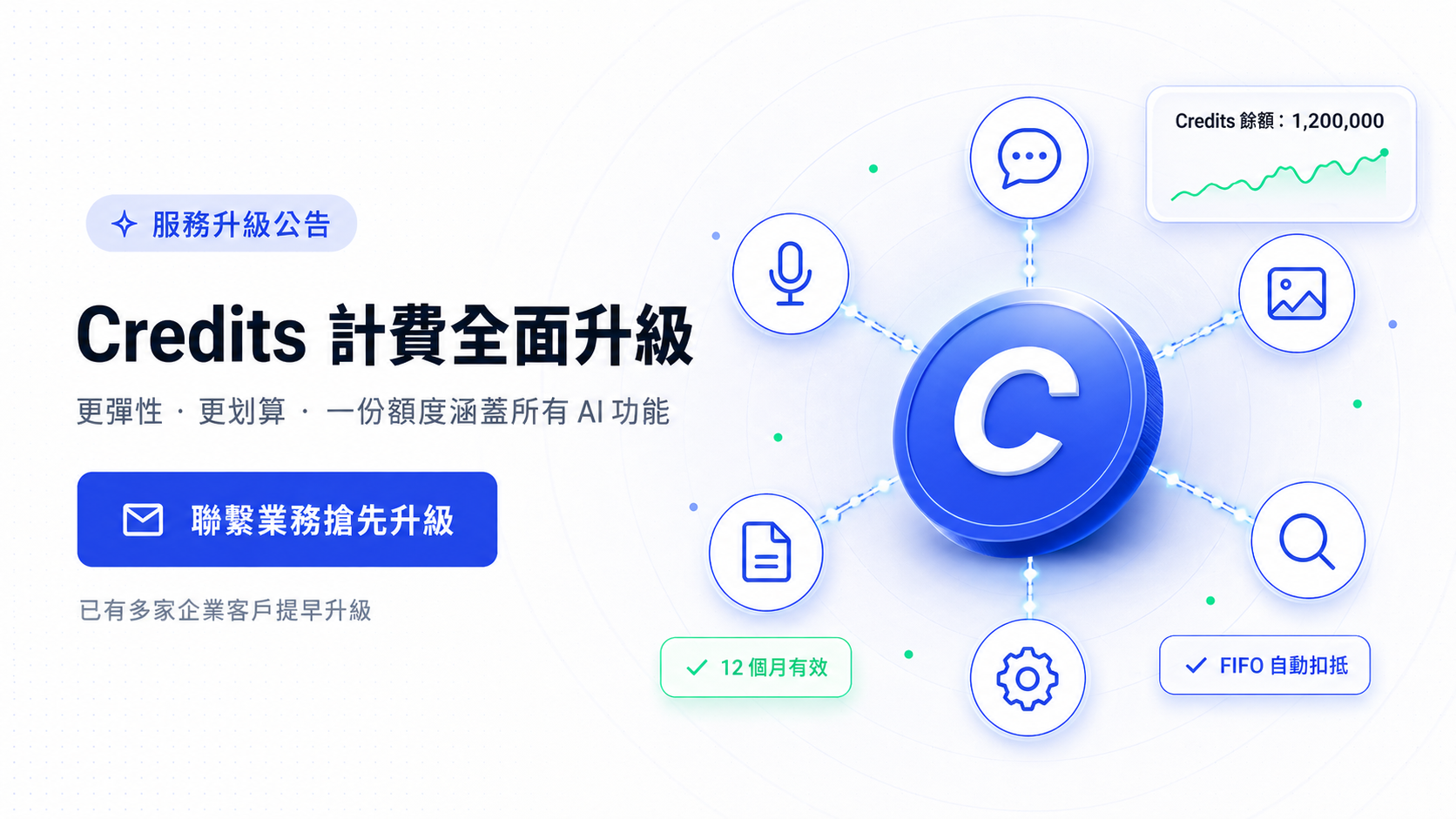
<figure><img src="https://1360999650-files.gitbook.io/~/files/v0/b/gitbook-x-prod.appspot.com/o/spaces%2F6v6TNkkOQVfRYfcNirHL%2Fuploads%2Fgit-blob-ddb6a71dfed0998f8b18369fa94f0875e72b8442%2Fcredit-illustration-1-hero.png?alt=media" alt=""><figcaption><p>Credits billing — one quota covers every AI feature</p></figcaption></figure>

On this page: [Three highlights of Credits](#credits-highlights)｜[What are Credits?](#what-is-credits)｜[Credits rates for main models](#model-rates)｜[Token reference by plan](#plan-token-reference)｜[Credits top-up plans](#topup-plans)｜[Plan quota vs. top-up credits](#plan-vs-topup)｜[AI Gateway self-hosted model traffic fee](#ai-gateway-traffic-fee)｜[Credits management panel](#management-panel)｜[Low balance alerts](#low-balance-alert)｜[Prompt Cache usage](#prompt-cache-usage)｜[FAQ](#faq)｜[Need help? Contact us](#contact-sales)

## Three highlights of Credits <a href="#credits-highlights" id="credits-highlights"></a>

### 1. One quota for every AI feature <a href="#one-quota-for-everything" id="one-quota-for-everything"></a>

**All features are available by default, and each feature has its own Credits rate** — a single quota covers every AI service, with no separate purchases and no multi-platform contracts, so **billing is more intuitive and budgets are easier to control**.

<figure><img src="https://1360999650-files.gitbook.io/~/files/v0/b/gitbook-x-prod.appspot.com/o/spaces%2F6v6TNkkOQVfRYfcNirHL%2Fuploads%2Fgit-blob-c4dfe904ceee4ce7bfcd6656895e75aee384496d%2Fcredit-illustration-2-all-in-one.png?alt=media" alt=""><figcaption><p>One Credits quota supports chat, voice, image generation, document parsing, web search, and tool calls</p></figcaption></figure>

### 2. Models are billed by tier, so budget control is back in your hands <a href="#multi-model-budget-control" id="multi-model-budget-control"></a>

The cost difference between AI models can be as much as **dozens of times**. Under Credits billing, that difference is reflected directly in the charges:

* General customer service FAQs → use a lightweight model such as **Claude 4.5 Haiku** to save costs
* Complex analysis and deep research → use a flagship model such as **Claude 5.5 Opus** for higher quality
* Multiple Agents can each use a different model, deducting Credits at that model's tier rate — you decide how the budget is allocated

### 3. Transparent and traceable, making financial reconciliation easy <a href="#transparent-tracking" id="transparent-tracking"></a>

Every Credits deduction maps to the **model used, feature type, and Agent**. You can look it up in real time in the management panel, filter by any dimension, and export CSV for internal reports. **No more wondering where the money went.**

***

## What are Credits? <a href="#what-is-credits" id="what-is-credits"></a>

Credits are the **universal billing unit** of the MaiAgent platform. Every AI conversation, image generation, voice processing, document parsing, and similar operation consumes Credits according to the model and feature used.

### Core principles <a href="#core-principles" id="core-principles"></a>

* **Different models, different rates**: lightweight models cost less, and flagship models are charged proportionally — you decide what each task is worth
* **Unified billing for all features**: text, images, voice, document parsing, web search, and more are all measured in Credits
* **Transparent and traceable**: view your Credits balance and per-entry usage details in the management panel in real time, with CSV export supported
* **First in, first out**: deductions follow FIFO order automatically, and **Credits that expire earlier are used first** to avoid waste from expiration

***

## Credits rates for main models <a href="#model-rates" id="model-rates"></a>

**Input and Output are priced separately** for each model. The table below lists rates for a few commonly used models, only as an example for comparing tiers — it is not a complete price list.

**Example (2026-10)**, in Credits per 1 million tokens:

| Model                 | Input Credits / 1M tokens | Output Credits / 1M tokens |
| --------------------- | ------------------------- | -------------------------- |
| **Claude 5.5 Opus**   | 79,200                    | 396,000                    |
| **Claude 5.5 Sonnet** | 39,600                    | 198,000                    |
| **Claude 4.5 Haiku**  | 19,800                    | 99,000                     |
| **GPT-6.1 Sol**       | 39,600                    | 198,000                    |
| **GPT-6 Luna**        | 1,980                     | 9,900                      |
| **Gemini 3.8 Flash**  | 14,850                    | 74,250                     |

{% hint style="warning" %}
Rates change as models are added or retired and as providers adjust prices. Actual deductions always follow the rates currently shown under "Billing Methods" in the admin console. Which models your organization can use depends on [Model Access Permissions](https://docs.maiagent.ai/maiagent-user-guide/en/org/model-access.md); the current Credits price, speed, and retirement date of each model are also available in the model list on that page.
{% endhint %}

{% hint style="info" %}
**Usage example**: With **Claude 4.5 Haiku**, a customer service conversation of about 500 words consumes roughly **25–50 Credits**. Topping up 1,000,000 Credits can support tens of thousands of customer service conversations — and the same quota can also be used for voice, image generation, and document parsing.
{% endhint %}

The platform also supports image generation, speech-to-text, text-to-speech, document parsing, web search, and more, **all billed uniformly in Credits with no separate purchase required**. For the billing units of knowledge base document parsing and crawling, see [Usage Calculation: Knowledge Base Processing Billing](https://docs.maiagent.ai/maiagent-user-guide/en/others/usage.md#knowledge-base-processing-billing).

When an [automated evaluation](https://docs.maiagent.ai/maiagent-user-guide/en/build/agent-ops/evaluations.md) runs, the model tokens the Agent uses to generate an answer for each test case, query embedding, and reranking are deducted at that model's chat rates, and are attributed to that evaluation together with the cost of the judge model itself. Models that use your own key (BYOK) do not deduct credits for answer tokens. In <mark style="color:blue;">**Consumption Records**</mark>, you can see which evaluation these costs belong to.

### View test results from evaluation costs <a href="#evaluation-credit-results" id="evaluation-credit-results"></a>

When an organization admin reconciles the test costs of a customer service Agent, they want to know which test a given charge corresponds to. In <mark style="color:blue;">Consumption Records</mark>, they find the <mark style="color:blue;">Test Set Evaluation</mark> consumption row and click the <mark style="color:blue;">ID</mark> if it is clickable to open that evaluation's results, so they can check the actual cost against the test outcome.

1. Go to <mark style="color:blue;">Organization Settings</mark> → <mark style="color:blue;">Credits</mark> → <mark style="color:blue;">Consumption Records</mark>.
2. Find the consumption row whose <mark style="color:blue;">Service Item</mark> is <mark style="color:blue;">Test Set Evaluation</mark>.

<figure><img src="https://1360999650-files.gitbook.io/~/files/v0/b/gitbook-x-prod.appspot.com/o/spaces%2F6v6TNkkOQVfRYfcNirHL%2Fuploads%2Fgit-blob-2bcd60c4e868bd2742d0d4d2dae1e84f0905755d%2Fcredits-evaluation-ledger.png?alt=media" alt="In Consumption Records, test set evaluation and chat message costs are listed in separate rows, with record IDs masked"><figcaption><p>Reconcile from the "Test Set Evaluation" consumption row; record IDs are masked in the image</p></figcaption></figure>

3. If the <mark style="color:blue;">ID</mark> in that row is clickable, click it to open the corresponding evaluation results page and view the test outcome.

<figure><img src="https://1360999650-files.gitbook.io/~/files/v0/b/gitbook-x-prod.appspot.com/o/spaces%2F6v6TNkkOQVfRYfcNirHL%2Fuploads%2Fgit-blob-826d13d9875f8a966bd7e4cca5a2a6a09216131f%2Fcredits-evaluation-results.png?alt=media" alt="Top of a single-round evaluation results page, showing the evaluation name, completed status, success rate, and average seconds"><figcaption><p>After clicking a clickable ID, you land on the results page of that evaluation</p></figcaption></figure>

{% hint style="info" %}
The results you can view still depend on your permissions and the Agents visible to you. If the ID appears as plain text that is not clickable, ask an organization admin to check your viewing permissions.
{% endhint %}

### View the full rates in the admin console <a href="#view-full-rates" id="view-full-rates"></a>

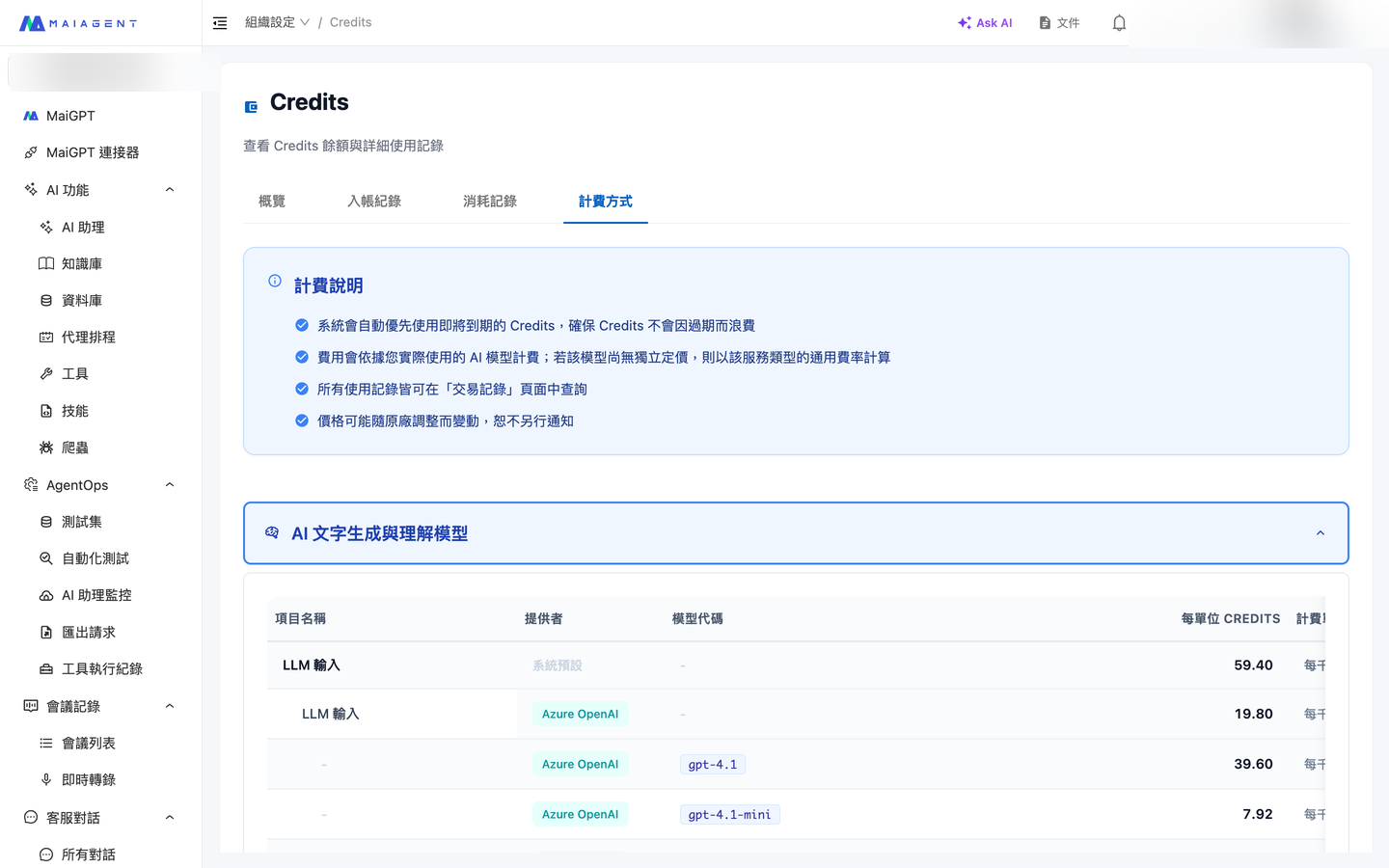
1. Go to <mark style="color:blue;">**Organization Settings**</mark> → <mark style="color:blue;">**Credits**</mark> → <mark style="color:blue;">**Billing Methods**</mark>.
2. Expand the <mark style="color:blue;">**AI Text Generation and Understanding Models**</mark> category.
3. Open a billing item such as <mark style="color:blue;">**LLM Input**</mark> or <mark style="color:blue;">**LLM Output**</mark>. Each row underneath is the rate for one model, labeled with the provider and model code.
4. To get the whole rate table, click <mark style="color:blue;">**Export CSV**</mark> at the top of the page.

{% hint style="info" %}
Language model rates in "Billing Methods" are shown <mark style="color:blue;">**per 1K Tokens**</mark>; multiply by 1,000 to get the "per 1 million tokens" figures in the table above. For example, the LLM Input of Claude 4.5 Haiku appears as 19.80 in the admin console, which equals 19,800 in the table above.
{% endhint %}

### Why the same model can have different rates <a href="#same-model-different-rates" id="same-model-different-rates"></a>

The same model may be offered through different providers. For example, GPT-6 Luna comes from both OpenAI and Azure OpenAI, and GPT-6 Astra comes from both AWS Bedrock and Azure OpenAI. Each provider has its own pricing rule, and rates follow that provider's list price, so you may see multiple rows for a model with the same name in "Billing Methods", possibly at different prices.

Every deduction is calculated from the provider and model actually used for that call. To confirm which one a charge used, go to <mark style="color:blue;">**Consumption Records**</mark>, expand the charge, and check the <mark style="color:blue;">**Provider**</mark> and <mark style="color:blue;">**Model**</mark> fields.

***

## Token reference by plan <a href="#plan-token-reference" id="plan-token-reference"></a>

Depending on the model used, the same Credits can process different amounts of tokens, as shown below (estimated with the rates in the table above and a 70% Input + 30% Output mix):

| Plan       | Monthly Credits | Claude 4.5 Haiku can process about | Claude 5 Sonnet can process about | Claude 5.5 Opus can process about |
| ---------- | --------------- | ---------------------------------- | --------------------------------- | --------------------------------- |
| Standard   | 500,000         | \~11.48 million tokens             | \~5.74 million tokens             | \~2.87 million tokens             |
| Pro        | 5,000,000       | \~114.78 million tokens            | \~57.39 million tokens            | \~28.70 million tokens            |
| Enterprise | 10,000,000      | \~229.57 million tokens            | \~114.78 million tokens           | \~57.39 million tokens            |

***

## Credits top-up plans <a href="#topup-plans" id="topup-plans"></a>

| Credits   | Claude 4.5 Haiku can process about |
| --------- | ---------------------------------- |
| 50,000    | \~1.15 million tokens              |
| 500,000   | \~11.48 million tokens             |
| 1,000,000 | \~22.96 million tokens             |
| 2,500,000 | \~57.39 million tokens             |

You can view and check out each top-up plan's price on the <mark style="color:blue;">**Top-up Credits**</mark> tab under <mark style="color:blue;">**Organization Settings**</mark> → <mark style="color:blue;">**Billing Management**</mark> in the admin console (billing management permission required). The price shown on that page prevails. For organizations whose plan is managed by a partner, contact the partner to top up.

{% hint style="info" %}
**Expiration rules**\
• Credits from the **monthly plan quota** expire at the end of that month\
• **Top-up** Credits are valid for **12 months** from the purchase date; unused Credits expire after that
{% endhint %}

***

## Plan quota vs. top-up credits <a href="#plan-vs-topup" id="plan-vs-topup"></a>

The "**monthly quota**" of a subscription plan and "**top-up Credits**" are two independent but complementary quotas. The system handles the deduction order automatically, so you don't need to allocate anything manually.

### Comparison <a href="#plan-vs-topup-comparison" id="plan-vs-topup-comparison"></a>

| Item             | Plan quota (monthly)                                                 | Top-up Credits                                             |
| ---------------- | -------------------------------------------------------------------- | ---------------------------------------------------------- |
| **Source**       | Granted automatically by the subscription plan                       | Purchased by you at any time                               |
| **Grant timing** | Start of each month                                                  | Effective immediately after purchase                       |
| **Validity**     | **Expires at the end of the month**; unused amounts do not roll over | Valid for **12 months** from the purchase date             |
| **Best for**     | Standard day-to-day usage                                            | Topping up when the monthly quota runs out / sudden spikes |

### Deduction order: earliest expiry first (FIFO) <a href="#fifo-deduction" id="fifo-deduction"></a>

The system uses **FIFO (first in, first out)** logic and determines the deduction order by **expiration date**:

```
Daily usage → deduct this month's "plan quota" first (expires at month end)
        → once the quota runs out → automatically deduct "top-up Credits" (by purchase date)
        → reset at month end → next month's quota is granted again
```

The purpose of this design: **to avoid your top-up Credits being spent needlessly while the monthly quota expires unused**.

{% hint style="success" %}
**Example**: You are an Enterprise customer (monthly quota of 10,000,000 Credits) and top up 1,000,000 Credits mid-month.

* The system first uses up the remaining monthly quota for the month (expires at month end)
* Only after the monthly quota is used up does it draw on the 1,000,000 top-up Credits (kept for use at any time within 12 months)
  {% endhint %}

### Why two types? <a href="#why-two-types" id="why-two-types"></a>

* **Subscription plan quota** = a steady everyday budget, fixed every month
* **Top-up Credits** = flexible backup, available whenever business needs suddenly grow
* Together they let you **both control your budget and handle fluctuations**

***

## AI Gateway self-hosted model traffic fee <a href="#ai-gateway-traffic-fee" id="ai-gateway-traffic-fee"></a>

When an organization uses AI Gateway models with its own credentials or its own deployment, MaiAgent no longer charges the platform's LLM token rates. Instead, it charges a traffic fee based on the total token count of each call. Total tokens include input, output, prompt cache writes, and prompt cache reads; the actual percentage follows the organization's settings.

{% hint style="info" %}
The traffic fee is calculated as "total tokens × organization traffic fee rate", and the result is deducted in Credits. If you use a hosted model provided by MaiAgent, it is still billed at that model's original Input/Output rates, and this section does not apply.
{% endhint %}

### Usage scenario <a href="#traffic-fee-scenario" id="traffic-fee-scenario"></a>

For example, an IT department connects the company's self-hosted model to AI Gateway, and a finance staff member wants to confirm the cost of these calls at month end. They first check the traffic fee rate that applies to the organization in "Billing Methods", then filter platform charges in "Consumption Records"; the screen lists the AI Gateway traffic fee, so they can reconcile self-hosted model traffic separately from hosted model costs.

### View the traffic fee rate and consumption <a href="#view-traffic-fee" id="view-traffic-fee"></a>

1. Go to <mark style="color:blue;">**Organization Settings**</mark> → <mark style="color:blue;">**Credits**</mark> → <mark style="color:blue;">**Billing Methods**</mark>.
2. In the "Platform Fees" category, find <mark style="color:blue;">**AI Gateway Traffic Fee**</mark> and read the rate description "total tokens × percentage".
3. Switch to <mark style="color:blue;">**Consumption Records**</mark> and filter by "Platform Fees" to see actual deductions.
4. Hover over an AI Gateway traffic fee entry to check input, output, cache write, cache read, and the billing percentage.

<figure><img src="https://1360999650-files.gitbook.io/~/files/v0/b/gitbook-x-prod.appspot.com/o/spaces%2F6v6TNkkOQVfRYfcNirHL%2Fuploads%2Fgit-blob-a823e0441e825808d7c29e19b30f6b5b72ee41fa%2Fcredits-ai-gateway-pricing.png?alt=media" alt="AI Gateway traffic fee in the Platform Fees category"><figcaption><p>View the AI Gateway traffic fee in the "Platform Fees" category of "Billing Methods".</p></figcaption></figure>

<figure><img src="https://1360999650-files.gitbook.io/~/files/v0/b/gitbook-x-prod.appspot.com/o/spaces%2F6v6TNkkOQVfRYfcNirHL%2Fuploads%2Fgit-blob-02c47652d64133d1b0dedfb67f7529765f791928%2Fcredits-ai-gateway-consumption.png?alt=media" alt="Credits Consumption Records tab"><figcaption><p>In "Consumption Records", filter actual deductions by type, service category, date, or keyword.</p></figcaption></figure>

{% hint style="warning" %}
Traffic fee entries appear in Consumption Records only after an organization's own (BYOK / self-hosted) AI Gateway model has actually been used. Billing Methods shows the current rate, while historical entries keep the billing information from when the transaction occurred.
{% endhint %}

***

## Credits management panel <a href="#management-panel" id="management-panel"></a>

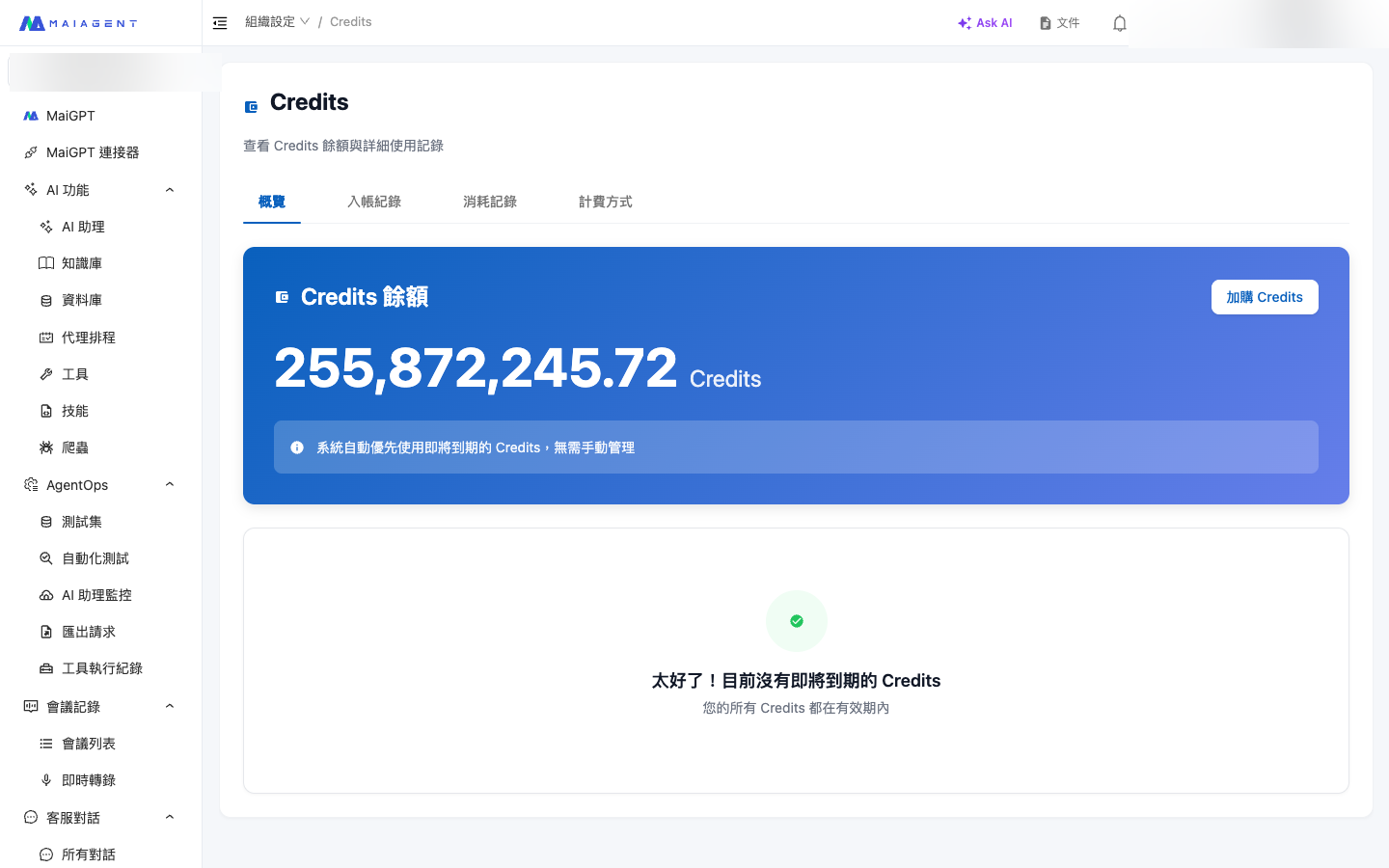
You can use the management interface under <mark style="color:blue;">**Organization Settings**</mark> → <mark style="color:blue;">**Credits**</mark>, which includes five tabs:

### Overview <a href="#overview-tab" id="overview-tab"></a>

* View your total Credits balance and soon-to-expire amounts in real time
* Consumption trend chart: choose any date range, and the card shows consumption and daily average for that range (see [Customize the date range of the consumption trend](#trend-date-range))
* Reminders for Credits about to expire
* Low balance alert settings (in-app notification + Email; see [Low balance alerts](#low-balance-alert))

<figure><img src="https://1360999650-files.gitbook.io/~/files/v0/b/gitbook-x-prod.appspot.com/o/spaces%2F6v6TNkkOQVfRYfcNirHL%2Fuploads%2Fgit-blob-3f607a177e928d881df79b615c86203016151fb9%2Fcredit-1-overview.png?alt=media" alt=""><figcaption><p>Overview tab: real-time Credits balance and expiration reminders</p></figcaption></figure>

#### Last grant, next grant, and scheduled top-ups <a href="#grant-cards" id="grant-cards"></a>

The overview has two cards, <mark style="color:blue;">**Last Grant**</mark> and <mark style="color:blue;">**Next Grant**</mark>. When MaiAgent has scheduled a top-up for the organization, an extra <mark style="color:blue;">**Scheduled Top-up**</mark> card appears below <mark style="color:blue;">**Next Grant**</mark>:

<figure><img src="https://1360999650-files.gitbook.io/~/files/v0/b/gitbook-x-prod.appspot.com/o/spaces%2F6v6TNkkOQVfRYfcNirHL%2Fuploads%2Fgit-blob-13ed685144e9b7fd08220f2b76413d2c2ef9042b%2Fcredits-grant-cards.png?alt=media" alt="On the Credits overview, the Last Grant card shows +10,000,000 Credits with the grant date, and the Next Grant card shows 25 days from now, +10,000,000 Credits, the date, and by plan cycle"><figcaption><p>Last grant and next grant: the Next Grant card shows how many days away, the amount, the date, and the source</p></figcaption></figure>

| Card                                                  | What it shows                                                                                                                                                                                                                                                                                                                                                                                                                  |
| ----------------------------------------------------- | ------------------------------------------------------------------------------------------------------------------------------------------------------------------------------------------------------------------------------------------------------------------------------------------------------------------------------------------------------------------------------------------------------------------------------ |
| <mark style="color:blue;">**Last Grant**</mark>       | The amount and time of the most recent plan quota credit; shows "No grant records yet" if none has been granted                                                                                                                                                                                                                                                                                                                |
| <mark style="color:blue;">**Next Grant**</mark>       | The next plan quota that will **actually be credited**: amount, date, days from now, and source (<mark style="color:blue;">**By plan cycle**</mark> or <mark style="color:blue;">**Stripe subscription**</mark>). Shows "No automatic grant is currently scheduled" when no grant will occur                                                                                                                                   |
| <mark style="color:blue;">**Scheduled Top-up**</mark> | Top-ups that MaiAgent has scheduled for the organization but not yet credited (for example, bonus Credits under a contract). Each entry lists the amount, the <mark style="color:blue;">**Scheduled Credit**</mark> date, and the <mark style="color:blue;">**Last Usable Date**</mark>; up to 5 entries are listed, and the rest are shown as "N more". View only; the whole card is hidden when there are no pending top-ups |

**How the amount and date of the next grant are calculated**

* **No plan change**: the date is the wallet's next grant date, and the amount is the current plan's monthly quota.
* **Plan change scheduled (upgrade or downgrade)**: when the new plan takes effect on or before the next grant date, the card shows the date the new plan takes effect and the new plan's monthly quota, because the new plan grants one month as soon as it takes effect, and the original next grant date will not grant again separately.
* **Current plan expires before the next grant date with no follow-on plan**: no grant will occur that day, and the card shows "No automatic grant is currently scheduled".

The above rules apply to organizations whose source is <mark style="color:blue;">**By plan cycle**</mark>; when the source is <mark style="color:blue;">**Stripe subscription**</mark>, the date follows the Stripe billing period, and the amount is the current plan's monthly quota.

{% hint style="info" %}
The last usable date of a scheduled top-up = the credit date (Taiwan time) plus the validity days minus 1 day. Scheduled top-ups are set by MaiAgent; to add or adjust one, contact your MaiAgent representative.
{% endhint %}

For example, a company is currently on the Pro plan with 5 million Credits granted each month. It has agreed with sales to upgrade to Enterprise on November 1, with 10 million per month, and a contract bonus of 52.5 million is also scheduled to be credited on November 1. At the end of October, a finance staff member opens <mark style="color:blue;">**Credits**</mark> → <mark style="color:blue;">**Overview**</mark>. The <mark style="color:blue;">**Next Grant**</mark> card reads November 1, +10,000,000, and the <mark style="color:blue;">**Scheduled Top-up**</mark> card below lists +52,500,000 and its last usable date, so there is no need to ask the representative how much will be credited in November.

#### Customize the date range of the consumption trend <a href="#trend-date-range" id="trend-date-range"></a>

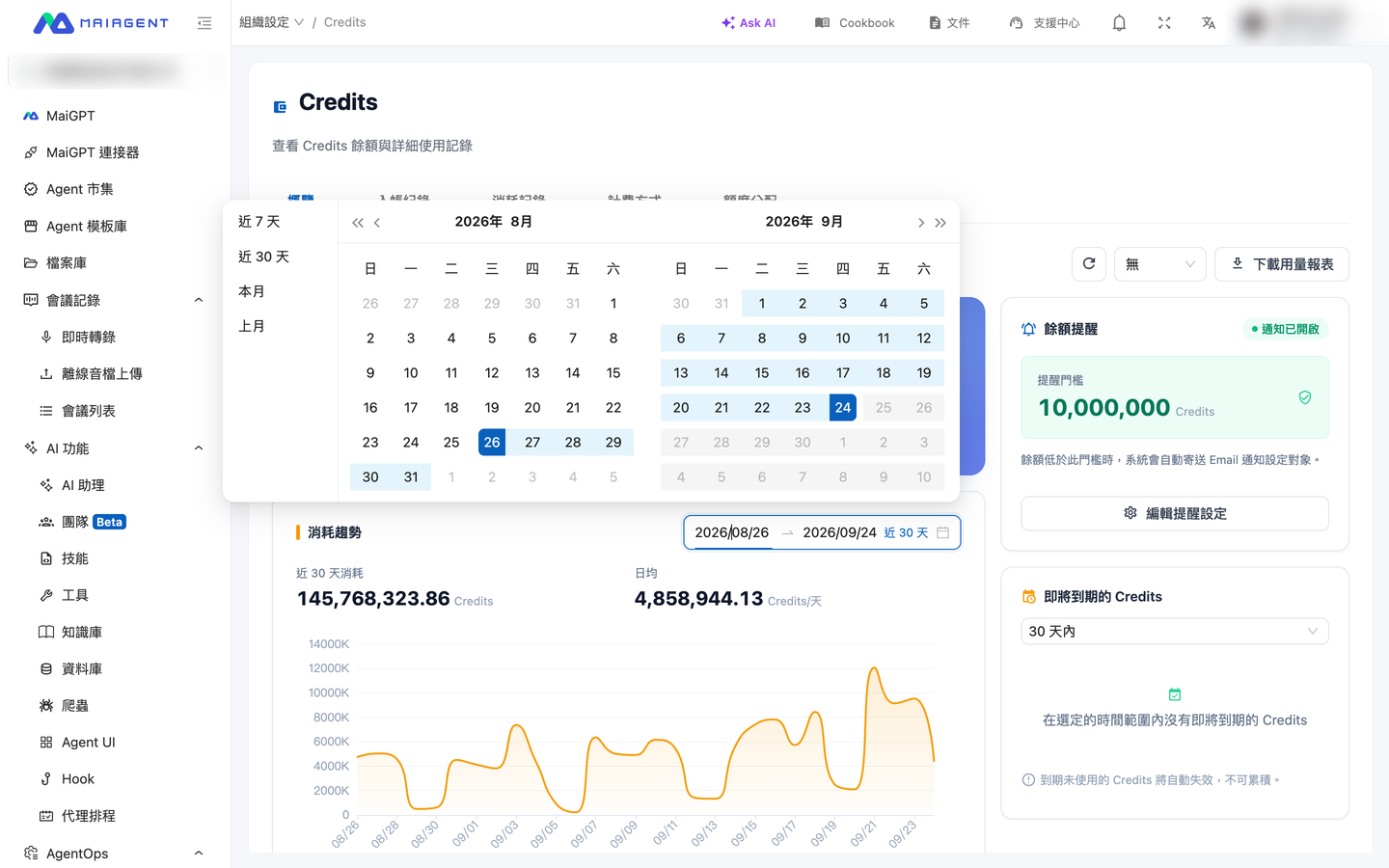
At the top right of the "Consumption Trend" card is a date range picker, which defaults to the last 30 days. To see how many Credits were spent last month or over any period, you no longer need to export a report and add it up yourself.

1. Go to <mark style="color:blue;">**Organization Settings**</mark> → <mark style="color:blue;">**Credits**</mark> → <mark style="color:blue;">**Overview**</mark>.
2. Click the date range at the top right of the "Consumption Trend" card, then click the start date and the end date in the same calendar panel; the left side of the panel also has four shortcuts: <mark style="color:blue;">**Last 7 Days**</mark>, <mark style="color:blue;">**Last 30 Days**</mark>, <mark style="color:blue;">**This Month**</mark>, and <mark style="color:blue;">**Last Month**</mark>.
3. The chart immediately redraws the daily consumption for that range, and <mark style="color:blue;">**Period Consumption**</mark> and <mark style="color:blue;">**Daily Average**</mark> on the card are recalculated; the bottom of the card shows "N days in total".

<figure><img src="https://1360999650-files.gitbook.io/~/files/v0/b/gitbook-x-prod.appspot.com/o/spaces%2F6v6TNkkOQVfRYfcNirHL%2Fuploads%2Fgit-blob-06ce169732c6c58365c6df06d785fb6497ada70f%2Fcredits-trend-range-picker.png?alt=media" alt="Date range picker on the consumption trend card, with four shortcuts on the left of the panel: last 7 days, last 30 days, this month, and last month"><figcaption><p>Consumption trend: click the start and end dates in the calendar panel, or use the shortcuts on the left</p></figcaption></figure>

{% hint style="info" %}

* Start and end dates are calculated as whole days in Taiwan time, inclusive of both ends; the end date cannot be later than today.
* Ranges of up to 90 days show one point per day; ranges over 90 days switch to one point per week, and the axis labels become the start date of each week. "Daily Average" is always calculated over the number of days in the range and is not affected by the weekly display.
* When there is no consumption in the range, the chart shows an empty state.
  {% endhint %}

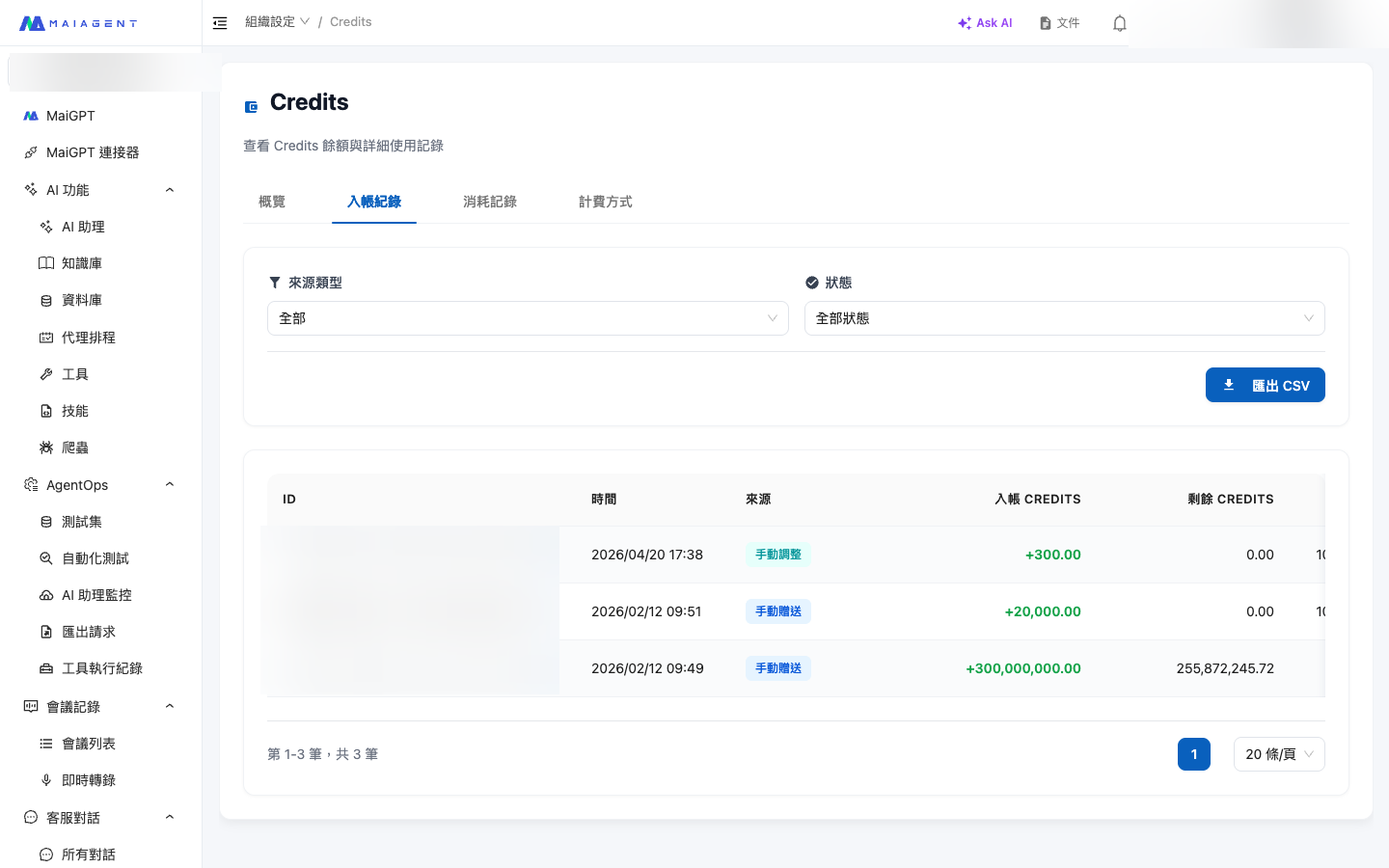
### Deposit Records <a href="#deposits-tab" id="deposits-tab"></a>

* Shows the source of every Credits entry: plan grants, top-ups, gifts, and more
* Shows the validity period (monthly quota expires at month end; top-ups are valid for 12 months from purchase)
* Uses **FIFO deduction** (earliest expiry first), fully showing the remaining balance of each entry
* Supports **CSV export** for bookkeeping and annual inventory; exports are generated in the background and can be downloaded on the [Export Records](#export-records) page

<figure><img src="https://1360999650-files.gitbook.io/~/files/v0/b/gitbook-x-prod.appspot.com/o/spaces%2F6v6TNkkOQVfRYfcNirHL%2Fuploads%2Fgit-blob-841869bbc95eef21c7f52365b382ceeb69cce267%2Fcredit-2-deposits.png?alt=media" alt=""><figcaption><p>Deposit Records tab: full view of Credits sources, validity, and remaining balances</p></figcaption></figure>

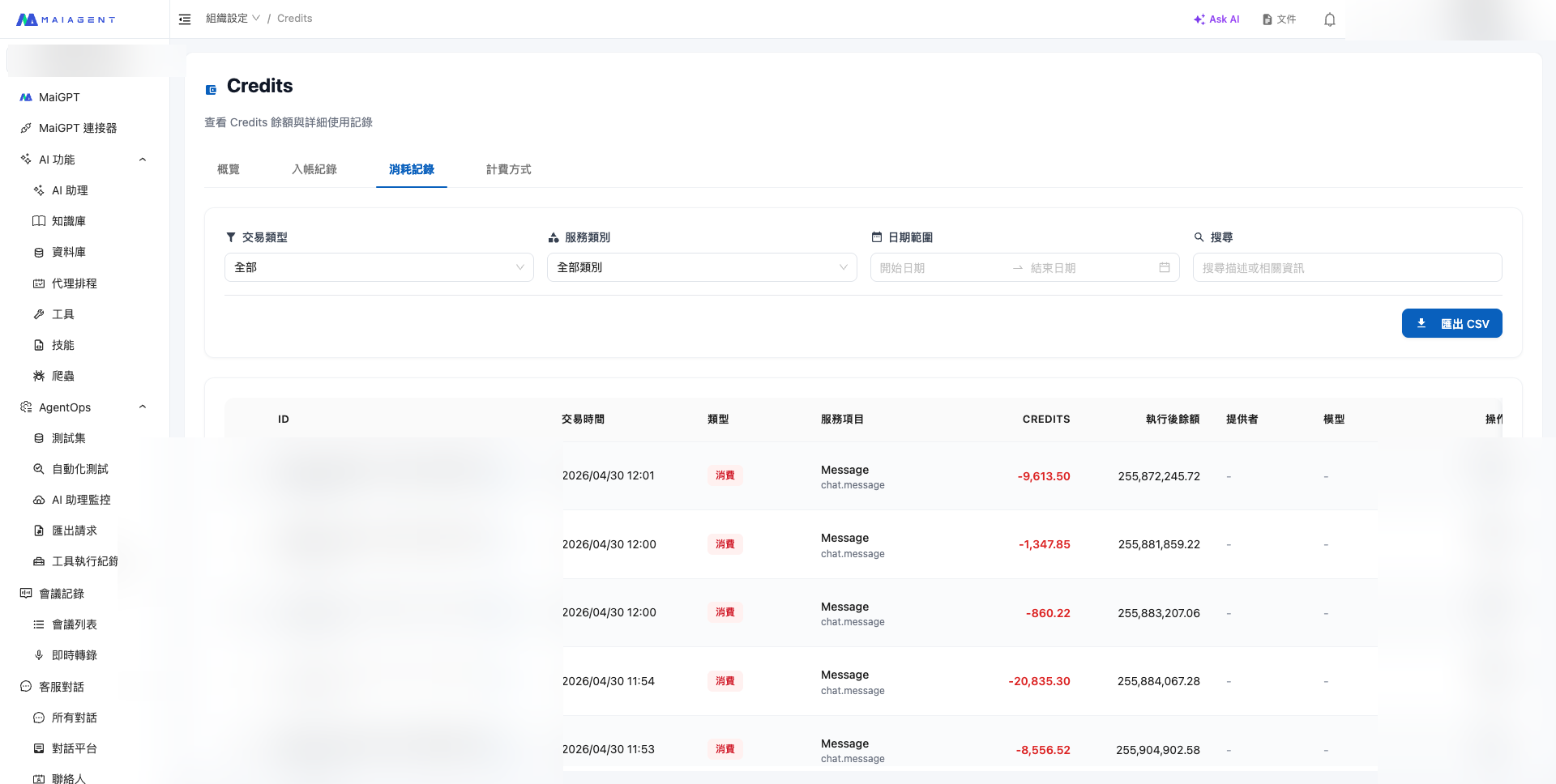
### Consumption Records <a href="#consumption-tab" id="consumption-tab"></a>

* Filter usage details by date, type, Agent, and other dimensions
* Each consumption entry shows the model used, the Credits consumed, and the corresponding event
* After filtering, the total spending, total deposits, entry count, and daily average spending of the filtered results are shown directly (see [Filtered result statistics](#consumption-stats))
* Select <mark style="color:blue;">**AI Memory**</mark> under <mark style="color:blue;">**Service Category**</mark> to view only the consumption of AI Memory organizing member memories (see [View AI Memory consumption](#ai-memory-consumption))
* Supports **CSV export** for retention or external analysis (an internal finance reconciliation favorite); the export contains the full details under the current filters (not in summary mode), generated in the background and downloadable on the [Export Records](#export-records) page

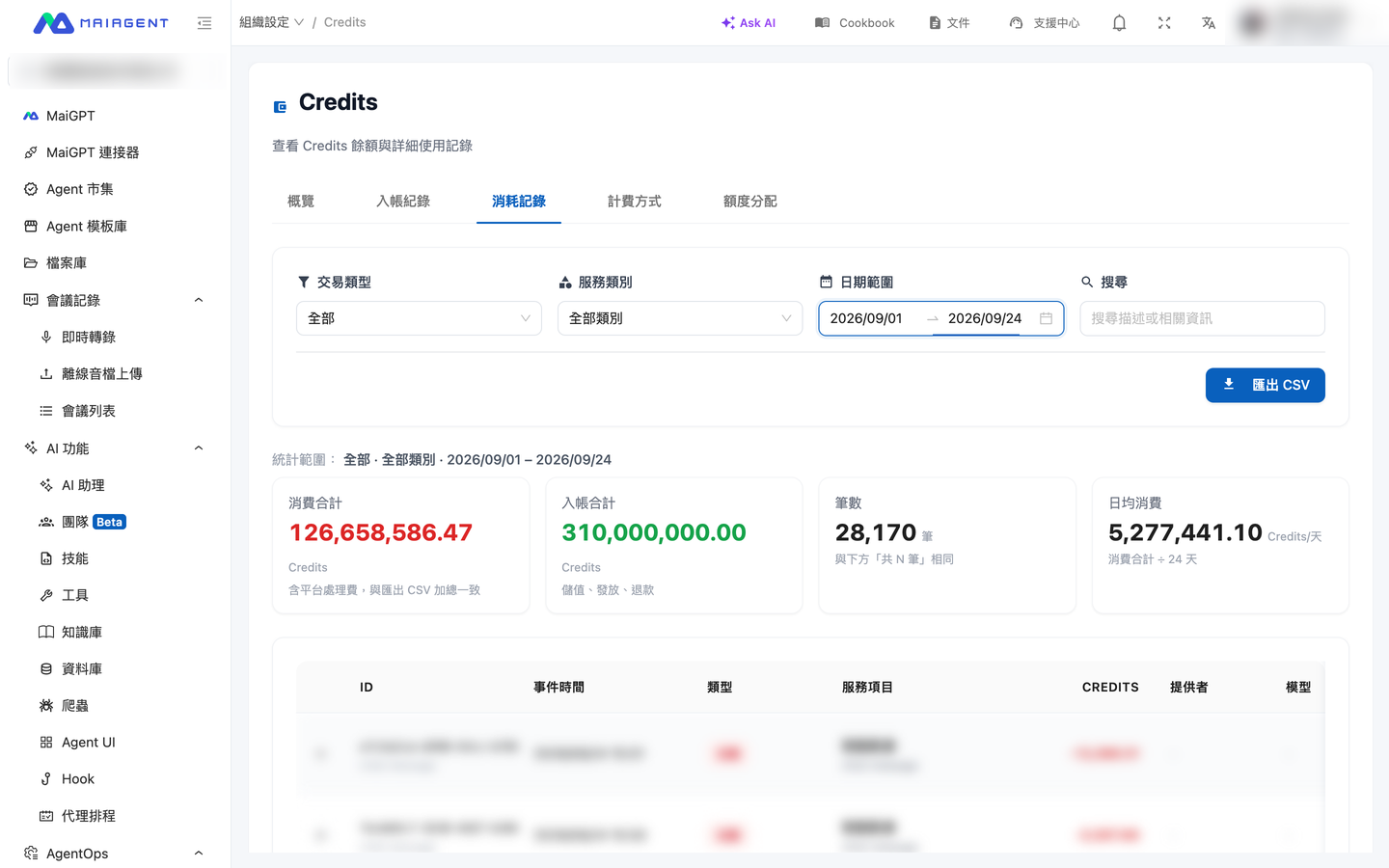
<figure><img src="https://1360999650-files.gitbook.io/~/files/v0/b/gitbook-x-prod.appspot.com/o/spaces%2F6v6TNkkOQVfRYfcNirHL%2Fuploads%2Fgit-blob-9265ca5f54d3d1ca372e22bb884fccbd26408e54%2Fcredit-3-consumption.png?alt=media" alt=""><figcaption><p>Consumption Records tab: every usage entry maps to a model, Agent, and event</p></figcaption></figure>

#### Filtered result statistics <a href="#consumption-stats" id="consumption-stats"></a>

When finance staff need to check "how many Credits were deducted last month" at month end, they only need to set the date range in Consumption Records to the whole month, and the statistics bar below the filter card gives the totals directly — no need to export a CSV and add it up.

After you set the transaction type, service category, date range, or search keyword, a statistics row appears between the filter card and the details table, showing the current statistics scope:

<table><thead><tr><th width="150">Field</th><th>Description</th></tr></thead><tbody><tr><td>Total spending</td><td>The sum of all deductions in the filtered range (including platform processing fees), consistent with the sum in the exported CSV. Shows 0 when the transaction type is "Deposit".</td></tr><tr><td>Total deposits</td><td>The sum of all top-ups, grants, and refunds in the filtered range. Shows 0 when the transaction type is "Spending".</td></tr><tr><td>Entry count</td><td>Same as "N entries in total" at the bottom of the details table; multiple deductions for the same message are merged into one entry.</td></tr><tr><td>Daily average spending</td><td>Total spending ÷ number of days in the date range (inclusive of both ends). Shows "–" when no date range is set.</td></tr></tbody></table>

<figure><img src="https://1360999650-files.gitbook.io/~/files/v0/b/gitbook-x-prod.appspot.com/o/spaces%2F6v6TNkkOQVfRYfcNirHL%2Fuploads%2Fgit-blob-79df7a40390511c20904035bb55b1d15ad59a342%2Fcredits-consumption-stats-row.png?alt=media" alt="Consumption Records tab: the stats row below the filter card shows Total Spent, Total Credited, Count, and Daily Average Spend"><figcaption><p>Set the date range to a full month and the stats row shows that month's total spend and daily average</p></figcaption></figure>

{% hint style="info" %}
Statistics are calculated over the entire filtered result set, regardless of pagination or page size, and are recalculated every time you change a filter. If the statistics temporarily fail to load, the detail table still displays normally; click Retry on the stats row to recalculate.
{% endhint %}

#### View AI Memory Consumption <a href="#ai-memory-consumption" id="ai-memory-consumption"></a>

When [AI Memory](https://docs.maiagent.ai/maiagent-user-guide/en/work/maigpt/ai-memory.md) organizes and stores members' memories from conversations, the work is run by the platform's system model, and Credits are deducted at that model's rates. Each organizing run is listed separately in <mark style="color:blue;">**Consumption Records**</mark> with the service category <mark style="color:blue;">**AI Memory**</mark>, and is not merged into the usage of the Agent's reply itself.

**Scenario**

A marketing planner tells the Agent in MaiGPT: "I'm a marketing planner at Acme Demo Company. From now on, always reply in bullet points." After the conversation wraps up, AI Memory organizes this into two memories: "Job title" and "Reply format preference." At the end of the month, when the organization administrator reconciles Credits, they switch <mark style="color:blue;">**Service Category**</mark> to <mark style="color:blue;">**AI Memory**</mark> in <mark style="color:blue;">**Consumption Records**</mark> and see the consumption of this organizing run, the model that ran it, and the member whose memory was stored, and can reconcile it separately from the cost of the Agent's replies.

**Steps**

1. Go to <mark style="color:blue;">**Organization Settings**</mark> → <mark style="color:blue;">**Credits**</mark> → <mark style="color:blue;">**Consumption Records**</mark>.
2. Under <mark style="color:blue;">**Service Category**</mark>, select <mark style="color:blue;">**AI Memory**</mark>. The list and the [filtered-result statistics](#consumption-stats) above count only AI Memory consumption; when you select <mark style="color:blue;">**AI Language Model**</mark>, this consumption is not included.
3. Click the expand icon on the left of a record to view its details:
   * Detail names appear as <mark style="color:blue;">**AI Memory (Input)**</mark> and <mark style="color:blue;">**AI Memory (Output)**</mark>; other billing items such as cache appear as <mark style="color:blue;">**AI Memory**</mark>, with the billing item code shown in gray text next to the name.
   * The <mark style="color:blue;">**Model**</mark> column is the platform system model that actually ran the organizing, which may differ from the model configured for the AI Assistant.
   * The <mark style="color:blue;">**Operator**</mark> of the record is the member whose memory was stored; the consumption is also deducted from that member's personal quota and from the role quota of their role (when a [Member Credits Quota](https://docs.maiagent.ai/maiagent-user-guide/en/others/credits/member-credit-quota.md) or [Role Quota](https://docs.maiagent.ai/maiagent-user-guide/en/others/credits/member-credit-quota.md#role-quota) is configured).
4. Hover over the info icon next to the name to see: "This is the usage consumed when AI Memory organizes and stores user memories from conversations. It is run by the platform's system model, and the model shown may differ from the model configured for the AI Assistant. A single message may be extracted multiple times (for example, once while replying and once after replying), and each extraction is counted as a separate record."

<figure><img src="https://1360999650-files.gitbook.io/~/files/v0/b/gitbook-x-prod.appspot.com/o/spaces%2F6v6TNkkOQVfRYfcNirHL%2Fuploads%2Fgit-blob-3b9c787bff300c3638398c505278b68309c47e17%2Fcredits-ai-memory-detail.png?alt=media" alt="Consumption Records with one AI Memory record expanded; the details list three rows—AI Memory (Input), AI Memory, and AI Memory (Output)—the model is the platform system model, and hovering over the info icon shows the AI Memory description; the record ID and operator are masked"><figcaption><p>AI Memory details are listed separately for input and output, and the info icon explains the source of this usage; the record ID and operator in the image are masked</p></figcaption></figure>

**AI Memory in Reply Input**

Memories the Agent references when replying are sent to the model together with the question and counted in that reply's input usage; they do not belong to the "AI Memory" service category. To show how much of the input is memory, when you expand the details of that reply, an info icon appears next to <mark style="color:blue;">**LLM Input**</mark>, <mark style="color:blue;">**LLM Cache Creation**</mark>, or <mark style="color:blue;">**LLM Cache Read**</mark>; hovering over it shows "This input includes about N tokens of AI Memory, already counted in input usage." N is the estimated number of memory tokens billed on that row; if the reply used no memory, the icon does not appear.

<figure><img src="https://1360999650-files.gitbook.io/~/files/v0/b/gitbook-x-prod.appspot.com/o/spaces%2F6v6TNkkOQVfRYfcNirHL%2Fuploads%2Fgit-blob-281cd605e76be6a0757dfa12e612686978d06a97%2Fcredits-ai-memory-input-hint.png?alt=media" alt="Consumption Records with a conversation message expanded; the info icon next to LLM Cache Creation shows &#x22;This input includes about 187 tokens of AI Memory, already counted in input usage&#x22;; the record ID and operator are masked"><figcaption><p>The reply's input row shows approximately how many tokens come from AI Memory; the record ID and operator in the image are masked</p></figcaption></figure>

{% hint style="info" %}

* AI Memory may be organized after the Agent replies, so this consumption can appear later than the reply's own consumption; a single message may also have multiple records.
* Only members whose role has the <mark style="color:blue;">Credit Management permission</mark> can view Consumption Records.
* If you do not want your conversations to generate AI Memory consumption, turn off <mark style="color:blue;">Let the assistant remember me</mark> on the AI Memory page. See [Turn AI Memory On or Off](https://docs.maiagent.ai/maiagent-user-guide/en/work/maigpt/ai-memory.md#toggle-memory) for details.
  {% endhint %}

#### View Hook Consumption <a href="#hook-consumption" id="hook-consumption"></a>

[Hook](https://docs.maiagent.ai/maiagent-user-guide/en/build/hook.md) templates that require semantic judgment (prompt injection protection, invalid message filtering, reply credibility check) call the [judge model](https://docs.maiagent.ai/maiagent-user-guide/en/build/hook/setup.md#judge-model) configured for the Hook (the platform default model is used if left blank) and deduct Credits at that model's rates. This consumption has no separate service category; the billing items are the same LLM input/output usage as the Agent's reply itself, the service category is <mark style="color:blue;">**AI Language Model**</mark>, and it is grouped under the conversation message that triggered the Hook. When you expand the details, the Hook's input and output each appear as their own row (multiple judgments for the same message are summed into one row if they use the same model), placed alongside the Agent reply's own LLM input and output rows; tell them apart by the info icon next to the name.

**Scenario**

A customer service Agent has "Prompt Injection Protection" attached, with a lower-cost small model chosen as the judge model. At the end of the month, the organization administrator notices that a conversation used more Credits than expected. Expanding the details of that message shows which rows are the Agent reply's own consumption, which rows are Hook judgment consumption, and which model the Hook used.

**Steps**

1. Go to <mark style="color:blue;">**Organization Settings**</mark> → <mark style="color:blue;">**Credits**</mark> → <mark style="color:blue;">**Consumption Records**</mark>.
2. Click the expand icon on the left of a conversation message record to view its details.
3. Detail rows generated by a Hook have an info icon next to the name; hovering over it shows "This consumption was triggered and recorded by a Hook." The <mark style="color:blue;">**Model**</mark> column on these rows is the Hook's judge model, which may differ from the model configured for the AI Assistant.

<figure><img src="https://1360999650-files.gitbook.io/~/files/v0/b/gitbook-x-prod.appspot.com/o/spaces%2F6v6TNkkOQVfRYfcNirHL%2Fuploads%2Fgit-blob-79acd278ee1de9ff726c1f92a5aedbf47bc815ad%2Fcredits-hook-consumption-detail.png?alt=media" alt="Expanded details of a conversation message in Consumption Records, with two LLM Input rows and two LLM Output rows; one LLM Input row and one LLM Output row have an info icon next to the name, and hovering over it shows &#x22;This consumption was triggered and recorded by a Hook&#x22;; the Model column lists the model used by each row; the record ID is masked"><figcaption><p>Detail rows with an info icon next to the name are generated by a Hook, and the Model column is the Hook's judge model; the record ID in the image is masked</p></figcaption></figure>

{% hint style="info" %}

* Judgments run message by message; to reduce this consumption, choose a fast, lower-cost judge model. See [Judge Model (LLM-based Templates)](https://docs.maiagent.ai/maiagent-user-guide/en/build/hook/setup.md#judge-model) for details.
* Hook consumption at both the "When a user message is received" and "After the AI response is generated" points is listed in the details of the same conversation message.
* Besides checking the user's message, a Hook at "When a user message is received" also checks attachments, knowledge base retrieval passages, and tool returns one by one (see [Four Sources Before the AI](https://docs.maiagent.ai/maiagent-user-guide/en/build/hook.md#four-sources)), calling the judge model once for each piece of content checked. A single message can therefore have multiple judgments, and all the consumption is recorded on that message.
* "Invalid Message Filtering" first uses rules to block pure greetings and spam messages; messages blocked by the rules do not call the judge model, so they incur no consumption of this kind.
  {% endhint %}

### Billing Methods <a href="#pricing-tab" id="pricing-tab"></a>

* Lists the rates for all models and features in full
* Covers all billing categories, including LLM conversations, voice, knowledge bases, crawlers, tools, Agent computing, and Avatar
* <mark style="color:blue;">**Export CSV**</mark> at the top of the page exports the entire rate table; the file is generated in the background, and you download it from the [Export Records](#export-records) page

<figure><img src="https://1360999650-files.gitbook.io/~/files/v0/b/gitbook-x-prod.appspot.com/o/spaces%2F6v6TNkkOQVfRYfcNirHL%2Fuploads%2Fgit-blob-081859f5a3b6da7807f239ffd940f0ef69ca22f8%2Fcredit-4-pricing.png?alt=media" alt=""><figcaption><p>Billing Methods tab: the complete rate table for all models and features</p></figcaption></figure>

#### View Conversation Attachment and Derived File Storage Fees <a href="#attachment-and-derived-storage" id="attachment-and-derived-storage"></a>

Files uploaded in conversations occupy "Conversation Attachment Storage." Copies generated when the system processes a file—format conversions, re-parsing, or audio transcription—are billed separately: copies from conversation attachments or File Library files are counted under "File Library Derived File Storage," and copies from knowledge base files are counted under "Derived File Storage." All of these items are billed per MB per month, and Credits are deducted daily based on actual usage; the original file is billed under its corresponding storage item and is not billed again as a derived file.

{% hint style="info" %}
The retention period for conversation attachments follows the system setting and can currently be viewed in the description of "Conversation Attachment Storage." When a conversation receives a new message, the retention countdown restarts; when the retention period ends, the attachments and the processed copies generated from them are deleted automatically and billing stops. Deletion cannot be undone, so download any files you need to keep long term before the deadline.
{% endhint %}

{% hint style="info" %}
**Where can I adjust the retention period?**

The retention period is a system setting shared across the entire platform. There is no field for it in the organization admin console, and it cannot be set per organization or per conversation platform. For on-premises deployments, the system administrator sets it in the system admin console, within a range of 1 to 365 days. Only conversation attachments and their processed copies are deleted automatically; text messages in the conversation are not deleted. If the cloud version needs a different retention period, or you want to confirm the current number of days, contact your MaiAgent representative.
{% endhint %}

1. Go to <mark style="color:blue;">**Organization Settings**</mark> → <mark style="color:blue;">**Credits**</mark>.
2. Switch to <mark style="color:blue;">**Billing Methods**</mark>.
3. Expand <mark style="color:blue;">**File Library**</mark>.
4. View the Credits per unit and the billing unit for <mark style="color:blue;">**Conversation Attachment Storage**</mark> and <mark style="color:blue;">**File Library Derived File Storage**</mark>; hover over the info icon to see the retention and billing description. Processed copies of knowledge base files are under <mark style="color:blue;">**Derived File Storage**</mark> in <mark style="color:blue;">**Knowledge Base and Vector Retrieval System**</mark>.

<figure><img src="https://1360999650-files.gitbook.io/~/files/v0/b/gitbook-x-prod.appspot.com/o/spaces%2F6v6TNkkOQVfRYfcNirHL%2Fuploads%2Fgit-blob-bfe47589fdcfb575230ccea0eb7f673a21d93abc%2Fcredits-attachment-storage-pricing.png?alt=media" alt="The File Library category in Credits Billing Methods, listing File Library Storage, Conversation Attachment Storage, and File Library Derived File Storage, each at 4.75 Credits per MB/month"><figcaption><p>Verify the storage rates for conversation attachments and processed copies.</p></figcaption></figure>

**Scenario**

The customer service manager at Xiaomai Company regularly has visitors upload screenshots of their problems in conversations. At month-end reconciliation, she opens "Billing Methods" under Credits, expands "File Library," and confirms which rate applies to conversation attachments and which to parsed copies. After reading the attachment retention description, she downloads the screenshots she needs to keep before the deadline; attachments no longer in use are deleted automatically when the retention period ends, so storage fees stop accumulating.

#### View File Library Storage Fees <a href="#file-library-storage" id="file-library-storage"></a>

Files stored in the [File Library](https://docs.maiagent.ai/maiagent-user-guide/en/work/file-library.md) (personal space, organization space, and shared spaces) are billed per MB per month at **4.752 Credits** per MB per month (about 4,866 Credits per GB per month), the same as the storage fee for original knowledge base files, with Credits deducted daily based on actual usage. Older versions retained for a file also count toward usage.

The File Library only stores files and does not vectorize them, so there is **no** vector storage fee as with knowledge bases. Knowledge base files, conversation attachments, and the File Library are each billed separately, and the same file is never charged twice.

1. Go to <mark style="color:blue;">**Organization Settings**</mark> → <mark style="color:blue;">**Credits**</mark> → <mark style="color:blue;">**Billing Methods**</mark>.
2. Expand the <mark style="color:blue;">**File Library**</mark> category, which contains three items: <mark style="color:blue;">**File Library Storage**</mark>, <mark style="color:blue;">**Conversation Attachment Storage**</mark>, and <mark style="color:blue;">**File Library Derived File Storage**</mark> (processed copies generated when files are parsed), each at 4.752 Credits per MB per month.
3. To see how much space is currently used, go to the <mark style="color:blue;">**File Library Space**</mark> card under <mark style="color:blue;">**Organization Settings**</mark> → <mark style="color:blue;">**Organization Overview**</mark>: it shows total usage, usage by personal, organization, and shared spaces, and version snapshot usage; expand the personal space to see the members using the most.

<figure><img src="https://1360999650-files.gitbook.io/~/files/v0/b/gitbook-x-prod.appspot.com/o/spaces%2F6v6TNkkOQVfRYfcNirHL%2Fuploads%2Fgit-blob-696026c688f2b44c2863550312a730312dea59e0%2Ffile-library-usage-card.png?alt=media" alt="The File Library Space card in Organization Overview, showing total usage, the personal space member ranking, organization space, shared space, and version snapshot usage"><figcaption><p>The "File Library Space" card in Organization Overview (requires Organization Overview permission)</p></figcaption></figure>

**Scenario**

At the end of the month, an organization administrator reviews Credits consumption and finds that File Library storage fees are higher than last month. She opens the "File Library Space" card in Organization Overview, expands the personal space, and sees that a colleague has uploaded many videos. After asking that colleague to download, archive, and delete the videos no longer needed, the next month's storage fees return to their usual level.

### Quota Allocation <a href="#quota-tab" id="quota-tab"></a>

* Administrators can set a personal Credits spending limit and expiration date for each member
* Supports distributing, editing, and disabling quotas, as well as controlling access with the "Quota Required" switch
* You can search for members and filter by clicking the stat cards (the <mark style="color:blue;">**Expired / Disabled**</mark> card includes both disabled and expired quotas); quota status is divided into <mark style="color:blue;">**Active**</mark>, <mark style="color:blue;">**Disabled**</mark> (disabled before the original expiration date), <mark style="color:blue;">**Expired**</mark> (lapsed naturally at the original expiration date), and <mark style="color:blue;">**Unallocated**</mark>

See [Member Credits Quota Management](https://docs.maiagent.ai/maiagent-user-guide/en/others/credits/member-credit-quota.md) for details.

### Export Records: Download Exported CSVs <a href="#export-records" id="export-records"></a>

<mark style="color:blue;">**Export CSV**</mark> on the Top-up Records, Consumption Records, and Billing Methods tabs does not download a file immediately; instead, it creates an export task that generates the file in the background:

1. After you click <mark style="color:blue;">**Export CSV**</mark>, the screen shows "Export request created, processing...", and automatically jumps to the corresponding tab on the <mark style="color:blue;">**Export Records**</mark> page
2. The Export Records page has three tabs, corresponding to three sources: <mark style="color:blue;">**Top-up History**</mark> (Top-up Records), <mark style="color:blue;">**Transaction History**</mark> (Consumption Records), and <mark style="color:blue;">**Billing Rules**</mark> (Billing Methods)
3. Each task shows its status, creator, record count, file size, processing time, and completion time. When the status changes from <mark style="color:blue;">**Pending**</mark> or <mark style="color:blue;">**Processing**</mark> to <mark style="color:blue;">**Completed**</mark>, it updates automatically; no manual refresh is needed
4. For a completed task, click <mark style="color:blue;">**Download**</mark> in the Actions column to get the CSV; for a <mark style="color:blue;">**Failed**</mark> task, click <mark style="color:blue;">**View Error Details**</mark>; tasks you no longer need can be <mark style="color:blue;">**deleted**</mark>

{% hint style="info" %}
The Export Records page has no entry in the left menu; open it from <mark style="color:blue;">**Export CSV**</mark> on any of the three tabs. The page URL carries a tab parameter, so refreshing or sharing the URL returns to the same tab. The tab names within the page (Top-up History / Transaction History / Billing Rules) differ from the tab names on the Credits page (Top-up Records / Consumption Records / Billing Methods), but they refer to the same data.
{% endhint %}

***

## Low Balance Alert <a href="#low-balance-alert" id="low-balance-alert"></a>

When the organization's Credits balance falls below the threshold you set, the system **proactively sends an alert** so you can top up early and avoid service interruptions. Alerts are sent through **in-app notifications**, and paid plans also **automatically receive an Email**, so you get the reminder right away without logging in to the admin console.

{% hint style="info" %}
In-app notifications are available on all plans; **Email notifications are available on paid plans only**. This alert does not apply to organizations billed through AWS Marketplace. Configuring and viewing the alert requires access to the Credits page.
{% endhint %}

### Notification Channels <a href="#alert-channels" id="alert-channels"></a>

| Channel                 | Description                                                                             |
| ----------------------- | --------------------------------------------------------------------------------------- |
| **In-app notification** | Creates an announcement in the admin console when the balance falls below the threshold |
| **Email notification**  | Paid plans additionally send an alert email to Owner role members and custom recipients |

Both channels share the same **enable switch** and **alert threshold**: when you turn the alert off, both in-app notifications and Emails stop.

### Who Receives the Email <a href="#alert-recipients" id="alert-recipients"></a>

* **All members with the Owner role**: automatically included once the alert is enabled, and always sent
* **Custom recipients**: the organization can enter up to **5** Email addresses as additional recipients
* If the two overlap, the system **deduplicates automatically**, and each Email address receives only one message

### Configuration <a href="#configure-alert" id="configure-alert"></a>

1. Go to <mark style="color:blue;">**Organization Settings**</mark> → <mark style="color:blue;">**Credits**</mark> → <mark style="color:blue;">**Overview**</mark>
2. Find the <mark style="color:blue;">**Balance Alert**</mark> card and click <mark style="color:blue;">**Settings**</mark>
3. Turn on <mark style="color:blue;">**Enable Balance Alert**</mark> and enter the **alert threshold**
4. In the <mark style="color:blue;">**Notification Recipients**</mark> field, enter the addresses that should additionally receive the Email (up to 5; pasting multiple comma-separated Emails splits them automatically)
5. Save to complete the setup

### Trigger Conditions <a href="#alert-trigger" id="alert-trigger"></a>

* Triggers automatically when the **balance falls below the alert threshold you set**, sending the in-app notification and the Email at the same time
* For each wallet, **at most one email is sent every 24 hours** to avoid repeated disturbance
* The alert email is a branded HTML email containing the current **balance** and **threshold** figures and a "View Credit usage details" button; to purchase more, contact <sales@maiagent.ai>

***

## Prompt Cache Usage <a href="#prompt-cache-usage" id="prompt-cache-usage"></a>

### What Is Prompt Cache and Why Does It Save Money <a href="#what-is-prompt-cache" id="what-is-prompt-cache"></a>

Each time an Agent replies, it actually has to resend the **entire conversation context** to the model — including the role instructions (System Prompt), knowledge base content, and earlier conversation content. This content is **highly repetitive** across multiple conversations with the same Agent: the role instructions are the same every time, and knowledge base passages are often identical.

**Prompt Cache** is a cost optimization aimed at this repetition: when the model processes cacheable content, it may first **write the content to the cache**; later requests that hit a still-valid cache with identical content can then **read from the cache** instead. Cache creation and cache reads are billed at their own rates, and the cache read unit price is usually lower than regular input; whether Credits are actually saved depends on the creation cost, the number of subsequent hits, and the rates of the model used.

For conversations with Prompt Cache enabled, the following billing items may appear in your billing (under the "AI Text Generation and Understanding Models" billing category):

| Billing Item           | Description                                                                                                 |
| ---------------------- | ----------------------------------------------------------------------------------------------------------- |
| **LLM Cache Creation** | The number of tokens consumed writing input content to the cache, billed at the model's cache creation rate |
| **LLM Cache Read**     | The number of input tokens read from the cache, billed at the model's cache read rate                       |

{% hint style="info" %}
Whether Prompt Cache is used is decided automatically by the **model and platform settings**; you do not need to do anything manually. The billing details list only cache items that actually occurred for that request and have a token count greater than 0, so you may see only "LLM Cache Creation" or only "LLM Cache Read," or neither.
{% endhint %}

### Scenario <a href="#cache-scenario" id="cache-scenario"></a>

When an organization administrator wants to confirm whether Agents have recently lowered costs through caching, they can first check <mark style="color:blue;">**Cache Savings**</mark> under <mark style="color:blue;">**Organization Settings**</mark> → <mark style="color:blue;">**Usage Statistics**</mark>; to investigate individual requests, they then go to <mark style="color:blue;">**Credits**</mark> → <mark style="color:blue;">**Consumption Records**</mark>, expand a conversation charge that has cache items, and check the creation or read quantity and Credits.

### Which Scenarios Save the Most <a href="#cache-best-scenarios" id="cache-best-scenarios"></a>

Caching saves the cost of "repeated input," so **the more repeated content and the more repetitions, the greater the benefit**:

* **Agents with long role instructions (System Prompt)**: for example, a customer service assistant with complete response guidelines and product descriptions; when later requests hit the same cache, more of the content can be billed at the read rate
* **Frequently used Agents**: the more times later requests hit the same content while the cache is valid, the more likely the cost of creating the cache is offset
* **Long multi-turn conversations**: if the model can reuse earlier conversation content, later turns may produce more cache read usage

### Where to View Cache Usage <a href="#where-to-view-cache-usage" id="where-to-view-cache-usage"></a>

The platform provides three levels of views: from **line-by-line billing details**, to **organization-wide summary statistics**, to **token details for a single conversation message**.

#### 1. Credits → Consumption Records and Billing Methods <a href="#cache-in-credits" id="cache-in-credits"></a>

Suited to line-by-line reconciliation and confirming each cache charge:

1. Go to <mark style="color:blue;">**Organization Settings**</mark> → <mark style="color:blue;">**Credits**</mark> → <mark style="color:blue;">**Consumption Records**</mark>
2. Find a conversation charge (chat.message) that used the cache and click the expand arrow on the left; the details list "LLM Cache Creation" or "LLM Cache Read" based on the actual usage of that request, and show the Credits consumed, the quantity, and the corresponding model
3. Switch to the <mark style="color:blue;">**Billing Methods**</mark> tab to view the cache item rates for each model (priced per thousand tokens)

<figure><img src="https://1360999650-files.gitbook.io/~/files/v0/b/gitbook-x-prod.appspot.com/o/spaces%2F6v6TNkkOQVfRYfcNirHL%2Fuploads%2Fgit-blob-42d20a806c837c95b5564775545c822794d788ef%2Fcache-01-consumption-records.png?alt=media" alt="Cache billing items in Consumption Records"><figcaption><p>Consumption Records: expand a single conversation charge to view the cache billing items that request actually generated</p></figcaption></figure>

#### 2. Usage Statistics → Billing Category Tab <a href="#cache-in-usage-stats" id="cache-in-usage-stats"></a>

Suited to viewing the cache's share of the organization's overall consumption and the amount saved:

1. Go to <mark style="color:blue;">**Organization Settings**</mark> → <mark style="color:blue;">**Usage Statistics**</mark>
2. Switch the metric dropdown to <mark style="color:blue;">**Credits**</mark> — the <mark style="color:blue;">**Billing Category**</mark> tab appears only after you switch
3. In the <mark style="color:blue;">**Usage Overview**</mark> section, check <mark style="color:blue;">**Cache Savings**</mark> on the <mark style="color:blue;">**Credit Consumption**</mark> card: it shows the net Credits for the selected period, with negative values in red; to see the figures for each Agent, switch to the detail table on the <mark style="color:blue;">**AI Assistant**</mark> tab (see [Cache Savings per Agent](https://docs.maiagent.ai/maiagent-user-guide/en/others/usage-statistics.md#chatbot-cache-savings))
4. Switch to the <mark style="color:blue;">**Billing Category**</mark> tab to view the Credit consumption of each category in a pie chart, a ranking bar chart, and a detail table; when there is corresponding usage, you can find the cache creation or read items under the "AI Text Generation and Understanding Models" category
<figure><img src="https://1360999650-files.gitbook.io/~/files/v0/b/gitbook-x-prod.appspot.com/o/spaces%2F6v6TNkkOQVfRYfcNirHL%2Fuploads%2Fgit-blob-0e4cb43b0bda7d8a1a165c3e4eb8323cf15de696%2Fcache-02-savings-card.png?alt=media" alt="Cache savings figure in the usage overview"><figcaption><p>Usage Overview: "Cache Savings" on the Credit Consumption card</p></figcaption></figure>

<figure><img src="https://1360999650-files.gitbook.io/~/files/v0/b/gitbook-x-prod.appspot.com/o/spaces%2F6v6TNkkOQVfRYfcNirHL%2Fuploads%2Fgit-blob-15e401a076373ed369f3f0ad4409aa373f80784c%2Fusage-stats-credit-categories.png?alt=media" alt="Usage Statistics &#x22;Billing Category&#x22; tab: the two billing items LLM Cache Creation / Read"><figcaption><p>Usage Statistics "Billing Category" tab: LLM Cache Creation / Read under the "AI Text Generation and Understanding Models" category</p></figcaption></figure>

{% hint style="warning" %}
The "Billing Category" tab **appears only after the metric is switched to Credits**, and it applies only to organizations on Credit billing. If you cannot find this tab, first check the selection in the metric dropdown.
{% endhint %}

#### 3. AgentOps → Conversation Text Statistics <a href="#cache-in-agentops" id="cache-in-agentops"></a>

Suited to analyzing how the cache was actually hit for a **single conversation message**:

1. Go to <mark style="color:blue;">**AgentOps**</mark> → <mark style="color:blue;">**AI Assistant Monitoring**</mark>
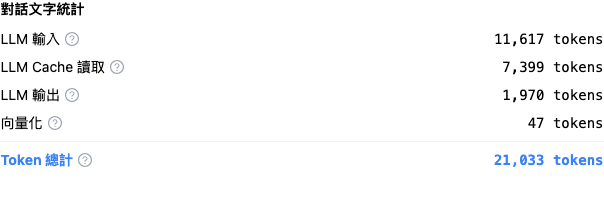
2. Open the details of any conversation record and find the <mark style="color:blue;">**Conversation Text Statistics**</mark> section
3. If the message has cache usage, the token count for "LLM Cache Creation" or "LLM Cache Read" is listed according to what actually occurred; items with no corresponding usage are not shown

<figure><img src="https://1360999650-files.gitbook.io/~/files/v0/b/gitbook-x-prod.appspot.com/o/spaces%2F6v6TNkkOQVfRYfcNirHL%2Fuploads%2Fgit-blob-0dec37ee809f2089857bee16844f8d08b641ae89%2Fcache-03-agentops-text-stats.png?alt=media" alt="Conversation text statistics in AgentOps conversation record details"><figcaption><p>Conversation record details: this conversation generated 7,399 LLM Cache Read tokens; there is no cache creation usage, so the creation item is not shown</p></figcaption></figure>

### Common Questions <a href="#cache-faq" id="cache-faq"></a>

#### Q: Why is there "LLM Cache Creation" on my bill? <a href="#cache-faq-extra-charge" id="cache-faq-extra-charge"></a>

"LLM Cache Creation" means that content was written to the cache during that request, and it is billed separately at that model's cache creation rate. It is not guaranteed to appear only in the first turn of a conversation; it may be created again after the cache expires or the cacheable content changes. When later requests hit the cache, they are billed at the "LLM Cache Read" rate. Use <mark style="color:blue;">**Cache Savings**</mark> shown in <mark style="color:blue;">**Usage Statistics**</mark> to judge the net savings for the selected period; when the creation cost is higher than the read savings, this figure is a negative value shown in red.

#### Q: How do I know how much the cache has saved me? <a href="#cache-faq-savings" id="cache-faq-savings"></a>

Go to <mark style="color:blue;">**Organization Settings**</mark> → <mark style="color:blue;">**Usage Statistics**</mark> and check <mark style="color:blue;">**Cache Savings**</mark> in the <mark style="color:blue;">**Usage Overview**</mark> section. This is the net Credits for the selected period and may be positive, zero, or negative; a negative value means that the extra amount paid for writing to the cache is higher than the amount saved by reading from it. To see which Agent saved or overpaid, switch to the <mark style="color:blue;">**AI Assistant**</mark> tab and see [Cache Savings per Agent](https://docs.maiagent.ai/maiagent-user-guide/en/others/usage-statistics.md#chatbot-cache-savings).

#### Q: Do I need to enable Prompt Cache myself? <a href="#cache-faq-enable" id="cache-faq-enable"></a>

**No.** Whether the cache is used is decided automatically by the model's capabilities and platform settings. No additional action or configuration is required.

#### Q: Why do some conversations show no cache items? <a href="#cache-faq-missing" id="cache-faq-missing"></a>

Cache items are shown only when the model reports the corresponding usage. If a request did not create or hit the cache, the corresponding item does not appear in the details; this does not affect the Agent's normal replies.

***

## FAQ <a href="#faq" id="faq"></a>

### Q: Can I mix different models? <a href="#faq-mixed-models" id="faq-mixed-models"></a>

**Yes.** The Credits system **deducts the corresponding Credits according to the tier of the model used** — use the inexpensive Haiku for customer service FAQs and Opus for deep analysis; the budget allocation is entirely in your hands.

### Q: How do I view my Credits usage? <a href="#faq-view-usage" id="faq-view-usage"></a>

Go to <mark style="color:blue;">**Organization Settings**</mark> → <mark style="color:blue;">**Credits**</mark>. The **Overview** page shows your real-time balance, the **Top-up Records** page shows the source and validity period of each batch of Credits, and the **Consumption Records** page shows the usage details of each charge and supports CSV export.

### Q: What if the monthly quota runs out? <a href="#faq-quota-exhausted" id="faq-quota-exhausted"></a>

Once the Credits quota for the month is used up, Agents will stop responding. You can purchase additional Credits at any time, and **they take effect immediately after purchase**; purchased Credits are valid for 12 months from the purchase date.

### Q: Can I still use the platform when my plan has expired or I have no paid plan? <a href="#faq-no-active-plan" id="faq-no-active-plan"></a>

**Starting 2026-06-09**, organizations without an active paid plan (including the free plan, ended trials, and plans that expired without renewal) are guided to upgrade when they perform operations that require AI computation. From the plan expiration date, the platform fully retains your data for **90 days**; during this period only storage-related Credits fees are incurred (settled together once the plan is restored). Resubscribing within 90 days fully restores everything; if you do not subscribe by then, the data is permanently deleted and cannot be recovered. See [Trial and Subscription Plans — What Happens to Data After a Plan Expires or Downgrades to Free?](https://docs.maiagent.ai/maiagent-user-guide/en/others/trial-and-plans.md#data-retention-policy).

### Q: Do Credits expire? <a href="#faq-expiration" id="faq-expiration"></a>

* **Monthly plan quota** Credits expire at the end of the month
* **Purchased** Credits are valid for 12 months from the purchase date

***

## Need help? Contact us <a href="#contact-sales" id="contact-sales"></a>

If you would like to learn more about how the Credits system fits your company's budget control needs, or to evaluate plan configurations and top-up recommendations, feel free to contact us through the following channels:

* **Sales team**: <sales@maiagent.ai>
* **Website**: <https://maiagent.ai>

Thank you for choosing MaiAgent. We will continue to build more flexible, more cost-effective, and more trustworthy AI services for you.


---

# Agent Instructions
This documentation is published with GitBook. GitBook is the documentation platform designed so that both humans and AI agents can read, navigate, and reason over technical content effectively. Learn more at gitbook.com.

## Querying This Documentation
If you need additional information that is not directly available in this page, you can query the documentation by asking a question.

Perform an HTTP GET request on the following URL with the `ask` and `goal` query parameters:

```
GET https://docs.maiagent.ai/maiagent-user-guide/en/others/credits.md?ask=<question>&goal=<user_goal>
```

`ask` is the immediate question: it should be specific, self-contained, and written in natural language.
`goal` is what the user is ultimately trying to achieve, the reason they need the answer. Sharing it helps GitBook give you a better, more relevant answer. A goal is most helpful when it describes the outcome the user wants rather than restating the question. For example, with `ask=how do I create an API token`, a goal like `automate deployments from our CI pipeline` lets GitBook tailor the answer to that use case.

The response will contain a direct answer to the question and relevant excerpts and sources from the documentation.

Use this mechanism when the answer is not explicitly present in the current page, you need clarification or additional context, or you want to retrieve related documentation sections.