> For the complete documentation index, see [llms.txt](https://docs.maiagent.ai/llms.txt). Markdown versions of documentation pages are available by appending `.md` to page URLs; this page is available as [Markdown](https://docs.maiagent.ai/maiagent-user-guide/en/others/credits.md).

# Credits Billing System

The MaiAgent Credits billing system, model rates, and pricing lookup — one quota covers all AI features.

{% hint style="success" %}
✨ **MaiAgent uses Credits-based billing** — one quota covers all AI features, including conversations, voice, image generation, and document parsing. Models are billed by tier, with transparent, trackable usage.
{% endhint %}

<figure><img src="https://1360999650-files.gitbook.io/~/files/v0/b/gitbook-x-prod.appspot.com/o/spaces%2F6v6TNkkOQVfRYfcNirHL%2Fuploads%2Fgit-blob-ddb6a71dfed0998f8b18369fa94f0875e72b8442%2Fcredit-illustration-1-hero.png?alt=media" alt=""><figcaption><p>Credits billing — one quota covers all AI features</p></figcaption></figure>

On this page: [Three Key Features of Credits](#credits-highlights)｜[What Are Credits?](#what-is-credits)｜[Credits Rates for Popular Models](#model-rates)｜[Estimated Tokens by Plan](#plan-token-reference)｜[Credits Top-up Options](#topup-plans)｜[Plan Quotas and Top-up Credits](#plan-vs-topup)｜[Traffic Fees for Your Own AI Gateway Models](#ai-gateway-traffic-fee)｜[Credits Management Panel](#management-panel)｜[Low Balance Alerts](#low-balance-alert)｜[Prompt Cache Usage](#prompt-cache-usage)｜[Frequently Asked Questions](#faq)｜[Need Help? Contact Us](#contact-sales)

## Three Key Features of Credits <a href="#credits-highlights" id="credits-highlights"></a>

### 1. One Quota for All AI Features <a href="#one-quota-for-everything" id="one-quota-for-everything"></a>

**All features are available by default, and each has its own Credits rate** — one quota covers all AI services, with no separate purchases or contracts across platforms. **Billing is easier to understand, and budgets are easier to control**.

<figure><img src="https://1360999650-files.gitbook.io/~/files/v0/b/gitbook-x-prod.appspot.com/o/spaces%2F6v6TNkkOQVfRYfcNirHL%2Fuploads%2Fgit-blob-c4dfe904ceee4ce7bfcd6656895e75aee384496d%2Fcredit-illustration-2-all-in-one.png?alt=media" alt=""><figcaption><p>A single Credits quota supports conversations, voice, image generation, document parsing, web search, and tool calls</p></figcaption></figure>

### 2. Model Tier Pricing Puts You in Control of Your Budget <a href="#multi-model-budget-control" id="multi-model-budget-control"></a>

Costs can differ by **tens of times** between AI models. With Credits, these differences are reflected directly in your charges:

* Routine customer service FAQs → save costs with a lightweight model such as **Claude 4.5 Haiku**
* Complex analysis and deep research → get higher quality with a flagship model such as **Claude 5.5 Opus**
* Use different models for different Agents, with Credits deducted at each tier's rate. You decide how to allocate your budget

### 3. Transparent Tracking Makes Financial Reconciliation Easier <a href="#transparent-tracking" id="transparent-tracking"></a>

Every Credits charge is linked to the **model used, feature type, and Agent**. View it in real time in the management panel, filter by any dimension, and export CSV files for internal reports. **You always know where your money goes.**

***

## What Are Credits? <a href="#what-is-credits" id="what-is-credits"></a>

Credits are the **universal billing unit** on the MaiAgent platform. Each AI conversation, image generation, voice processing, document parsing operation, and other action consumes Credits according to the model and feature used.

### Core Principles <a href="#core-principles" id="core-principles"></a>

* **Different models, different rates**: lightweight models cost less, while flagship models are charged proportionally — you decide how much each task is worth
* **Unified billing for all features**: text, images, voice, document parsing, web search, and more are all measured in Credits
* **Transparent tracking**: view your Credits balance and individual usage details in real time in the management panel, with CSV export support
* **First in, first out**: Credits are automatically deducted in FIFO order, with **Credits expiring sooner used first** to avoid waste

***

## Credits Rates for Popular Models <a href="#model-rates" id="model-rates"></a>

Each model has **separate Input and Output rates**. The table below lists rates for several commonly used models as examples of pricing differences between tiers. It is not a complete price list.

**Examples (2026-10)**, in Credits per 1 million tokens:

| Model                 | Input Credits / 1M tokens | Output Credits / 1M tokens |
| --------------------- | ------------------------- | -------------------------- |
| **Claude 5.5 Opus**   | 79,200                    | 396,000                    |
| **Claude 5.5 Sonnet** | 39,600                    | 198,000                    |
| **Claude 4.5 Haiku**  | 19,800                    | 99,000                     |
| **GPT-6.1 Sol**       | 39,600                    | 198,000                    |
| **GPT-6 Luna**        | 1,980                     | 9,900                      |
| **Gemini 3.8 Flash**  | 14,850                    | 74,250                     |

{% hint style="warning" %}
Rates may change as models are added or removed and providers adjust their pricing. Actual deductions always use the rates currently displayed under Billing Methods in the admin console. The models your organization can use depend on [Model Access Permissions](/maiagent-user-guide/en/org/model-access.md). That page's model list also shows each model's current Credits price, speed, and retirement date.
{% endhint %}

{% hint style="info" %}
**Usage example**: with **Claude 4.5 Haiku**, a customer service conversation of about 500 Chinese characters consumes roughly **25–50 Credits**. A top-up of 1,000,000 Credits can support tens of thousands of customer service conversations — and the same quota can also cover voice, image generation, and document parsing.
{% endhint %}

The platform also supports image generation, speech to text, text to speech, document parsing, web search, and more. **All are billed in Credits, with no separate add-on purchase required**. For the billing units used for knowledge base document parsing and crawling, see [Usage Calculation: Knowledge Base Processing Billing](/maiagent-user-guide/en/others/usage.md#knowledge-base-processing-billing).

During [automated evaluations](/maiagent-user-guide/en/build/agent-ops/evaluations.md), the model tokens, query embeddings, and reranking used by the Agent to generate a response for each test case are charged at that model's conversation rates. These costs are grouped under the evaluation along with the evaluation model's own fees. Models using your own API key (BYOK) incur no Credits charge for response tokens. In <mark style="color:blue;">**Consumption Records**</mark>, you can see which evaluation these charges belong to.

### View Test Results from Evaluation Charges <a href="#evaluation-credit-results" id="evaluation-credit-results"></a>

An organization administrator reviewing a customer service Agent's testing costs wants to identify the test behind a particular charge. In <mark style="color:blue;">Consumption Records</mark>, she finds a <mark style="color:blue;">Test Set Evaluation</mark> charge and clicks its available <mark style="color:blue;">ID</mark> link to view the evaluation results, allowing her to reconcile actual costs with test outcomes.

1. Go to <mark style="color:blue;">Organization Settings</mark> → <mark style="color:blue;">Credits</mark> → <mark style="color:blue;">Consumption Records</mark>.
2. Find a charge whose <mark style="color:blue;">Service Item</mark> is <mark style="color:blue;">Test Set Evaluation</mark>.

<figure><img src="https://1360999650-files.gitbook.io/~/files/v0/b/gitbook-x-prod.appspot.com/o/spaces%2F6v6TNkkOQVfRYfcNirHL%2Fuploads%2Fgit-blob-2bcd60c4e868bd2742d0d4d2dae1e84f0905755d%2Fcredits-evaluation-ledger.png?alt=media" alt="Consumption Records shows separate charges for test set evaluations and conversation messages; record IDs are masked"><figcaption><p>Reconcile charges using the Test Set Evaluation row; record IDs in the image are masked</p></figcaption></figure>

3. If the row's <mark style="color:blue;">ID</mark> is clickable, click it to open the corresponding evaluation results page and view the test outcomes.

<figure><img src="https://1360999650-files.gitbook.io/~/files/v0/b/gitbook-x-prod.appspot.com/o/spaces%2F6v6TNkkOQVfRYfcNirHL%2Fuploads%2Fgit-blob-826d13d9875f8a966bd7e4cca5a2a6a09216131f%2Fcredits-evaluation-results.png?alt=media" alt="The top of a single-turn evaluation results page, showing the evaluation name, completed status, success rate, and average time in seconds"><figcaption><p>Click an available ID link to open that evaluation's results page</p></figcaption></figure>

{% hint style="info" %}
The results you can view still depend on your permissions and Agent visibility. If the ID appears as plain text without a link, ask your organization administrator to check your viewing permissions.
{% endhint %}

### View the Full Rates in the Admin Console <a href="#view-full-rates" id="view-full-rates"></a>

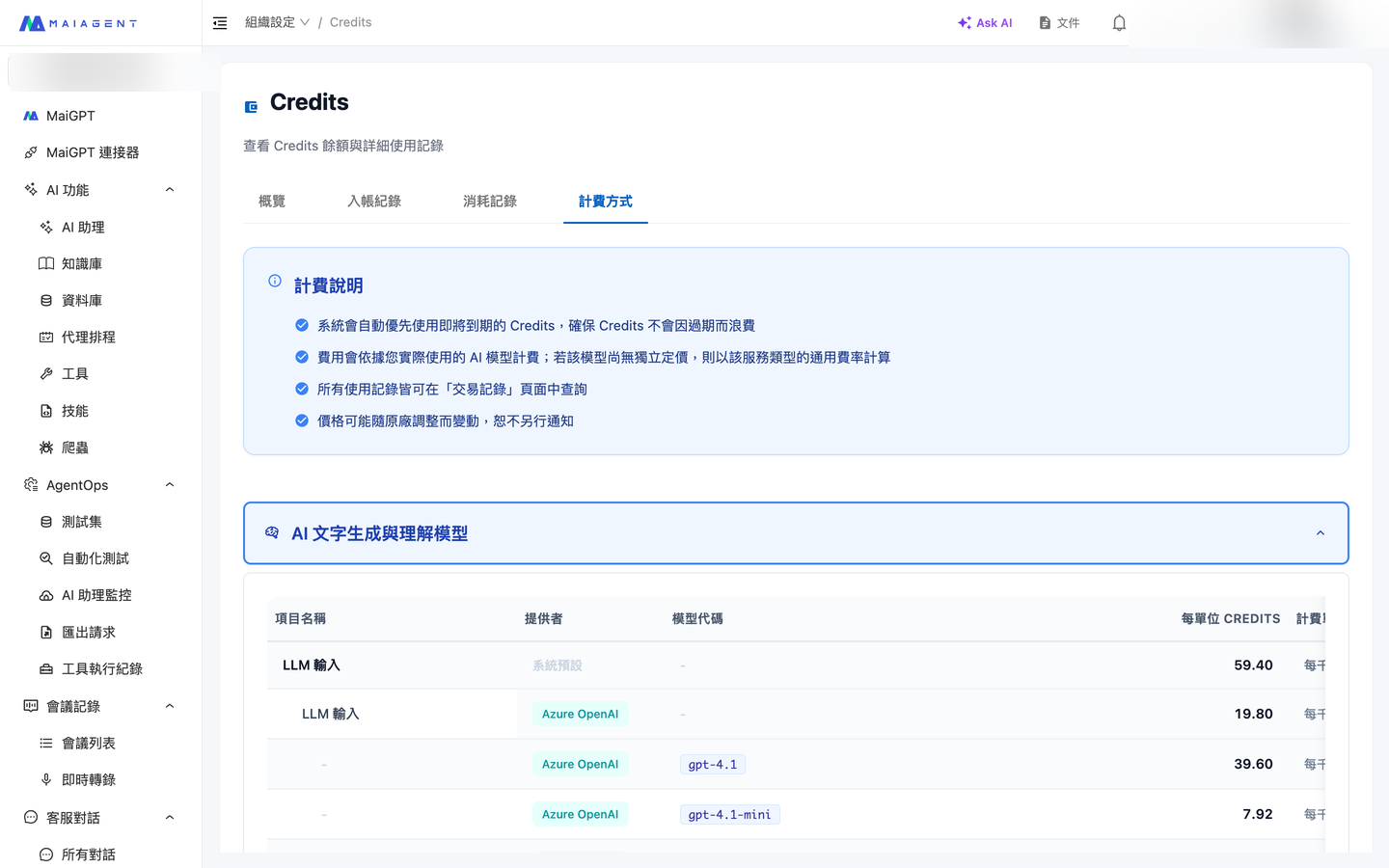
1. Go to <mark style="color:blue;">**Organization Settings**</mark> → <mark style="color:blue;">**Credits**</mark> → <mark style="color:blue;">**Billing Methods**</mark>.
2. Expand the <mark style="color:blue;">**AI Text Generation and Understanding Models**</mark> category.
3. Open a billing item such as <mark style="color:blue;">**LLM Input**</mark> or <mark style="color:blue;">**LLM Output**</mark>. Each row below shows a model's rate, provider, and model code.
4. To get the full rate table, click <mark style="color:blue;">**Export CSV**</mark> at the top of the page.

{% hint style="info" %}
Language model rates under Billing Methods are displayed <mark style="color:blue;">**per thousand Tokens**</mark>. Multiply by 1,000 to get the per-million-token figures in the table above. For example, Claude 4.5 Haiku's LLM Input rate appears as 19.80 in the admin console, equivalent to 19,800 in the table.
{% endhint %}

### Why the Same Model Can Have Different Rates <a href="#same-model-different-rates" id="same-model-different-rates"></a>

The same model may be available through different providers. For example, GPT-6 Luna is available through OpenAI and Azure OpenAI, while GPT-6 Astra is available through AWS Bedrock and Azure OpenAI. Each provider has its own pricing rule based on its listed prices, so Billing Methods may show multiple rows with the same model name and potentially different rates.

Each deduction is calculated using the provider and model actually used for that call. To check which one a charge used, expand the transaction in <mark style="color:blue;">**Consumption Records**</mark> and review the <mark style="color:blue;">**Provider**</mark> and <mark style="color:blue;">**Model**</mark> fields.

***

## Estimated Tokens by Plan <a href="#plan-token-reference" id="plan-token-reference"></a>

The number of tokens the same Credits balance can process varies by model, as shown below (estimated using the rates above and a mix of 70% Input＋30% Output):

| Plan         | Monthly Credits | Approx. Claude 4.5 Haiku Capacity | Approx. Claude 5 Sonnet Capacity | Approx. Claude 5.5 Opus Capacity |
| ------------ | --------------- | --------------------------------- | -------------------------------- | -------------------------------- |
| Standard     | 500,000         | \~11.48 million tokens            | \~5.74 million tokens            | \~2.87 million tokens            |
| Professional | 5,000,000       | \~114.78 million tokens           | \~57.39 million tokens           | \~28.70 million tokens           |
| Enterprise   | 10,000,000      | \~229.57 million tokens           | \~114.78 million tokens          | \~57.39 million tokens           |

***

## Credits Top-up Options <a href="#topup-plans" id="topup-plans"></a>

| Credits   | Approx. Claude 4.5 Haiku Capacity |
| --------- | --------------------------------- |
| 50,000    | \~1.15 million tokens             |
| 500,000   | \~11.48 million tokens            |
| 1,000,000 | \~22.96 million tokens            |
| 2,500,000 | \~57.39 million tokens            |

View pricing and check out under the <mark style="color:blue;">**Top Up Credits**</mark> tab in <mark style="color:blue;">**Organization Settings**</mark> → <mark style="color:blue;">**Billing Management**</mark> in the admin console (billing management permissions required). Prices shown on that page apply. If a partner manages your organization's plan, contact the partner for top-ups.

{% hint style="info" %}
**Expiration rules**\
• Credits from your **monthly plan quota** expire at the end of that month\
• **Top-up** Credits are valid for **12 months** from the purchase date. Unused Credits expire at the end of that period
{% endhint %}

***

## Plan Quotas and Top-up Credits <a href="#plan-vs-topup" id="plan-vs-topup"></a>

Your subscription plan's **monthly quota** and **top-up Credits** are two separate but complementary balances. The system automatically handles the deduction order, so you do not need to allocate them manually.

### Comparison <a href="#plan-vs-topup-comparison" id="plan-vs-topup-comparison"></a>

| Item            | Plan Quota (Monthly)                                                 | Top-up Credits                                              |
| --------------- | -------------------------------------------------------------------- | ----------------------------------------------------------- |
| **Source**      | Automatically issued by your subscription plan                       | Purchased whenever you need them                            |
| **When issued** | At the start of each month                                           | Effective immediately after purchase                        |
| **Validity**    | **Expires at the end of the month**; unused Credits do not roll over | Valid for **12 months** from the purchase date              |
| **Use case**    | Regular day-to-day usage                                             | Supplementing an exhausted monthly quota / unexpected usage |

### Deduction Order: Earliest Expiry First (FIFO) <a href="#fifo-deduction" id="fifo-deduction"></a>

The system uses **FIFO (first in, first out)** logic, determining the deduction order by **expiration date**:

```
Day-to-day usage → Deduct the current month's plan quota first (expires at month-end)
                → Once the quota is exhausted → Automatically deduct top-up Credits (in purchase order)
                → Reset at month-end → Issue next month's quota
```

This design **prevents your top-up Credits from being spent while your monthly quota expires unused**.

{% hint style="success" %}
**Example**: you are an Enterprise customer (10,000,000 Credits per month) and top up 1,000,000 Credits mid-month.

* The system first uses up the remaining monthly quota (which expires at month-end)
* Only then does it use the additional 1,000,000 Credits (available for use at any time within 12 months)
  {% endhint %}

### Why Have Two Types? <a href="#why-two-types" id="why-two-types"></a>

* **Subscription plan quota** = a stable budget for everyday use, fixed each month
* **Top-up Credits** = a flexible reserve you can replenish whenever business needs grow unexpectedly
* Together, they let you **control your budget and handle fluctuations**

***

## Traffic Fees for Your Own AI Gateway Models <a href="#ai-gateway-traffic-fee" id="ai-gateway-traffic-fee"></a>

When your organization uses AI Gateway models with credentials you provide or models you host yourself, MaiAgent charges a traffic fee based on the total token count for each call instead of the platform's LLM token rates. Total tokens include input, output, prompt cache writes, and prompt cache reads. The actual percentage depends on your organization settings.

{% hint style="info" %}
The traffic fee is calculated as “total tokens × organization traffic rate” and deducted in Credits. MaiAgent-hosted models continue to use their original Input/Output rates; this section does not apply to them.
{% endhint %}

### Usage Scenario <a href="#traffic-fee-scenario" id="traffic-fee-scenario"></a>

For example, an IT department connects a company-hosted model to AI Gateway, and a finance team member wants to verify the cost of these calls at month-end. He first checks the organization's traffic rate under Billing Methods, then filters platform fees in Consumption Records. The screen lists AI Gateway traffic fees so he can reconcile traffic for the organization's own models separately from hosted model charges.

### View Traffic Rates and Usage <a href="#view-traffic-fee" id="view-traffic-fee"></a>

1. Go to <mark style="color:blue;">**Organization Settings**</mark> → <mark style="color:blue;">**Credits**</mark> → <mark style="color:blue;">**Billing Methods**</mark>.
2. Under Platform Fees, find <mark style="color:blue;">**AI Gateway Traffic Fee**</mark> and review the “total tokens × percentage” rate description.
3. Switch to <mark style="color:blue;">**Consumption Records**</mark> and filter by Platform Fees to see actual deductions.
4. Hover over an AI Gateway traffic fee entry to check input, output, cache writes, cache reads, and the billing percentage.

<figure><img src="https://1360999650-files.gitbook.io/~/files/v0/b/gitbook-x-prod.appspot.com/o/spaces%2F6v6TNkkOQVfRYfcNirHL%2Fuploads%2Fgit-blob-a823e0441e825808d7c29e19b30f6b5b72ee41fa%2Fcredits-ai-gateway-pricing.png?alt=media" alt="AI Gateway traffic fee under the Platform Fees category"><figcaption><p>View the AI Gateway traffic fee in the Platform Fees category under Billing Methods.</p></figcaption></figure>

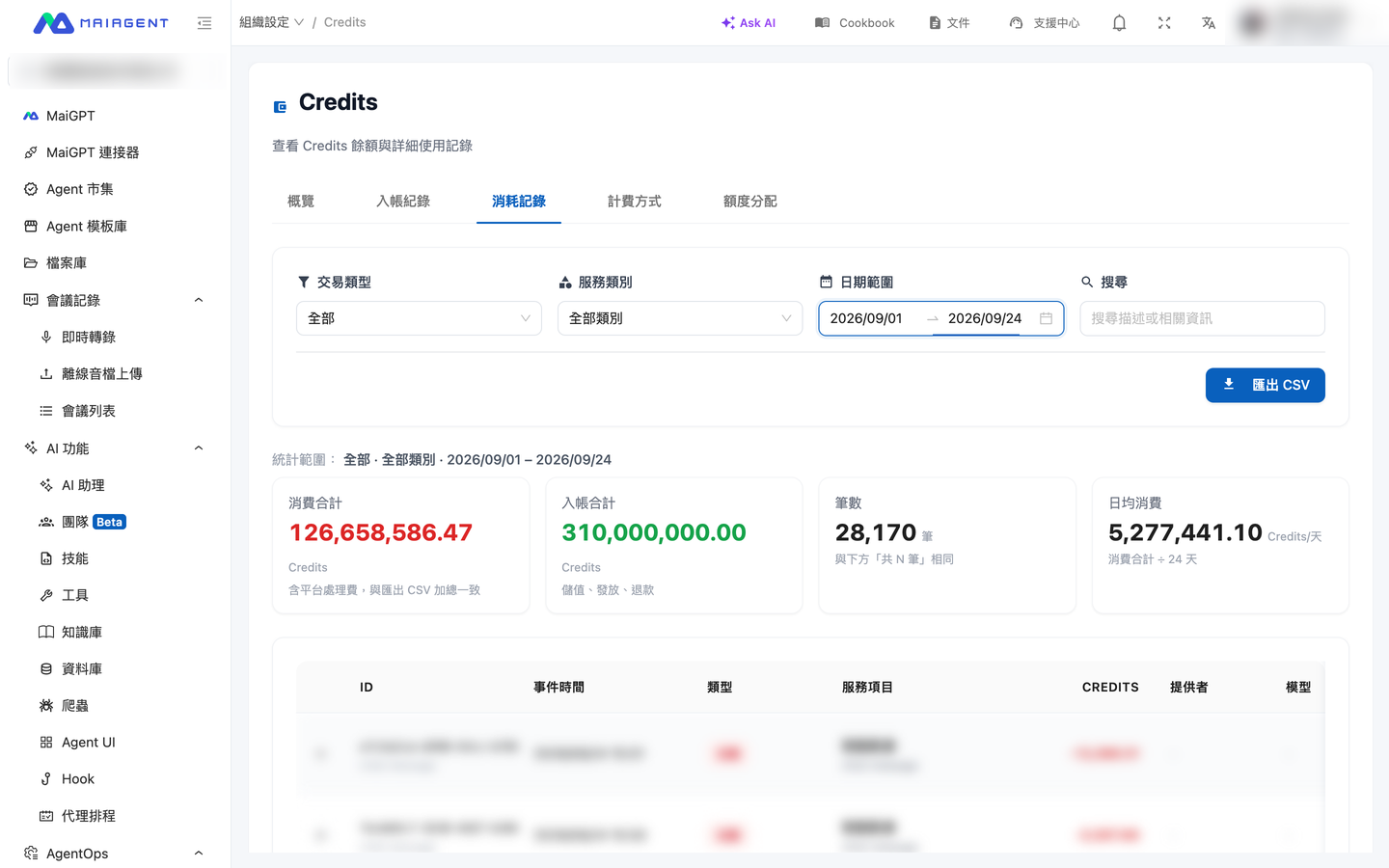
<figure><img src="https://1360999650-files.gitbook.io/~/files/v0/b/gitbook-x-prod.appspot.com/o/spaces%2F6v6TNkkOQVfRYfcNirHL%2Fuploads%2Fgit-blob-02c47652d64133d1b0dedfb67f7529765f791928%2Fcredits-ai-gateway-consumption.png?alt=media" alt="Credits Consumption Records tab"><figcaption><p>Filter actual deductions by type, service category, date, or keyword in Consumption Records.</p></figcaption></figure>

{% hint style="warning" %}
Traffic fee details appear in Consumption Records only after you actually use an organization's own (BYOK/self-hosted) AI Gateway model. Billing Methods shows current rates, while historical entries retain the billing information that applied when the transaction occurred.
{% endhint %}

***

## Credits Management Panel <a href="#management-panel" id="management-panel"></a>

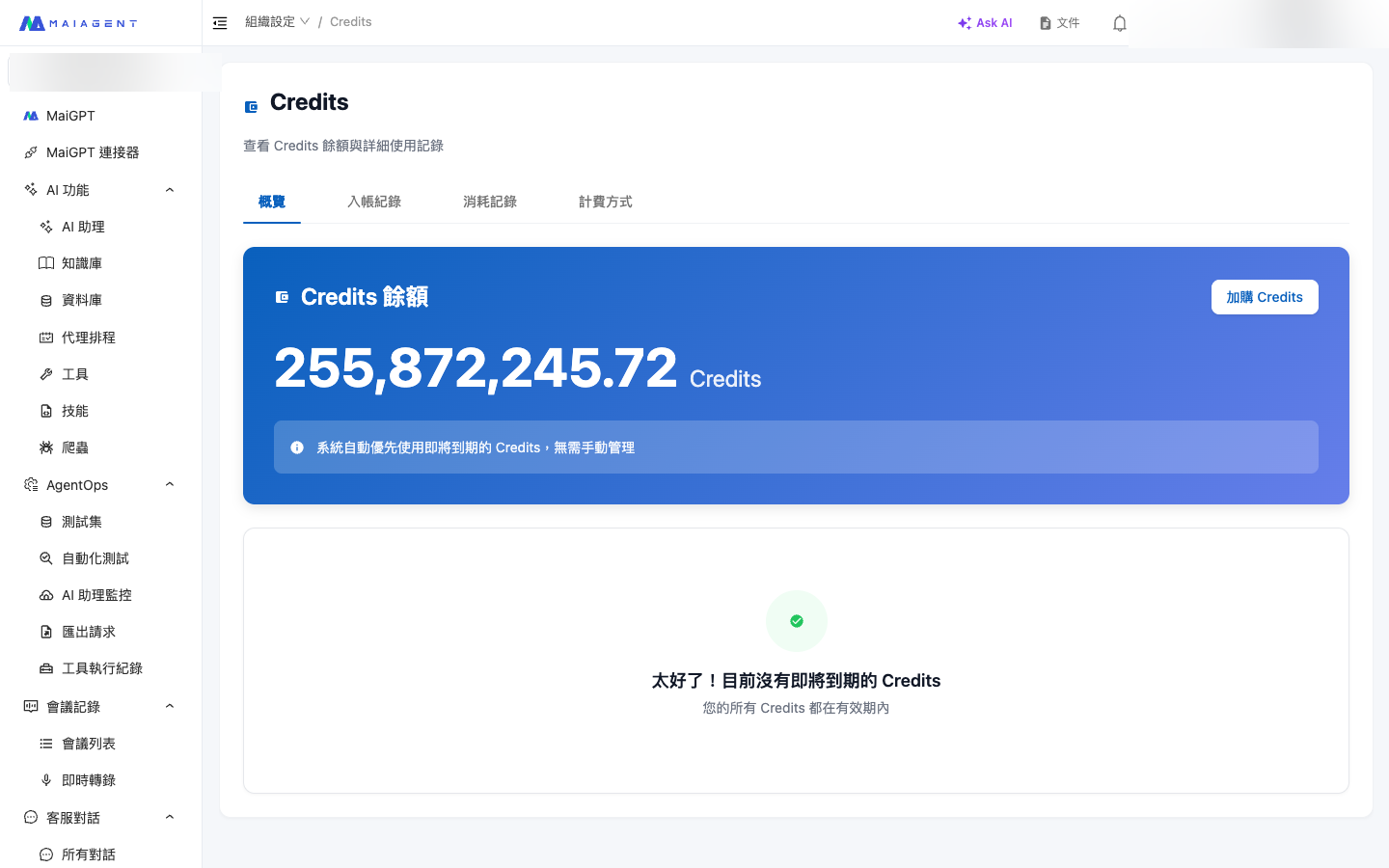
Access the management interface under <mark style="color:blue;">**Organization Settings**</mark> → <mark style="color:blue;">**Credits**</mark>. It contains five tabs:

### Overview <a href="#overview-tab" id="overview-tab"></a>

* View your total Credits balance and Credits nearing expiration in real time
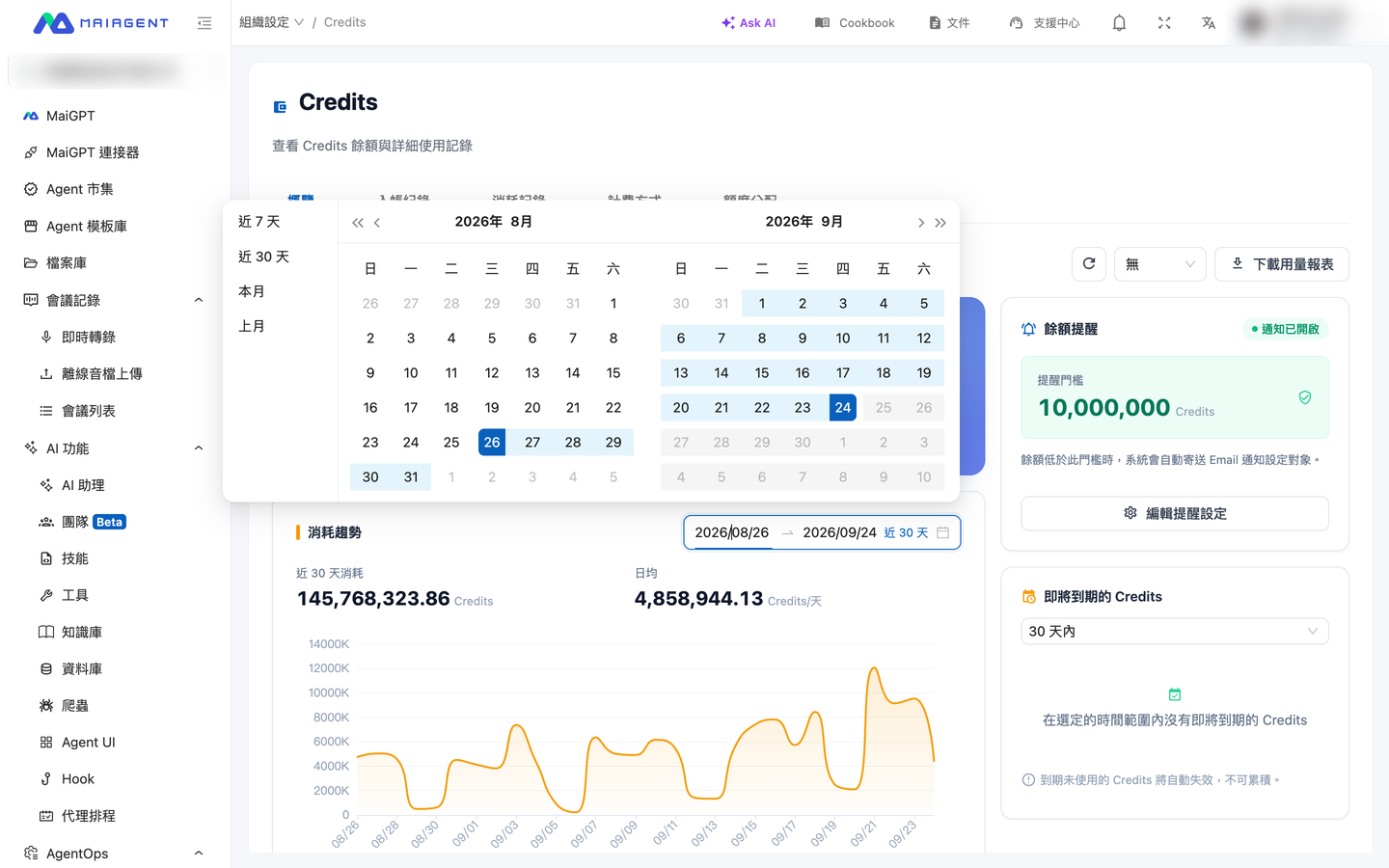
* Consumption trend chart: select any date range, with the period's consumption and daily average shown on the same card (see [Customize the Consumption Trend Date Range](#trend-date-range))
* Alerts for Credits nearing expiration
* Low balance alert settings (in-app notifications + Email; see [Low Balance Alerts](#low-balance-alert))

<figure><img src="https://1360999650-files.gitbook.io/~/files/v0/b/gitbook-x-prod.appspot.com/o/spaces%2F6v6TNkkOQVfRYfcNirHL%2Fuploads%2Fgit-blob-3f607a177e928d881df79b615c86203016151fb9%2Fcredit-1-overview.png?alt=media" alt=""><figcaption><p>Overview tab: real-time Credits balance and expiration alerts</p></figcaption></figure>

#### Last Grant, Next Grant, and Scheduled Top-ups <a href="#grant-cards" id="grant-cards"></a>

The Overview tab has two cards, <mark style="color:blue;">**Last Grant**</mark> and <mark style="color:blue;">**Next Grant**</mark>. When MaiAgent has scheduled a top-up for your organization, a <mark style="color:blue;">**Scheduled Top-up**</mark> card also appears below <mark style="color:blue;">**Next Grant**</mark>:

<figure><img src="https://1360999650-files.gitbook.io/~/files/v0/b/gitbook-x-prod.appspot.com/o/spaces%2F6v6TNkkOQVfRYfcNirHL%2Fuploads%2Fgit-blob-13ed685144e9b7fd08220f2b76413d2c2ef9042b%2Fcredits-grant-cards.png?alt=media" alt="The Credits Overview tab: the Last Grant card shows +10,000,000 Credits and the grant date, and the Next Grant card shows 25 days from now, +10,000,000 Credits, the date, and the plan cycle as the source"><figcaption><p>Last Grant and Next Grant: the Next Grant card shows the days remaining, amount, date, and source</p></figcaption></figure>

| Card                                                  | What it shows                                                                                                                                                                                                                                                                                                                                                                                                                                   |
| ----------------------------------------------------- | ----------------------------------------------------------------------------------------------------------------------------------------------------------------------------------------------------------------------------------------------------------------------------------------------------------------------------------------------------------------------------------------------------------------------------------------------- |
| <mark style="color:blue;">**Last Grant**</mark>       | The amount and time of the most recent plan quota deposit. If nothing has been granted yet, it shows “No grant records yet”                                                                                                                                                                                                                                                                                                                     |
| <mark style="color:blue;">**Next Grant**</mark>       | The next plan quota that **will actually be deposited**: the amount, date, days remaining, and source (<mark style="color:blue;">**Plan Cycle**</mark> or <mark style="color:blue;">**Stripe Subscription**</mark>). If no grant is going to occur, it shows “No automatic grant is currently scheduled”                                                                                                                                        |
| <mark style="color:blue;">**Scheduled Top-up**</mark> | A top-up that MaiAgent has scheduled for your organization but has not yet been credited (for example, bonus Credits included in a contract). Each entry lists the amount, the <mark style="color:blue;">**Scheduled Credit Date**</mark>, and the <mark style="color:blue;">**Last Usable Date**</mark>. Up to 5 entries are listed, and any others appear as “N more”. This card is view-only and does not appear when no top-ups are pending |

**How the Next Grant amount and date are calculated**

* **No plan change**: the date is the wallet's next grant date, and the amount is the current plan's monthly quota.
* **A plan change (upgrade or downgrade) is scheduled**: if the new plan takes effect on or before the next grant date, the card shows the date the new plan takes effect and the new plan's monthly quota. This is because the new plan grants one month's quota as soon as it takes effect, so the original next grant date will not produce a separate grant.
* **The current plan expires before the next grant date and no plan follows it**: no grant will occur on that date, and the card shows “No automatic grant is currently scheduled”.

These rules apply to organizations whose source is <mark style="color:blue;">**Plan Cycle**</mark>. When the source is <mark style="color:blue;">**Stripe Subscription**</mark>, the date follows the Stripe billing period, and the amount is the current plan's monthly quota.

{% hint style="info" %}
A scheduled top-up's last usable date = its credit date (Taiwan time) plus the validity period in days, minus 1 day. Scheduled top-ups are arranged by MaiAgent. To add or adjust one, contact your MaiAgent representative.
{% endhint %}

For example, a company is currently on the Professional plan with 5 million Credits granted each month. It has arranged with its sales representative to upgrade to the Enterprise plan on November 1 with 10 million per month, and a contract bonus of 52.5 million is also scheduled to be credited on November 1. At the end of October, a finance team member opens <mark style="color:blue;">**Credits**</mark> → <mark style="color:blue;">**Overview**</mark>. The <mark style="color:blue;">**Next Grant**</mark> card shows +10,000,000 on November 1, and the <mark style="color:blue;">**Scheduled Top-up**</mark> card below it lists +52,500,000 and its last usable date. There is no need to ask the representative how much will be credited in November.

#### Customize the Consumption Trend Date Range <a href="#trend-date-range" id="trend-date-range"></a>

A date range picker appears in the upper-right corner of the Consumption Trend card and defaults to the last 30 days. To see how many Credits you spent last month or over any other period, you no longer need to export a report and add up the figures yourself.

1. Go to <mark style="color:blue;">**Organization Settings**</mark> → <mark style="color:blue;">**Credits**</mark> → <mark style="color:blue;">**Overview**</mark>.
2. Click the date range in the upper-right corner of the Consumption Trend card, then select the start date followed by the end date in the same calendar panel. The left side also offers four shortcuts: <mark style="color:blue;">**Last 7 Days**</mark>, <mark style="color:blue;">**Last 30 Days**</mark>, <mark style="color:blue;">**This Month**</mark>, and <mark style="color:blue;">**Last Month**</mark>.
3. The chart immediately redraws daily consumption for that period, and the card's <mark style="color:blue;">**Period Consumption**</mark> and <mark style="color:blue;">**Daily Average**</mark> are recalculated. The bottom of the card displays “N days in total”.

<figure><img src="https://1360999650-files.gitbook.io/~/files/v0/b/gitbook-x-prod.appspot.com/o/spaces%2F6v6TNkkOQVfRYfcNirHL%2Fuploads%2Fgit-blob-06ce169732c6c58365c6df06d785fb6497ada70f%2Fcredits-trend-range-picker.png?alt=media" alt="Date range picker on the Consumption Trend card, with Last 7 Days, Last 30 Days, This Month, and Last Month shortcuts on the left"><figcaption><p>Consumption trend: select start and end dates in the calendar panel, or use a shortcut on the left</p></figcaption></figure>

{% hint style="info" %}

* Start and end dates are calculated as full days in Taiwan time, inclusive of both endpoints. The end date cannot be later than today.
* Ranges of 90 days or less show one point per day. Longer ranges show one point per week, with horizontal-axis labels showing each week's start date. The daily average always uses the number of days in the range, regardless of the weekly display.
* If there is no consumption during the range, the chart shows an empty state.
  {% endhint %}

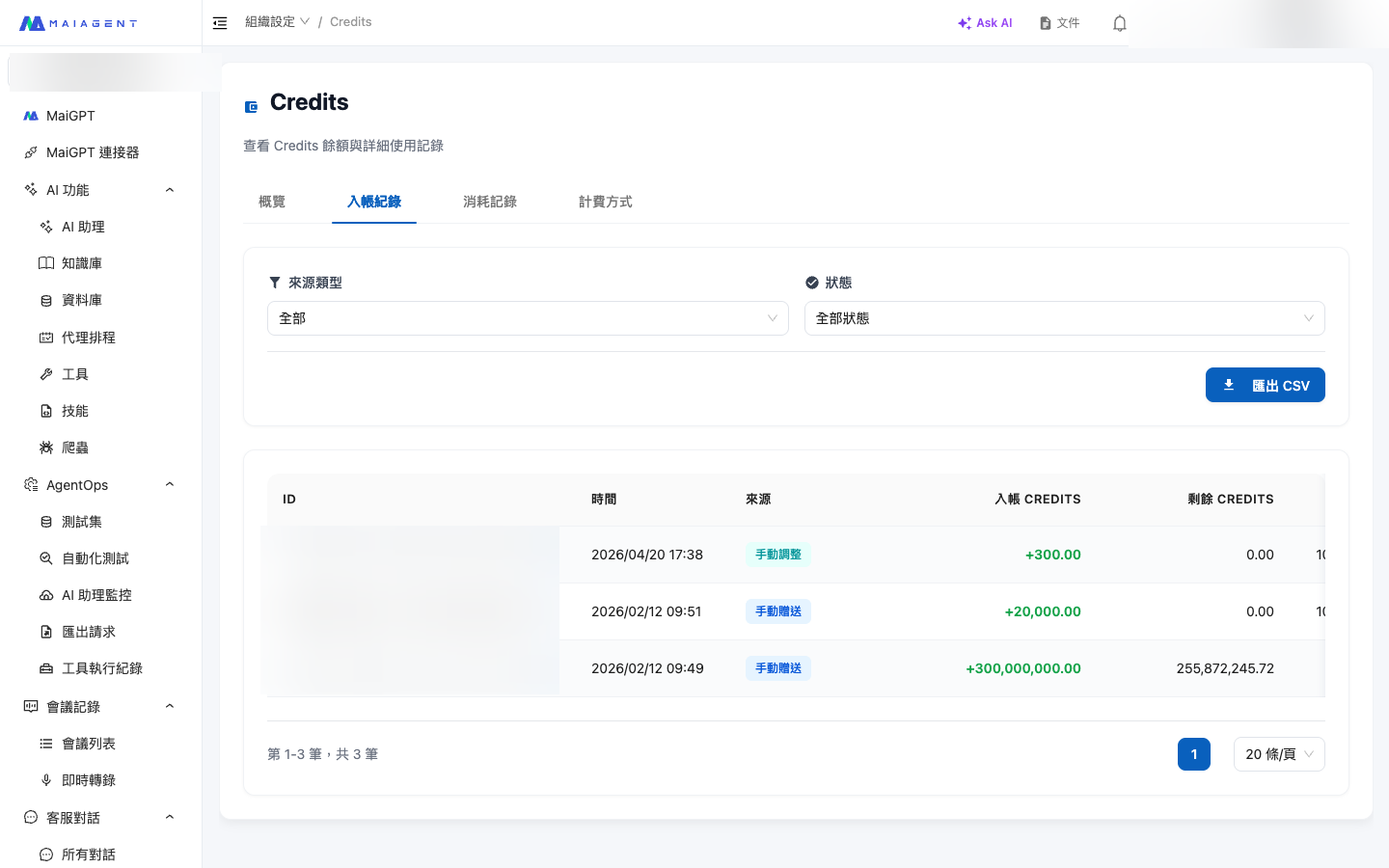
### Deposit Records <a href="#deposits-tab" id="deposits-tab"></a>

* Shows the source of each Credits deposit: plan allocations, top-ups, gifts, and more
* Indicates validity periods (monthly quotas expire at month-end; top-ups are valid for 12 months from purchase)
* Uses **FIFO deduction** (earliest expiry first) and shows the remaining balance of each allocation in full
* Supports **CSV export** for financial bookkeeping and annual reconciliation. Files are generated in the background; download them from [Export Records](#export-records)

<figure><img src="https://1360999650-files.gitbook.io/~/files/v0/b/gitbook-x-prod.appspot.com/o/spaces%2F6v6TNkkOQVfRYfcNirHL%2Fuploads%2Fgit-blob-841869bbc95eef21c7f52365b382ceeb69cce267%2Fcredit-2-deposits.png?alt=media" alt=""><figcaption><p>Deposit Records tab: full details of Credits sources, validity periods, and remaining balances</p></figcaption></figure>

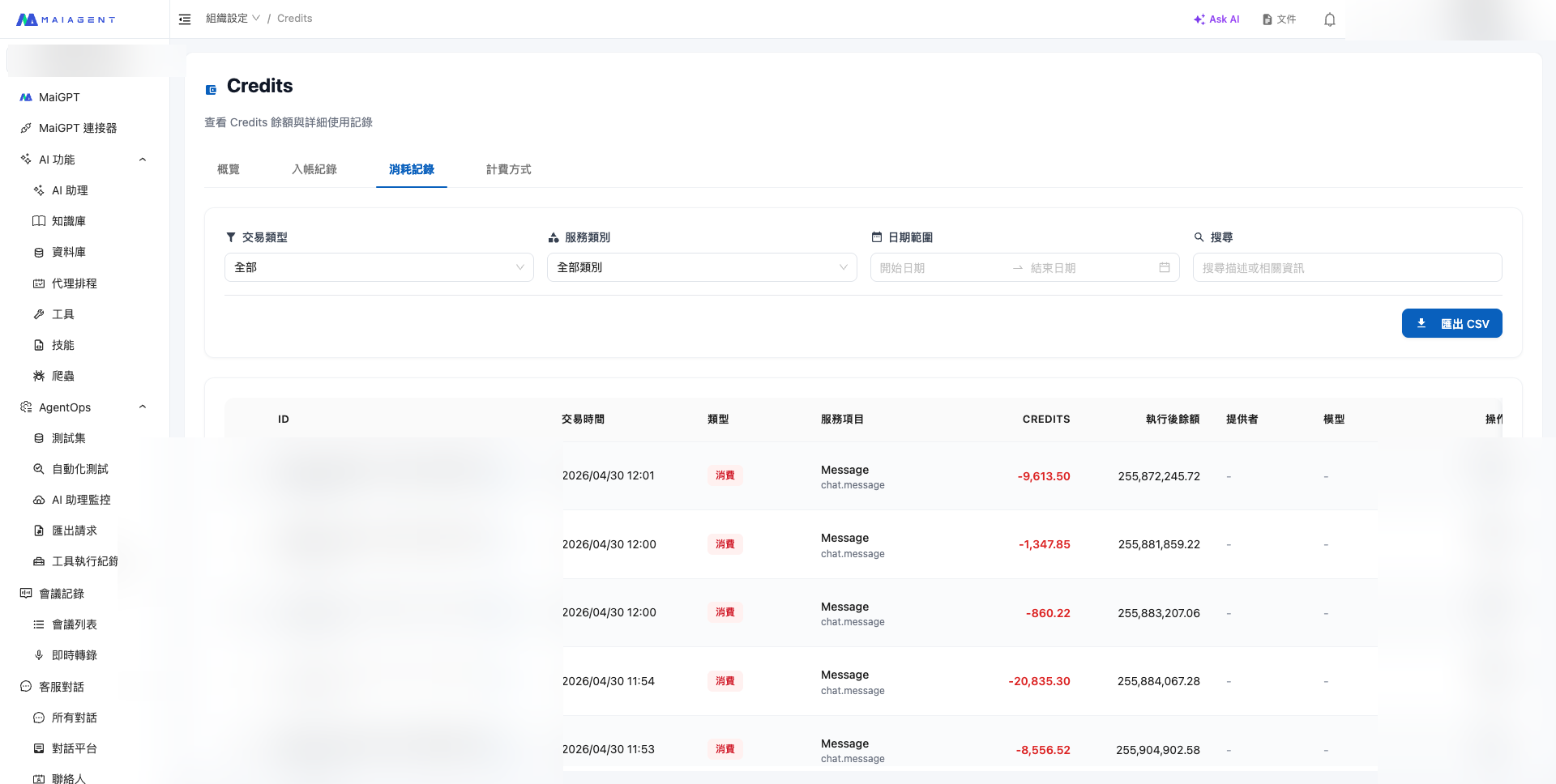
### Consumption Records <a href="#consumption-tab" id="consumption-tab"></a>

* Filter usage details by date, type, Agent, and other dimensions
* Each charge shows the model used, Credits consumed, and corresponding event
* After filtering, view total spending, total deposits, record count, and average daily spending for those results directly (see [Filtered Results Statistics](#consumption-stats))
* Select <mark style="color:blue;">**AI Memory**</mark> under <mark style="color:blue;">**Service Category**</mark> to view only the consumption from AI Memory organizing members' memories (see [View AI Memory Consumption](#ai-memory-consumption))
* Supports **CSV export** for archiving or external analysis (useful for internal financial reconciliation). The export includes all details matching the current filters, rather than the consolidated view. Files are generated in the background and available on the [Export Records](#export-records) page

<figure><img src="https://1360999650-files.gitbook.io/~/files/v0/b/gitbook-x-prod.appspot.com/o/spaces%2F6v6TNkkOQVfRYfcNirHL%2Fuploads%2Fgit-blob-9265ca5f54d3d1ca372e22bb884fccbd26408e54%2Fcredit-3-consumption.png?alt=media" alt=""><figcaption><p>Consumption Records tab: each usage entry is linked to a model, Agent, and event</p></figcaption></figure>

#### Filtered Results Statistics <a href="#consumption-stats" id="consumption-stats"></a>

When finance staff need to verify how many Credits were deducted last month, they can set the date range in Consumption Records to the full month. The statistics row beneath the filter card provides the totals directly, without exporting a CSV and adding them up manually.

After setting the transaction type, service category, date range, or search keywords, a statistics row appears between the filter card and the details table, indicating the current scope of the statistics:

<table><thead><tr><th width="150">Field</th><th>Description</th></tr></thead><tbody><tr><td>Total Spending</td><td>The sum of all deductions within the filtered scope (including platform processing fees), matching the total in the exported CSV. Displays 0 when the transaction type is set to Deposit.</td></tr><tr><td>Total Deposits</td><td>The sum of all top-ups, allocations, and refunds within the filtered scope. Displays 0 when the transaction type is set to Consumption.</td></tr><tr><td>Record Count</td><td>Matches “N records in total” at the bottom of the details table. Multiple deductions for the same message count as one record.</td></tr><tr><td>Average Daily Spending</td><td>Total spending ÷ number of days in the date range (inclusive of both endpoints). Displays “–” when no date range is set.</td></tr></tbody></table>

<figure><img src="https://1360999650-files.gitbook.io/~/files/v0/b/gitbook-x-prod.appspot.com/o/spaces%2F6v6TNkkOQVfRYfcNirHL%2Fuploads%2Fgit-blob-79df7a40390511c20904035bb55b1d15ad59a342%2Fcredits-consumption-stats-row.png?alt=media" alt="Consumption Records tab: the statistics row beneath the filter card shows total spending, total deposits, record count, and average daily spending"><figcaption><p>Set the date range to the full month to see that month's total spending and daily average directly in the statistics row</p></figcaption></figure>

{% hint style="info" %}
Statistics are calculated across all filtered results, regardless of pagination or page size, and are recalculated whenever filters change. If the statistics temporarily fail to load, the details table still displays normally. Click Retry on the statistics row to recalculate.
{% endhint %}

#### View AI Memory Consumption <a href="#ai-memory-consumption" id="ai-memory-consumption"></a>

When [AI Memory](/maiagent-user-guide/en/work/maigpt/ai-memory.md) organizes and stores members' memories from conversations, the platform's system model performs the task and deducts Credits at that model's rate. Each operation is listed separately in <mark style="color:blue;">**Consumption Records**</mark> under the <mark style="color:blue;">**AI Memory**</mark> service category, rather than being included in the Agent response's own usage.

**Usage Scenario**

A marketing planner tells an Agent in MaiGPT, “I am a marketing planner at the example company Acme. Please always reply in bullet points from now on.” After the conversation, AI Memory organizes the job role and preferred response format into two memories. When the organization administrator reviews Credits at month-end, switching <mark style="color:blue;">**Service Category**</mark> to <mark style="color:blue;">**AI Memory**</mark> in <mark style="color:blue;">**Consumption Records**</mark> shows the consumption for this operation, the model used, and the member whose information was remembered. These costs can then be reconciled separately from Agent response charges.

**Steps**

1. Go to <mark style="color:blue;">**Organization Settings**</mark> → <mark style="color:blue;">**Credits**</mark> → <mark style="color:blue;">**Consumption Records**</mark>.
2. Select <mark style="color:blue;">**AI Memory**</mark> under <mark style="color:blue;">**Service Category**</mark>. The list and the [Filtered Results Statistics](#consumption-stats) above it only include AI Memory consumption; selecting <mark style="color:blue;">**AI Language Model**</mark> excludes this consumption.
3. Click the expand icon to the left of a consumption record to view its details:
   * Detail names show <mark style="color:blue;">**AI Memory (Input)**</mark> and <mark style="color:blue;">**AI Memory (Output)**</mark>; other billing items, such as caching, show <mark style="color:blue;">**AI Memory**</mark>. The gray text beside the name is the billing item code.
   * The <mark style="color:blue;">**Model**</mark> column shows the platform system model that actually organized the memories, which may differ from the model configured for the AI assistant.
   * The <mark style="color:blue;">**Operator**</mark> for the record is the member whose information was remembered. This consumption also counts against that member's personal quota and their role's quota (if a [Member Credits Quota](/maiagent-user-guide/en/others/credits/member-credit-quota.md) or [Role Quota](/maiagent-user-guide/en/others/credits/member-credit-quota.md#role-quota) is configured).
4. Hover over the information icon beside the name to see: “This usage was consumed by AI Memory to organize and save user memories from conversations. It is performed by the platform's system model, so the model shown may differ from the one configured for the AI assistant. The same message may trigger multiple extractions (for example, once during the reply and once afterward), each recorded separately.”

<figure><img src="https://1360999650-files.gitbook.io/~/files/v0/b/gitbook-x-prod.appspot.com/o/spaces%2F6v6TNkkOQVfRYfcNirHL%2Fuploads%2Fgit-blob-3b9c787bff300c3638398c505278b68309c47e17%2Fcredits-ai-memory-detail.png?alt=media" alt="An AI Memory consumption record expanded in Consumption Records, showing three detail rows: AI Memory (Input), AI Memory, and AI Memory (Output). The model is the platform system model, and hovering over the information icon shows an explanation of AI Memory; the record ID and operator are masked"><figcaption><p>AI Memory details list input and output separately, and the information icon explains the source of the usage; the record ID and operator are masked in this image</p></figcaption></figure>

**AI Memory in Reply Input**

Memories referenced by the Agent when replying are sent to the model together with the question and count toward that reply's input usage. They do not belong to the “AI Memory” service category. To show how much of the input comes from memories, expanding the reply's details displays an information icon beside <mark style="color:blue;">**LLM Input**</mark>, <mark style="color:blue;">**LLM Cache Creation**</mark>, or <mark style="color:blue;">**LLM Cache Read**</mark>. Hover over it to see “This input includes approximately N tokens of AI Memory, already included in input usage.” N is the estimated number of memory tokens billed on that row; the icon does not appear if the reply did not include any memories.

<figure><img src="https://1360999650-files.gitbook.io/~/files/v0/b/gitbook-x-prod.appspot.com/o/spaces%2F6v6TNkkOQVfRYfcNirHL%2Fuploads%2Fgit-blob-281cd605e76be6a0757dfa12e612686978d06a97%2Fcredits-ai-memory-input-hint.png?alt=media" alt="A conversation message expanded in Consumption Records. The information icon beside LLM Cache Creation shows ‘This input includes approximately 187 tokens of AI Memory, already included in input usage’; the record ID and operator are masked"><figcaption><p>The reply's input row indicates approximately how many tokens came from AI Memory; the record ID and operator are masked in this image</p></figcaption></figure>

{% hint style="info" %}

* AI Memory may organize memories after the Agent replies, so this consumption may appear later than the reply's consumption. The same message may also generate multiple records.
* Only members whose roles have <mark style="color:blue;">Credit Management permission</mark> can view consumption records.
* To prevent your conversations from generating AI Memory consumption, turn off <mark style="color:blue;">Let the assistant remember me</mark> on the AI Memory page. See [Turn AI Memory On or Off](/maiagent-user-guide/en/work/maigpt/ai-memory.md#toggle-memory).
  {% endhint %}

#### View Hook Consumption <a href="#hook-consumption" id="hook-consumption"></a>

Templates in [Hooks](/maiagent-user-guide/en/build/hook.md) that require semantic judgment (Prompt Injection Protection, Invalid Message Filtering, and Response Reliability Check) call the [evaluation model](/maiagent-user-guide/en/build/hook/setup.md#judge-model) configured for the Hook (the platform default model if left blank) and deduct Credits at that model's rate. These costs do not have a separate service category. The billing items are the same LLM input/output usage as the Agent's own replies, and the service category is <mark style="color:blue;">**AI Language Model**</mark>, grouped under the conversation message that triggered the Hook. When you expand the details, the Hook's input and output each appear as a separate row (multiple evaluations for the same message that use the same model are summed in one row). They are listed alongside the Agent reply's own LLM input and output rows, so you need to use the information icon beside the name to tell them apart.

**Usage Scenario**

A customer service Agent has the “Prompt Injection Protection” Hook attached, with a lower-cost small model selected as the evaluation model. At month-end, the organization administrator notices that a conversation consumed more Credits than expected. By expanding the details of that message, they can tell which rows are the Agent reply's own consumption, which rows are Hook evaluation consumption, and which model the Hook used.

**Steps**

1. Go to <mark style="color:blue;">**Organization Settings**</mark> → <mark style="color:blue;">**Credits**</mark> → <mark style="color:blue;">**Consumption Records**</mark>.
2. Click the expand icon to the left of a conversation message's consumption record to view its details.
3. Detail rows generated by a Hook have an information icon beside the name. Hover over it to see “This usage was triggered and recorded by a Hook.” In these rows, the <mark style="color:blue;">**Model**</mark> column shows the Hook's evaluation model, which may differ from the model configured for the AI assistant.

<figure><img src="https://1360999650-files.gitbook.io/~/files/v0/b/gitbook-x-prod.appspot.com/o/spaces%2F6v6TNkkOQVfRYfcNirHL%2Fuploads%2Fgit-blob-79acd278ee1de9ff726c1f92a5aedbf47bc815ad%2Fcredits-hook-consumption-detail.png?alt=media" alt="The expanded details of a conversation message in Consumption Records, with two LLM Input rows and two LLM Output rows. One LLM Input row and one LLM Output row have an information icon beside the name; hovering over it shows “This usage was triggered and recorded by a Hook.” The Model column lists the model used in each row; the record ID is masked"><figcaption><p>Detail rows with an information icon beside the name were generated by a Hook, and the Model column shows the Hook's evaluation model; the record ID is masked in this image</p></figcaption></figure>

{% hint style="info" %}

* Evaluation runs on each message. To reduce this consumption, choose a fast, lower-cost model as the evaluation model. See [Evaluation Model (LLM-Based Templates)](/maiagent-user-guide/en/build/hook/setup.md#judge-model).
* Hook consumption at both the “When receiving a user message” and “After AI response generation” timings is listed in the details of the same conversation message.
* In addition to checking the user's message, a Hook at the “When receiving a user message” timing also checks attachments, knowledge base retrieval passages, and tool returns one by one (see [Four Sources Before Content Reaches the AI](/maiagent-user-guide/en/build/hook.md#four-sources)), calling the evaluation model once for each piece of content checked. As a result, one message may involve multiple evaluations, and all the consumption is recorded on that message.
* “Invalid Message Filtering” first uses rules to block pure greetings and spam messages. Messages blocked by rules do not call the evaluation model, so they incur no such consumption.
  {% endhint %}

### Pricing <a href="#pricing-tab" id="pricing-tab"></a>

* Lists the complete rates for all models and features
* Covers all billing categories, including LLM conversations, voice, knowledge bases, crawlers, tools, Agent computing, and Avatar
* Use <mark style="color:blue;">**Export CSV**</mark> at the top of the page to export the entire rate table. Once the file is generated in the background, download it from the [Export Records](#export-records) page

<figure><img src="https://1360999650-files.gitbook.io/~/files/v0/b/gitbook-x-prod.appspot.com/o/spaces%2F6v6TNkkOQVfRYfcNirHL%2Fuploads%2Fgit-blob-081859f5a3b6da7807f239ffd940f0ef69ca22f8%2Fcredit-4-pricing.png?alt=media" alt=""><figcaption><p>Pricing tab: the complete rate table for all models and features</p></figcaption></figure>

#### View Storage Fees for Conversation Attachments and Derived Files <a href="#attachment-and-derived-storage" id="attachment-and-derived-storage"></a>

Files uploaded in conversations occupy “Conversation Attachment Storage.” Copies generated during file processing, such as format conversion, reparsing, or voice transcription, are billed separately: copies derived from conversation attachments or file library files count toward “File Library Derived File Storage,” while copies derived from knowledge base files count toward “Derived File Storage.” All these items are billed in MB/month, with Credits deducted daily based on actual usage. Original files are billed under their respective storage items and are not billed again as derived files.

{% hint style="info" %}
The retention period for conversation attachments follows the system setting and is currently shown in the description of “Conversation Attachment Storage.” A new message in the conversation resets the retention countdown. When the retention period ends, the attachments and processing copies generated from them are automatically deleted, and billing stops. Deletion is permanent, so download any files you need to keep before the deadline.
{% endhint %}

{% hint style="info" %}
**Where can I adjust the retention period?**

The retention period is a system setting shared across the entire platform. There is no field to adjust it in the organization console, and it cannot be set separately for individual organizations or conversation platforms. For on-premises deployments, a system administrator sets it in the system administration interface, within a range of 1 to 365 days. Automatic deletion applies only to conversation attachments and their processing copies; text messages in conversations are retained. For the cloud version, contact your MaiAgent representative if you need a different retention period or want to confirm the current number of days.
{% endhint %}

1. Go to <mark style="color:blue;">**Organization Settings**</mark> → <mark style="color:blue;">**Credits**</mark>.
2. Switch to <mark style="color:blue;">**Pricing**</mark>.
3. Expand <mark style="color:blue;">**File Library**</mark>.
4. Check the Credits per unit and billing units for <mark style="color:blue;">**Conversation Attachment Storage**</mark> and <mark style="color:blue;">**File Library Derived File Storage**</mark>. Hover over the information icon to view retention and billing details. Processing copies of knowledge base files are listed under <mark style="color:blue;">**Derived File Storage**</mark> in <mark style="color:blue;">**Knowledge Base and Vector Retrieval System**</mark>.

<figure><img src="https://1360999650-files.gitbook.io/~/files/v0/b/gitbook-x-prod.appspot.com/o/spaces%2F6v6TNkkOQVfRYfcNirHL%2Fuploads%2Fgit-blob-bfe47589fdcfb575230ccea0eb7f673a21d93abc%2Fcredits-attachment-storage-pricing.png?alt=media" alt="The File Library category in Credits Pricing, listing File Library Storage, Conversation Attachment Storage, and File Library Derived File Storage, each at 4.75 Credits per MB/month"><figcaption><p>Check the storage rates for conversation attachments and processing copies.</p></figcaption></figure>

**Usage Scenario**

The customer service manager at Xiaomai Company regularly asks visitors to upload screenshots of their issues in conversations. During month-end reconciliation, she opens “Pricing” in Credits and expands “File Library” to check which rates apply to conversation attachments and parsed copies. After reading the attachment retention details, she downloads the screenshots she needs to keep before the deadline. Attachments that are no longer needed are automatically deleted when the retention period ends, and no further storage fees accumulate.

#### View File Library Storage Fees <a href="#file-library-storage" id="file-library-storage"></a>

Files stored in the [File Library](/maiagent-user-guide/en/work/file-library.md) (personal, organization, and shared spaces) are billed in MB/month at **4.752 Credits per MB per month** (approximately 4,866 Credits per GB per month), the same rate as storage for original knowledge base files. Credits are deducted daily based on actual usage. Retained older versions of files also count toward usage.

The file library stores files without vectorizing them, so it has **no** knowledge base vector storage fees. Knowledge base files, conversation attachments, and file library files are billed separately; the same file is not charged twice.

1. Go to <mark style="color:blue;">**Organization Settings**</mark> → <mark style="color:blue;">**Credits**</mark> → <mark style="color:blue;">**Pricing**</mark>.
2. Expand the <mark style="color:blue;">**File Library**</mark> category. It contains three items: <mark style="color:blue;">**File Library Storage**</mark>, <mark style="color:blue;">**Conversation Attachment Storage**</mark>, and <mark style="color:blue;">**File Library Derived File Storage**</mark> (processing copies generated when parsing files), each at 4.752 Credits per MB per month.
3. To check current space usage, go to the <mark style="color:blue;">**File Library Space**</mark> card under <mark style="color:blue;">**Organization Settings**</mark> → <mark style="color:blue;">**Organization Overview**</mark>. It shows total usage, the space used by personal/organization/shared spaces, and version snapshots. Expand personal space to see the members using the most storage.

<figure><img src="https://1360999650-files.gitbook.io/~/files/v0/b/gitbook-x-prod.appspot.com/o/spaces%2F6v6TNkkOQVfRYfcNirHL%2Fuploads%2Fgit-blob-696026c688f2b44c2863550312a730312dea59e0%2Ffile-library-usage-card.png?alt=media" alt="The File Library Space card in Organization Overview, showing total usage, personal space member rankings, organization space, shared space, and version snapshot usage"><figcaption><p>The “File Library Space” card in Organization Overview (requires Organization Overview permission)</p></figcaption></figure>

**Usage Scenario**

An organization administrator reviews Credits consumption at month-end and notices that file library storage fees have increased since last month. She opens the “File Library Space” card in Organization Overview, expands personal space, and sees that a colleague uploaded a large number of videos. She asks the colleague to download and archive videos they no longer need, then delete them. The next month's storage fees return to their previous level.

### Quota Allocation <a href="#quota-tab" id="quota-tab"></a>

* Administrators can set a personal Credits spending limit and expiration date for each member
* Supports allocating, editing, and disabling quotas, as well as control through the “Quota Required” switch
* Search for members and filter by clicking the statistics cards (the <mark style="color:blue;">**Expired / Disabled**</mark> card includes both disabled and expired quotas). Quota statuses are <mark style="color:blue;">**Active**</mark>, <mark style="color:blue;">**Disabled**</mark> (disabled before the original expiration date), <mark style="color:blue;">**Expired**</mark> (lapsed naturally on the original expiration date), and <mark style="color:blue;">**Unallocated**</mark>

See [Member Credits Quota Management](/maiagent-user-guide/en/others/credits/member-credit-quota.md) for details.

### Export Records: Download Exported CSV Files <a href="#export-records" id="export-records"></a>

<mark style="color:blue;">**Export CSV**</mark> on the Credit Records, Consumption Records, and Pricing tabs does not download a file immediately. Instead, it creates an export task to generate the file in the background:

1. After you click <mark style="color:blue;">**Export CSV**</mark>, the screen displays “Export request created, processing...” and automatically opens the corresponding tab on the <mark style="color:blue;">**Export Records**</mark> page
2. The Export Records page has three tabs for the three sources: <mark style="color:blue;">**Top-up Records**</mark> (Credit Records), <mark style="color:blue;">**Transaction Records**</mark> (Consumption Records), and <mark style="color:blue;">**Billing Rules**</mark> (Pricing)
3. Each task shows its status, creator, record count, file size, processing duration, and completion time. The status updates automatically from <mark style="color:blue;">**Pending**</mark> and <mark style="color:blue;">**Processing**</mark> to <mark style="color:blue;">**Completed**</mark>, without a manual refresh
4. For completed tasks, click <mark style="color:blue;">**Download**</mark> in the actions column to get the CSV. For <mark style="color:blue;">**Failed**</mark> tasks, click <mark style="color:blue;">**View Error Details**</mark>. <mark style="color:blue;">**Delete**</mark> tasks you no longer need

{% hint style="info" %}
The Export Records page has no entry in the left menu. Access it through <mark style="color:blue;">**Export CSV**</mark> on one of the three tabs. The page URL includes a tab parameter, so refreshing or sharing the URL returns to the same tab. Tab names on this page (Top-up Records / Transaction Records / Billing Rules) differ from those on the Credits page (Credit Records / Consumption Records / Pricing), but refer to the same data.
{% endhint %}

***

## Low Balance Alerts <a href="#low-balance-alert" id="low-balance-alert"></a>

When your organization's Credits balance drops below the threshold you set, the system **proactively sends an alert** so you can top up early and avoid service interruptions. Alerts are sent through **in-app notifications**, and paid plans also **automatically receive Email notifications**, allowing you to receive alerts promptly without logging into the console.

{% hint style="info" %}
In-app notifications are available on all plans; **Email notifications are available only on paid plans**. These alerts do not apply to organizations billed through AWS Marketplace. Access to the Credit page is required to configure and view alerts.
{% endhint %}

### Notification Channels <a href="#alert-channels" id="alert-channels"></a>

| Channel                 | Description                                                                              |
| ----------------------- | ---------------------------------------------------------------------------------------- |
| **In-app notification** | Creates an announcement in the console when the balance falls below the threshold        |
| **Email notification**  | Paid plans also send an alert email to members with the Owner role and custom recipients |

Both channels share the same **enable switch** and **alert threshold**: turning off alerts stops both in-app notifications and Email.

### Who Receives Email <a href="#alert-recipients" id="alert-recipients"></a>

* **All members with the Owner role**: automatically included when alerts are enabled, and always receive the emails
* **Custom recipients**: organizations can enter up to **5** Email addresses as additional recipients
* If the two groups overlap, the system **automatically removes duplicates**, so each Email address receives only one email

### Configuration <a href="#configure-alert" id="configure-alert"></a>

1. Go to <mark style="color:blue;">**Organization Settings**</mark> → <mark style="color:blue;">**Credits**</mark> → <mark style="color:blue;">**Overview**</mark>
2. Find the <mark style="color:blue;">**Balance Alerts**</mark> card and click <mark style="color:blue;">**Settings**</mark>
3. Turn on <mark style="color:blue;">**Enable Balance Alerts**</mark> and enter the **alert threshold**
4. In <mark style="color:blue;">**Notification Recipients**</mark>, enter additional Email addresses (up to 5; you can paste multiple comma-separated Email addresses to split them automatically)
5. Save to complete the configuration

### Trigger Conditions <a href="#alert-trigger" id="alert-trigger"></a>

* Automatically triggers when the **balance is below your configured alert threshold**, sending in-app and Email notifications at the same time
* Each wallet receives **at most one email every 24 hours** to avoid repeated interruptions
* The alert is a branded HTML email containing the current **balance** and **threshold**, along with a “View Credit Usage Details” button. To purchase additional Credits, contact <sales@maiagent.ai>

***

## Prompt Cache Usage <a href="#prompt-cache-usage" id="prompt-cache-usage"></a>

### What Is Prompt Cache, and How Can It Save Money? <a href="#what-is-prompt-cache" id="what-is-prompt-cache"></a>

Each time an Agent replies, it resends **the background information for the entire conversation** to the model—including role instructions (System Prompt), knowledge base content, and previous conversation content. This information is **highly repetitive** across conversations with the same Agent: role instructions remain the same, and knowledge base excerpts are often identical.

**Prompt Cache** optimizes costs for this repeated content. When a model processes cacheable content, it may first **write it to the cache**. If a later request matches identical content in a cache that is still valid, the model can **read from the cache** instead. Cache creation and cache reads are billed at their respective rates. The unit price for cache reads is usually lower than regular input; whether this actually saves Credits depends on the creation cost, the number of subsequent cache hits, and the rates of the model used.

Conversations using Prompt Cache may include the following billing items (under the “AI Text Generation and Understanding Models” billing category):

| Billing Item           | Description                                                                                                  |
| ---------------------- | ------------------------------------------------------------------------------------------------------------ |
| **LLM Cache Creation** | The number of tokens consumed to write input content to the cache, billed at the model's cache creation rate |
| **LLM Cache Read**     | The number of input tokens read from the cache, billed at the model's cache read rate                        |

{% hint style="info" %}
Whether Prompt Cache is used is determined automatically by the **model and platform settings**; no manual action is required. Billing details only list cache items that actually occurred and have a token count greater than 0. You may therefore see only “LLM Cache Creation” or “LLM Cache Read,” or neither.
{% endhint %}

### Usage Scenario <a href="#cache-scenario" id="cache-scenario"></a>

To check whether an Agent has recently reduced costs through caching, an organization administrator can first view <mark style="color:blue;">**Cache Savings**</mark> under <mark style="color:blue;">**Organization Settings**</mark> → <mark style="color:blue;">**Usage Statistics**</mark>. To investigate individual requests, go to <mark style="color:blue;">**Credits**</mark> → <mark style="color:blue;">**Consumption Records**</mark>, expand a conversation charge with cache items, and check the creation or read quantities and Credits.

### Scenarios That Save the Most <a href="#cache-best-scenarios" id="cache-best-scenarios"></a>

Caching saves on “repeated input” costs, so **the more content is repeated and the more often it repeats, the greater the benefit**:

* **Agents with longer role instructions (System Prompt)**: for example, a customer service assistant with comprehensive response guidelines and product descriptions. When subsequent requests hit the same cache, more content can be billed at the read rate
* **Frequently used Agents**: the more subsequent requests hit the same content while the cache is valid, the greater the chance of offsetting the cache creation cost
* **Long, multi-turn conversations**: if the model can reuse previous conversation content, later turns may generate more cache read usage

### Where to View Cache Usage <a href="#where-to-view-cache-usage" id="where-to-view-cache-usage"></a>

The platform provides three levels of visibility: **individual billing details**, **organization-wide statistics**, and **token details for a single conversation message**.

#### 1. Credits → Consumption Records and Pricing <a href="#cache-in-credits" id="cache-in-credits"></a>

Use this view to reconcile individual records and verify each cache charge:

1. Go to <mark style="color:blue;">**Organization Settings**</mark> → <mark style="color:blue;">**Credits**</mark> → <mark style="color:blue;">**Consumption Records**</mark>
2. Find a conversation charge (chat.message) that used caching and click the expand arrow on the left. The details list “LLM Cache Creation” or “LLM Cache Read” based on actual usage, showing the Credits consumed, quantity, and corresponding model
3. Switch to the <mark style="color:blue;">**Pricing**</mark> tab to view each model's cache rates (priced per thousand tokens)

<figure><img src="https://1360999650-files.gitbook.io/~/files/v0/b/gitbook-x-prod.appspot.com/o/spaces%2F6v6TNkkOQVfRYfcNirHL%2Fuploads%2Fgit-blob-42d20a806c837c95b5564775545c822794d788ef%2Fcache-01-consumption-records.png?alt=media" alt="Cache billing items in Consumption Records"><figcaption><p>Consumption Records: expand a conversation charge to view the cache billing items actually generated by that request</p></figcaption></figure>

#### 2. Usage Statistics → Billing Categories Tab <a href="#cache-in-usage-stats" id="cache-in-usage-stats"></a>

Use this view to see the organization's overall cache consumption share and savings:

1. Go to <mark style="color:blue;">**Organization Settings**</mark> → <mark style="color:blue;">**Usage Statistics**</mark>
2. Switch the metric drop-down to <mark style="color:blue;">**Credits**</mark> — the <mark style="color:blue;">**Billing Categories**</mark> tab appears only after you switch
3. In the <mark style="color:blue;">**Usage Overview**</mark> section, when the net savings for the selected period are greater than 0, <mark style="color:blue;">**Cache Savings**</mark> shows the amount of Credits saved
4. Switch to the <mark style="color:blue;">**Billing Categories**</mark> tab to view the Credit consumption of each category in a pie chart, a ranked bar chart, and a detail table. When there is matching usage, you can find cache creation or read items under the “AI Text Generation and Understanding Models” category
<figure><img src="https://1360999650-files.gitbook.io/~/files/v0/b/gitbook-x-prod.appspot.com/o/spaces%2F6v6TNkkOQVfRYfcNirHL%2Fuploads%2Fgit-blob-0e4cb43b0bda7d8a1a165c3e4eb8323cf15de696%2Fcache-02-savings-card.png?alt=media" alt="Cache savings figure in Usage Overview"><figcaption><p>Usage Overview: “Cache Savings” is shown when net savings are greater than 0</p></figcaption></figure>

<figure><img src="https://1360999650-files.gitbook.io/~/files/v0/b/gitbook-x-prod.appspot.com/o/spaces%2F6v6TNkkOQVfRYfcNirHL%2Fuploads%2Fgit-blob-15e401a076373ed369f3f0ad4409aa373f80784c%2Fusage-stats-credit-categories.png?alt=media" alt="Usage Statistics “Billing Categories” tab: two billing items, LLM Cache Creation / Read"><figcaption><p>Usage Statistics “Billing Categories” tab: LLM Cache Creation / Read under the “AI Text Generation and Understanding Models” category</p></figcaption></figure>

{% hint style="warning" %}
The “Billing Categories” tab **is shown only after the metric is switched to Credits**, and it applies only to organizations on the Credit billing model. If you cannot find this tab, first check the selection in the metric drop-down.
{% endhint %}

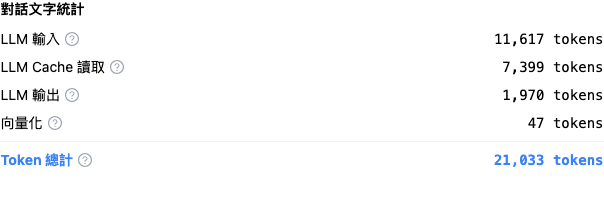
#### 3. AgentOps → Conversation Text Statistics <a href="#cache-in-agentops" id="cache-in-agentops"></a>

Use this view to analyze actual cache hits for a **single conversation message**:

1. Go to <mark style="color:blue;">**AgentOps**</mark> → <mark style="color:blue;">**AI Assistant Monitoring**</mark>
2. Open the details of any conversation record and find the <mark style="color:blue;">**Conversation Text Statistics**</mark> section
3. If the message has cache usage, the token count for “LLM Cache Creation” or “LLM Cache Read” is listed according to what actually occurred; items with no corresponding usage are not shown

<figure><img src="https://1360999650-files.gitbook.io/~/files/v0/b/gitbook-x-prod.appspot.com/o/spaces%2F6v6TNkkOQVfRYfcNirHL%2Fuploads%2Fgit-blob-0dec37ee809f2089857bee16844f8d08b641ae89%2Fcache-03-agentops-text-stats.png?alt=media" alt="Conversation text statistics in AgentOps conversation record details"><figcaption><p>Conversation record details: this conversation generated 7,399 LLM Cache Read tokens; there was no cache creation usage, so the creation item is not shown</p></figcaption></figure>

### Common Questions <a href="#cache-faq" id="cache-faq"></a>

#### Q: Why is there an “LLM Cache Creation” item on my bill? <a href="#cache-faq-extra-charge" id="cache-faq-extra-charge"></a>

“LLM Cache Creation” means that content was written to the cache during that request, and it is billed separately at the model's cache creation rate. It is not guaranteed to appear only in the first turn of a conversation; it may be created again after the cache expires or the cacheable content changes. When later requests hit the cache, they are billed at the “LLM Cache Read” rate. To judge the net savings for the selected period, use <mark style="color:blue;">**Cache Savings**</mark> shown in <mark style="color:blue;">**Usage Statistics**</mark>; when the creation cost exceeds the read savings, this figure is not shown.

#### Q: How do I know how much the cache has saved me? <a href="#cache-faq-savings" id="cache-faq-savings"></a>

Go to <mark style="color:blue;">**Organization Settings**</mark> → <mark style="color:blue;">**Usage Statistics**</mark> and check <mark style="color:blue;">**Cache Savings**</mark> in the <mark style="color:blue;">**Usage Overview**</mark> section. When the net savings for the selected period are greater than 0, the screen shows the amount of Credits saved; if the value is 0, negative, or below the display precision, it is not shown.

#### Q: Do I need to enable Prompt Cache myself? <a href="#cache-faq-enable" id="cache-faq-enable"></a>

**No.** Whether caching is used is determined automatically by model capabilities and platform settings, and no additional action or configuration is required.

#### Q: Why do some conversations show no cache items? <a href="#cache-faq-missing" id="cache-faq-missing"></a>

Cache items are shown only when the model reports the corresponding usage. If a request did not create or hit the cache, the details do not show the corresponding item; this does not affect the Agent's normal replies.

***

## FAQ <a href="#faq" id="faq"></a>

### Q: Can I mix different models? <a href="#faq-mixed-models" id="faq-mixed-models"></a>

**Yes.** The Credits system **deducts Credits according to the tier of the model used** — use the inexpensive Haiku for customer service FAQs and Opus for in-depth analysis; you have full control over how the budget is allocated.

### Q: How do I check my Credits usage? <a href="#faq-view-usage" id="faq-view-usage"></a>

Go to <mark style="color:blue;">**Organization Settings**</mark> → <mark style="color:blue;">**Credits**</mark>. The **Overview** page shows your real-time balance, the **Credit Records** page shows the source and validity period of each Credits grant, and the **Consumption Records** page shows the details of each usage and supports CSV export.

### Q: What happens when the monthly quota runs out? <a href="#faq-quota-exhausted" id="faq-quota-exhausted"></a>

Once the month's Credits quota is used up, the Agent stops responding. You can purchase additional Credits at any time, **taking effect immediately after purchase**; purchased Credits are valid for 12 months from the purchase date.

### Q: Can I still use the platform when my plan has expired or I have no paid plan? <a href="#faq-no-active-plan" id="faq-no-active-plan"></a>

**Starting 2026-06-09**, organizations without an active paid plan (including the free plan, ended trials, and expired plans that were not renewed) are guided to upgrade when they perform operations that require AI computation. From the plan expiration date, the platform keeps your data intact for **90 days**, during which only storage-related Credits charges accrue (settled together when you restore a plan). If you subscribe again within 90 days, everything is fully restored; if you do not subscribe by then, the data is permanently deleted and cannot be recovered. See [Trial and Subscription Plans — What Happens to Data After a Plan Expires or Downgrades to Free?](/maiagent-user-guide/en/others/trial-and-plans.md#data-retention-policy).

### Q: Do Credits expire? <a href="#faq-expiration" id="faq-expiration"></a>

* **Monthly plan quota** Credits expire at the end of that month
* **Purchased** Credits are valid for 12 months from the purchase date

***

## Need Help? Contact Us <a href="#contact-sales" id="contact-sales"></a>

If you would like to learn more about how the Credits system can fit your company's budget control needs, or to evaluate plan configurations and top-up recommendations, feel free to contact us through the following channels:

* **Sales team**: <sales@maiagent.ai>
* **Website**: <https://maiagent.ai>

Thank you for choosing MaiAgent. We will keep building a more flexible, more cost-effective, and more trustworthy AI service for you.


---

# Agent Instructions
This documentation is published with GitBook. GitBook is the documentation platform designed so that both humans and AI agents can read, navigate, and reason over technical content effectively. Learn more at gitbook.com.

## Querying This Documentation
If you need additional information that is not directly available in this page, you can query the documentation by asking a question.

Perform an HTTP GET request on the following URL with the `ask` and `goal` query parameters:

```
GET https://docs.maiagent.ai/maiagent-user-guide/en/others/credits.md?ask=<question>&goal=<user_goal>
```

`ask` is the immediate question: it should be specific, self-contained, and written in natural language.
`goal` is what the user is ultimately trying to achieve, the reason they need the answer. Sharing it helps GitBook give you a better, more relevant answer. A goal is most helpful when it describes the outcome the user wants rather than restating the question. For example, with `ask=how do I create an API token`, a goal like `automate deployments from our CI pipeline` lets GitBook tailor the answer to that use case.

The response will contain a direct answer to the question and relevant excerpts and sources from the documentation.

Use this mechanism when the answer is not explicitly present in the current page, you need clarification or additional context, or you want to retrieve related documentation sections.