For the complete documentation index, see llms.txt. This page is also available as Markdown.

Role Permission Management

Role Concept

A Role is a functional unit within the organization with freely configurable member composition:

  • Members assigned to a role can come from any member within the organization

  • A single member can inherit multiple roles simultaneously, enabling flexible permission management

  • Each role has independent permission settings to accommodate different scenarios

Simple explanation:

A role is like a company "department" or "position," such as Customer Service, Marketing, or Manager. You first define what each department can do, then add employees to the corresponding department.


Role Type Descriptions

MaiAgent platform roles are divided into three types:

Owner Role (Owner Role)

Definition: The highest-permission role automatically granted to the organization creator

Simple explanation:

Like the company's "CEO" or "system administrator" -- can manage everything, view all data, with no restrictions.

Characteristics:

  • Has full access to all resources without additional assignment

  • Can manage all settings within the organization, including roles, members, and permissions

  • An organization can have multiple owners

  • The owner role can be assigned to or removed from other members

Default Role (Default Role)

Definition: A base role automatically held by all organization members, giving members basic permissions before other roles are assigned

Simple explanation:

Like a company "employee badge" -- everyone automatically gets one when they join the company, ensuring new hires can use basic features without waiting for configuration.

Characteristics:

  • All organization members automatically receive the default role's permissions

  • Provides the most basic platform access permissions (such as Q&A functionality)

  • Cannot be batch-assigned via Excel

  • Administrators can customize the default role's permission scope

  • Members cannot be manually assigned (the system automatically assigns it to all members)

Custom Role (Custom Role)

Definition: Roles manually or batch-assigned to specific members by administrators

Simple explanation:

Like the various "departments" or "positions" in a company (Customer Service, Marketing, Manager, etc.), with different permissions granted based on job requirements.

Characteristics:

  • Requires active assignment by an administrator

  • Different permission combinations can be configured for different responsibilities

  • Supports batch assignment for convenient large-scale member management

  • Members immediately receive corresponding permissions upon assignment

Permission calculation method:

Example:

  • Member A is assigned to the "Customer Service" role → Gains Q&A permissions + Conversation permissions

  • Member A is also assigned to the "Testing Team" role → Additionally gains AgentOps permissions

  • Member A's final permissions: Default permissions + Customer Service permissions + Testing Team permissions

If using EIP login, roles can be automatically synced from the enterprise system. See Third-Party Login (SSO) for details.


Edit Role Permissions

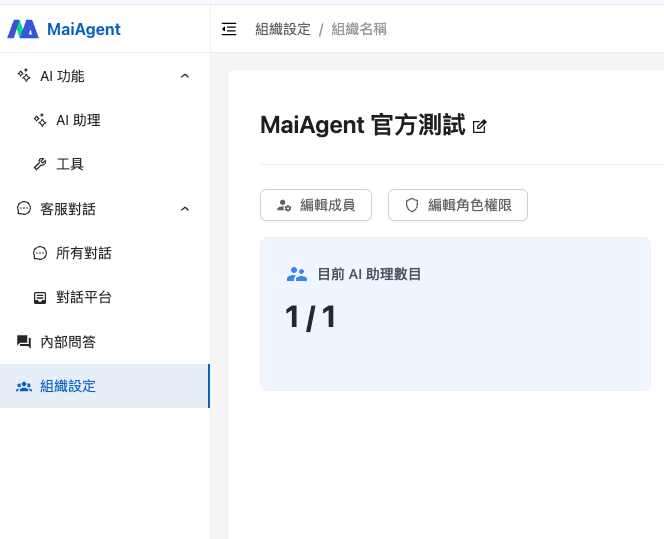
Within the organization, click "Edit Role Permissions" to configure permissions for members of that role.

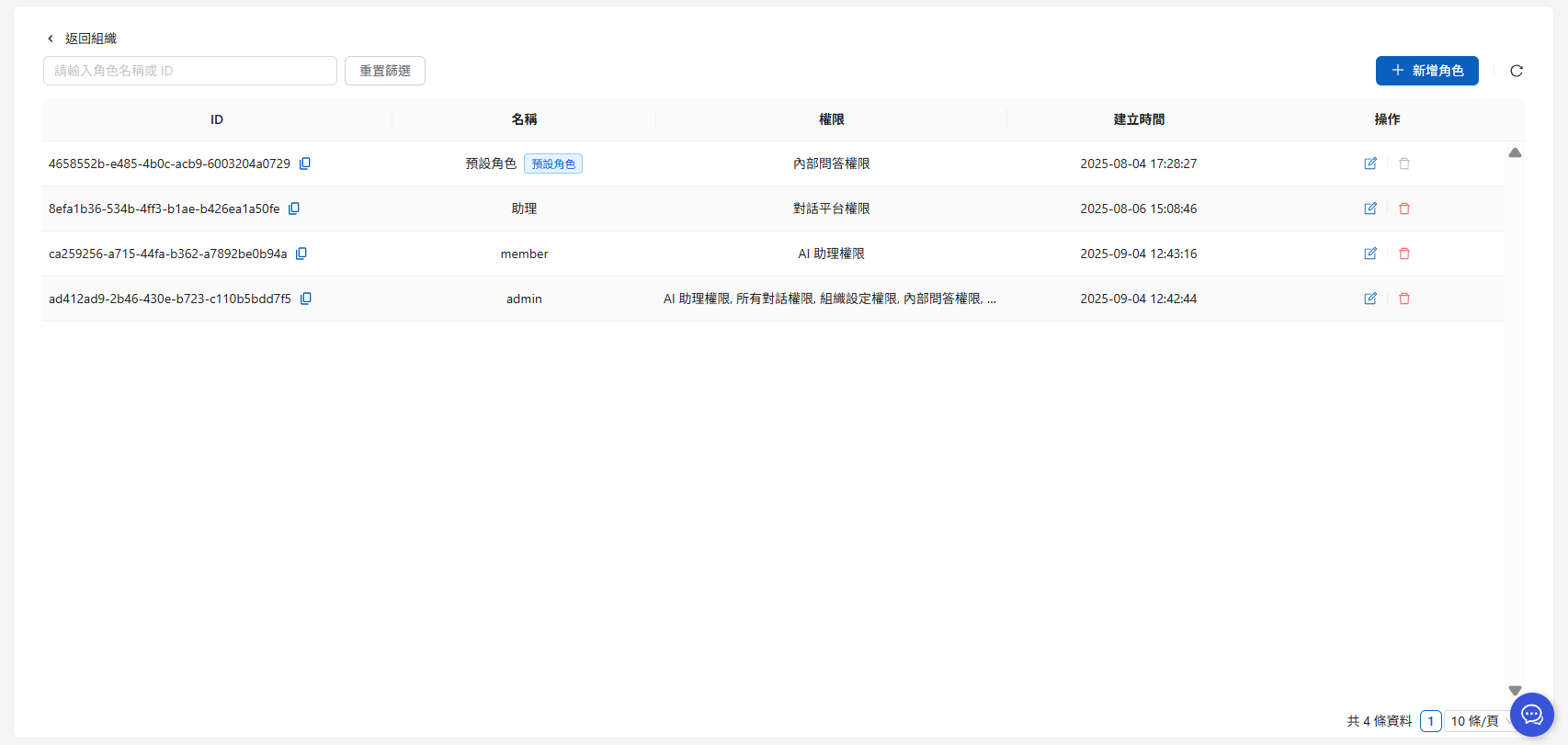
On the role permissions page, you can:

  • Add Role: Create a role for the organization (e.g., Marketing Department). When new members join, applying the role automatically grants them the corresponding permissions

  • Edit Role: Modify role name, description, or department information

    • Role Permissions: Configure the feature modules and operation scope available to the role

    • Assign Members: Add organization members to the specified role for unified permission management

    • Assign AI Assistants: Assign AI Assistants the role can operate

    • Assign Knowledge Bases: Assign knowledge bases the role can access

    • Assign Conversation Platforms: Assign conversation platforms the role can use

    • Assign Skills: Assign the skills the role can read, configure read/edit/delete permissions for each skill, and specify whether new skills can be added (see Skill Management: Control Skill Visibility and Permissions by Role)

  • Delete Role: Remove roles that are no longer in use to keep the organization's permission structure clean

  • Batch Features: Batch add members to the organization or batch assign roles to members via Excel (see Member Management: Batch Member and Permission Management)

Role permission settings diagram

Role settings tab notes

  • Owner Role: Resource assignment tabs such as "Assign AI Assistants," "Assign Knowledge Bases," "Assign Conversation Platforms," and "Assign Skills" are disabled because the owner role automatically has access to all resources

  • Default Role: The "Assign Members" tab is disabled because the default role is automatically assigned to all members


Permission Levels

MaiAgent uses a hierarchical permission architecture with permissions divided into main permissions and sub-permissions:

What is a "hierarchical permission architecture"?

It is like a folder structure:

  • Main permission = Main folder (e.g., "AI Features")

  • Sub-permission = Subfolder (e.g., "AI Assistants," "Knowledge Bases," "Crawlers")

How it works:

  • Checking a main permission automatically includes all sub-permissions

  • You can also check only specific sub-permissions for more granular control

Permission Structure Overview

Main Permission
Sub-Permission
Description

MaiGPT Permission

-

Controls access to MaiGPT features

AI Feature Permission

AI Assistant Permission

Controls viewing and operations on the "AI Assistants" tab

Knowledge Base Permission

Controls viewing and operations on the "Knowledge Bases" tab

Crawler Permission

Controls access to crawler features

Tool Permission

Controls access to tool management features

AgentOps Permission

Test Set Permission

Controls viewing and operations on test set features

Automated Testing Permission

Controls access to automated testing features

Customer Service Conversation Permission

All Conversations Permission

Controls viewing and operations on the "All Conversations" tab

Conversation Platform Permission

Controls viewing and operations on the "Conversation Platforms" tab

Contact Permission

Controls access to contact management features

Agent Marketplace Permission

-

Controls viewing and operations on the "Agent Marketplace" tab

AI Gateway Permission

-

Controls whether AI Gateway appears in the left menu and whether members can access its pages

Meeting Records Permission

Live Transcription Permission

Controls whether users can create new meetings and start recording

Meeting List Permission

Controls whether users can view the meeting list and details, and download meetings

Meeting Record Management Permission

-

Controls the meeting records users can view: when unchecked, users can only view meetings they participated in; when checked, users can view all meetings in the organization (see Meeting Access Permissions)

Developer Permission

API Call Log Permission

Controls viewing of API call logs

Organization Permission

Organization Overview Permission

Controls viewing of the organization overview page

Activity Log Permission

Controls viewing of activity log features

Permission level notes

  • Checking a main permission automatically includes all sub-permissions under it

  • You can also check only specific sub-permissions for more granular permission control

  • A user's final permissions are the sum of the system default role and custom role permissions

Permission Configuration Instructions

  1. Add a role and assign permissions

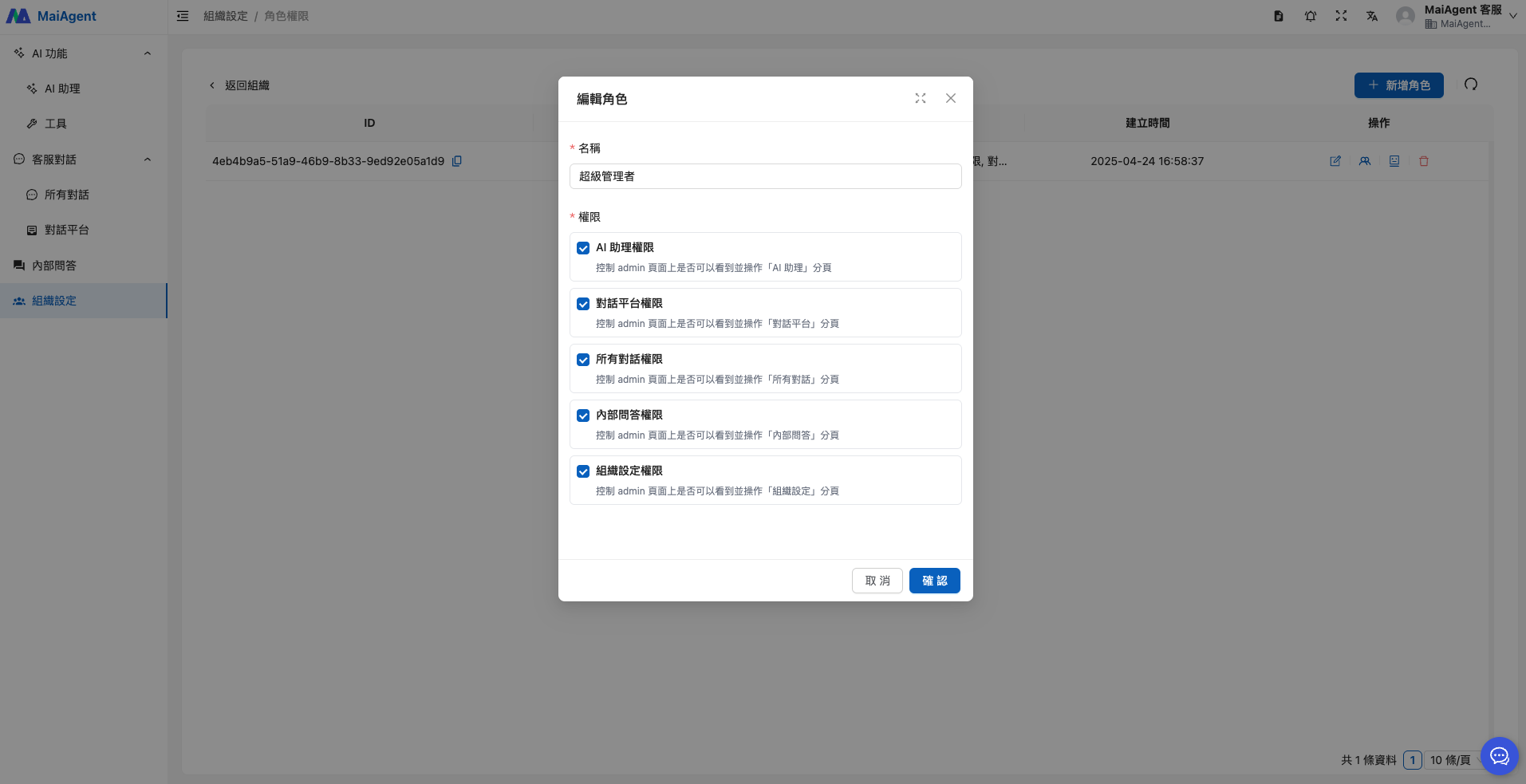
Click "Add Role" in the upper right corner to enter a name for the new role and check the permissions the role should have.

  1. Edit name and permissions

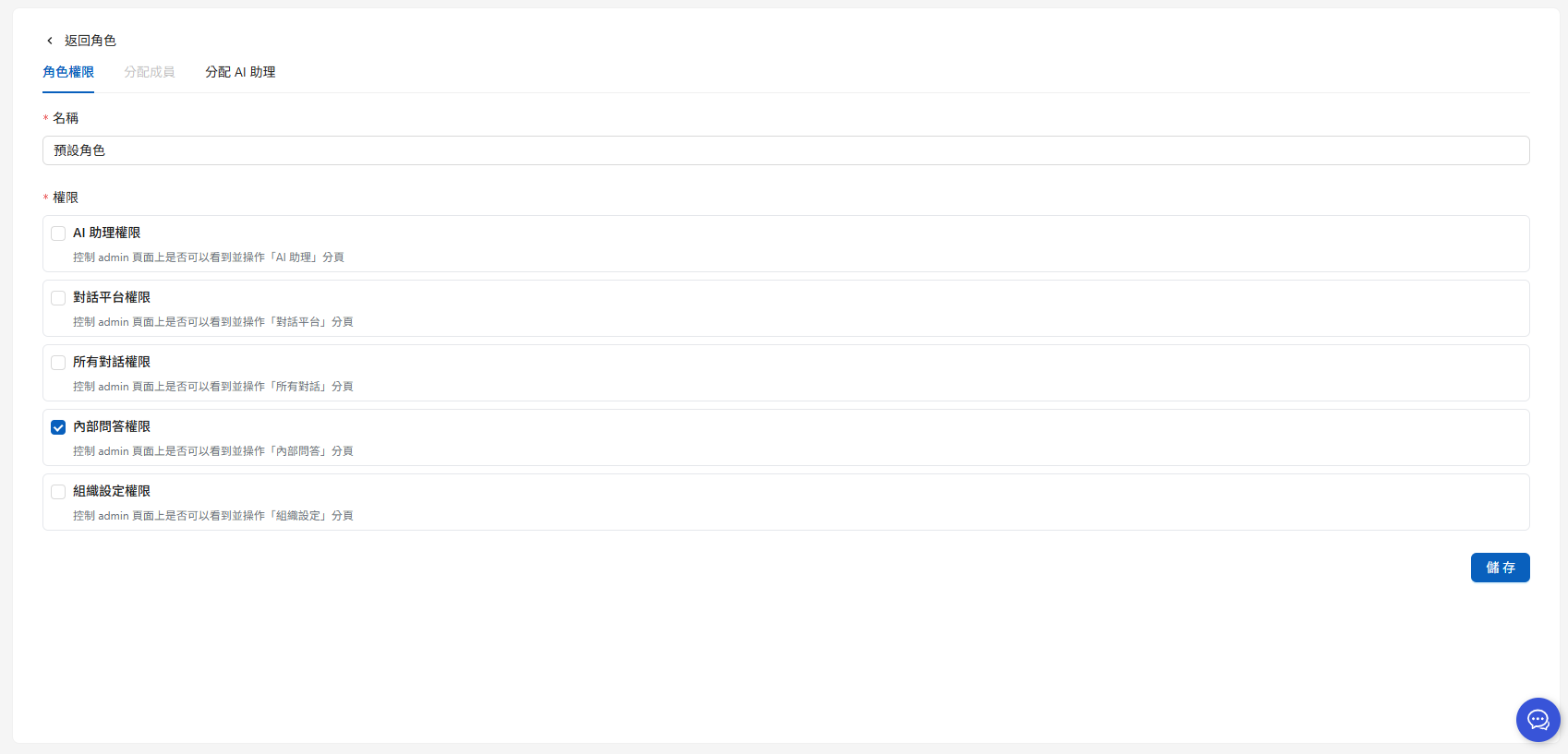
Enter the editing page to edit the role name and re-check the permissions the role should have.

Based on the role definition, you can decide whether organization members can view or use related feature tabs in the left menu. Use checkboxes to enable/disable each permission, then click the "Save" button in the lower right to apply the settings.

Enable AI Gateway for a Specific Role

If only model administrators in your company need access to AI Gateway, enable the permission only for their role:

  1. Go to Organization Settings, then open Role Permissions.

  2. To create a role, click Add Role and enter a role name. You can also edit the Role Permissions of an existing role.

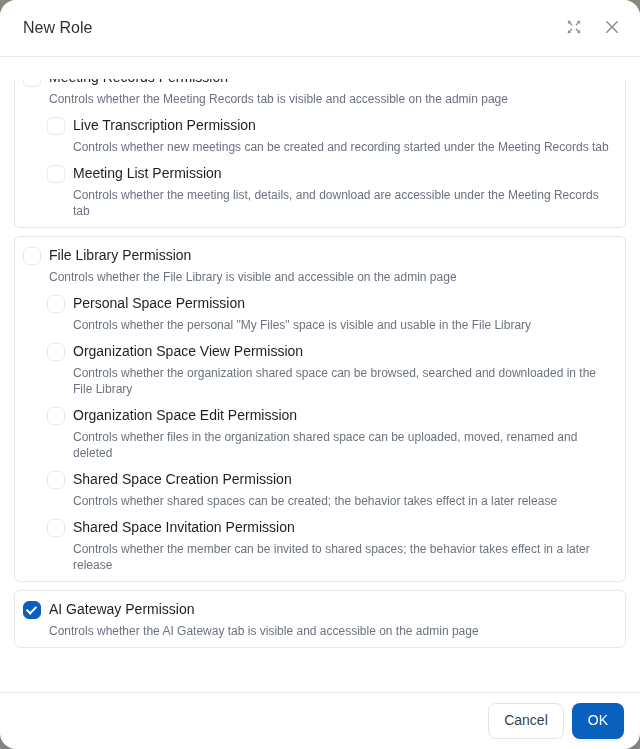
  3. Check AI Gateway Permission, then click Confirm. In the English interface, the button is labeled OK.

  4. Assign the model administrators to this role. After members sign back in to the admin console, AI Gateway appears in the left menu. Members without this permission cannot see the menu or directly access the related pages, and the system also rejects their AI Gateway API requests.

AI Gateway Permission selected in the role permissions dialog
Select AI Gateway Permission so members with this role can see and access AI Gateway
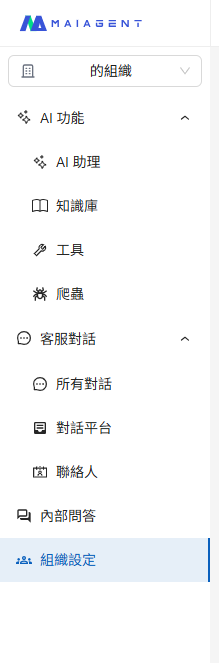
A member's final permissions are the sum of the default role and all custom-role permissions. If a member can still see AI Gateway, check their other assigned roles as well.

Left menu page
Role permission settings page

Permission Use Cases

Suppose an enterprise uses MaiAgent to build a customer service system:

Scenario 1: New Customer Service Agent

Grant only "Q&A Permission"

  • Reason: They just joined and need to quickly learn product knowledge and company policies

  • Prevention: Prevents the agent from accidentally deleting customer conversation records or modifying important AI Assistant settings while still unfamiliar

Scenario 2: Senior Customer Service Agent

"Q&A Permission" + "Customer Service Conversation Permission (All Conversations)"

  • Reason: Experienced and needs to help handle complex complaints and guide new agents

  • Prevention: AI feature permissions are still withheld to prevent service agents from accidentally modifying AI Assistant settings, which could cause all customers to receive incorrect responses

Scenario 3: AI Assistant Administrator

"AI Feature Permission" + "AgentOps Permission"

  • Reason: Responsible for managing and optimizing AI Assistant response quality

  • Prevention: Customer service conversation permissions are withheld to avoid access to customer privacy data


Assign Members

You can assign created roles to members in your organization:

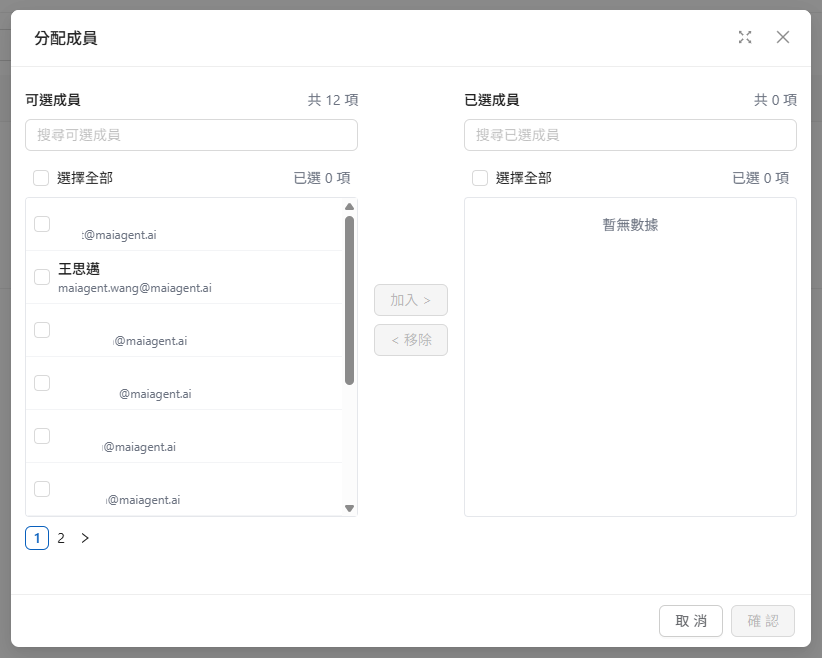
  1. Navigate to the Assign Members page

  2. Click the "+ Assign Members" button

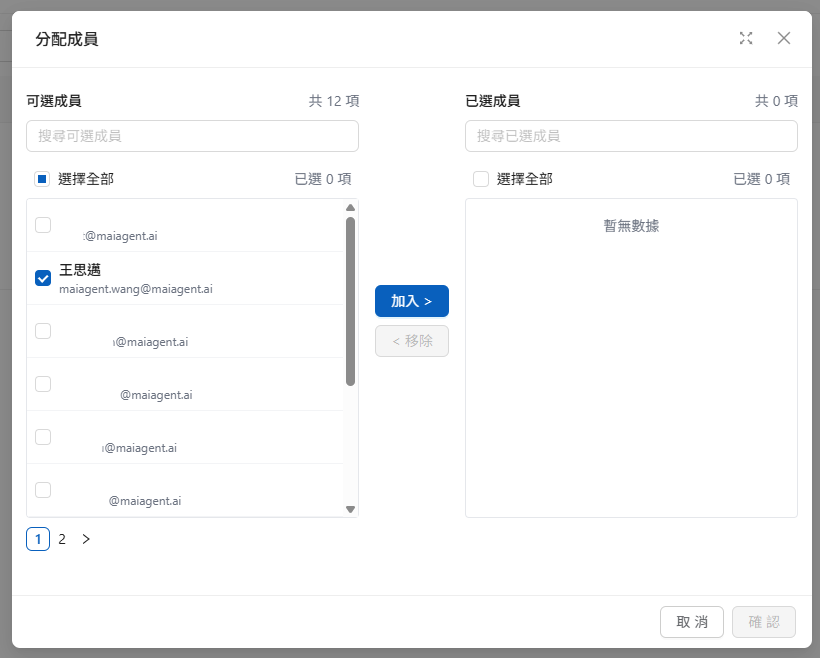
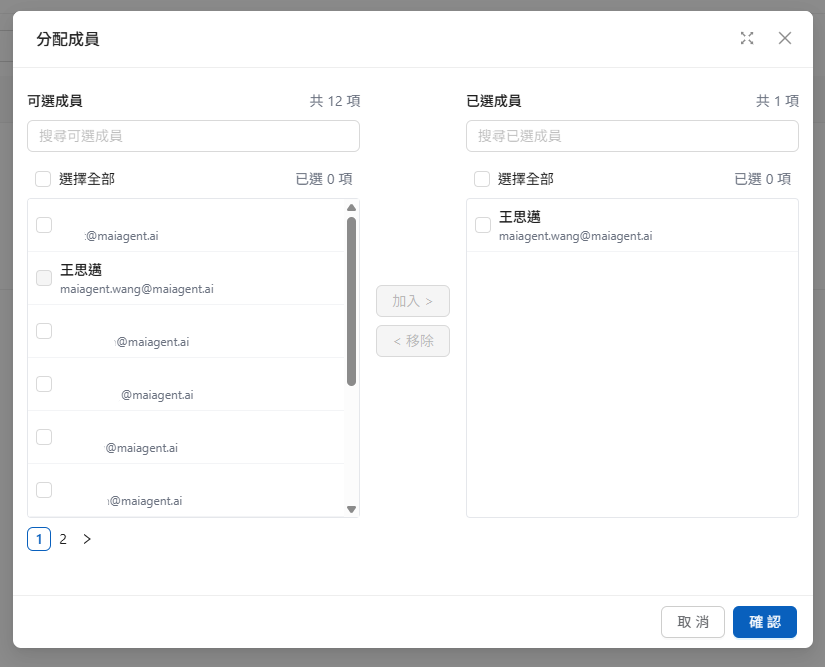
  1. Select the members to add and click the "Add >" button in the center

  2. Click the "Confirm" button in the lower right to complete the configuration

Select members to add
Click Add
Addition complete, click Confirm
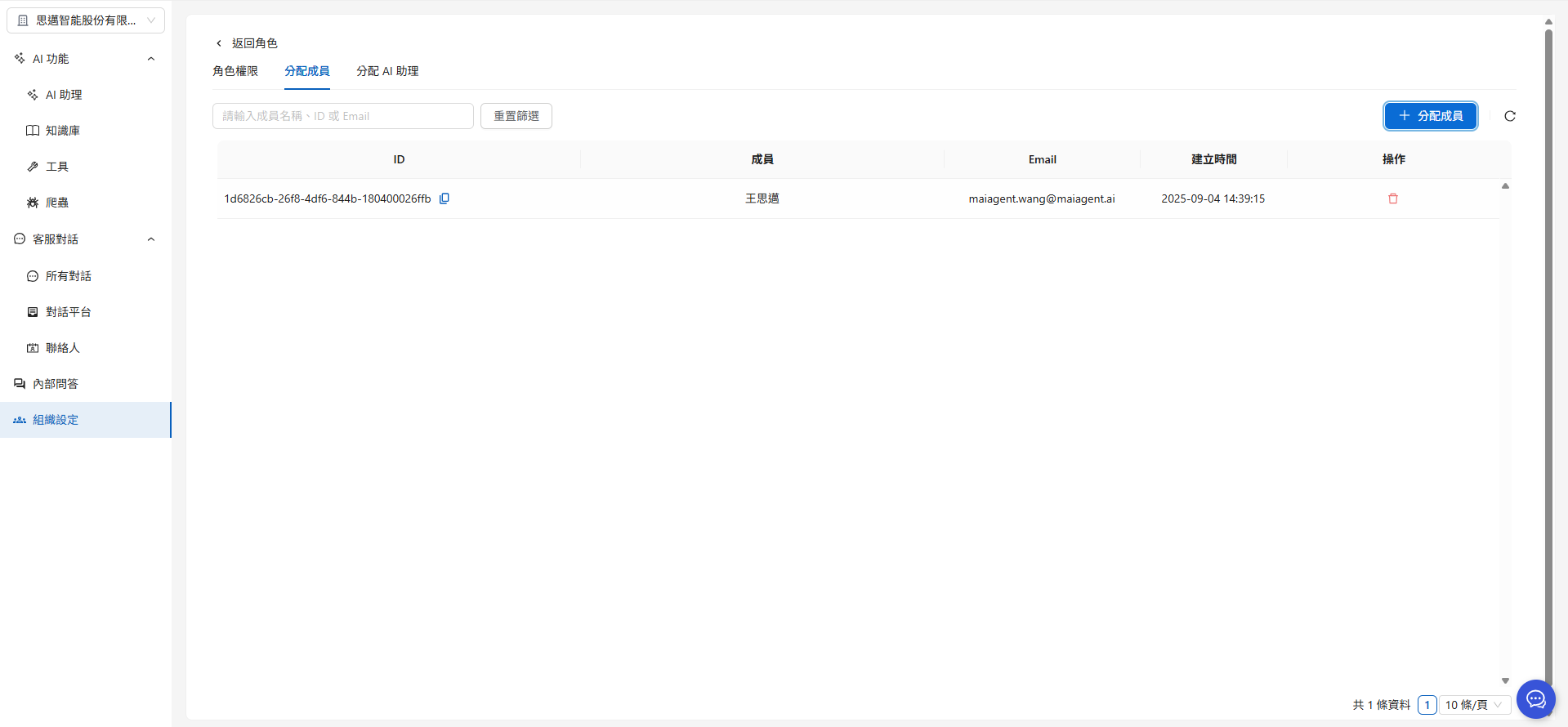
The newly added members will appear in the member list.

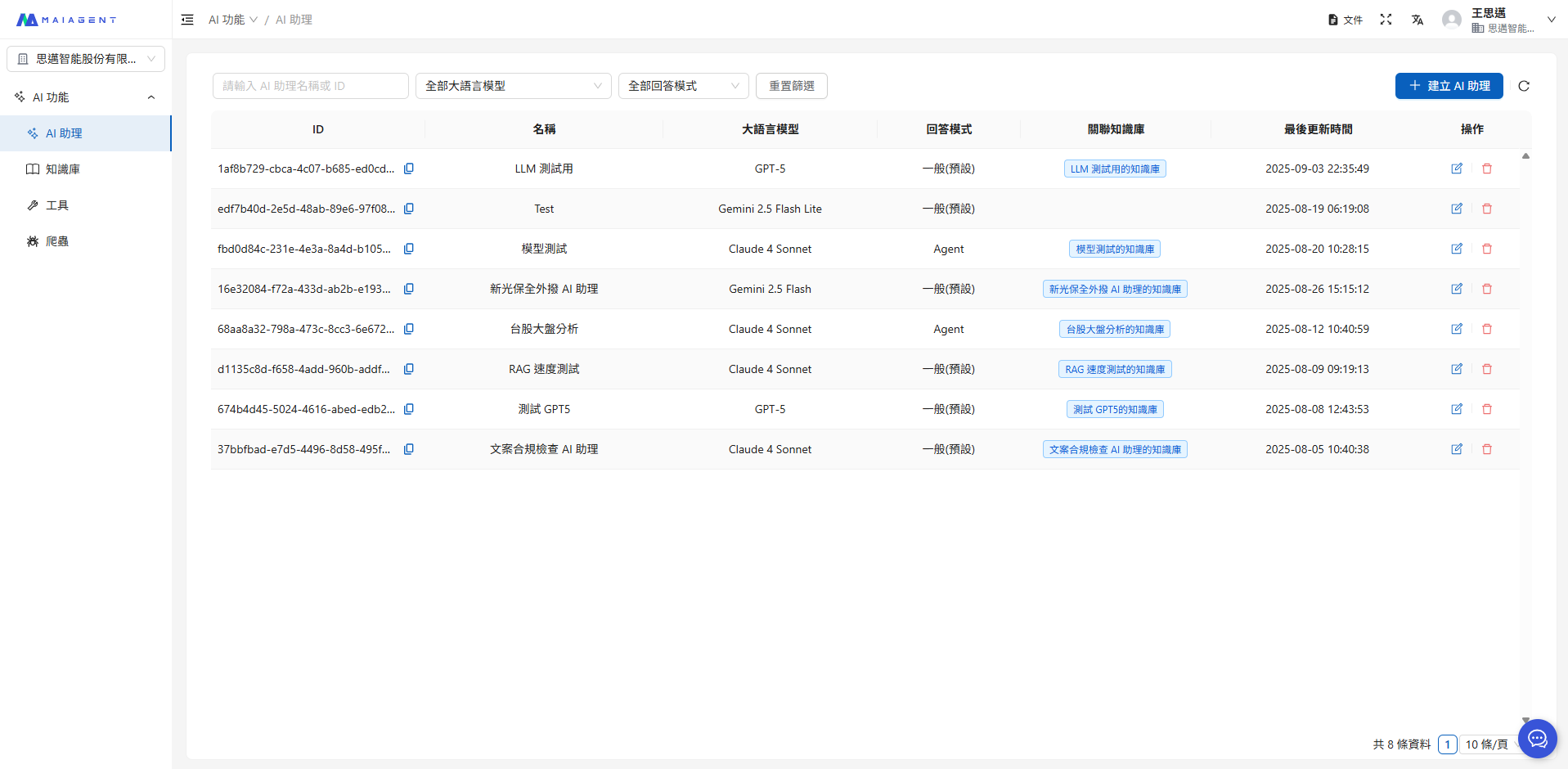
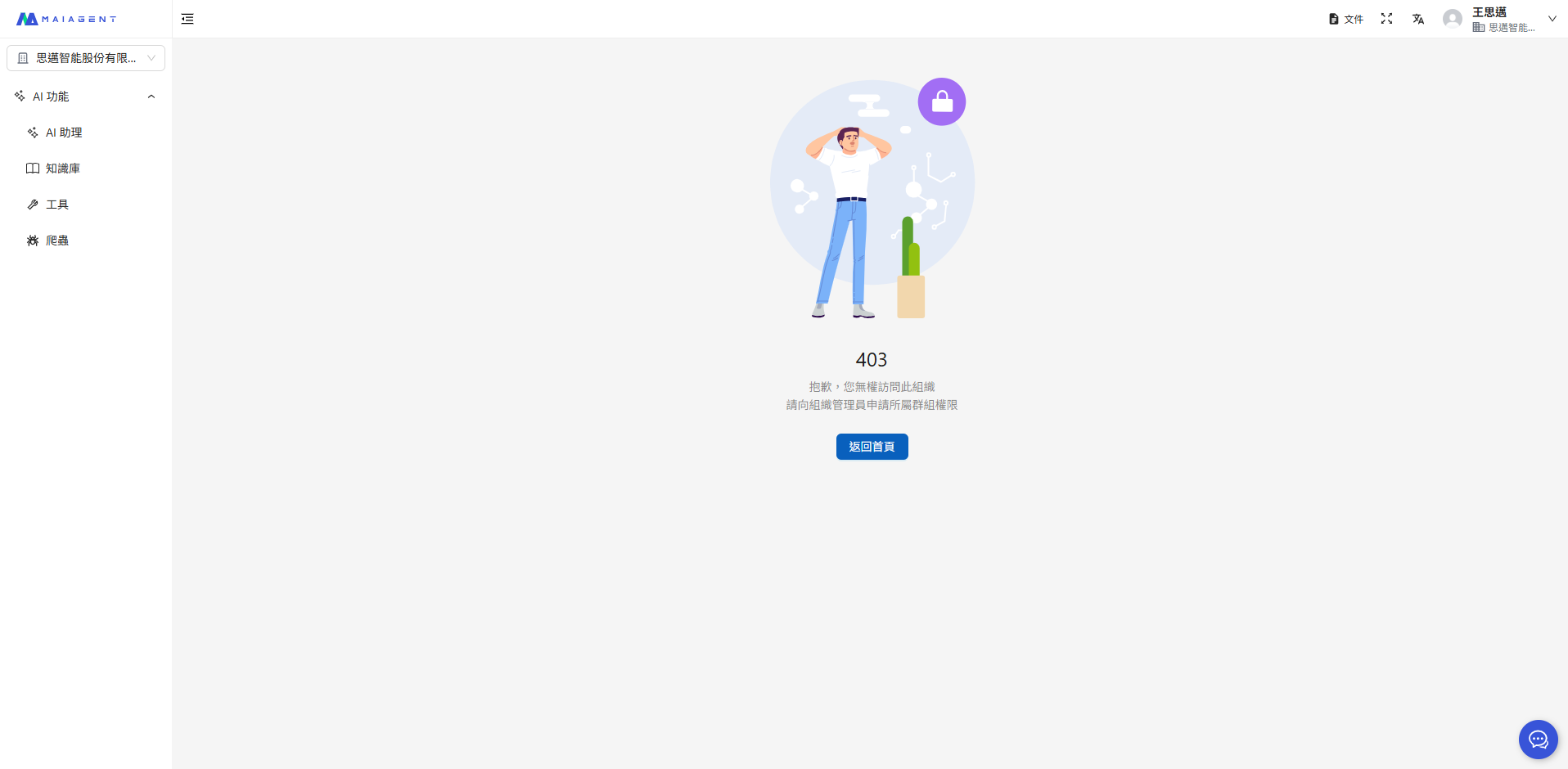
After addition, since the member only has AI Assistant permissions, the left menu will only show the AI Assistant feature menu. Other features like customer service conversations and organization settings will not appear in the left menu. When a member navigates to a feature they do not have permission to access, a no-permission notice will appear:

No permission notice

This way, the member can only use the AI Assistant feature and cannot make any other changes.

Need to batch-assign roles to multiple members? See Member Management: Batch Member and Permission Management.


Assign AI Assistants

You can restrict which AI Assistants a role can use, ensuring knowledge base data is properly separated by role permissions:

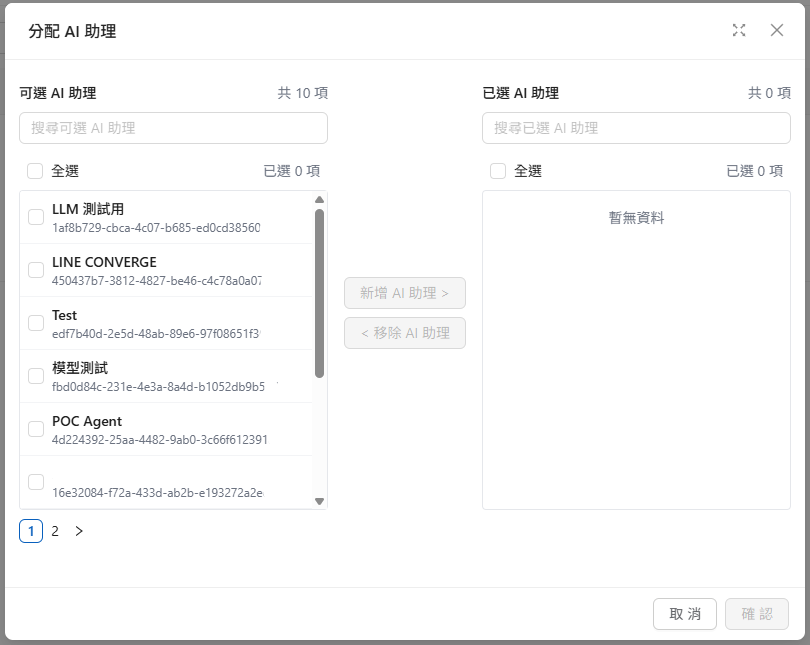
  1. Navigate to the "Assign AI Assistants" page

  2. Click the "+ Assign AI Assistants" button

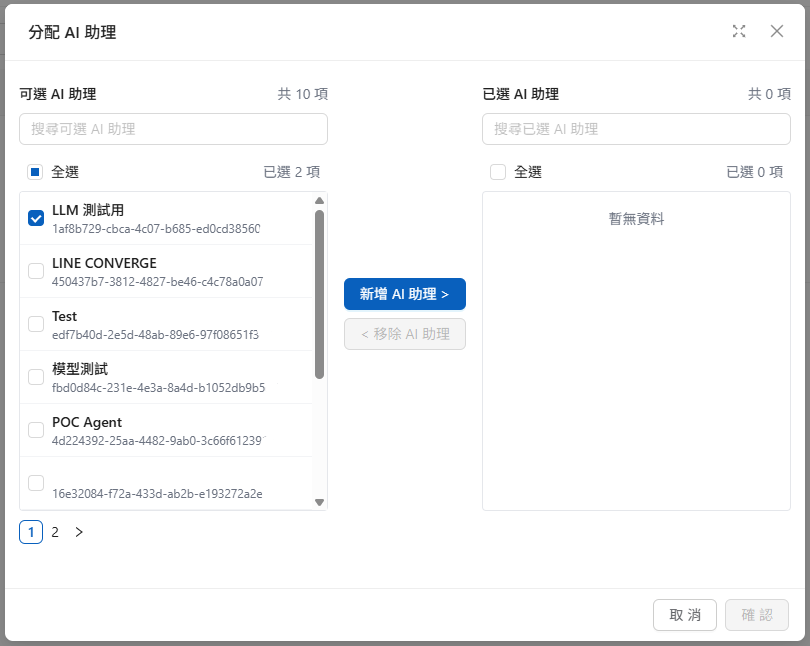
  1. Select the AI Assistants to add and click the "Add >" button in the center

  2. Click the "Confirm" button in the lower right to complete the configuration

Select AI Assistants to add
Click the center Add AI Assistant button
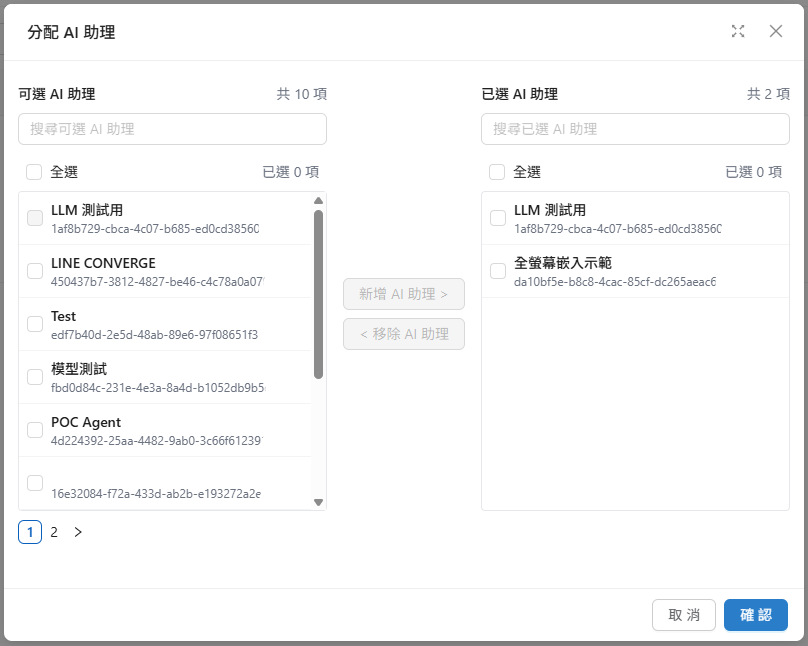
Addition complete, click Confirm
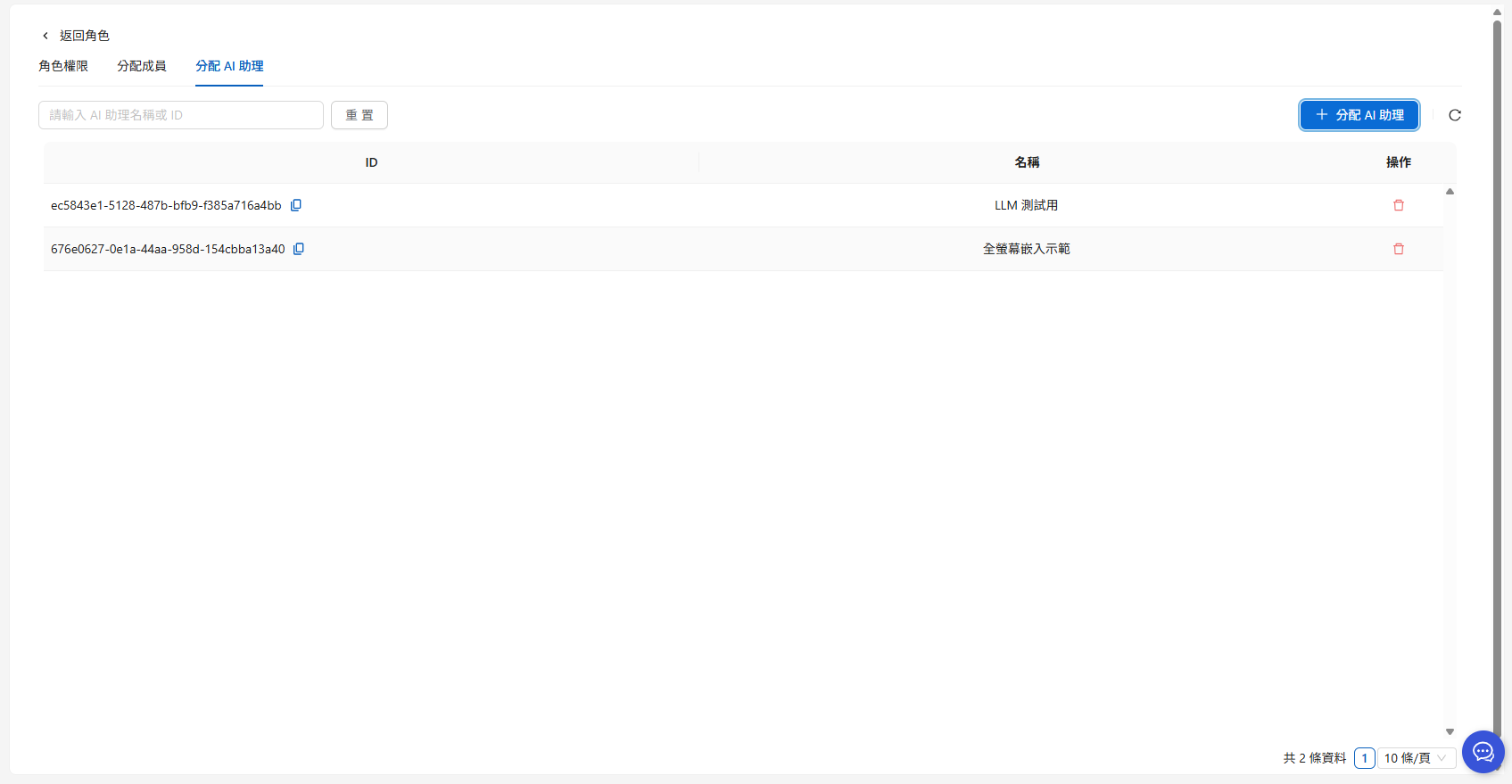
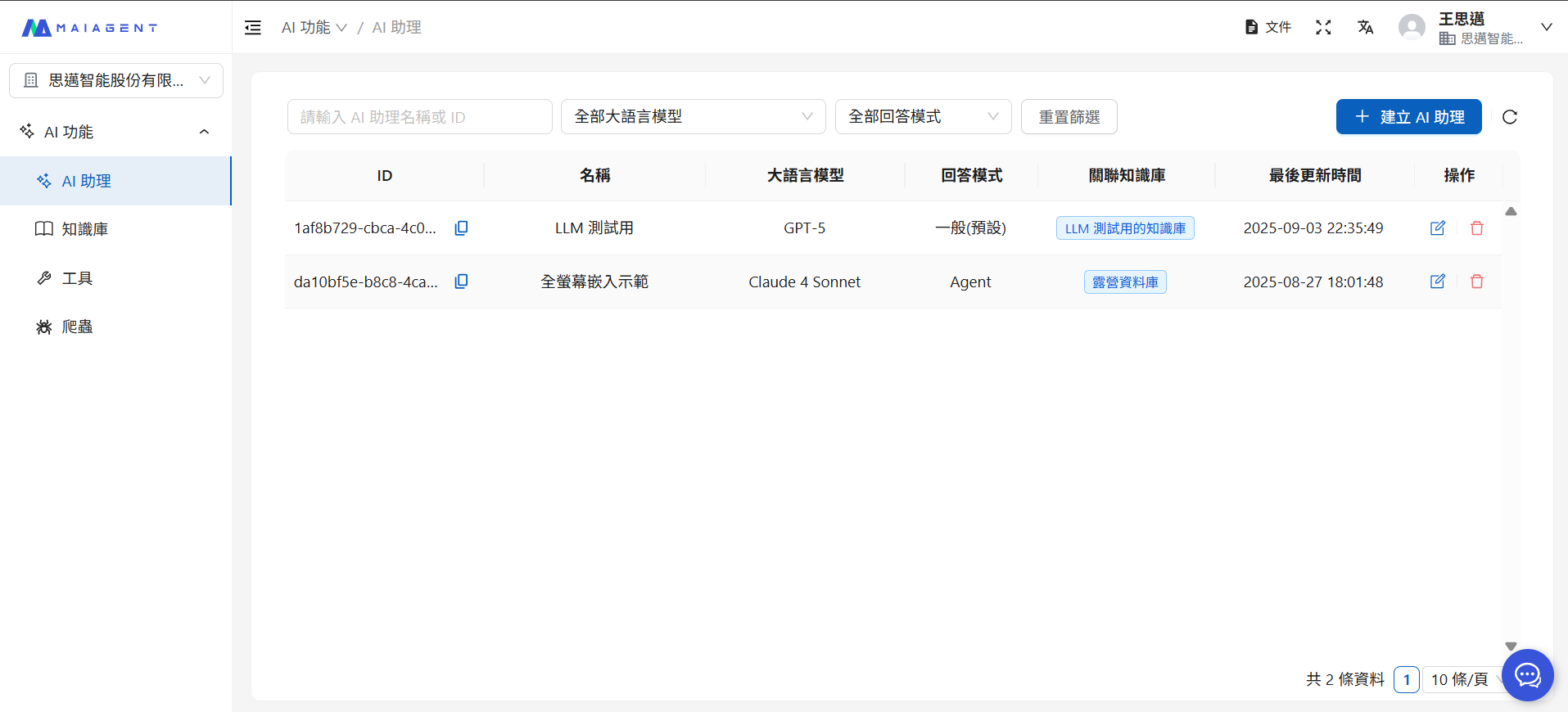
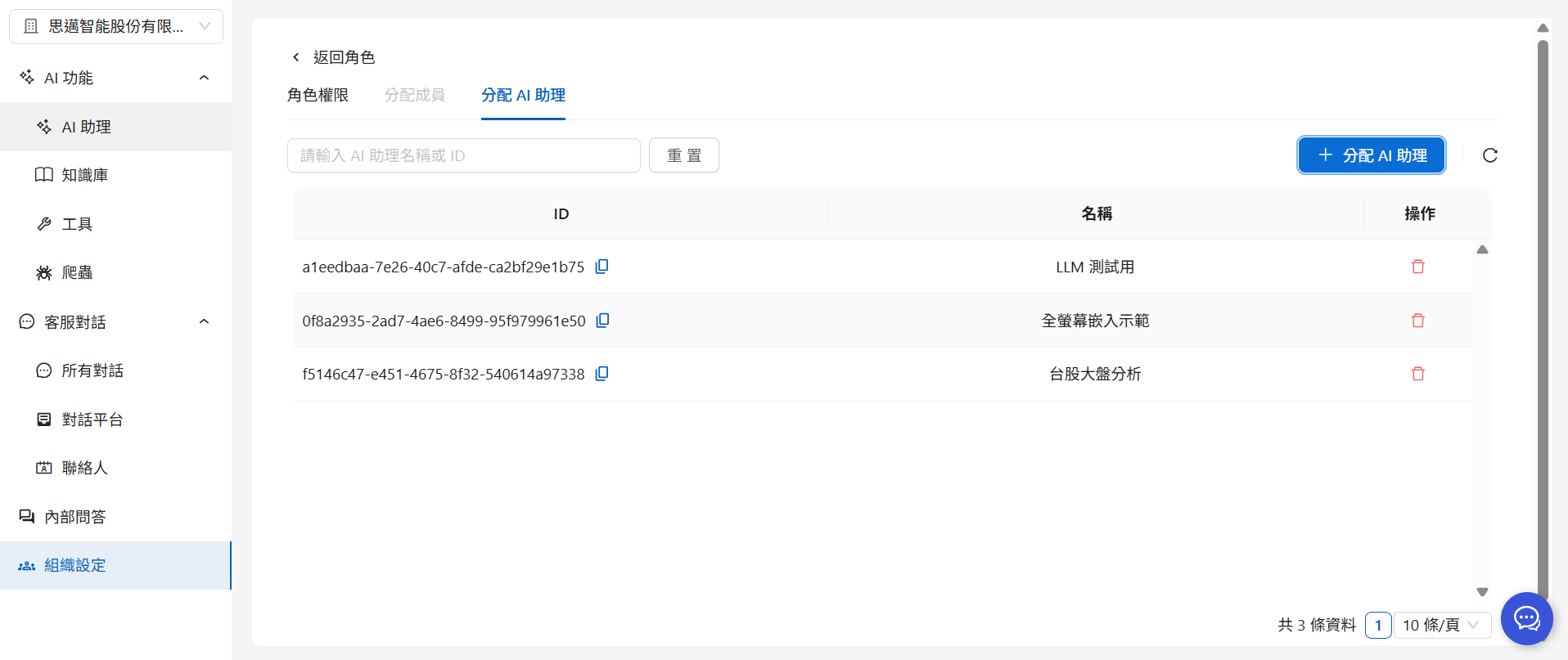
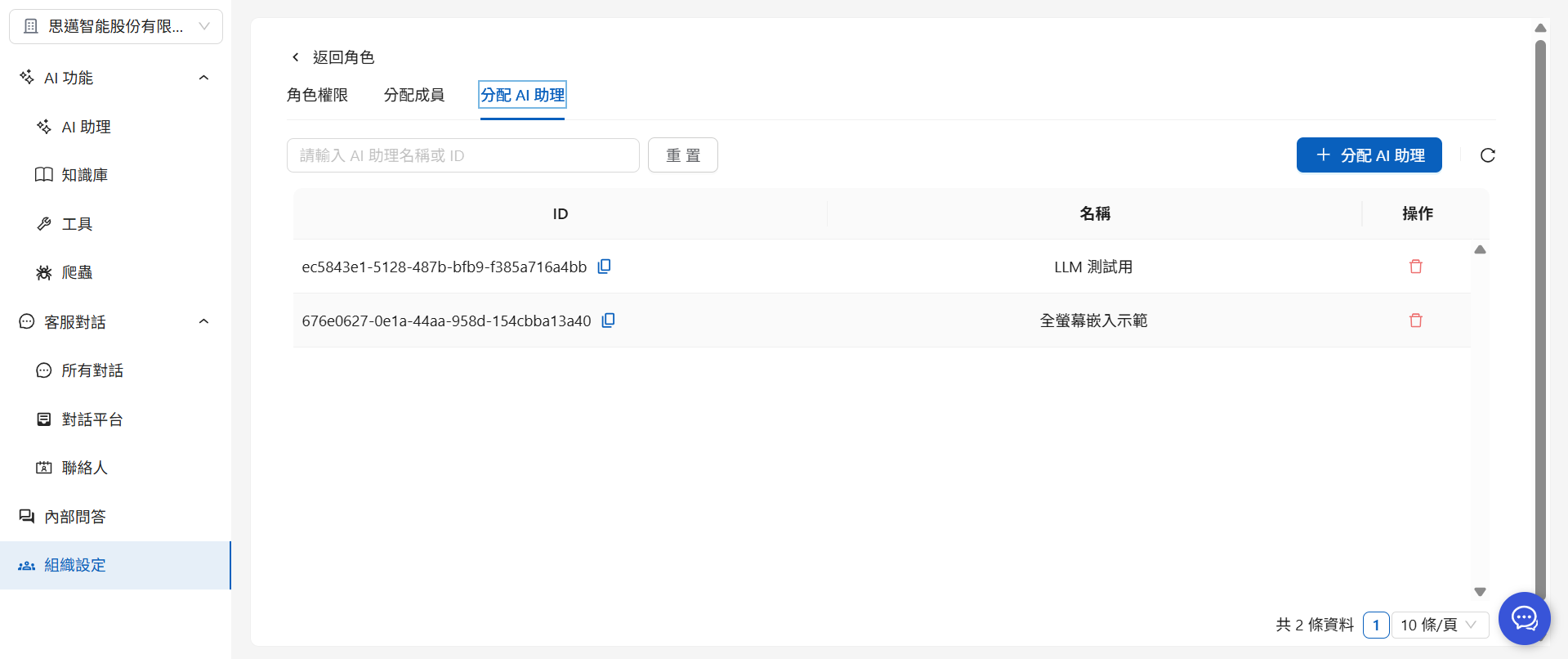
After addition, the selected AI Assistants will appear in the list:

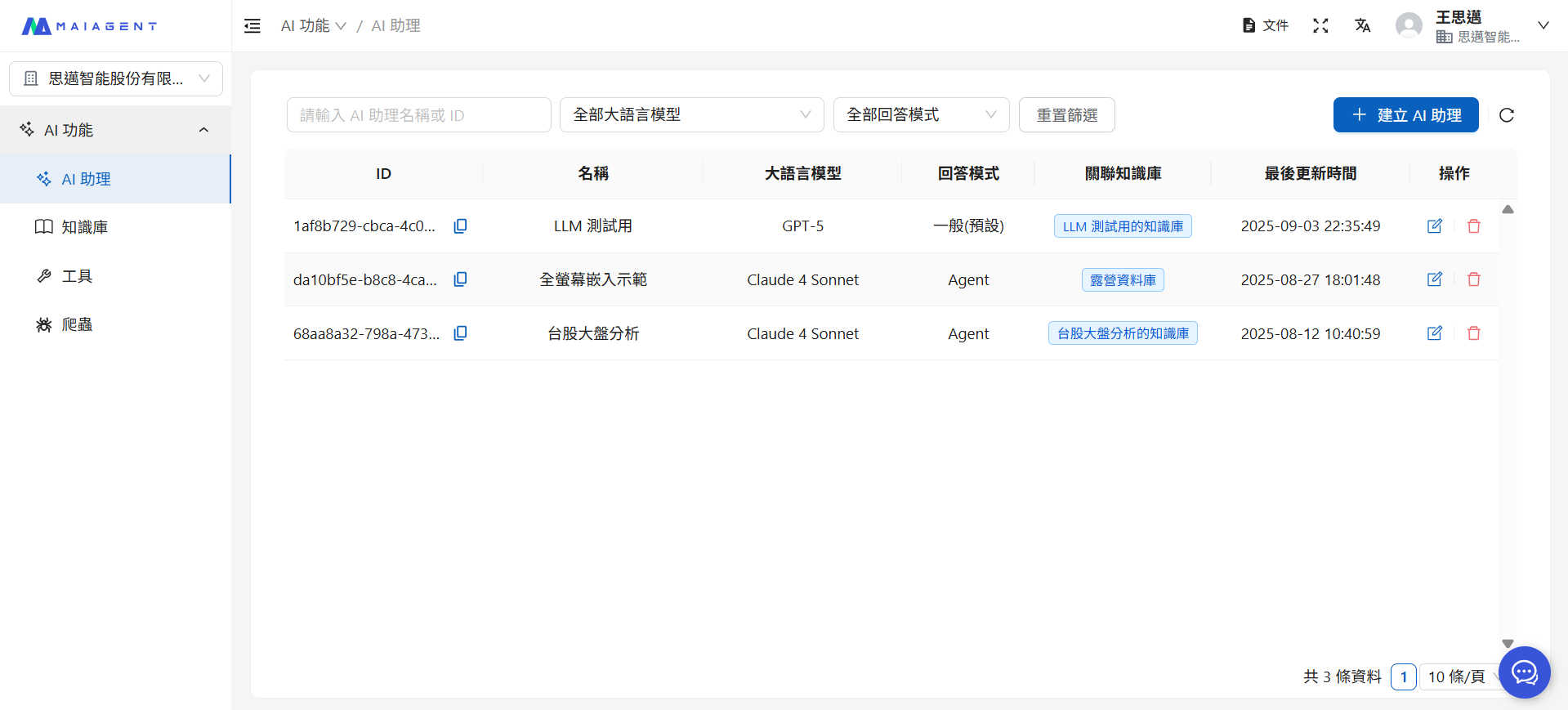
After completion, users with this role can only view and use the assigned AI Assistants:

The owner role automatically has access to all AI Assistants without manual assignment.


Assign Knowledge Bases

You can restrict which knowledge bases a role can access, ensuring sensitive data is only accessible to specific roles:

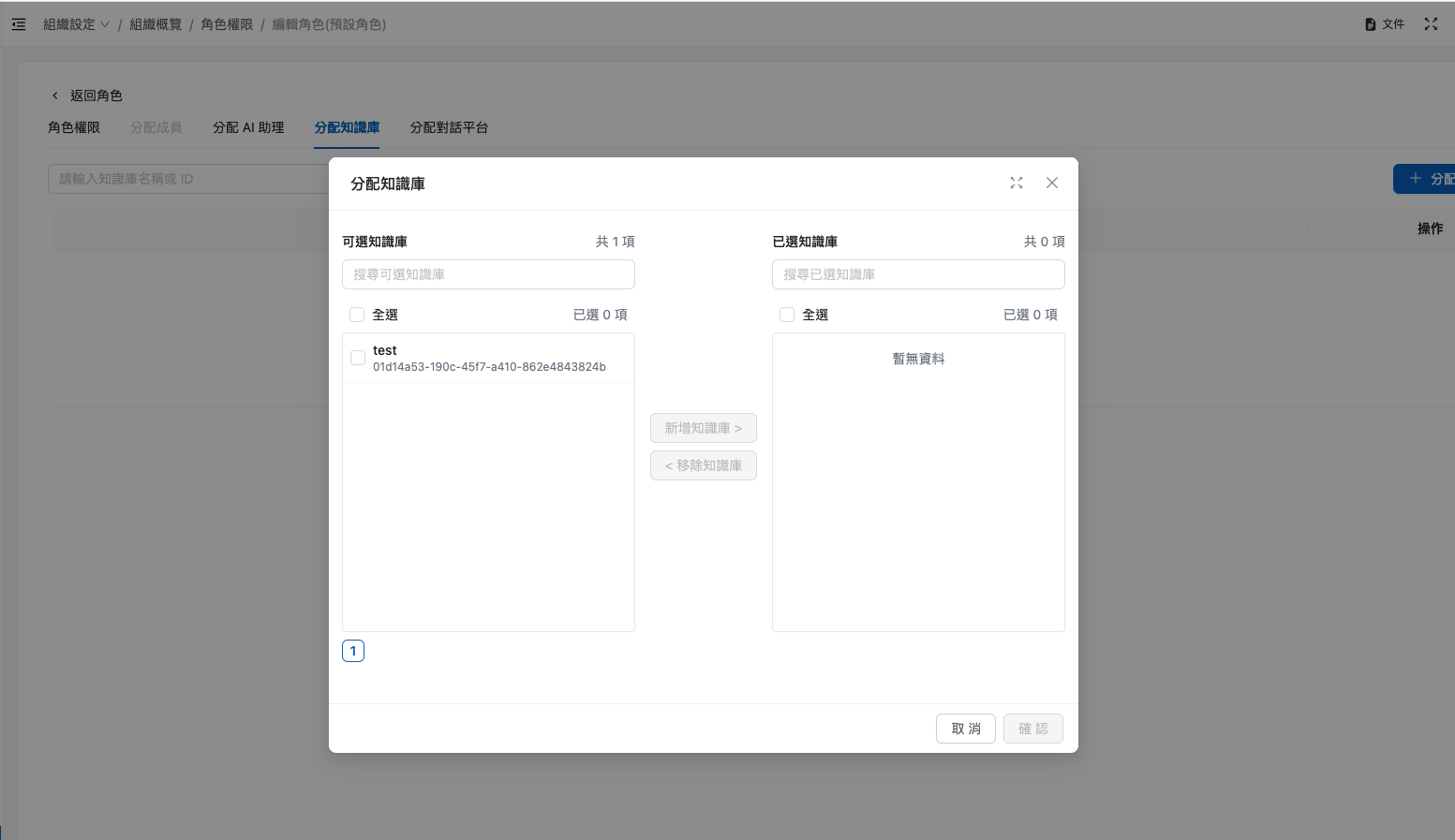
  1. Navigate to the "Assign Knowledge Bases" page

  2. Click the "+ Assign Knowledge Bases" button

  1. Select the knowledge bases to add and click the "Add >" button in the center

  2. Click the "Confirm" button in the lower right to complete the configuration

After addition, the selected knowledge bases will appear in the list.

Use cases:

  • R&D Department: Can only access technical documentation knowledge bases

  • Sales Department: Can only access product description and pricing knowledge bases

  • HR Department: Can only access employee handbook knowledge bases

The owner role automatically has access to all knowledge bases without manual assignment.


Assign Conversation Platforms

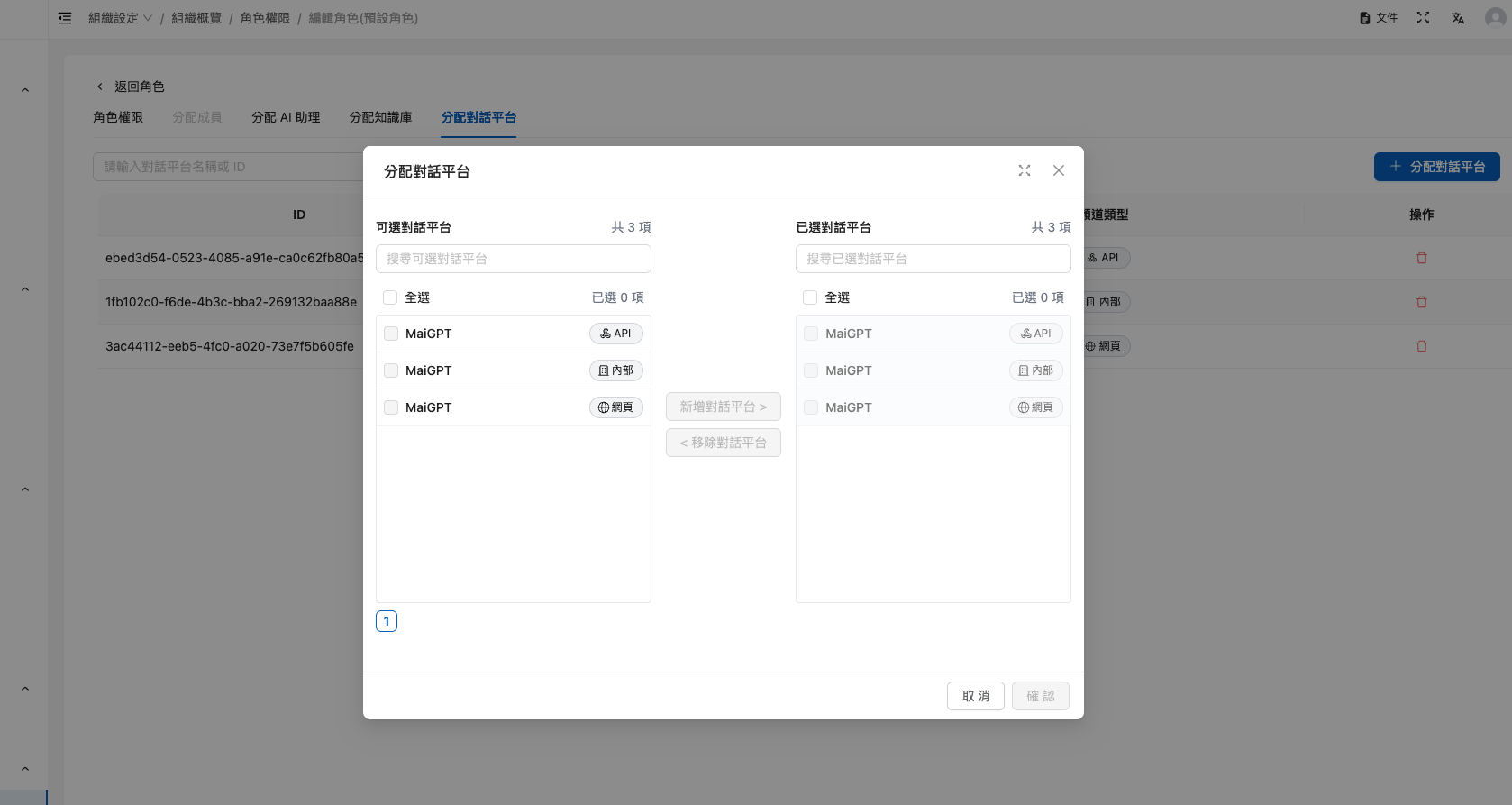
You can restrict which conversation platforms a role can use, assigning different teams to different customer service channels:

  1. Navigate to the "Assign Conversation Platforms" page

  2. Click the "+ Assign Conversation Platforms" button

  1. Select the conversation platforms to add and click the "Add >" button in the center

  2. Click the "Confirm" button in the lower right to complete the configuration

After addition, the selected conversation platforms will appear in the list.

Use cases:

  • LINE Customer Service Team: Can only access the LINE conversation platform

  • Website Customer Service Team: Can only access the Web Chat conversation platform

  • VIP Customer Service Team: Can access all conversation platforms

The owner role automatically has access to all conversation platforms without manual assignment.


Filter and Hide Official Built-in Assistants in Assignment Dialogs

After an organization enables official built-in Agents, each one automatically adds three conversation platforms: Web, Internal, and API. These appear in the same candidate list as custom AI Assistants and conversation platforms. Both the Assign AI Assistants and Assign Conversation Platforms dialogs have a Filter row at the top, allowing you to narrow the candidate list on the left before making selections.

Use case:

An organization administrator needs to assign all conversation platforms for the "Customer Feedback Analysis" AI Assistant to the "Customer Service" role, but the candidate list contains hundreds of platforms, many of which were automatically added by official built-in Agents. In the Assign Conversation Platforms dialog, the administrator selects Hide Official Built-in Assistants, then selects "Customer Feedback Analysis" from the All AI Assistants dropdown. Only the assistant's three Web, Internal, and API platforms remain on the left. The administrator clicks Select All, Add Conversation Platforms >, and then Confirm, without having to compare platform names page by page.

Assign Conversation Platforms: Filter by AI Assistant and Channel Type

Go to Organization Settings → Role Permissions → edit a role → the Assign Conversation Platforms tab, then click the Assign Conversation Platforms button to open the dialog. The Filter row at the top of the dialog provides three criteria:

Filter
Function

All AI Assistants

After you select an AI Assistant, the left side lists only the conversation platforms linked to that assistant. You can enter a name in the dropdown to search

All Channel Types

Lists only conversation platforms of the specified channel type, such as Web, LINE, or Messenger

Hide Official Built-in Assistants

When selected, all conversation platforms for official built-in Agents are hidden from the left side. The All AI Assistants dropdown also lists only the organization's custom AI Assistants

  • All three criteria and the Search Available Conversation Platforms field on the left apply simultaneously. Whenever any criterion changes, the list returns to page 1.

  • Filters only affect Available Conversation Platforms on the left. Selected Conversation Platforms on the right continues to show all selected platforms and is not affected by filters.

  • If you first select an official built-in Agent under All AI Assistants and then select Hide Official Built-in Assistants, the selected assistant is automatically cleared and the list changes to show conversation platforms for all custom assistants.

  • When no items match the filters, the list displays "No items match the filter criteria."

Assign Conversation Platforms dialog: an AI Assistant is selected in the filter row and Hide Official Built-in Assistants is selected, leaving only the assistant's three conversation platforms on the left
After selecting an AI Assistant and hiding official built-in assistants, only the assistant's Web, Internal, and API platforms are listed on the left

Assign AI Assistants: Hide Official Built-in Assistants

Because the candidates in the Assign AI Assistants dialog are AI Assistants themselves, the filter row only contains the Hide Official Built-in Assistants checkbox:

  • Not selected: Official built-in Agents are listed together with custom assistants and carry an Official Built-in badge on the right for easy identification.

  • Selected: Available AI Assistants on the left lists only the organization's custom AI Assistants, and the total is updated accordingly.

Assign AI Assistants dialog: when hiding is not selected, official built-in Agents carry an Official Built-in badge
Not selected: official built-in Agents carry an "Official Built-in" badge
Assign AI Assistants dialog: after Hide Official Built-in Assistants is selected, only the organization's custom AI Assistants remain
Selected: only the organization's custom AI Assistants are listed

Rules for hiding official built-in assistants

  • The checkbox is cleared by default. The filters in both dialogs reset when you close the dialog or switch roles.

  • Hiding only removes official built-in Agents from the candidate list. It does not remove items already assigned to the role or change any permissions.

  • Access permissions for official built-in Agents are not configured on the Role Permissions page. Configure them in the official built-in Agent's "Available To" settings. For details, see Manage Official Built-in Agents: Configure Availability.


Default Role

The default role is automatically created when the organization is created and serves as the base role for all users. When applying user role settings, the system automatically applies all permissions in the default role unless otherwise specified.

We recommend configuring the default role with the minimum permission level to prevent it from overriding settings in other roles.


Permission Handling

When a user is assigned to multiple roles, MaiAgent applies the following permission-handling logic:

Permission Union Principle

The "maximum permissions" strategy is used: Users receive the union of permissions from all their roles, giving them the broadest set of operational permissions.

In simple terms:

When a member belongs to multiple roles, they receive the union of permissions from all roles rather than the permissions of only one role.

Example:

Permission Application Order

The system calculates permissions in the following order:

  1. Default role (automatically assigned)

    • Automatically created when the organization is created

    • Default role permissions are automatically applied to all users

  2. Custom roles (in assignment order)

    • Roles assigned later are combined with existing permissions

    • Existing permissions are not overwritten; permissions are only added

Role Union Example

Scenario:

  • The default role is linked to three AI Assistants

  • A custom role is linked to only two AI Assistants

Default role
Custom role

Result: Even if the user has been assigned to the custom role, their permissions still include the settings linked to the default role, so they can ultimately use all three AI Assistants.

This is why we recommend setting the default role's permissions to the minimum, so they do not interfere with permission controls for other roles.

Permission Removal

When a user is removed from a role:

  • Remove a custom role: The user loses permissions specific to that role but retains permissions from other roles

  • The default role cannot be removed: All users always belong to the default role

  • Permission check: The system recalculates the user's effective permissions

Example:


Troubleshooting

Common Issue: A User Cannot See Expected Features or Can Use Unexpected Features

  1. Check all roles the user belongs to, including whether the default role grants excessive permissions

  2. Ask the user to clear their browser cache and log in again

Permission Audit Recommendations

  • Regularly review whether user role assignments are appropriate

  • Remove all role assignments for former employees


FAQ

Q: How can I give new members more permissions?

Administrators can assign additional roles to members in the following ways:

Q: Why can't the default role be assigned in bulk through Excel?

The default role is the base role that all members automatically receive. The system assigns it to every member, so it does not need to—and cannot—be assigned through Excel.

Q: Why can't AI Assistants, knowledge bases, or conversation platforms be assigned to the owner role?

The owner role has full access to all resources and requires no additional assignments. The system automatically gives the owner role access to all resources in the organization.

Q: What does the permission hierarchy mean?

MaiAgent permissions use a parent-child hierarchy. For example, "AI Feature Permissions" is the main permission, with child permissions such as "AI Assistant Permissions," "Knowledge Base Permissions," "Crawler Permissions," and "Tool Permissions." Selecting the main permission automatically includes all child permissions. You can also select only some child permissions for more granular control.

Last updated

Was this helpful?