Role Permission Planning Guide
When colleagues can build their own AI assistants but sharing must be controlled, plan roles around three publishing tiers: individual → department → company-wide.
Role Permission Management explains the available role settings, while Role Resource Access Permissions explains the access controls for each resource. This page takes a broader view: when an organization has both people who build assistants and people who only use them, how should roles be divided to keep sharing under control?
This plan is suitable when:
Colleagues build their own AI assistants, but their work should not be visible to others immediately
Assistants must go through an internal request process before being published for a department or the entire company
Published assistants must be locked so their creators cannot casually change the official version
Everything can be implemented with the platform's existing role mechanism, without custom development.
How the Platform Determines Who Can See an Assistant
The platform uses only one rule to determine whether a member can see an assistant:
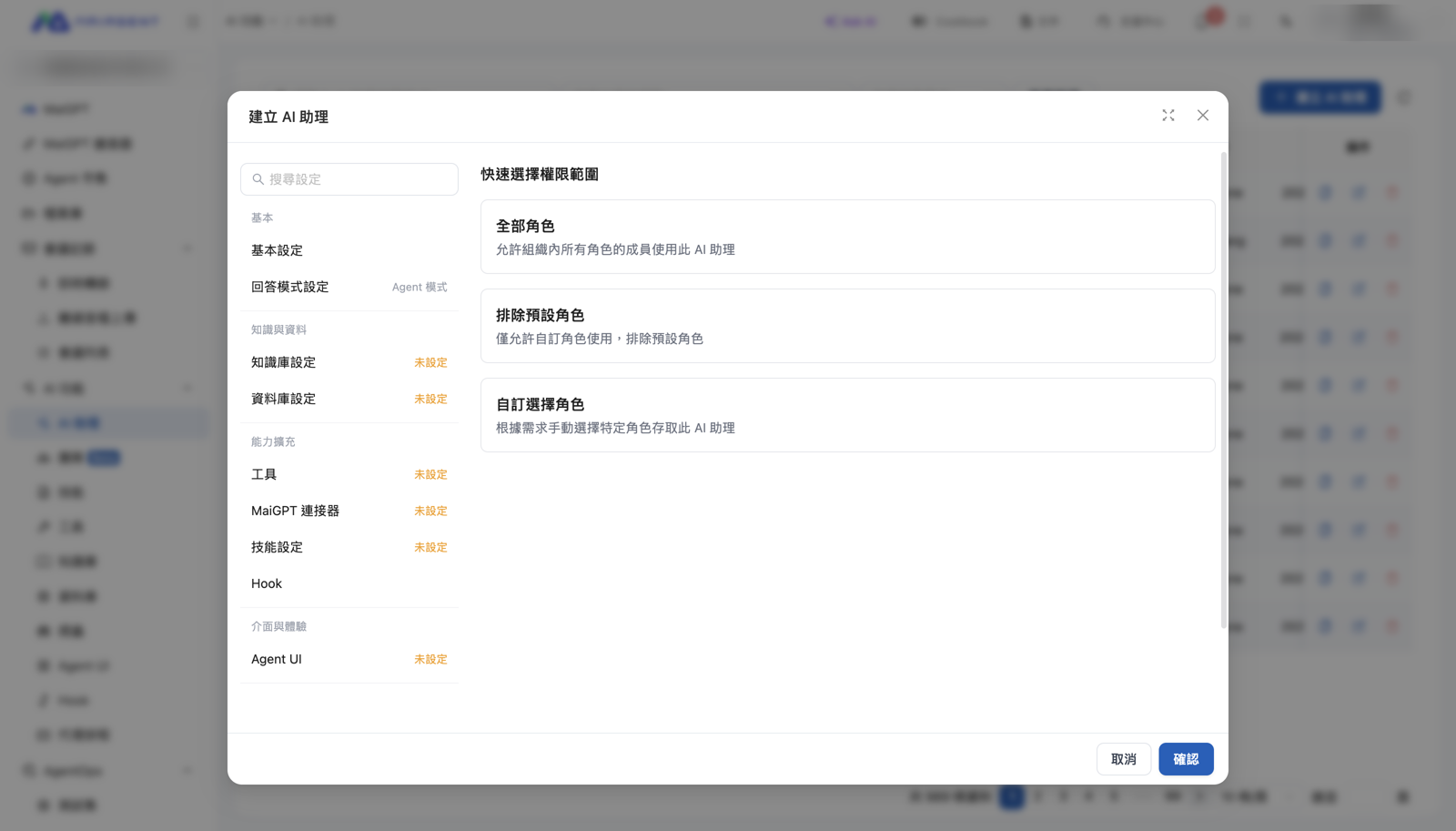
A member can see an assistant only when the roles assigned to the assistant overlap with the roles the member belongs to.
The platform does not consider who created the assistant. Many people assume that “only I can see the assistant I created,” but that is not how the platform works. Members of every role assigned to the assistant can see it.
This leads to three facts that determine the overall design:
Builders can assign assistants to any role they belong to
The system only requires at least one selected role to have AI assistant permissions. Any other selected role simply needs to be one the builder belongs to. If a builder also belongs to a department role, they can share an assistant with the department without anyone's approval.
All members automatically belong to the default role
Assigning any resource to the default role makes it available to the entire company. Builders can also select this role when creating assistants.
Copying an assistant also copies its role assignments
Anyone who can see an assistant can copy it. The copy retains all role assignments from the original and appears to everyone who could see the original.
Three Roles, Three Publishing Tiers
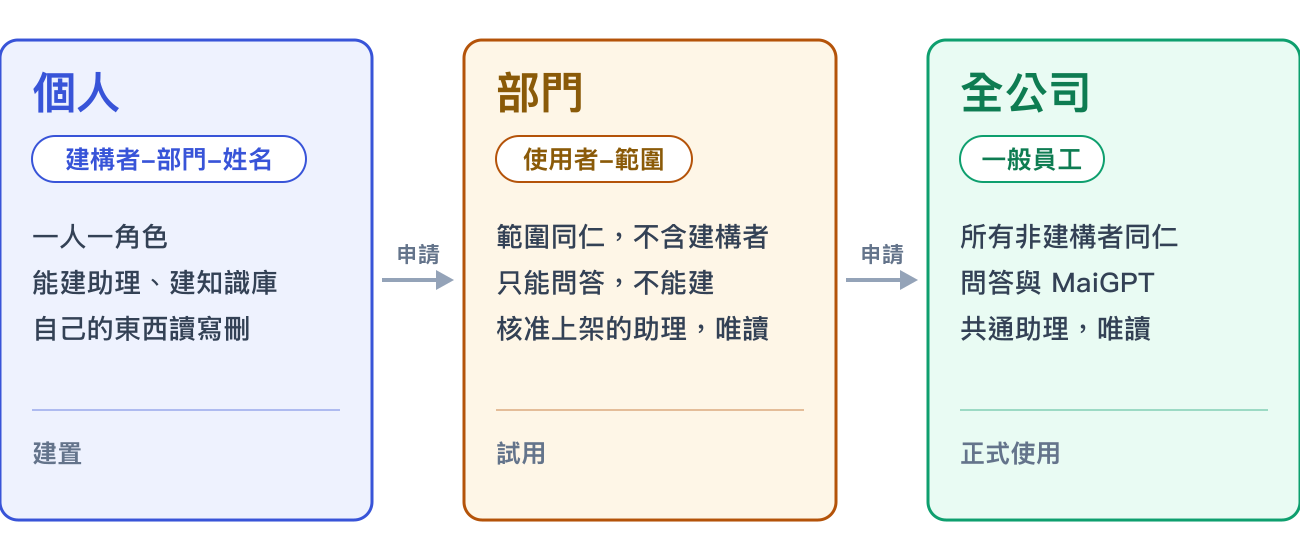
Divide “individual → department → company-wide” into three publishing tiers, each represented by a different type of role. Moving an assistant up each tier requires a new request.

Role Overview
Builder-Department-Name
One per builder (one person per role)
Can see AI assistants, knowledge bases, the Agent Marketplace, and MaiGPT; can build assistants and knowledge bases. Assigned to the assistants they create, with read, edit, and delete permissions.
Developer
Technical champions; added alongside an individual role
Adds tools, skills, databases, and crawlers; can create databases. No resources are assigned to this role.
User-Scope
Colleagues within that scope, excluding builders
Can only see the Agent Marketplace and cannot build. Assigned to approved, published assistants with read-only access.
General Employee
All colleagues who are not builders
Can see the Agent Marketplace and MaiGPT and cannot build. Assigned to company-wide assistants with read-only access.
Owner
Platform administrators
Full access. Responsible for publishing and maintenance.
Do not grant individual roles the “Customer Service Conversations → Conversation Platforms” permission, and disable “Allow Adding Conversation Platforms” and “Allow Adding Databases.” Builders can test through the test window on the assistant page and the Agent Marketplace. Removing these permissions prevents them from obtaining public URLs or embed codes, so assistants cannot be shared outside the organization without approval.
The One Iron Rule
Builders must not belong to any “User-Scope” or “General Employee” role.
When a builder creates an assistant, Permission Settings lists every role they belong to. If they do not belong to a department role, that department does not appear as an option, so they cannot select it for sharing. The platform mechanism—not a policy—prevents self-service sharing.
Conversely, if a builder belongs to a department role, they can assign the assistant to that department without anyone's approval. The platform has no setting for “belongs to this role but cannot assign resources to it.” An approval-based process can only be enforced through role membership.

Trade-off and workaround
As a result, builders cannot see official department or company-wide assistants in the Agent Marketplace. If builders need to use official assistants, the owner can also assign each official assistant to the builders' individual roles with read-only access during publication.
There is another trade-off: if builders can see an assistant, they can copy it, and the copy retains all role assignments from the original. Whether builders should see the standard versions is a decision to make during implementation.
Publishing Process: Two Publishing Levels, Locked After Copying
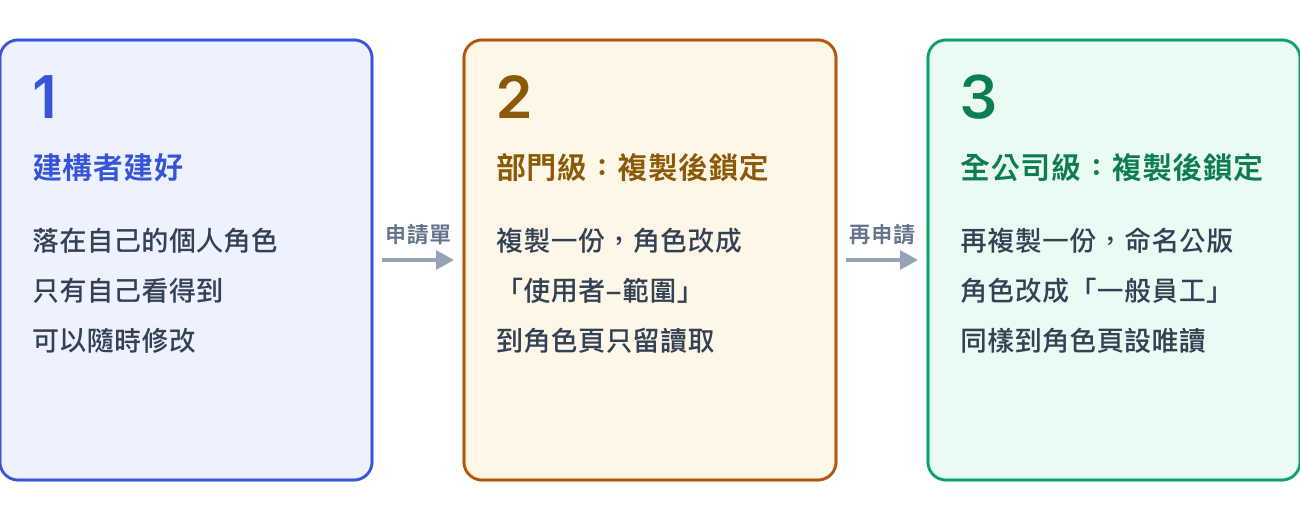
Requests and approvals take place outside the platform (through a form or email). On the platform, only the owner assigns roles. Publishing involves just one action: make a copy and lock it.

1. The Builder Completes the Assistant
The assistant is assigned to the builder's individual role and is visible only to that builder, who can modify it at any time. Test it through the test window on the assistant page and the Agent Marketplace.
2. Department Level: Make a Copy and Assign It to “User-Scope”
After the request is approved, the owner finds the original in the AI assistant list, clicks Copy, and prefixes its name with “Department Version-”.
Open the copy's Permission Settings, click Select Custom Roles, remove the builder's individual role, add “User-Scope,” and save
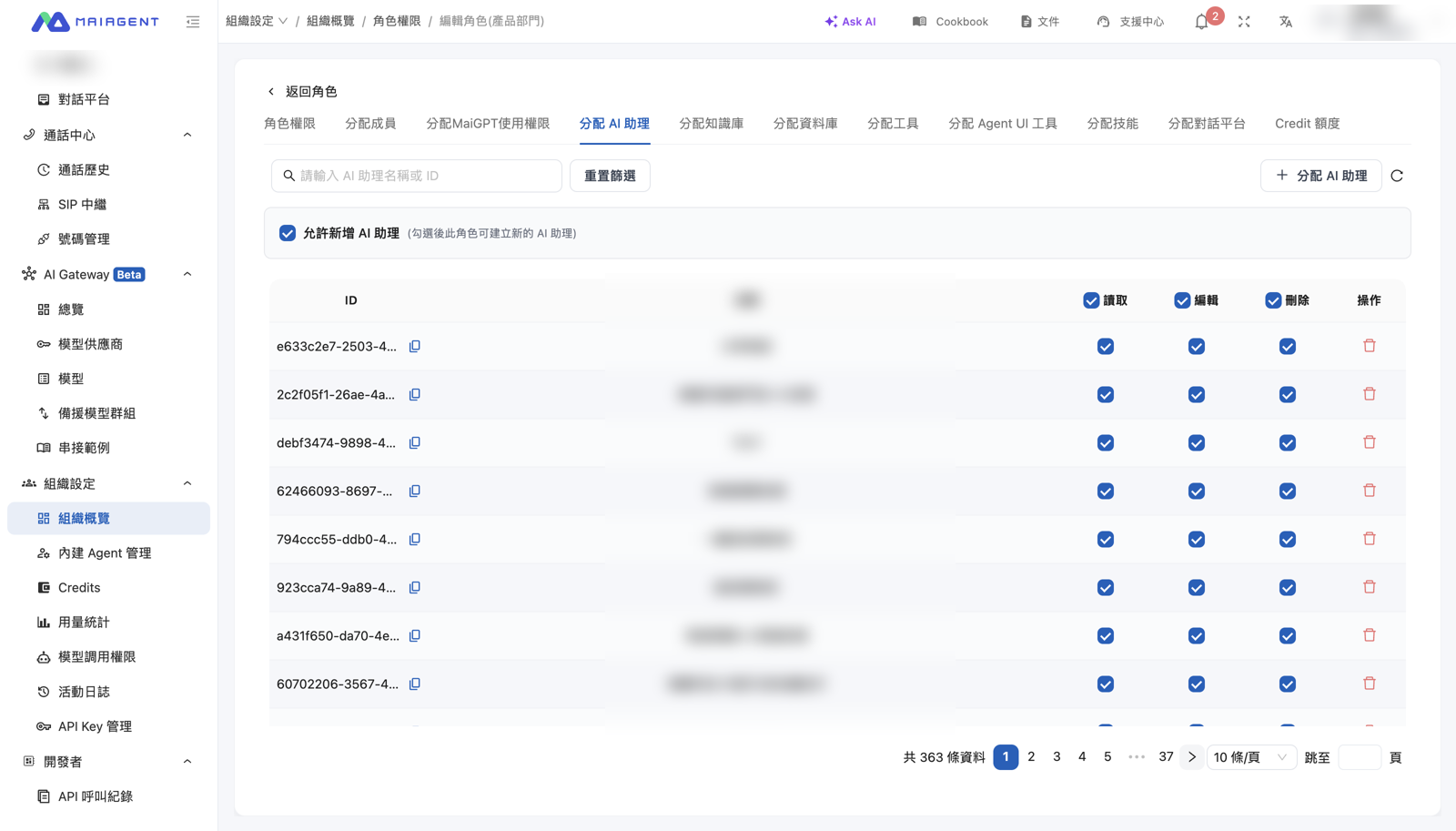
Go to Organization Settings → Role Permission Management → the relevant role → Assign AI Assistants. Disable edit and delete access for this assistant, leaving only read access

3. Company Level: Make Another Copy and Assign It to “General Employee”
Repeat the same process, prefix the name with “Standard Version-,” change the role to “General Employee,” and configure read-only access on the role page.
Why publishing always requires a copy: The original remains with the builder, who can modify and test it at any time. The published version is assigned only to the scope role and is inaccessible to the builder, so it is naturally locked against edits after publication. For updates, submit another request and make another copy. The official version always remains the approved version.
Two actions you must get right
Copying retains the original assistant's role assignments. After copying, change the assignments so that only the target role remains
The assistant's Permission Settings do not include read, edit, or delete checkboxes. Roles added from the assistant page have edit and delete access by default. To make access read-only, go to Assign AI Assistants on the role page and disable edit and delete access. Always save the role assignment in the assistant's Permission Settings before adjusting it on the role page. Assistants added only from the role page are not synchronized to the Web Chat inbox and do not appear in the Agent Marketplace
How to Provide the Company-Wide Tier
This is the only structural decision that must be finalized during implementation. Both approaches work, but they have different trade-offs.
Approach A: Keep the Default Role as the Company-Wide Tier
New employees automatically join the default role when they log in, so its membership does not need to be maintained. Restrict the default role's permissions to the Agent Marketplace and MaiGPT only, and assign company-wide assistants to it with read-only access.
Trade-off: Builders can select the default role when creating assistants. The “All Roles” quick selection includes it, allowing an assistant to be shared company-wide with one click. Training is required to direct builders to use “Select Custom Roles”
Suitable for: Organizations without builders, where administrators create every assistant. If builders exist, the iron rule cannot be enforced
Approach B: Remove the Default Role and Use a Custom “General Employee” Role
There is no one-click path for publishing company-wide, so the iron rule holds.
Trade-off: New employees, including those who log in through SSO, enter the organization without a role and cannot see anything. An administrator must assign “General Employee,” and membership synchronization must become part of routine IT operations
How to assign it: Email invitations or bulk import (existing accounts are assigned the role without being recreated), an organization invitation link that includes the role (works only for accounts newly registered through that link), or Member List → Edit Roles (use this for existing accounts)
MaiAgent must assist with removing the default role. Before removal, create the “General Employee” role, assign it to everyone, and confirm that MaiGPT opens successfully. Otherwise, the entire company immediately loses access to MaiGPT and the Agent Marketplace when the role is removed. The default role is not recreated automatically afterward.
Six Common Pitfalls
Read-only access can be configured in the assistant's Permission Settings
The assistant's Permission Settings do not have read, edit, and delete checkboxes. Roles added from the assistant page have edit and delete access by default. Go to “Assign AI Assistants” on the role page and disable edit and delete access.
It is enough to add an assistant through “Assign AI Assistants” on the role page
It will not be synchronized to the Web Chat inbox or appear in the Agent Marketplace. First save the role in the assistant's Permission Settings, then adjust the flags on the role page.
Saving a new assistant directly assigns it only to me
The default quick selection in Permission Settings is “Exclude Default Role,” which selects every non-default role. Click “Select Custom Roles” and choose the roles explicitly. If an owner does not do this, the assistant is assigned to every role.
Copying a colleague's role is the fastest way to add someone
Copying a role duplicates its members and assignments, but resets the read, edit, and delete flags to enabled. The standard version becomes editable and deletable. Always copy from an empty role template.
An invitation link can assign a role to an existing account
The role carried by the link is assigned only during registration and has no effect on an account that has already logged in. For existing accounts, edit roles in the member list or use bulk import.
Testing with an owner account is sufficient
Owners can create assistants without assigning a role, while builders are blocked by the system. Always perform validation while signed in with a non-owner account.
Last updated
Was this helpful?