> For the complete documentation index, see [llms.txt](https://docs.maiagent.ai/llms.txt). Markdown versions of documentation pages are available by appending `.md` to page URLs; this page is available as [Markdown](https://docs.maiagent.ai/maiagent-user-guide/en/org/roles/maigpt-role-permissions.md).

# MaiGPT Role Access Permissions

Configure the MaiGPT models, tools, skills, connectors, and built-in features available to each role.

Organization administrators can restrict the models, tools, skills, connectors, and built-in features that MaiGPT makes available to each role. When a member has multiple roles, the system merges the permissions provided by all of them; if any one role allows something, the member can use it. Every member automatically has the default role, so the default role's settings are merged in as well. See [Merge Rules and the Default Role](#merge-rules) for details.

{% hint style="info" %}
Owners are not subject to role usage scope restrictions. The settings below apply to the default role and custom roles.
{% endhint %}

## Use Case <a href="#scenario" id="scenario"></a>

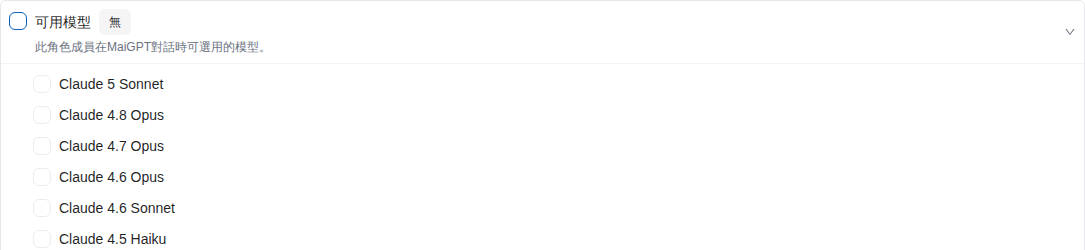
An IT manager wants the customer service role to use only company-approved models. They open that role's MaiGPT permissions, clear "All" under "Available Models", and check the approved models. The card immediately shows "Partial" with the number of selected items, and the screen confirms the update succeeded. Tools, skills, and connectors keep their own "All" settings and are not narrowed along with the model scope.

## Configure a Role's MaiGPT Usage Scope <a href="#configure-scope" id="configure-scope"></a>

{% stepper %}
{% step %}

### 1. Open Role Permissions <a href="#open-role-permissions" id="open-role-permissions"></a>

Go to <mark style="color:blue;">Organization Settings</mark> → <mark style="color:blue;">Organization Overview</mark>, and in the "Management" section select <mark style="color:blue;">Edit Role Permissions</mark>.
{% endstep %}

{% step %}

### 2. Select a Role <a href="#choose-role" id="choose-role"></a>

In the role list, find the default role or a custom role, select <mark style="color:blue;">Edit</mark> on the right, and then open the <mark style="color:blue;">Assign MaiGPT Permissions</mark> tab.
{% endstep %}

{% step %}

### 3. Set the Available Scope <a href="#set-available-scope" id="set-available-scope"></a>

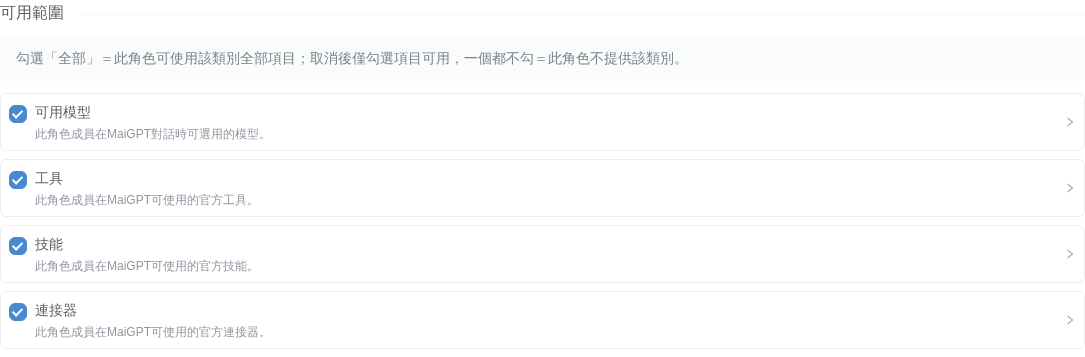
Under "Available Scope", configure <mark style="color:blue;">Available Models</mark>, <mark style="color:blue;">Tools</mark>, <mark style="color:blue;">Skills</mark>, and <mark style="color:blue;">Connectors</mark> separately. The "All" checkbox on each card is independent; click a category name to expand or collapse its item list.

| Setting for the category                    | Scope available to members                                                          |
| ------------------------------------------- | ----------------------------------------------------------------------------------- |
| "All" is checked                            | All available items in the category can be used; the list is grayed out             |
| "All" is cleared and some items are checked | Only the checked items can be used; the card shows "Partial" and the number checked |
| "All" is cleared and no items are checked   | This role provides nothing in the category; the card shows "None"                   |

To narrow the scope, first clear "All" for the category, then check the allowed items in the list that expands automatically. Re-checking "All" clears the individual selections you made earlier; if you clear it again later, you will need to pick the items again.

<figure><img src="https://1360999650-files.gitbook.io/~/files/v0/b/gitbook-x-prod.appspot.com/o/spaces%2F6v6TNkkOQVfRYfcNirHL%2Fuploads%2Fgit-blob-84b3e5ddfa1ba53be75b55c1591eec205e7af5cf%2Fmaigpt-role-scope-overview.png?alt=media" alt="The four cards under Available Scope, each with its own independent &#x27;All&#x27; checkbox"><figcaption><p>"Available Models", "Tools", "Skills", and "Connectors" are configured separately</p></figcaption></figure>

<figure><img src="https://1360999650-files.gitbook.io/~/files/v0/b/gitbook-x-prod.appspot.com/o/spaces%2F6v6TNkkOQVfRYfcNirHL%2Fuploads%2Fgit-blob-90f50a8d54f35895d2596939d50120557c4b9d2e%2Fmaigpt-role-model-none.png?alt=media" alt="When &#x27;All&#x27; is cleared for Available Models and no models are checked, the card shows &#x27;None&#x27;"><figcaption><p>With no models checked, this role provides no available models</p></figcaption></figure>

<figure><img src="https://1360999650-files.gitbook.io/~/files/v0/b/gitbook-x-prod.appspot.com/o/spaces%2F6v6TNkkOQVfRYfcNirHL%2Fuploads%2Fgit-blob-e3cb74069c81259c668c473925737d43ab08c228%2Fmaigpt-role-model-partial.png?alt=media" alt="After one item is checked under Available Models, the card shows &#x27;Partial 1/48&#x27;"><figcaption><p>After models are checked, the card shows "Partial" and the number checked; the total changes with the models available to the organization</p></figcaption></figure>

{% hint style="warning" %}
If "Available Models" shows "None", the screen warns "This role will have no models to choose from and cannot chat in MaiGPT", but you are still allowed to keep this setting. Confirm whether members of this role need to chat in MaiGPT.
{% endhint %}
{% endstep %}

{% step %}

### 4. Configure Built-in Features <a href="#set-built-in-features" id="set-built-in-features"></a>

In the "Features" section, turn the following capabilities on or off:

* <mark style="color:blue;">Code Interpreter</mark>: Run code and generate charts, spreadsheets, or documents.
* <mark style="color:blue;">Knowledge Base RAG</mark>: Answer using the organization's knowledge bases and cite sources.
* <mark style="color:blue;">Deep Research</mark>: Break a question down and search the web over multiple rounds. It uses its own web search, so it is not affected by whether the official search tool is enabled.
* <mark style="color:blue;">Browser Tool</mark>: Operate a browser, open pages, interact with page elements, and capture screenshots.

Changes are saved automatically; you do not need to click "Save" separately. Once you see the update success message, you can leave the page. If saving fails, the screen shows which item was not updated and reverts to the last successfully saved state.

<figure><img src="https://1360999650-files.gitbook.io/~/files/v0/b/gitbook-x-prod.appspot.com/o/spaces%2F6v6TNkkOQVfRYfcNirHL%2Fuploads%2Fgit-blob-a98fb627bb61dc4e93ebffb9b022cc16b413af85%2Fmaigpt-role-features.png?alt=media" alt="The four feature switches on the Assign MaiGPT Permissions page"><figcaption><p>Manage MaiGPT built-in features in the role settings</p></figcaption></figure>
{% endstep %}
{% endstepper %}

## Merge Rules and the Default Role <a href="#merge-rules" id="merge-rules"></a>

A member's final available scope = the default role + the merged result of the custom roles the member belongs to. Each category (Available Models, Tools, Skills, Connectors) is calculated separately:

* If any role has "All" checked for a category, the member can use all available items in that category, and restrictions from other roles have no effect.
* If every role has "All" cleared, the member can use the merged list of items checked across the roles.
* Only when every role has "All" cleared and none has any item checked does the member have nothing available in that category.

All members automatically have the <mark style="color:blue;">default role</mark>, and the default role has "All" selected for every category by default. So if you only set "Available Models" to "None" on a custom role, members can still use all models through the default role.

### Leave Members with No Models in MaiGPT <a href="#deny-all-models" id="deny-all-models"></a>

To leave certain members with no models available in MaiGPT, complete all of the following:

1. In the custom role the members belong to, clear "All" for "Available Models" and check no models.
2. In the <mark style="color:blue;">default role</mark>, also clear "All" for "Available Models", and either check nothing or check only the models you want to open to all members.
3. For members who need to use models, assign an additional custom role with the corresponding models checked.

{% hint style="warning" %}
The default role applies to every member of the organization. Before changing the default role's "Available Models", confirm that the models other members need are already provided by custom roles, so that other members are not left unable to chat in MaiGPT. Restricting tools, skills, and connectors works the same way.
{% endhint %}

## What Members See <a href="#member-experience" id="member-experience"></a>

Once the role settings take effect, MaiGPT shows only the models, tools, skills, and feature entry points available to the member. If knowledge base retrieval or Code Interpreter was previously available but is disabled by the role, the right-hand panel explains that the feature is not yet open to this role.

When a connector has been enabled by the organization but not yet opened to the member's role, the member does not see the authorize button and can submit an access request instead. If the member had already completed authorization earlier, they can still unlink it to remove authorization they no longer use.

{% hint style="warning" %}
After permissions change, if a conversation that has already started uses a model that is no longer allowed, the system tries to switch to a model available to the role. Remind members to check the model name before continuing the conversation.
{% endhint %}

## Related Guides <a href="#related-guides" id="related-guides"></a>

* [Role Permission Management](/maiagent-user-guide/en/org/roles/role-permission.md)
* [MaiGPT Connectors](/maiagent-user-guide/en/work/maigpt/connectors.md)


---

# Agent Instructions
This documentation is published with GitBook. GitBook is the documentation platform designed so that both humans and AI agents can read, navigate, and reason over technical content effectively. Learn more at gitbook.com.

## Querying This Documentation
If you need additional information that is not directly available in this page, you can query the documentation by asking a question.

Perform an HTTP GET request on the following URL with the `ask` and `goal` query parameters:

```
GET https://docs.maiagent.ai/maiagent-user-guide/en/org/roles/maigpt-role-permissions.md?ask=<question>&goal=<user_goal>
```

`ask` is the immediate question: it should be specific, self-contained, and written in natural language.
`goal` is what the user is ultimately trying to achieve, the reason they need the answer. Sharing it helps GitBook give you a better, more relevant answer. A goal is most helpful when it describes the outcome the user wants rather than restating the question. For example, with `ask=how do I create an API token`, a goal like `automate deployments from our CI pipeline` lets GitBook tailor the answer to that use case.

The response will contain a direct answer to the question and relevant excerpts and sources from the documentation.

Use this mechanism when the answer is not explicitly present in the current page, you need clarification or additional context, or you want to retrieve related documentation sections.