Role Resource Access Permissions
Role resource access permission management — control member visibility and usage permissions for resources
Feature Overview
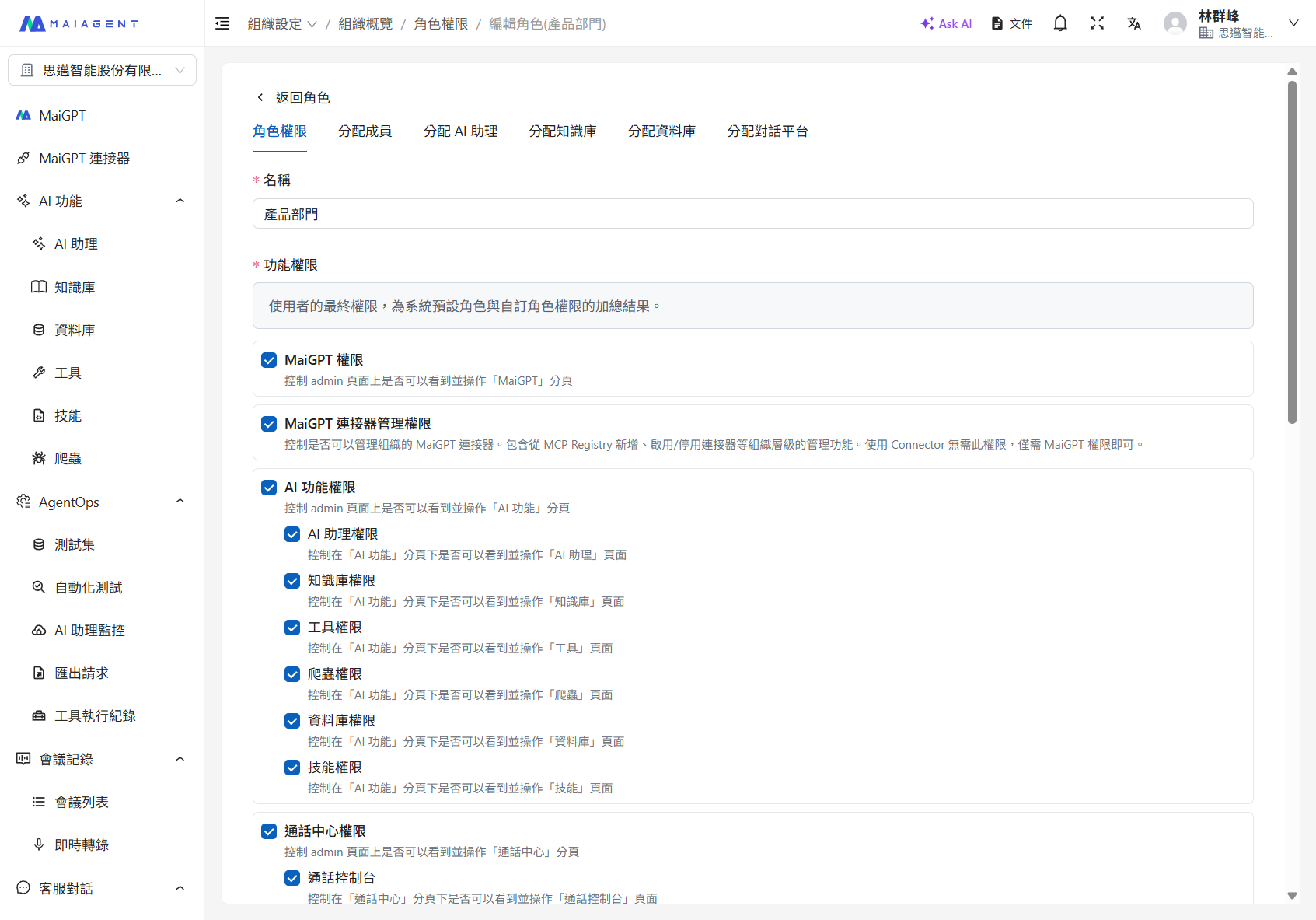
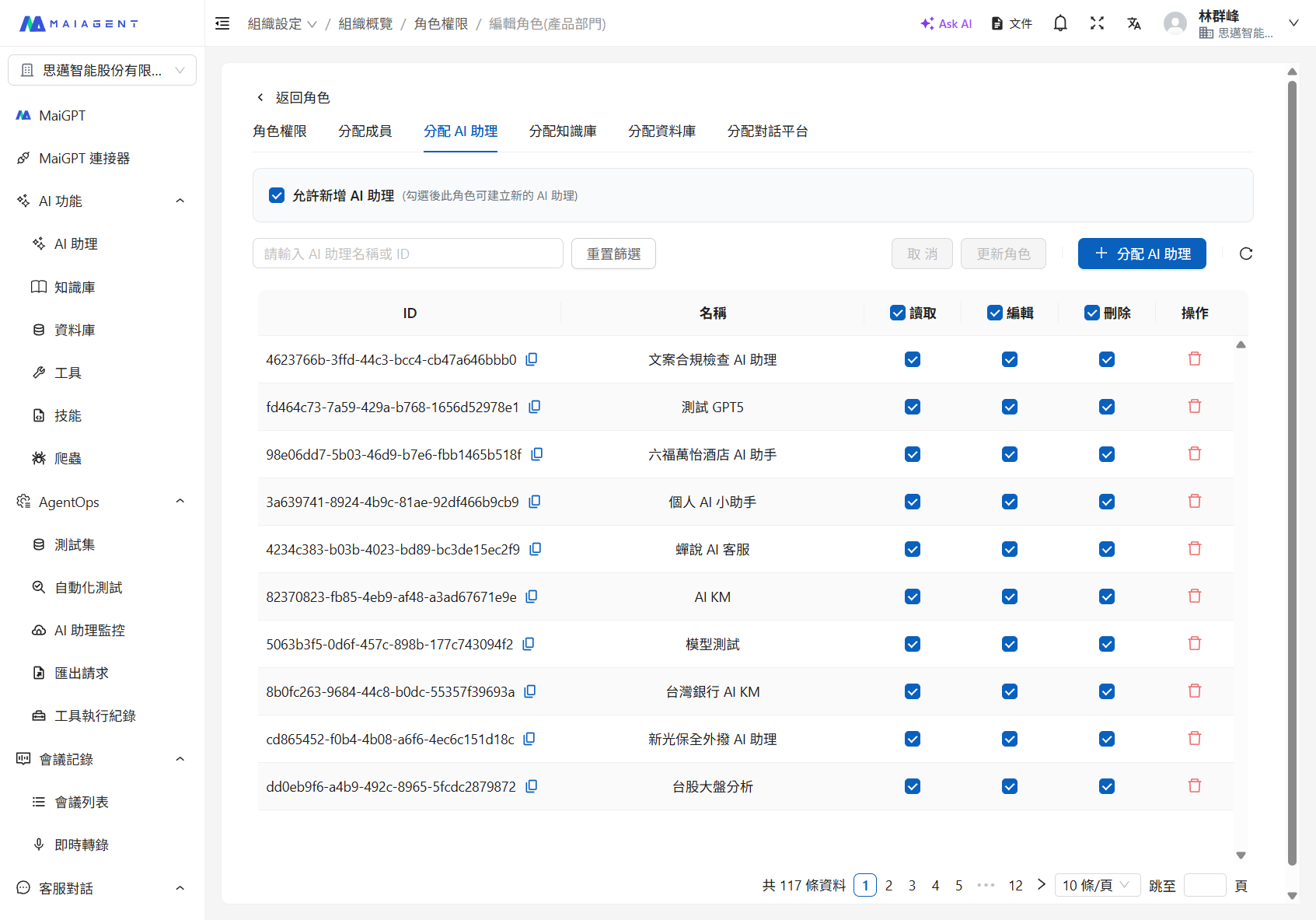
Role resource access permissions is an advanced permission management feature in MaiAgent that allows organization administrators to granularly control role members' "visibility" and "usage permissions" for resources such as AI assistants, knowledge bases, and conversation platforms. With this feature, you can implement more refined permission control, ensuring sensitive resources are only visible to specific roles.
Permission Level Descriptions
Two-Layer Permission Control
MaiAgent's resource permissions are divided into two levels:
Usage Permission
Determines whether the resource can be used
Performing operations, sending messages, modifying settings
Access Permission (Visibility)
Determines whether the resource is visible in lists
Resource menus, dropdown lists, search results
Permission Combination Scenarios
✅ Yes
✅ Yes
Can see and use the resource (highest permission)
✅ Yes
❌ No
Can use but cannot see the resource (suitable for API integration scenarios)
❌ No
✅ Yes
Can see but cannot use the resource (read-only permission)
❌ No
❌ No
No access at all (default state)
Setting Access Permissions
Prerequisites
You must be the organization owner or a member with role permission management authority
Roles have been created and relevant resources (AI assistants, knowledge bases, or conversation platforms) have been assigned
Steps
Navigate to the role management page
Click "Organization Settings" in the left menu
Click "Role Permission Management"
Select the role to edit
Select the resource type tab
Click the "Assign AI Assistants", "Assign Knowledge Bases", or "Assign Conversation Platforms" tab
Edit access permissions
In the list of assigned resources, find the resource to edit
Click the "Edit" button on the right side of the resource
In the "Edit Access Permissions" dialog, check or uncheck the "Visibility" option
Click "Confirm" to save the settings
After changing access permissions, affected members need to log in again or refresh the page to see the changes.
Use Case Examples
Scenario 1: Confidential Project Management
Need: The R&D department has a confidential AI assistant for a project and wants only project members to see it
Configuration:
Create a "R&D Project Team" role
Assign the confidential AI assistant to this role
✅ Enable "Visibility" permission
Other roles cannot see this confidential assistant even if they have AI assistant usage permissions
Scenario 2: API Integration
Need: An AI assistant is intended only for external system API calls and should not be visible to internal employees in the interface
Configuration:
Assign the AI assistant to the API integration role
✅ Grant usage permission (so the API can call it)
❌ Disable "Visibility" permission (not displayed in the interface list)
Scenario 3: Hierarchical Data Access
Need: Allow entry-level employees to see only public knowledge bases while managers can see all knowledge bases
Configuration:
"Regular Employee" role: Assign only public knowledge bases with visibility enabled
"Manager" role: Assign all knowledge bases with visibility enabled for all
"Finance Specialist" role: Assign financial knowledge bases with visibility enabled
Relationship with Existing Permissions
Permission Calculation Logic
A member's final resource access permission = Role Permission + Resource Assignment + Access Permission Setting
Difference from Owner Role
FAQ
Q: Why separate "usage permission" and "access permission"?
A: This design provides more flexible permission control:
Simplified interface: Prevents members from seeing too many irrelevant resources, improving user experience
Data security: Sensitive resources can be completely hidden, reducing the risk of information leaks
API integration: Supports system-to-system integration without displaying technical resources in the user interface
Q: If a member has the same resource through multiple roles, how is access permission calculated?
A: The "union" principle is used. As long as any role enables visibility, the member can see the resource.
Q: How long does it take for access permission changes to take effect?
A: Changes take effect immediately, but affected members need to refresh the page or log in again to see the changes.
Q: After disabling visibility, can the member still use the resource via API?
A: Yes. As long as the member has usage permission for the resource, they can use it via API or direct link, even if it is not visible in the interface.
Q: How can I quickly batch-set visibility for multiple resources?
A: Currently, resources must be edited one by one. Plan your visibility strategy when assigning resources to avoid large-scale adjustments later.
Additional Use Cases
Beyond the scenarios above, resource visibility control is particularly useful in the following situations:
Multi-department collaboration: The marketing department only needs to see marketing-related AI assistants and knowledge bases, while the customer service department only needs to see customer service-related resources, preventing members from being distracted by irrelevant resources
Project grouping: Set independent resource visibility scopes for different project teams to avoid resource confusion between projects
Permission testing: When testing new features, hide test resources so regular members cannot see them
Onboarding guidance: Set fewer visible resources for new members to reduce the learning curve
Outsourcing team management: Allow outsourced personnel to see only resources related to their assigned projects, protecting other project information
Keep "visibility" and "usage permission" consistent to avoid situations where members can see resources they cannot use, which causes confusion.
Important Notes
Permission Configuration Recommendations
Configure access permissions for the default role carefully to avoid all members seeing unnecessary resources
Regularly review resource visibility settings to ensure compliance with organizational security policies
Restrict visibility for important or sensitive resources, opening access only to specific roles
Last updated
Was this helpful?