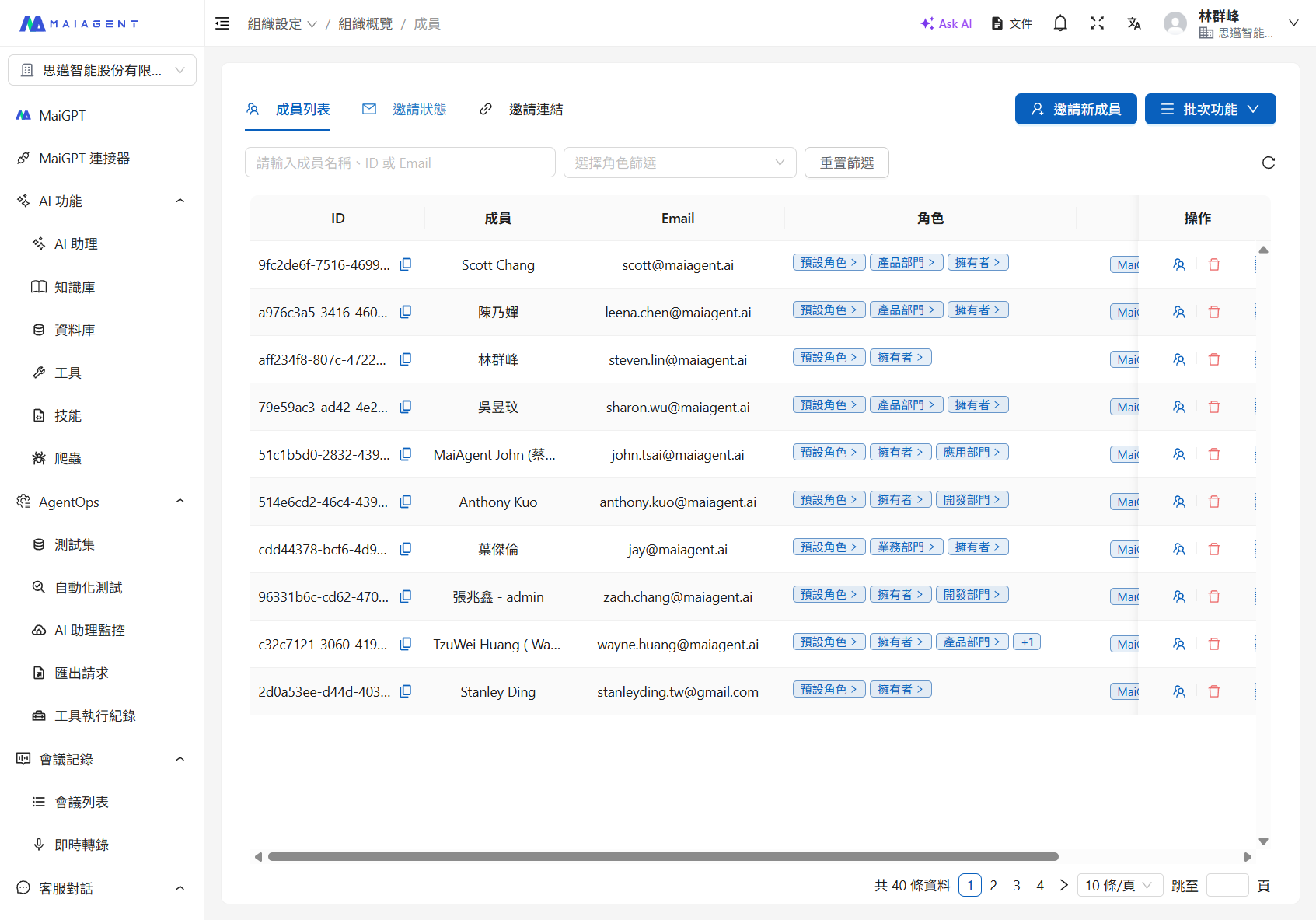
Role Member Filtering
Quickly filter and manage organization members by role
Feature Overview
The role member filtering feature allows organization administrators to quickly filter the member list by role, significantly improving member management efficiency in large organizations. With this feature, you can quickly find members with a specific role and perform batch operations or permission adjustments.
Using the Filtering Feature
Basic Filtering
Navigate to the member management page
Click "Organization Settings" in the left menu
Click "Organization Overview"
Click "Edit Members"
Select filter criteria
Find the "Filter by Role" dropdown above the member list
Select the role to filter by
The member list will update immediately, showing only members with that role
Filter Options
All Members
Display all members in the organization (default option)
Owner Role
Show only members with the owner role
Default Role
Show members with only the default role (no other roles assigned)
Custom Roles
Filter by custom role names you created (e.g., Marketing, Customer Service, R&D Team, etc.)
Advanced Operations
Combining Filters and Search
You can combine role filtering with keyword search to more precisely find target members:
First select a role filter (e.g., "Customer Service")
Then enter a member name or email in the search box
The system will further search within the filtered results
Example:
Use Cases
Scenario 1: Building a New Project Team
Need: The company is launching a new project and needs to select suitable candidates from existing members to form a project team
Workflow:
Create a new role "Project A Team"
Filter by relevant departments in sequence:
Filter "R&D" → Find 3 engineers
Filter "Design" → Find 2 designers
Filter "Marketing" → Find 1 marketing specialist
Add the selected members to the "Project A Team" role
Configure the AI assistant and knowledge base permissions required for the project
Scenario 2: Periodic Permission Review
Need: Review each department's member permissions quarterly to ensure compliance with the principle of least privilege
Workflow:
Filter by each department role one by one
Check each member's permission configuration:
Are there any unnecessary permissions?
Are any required permissions missing?
Record members that need adjustments
Make permission adjustments
Scenario 3: Revoking Permissions for Departing Employees
Need: An employee is leaving the company, and all their permissions need to be revoked quickly
Workflow:
Search for the employee's name
View all roles the employee belongs to
Navigate to the member list for each role
Use filtering to quickly locate the employee
Remove the employee from all roles
Confirm the employee only has the default role (minimum permissions)
Filtering Performance Optimization
Recommendations for Large Organizations
If your organization has more than 100 members, consider the following:
Clear role naming
Use clear naming conventions (e.g., Department-Function-Project)
Example: "Sales-Customer Service-VIP Project"
Reasonable number of roles
Avoid creating too many granular roles
Keep the number of roles per organization to 20 or fewer
Regular cleanup
Delete roles that are no longer in use
Remove departed employees
Merge roles with similar functions
Leverage batch features
Use Excel batch management (see: Batch Member and Permission Management)
FAQ
Q: If a member belongs to multiple roles, which filter results will they appear in?
A: The member will appear in the filter results for all roles they belong to. For example, if Xiao Wang belongs to both "Marketing" and "Project A," they will appear when filtering by either role.
Q: Can filter criteria be saved?
A: Saving filter criteria is not currently supported. However, the browser will remember your most recent filter selection and automatically apply it the next time you open the page.
Q: Why can't I see certain roles in the filter options?
A: Possible reasons:
You do not have management permissions for that role
The role has been deleted
You are not the organization owner (some roles are only visible to owners)
Q: What should I do if filtering is slow?
A: Possible causes and solutions:
Too many members (>500): Use more precise search criteria
Too much browser cache: Clear the browser cache and try again
Network latency: Check your network connection
Related Features
Last updated
Was this helpful?
