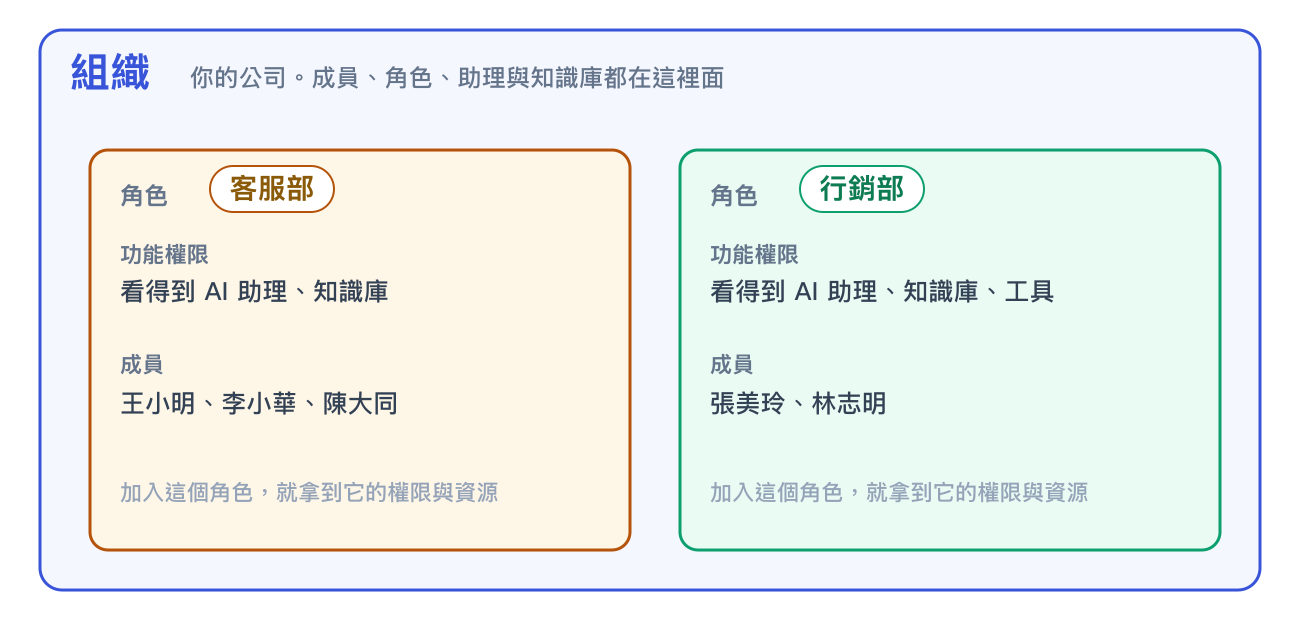
An organization contains multiple roles. When members join a role, they receive that role's permissions and resources.
An organization contains multiple roles. When members join a role, they receive that role's permissions and resources.
| Level | Company Equivalent | Description |
|---|---|---|
| Organization | Your company | The top-level management unit. Members, roles, AI assistants, and knowledge bases all belong to an organization. Organizations are completely isolated from one another. |
| Role | Department or position | A container for permissions and resources. A member can belong to multiple roles at the same time and receives the combined permissions of all those roles. |
| Member | Employee | A user in the organization. Members have no permissions of their own; all permissions come from the roles to which they belong. |
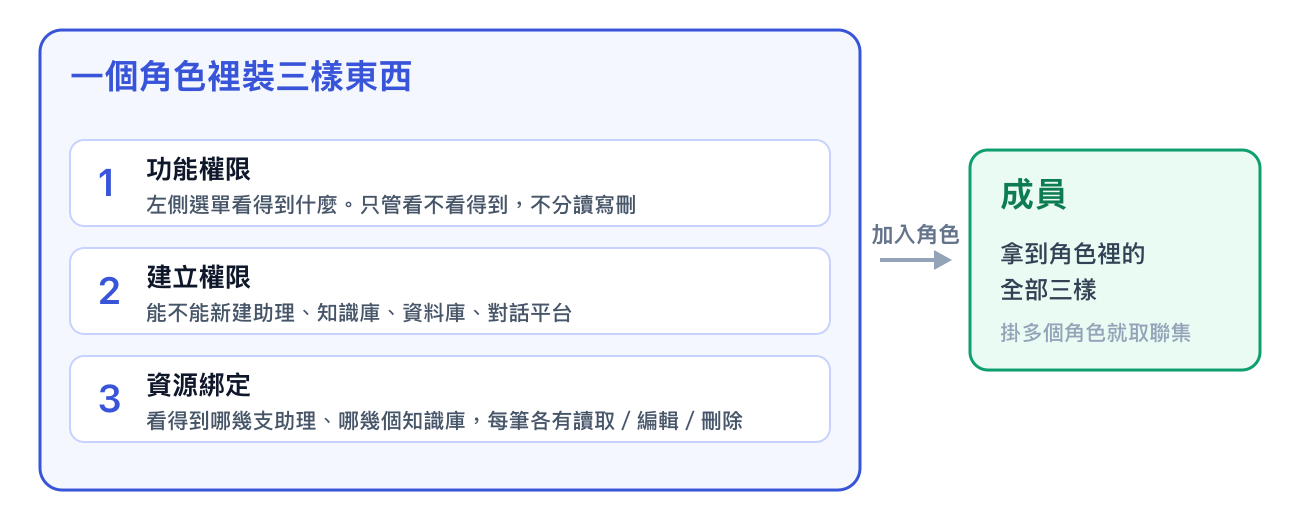
To let members create assistants, enable both "AI Assistants" under feature permissions and "Allow creating AI assistants" under creation permissions.
| Layer | What It Determines | Where to Configure It |
|---|---|---|
| Feature permissions | Which items appear in the left sidebar. These permissions only control visibility; they do not distinguish between read, edit, and delete access. | The Role Permissions tab for the role. Selecting a parent permission automatically includes all child permissions, or you can select only specific child permissions. |
| Creation permissions | Whether members can create assistants, knowledge bases, databases, and conversation platforms. | The "Allow creating" checkbox at the top of each resource assignment tab. |
| Resource assignments | Which assistants and knowledge bases members can access. Each item has separate read, edit, and delete controls. | The role's Assign AI Assistants, Assign Knowledge Bases, and other resource tabs. |
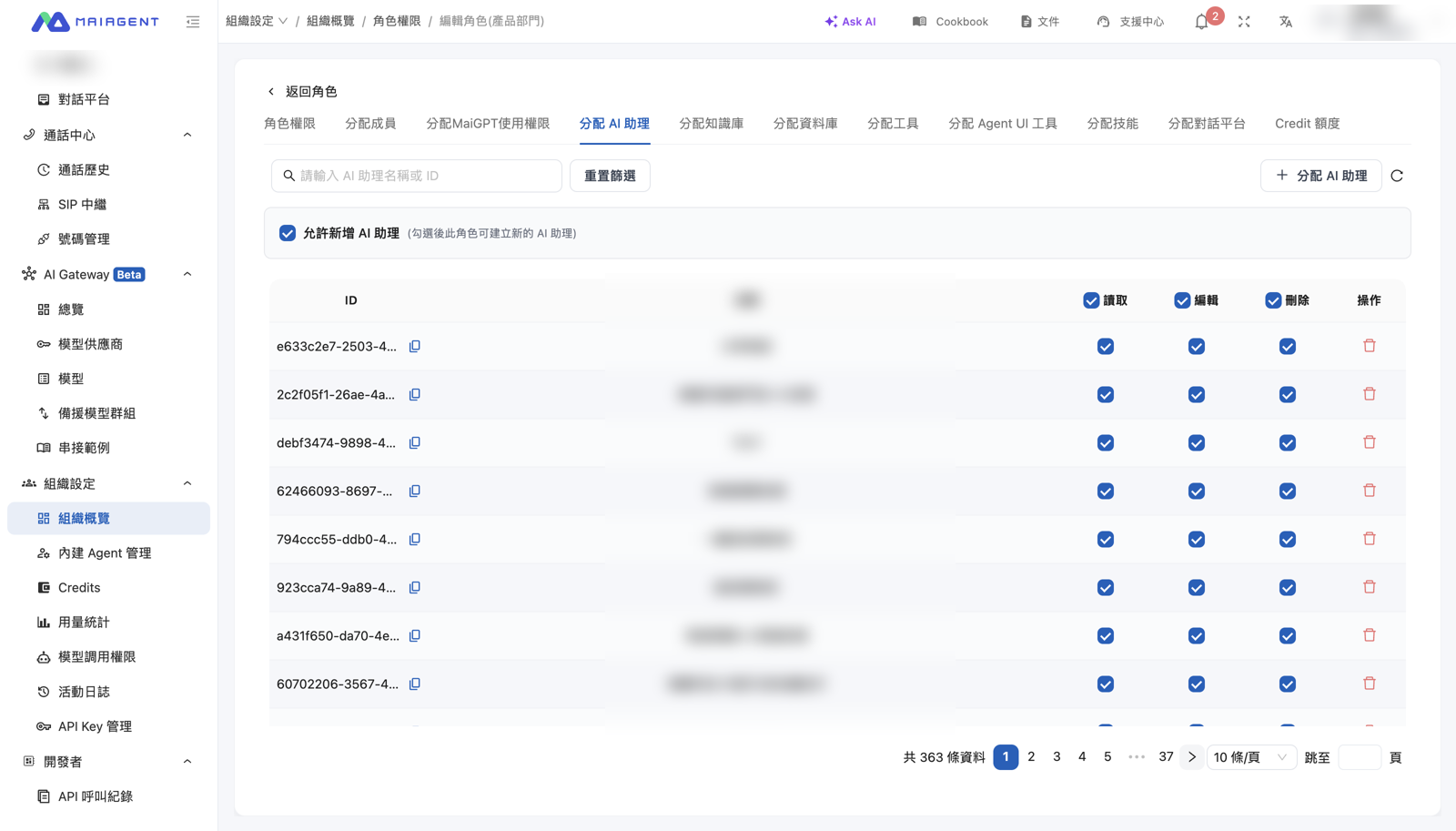
Role editing page: the tabs at the top list assignable resources, "Allow creating" controls creation permissions, and the read/edit/delete controls in each row define resource assignments.
| Type | Who It Includes | Characteristics |
|---|---|---|
| Owner | The organization creator or designated administrators | Bypasses all permission checks and can view and modify every resource in the organization. An organization can have multiple owners. |
| Default Role | All members, who are assigned automatically | Any permission it grants is available company-wide, and any assistant assigned to it is visible to everyone. We recommend granting only minimum permissions and assigning no resources. |
| Custom Role | Assigned members | Created by department or position. Custom roles can be duplicated and assigned in batches. |
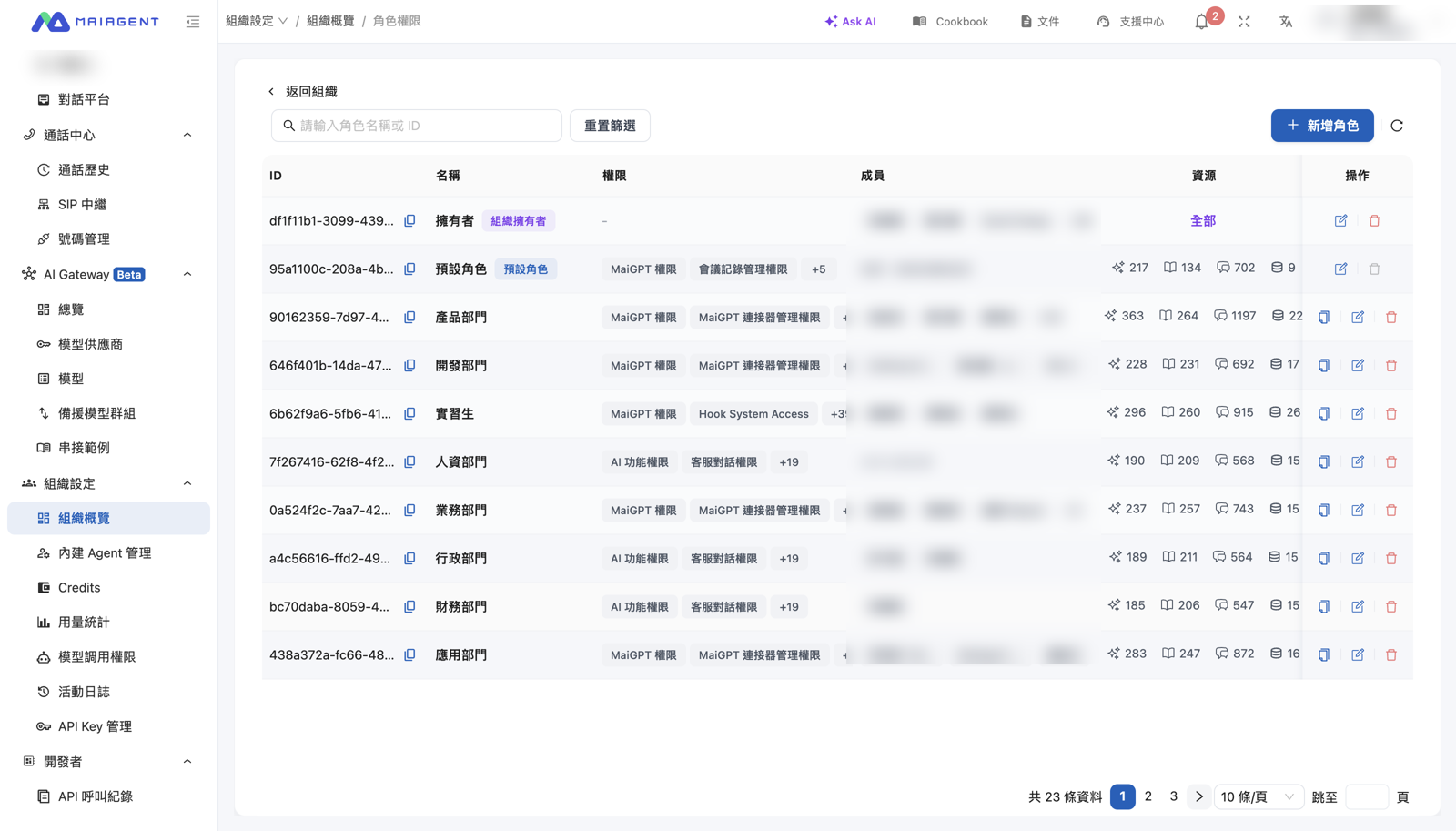
Role list: owner, default, and custom roles, each showing its permissions, members, and number of assigned resources.
| Type | Permission Scope |
|---|---|
| Owner | Everything. Owners can manage organization settings, roles, and members. |
| Regular Member | The permissions of the default role, plus the permissions from every role assigned to the member. |