> For the complete documentation index, see [llms.txt](https://docs.maiagent.ai/llms.txt). Markdown versions of documentation pages are available by appending `.md` to page URLs; this page is available as [Markdown](https://docs.maiagent.ai/maiagent-user-guide/en/org/model-access.md).

# Model Access Permissions

Organization owners can manage the AI models available in their organization and control which models members and Agents can call

Organization owners can enable or disable AI models for their organization on the Model Access Permissions page. Disabled models disappear from all model menus and cannot be called by members or Agents. This lets enterprises centrally control the models they use, for example by allowing only certain vendors, keeping only open-weight models, or excluding high-cost models.

## Use Case: Standardize the Models Available to Your Team <a href="#model-governance-scenario" id="model-governance-scenario"></a>

After evaluating models, the IT team wants every department to use only validated models. Organization owners can search for a model, check whether any Agents are using it, and then decide whether to enable or disable it. Before disabling a model in use, switch the affected Agents to another available model.

## How It Works: Provisioning and Enabling Are Separate <a href="#two-layer-model" id="two-layer-model"></a>

Whether a model is available in an organization depends on two layers:

| Layer                                  | Controlled by      | Description                                                                                                                                                                                                                                                   |
| -------------------------------------- | ------------------ | ------------------------------------------------------------------------------------------------------------------------------------------------------------------------------------------------------------------------------------------------------------- |
| **Provisioning (authorized scope)**    | MaiAgent           | MaiAgent provisions a list of models for the organization according to its contract and plan. This defines the upper limit of what the organization can manage itself. You cannot enable an unprovisioned model yourself; contact MaiAgent if you need access |
| **Enabling (self-service management)** | Organization owner | Within the provisioned scope, organization owners can enable or disable models on this page at any time. Changes take effect immediately                                                                                                                      |

{% hint style="info" %}
Models therefore have three states: **Enabled**, **Provisioned but disabled**, and **Not provisioned**. “Not provisioned” means MaiAgent has not granted this organization access to the model. You cannot enable it yourself; contact MaiAgent if you need access.
{% endhint %}

## Open the Page <a href="#how-to-enter" id="how-to-enter"></a>

### 1. Open Organization Settings <a href="#open-org-settings" id="open-org-settings"></a>

In the left menu, click <mark style="color:blue;">**Organization Settings**</mark>, then <mark style="color:blue;">**Model Access Permissions**</mark>.

<figure><img src="https://1360999650-files.gitbook.io/~/files/v0/b/gitbook-x-prod.appspot.com/o/spaces%2F6v6TNkkOQVfRYfcNirHL%2Fuploads%2Fgit-blob-919f715b95de337530ff48b1e152ee6f50359ce2%2Fmodel-access-01-menu-entry.png?alt=media" alt="Left menu: Organization Settings → Model Access Permissions"><figcaption><p>Left menu entry: Organization Settings → Model Access Permissions</p></figcaption></figure>

### 2. View the Page Overview <a href="#page-overview" id="page-overview"></a>

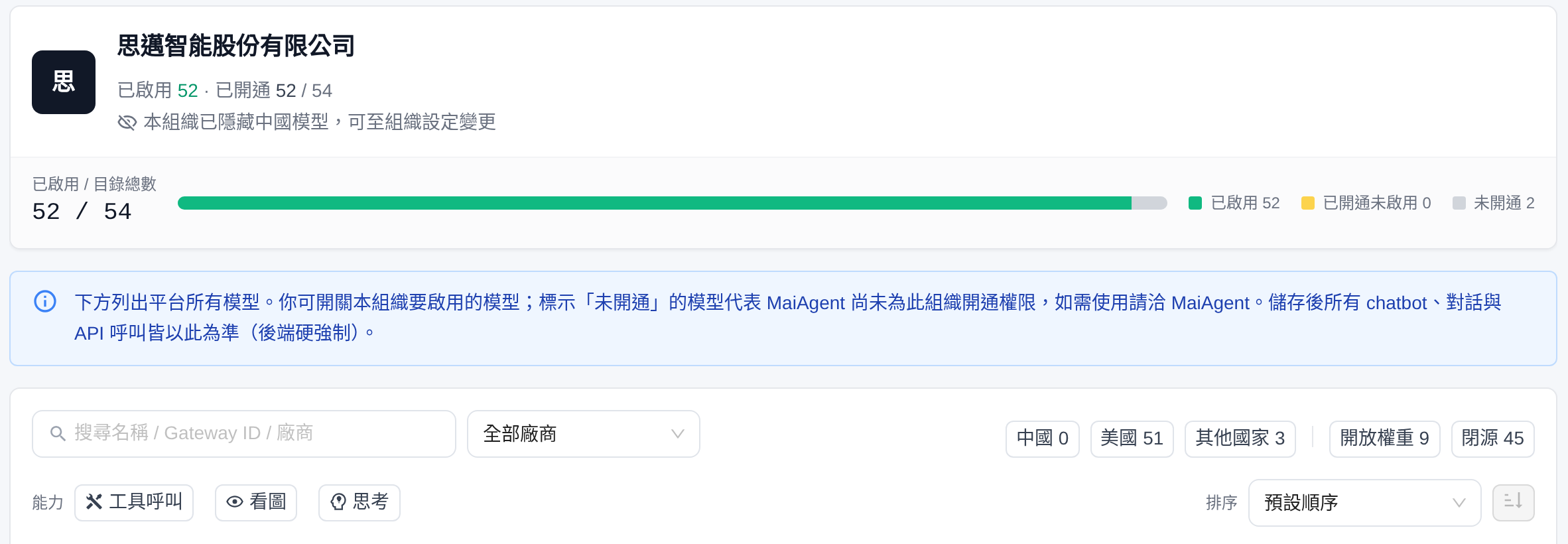
The page lists all models in the platform catalog in a single list. The top section shows enabling progress and explanatory text, with a toolbar above the list for searching and filtering.

<figure><img src="https://1360999650-files.gitbook.io/~/files/v0/b/gitbook-x-prod.appspot.com/o/spaces%2F6v6TNkkOQVfRYfcNirHL%2Fuploads%2Fgit-blob-7182ce9ea45c9de48df8d6fac241be7f8ccdf7e3%2Fmodel-access-overview.png?alt=media" alt="Model Access Permissions page: an enabled / total catalog progress bar and explanation at the top, followed by a search box, All Vendors dropdown, China / US / Other Countries and Open-weight / Closed-source filter buttons, capability filters and sorting, and a model list with price, time to first token, output speed, input processing speed, context length, and maximum output columns"><figcaption><p>Model Access Permissions page: progress bar, explanation, toolbar, and model list</p></figcaption></figure>

{% hint style="warning" %}
Organization owners can access this page by default. Other roles must first receive the Model Access Permissions menu permission to open and view it. Only organization owners can change the toggles.
{% endhint %}

## Page Elements <a href="#page-elements" id="page-elements"></a>

From top to bottom, the page contains the following sections:

| Section                                 | Description                                                                                                                                                                                                                                                                                                                                                                                                                                                                                                                                                                                                                                                                                                                                                                                                                                                                                                                                                                                                                                                                                     |
| --------------------------------------- | ----------------------------------------------------------------------------------------------------------------------------------------------------------------------------------------------------------------------------------------------------------------------------------------------------------------------------------------------------------------------------------------------------------------------------------------------------------------------------------------------------------------------------------------------------------------------------------------------------------------------------------------------------------------------------------------------------------------------------------------------------------------------------------------------------------------------------------------------------------------------------------------------------------------------------------------------------------------------------------------------------------------------------------------------------------------------------------------------- |
| **Page introduction**                   | Text at the top of the page briefly explains its purpose and scope of impact                                                                                                                                                                                                                                                                                                                                                                                                                                                                                                                                                                                                                                                                                                                                                                                                                                                                                                                                                                                                                    |
| **Progress bar**                        | Shows “Enabled / Total in catalog” so you can see at a glance how many models are enabled for the organization                                                                                                                                                                                                                                                                                                                                                                                                                                                                                                                                                                                                                                                                                                                                                                                                                                                                                                                                                                                  |
| **Status counts**                       | Shows three counts, “Enabled N / Provisioned but disabled N / Not provisioned N,” corresponding to the three states in the model list below                                                                                                                                                                                                                                                                                                                                                                                                                                                                                                                                                                                                                                                                                                                                                                                                                                                                                                                                                     |
| **Search box**                          | Search by model name, Gateway ID, vendor, or the service that actually provides inference to quickly locate models in a large catalog                                                                                                                                                                                                                                                                                                                                                                                                                                                                                                                                                                                                                                                                                                                                                                                                                                                                                                                                                           |
| **Vendor dropdown**                     | Defaults to <mark style="color:blue;">**All Vendors**</mark> and can be set to a single vendor. Models without a vendor are grouped under <mark style="color:blue;">**Other**</mark>                                                                                                                                                                                                                                                                                                                                                                                                                                                                                                                                                                                                                                                                                                                                                                                                                                                                                                            |
| **Country-of-origin filters**           | Three filter buttons: <mark style="color:blue;">**China N**</mark> / <mark style="color:blue;">**US N**</mark> / <mark style="color:blue;">**Other Countries N**</mark>. Counts change with the other filters                                                                                                                                                                                                                                                                                                                                                                                                                                                                                                                                                                                                                                                                                                                                                                                                                                                                                   |
| **Open-weight / closed-source filters** | Two filter buttons: <mark style="color:blue;">**Open-weight N**</mark> / <mark style="color:blue;">**Closed-source N**</mark>. Counts change with the current search and vendor filters                                                                                                                                                                                                                                                                                                                                                                                                                                                                                                                                                                                                                                                                                                                                                                                                                                                                                                         |
| **Capability filters and sorting**      | Under <mark style="color:blue;">**Capabilities**</mark>, select <mark style="color:blue;">**Tool Calling**</mark>, <mark style="color:blue;">**Vision**</mark>, or <mark style="color:blue;">**Thinking**</mark> to list only models with all selected capabilities. The <mark style="color:blue;">**Sort**</mark> dropdown sorts by price, speed, or specifications; see [Compare Prices, Speed, and Specifications](#compare-price-speed-specs)                                                                                                                                                                                                                                                                                                                                                                                                                                                                                                                                                                                                                                               |
| **Model list**                          | All models appear in one table. The <mark style="color:blue;">**Model**</mark> column is pinned to the left; the remaining columns scroll horizontally on narrow screens                                                                                                                                                                                                                                                                                                                                                                                                                                                                                                                                                                                                                                                                                                                                                                                                                                                                                                                        |
| **Model row**                           | Each row shows the model name, vendor tag, and country-of-origin tag (such as <mark style="color:blue;">**US**</mark> or <mark style="color:blue;">**China**</mark>). Open-weight models also have an <mark style="color:blue;">**Open-weight**</mark> tag. Models that share a name have an additional gray-outlined tag showing the first 8 characters of the model ID; see [Distinguish Models with the Same Name](#same-name-models). The second line shows the Gateway ID and the service that actually provides inference (such as AWS Bedrock or OpenRouter). Capability icons appear beside the name. To the right are price, time to first token, output speed, input processing speed, context length, and maximum output, in that order. Provisioned models have a toggle; unprovisioned models show a <mark style="color:blue;">**Not provisioned**</mark> padlock button. Models used by Agents show “Currently used by N assistants.” Models scheduled for retirement show the retirement date and replacement; see [Model Retirement and Automatic Migration](#model-retirement) |

### Search and Filter <a href="#search-and-filter" id="search-and-filter"></a>

The model catalog typically contains dozens of models. Use search and filters to find what you need quickly:

* **Search**: Enter a model name, Gateway ID, vendor name, the name of the service that actually provides inference (for example, “OpenRouter” lists all models served through OpenRouter), or the beginning of a model ID. The list filters immediately
* **Filter by vendor**: Select a vendor from the <mark style="color:blue;">**All Vendors**</mark> dropdown to show only that vendor's models
* **Filter by open-weight / closed-source**: Click <mark style="color:blue;">**Open-weight**</mark> or <mark style="color:blue;">**Closed-source**</mark> to show only that type. Click again to clear the filter
* **Filter by country of origin**: Click <mark style="color:blue;">**China**</mark>, <mark style="color:blue;">**US**</mark>, or <mark style="color:blue;">**Other Countries**</mark> to show only models from that location. Click again to clear the filter. The small blue tag beside a model name indicates its country of origin

These conditions apply together. For example, after you select Google, the counts on the Open-weight and Closed-source buttons show how many Google models belong to each type. Click <mark style="color:blue;">**Open-weight**</mark> to leave only Google's open-weight models in the list. If no models match, “No matching models found” appears.

<figure><img src="https://1360999650-files.gitbook.io/~/files/v0/b/gitbook-x-prod.appspot.com/o/spaces%2F6v6TNkkOQVfRYfcNirHL%2Fuploads%2Fgit-blob-49e86eb1342aadb44f0dc770aee625af698eef7f%2Fmodel-access-02-search-filter.png?alt=media" alt="Vendor dropdown set to Google, Open-weight button selected with a count of 2, Closed-source button showing 9, and a list of Gemma 4 31B and Gemma 4 26B A4B, both with open-weight tags"><figcaption><p>Select Google and click Open-weight to list only Google's open-weight models</p></figcaption></figure>

{% hint style="info" %}
Models that have not yet been classified as open-weight or otherwise have no tag and are not included in either button's count. They appear only when neither button is selected, so the sum of the two counts may be smaller than the total list count.
{% endhint %}

### Distinguish Models with the Same Name <a href="#same-name-models" id="same-name-models"></a>

The same model may be available through different services (for example, Claude 4.6 Opus has separate entries for AWS Bedrock and Google Vertex AI), resulting in two rows with identical names. Both rows then include an extra gray-outlined tag showing the first 8 characters of that entry's model ID. Models with unique names do not show this tag. Tags are determined using the entire model catalog, so they remain visible even if a search or filter leaves only one row.

<figure><img src="https://1360999650-files.gitbook.io/~/files/v0/b/gitbook-x-prod.appspot.com/o/spaces%2F6v6TNkkOQVfRYfcNirHL%2Fuploads%2Fgit-blob-2c57acf6c143ea080c3d65360633d1cdc202a8c9%2Fmodel-access-same-name-id-tag.png?alt=media" alt="Searching for Claude 4.6 Opus returns two rows with the same model name, with ID tags d93c60cf and 23635e4b below the Anthropic tag and truncated Gateway IDs on the second line"><figcaption><p>Two Claude 4.6 Opus entries with the same name, each showing the first 8 characters of its model ID</p></figcaption></figure>

For example, the IT department wants to keep only one Claude 4.6 Opus entry, but the rows have the same name and the Gateway IDs on the second line are truncated, making them hard to distinguish. The organization owner can locate the entry to change as follows:

1. Enter the model name (for example, “Claude 4.6 Opus”) in the search box to list all models with that name. Note the ID tag of the row you want to change.
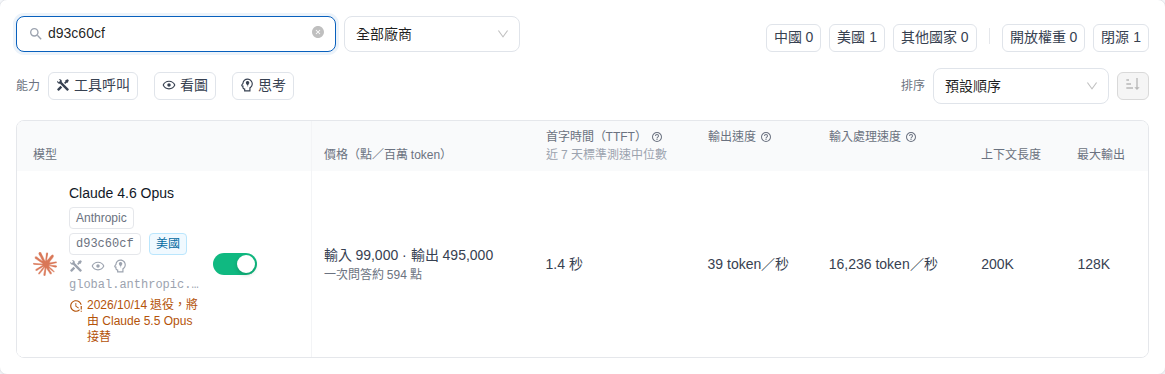
2. Replace the search text with that ID tag (for example, “d93c60cf”) to leave only that entry.
3. Confirm it is the intended model, then change the row's toggle; see [Enable and Disable Models](#toggle-models).

<figure><img src="https://1360999650-files.gitbook.io/~/files/v0/b/gitbook-x-prod.appspot.com/o/spaces%2F6v6TNkkOQVfRYfcNirHL%2Fuploads%2Fgit-blob-d1e8f894700f8731b00880b60f248cf839d07f0c%2Fmodel-access-search-by-id.png?alt=media" alt="Entering d93c60cf in the search box leaves one Claude 4.6 Opus row with the d93c60cf tag"><figcaption><p>Search using the ID tag to show only that model entry</p></figcaption></figure>

{% hint style="info" %}
Search matches only the **beginning** of the model ID and is case-insensitive. Entering the first few characters of an ID tag (for example, “d93c”) also works, but characters from the middle of the ID do not match. The search placeholder does not mention IDs; you can simply enter one.
{% endhint %}

### Open-weight Tags and License Restrictions <a href="#open-weight-and-license" id="open-weight-and-license"></a>

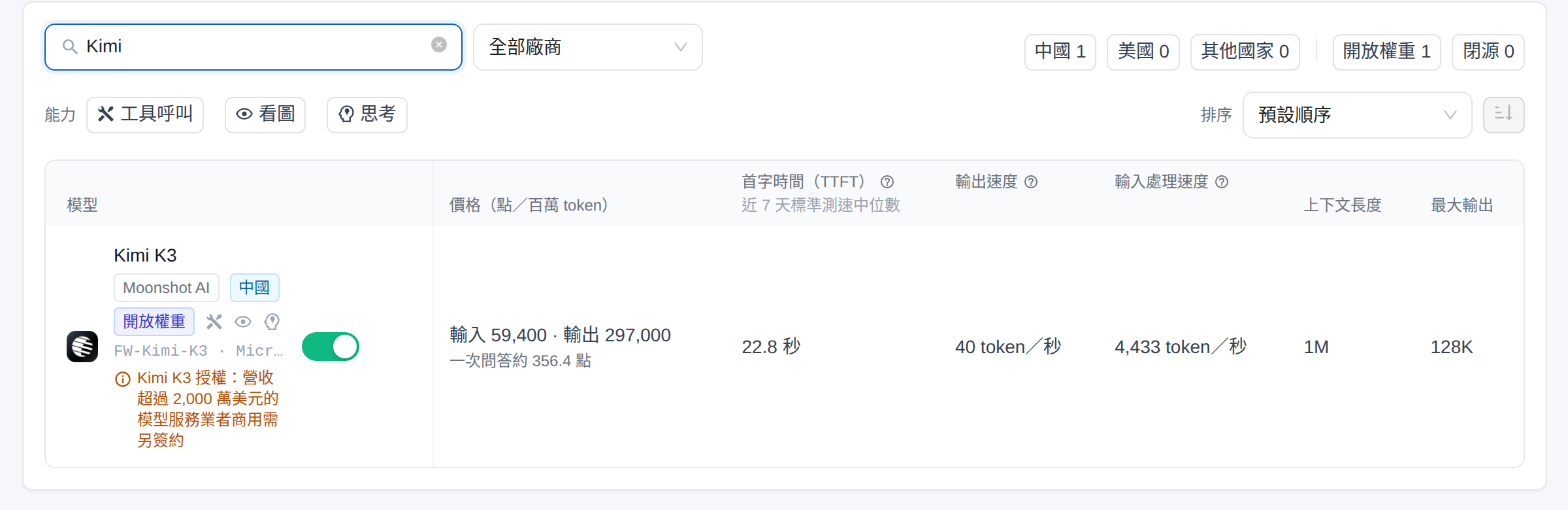
Models with publicly available weights that can be deployed in your own environment show an <mark style="color:blue;">**Open-weight**</mark> tag beside their names. Hover over the tag to see “Open-weight, can be deployed on-premises.” Closed-source models have no additional tag; use the <mark style="color:blue;">**Closed-source**</mark> button to filter for them.

Some open-weight model licenses impose usage restrictions (for example, companies above a certain revenue threshold may need a separate license for commercial use). These models display license restrictions in small orange text below the Gateway ID line. The tag's tooltip includes the same explanation. Before enabling a model, confirm that your organization's intended use complies with its license terms.

<figure><img src="https://1360999650-files.gitbook.io/~/files/v0/b/gitbook-x-prod.appspot.com/o/spaces%2F6v6TNkkOQVfRYfcNirHL%2Fuploads%2Fgit-blob-32275f8bfb999dc949ca4b78617be1af47daf3a2%2Fmodel-access-03-open-weight-license.png?alt=media" alt="Model row after searching for Kimi: Kimi K3 has Moonshot AI, China, and Open-weight tags, with Kimi K3 license restrictions shown below in small orange text"><figcaption><p>License restrictions below an open-weight model row</p></figcaption></figure>

{% hint style="warning" %}
“Open-weight” means the model's weights are publicly available and it **can** be deployed on-premises. It does not mean that calls through MaiAgent run on-premises. Check the service name on the second line of the model row (such as OpenRouter or AWS Bedrock) to see which service actually runs inference.
{% endhint %}

### Compare Prices, Speed, and Specifications <a href="#compare-price-speed-specs" id="compare-price-speed-specs"></a>

In addition to its name and toggle, each model row shows the following information so you can compare models on the same page without consulting separate documentation:

| Field                                                                                                    | Display                                                                                                                                                        | Description                                                                                                                                                                                                                                                                                                                                                                                         |
| -------------------------------------------------------------------------------------------------------- | -------------------------------------------------------------------------------------------------------------------------------------------------------------- | --------------------------------------------------------------------------------------------------------------------------------------------------------------------------------------------------------------------------------------------------------------------------------------------------------------------------------------------------------------------------------------------------- |
| <mark style="color:blue;">**Price (Credits / million tokens)**</mark>                                    | <mark style="color:blue;">**Input N**</mark>, <mark style="color:blue;">**Output N**</mark>, and <mark style="color:blue;">**About N Credits per Q\&A**</mark> | Uses the same rates as actual billing, in Credits per 1 million tokens. A Q\&A is estimated at 4,000 input + 400 output tokens. Hover over the price to see the cached-input price (applicable when repeated data hits the cache). If the organization has a platform processing fee, <mark style="color:blue;">**Plus X%**</mark> appears beside the price. Models without a pricing rule show “—” |
| <mark style="color:blue;">**Time to first token (TTFT)**</mark>                                          | N seconds                                                                                                                                                      | Time from sending a request to the first token appearing, including thinking time for reasoning models. The tooltip also shows TTFT for a long question (about 16,000 tokens)                                                                                                                                                                                                                       |
| <mark style="color:blue;">**Output speed**</mark>                                                        | N tokens/second                                                                                                                                                | Tokens generated per second after the response starts. For Chinese, 1 token ≈ 1–1.5 characters                                                                                                                                                                                                                                                                                                      |
| <mark style="color:blue;">**Input processing speed**</mark>                                              | N tokens/second                                                                                                                                                | The more data there is (such as a long question after knowledge base retrieval), the more TTFT depends on this value                                                                                                                                                                                                                                                                                |
| <mark style="color:blue;">**Context length**</mark>, <mark style="color:blue;">**Maximum output**</mark> | For example, 200K, 64K                                                                                                                                         | Maximum number of tokens the model can read or generate in a single request                                                                                                                                                                                                                                                                                                                         |
| Capability icons (beside the model name)                                                                 | <mark style="color:blue;">**Tool Calling**</mark>, <mark style="color:blue;">**Vision**</mark>, <mark style="color:blue;">**Thinking**</mark>                  | Indicate support for function calling, reading image content, and thinking (reasoning) mode, respectively                                                                                                                                                                                                                                                                                           |

The three speed columns come from daily standard benchmarks of each enabled model, using the median over the past 7 days. They do not use actual customer traffic, and benchmark costs are not charged to the organization's Credits. A column shows <mark style="color:blue;">**Measuring**</mark> when it lacks sufficient benchmark data from the past 7 days. If other benchmark records exist within the past 7 days, hover over “Measuring” to see the most recent measurement time.

The <mark style="color:blue;">**Sort**</mark> dropdown offers <mark style="color:blue;">**Default Order**</mark>, <mark style="color:blue;">**Credits per Q\&A**</mark>, <mark style="color:blue;">**Input Price**</mark>, <mark style="color:blue;">**Output Price**</mark>, <mark style="color:blue;">**Time to First Token (TTFT)**</mark>, <mark style="color:blue;">**Output Speed**</mark>, <mark style="color:blue;">**Input Processing Speed**</mark>, <mark style="color:blue;">**Context Length**</mark>, and <mark style="color:blue;">**Maximum Output**</mark>. The adjacent button switches between <mark style="color:blue;">**Ascending**</mark> and <mark style="color:blue;">**Descending**</mark>. Models without data always appear last. Price and TTFT default to ascending order; the other fields default to descending order.

<figure><img src="https://1360999650-files.gitbook.io/~/files/v0/b/gitbook-x-prod.appspot.com/o/spaces%2F6v6TNkkOQVfRYfcNirHL%2Fuploads%2Fgit-blob-2ad96d79ba0d9117a15bbe94a1af1cab146dc629%2Fmodel-access-compare-columns.png?alt=media" alt="Model list columns for price, time to first token, output speed, and input processing speed, with the Sort dropdown at the top right expanded to show Default Order, Credits per Q&#x26;A, Input Price, Output Price, Time to First Token (TTFT), Output Speed, and Input Processing Speed"><figcaption><p>Compare prices, speed, and specifications on one page</p></figcaption></figure>

For example, the IT department needs a model for an internal knowledge Q\&A Agent, with fast responses and low costs. The administrator selects <mark style="color:blue;">**Tool Calling**</mark> under <mark style="color:blue;">**Capabilities**</mark>, sets <mark style="color:blue;">**Sort**</mark> to <mark style="color:blue;">**Credits per Q\&A**</mark> (ascending), and compares <mark style="color:blue;">**Time to First Token (TTFT)**</mark> for the top results. They enable a model with low credit costs and a TTFT under 1 second, then select it in the Agent settings.

{% hint style="info" %}
Organizations billed by character count do not see the price column; the other columns appear as usual. Unit prices exclude the platform processing fee. For actual charges, refer to [Credits Billing](/maiagent-user-guide/en/others/credits.md) and Billing Method in the admin console.
{% endhint %}

### Model Retirement and Automatic Migration <a href="#model-retirement" id="model-retirement"></a>

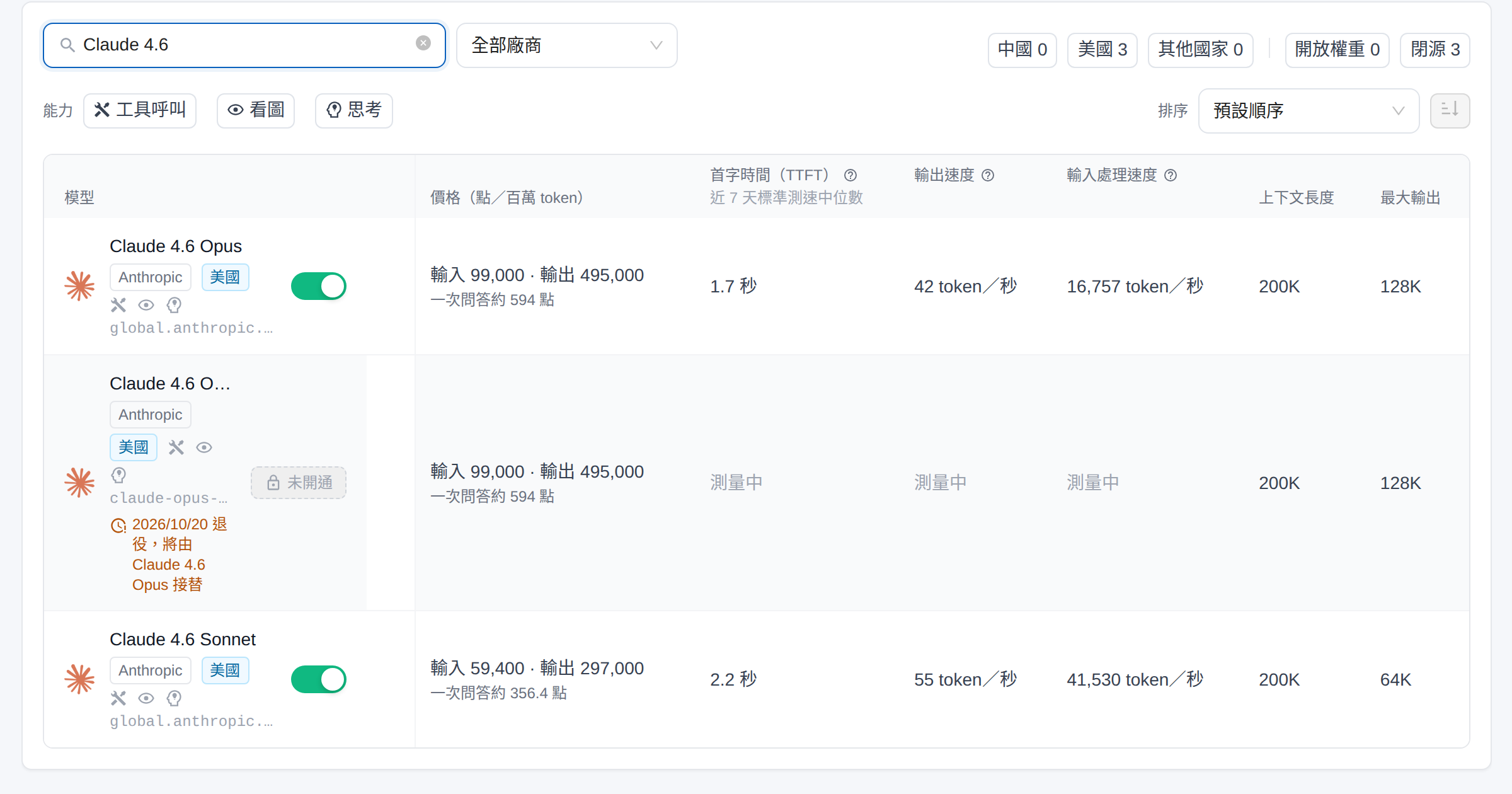
Models discontinued by their vendor or scheduled for removal by the platform first show <mark style="color:blue;">**Retires on YYYY/MM/DD; will be replaced by ○○**</mark> in their row (only the retirement date appears if there is no replacement). On the retirement date:

1. The platform automatically switches Agents bound to the model to its replacement, without requiring manual changes to each Agent. The replacement must be available in the organization; Agents in organizations that have not enabled the replacement are not migrated
2. After all bound Agents have been migrated, the model is disabled and disappears from all model menus

Without a replacement, no automatic migration occurs. Select another model for each Agent before the retirement date.

The replacement is usually a newer version in the same tier from the same vendor, and its rates may differ. Before the retirement date, check that the replacement meets each Agent's needs, or select another model yourself. If the replacement is not yet enabled in the organization, enable it on this page first.

For example, a customer service team has three Agents using GPT-6 Sol. The administrator sees “Retires on 2026/10/07; will be replaced by GPT-6.1 Sol” in its row. After confirming that GPT-6.1 Sol is enabled and its rates are acceptable, no further action is needed: all three Agents automatically switch to GPT-6.1 Sol on the retirement date. To switch to a cheaper model instead, select it in each Agent before that date.

<figure><img src="https://1360999650-files.gitbook.io/~/files/v0/b/gitbook-x-prod.appspot.com/o/spaces%2F6v6TNkkOQVfRYfcNirHL%2Fuploads%2Fgit-blob-ce4df5a86d747a06833cd92b3378418b9a04c654%2Fmodel-access-retirement-notice.png?alt=media" alt="Search results for Claude 4.6, with orange text below one model showing Retires on 2026/10/20; will be replaced by Claude 4.6 Opus"><figcaption><p>A model scheduled for retirement shows its retirement date and replacement</p></figcaption></figure>

{% hint style="warning" %}
Automatic migration only changes models bound to Agents. Model names written directly in role instructions, knowledge bases, or application instance documents are not updated. Update these references yourself.
{% endhint %}

### Chinese Models <a href="#china-models" id="china-models"></a>

Organizations can enable “<mark style="color:blue;">Hide Chinese Models</mark>.” When enabled, Chinese models provided by the platform (such as the DeepSeek, Qwen, and Kimi families, including future additions) disappear from this page and all model menus in the organization. Agents, the API, and AI Gateway cannot use them either. Turning this setting off restores each model's previous toggle state. This setting applies only to platform-provided models; models the organization adds to [AI Gateway](/maiagent-user-guide/en/build/ai-gateway.md) are unaffected.

* **New organizations**: “<mark style="color:blue;">Hide Chinese Models</mark>” is selected by default when creating an organization.
* **Existing organizations**: The setting is off by default, preserving the available models. If all Chinese models were already disabled on this page, the setting is automatically enabled.
* **Check Agent models before enabling**: Agents using Chinese models are not automatically switched to other models and can no longer call their current model once this setting is enabled. Switch those Agents to other models first.
* **Who can change it**: Only organization owners can change this setting. Other members can see the option in the editing dialog but cannot select it. Hovering over it shows “Only organization owners can change this setting.”

When enabled, the top of this page shows “Chinese models are hidden for this organization. You can change this in Organization Settings.”

<figure><img src="https://1360999650-files.gitbook.io/~/files/v0/b/gitbook-x-prod.appspot.com/o/spaces%2F6v6TNkkOQVfRYfcNirHL%2Fuploads%2Fgit-blob-c8b593732ff1164026830ba9aeed574a602231a3%2Fmodel-access-hide-china-hint.png?alt=media" alt="Notice at the top of the Model Access Permissions page: Chinese models are hidden for this organization. You can change this in Organization Settings"><figcaption><p>Notice at the top of the Model Access Permissions page when Hide Chinese Models is enabled</p></figcaption></figure>

#### Turn Hide Chinese Models On or Off <a href="#toggle-china-models" id="toggle-china-models"></a>

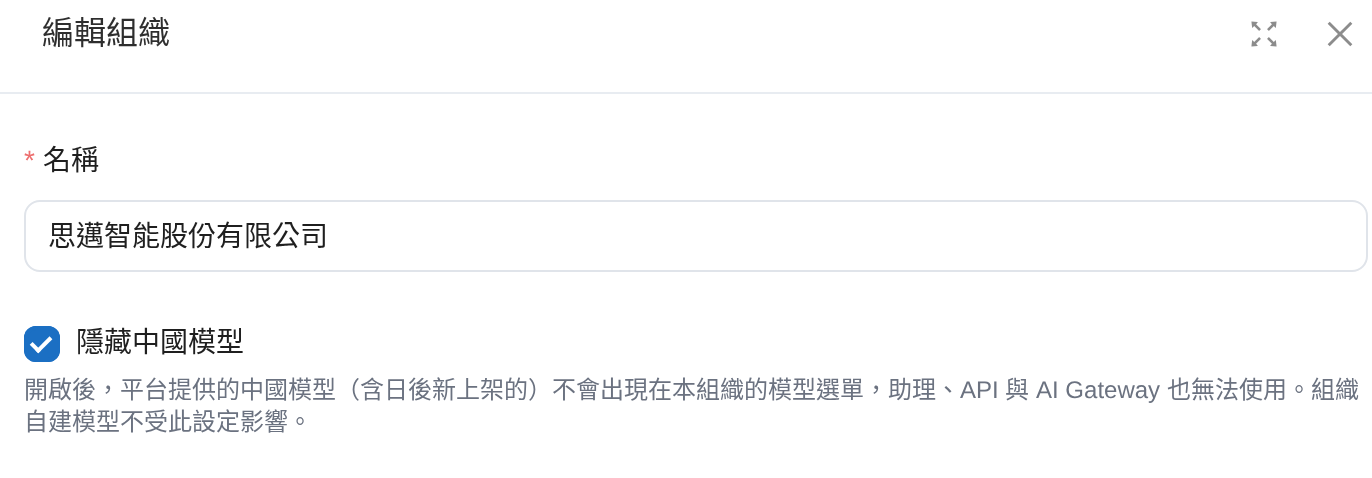
1. In the left menu, click <mark style="color:blue;">Organization Settings</mark> → <mark style="color:blue;">Organization Overview</mark>, then click the edit icon beside the organization name to open the <mark style="color:blue;">Edit Organization</mark> dialog.
2. Select <mark style="color:blue;">Hide Chinese Models</mark> to hide Chinese models, or clear it to show them again. The explanation below reads: “When enabled, Chinese models provided by the platform (including future additions) will not appear in this organization's model menus and cannot be used by assistants, the API, or AI Gateway. Models created by the organization are unaffected.”

   <figure><img src="https://1360999650-files.gitbook.io/~/files/v0/b/gitbook-x-prod.appspot.com/o/spaces%2F6v6TNkkOQVfRYfcNirHL%2Fuploads%2Fgit-blob-5c6f86ac3fccc50ef21d789b77a66ec36b8bbf62%2Forg-hide-china-models.png?alt=media" alt="Hide Chinese Models checkbox and explanatory text in the Edit Organization dialog"><figcaption><p>Hide Chinese Models option in the Edit Organization dialog</p></figcaption></figure>
3. Click <mark style="color:blue;">Confirm</mark> to save. Return to <mark style="color:blue;">Organization Settings</mark> → <mark style="color:blue;">Model Access Permissions</mark> to check the result. When enabled, the notice above appears at the top of the page and Chinese models disappear from the list. When disabled, the notice disappears; click the <mark style="color:blue;">**China**</mark> filter button to see Chinese models and their toggles.

   <figure><img src="https://1360999650-files.gitbook.io/~/files/v0/b/gitbook-x-prod.appspot.com/o/spaces%2F6v6TNkkOQVfRYfcNirHL%2Fuploads%2Fgit-blob-21128af792d53e0dbff41912f9cd451beec9f1fd%2Fmodel-access-origin-china-filter.png?alt=media" alt="With Hide Chinese Models off and the China 10 filter button selected, the list shows models such as DeepSeek and Qwen with China tags and toggles"><figcaption><p>After turning off Hide Chinese Models, use the China filter to find Chinese models</p></figcaption></figure>

For example, a financial services customer's security policy prohibits models from Chinese vendors. After the organization owner confirms that “<mark style="color:blue;">Hide Chinese Models</mark>” is selected, administrators no longer see DeepSeek, Qwen, or similar models when creating Agents, without having to disable each model on this page. Future Chinese models added to the platform are also hidden. If the R\&D team later wants to evaluate the open-weight Qwen model, the owner can clear this setting and enable the required model on this page.

## Three Model States <a href="#model-status" id="model-status"></a>

| State                        | Appearance              | Who can change it                               | Description                                                                                                                               |
| ---------------------------- | ----------------------- | ----------------------------------------------- | ----------------------------------------------------------------------------------------------------------------------------------------- |
| **Enabled**                  | Toggle on               | Organization owners can turn it off at any time | The model is available in the organization: it appears in Agent model menus and can also be specified in API calls                        |
| **Provisioned but disabled** | Toggle off              | Organization owners can turn it on at any time  | MaiAgent has provisioned the model, but the organization currently chooses not to use it. It does not appear in any model menu            |
| **Not provisioned**          | Padlock icon, no toggle | Contact MaiAgent to provision access            | The model is outside the authorized scope MaiAgent has provisioned for this organization and cannot be enabled by the organization itself |

### Padlock Explanation for Unprovisioned Models <a href="#locked-model" id="locked-model"></a>

Clicking the padlock on a “Not provisioned” model opens an explanation: “MaiAgent has not yet provisioned access to ‘(model name)’ for this organization. You cannot enable it yourself. Contact MaiAgent if you need access.”

## Enable and Disable Models <a href="#toggle-models" id="toggle-models"></a>

Simply change the toggle in the model row. **Changes take effect and are saved immediately** (there is no separate Save button). On success, the system shows “Model access permissions updated.”

After an update, this list governs all Agents, conversations, and API calls:

* **Disabled models disappear directly from the model dropdown** (rather than appearing as unavailable). Members cannot see them when creating or editing Agents

### Disable a Model in Use <a href="#disable-in-use-model" id="disable-in-use-model"></a>

If Agents are using a model, its row shows “Currently used by N assistants.” Turning the toggle off opens a second confirmation dialog titled “Confirm Changes”:

> “(Model name)” is used by N assistants. Disabling it will prevent these assistants from using this model. Disable it anyway?

<figure><img src="https://1360999650-files.gitbook.io/~/files/v0/b/gitbook-x-prod.appspot.com/o/spaces%2F6v6TNkkOQVfRYfcNirHL%2Fuploads%2Fgit-blob-02cdb904dd53c544278858380c2a0e9639b556b3%2Fmodel-access-04-disable-confirm.png?alt=media" alt="Second confirmation dialog when disabling a model in use"><figcaption><p>When disabling a model in use, the system shows the number of affected Agents and asks for confirmation</p></figcaption></figure>

#### What Happens After Disabling <a href="#disable-effects" id="disable-effects"></a>

Disabling a model in use has the following effects, in order:

1. **Model menus**: The model immediately disappears from all model dropdowns, preventing members from selecting it for any Agent
2. **Bound Agents**: These Agents' model settings **are not changed automatically**. They remain bound to a model they cannot use
3. **How to recover**: Switch the affected Agents to another available model, or turn this model's toggle back on

{% hint style="danger" %}
**Disabling a model in use does not automatically change those Agents' model settings**. Agents bound to it will be unable to reply when they receive messages. Follow these steps in order:

1. First check the “Currently used by N assistants” notice on the model row
2. Go to the Agent settings and select another available model for each affected Agent
3. Once no Agents are bound to this model, return to this page and turn off its switch
4. After disabling it, send a test message to confirm that your live service is unaffected
   {% endhint %}

## Use Cases <a href="#use-cases" id="use-cases"></a>

Here are some common scenarios for managing model access:

* **Financial services: keep only open-weight models that can be self-hosted later.** A bank plans to move its AI services to its own data center and wants its team to use only models with publicly available weights that can later be deployed on premises, so that Agents do not depend on proprietary models that cannot be self-hosted. The organization owner clicks the <mark style="color:blue;">**Proprietary**</mark> button to filter all proprietary models and turns off their switches one by one. For models marked “Currently used by N assistants,” first switch those Agents to open-weight models before disabling them. Next, click the <mark style="color:blue;">**Open Weights**</mark> button and check the remaining models for license restrictions and compatibility with the bank’s intended use. When members create Agents afterward, these disabled proprietary models will no longer appear in the model menu.
* **Government agencies: restrict models to specific vendors.** A public sector contract requires models from specific vendors. The organization owner enters a vendor name in the search box, enables all models from that vendor, and disables the others to align the platform’s model selection with the contract requirements.
* **General businesses: control the cost of expensive models.** A company billed in Credits finds that midrange models meet most everyday customer service needs, but a few members habitually choose the most expensive flagship models. The organization owner disables models with high unit costs and keeps only cost-effective options, controlling Credits consumption per conversation without checking each Agent’s settings individually.
* **Corporate groups or organizations with multiple departments: standardize model governance.** After internal evaluations, the IT department enables only validated model versions, preventing departments from selecting untested new models and keeping Agent quality and behavior predictable across the organization.

<figure><img src="https://1360999650-files.gitbook.io/~/files/v0/b/gitbook-x-prod.appspot.com/o/spaces%2F6v6TNkkOQVfRYfcNirHL%2Fuploads%2Fgit-blob-02a7a0a422e5cb9f4159f90d10a090d80e482bc6%2Fmodel-access-05-proprietary-filter.png?alt=media" alt="The Proprietary button is selected (Proprietary 46), and the list shows proprietary models from Anthropic and other vendors with switches; Claude 5 Sonnet shows that it is currently used by 4 assistants"><figcaption><p>Financial services scenario: click “Proprietary” to filter all proprietary models, then decide which ones to disable</p></figcaption></figure>

## Page Viewing Permissions <a href="#page-permission" id="page-permission"></a>

The “Model Access Permissions” page is visible to organization owners by default. To let members with other roles view this page (viewing only; they still cannot change settings), the organization owner can go to <mark style="color:blue;">**Organization Overview**</mark> → <mark style="color:blue;">**Edit Role Permissions**</mark>, select a role, and check the <mark style="color:blue;">**Model Access Permissions**</mark> node in that role’s menu permissions. See [Role Permission Management](/maiagent-user-guide/en/org/roles/role-permission.md).

## Frequently Asked Questions <a href="#faq" id="faq"></a>

#### Q: Why do some models show “Not Provisioned”? <a href="#faq-not-granted" id="faq-not-granted"></a>

“Not Provisioned” means the model is outside the scope of access MaiAgent has granted to this organization. Contact MaiAgent if you need to use it. Once access is granted, you can enable it on this page.

#### Q: Will the organization’s models be affected if I have never changed anything on this page? <a href="#faq-default-behavior" id="faq-default-behavior"></a>

The switches on this page do not change on their own. In addition to disabling models here, two other conditions affect model menus and access: newly created organizations have [Hide Chinese Models](#china-models) enabled by default, and retiring models are automatically migrated on their retirement date. See [Model Retirement and Automatic Migration](#model-retirement).

#### Q: How do I restore a model that I accidentally disabled while it was in use? <a href="#faq-restore" id="faq-restore"></a>

Return to this page and turn the model’s switch back on. The change takes effect immediately, and Agents bound to it resume normal replies without needing to be reconfigured.

#### Q: A model row says “Retires on \[date].” What do I need to do? <a href="#faq-retirement" id="faq-retirement"></a>

You may not need to take any action: on the retirement date, the platform automatically switches Agents bound to that model to the replacement shown in the notice. If you prefer another model, the replacement is not yet enabled in your organization, or the notice does not specify a replacement, take action before the retirement date. See [Model Retirement and Automatic Migration](#model-retirement).

#### Q: Why can’t I find models such as Qwen or DeepSeek in the list? <a href="#faq-china-models" id="faq-china-models"></a>

When <mark style="color:blue;">Hide Chinese Models</mark> is enabled for the organization, these models are neither listed nor available for use. A notice at the top of the page says “Chinese models are hidden for this organization. You can change this in organization settings.” To use them, ask the organization owner to uncheck the option in the <mark style="color:blue;">Edit Organization</mark> dialog under <mark style="color:blue;">Organization Overview</mark>. See [Turn Hide Chinese Models On or Off](#toggle-china-models).

#### Q: Can regular members view this page? <a href="#faq-member-view" id="faq-member-view"></a>

Only members with the “Model Access Permissions” menu permission can open and view this page; only organization owners can change the switches. If the page is missing from a regular member’s left menu, the organization owner can grant access through [Page Viewing Permissions](#page-permission).

#### Q: Can I restrict specific models to certain roles or members? <a href="#faq-restrict-by-role" id="faq-restrict-by-role"></a>

This page controls models at the organization level: when a model is disabled, no members or Agents in the organization can use it; when enabled, all members who can create or edit Agents can select it from the model menu. Agent configuration does not offer a setting to restrict models by role. Currently, role-based model restrictions are available only in MaiGPT: under role permissions, use <mark style="color:blue;">Assign MaiGPT Access Permissions</mark> to configure the models available to that role in MaiGPT. See [MaiGPT Role Access Permissions](/maiagent-user-guide/en/org/roles/maigpt-role-permissions.md#set-available-scope).


---

# Agent Instructions
This documentation is published with GitBook. GitBook is the documentation platform designed so that both humans and AI agents can read, navigate, and reason over technical content effectively. Learn more at gitbook.com.

## Querying This Documentation
If you need additional information that is not directly available in this page, you can query the documentation by asking a question.

Perform an HTTP GET request on the following URL with the `ask` and `goal` query parameters:

```
GET https://docs.maiagent.ai/maiagent-user-guide/en/org/model-access.md?ask=<question>&goal=<user_goal>
```

`ask` is the immediate question: it should be specific, self-contained, and written in natural language.
`goal` is what the user is ultimately trying to achieve, the reason they need the answer. Sharing it helps GitBook give you a better, more relevant answer. A goal is most helpful when it describes the outcome the user wants rather than restating the question. For example, with `ask=how do I create an API token`, a goal like `automate deployments from our CI pipeline` lets GitBook tailor the answer to that use case.

The response will contain a direct answer to the question and relevant excerpts and sources from the documentation.

Use this mechanism when the answer is not explicitly present in the current page, you need clarification or additional context, or you want to retrieve related documentation sections.