> For the complete documentation index, see [llms.txt](https://docs.maiagent.ai/llms.txt). Markdown versions of documentation pages are available by appending `.md` to page URLs; this page is available as [Markdown](https://docs.maiagent.ai/maiagent-user-guide/en/org/model-access.md).

# Model Access Permissions

Organization owners can manage the list of AI models available within the organization and control which models members and AI assistants can use

Organization owners can enable or disable AI models available within the organization on the **Model Access** page. Disabled models do not appear in any model menu and cannot be used by members or AI assistants. This allows enterprises to centrally control the range of models in use, such as permitting only models from specific providers or only open-weight models, or excluding high-cost models.

## Use Case: Standardize the Models Available to the Team <a href="#model-governance-scenario" id="model-governance-scenario"></a>

After the IT team completes model evaluations, it may want all departments to use only verified models. The organization owner can search for a target model, check whether any assistants are using it, and then decide whether to enable or disable it. Before disabling a model in use, select another available model for each affected assistant.

## How It Works: Provisioning and Enabling Are Separate <a href="#two-layer-model" id="two-layer-model"></a>

Whether a model can be used within the organization depends on two levels:

| Level                                  | Controlled by      | Description                                                                                                                                                                                                                                                                                                |
| -------------------------------------- | ------------------ | ---------------------------------------------------------------------------------------------------------------------------------------------------------------------------------------------------------------------------------------------------------------------------------------------------------- |
| **Provisioning (authorized scope)**    | MaiAgent           | MaiAgent provisions the list of models available to the organization according to its contract and plan. This list is the upper limit of what the organization can manage on its own. Models that have not been provisioned cannot be enabled by the organization. Contact MaiAgent if you need to use one |
| **Enabling (self-service management)** | Organization owner | Within the provisioned scope, the organization owner can enable or disable models on this page at any time. Changes take effect immediately                                                                                                                                                                |

{% hint style="info" %}
Models therefore have three states: **Enabled**, **Provisioned but not enabled**, and **Not provisioned**. "Not provisioned" means MaiAgent has not yet granted this organization access to the model. The organization cannot enable it on its own. Contact MaiAgent if you need to use it.
{% endhint %}

## Open the Page <a href="#how-to-enter" id="how-to-enter"></a>

### 1. Open Organization Settings <a href="#open-org-settings" id="open-org-settings"></a>

In the left menu, click <mark style="color:blue;">**Organization Settings**</mark>, then click <mark style="color:blue;">**Model Access**</mark>.

<figure><img src="https://1360999650-files.gitbook.io/~/files/v0/b/gitbook-x-prod.appspot.com/o/spaces%2F6v6TNkkOQVfRYfcNirHL%2Fuploads%2Fgit-blob-f1cf937d3cba62777020f1f601290c217e0a3a22%2Fmodel-access-01-menu-entry.png?alt=media" alt="Left menu: Organization Settings → Model Access"><figcaption><p>Left menu entry: Organization Settings → Model Access</p></figcaption></figure>

### 2. View the Page Overview <a href="#page-overview" id="page-overview"></a>

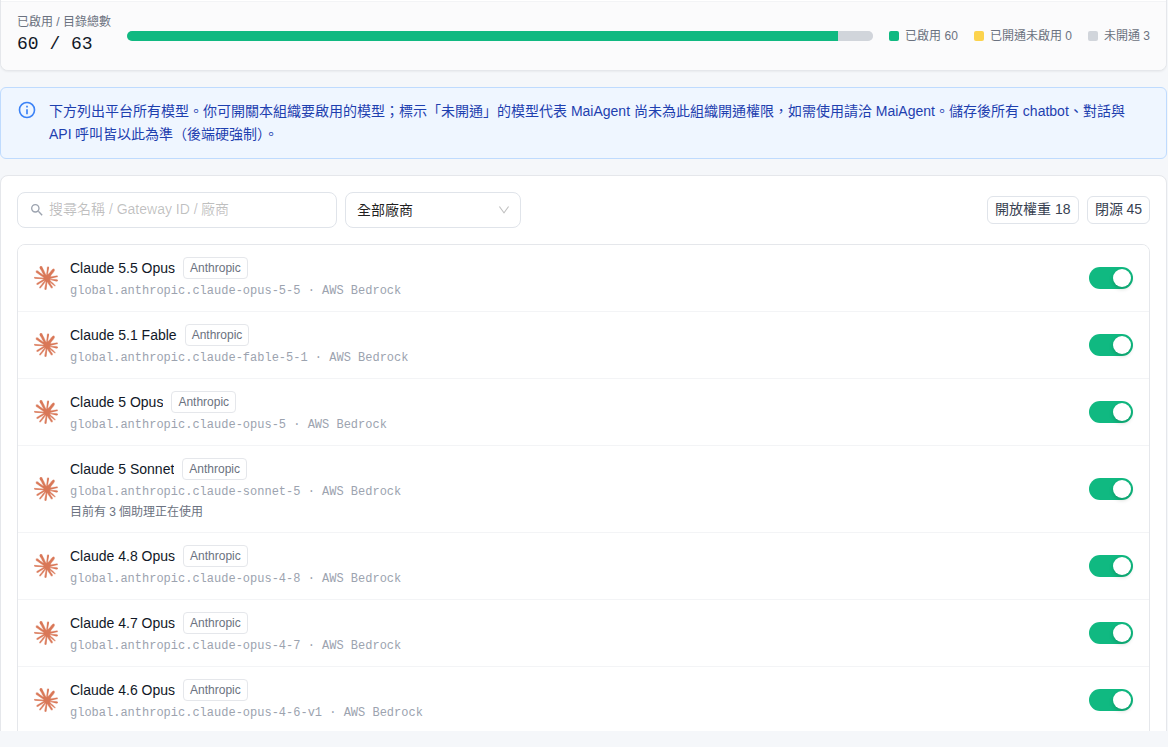
The page lists all models in the platform catalog in a single list. The top of the page shows enablement progress and explanatory text. A toolbar above the list provides search and filters.

<figure><img src="https://1360999650-files.gitbook.io/~/files/v0/b/gitbook-x-prod.appspot.com/o/spaces%2F6v6TNkkOQVfRYfcNirHL%2Fuploads%2Fgit-blob-378750e52f46e15deaf08158585c146104cddf45%2Fmodel-access-overview.png?alt=media" alt="Model Access page: enabled / catalog total progress bar and description above a search box, provider menu, open-weight and proprietary filters, and a model list with toggles"><figcaption><p>Model Access page: progress bar, description, toolbar, and single model list</p></figcaption></figure>

{% hint style="warning" %}
Organization owners can access this page by default. Other roles must first be granted permission to the Model Access menu before they can access and view it. Only organization owners can change the toggles.
{% endhint %}

## Page Elements <a href="#page-elements" id="page-elements"></a>

From top to bottom, the page contains the following sections:

| Section                               | Description                                                                                                                                                                                                                                                                                                                                                                                                                                   |
| ------------------------------------- | --------------------------------------------------------------------------------------------------------------------------------------------------------------------------------------------------------------------------------------------------------------------------------------------------------------------------------------------------------------------------------------------------------------------------------------------- |
| **Header description**                | Text at the top of the page that briefly explains its purpose and scope                                                                                                                                                                                                                                                                                                                                                                       |
| **Progress bar**                      | Shows “Enabled / Total in catalog” so you can see at a glance how many models the organization has enabled                                                                                                                                                                                                                                                                                                                                    |
| **Status summary**                    | Shows three counts: “Enabled N / Provisioned but not enabled N / Not provisioned N,” corresponding to the three states in the model list                                                                                                                                                                                                                                                                                                      |
| **Search box**                        | Search by model name, Gateway ID, provider, or the service that actually provides inference to locate models quickly                                                                                                                                                                                                                                                                                                                          |
| **Provider menu**                     | Defaults to <mark style="color:blue;">**All Providers**</mark> and can be set to one provider. Models without a listed provider appear under <mark style="color:blue;">**Other**</mark>                                                                                                                                                                                                                                                       |
| **Open-weight / proprietary filters** | Two buttons, <mark style="color:blue;">**Open-weight N**</mark> and <mark style="color:blue;">**Proprietary N**</mark>. Their counts change with the current search and provider filters                                                                                                                                                                                                                                                      |
| **Model list**                        | Displays all models in one list                                                                                                                                                                                                                                                                                                                                                                                                               |
| **Model row**                         | Each row shows the model name and provider label. Open-weight models also have an <mark style="color:blue;">**Open-weight**</mark> label. The second line shows the Gateway ID and inference service, such as AWS Bedrock or OpenRouter. Provisioned models have a toggle; models that have not been provisioned show a <mark style="color:blue;">**Not provisioned**</mark> lock button. Models in use show “Currently used by N assistants” |

### Search and Filter <a href="#search-and-filter" id="search-and-filter"></a>

The model catalog typically contains dozens of models. Use search and filters to locate models quickly:

* **Search**: Enter a model name, Gateway ID, provider, or inference service in the search box. For example, enter “OpenRouter” to list models provided through OpenRouter. The list updates immediately
* **Filter by provider**: Select one provider from the <mark style="color:blue;">**All Providers**</mark> menu to show only its models
* **Filter by open-weight / proprietary**: Click <mark style="color:blue;">**Open-weight**</mark> or <mark style="color:blue;">**Proprietary**</mark> to show only that type of model. Click the button again to clear the filter

All three conditions apply together. For example, after you select Google, the button counts show how many Google models are open-weight and proprietary. Click <mark style="color:blue;">**Open-weight**</mark> to show only Google's open-weight models. If no models match, the page displays “No matching models found.”

<figure><img src="https://1360999650-files.gitbook.io/~/files/v0/b/gitbook-x-prod.appspot.com/o/spaces%2F6v6TNkkOQVfRYfcNirHL%2Fuploads%2Fgit-blob-e167484c772466f8dd446cb3a422d33a239bcc70%2Fmodel-access-02-search-filter.png?alt=media" alt="Google selected in the provider menu; Open-weight 2 selected; Proprietary 9; the list shows two Gemma models labeled Open-weight"><figcaption><p>With Google selected as the provider and Open-weight selected, the list shows only Google's open-weight models</p></figcaption></figure>

{% hint style="info" %}
Models not yet classified as open-weight have no label and are not counted by either button. They appear only when neither button is selected, so the sum of the two button counts may be smaller than the total number of models in the list.
{% endhint %}

### Open-weight Label and License Restrictions <a href="#open-weight-and-license" id="open-weight-and-license"></a>

Models with public weights that can be deployed in your own environment have an <mark style="color:blue;">**Open-weight**</mark> label next to their names. Hover over the label to see “Open-weight, can be deployed on premises.” Proprietary models have no separate label and can be found with the <mark style="color:blue;">**Proprietary**</mark> filter.

Some open-weight models have license restrictions, such as requiring an additional license for commercial use by companies above a certain revenue threshold. For these models, an orange note below the Gateway ID line describes the restriction. The label tooltip shows the same note. Before enabling the model, confirm that your organization's intended use meets the license terms.

<figure><img src="https://1360999650-files.gitbook.io/~/files/v0/b/gitbook-x-prod.appspot.com/o/spaces%2F6v6TNkkOQVfRYfcNirHL%2Fuploads%2Fgit-blob-ae2f190df3bfff2036e1ce7227676447d2c5a780%2Fmodel-access-03-open-weight-license.png?alt=media" alt="After searching Kimi, the Kimi K3 row shows Moonshot AI and Open-weight labels, moonshotai/kimi-k3 · OpenRouter, an orange license note, and a tooltip about on-premises deployment and license terms"><figcaption><p>Open-weight label tooltip and license restriction note below the model row</p></figcaption></figure>

{% hint style="warning" %}
“Open-weight” means that model weights are public and **can** be deployed on premises. It does not mean inference runs on premises when you use the model through MaiAgent. Check the inference service on the second line of the model row, such as OpenRouter or AWS Bedrock, to see which service actually runs it.
{% endhint %}

## Three Model States <a href="#model-status" id="model-status"></a>

| State                           | Display                                 | Who can change it                              | Description                                                                                                                               |
| ------------------------------- | --------------------------------------- | ---------------------------------------------- | ----------------------------------------------------------------------------------------------------------------------------------------- |
| **Enabled**                     | Toggle is on                            | Organization owners can disable it at any time | The model can be selected normally within the organization. It appears in AI assistant model menus and can also be specified in API calls |
| **Provisioned but not enabled** | Toggle is off                           | Organization owners can enable it at any time  | MaiAgent has provisioned the model, but the organization has chosen not to use it. It does not appear in any model menu                   |
| **Not provisioned**             | A lock icon is displayed with no toggle | Contact MaiAgent for provisioning              | The model is outside the scope that MaiAgent has provisioned for the organization, so the organization cannot enable it on its own        |

### Lock Icon for Models That Have Not Been Provisioned <a href="#locked-model" id="locked-model"></a>

Clicking the lock for a model that has not been provisioned displays this message: "MaiAgent has not yet provisioned access to '(model name)' for this organization, so you cannot enable it yourself. Contact MaiAgent if you need to use it."

## Enable and Disable Models <a href="#toggle-models" id="toggle-models"></a>

Toggle the switch in the model row directly. **Changes take effect and are saved immediately** (there is no separate Save button). After a successful update, the system displays "Model access updated."

After the update, all AI assistants, conversations, and API calls use this list:

* **Disabled models disappear entirely from model drop-down menus** rather than appearing as unavailable. Members do not see the model when creating or editing an AI assistant

### Disable a Model That Is in Use <a href="#disable-in-use-model" id="disable-in-use-model"></a>

If an AI assistant is currently using a model, the model row displays "Currently used by N assistants." Turning off the toggle opens a **Confirm Changes** dialog for a second confirmation:

> "(Model name)" is currently used by N assistants. After it is disabled, these assistants will no longer be able to use this model. Do you still want to disable it?

<figure><img src="https://1360999650-files.gitbook.io/~/files/v0/b/gitbook-x-prod.appspot.com/o/spaces%2F6v6TNkkOQVfRYfcNirHL%2Fuploads%2Fgit-blob-02cdb904dd53c544278858380c2a0e9639b556b3%2Fmodel-access-04-disable-confirm.png?alt=media" alt="Confirmation dialog for disabling a model that is in use"><figcaption><p>When disabling a model that is in use, the system lists the number of affected assistants and asks for confirmation</p></figcaption></figure>

#### What Happens After Disabling a Model <a href="#disable-effects" id="disable-effects"></a>

After you disable a model that is in use, the effects occur in this order:

1. **Model menus**: The model immediately disappears from all model drop-down menus, and members can no longer select it for any AI assistant
2. **Bound AI assistants**: The model settings for these assistants **are not changed automatically**. Each assistant remains bound to a model it cannot use
3. **Recovery**: Select another available model for each affected assistant, or turn the model's toggle back on

{% hint style="danger" %}
**Disabling a model that is in use does not automatically change the model settings of the affected assistants.** AI assistants bound to that model will be unable to respond when they receive messages. We recommend following these steps:

1. Check the "Currently used by N assistants" message in the model row
2. Go to AI assistant settings and select another available model for each affected assistant
3. After confirming that no assistants are bound to this model, return to this page and turn off the toggle
4. After disabling the model, send a test message to confirm that production services are unaffected
   {% endhint %}

## Use Cases <a href="#use-cases" id="use-cases"></a>

Here are some common model governance scenarios:

* **Financial services: Keep only open-weight models that could be self-hosted later.** A bank plans to move AI services into its own data center. It wants teams to use only models with public weights that can be deployed on premises in the future, avoiding reliance on proprietary models that cannot be self-hosted. The organization owner uses the <mark style="color:blue;">**Proprietary**</mark> filter to list and disable proprietary models one by one. If a model is “Currently used by N assistants,” they first switch those assistants to open-weight models. They then use the <mark style="color:blue;">**Open-weight**</mark> filter to review license restriction notes and confirm the models meet the bank's intended use. Disabled proprietary models no longer appear in the menu when members create AI assistants.
* **Government agencies: Restrict usage to a specific provider.** A public-sector contract permits models from only a specific provider. The organization owner enters the provider name in the search box, enables all models from that provider, and disables the rest, aligning the platform's available models with contract requirements.
* **Businesses: Control the cost of high-priced models.** A business billed with Credits finds that mid-tier models are sufficient for most routine customer service scenarios, but some members habitually select the most expensive flagship models. The organization owner disables high-cost models and retains only cost-effective models, controlling Credits consumption for each conversation at the source without monitoring each assistant's settings individually.
* **Enterprise groups and multi-department organizations: Standardize model governance.** After the IT department completes internal evaluations, it enables only validated model versions. This prevents departments from independently selecting untested new models and makes the quality and behavior of AI assistants predictable across the organization.

<figure><img src="https://1360999650-files.gitbook.io/~/files/v0/b/gitbook-x-prod.appspot.com/o/spaces%2F6v6TNkkOQVfRYfcNirHL%2Fuploads%2Fgit-blob-c313f5251e898c19199c7439e9ca13396fe93409%2Fmodel-access-05-proprietary-filter.png?alt=media" alt="Proprietary filter selected (Proprietary 45); the list shows proprietary models such as Anthropic with toggles, and Claude 5 Sonnet is currently used by three assistants"><figcaption><p>Financial services scenario: filter proprietary models and decide which ones to disable</p></figcaption></figure>

## Configure Page Viewing Permission <a href="#page-permission" id="page-permission"></a>

The Model Access page is displayed to organization owners by default. To let members with other roles view this page (view only; they still cannot change settings), the organization owner can go to <mark style="color:blue;">**Organization Overview**</mark> → <mark style="color:blue;">**Edit Role Permissions**</mark>, select a role, and then select the <mark style="color:blue;">**Model Access**</mark> node under menu permissions. For details, see [Role Permission Management](/maiagent-user-guide/en/org/roles/role-permission.md).

## FAQ <a href="#faq" id="faq"></a>

#### Q: Why do some models show "Not provisioned"? <a href="#faq-not-granted" id="faq-not-granted"></a>

"Not provisioned" means the model is outside the scope that MaiAgent has provisioned for the organization. To use it, contact MaiAgent. Once it has been provisioned, you can enable it on this page.

#### Q: Will the organization's models be affected if this page has never been adjusted? <a href="#faq-default-behavior" id="faq-default-behavior"></a>

No. If no settings have been changed, the range of models available to the organization remains the same as before. Menus and model usage are affected only after a model is actively disabled on this page.

#### Q: How do I recover if I accidentally disable a model that is in use? <a href="#faq-restore" id="faq-restore"></a>

Return to this page and turn the model's toggle back on. The change takes effect immediately, and bound AI assistants resume responding normally without needing to be reconfigured.

#### Q: Can regular members view this page? <a href="#faq-member-view" id="faq-member-view"></a>

Only members with permission to the Model Access menu can access and view this page. Only organization owners can change the toggles. If this page does not appear in a regular member's left menu, an organization owner can grant access by following [Configure Page Viewing Permission](#page-permission).


---

# Agent Instructions
This documentation is published with GitBook. GitBook is the documentation platform designed so that both humans and AI agents can read, navigate, and reason over technical content effectively. Learn more at gitbook.com.

## Querying This Documentation
If you need additional information that is not directly available in this page, you can query the documentation by asking a question.

Perform an HTTP GET request on the following URL with the `ask` and `goal` query parameters:

```
GET https://docs.maiagent.ai/maiagent-user-guide/en/org/model-access.md?ask=<question>&goal=<user_goal>
```

`ask` is the immediate question: it should be specific, self-contained, and written in natural language.
`goal` is what the user is ultimately trying to achieve, the reason they need the answer. Sharing it helps GitBook give you a better, more relevant answer. A goal is most helpful when it describes the outcome the user wants rather than restating the question. For example, with `ask=how do I create an API token`, a goal like `automate deployments from our CI pipeline` lets GitBook tailor the answer to that use case.

The response will contain a direct answer to the question and relevant excerpts and sources from the documentation.

Use this mechanism when the answer is not explicitly present in the current page, you need clarification or additional context, or you want to retrieve related documentation sections.