Identity Sync (LDAP)
Configure LDAP identity synchronization to automatically import users and groups from enterprise directory services into MaiAgent, with support for LDAP password login
Identity sync lets you automatically import user and group data from enterprise directory services (AD, JumpCloud, OpenLDAP, etc.) into MaiAgent, eliminating the need to create accounts one by one. With the LDAP password login feature, employees can log in to MaiAgent directly using their existing enterprise password without memorizing a separate one.
Use Cases
Enterprise already has AD / LDAP directory: You want employee data to automatically flow into MaiAgent without manually maintaining two separate lists
Offboarding account sync: When an employee leaves and their account is disabled on the enterprise side, MaiAgent access is also revoked synchronously
Unified password management: You want employees to remember only one enterprise password instead of a different one for each system
Department permission mapping: Automatically assign corresponding MaiAgent role permissions based on groups in the enterprise directory
Bulk user import: Import 100+ employees into the platform at once during initial MaiAgent deployment
How Is This Different from SSO?
Identity Sync (LDAP) and Third-Party Login (SSO) are both enterprise-grade identity integration features, but they solve different problems:
Primary purpose
Sync "people" from enterprise directory into MaiAgent
Let users "log in" to MaiAgent with enterprise accounts
User creation
✅ Automatic creation
❌ Requires JIT or pre-creation
Login method
After enabling Bind login, log in with enterprise password
Redirect to enterprise IdP to complete login
Group / role sync
✅ Automatic mapping based on groups
⚠️ Depends on IdP and integration method
Common integrations
Microsoft AD, JumpCloud, OpenLDAP
Azure AD, Okta, Keycloak
Both can be enabled simultaneously: use SSO for redirect-based login and LDAP sync to maintain the account list.
Prerequisites
Before enabling LDAP identity sync, prepare the following information:
Your IT contact needs to provide
LDAP server address: e.g.,
ldaps://ad.company.com:636Base DN: The starting point for user searches, e.g.,
DC=company,DC=comorou=Users,o=<org>,dc=jumpcloud,dc=comBind DN: The full DN of a service account with read permissions
Bind password: The password for the service account
Firewall access: Allow the MaiAgent server to connect to your LDAP server (default port 636 for LDAPS, 389 for LDAP)
MaiAgent-side requirements
An account with the Organization Owner role or a role with organization management permissions
Strongly recommend using LDAPS (port 636) instead of plaintext LDAP (port 389). LDAPS encrypts the transmission, preventing passwords from being intercepted over the network.
Accessing Identity Sync Settings
From the left menu, click Organization Settings > Organization Overview
Click Identity Sync to enter the settings page
Click Select Sync Method, and in the modal select LDAP

After entering the settings, you will see 5 tabs: Connection Settings, Sync Scope, Group Mapping, Login & Sync, and Sync Logs. Each is explained below.
1. Connection Settings
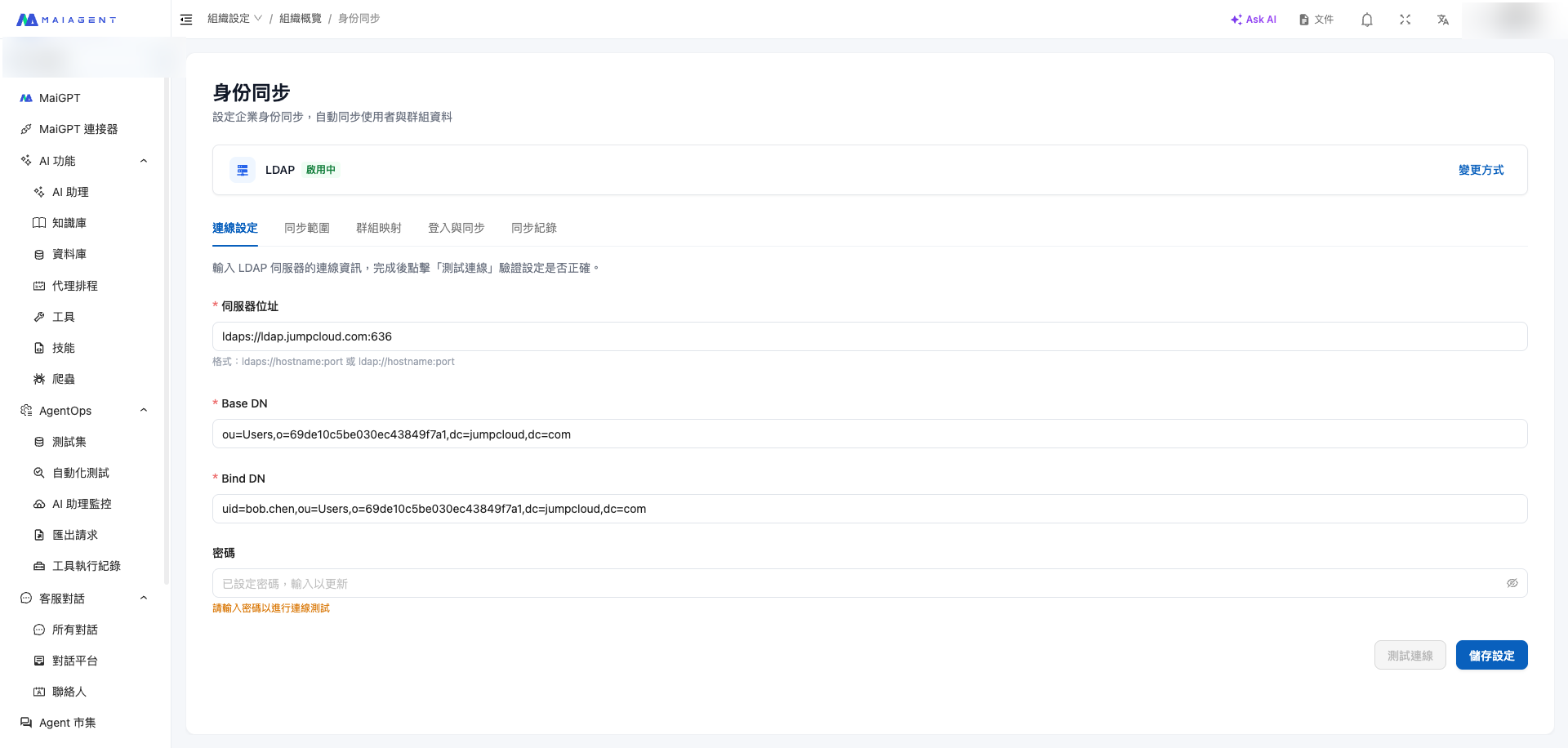
The first step is to establish a connection between MaiAgent and your LDAP server. After filling in the four fields, make sure to click "Test Connection" to verify before saving.

Field Entry Rules
Server Address
The LDAP server connection address, including protocol and port
ldaps://ldap.jumpcloud.com:636
ldaps://ad.company.com:636
Base DN
The starting point for user searches, must contain DC= (case-insensitive)
ou=Users,o=<ORG_ID>,dc=jumpcloud,dc=com
DC=company,DC=com
Bind DN
The full path of the service account used for authentication
uid=svcaccount,ou=Users,o=<ORG_ID>,dc=jumpcloud,dc=com
CN=svc-maiagent,OU=ServiceAccounts,DC=company,DC=com
Password
The password for the Bind DN account
—
—
The specific values for each field must be provided by your IT contact. For a practical integration example, see the Walkthrough (Using JumpCloud as an Example) section below.
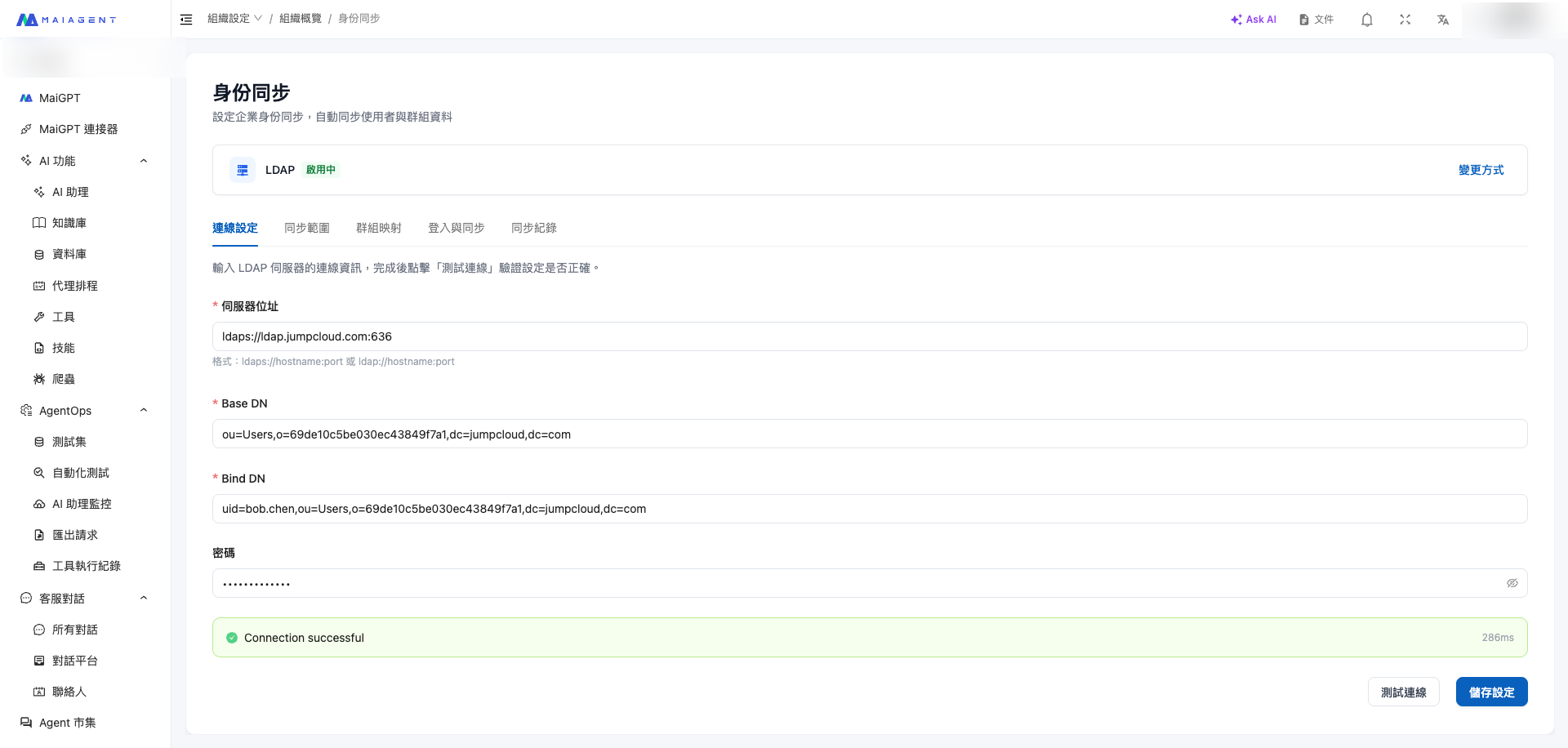
Test Connection
After filling in the fields, click Test Connection. On success, a green "Connection successful" message with response time will appear.

Always test the connection before clicking Save. Features such as sync scope and preview list cannot be used until the connection is verified.
Common Errors
Invalid credentials
Incorrect Bind DN or password
Verify the Bind DN format and ensure the password is current
Server unreachable
Incorrect server address or firewall not opened
Verify the URL and port; ask IT to allow MaiAgent to connect to the LDAP server
Invalid DN syntax
Incorrect Base DN format
Base DN must contain DC=; check commas and hierarchy
Timeout
Connection had no response after 10 seconds
Verify the LDAP server is running and the network route is reachable
2. Sync Scope
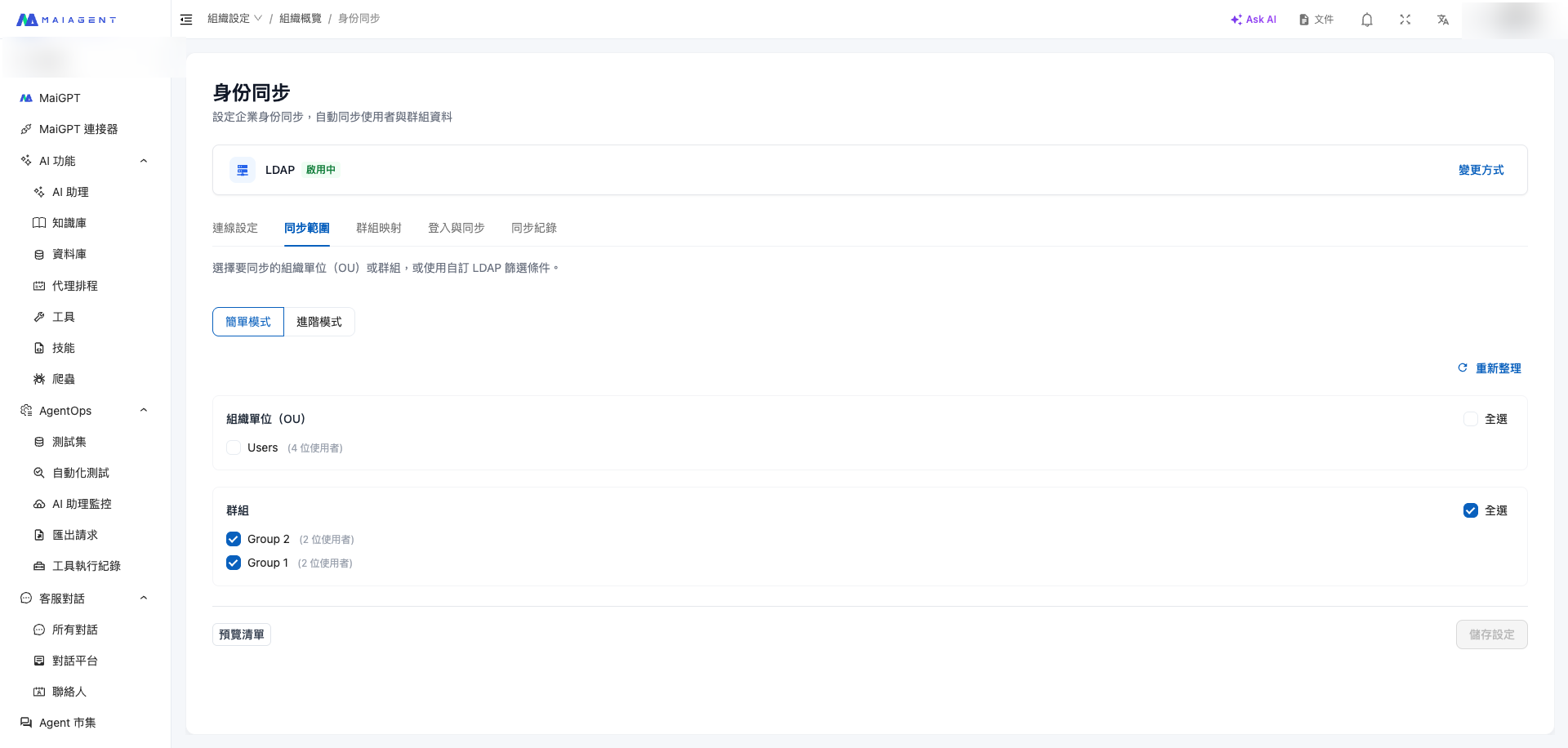
Select which users from LDAP to sync into MaiAgent. Two modes are supported:
Simple Mode (Recommended)
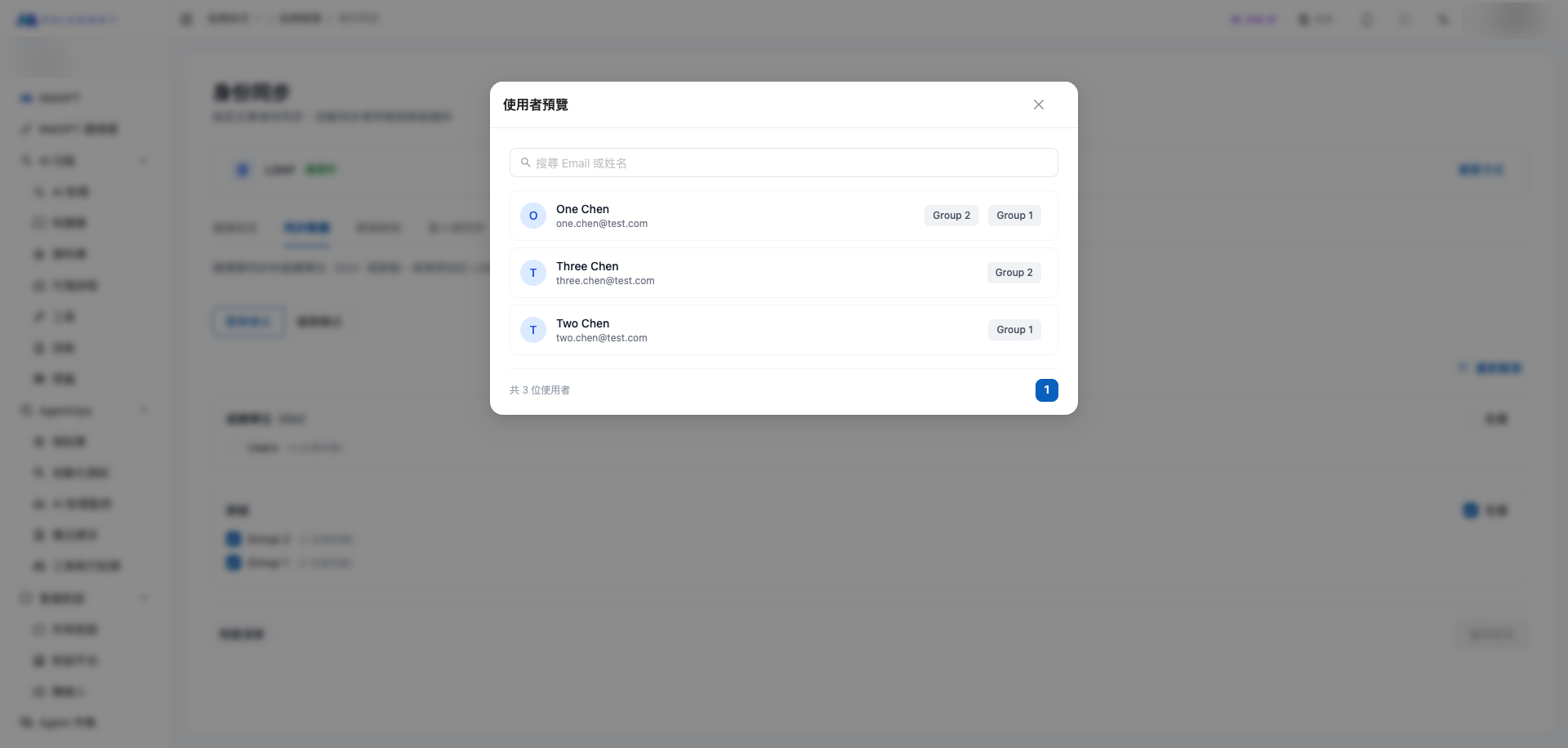
Check the Organizational Units (OUs) or Groups to sync. After checking, click Preview List below to confirm which users will be synced.


Advanced Mode
For more granular filtering (e.g., "only sync Engineering department employees at Manager level or above"), switch to Advanced mode to customize the LDAP Filter.
Common Filter examples:
Only sync active users
(&(objectClass=user)(!(userAccountControl:1.2.840.113556.1.4.803:=2)))
Only sync a specific department
(&(objectClass=user)(department=Engineering))
Exclude service accounts
(&(objectClass=user)(!(sAMAccountName=svc-*)))
LDAP Filter syntax errors in advanced mode will cause sync to fail. If you are unfamiliar with LDAP Filters, use simple mode and ask IT to adjust the OU / Group structure.
3. Group Mapping
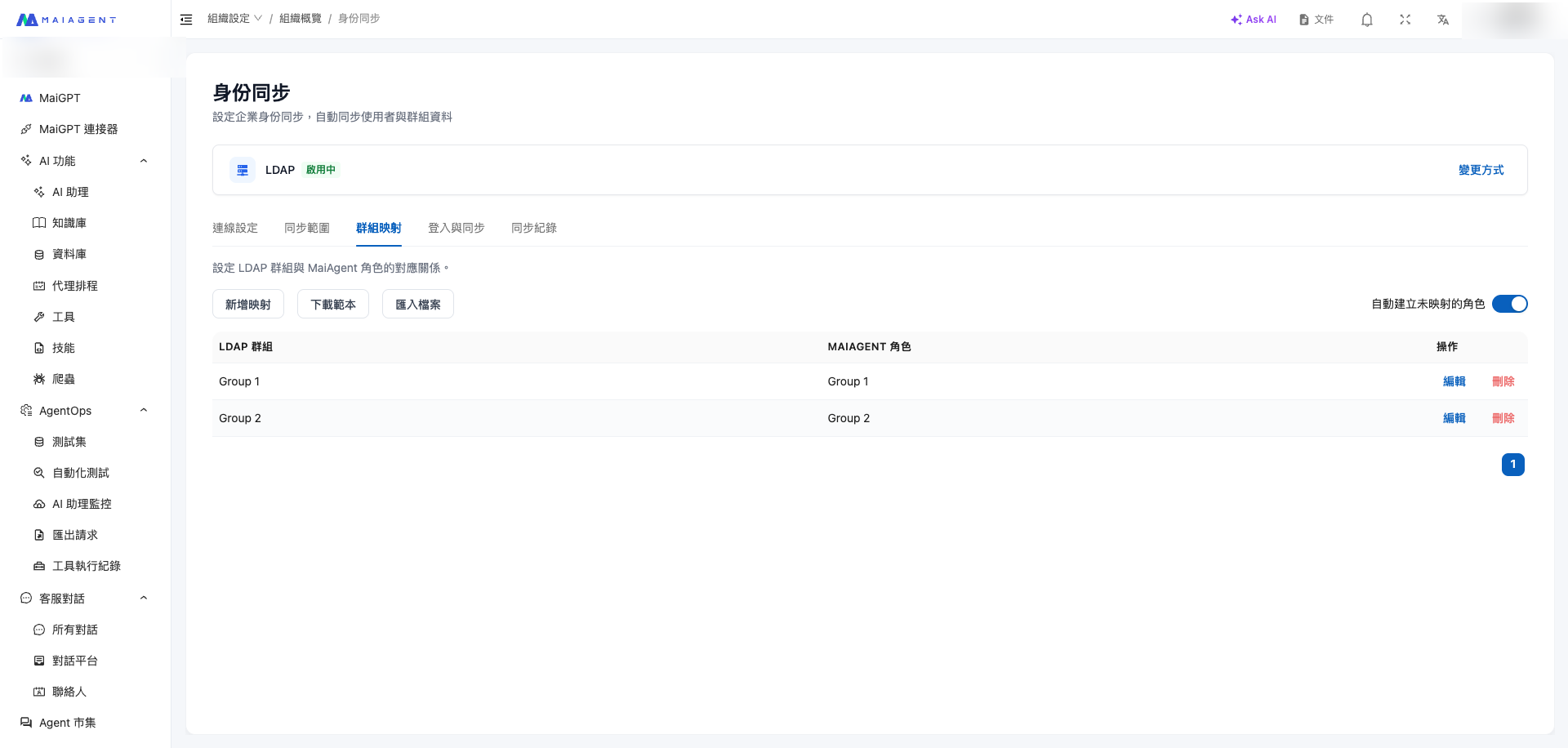
Configure the mapping between LDAP groups and MaiAgent roles. Unmapped groups will automatically create MaiAgent roles with the same name (this can be toggled off).

Operation Options
Add Mapping: Manually map an LDAP group to a MaiAgent role
Download Template: Get a CSV template for bulk mapping creation
Import File: Upload the completed CSV
Auto-create unmapped roles: Enabled by default. When a sync encounters an unmapped LDAP group, a MaiAgent role with the same name is automatically created
Mapping Examples
Engineering
Engineer
Shared role for the engineering department
Finance
Finance
Shared role for the finance department
AI-Project
AI Project Member
Cross-department project role; members can belong to other departments simultaneously
The "Default Role" cannot be mapped: MaiAgent's "Default Role" is a system role that is automatically assigned to all organization members. It cannot be mapped to an LDAP group. If you want all employees to share certain common permissions, adjust the "Default Role" permissions directly instead of using it as a mapping target.
4. Login & Sync
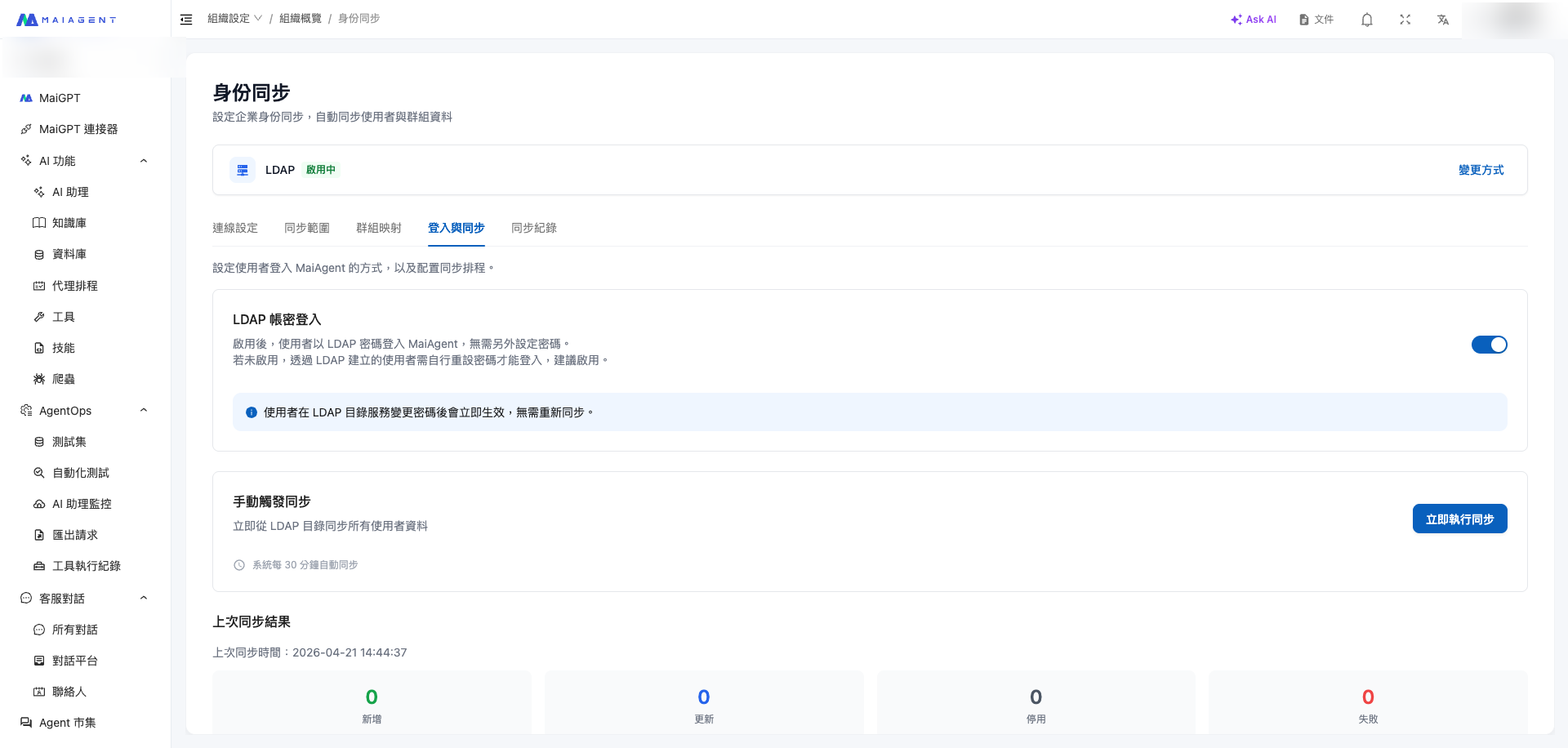
This page manages two things: the LDAP password login toggle and manual sync trigger.

LDAP Password Login
After enabling, synced users can log in to MaiAgent directly with their LDAP password without any additional setup.
Prerequisites for enabling: LDAP connection is verified and at least one sync has been executed.
Behavior after enabling: The authentication source for all synced users will be batch-changed to LDAP, and MaiAgent local passwords will be invalidated. If this toggle is later disabled, users will need an administrator to reset their passwords before they can log in again.
Manual Sync Trigger
Click Run Sync Now to pull the latest data from LDAP and update MaiAgent.
Automatic sync: The system automatically syncs every 30 minutes by default, no manual intervention required
Cooldown period: Manual sync has a 60-second cooldown to prevent repeated triggers in a short time
Sync actions: Include "Add (Active users)," "Update (data changes)," and "Deactivate (removed from LDAP scope or suspended)"
Last Sync Result
Displays the statistical summary of the most recent sync, including the number of additions, updates, deactivations, and failures. For detailed records, go to the Sync Logs tab.
5. Sync Logs
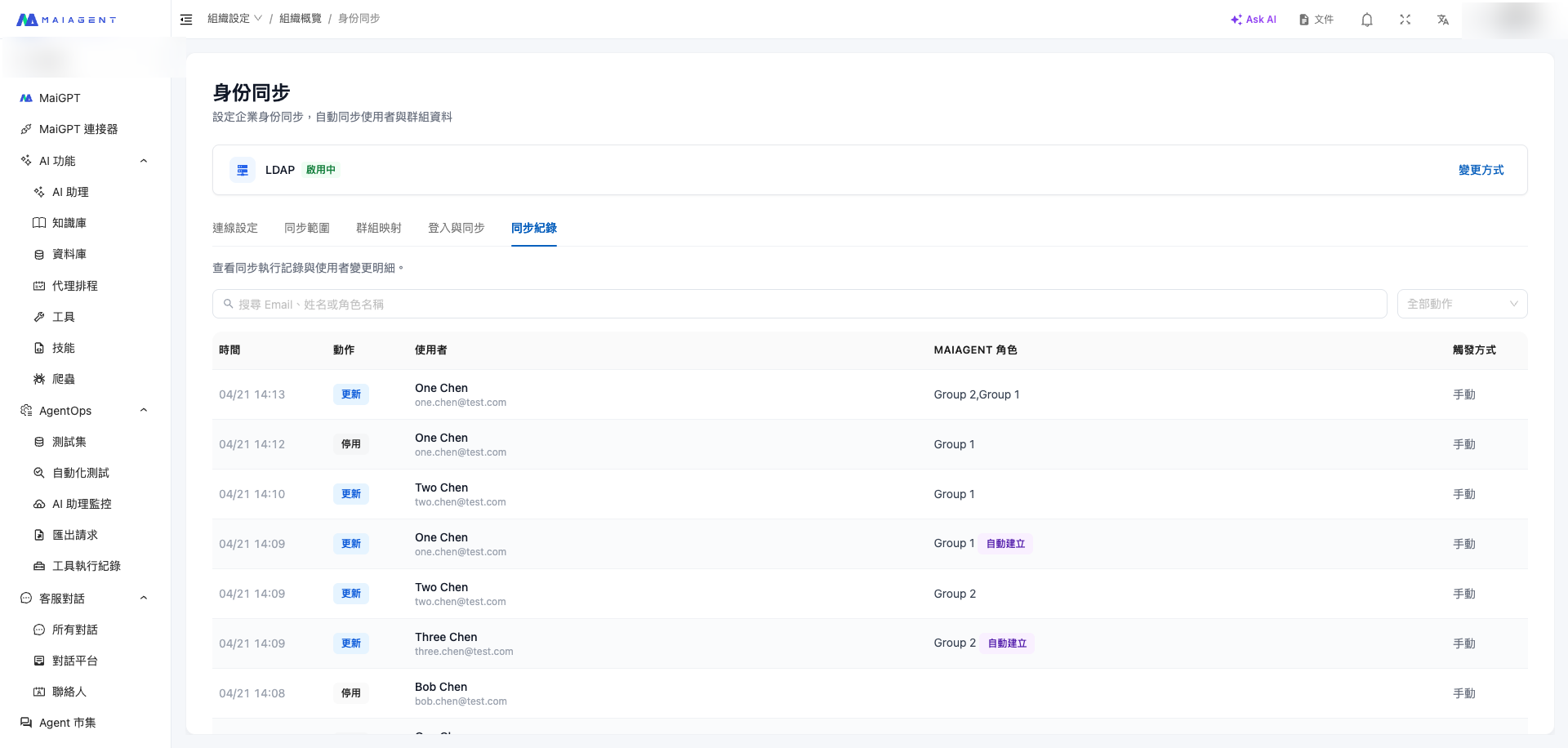
View the complete details of each sync: time, action, affected users, and trigger method.

Action Types
Add
User synced from LDAP into MaiAgent for the first time
Update
User data changed (name, email, group membership)
Deactivate
User was removed from LDAP scope, suspended, or deleted
Fail
Sync failed for this user (see details for error message)
Trigger Methods
Manual: Administrator clicked "Run Sync Now" on the Login & Sync tab
Automatic: System-scheduled trigger every 30 minutes
Verifying Sync Success
After running a sync, use the following three locations to confirm whether users were correctly imported and LDAP groups were mapped to MaiAgent roles.
Verification 1: Check Users in Member Management
Go to Organization Settings > Member Management. Users synced from LDAP will appear in the list. Search by email to quickly locate a specific user.

Each user's "Role" field shows their MaiAgent roles. For example, One Chen is mapped to both Group 1 and Group 2 roles, reflecting that they belong to both groups on the LDAP side.
The member list does not show a "Source" column. LDAP synced users and manually invited members look the same in the list. To explicitly trace whether a user came from LDAP, go to Identity Sync > Sync Logs and search for that email.
Verification 2: Check Roles in Role Permission Management
Go to Organization Settings > Role Permissions. Roles created from LDAP group mapping will appear in the list, with the "Members" field showing users currently synced into this role.

From the image above:
Group 1has two members (Two Chen, One Chen), corresponding to LDAP Group 1 membersGroup 2has two members (Three Chen, One Chen), corresponding to LDAP Group 2 membersOne Chen appears in both roles, indicating they belong to two groups on the LDAP side
These roles look identical to manually created roles, and you can click into them to adjust permission scopes
Verification 3: Check Execution History in Sync Logs
Go to Identity Sync > Sync Logs to see the time, action (Add / Update / Deactivate), corresponding users, and trigger method for each sync. This is the only place to determine "whether the sync failed, and for which user."
Verification Reference Table
Was the user imported successfully?
Member Management list — search by email
Which roles was the user assigned to?
Member Management list — the user's "Role" field
Was the LDAP group created as a role?
Role Permissions list
Which members does a specific role have?
Role Permissions list — the role's "Members" field
Was a user synced from LDAP or added manually?
Sync Logs — search by email; having a record means LDAP synced
Did the sync fail, and what was the reason?
Sync Logs — filter action type by "Fail"
How many users were added/deactivated in the last sync?
Login & Sync — "Last Sync Result" statistics
Operational Recommendations
After enabling identity sync, certain manual operations on member/role management pages may conflict with LDAP. Pay attention to the following:
Member Management Page:
Manually deleting an LDAP synced user
The next sync will recreate them
Directly changing an LDAP synced user's email
The sync will overwrite with the LDAP value
Manually resetting a password after enabling Bind login
Local password is unusable; passwords can only be changed on the LDAP side
Role Permission Management Page:
Deleting a role mapped from LDAP
If "Auto-create unmapped roles" is enabled, the next sync will recreate it
Manually adding/removing members from that role
The next sync will overwrite the member list based on the LDAP group
Renaming a role
The association with the LDAP group will break; update the mapping on the Group Mapping page instead
Initial Role Permission Configuration
After sync is complete, newly created roles (e.g., Group 1, Group 2) have no permissions by default. Go to Role Permission Management to configure for each role:
Feature permissions: Which features can this role use (AI assistants, knowledge bases, customer service conversations...)
Resource access: Which specific assistants, knowledge bases, and databases can be accessed
Each role only needs to be configured once. New members synced from LDAP afterward will automatically inherit these permissions without the administrator individually assigning them.
Walkthrough (Using JumpCloud as an Example)
Below is the complete integration process using JumpCloud as the LDAP server. The steps are the same for other systems (Microsoft AD, OpenLDAP, etc.) — the only difference is the format of each field. See the appendix at the end for a comparison table.
Step 1: Find Connection Information in JumpCloud
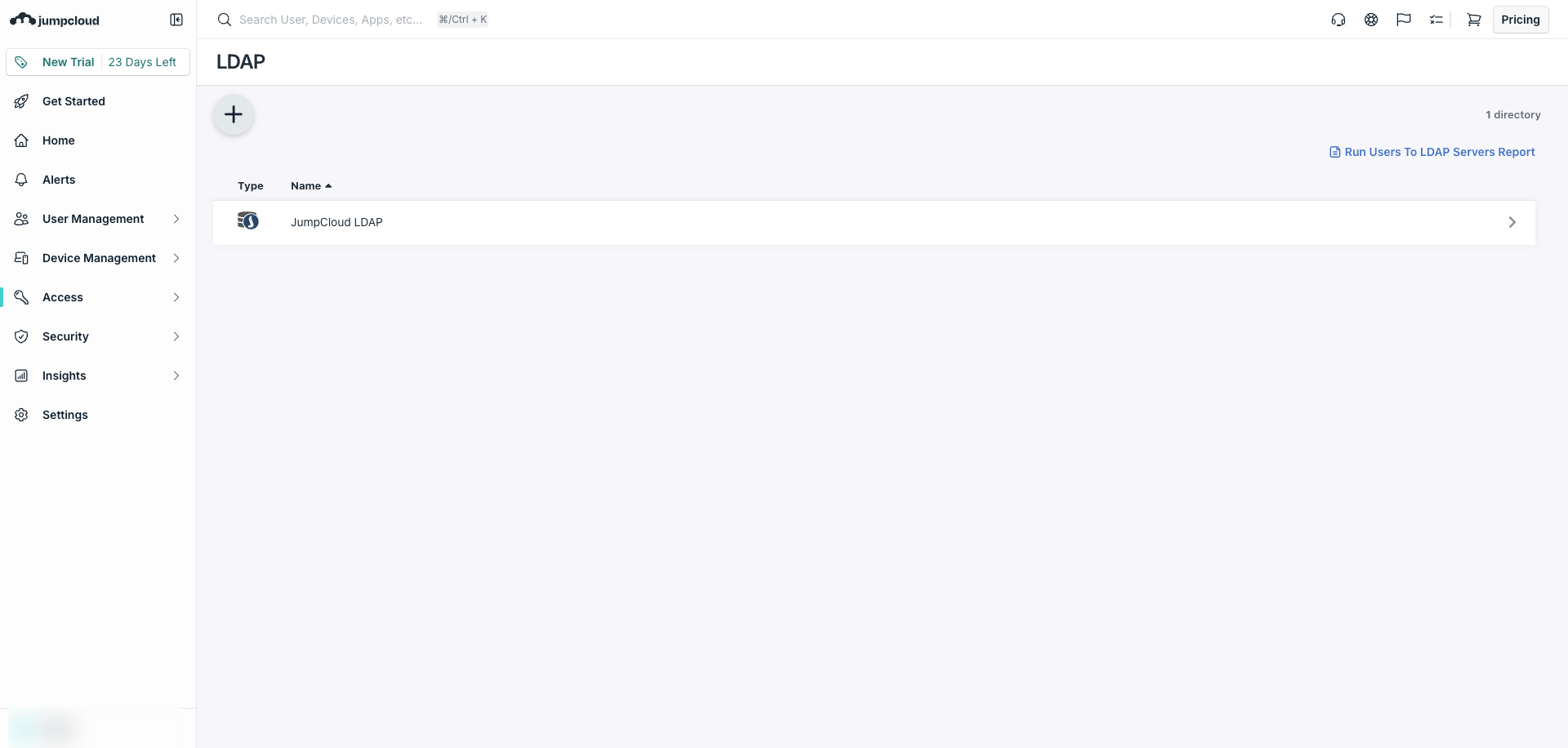
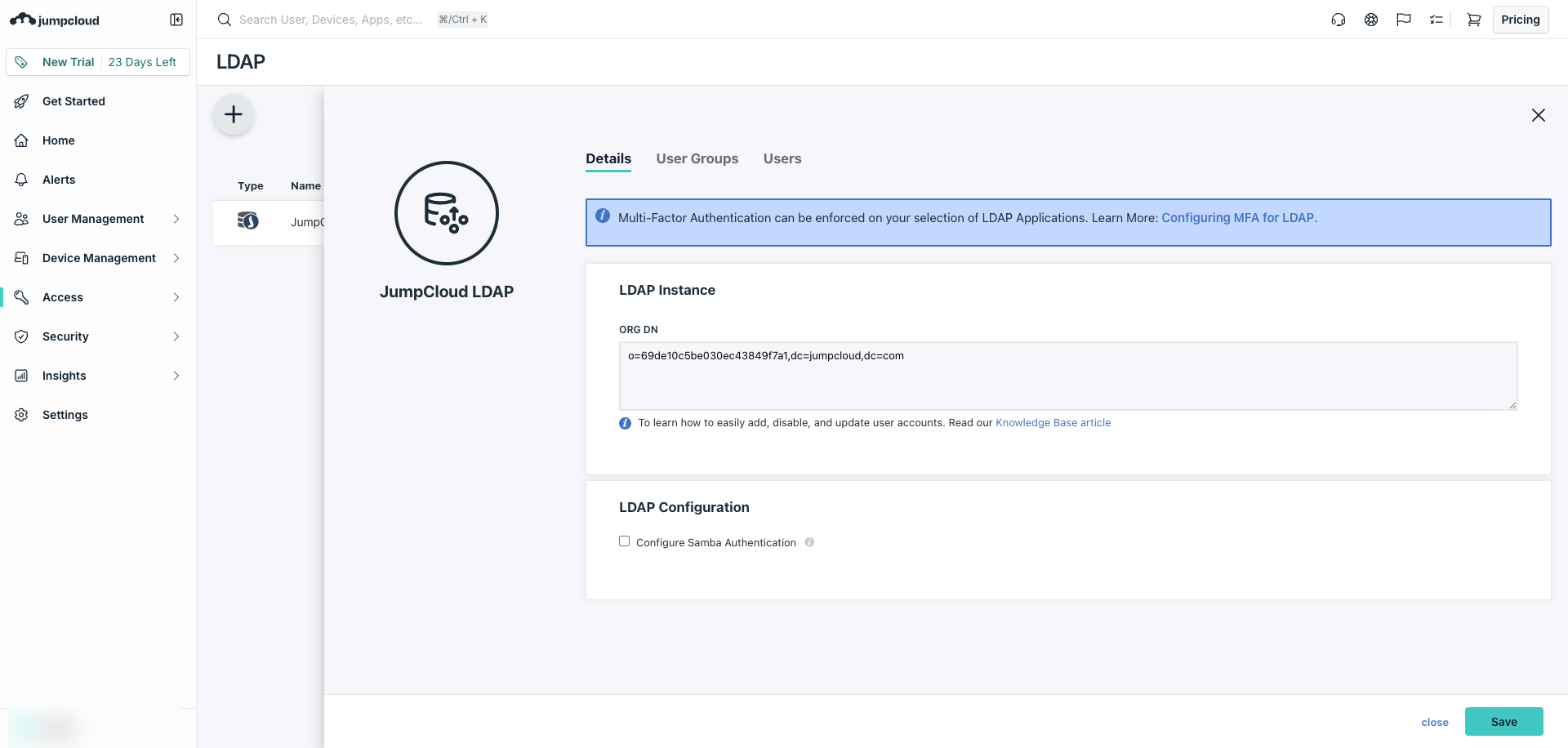
Log in to JumpCloud Admin and go to Access > LDAP.

Click into the JumpCloud LDAP Directory and copy the ORG DN from the page.

Step 2: Confirm the User Has LDAP Bind DN Enabled
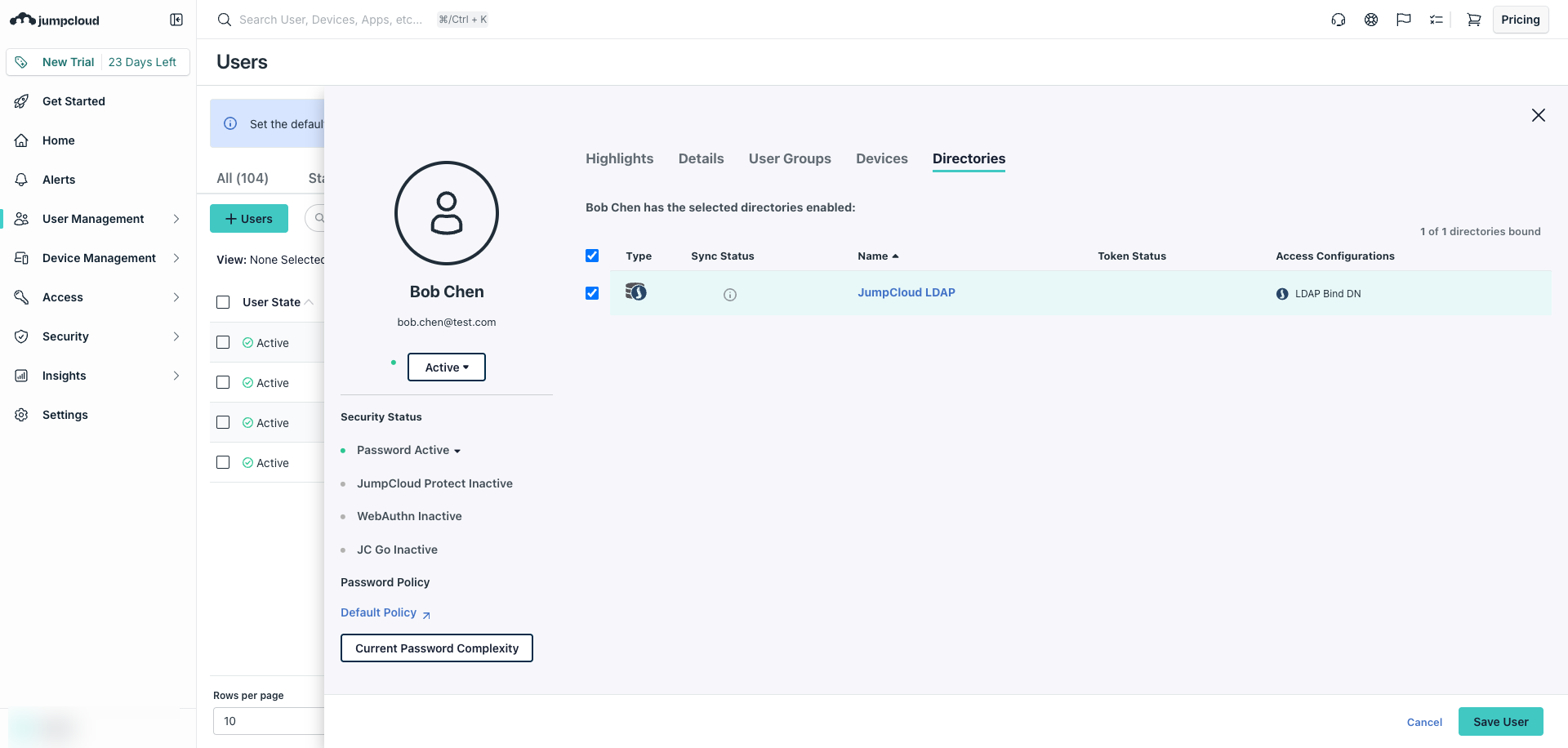
Click into any user (e.g., bob.chen) > switch to the Directories tab > confirm the user is bound to JumpCloud LDAP and marked as LDAP Bind DN.

The Bind DN account must be an LDAP Bind DN. If you use a regular user as the Bind DN without enabling this option, the connection will fail.
Step 3: Assemble Connection Parameters
Using ORG DN o=69de10c5be030ec43849f7a1,dc=jumpcloud,dc=com as an example:
Server Address
ldaps://ldap.jumpcloud.com:636
Base DN
ou=Users,o=69de10c5be030ec43849f7a1,dc=jumpcloud,dc=com
Bind DN
uid=bob.chen,ou=Users,o=69de10c5be030ec43849f7a1,dc=jumpcloud,dc=com
Password
Bob Chen's JumpCloud password
Step 4: Enter and Test in MaiAgent
Paste the values into MaiAgent's Connection Settings and click Test Connection. When you see the green "Connection successful" message, save.
Step 5: Set Sync Scope and Execute
Switch to Sync Scope and check ou=Users, save → go to Login & Sync and click Run Sync Now → go to Sync Logs to confirm users have been added.
FAQ
Q1. Test connection shows "Invalid credentials," but I'm sure the password is correct
Check three things:
Bind DN format: Confirm the full path, including all
ou=anddc=levelsLDAP Bind DN checkbox (JumpCloud): Go to the user > Directories > confirm "Enable as LDAP Bind DN" is checked
Special characters in password: If the password contains
$,!, or similar characters, some systems may require escaping
Q2. Why weren't some users synced?
Check the following:
Is the user's status Active in LDAP? (JumpCloud's Staged / Suspended users are not synced)
Is the user within the checked OU / Group scope? (In advanced mode, the user must match the Filter criteria)
Is the user's Email field empty? (MaiAgent uses Email as the unique identifier; users without Email are skipped)
Go to Sync Logs to see detailed failure reasons.
Q3. Can I sync only a specific department?
Yes. Two approaches:
Simple mode: Organize the department into a standalone OU or Group in LDAP, and only check that item in MaiAgent
Advanced mode: Use a custom LDAP Filter, e.g.,
(&(objectClass=user)(department=Engineering))
Q4. When an employee changes their LDAP password, do I need to wait for a sync on the MaiAgent side?
No. As long as LDAP password login is enabled, MaiAgent verifies against LDAP in real time when the user logs in with the new password. It takes effect immediately.
Q5. After enabling LDAP password login, can the original MaiAgent local password still be used?
No. After enabling, the authentication source for all synced users changes to LDAP, and the original MaiAgent passwords are set to unusable. Users can only log in with their LDAP password.
If the toggle is later disabled, users will need an administrator to reset their passwords before they can log in again.
Q6. When an employee leaves, will MaiAgent automatically deactivate them?
Yes. After suspending or disabling a user on the LDAP side, the next sync (manual or automatic every 30 minutes) will deactivate them in MaiAgent. If Bind login is enabled, the employee will be unable to log in immediately.
Q7. What happens in MaiAgent if an LDAP group is renamed or deleted?
Group renamed: The role name on the MaiAgent side is not automatically renamed; manually update the corresponding group mapping
Group deleted: If a mapping exists, the mapping is preserved but the LDAP group has no users; manual cleanup is recommended
Q8. How often does automatic sync run? Can it be adjusted?
Currently, it runs every 30 minutes on a fixed schedule and does not support custom intervals. For urgent needs, use "Run Sync Now" to trigger manually.
Appendix: Connection Examples for Different LDAP Systems
Microsoft Active Directory
Server Address
ldaps://ad.company.com:636
Base DN
DC=company,DC=com
Bind DN
CN=svc-maiagent,OU=ServiceAccounts,DC=company,DC=com
JumpCloud
Server Address
ldaps://ldap.jumpcloud.com:636
Base DN
ou=Users,o=<ORG_ID>,dc=jumpcloud,dc=com
Bind DN
uid=<username>,ou=Users,o=<ORG_ID>,dc=jumpcloud,dc=com
OpenLDAP / FreeIPA
Server Address
ldaps://ldap.company.local:636
Base DN
dc=company,dc=local
Bind DN
uid=maiagent,ou=system,dc=company,dc=local
Azure AD (Entra ID)
Azure AD does not natively expose an LDAP port, but you can provide an LDAP interface through Azure AD Domain Services (AADDS), a paid Azure add-on. If your enterprise uses Azure AD, you can follow one of these paths:
Sync users
Enable AADDS and use it as the LDAP server (field format is the same as Microsoft AD)
Login authentication
Use Third-Party Login (SSO) with SAML / OAuth directly — no need for LDAP Bind
Also have on-prem AD
Connect directly as Microsoft AD — AADDS is not needed
Next Steps
Third-Party Login (SSO) — Use alongside identity sync to let employees log in directly with enterprise accounts via redirect
Role Permission Management — Configure the permission scope for roles mapped from group mapping on this page
Member Management — View all organization members, including LDAP synced and manually invited
Last updated
Was this helpful?