> For the complete documentation index, see [llms.txt](https://docs.maiagent.ai/llms.txt). Markdown versions of documentation pages are available by appending `.md` to page URLs; this page is available as [Markdown](https://docs.maiagent.ai/maiagent-user-guide/en/org/credits/member-credit-quota.md).

# Member Credits Quota Management

Set personal Credits spending caps for each member to effectively manage organizational budget allocation

Organization administrators can set a **personal Credits spending cap (Quota)** and **validity period** for each member, making costs during events or specific projects transparent and controllable.

{% hint style="info" %}
**Only available for organizations using the Credits billing system.** If your organization has not yet switched to the Credits system, this feature will not be displayed. See [Credits Billing System](/maiagent-user-guide/en/org/credits.md) for details. In addition to member quotas, you can also control costs by channel. See [Conversation Platform Credits Quota Management](/maiagent-user-guide/en/org/credits/inbox-credit-quota.md).
{% endhint %}

## Core Concept <a href="#core-concept" id="core-concept"></a>

**A Quota is a spending ceiling, not a pre-funded sub-wallet.**

The organization's Credits wallet remains the sole funding pool. A Quota only limits how many Credits a specific member can consume from the organization wallet. Distributing a Quota does not affect the organization balance, and Quota expiration does not affect the balance either — there is no concept of "returning" Credits.

## Use Cases <a href="#use-cases" id="use-cases"></a>

* An enterprise hosts an event and grants external users platform access, needing to control per-person spending caps
* Different departments set different personal quotas based on their budgets
* Limit a specific account's usage during a validity period, with automatic enforcement after expiration

***

## Administrator Operations <a href="#admin-operations" id="admin-operations"></a>

### Accessing the Quota Allocation Page <a href="#enter-quota-tab" id="enter-quota-tab"></a>

1. Click <mark style="color:blue;">**Organization Settings**</mark> from the left menu
2. Click <mark style="color:blue;">**Credits**</mark>
3. Switch to the <mark style="color:blue;">**Quota Allocation**</mark> tab

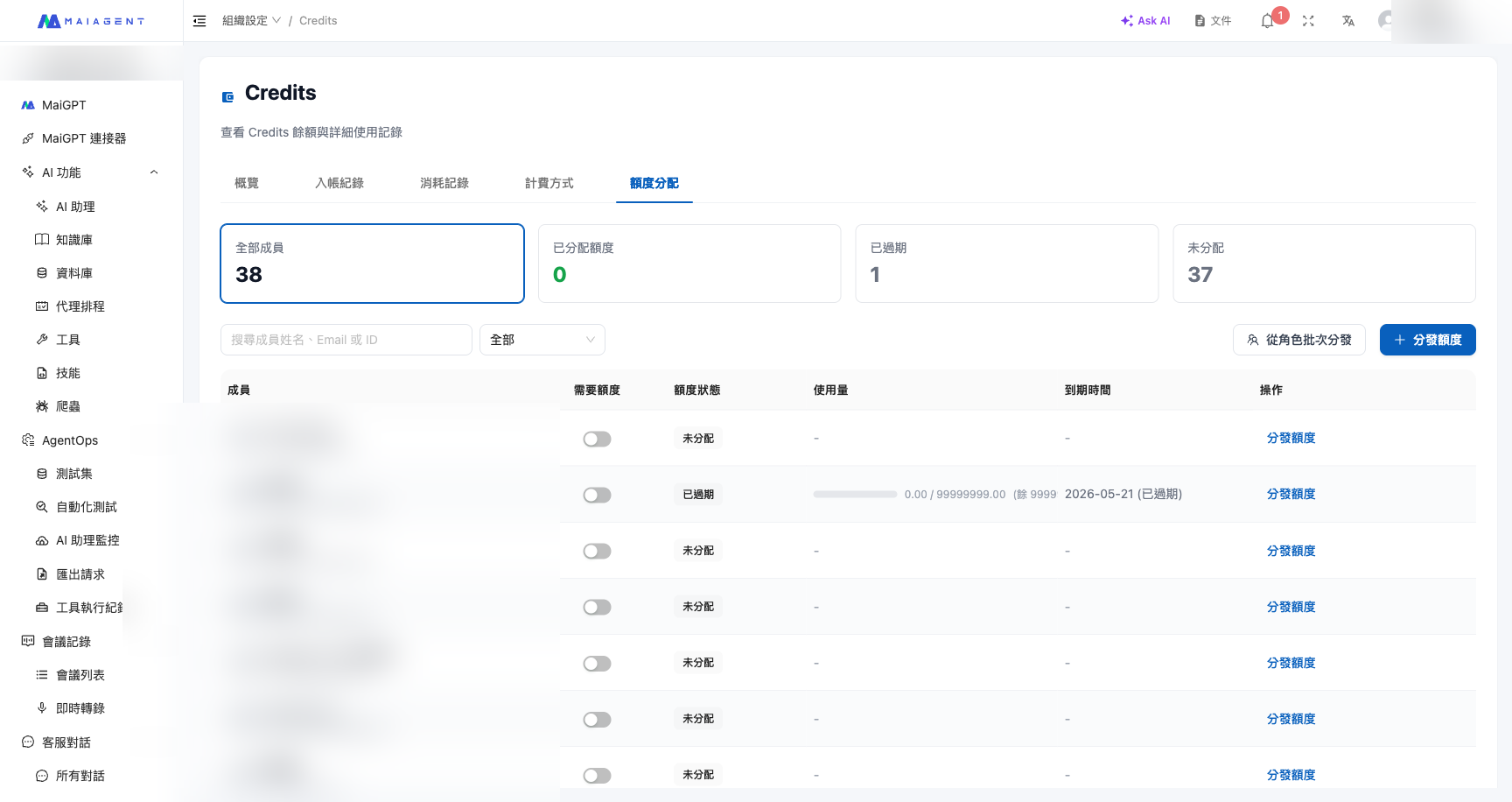
The page displays the quota status for all members, including summary cards (All Members, Allocated Quotas, Expired, Unassigned) and progress bars.

<figure><img src="https://1360999650-files.gitbook.io/~/files/v0/b/gitbook-x-prod.appspot.com/o/spaces%2F6v6TNkkOQVfRYfcNirHL%2Fuploads%2Fgit-blob-17de094b0b88064e1930eb9edda4a29ebe441112%2Fquota-tab-overview.png?alt=media" alt="Quota Allocation page overview"><figcaption><p>Quota Allocation tab: Summary cards and member list</p></figcaption></figure>

### Distribute Quota <a href="#assign-quota" id="assign-quota"></a>

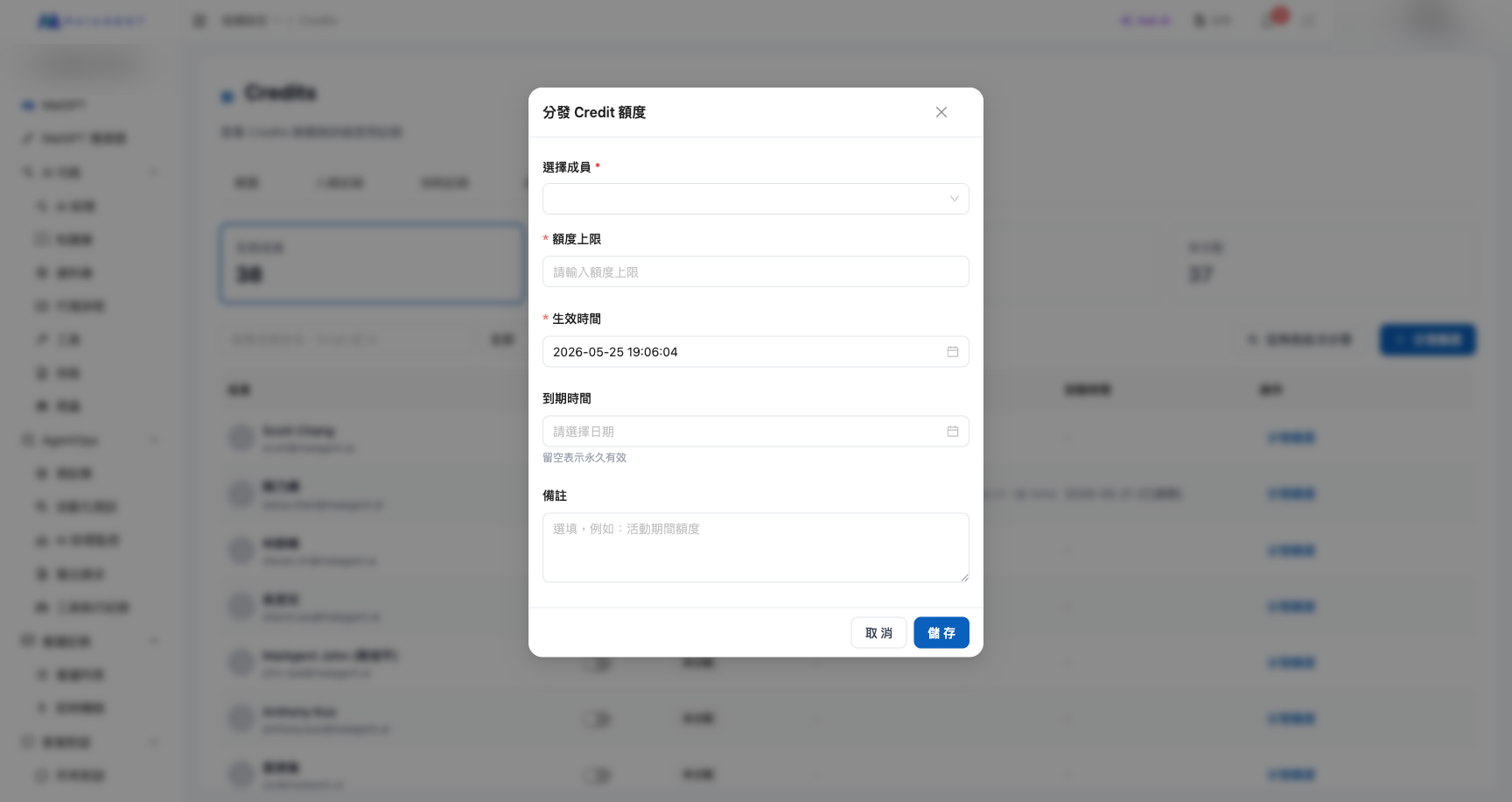
1. Click the <mark style="color:blue;">**Distribute Quota**</mark> button in the upper right corner
2. Search for the target member by name or email in the search box
3. Enter the **Credits cap** (spending ceiling)
4. Set the **validity period** (you can set an expiration date or choose permanent) and **reset period**
5. Click <mark style="color:blue;">**Confirm**</mark> to complete the distribution

<figure><img src="https://1360999650-files.gitbook.io/~/files/v0/b/gitbook-x-prod.appspot.com/o/spaces%2F6v6TNkkOQVfRYfcNirHL%2Fuploads%2Fgit-blob-b33c3fe672b22e53ae1681237c68ff1abec8693b%2Fquota-distribute-modal.png?alt=media" alt="Distribute Credit Quota dialog"><figcaption><p>Enter the Credits cap and validity period, then confirm distribution</p></figcaption></figure>

{% hint style="info" %}
Each member can only have one active quota at a time. For members who already have an active quota, use "Edit" to adjust it directly, or disable the current quota before distributing a new one.
{% endhint %}

### Set the Reset Period <a href="#quota-reset-period" id="quota-reset-period"></a>

When distributing or editing a quota, select one of the following under <mark style="color:blue;">**Reset Period**</mark>:

| Option       | How It Works                                                                                                |
| ------------ | ----------------------------------------------------------------------------------------------------------- |
| **No reset** | The quota is a one-time cap; usage stops when it is exhausted                                               |
| **Daily**    | Used Credits reset to zero and the quota is restored at 00:00 every day (Taipei time)                       |
| **Weekly**   | Resets at 00:00 on the fixed weekday shown on the screen                                                    |
| **Monthly**  | Resets at 00:00 on the fixed date shown on the screen; in shorter months, it resets at the end of the month |

After configuration, <mark style="color:blue;">**Next Reset**</mark> in the list displays the time and period. A reset only clears the used amount; the quota cap and expiration time remain unchanged.

{% hint style="info" %}
When you change a quota's weekly or monthly reset period, the period is recalculated from the date of the change. Before submitting, check the "First Reset" time shown on the screen.
{% endhint %}

### Edit Quota <a href="#edit-quota" id="edit-quota"></a>

For members with an active quota, click <mark style="color:blue;">**Edit**</mark> on their row to adjust:

* **Increase the Credits cap**: Takes effect immediately
* **Decrease the Credits cap**: Cannot be set lower than the member's current consumption; the system will display an error message

### Disable Quota <a href="#disable-quota" id="disable-quota"></a>

For active members, click <mark style="color:blue;">**Disable**</mark> → confirmation dialog → after confirming, the member's quota is immediately invalidated.

The effect of disabling depends on the "Quota Required" toggle:

* **Toggle is ON**: The member will be unable to use AI features and needs a new quota distributed or the toggle turned off
* **Toggle is OFF**: The member returns to unrestricted status, with consumption directly drawn from the organization wallet

### Batch Disable Quotas by Role <a href="#batch-disable-quota-by-role" id="batch-disable-quota-by-role"></a>

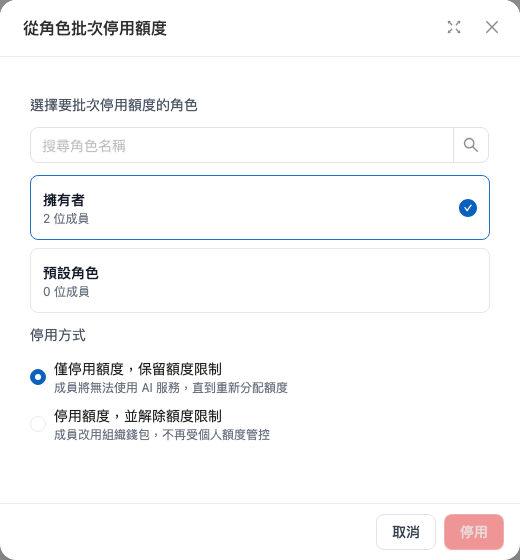
When multiple members with the same role no longer need personal quotas, administrators can disable all quotas that have been created and not yet disabled for those members at once, including quotas created in advance that have not yet taken effect. Before submitting, decide whether members should remain restricted from using Credits after their quotas are disabled:

* **Disable quotas only and keep quota restrictions** (default): Members cannot use AI services until they receive a new quota.
* **Disable quotas and remove quota restrictions**: Members switch to the organization wallet and are no longer subject to personal quota controls.

{% hint style="warning" %}
After quota restrictions are removed, members' use of AI features will consume the organization wallet directly. If you still need to control individual usage, keep the default option and redistribute quotas at an appropriate time.
{% endhint %}

#### Steps <a href="#batch-disable-quota-by-role-steps" id="batch-disable-quota-by-role-steps"></a>

{% stepper %}
{% step %}
On the <mark style="color:blue;">**Quota Allocation**</mark> tab, select <mark style="color:blue;">**Member Quotas**</mark>.
{% endstep %}

{% step %}
Click <mark style="color:blue;">**Batch Disable by Role**</mark>.
{% endstep %}

{% step %}
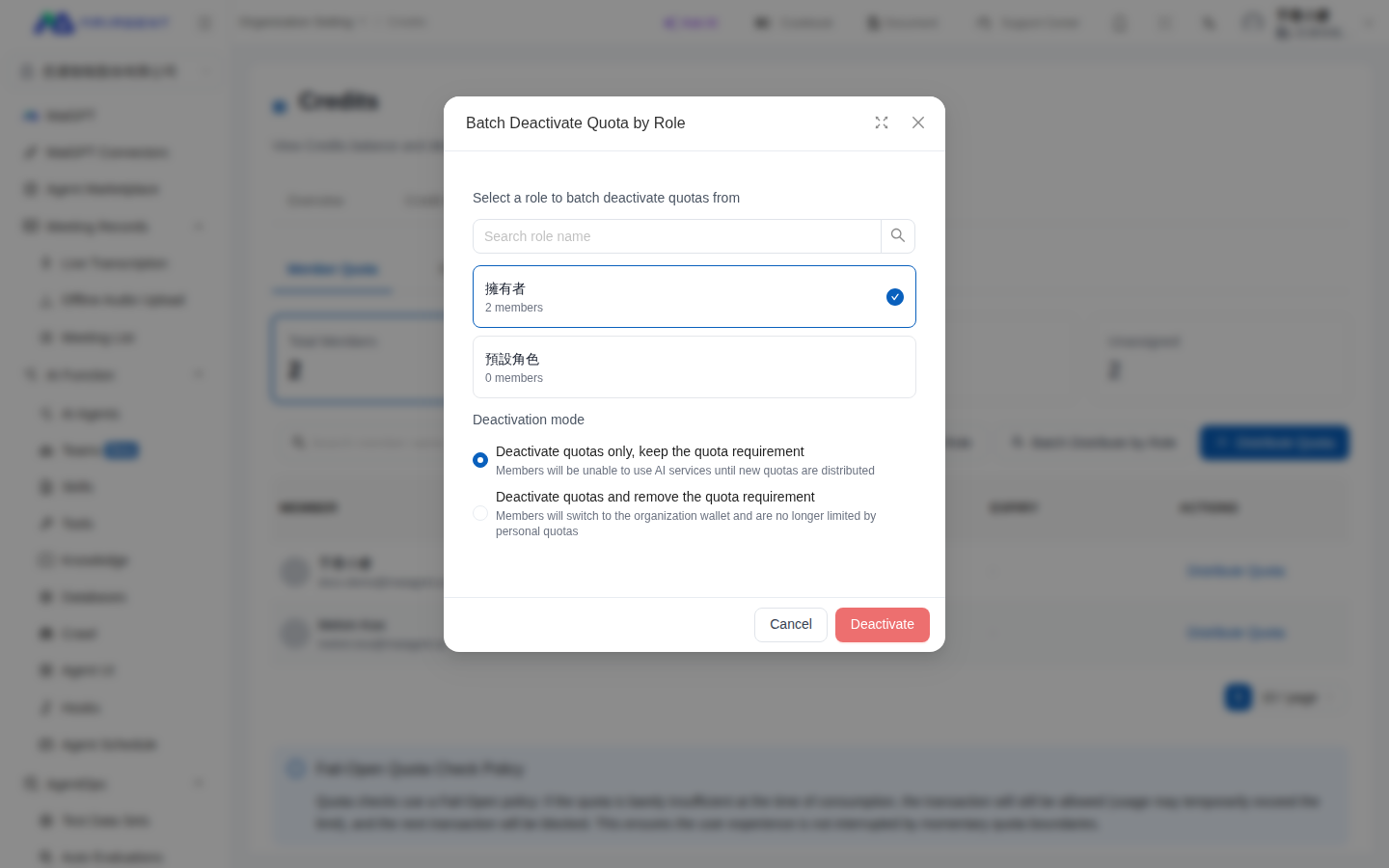
Select the role you want to process.

<figure><img src="https://1360999650-files.gitbook.io/~/files/v0/b/gitbook-x-prod.appspot.com/o/spaces%2F6v6TNkkOQVfRYfcNirHL%2Fuploads%2Fgit-blob-cb78c1f3105267bd99487a2db0ee7d7fbf2d08ae%2Fmember-quota-batch-role-mode.png?alt=media" alt="Role and disable method selection dialog for batch disabling quotas by role"><figcaption><p>Select a role and decide whether to keep quota restrictions after disabling quotas</p></figcaption></figure>
{% endstep %}

{% step %}
Under "Disable Method," choose whether to keep or remove quota restrictions, then click <mark style="color:blue;">**Disable**</mark>.
{% endstep %}

{% step %}
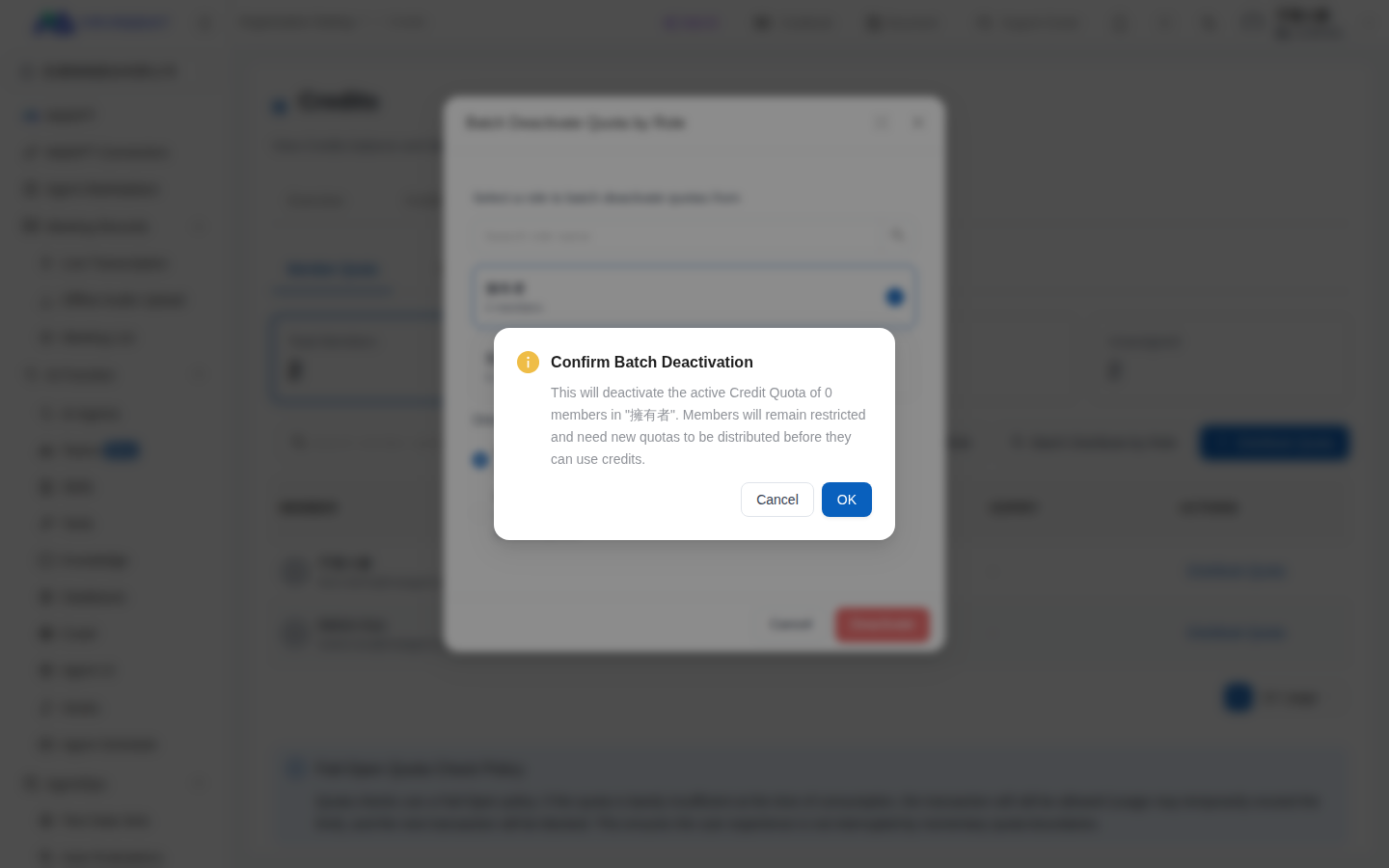
Review the number of affected members shown in the confirmation dialog, then submit after verifying it is correct. When keeping restrictions, the dialog shows the number of members whose quotas will be disabled. When removing restrictions, it separately shows the number of members whose quotas will be disabled and the number of members whose restrictions will be removed.
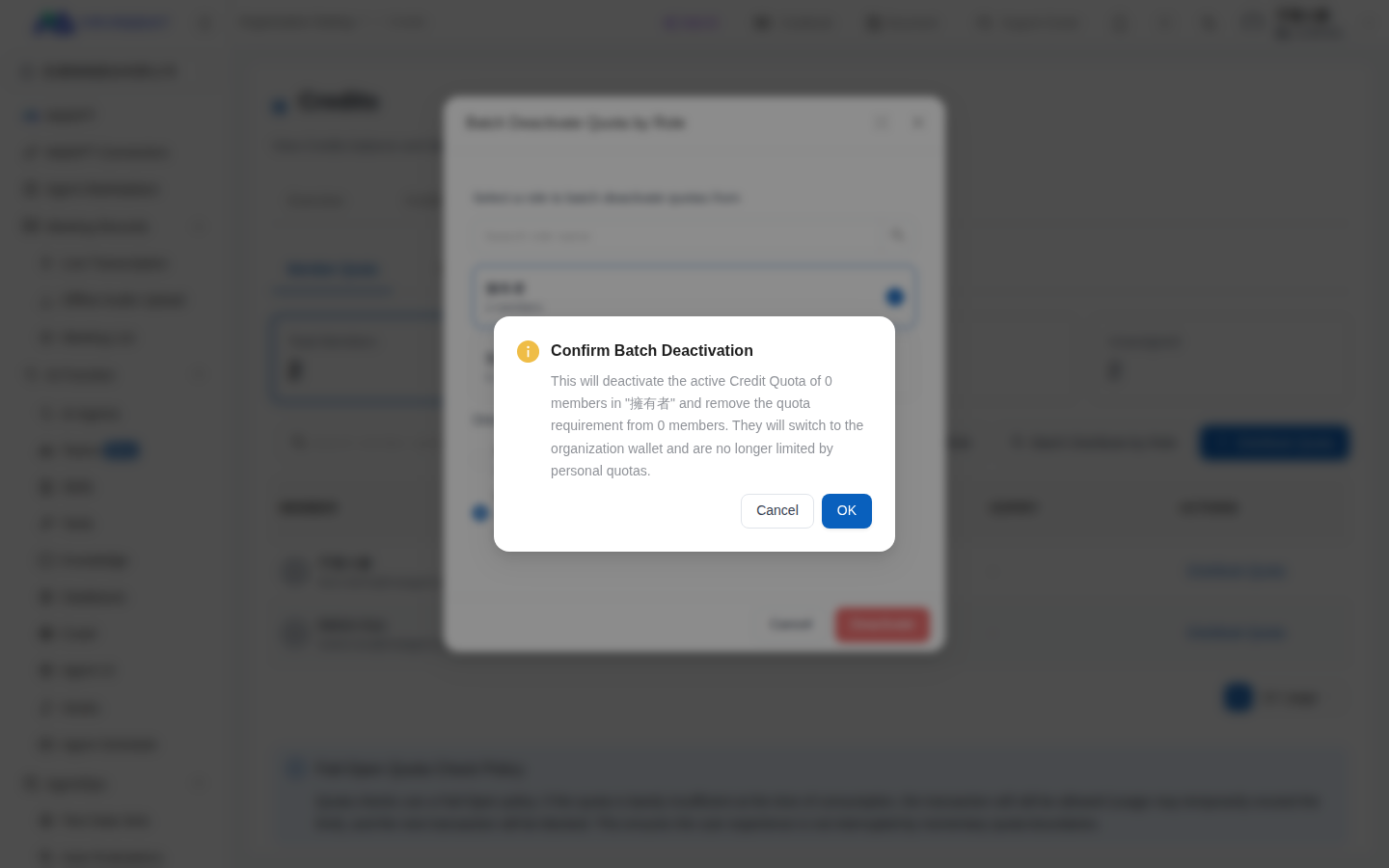
<figure><img src="https://1360999650-files.gitbook.io/~/files/v0/b/gitbook-x-prod.appspot.com/o/spaces%2F6v6TNkkOQVfRYfcNirHL%2Fuploads%2Fgit-blob-95f46c10837a650eb91ffadcc71aa6bc5d91acc9%2Fmember-quota-batch-confirm.png?alt=media" alt="Batch disable confirmation dialog when keeping quota restrictions"><figcaption><p>When keeping quota restrictions, the confirmation dialog lists the number of members whose quotas will be disabled</p></figcaption></figure>

<figure><img src="https://1360999650-files.gitbook.io/~/files/v0/b/gitbook-x-prod.appspot.com/o/spaces%2F6v6TNkkOQVfRYfcNirHL%2Fuploads%2Fgit-blob-c35c8ed1673f2a330d424e1a7199c7fdf9dd92eb%2Fmember-quota-batch-confirm-remove-restriction.png?alt=media" alt="Batch disable confirmation dialog when removing quota restrictions"><figcaption><p>When removing quota restrictions, the confirmation dialog separately lists the number of members whose quotas will be disabled and the number whose restrictions will be removed</p></figcaption></figure>
{% endstep %}
{% endstepper %}

#### Use Case: Return a Team to Shared Credits After an Event <a href="#batch-disable-quota-scenario" id="batch-disable-quota-scenario"></a>

An administrator at MaiMai Company previously distributed personal quotas to members with the "Event Support" role to control usage during an event. After the event, she opens the Member Quotas page, selects Batch Disable by Role, and chooses "Disable quotas and remove quota restrictions." After reviewing the number of affected members, she submits the request. The quotas of members who meet the processing criteria are disabled, and their quota restrictions are removed. Their subsequent use of AI features consumes the organization wallet instead.

{% hint style="info" %}
Batch processing applies to members in the role who are still employed, have not been deleted, and have active login accounts. Restrictions are not removed for members who have left the organization, have been deleted, or do not have active login accounts. If they are reinstated or reactivated later, they may still be in a state where a quota is required but none is available.
{% endhint %}

{% hint style="info" %}
The two counts may differ: Members in the role who do not have a quota that has been created and not yet disabled, but who are still subject to quota restrictions, are not included in the "Disable Quotas" count. If you choose to remove restrictions, they are still included in the "Remove Quota Restrictions" count. The "Disable Quotas" count includes quotas created in advance that have not yet taken effect.
{% endhint %}

### "Quota Required" Toggle <a href="#quota-required-toggle" id="quota-required-toggle"></a>

Each member row has a **Quota Required** toggle on the right side:

| Toggle State | Description                                                                                                                |
| ------------ | -------------------------------------------------------------------------------------------------------------------------- |
| **ON**       | The member must have an active quota to use AI; without a quota (expired / disabled / unassigned), access is fully blocked |
| **OFF**      | The member is not restricted by quota; consumption is drawn directly from the organization wallet                          |

{% hint style="warning" %}
**When distributing a quota**, the system **automatically turns ON** "Quota Required."

**When turning OFF the toggle**, if the member has an active quota, the system will **simultaneously disable** that quota to avoid conflicting states. A confirmation dialog explaining the impact will be displayed before each switch — please review before proceeding.
{% endhint %}

### Batch Distribute/Disable by Role <a href="#batch-by-role" id="batch-by-role"></a>

When there are many members, you can perform batch operations by MaiAgent role instead of distributing quotas one by one. Two batch action buttons are available in the upper-right corner of the "Member Quotas" subtab:

**Batch distribution**:

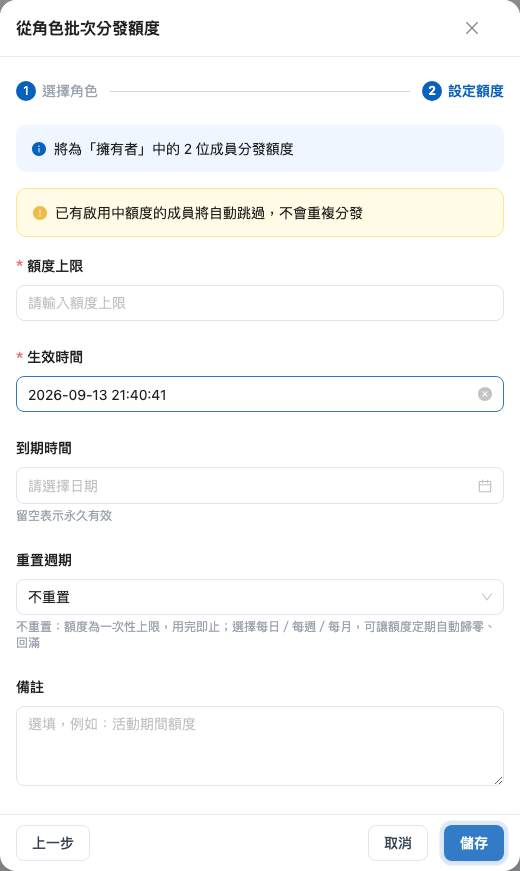
1. Click <mark style="color:blue;">**Batch Distribute by Role**</mark> and select the target role in the dialog
2. Configure the quota details (the quota cap, validity period, reset period, and notes are applied to **all members** in the role, with a separate quota for each member)
3. Confirm and submit. **Members who already have an active quota are automatically skipped and do not receive a duplicate quota**. When complete, the system displays "Batch distribution complete: N succeeded, N skipped, N failed"

<figure><img src="https://1360999650-files.gitbook.io/~/files/v0/b/gitbook-x-prod.appspot.com/o/spaces%2F6v6TNkkOQVfRYfcNirHL%2Fuploads%2Fgit-blob-f5a8565125e67f3f0280d85e96bf5ac23ca3f088%2Fquota-07-batch-role-modal.png?alt=media" alt="Batch Distribute by Role dialog"><figcaption><p>Batch Distribute by Role: After selecting a role, the quota details are applied to all members in that role</p></figcaption></figure>

**Batch disabling**: Click <mark style="color:blue;">**Batch Disable by Role**</mark> → select a role → select a disabling method → confirm. Before submitting, verify the members covered by the role and the disabling method.

| Disabling Method                                                | Member Status After Disabling                                                                                                 |
| --------------------------------------------------------------- | ----------------------------------------------------------------------------------------------------------------------------- |
| **Disable quotas only and retain quota restrictions** (default) | "Quota Required" remains on; members cannot use AI services until a quota is reassigned                                       |
| **Disable quotas and remove quota restrictions**                | "Quota Required" is also turned off; members use the organization wallet and are no longer subject to personal quota controls |

<figure><img src="https://1360999650-files.gitbook.io/~/files/v0/b/gitbook-x-prod.appspot.com/o/spaces%2F6v6TNkkOQVfRYfcNirHL%2Fuploads%2Fgit-blob-fe3210b0d909826eea6aebbc3902520a105e5815%2Fquota-08-batch-deactivate-options.png?alt=media" alt="Two batch quota disabling methods"><figcaption><p>Batch disabling: Quota restrictions are retained by default, but they can also be removed</p></figcaption></figure>

{% hint style="warning" %}
Batch distribution also turns on the "Quota Required" toggle for these members. The default batch disabling option retains quota restrictions. If you want members to use the organization wallet after their quotas are disabled, select "Disable quotas and remove quota restrictions."
{% endhint %}

The member list also provides a "Role Filter" for viewing quota status by role.

### Role Quotas <a href="#role-quota" id="role-quota"></a>

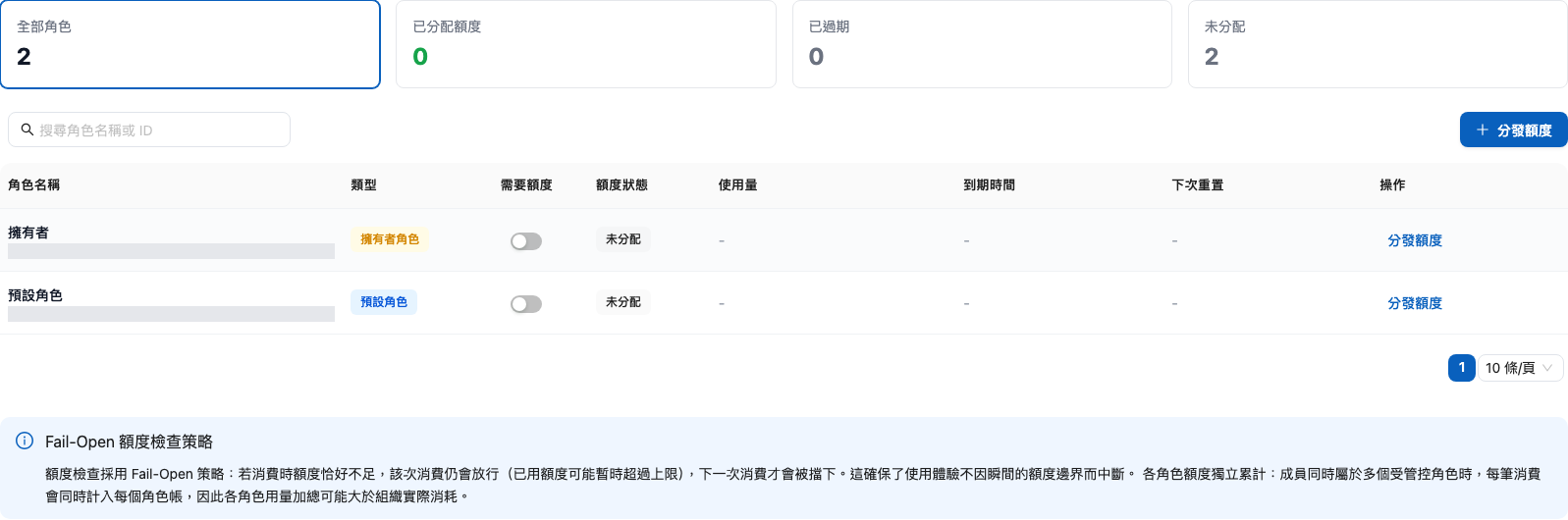
In addition to the batch shortcut described above, which distributes quotas individually to members, the "Quota Allocation" tab also includes a <mark style="color:blue;">**Role Quotas**</mark> subtab. Here, you can set **one shared quota for an entire MaiAgent role**, creating a control layer independent of member quotas.

The list is organized by role and includes the following columns: **Role Name, Type, Quota Required, Quota Status, Usage, Expiration Time, and Actions**.

<figure><img src="https://1360999650-files.gitbook.io/~/files/v0/b/gitbook-x-prod.appspot.com/o/spaces%2F6v6TNkkOQVfRYfcNirHL%2Fuploads%2Fgit-blob-c9d9e46a210df5d4a65162eeb959eae332d4b921%2Fcredit-quota-role-tab.png?alt=media" alt="Role Quotas subtab"><figcaption><p>Quota Allocation → Role Quotas: Quota controls by MaiAgent role</p></figcaption></figure>

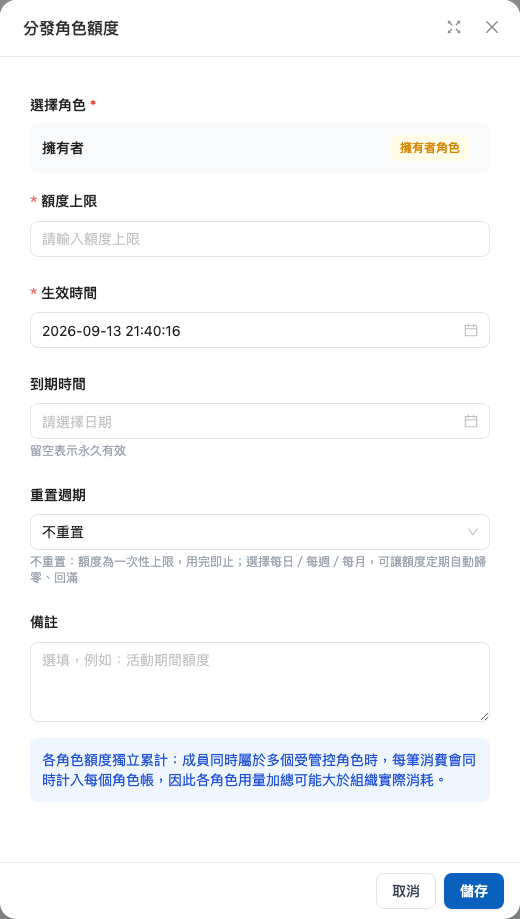
**Distribute a role quota**:

1. Click <mark style="color:blue;">**Distribute Quota**</mark> and select the target role
2. Set the quota cap, validity period, and reset period, then confirm and submit

<figure><img src="https://1360999650-files.gitbook.io/~/files/v0/b/gitbook-x-prod.appspot.com/o/spaces%2F6v6TNkkOQVfRYfcNirHL%2Fuploads%2Fgit-blob-a5dc7131e63fbbeda941959537ac1ce53f2b5e9b%2Fquota-06-role-assign-modal.png?alt=media" alt="Distribute Role Quota dialog"><figcaption><p>Role Quotas → Distribute Quota: Set a shared quota for a single role</p></figcaption></figure>

Each role row also has a <mark style="color:blue;">**Quota Required**</mark> toggle with the same meaning as the [member quota toggle](#quota-required-toggle): When enabled, the role must have an active quota before its members' AI consumption is allowed.

{% hint style="warning" %}
Page notice: **Usage is accumulated independently for each role**—when a member belongs to multiple controlled roles, each transaction is counted toward every role's usage. Consequently, the sum of role usage may exceed the organization's actual consumption. The organization wallet is still charged only once per transaction.
{% endhint %}

For details on how role quotas, member quotas, and conversation platform quotas work together as three control layers, see [Conversation Platform Credits Quota Management](/maiagent-user-guide/en/org/credits/inbox-credit-quota.md#quota-layers).

***

## Members Checking Their Own Quota <a href="#member-self-check" id="member-self-check"></a>

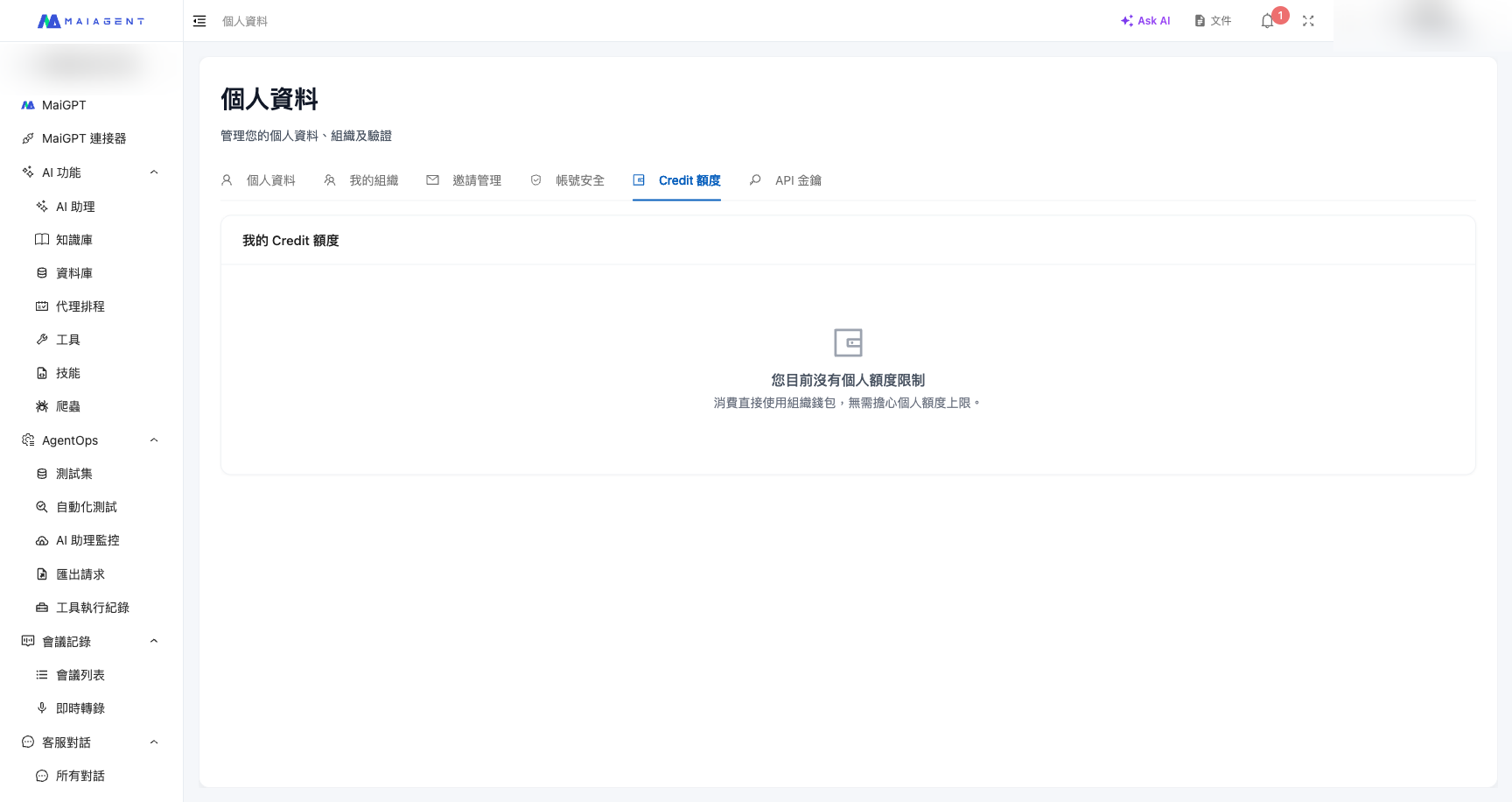
Members can view their personal Credits usage from their Profile:

1. Click the account avatar in the upper right corner
2. Click <mark style="color:blue;">**Personal Settings**</mark>
3. Switch to the <mark style="color:blue;">**Credit Quota**</mark> tab

{% hint style="info" %}
Members of **non-Credits billing organizations** will not see the "Credit Quota" tab in their Profile.
{% endhint %}

<figure><img src="https://1360999650-files.gitbook.io/~/files/v0/b/gitbook-x-prod.appspot.com/o/spaces%2F6v6TNkkOQVfRYfcNirHL%2Fuploads%2Fgit-blob-d8b8426a6a98e6f14c91d589074d43970064fd2c%2Fprofile-credit-quota.png?alt=media" alt="Personal Credit Quota tab"><figcaption><p>Credit Quota tab in Personal Settings</p></figcaption></figure>

The page displays different content based on the member's quota status:

| Status                                                     | Display Content                                                                                                                                                           |
| ---------------------------------------------------------- | ------------------------------------------------------------------------------------------------------------------------------------------------------------------------- |
| **Has active quota**                                       | Progress bar (used / total cap), remaining Credits, expiration countdown                                                                                                  |
| **Quota required but none available (expired / disabled)** | Red alert: "You need a quota to use AI services. Currently no quota is assigned, or your quota has expired. Please contact your administrator to distribute a new quota." |
| **Quota not required**                                     | Gray notice: "You currently have no personal quota limit. Consumption is drawn directly from the organization wallet — no need to worry about personal quota caps."       |

The progress bar color changes based on usage ratio (green for low usage, approaching red for high usage) to remind members to monitor their remaining balance.

***

## Notes <a href="#notes" id="notes"></a>

### Applicable Scope <a href="#applicable-scope" id="applicable-scope"></a>

Personal quota enforcement **only applies to the following entry points**:

* Operations through the MaiAgent admin dashboard
* API Key calls to the `/completions/` endpoint
* Knowledge Base uploads and document processing

{% hint style="info" %}
**WebChat channels are not subject to personal quota limits.** Messages sent through the embedded WebChat widget on websites consume the organization wallet directly, regardless of whether the visitor is logged in.
{% endhint %}

### Fail-Open Mechanism <a href="#fail-open" id="fail-open"></a>

{% hint style="info" %}
To prevent service interruptions caused by quota boundary calculation issues, the system uses a **Fail-Open** strategy:

When the remaining quota is > 0 at the time of checking, the current request is allowed through; consumption is recorded only after the AI completes its response. If the consumption exceeds the cap, the **next** request will be blocked. This ensures users never experience a billing failure at the same time as receiving an AI response.
{% endhint %}


---

# Agent Instructions
This documentation is published with GitBook. GitBook is the documentation platform designed so that both humans and AI agents can read, navigate, and reason over technical content effectively. Learn more at gitbook.com.

## Querying This Documentation
If you need additional information that is not directly available in this page, you can query the documentation dynamically by asking a question.

Perform an HTTP GET request on the current page URL with the `ask` query parameter, and the optional `goal` query parameter:

```
GET https://docs.maiagent.ai/maiagent-user-guide/en/org/credits/member-credit-quota.md?ask=<question>&goal=<endgoal>
```

`ask` is the immediate question: it should be specific, self-contained, and written in natural language.
`goal` is optional and describes the broader end goal you are ultimately trying to accomplish on behalf of the user. GitBook uses it to tailor the answer towards what is most useful for that goal.

The response will contain a direct answer to the question and relevant excerpts and sources from the documentation.

Use this mechanism when the answer is not explicitly present in the current page, you need clarification or additional context, or you want to retrieve related documentation sections.