Messaging Platform Credits Quota Management
Set a Credits spending limit for each inbox to control AI usage costs across channels such as your website and LINE
In addition to member quotas, administrators can set a Credits spending limit and validity period for each inbox. For example, you can configure separate quotas when the monthly marketing budget for your website's Web Chat is fixed and costs for the LINE channel must be managed independently.
How the three quota layers work together
Credits quota controls have three layers, corresponding to the three subtabs under the “Quota allocation” tab. This is also the part most likely to cause confusion: each layer controls a different subject, and you can use them separately or together as needed.
Member quota
Individual members (admin console operations, API Key calls, and so on)
That member
Member quotas
Role quota
All members assigned to a specific MaiAgent role
Members assigned to that role
Role quotas
Inbox quota
Visitor conversations on a single channel (Web Chat, LINE, and so on)
All visitor conversations on that channel
Inbox quotas
Rules for combining the three layers:
Exhausting any layer blocks usage: Every applicable quota layer, along with the organization wallet balance, is checked for each transaction. If any layer has no remaining quota at the time of the check, the AI request is blocked
Charges are deducted only once: Quotas are markers for spending limits, not separate wallets. Regardless of how many quota layers apply, Credits are deducted only once from the organization wallet and are never charged repeatedly
Channel visitors are not checked against member quotas: Visitors on external platform channels such as LINE are not organization members. Their conversations are checked only against the organization wallet and the inbox quota
For instructions on role and member quotas, see Member Credits quota management.
Use cases
Finance and banking—manage each channel's budget separately: A website Web Chat answers public questions about credit cards and loan plans, while an official LINE account focuses on financial-services membership. The two channels' marketing budgets belong to different departments. Set a separate quarterly quota for each inbox to clearly track each channel's usage and prevent overspending in one from affecting the other.
Services, retail, and hospitality—limit website usage during campaigns: Embed a dedicated Web Chat on a campaign page during an anniversary promotion to answer questions about offers and reservations. When allocating the quota, set the effective time to the start of the campaign and the expiration time to its end, then add the campaign name in the notes. The quota expires automatically after the campaign, with no need to disable it manually.
Educational institutions—combine admissions-channel and department budgets: Create a LINE channel for application inquiries during admissions season and assign it a quarterly quota to control external inquiry costs. For internal use, combine this with role quotas, allocating budgets by each department's MaiAgent role. Channel and department quotas are controlled independently.
Technology and electronics manufacturing—separate external support from internal use: Set a monthly quota for an external technical-support Web Chat to keep a surge of specification and pricing inquiries from exhausting the budget. Manage internal engineers through member quotas; the two layers do not interfere with each other.
Administrator operations
Open the inbox quota page
In the left menu, click Organization settings → Credits
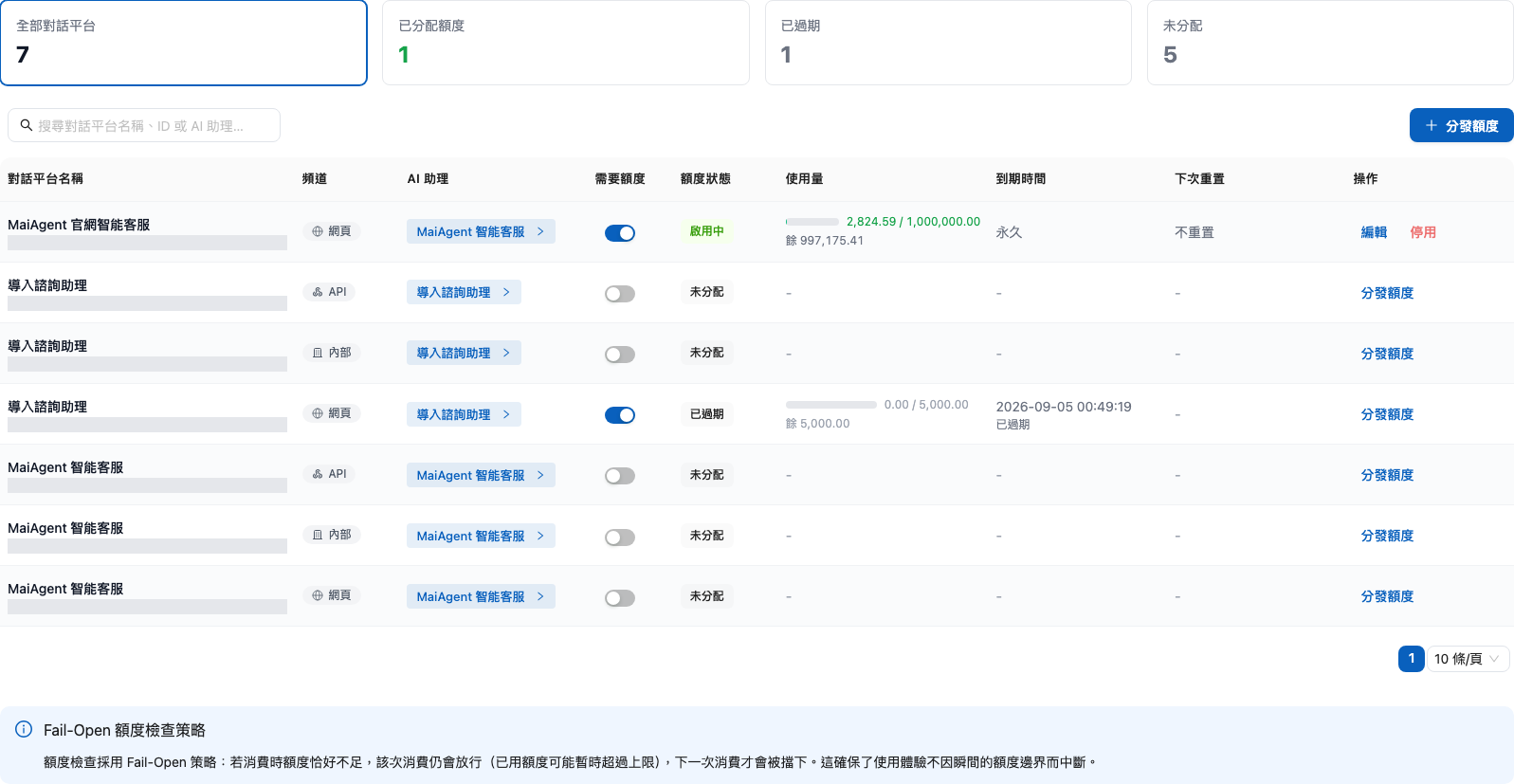
Switch to the Quota allocation tab. Three subtabs appear at the top of the page: Member quotas, Role quotas, and Inbox quotas

Select the Inbox quotas subtab
The page displays summary cards (All inboxes, Quota allocated, Expired, and Unallocated) and a quota list for each inbox. You can search by inbox name, ID, or AI assistant name.

Allocate a quota
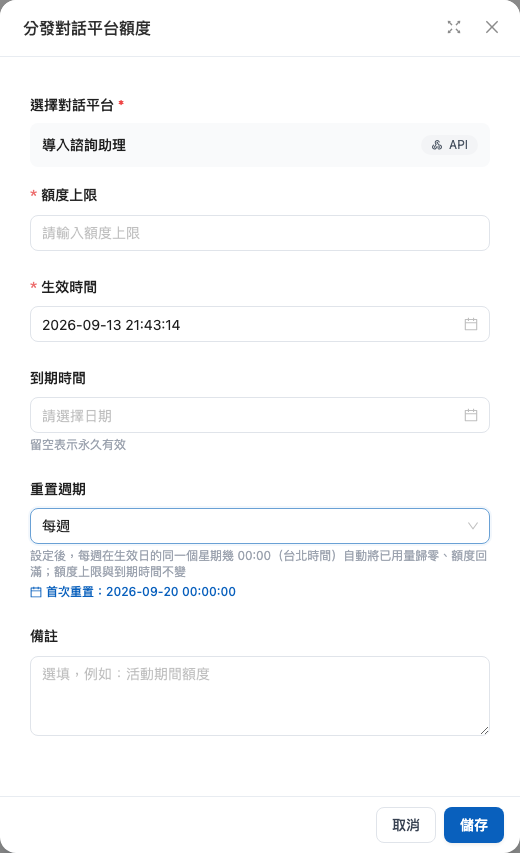
Click Allocate quota, then select an inbox in the “Allocate inbox quota” window
Enter the quota limit, effective time, and expiration time (leave blank for no expiration), select a reset cycle, and optionally add a note (for example, “campaign-period quota”)
Confirm and submit

For the “Reset cycle,” you can select No reset, Daily, Weekly, or Monthly. At the start of the next cycle, the system resets usage to zero and restores the full quota at 00:00 Taipei time. The quota limit and expiration time remain unchanged. For details, see Set the reset cycle.
“Quota required” toggle
Each inbox row has a Quota required toggle:
On
The inbox must have a valid quota to use AI responses. If it currently has no valid quota, AI responses are paused
Off
Removes the inbox's quota restriction and simultaneously disables its existing active quota. Spending remains subject to the organization wallet and other applicable restrictions
When you change the toggle, the system displays a confirmation window—either Require quota or Remove quota restriction—that explains the impact. The change takes effect only after confirmation.

When disabling a quota: If “Quota required” remains on, AI responses for this inbox are paused until you allocate a new quota or remove the restriction.
What visitors see when the quota is exhausted
When an inbox quota is exhausted—or “Quota required” is on but there is no valid quota:
The AI assistant stops responding, and visitors receive a notification. The default system message is: “We're sorry, but the Credit quota for this inbox has been reached and the AI assistant has stopped responding. We have received your message, and a customer service representative will respond as soon as possible.”
Visitor messages still enter the inbox as usual, and human customer service agents can continue responding
You can customize the notification. Go to the inbox's Inbox settings → Interaction settings, then enter the text to send users when the quota is exhausted in the Default notification message field. You can override it for each language, and save it in advance even if no quota has been configured.

View the quota in inbox settings
On an individual inbox's settings page, the Quota tab in the left menu provides a read-only view of used quota, remaining quota, quota status, and expiration time. Members with Credit management permission can click Go to management to open the Credits management page, then switch to “Quota allocation.”

Frequently asked questions
Q: What do customers see when the quota is exhausted?
The AI assistant stops responding, and visitors receive a notification. If you have not customized it, the default system message is: “We're sorry, but the Credit quota for this inbox has been reached and the AI assistant has stopped responding. We have received your message, and a customer service representative will respond as soon as possible.” You can customize it and override it for each language in the “Default notification message” field under Interaction settings. See the explanation above.
Q: Are human customer service agents affected?
No. The quota limits only spending on AI responses. After the quota is exhausted, visitor messages still enter the inbox as usual, and human customer service agents can continue responding.
Q: Why does “Used quota” sometimes slightly exceed the limit?
This is normal behavior under the Fail-Open mechanism. If the remaining quota is greater than 0 at the time of the check, the system permits the current request and records the usage only after the AI finishes responding. As a result, the last permitted transaction may cause used quota to slightly exceed the limit; the next request is blocked. This ensures users do not experience a failure at the same time as receiving an AI response.
Q: What is the difference between an inbox quota and the organization wallet?
The organization wallet is the only pool of funds, while a quota is a spending ceiling. Allocating a quota does not move any Credits out of the wallet, and an expired quota does not need to be “returned.” Conversely, if the organization wallet has an insufficient balance, the AI cannot respond even if the inbox has remaining quota. Spending is permitted only when both the wallet and every applicable quota layer have capacity.
Permissions
Allocating, editing, and disabling inbox quotas requires Credit management permission (the same as for member quotas), not inbox management permission. Quotas are financial controls, so their permissions are intentionally separate from channel settings
The read-only “Quota” tab on the inbox settings page can be viewed by members with inbox management permission
Last updated
Was this helpful?