> For the complete documentation index, see [llms.txt](https://docs.maiagent.ai/llms.txt). Markdown versions of documentation pages are available by appending `.md` to page URLs; this page is available as [Markdown](https://docs.maiagent.ai/maiagent-user-guide/en/org/activity-log.md).
# Activity Logs
See who created, updated, or deleted data in your organization and when, review member login records, and export logs to Excel for audit retention.
The Activity Log records every creation, update, and deletion of data in your organization, as well as member logins. Each record includes the operation time, the member who performed it, the source IP address, and the changes made. Organization administrators can use it to trace who changed an AI assistant's settings and when; security auditors can export records for a selected period to Excel for audit retention.
{% hint style="info" %}
A notice at the top of the page states, "The activity log uses scheduled synchronization. Data is updated every 10 minutes." Operations you have just completed may take up to about 10 minutes to appear in the list and exported files.
{% endhint %}
## Who Can Use It
* A role must have Activity Log Permission under Organization Permissions to see Activity Log in Organization Settings. Exporting and Export Records use the same permission; members without this permission are denied even if they try to read event details, export records, or download links through the API.
* Roles with the parent Organization Permissions also receive Activity Log Permission.
* Organization owners have this permission by default.
For instructions on configuring permissions, see [Role and Permission Management](/maiagent-user-guide/en/org/roles/role-permission.md).
## How to Access It
In the left menu, click Organization Settings → Activity Log.
## Recorded Events
Each record shows an "Operation Type" and a "Resource Type." For example, an operation type of "Update" and a resource type of "AI Assistant" indicate that a member changed an AI assistant's settings.
### Operation Types
| Operation Type | When It Is Recorded |
| --------------------------------------- | ------------------------------------------------------------------------------------------------------------------------- |
| Create | Data is created, such as an AI assistant, knowledge base, or role |
| Update | The contents or settings of existing data are changed |
| Delete | Data is deleted |
| Login | A member logs in to the admin console and enters this organization, or switches to this organization in the admin console |
The activity log records only operations that change data and logins. Simply opening a page or viewing data does not create a record.
### Resource Types
The resource type identifies the kind of data involved in an operation. The filter dropdown lists only resource types that have actually appeared in this organization. Common types include:
| Category | Resource Types |
| -------------------------- | ----------------------------------------------------------------------------------------------------------------------------------------- |
| AI assistants | AI assistant, AI assistant tool, AI assistant connector, AI assistant skill, AI assistant knowledge base |
| Knowledge bases | Knowledge base, knowledge base file, knowledge base file tag, FAQ, FAQ tag |
| Conversations and contacts | Conversation platform, contact, contact conversation platform |
| Organization and members | Organization, member, member time-off period, login record |
| Roles | Role, role member, role permission, role AI assistant, role knowledge base, role conversation platform, role database, role available LLM |
| Tools and data | Tool, connector, skill, SQL database, service account |
## Viewing and Filtering Records
The list is sorted from newest to oldest. The columns are described below:
| Column | Description |
| ---------------------------------------------------- | ------------------------------------------------------------------------------------------------------------------------------------------------------------------------------------------------------------------------------------------------------------------------------------- |
| Operation Timestamp | The time the event occurred, displayed in the browser's time zone |
| User | The name and Email of the member who performed the operation; left blank for system events with no associated member |
| Resource Type | The kind of data involved in the operation |
| Operation Type | Create, update, delete, or login, shown in different colors |
| Details | For "Update" events, lists changes as "Field: New value" (up to 300 characters; hover to view the full text). For deletion events of knowledge base files, "File Name: filename" is shown first (see [Tracing Deleted Knowledge Base Files](#deleted-kb-file)). Other events show "-" |
| IP Address | The source IP address of the operation |
### Filters
Four filters are available above the list. Changing any filter updates the list immediately:
* Start Date / End Date: Includes records on both the start and end dates.
* Select User: Lists organization members' names and Email addresses; enter a keyword to search.
* Select Resource Type: View changes to a specific kind of data, such as "Role."
* Select Operation Type: Create, update, delete, or login.
Click Reset Filters to clear all conditions at once.
### Viewing Event Details
Click the eye icon in the Actions column at the far right of the list to open Activity Log Details:
| Section | Contents |
| ---------------------------------------------------- | ------------------------------------------------------------------------------------------------------------------------------------------------------------------------------------------------------------------------------------------------------------------------------------------------------------------------------------------------------------------------------------------------------------------------------------------------------------------------------------------------------------------------------------------ |
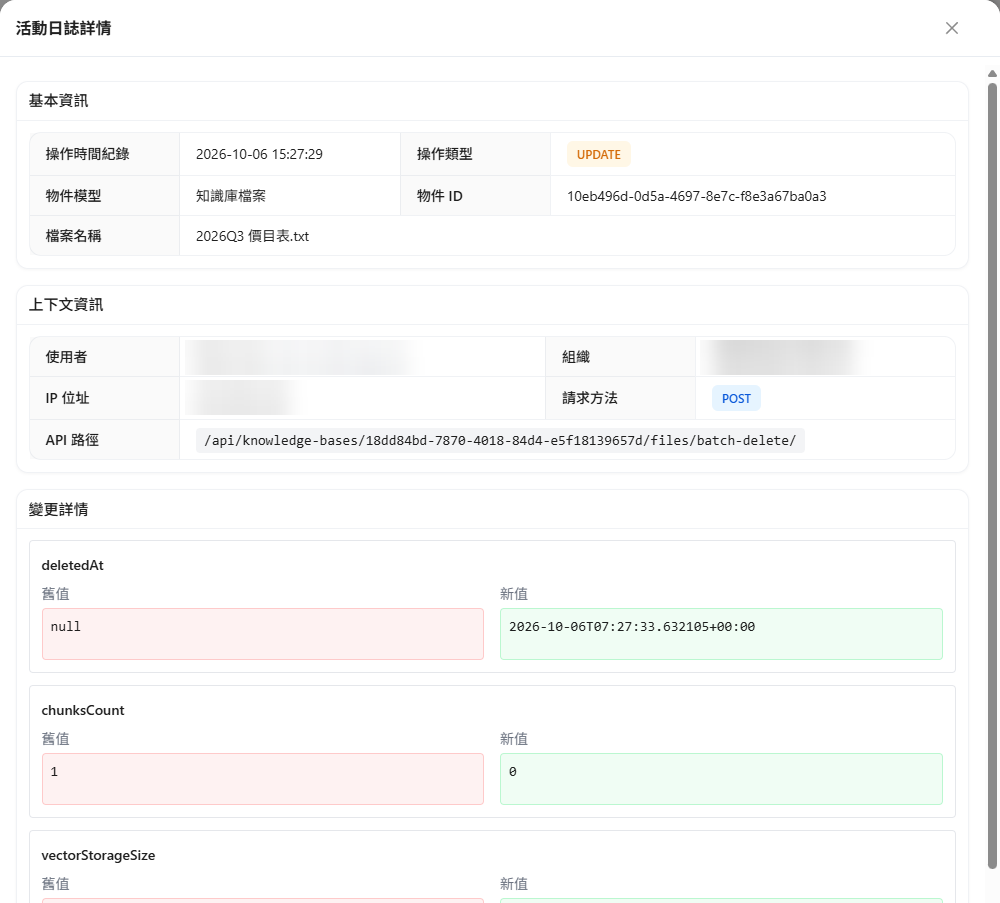
| Basic Information | Operation Timestamp, Operation Type (shown as an English code, such as `UPDATE`), Object Model, and Object ID; deletion events of knowledge base files also show File Name, the file name at the time of deletion ("Unable to retrieve file name" is shown if the snapshot has no file name) |
| Context Information | User, Organization, IP Address, Request Method, and API Path; login events instead show User, Organization, IP Address, and Login Method (the code identifying the account's authentication source, such as `maiagent` or `saml`) |
| Change Details | Shown only for "Update" events: lists each changed field (by its field code) with its Old Value and New Value |
## Tracing Deleted Knowledge Base Files
After a file in a knowledge base is deleted, the activity log shows the file name at the time of deletion on that deletion event. Even when the file is no longer in the knowledge base and cannot be looked up by ID, you can still see from the activity log who deleted which file and when.
### Use Case
A knowledge base administrator notices that an AI assistant suddenly cannot answer questions about the price of a new plan and suspects the price list was deleted. They open Organization Settings → Activity Log, filter the resource type to "Knowledge base file" and the operation type to "Update," and find an entry in the Details column reading "File Name: 2026Q3 Price List.pdf, Deleted At: …". The member who performed the deletion and the time appear in the same row. They confirm the reason with that colleague and upload the file again, without asking an engineer to dig through the database.
Follow these steps to look it up:
{% stepper %}
{% step %}
### Filter Knowledge Base File Events
In Select Resource Type, choose "Knowledge base file." In Select Operation Type, choose "Update." Then use Start Date / End Date to narrow the range to the period in which the deletion may have occurred.
{% hint style="info" %}
When a file is deleted in a knowledge base, the activity log records the operation type as "Update" rather than "Delete": the system first marks the file as deleted and keeps it for a period before permanently removing it. To find deletion events, filter by "Update."
{% endhint %}
{% hint style="warning" %}
The Select Resource Type dropdown may show two "Knowledge base file" entries, corresponding to records from different periods. If you cannot find recent records under one, select the other.
{% endhint %}
{% endstep %}
{% step %}
### Find the File Name in the Details Column
In the Details column of a deletion event, "File Name: filename" appears first, followed by the original change content (such as the deletion time). Regular update events (such as a file finishing parsing or a file's settings being modified) do not show a file name and only list the changed fields.
The Details column of a deletion event shows the file name first
{% endstep %}
{% step %}
### Open the Event Details to Confirm
Click the eye icon in the Actions column of that row to open Activity Log Details. Basic Information shows both the Object ID and the File Name; Context Information shows the member who performed the deletion and the source IP.
The Basic Information section of Activity Log Details shows both the Object ID and the File Name
{% endstep %}
{% endstepper %}
### Notes
* **Files with the same name**: A knowledge base may contain several files with the same name. Use the Object ID together with the Operation Timestamp to tell which one it was.
* **No guessing when the name is unavailable**: If the record at the time of the event did not store the file name, "File Name: Unable to retrieve file name" is shown, and the system does not infer it from other data.
* **Scope**: Currently only deletion events of "Knowledge base file" show a file name; deletion events of other resource types are displayed as before.
* **Synchronization time**: The activity log synchronizes every 10 minutes, so a file you just deleted may take up to about 10 minutes to appear.
* **Existing records are covered too**: The file name comes from data stored at the time of the event, so deletion events that occurred before this feature was released also show file names.
## Exporting Activity Logs
Exports are processed in the background. After creating an export, you can continue using other pages. Once processing finishes, download the Excel file from Export Records.
{% stepper %}
{% step %}
### Set the Export Scope
The export applies the current on-screen filters (date, user, resource type, and operation type). If no filters are set, it exports all records.
{% endstep %}
{% step %}
### Create an Export
Click Export in the upper right (hover over the button to see "Maximum 50,000 records per export"). Once created successfully, the message "Export task created" appears.
{% endstep %}
{% step %}
### Download the File
Click Export Records to open the export list. When the Status changes to Completed, click the Download icon in that row to get the file.
{% endstep %}
{% endstepper %}
### Export Status
Export Records lists the Status, Record Count, File Size, Processing Duration, Created At, and Completed At for each export. Use the refresh icon (Refresh) in the upper right to update the list.
| Status | Description |
| ------------------------------------------- | ------------------------------------------------------------------------------------------------------------------------------------------------------------------------------------------------------- |
| Pending | The export has been created and is queued for processing |
| Processing | The file is being generated |
| Completed | Ready to download |
| Failed | An error occurred during processing (the system automatically retries first), or processing has not finished within 2 hours; click View Error Details to see the cause |
While you are on the Export Records page, when an export you created finishes, the message "Export request completed. You can now download the file" appears, and an "Export Completed" browser notification is sent (browser notifications must be allowed). If the export fails, the message "Export request failed. Please view the error details" appears.
{% hint style="warning" %} Export Records lists activity log exports for the entire organization, including exports created by other members. All members with Activity Log Permission can view and download them. Exported files contain member Email addresses, IP addresses, and data contents. Store them according to your company's information security policies.
{% endhint %}
### Exported File Contents
* The format is Excel (`.xlsx`), and the filename is `events_export_<組織 ID>_<日期時間>.xlsx`.
* Each row contains one event, sorted from newest to oldest. If more than 50,000 records match the filters, only the latest 50,000 are included.
* Column names are in English. The main columns are:
| Column | Contents |
| ---------------- | ----------------------------------------------------------------------------------------------------- |
| `ID` | Event ID |
| `Timestamp` | Event time in ISO 8601 UTC format (ending in `+00:00`) |
| `User` | Email of the member who performed the operation |
| `Resource Type` | System code for the resource type, such as `chatbots.Chatbot` |
| `Object ID` | ID of the data involved in the operation |
| `Operation` | Operation type code: `create`, `update`, `delete`, or `login` |
| `Diff Preview` | The complete contents of the data at the time of the event (JSON format); left blank for login events |
| `Request Method` | Request method, such as `POST` or `PATCH` |
| `Login Method` | Authentication source code for login events |
| `IP Address` | Source IP address |
## Data Retention
Activity logs only accumulate: the admin console provides no function to delete or edit them, and the system also blocks record deletion at the database level. Even organization owners cannot remove a record. Records are not automatically cleared over time. To retain data for a specific period, filter by date and export it.
## FAQ
### Why Can't I Find a Setting Change I Just Made in the Activity Log?
The activity log synchronizes every 10 minutes. Wait a little before refreshing. Exported files use the same data, so operations you have just completed also appear in exports only after synchronization.
### Why Does the Operation Type Show "Update" After I Deleted a Knowledge Base File?
When a file is deleted in a knowledge base, the system first marks the file as deleted and keeps it for a period before permanently removing it, so the activity log records an "Update" at that moment. The Details of this record start with "File Name: filename," which distinguishes it from regular update events. For how to look it up, see [Tracing Deleted Knowledge Base Files](#deleted-kb-file).
### What If I Need to Export More Than 50,000 Records?
Each export is limited to 50,000 records. If the limit is exceeded, only the latest 50,000 are included. Narrow the date range (for example, export one month at a time) and export in batches.
### Why Do Exported Timestamps Differ from the Screen by Several Hours?
The exported `Timestamp` is in UTC, while the screen displays times in the browser's time zone. For example, for Taiwan time (UTC+8), add 8 hours to the exported timestamp to get the time shown on screen.
### What Should I Do If Exports Keep Failing?
In Export Records, click View Error Details to check the cause. Exports that have not finished within 2 hours are marked Failed. Narrow the date range and export again. If failures continue, provide the error details to customer support for troubleshooting.
---
# Agent Instructions
This documentation is published with GitBook. GitBook is the documentation platform designed so that both humans and AI agents can read, navigate, and reason over technical content effectively. Learn more at gitbook.com.
## Querying This Documentation
If you need additional information that is not directly available in this page, you can query the documentation by asking a question.
Perform an HTTP GET request on the following URL with the `ask` and `goal` query parameters:
```
GET https://docs.maiagent.ai/maiagent-user-guide/en/org/activity-log.md?ask=&goal=
```
`ask` is the immediate question: it should be specific, self-contained, and written in natural language.
`goal` is what the user is ultimately trying to achieve, the reason they need the answer. Sharing it helps GitBook give you a better, more relevant answer. A goal is most helpful when it describes the outcome the user wants rather than restating the question. For example, with `ask=how do I create an API token`, a goal like `automate deployments from our CI pipeline` lets GitBook tailor the answer to that use case.
The response will contain a direct answer to the question and relevant excerpts and sources from the documentation.
Use this mechanism when the answer is not explicitly present in the current page, you need clarification or additional context, or you want to retrieve related documentation sections.