> For the complete documentation index, see [llms.txt](https://docs.maiagent.ai/llms.txt). Markdown versions of documentation pages are available by appending `.md` to page URLs; this page is available as [Markdown](https://docs.maiagent.ai/maiagent-user-guide/en/meeting-records/quick-entry.md).

# Meeting Records Quick Access

Start recording from the Office Apps quick access panel on the MaiGPT home page, or continue viewing recent meeting records and summaries

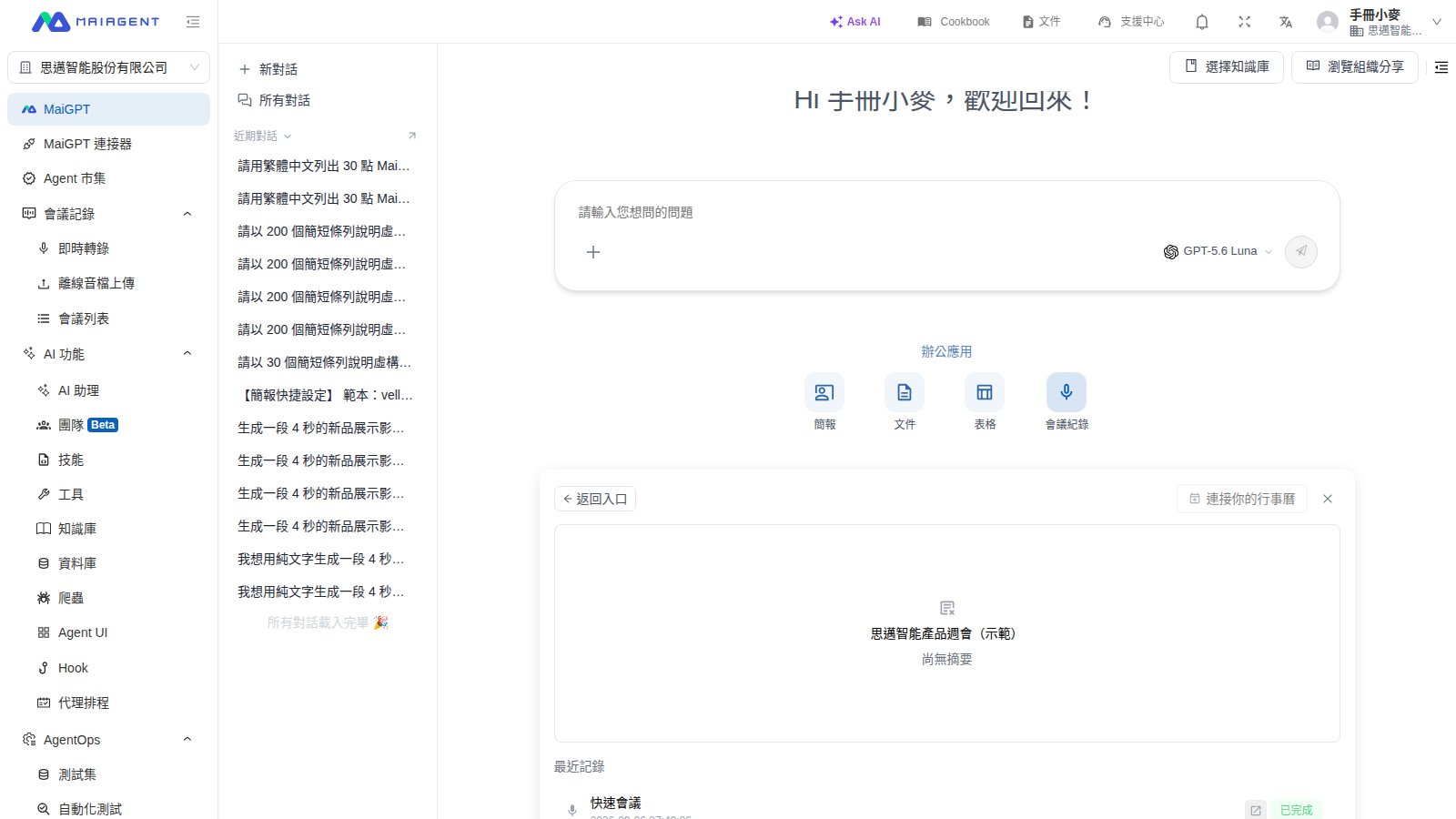
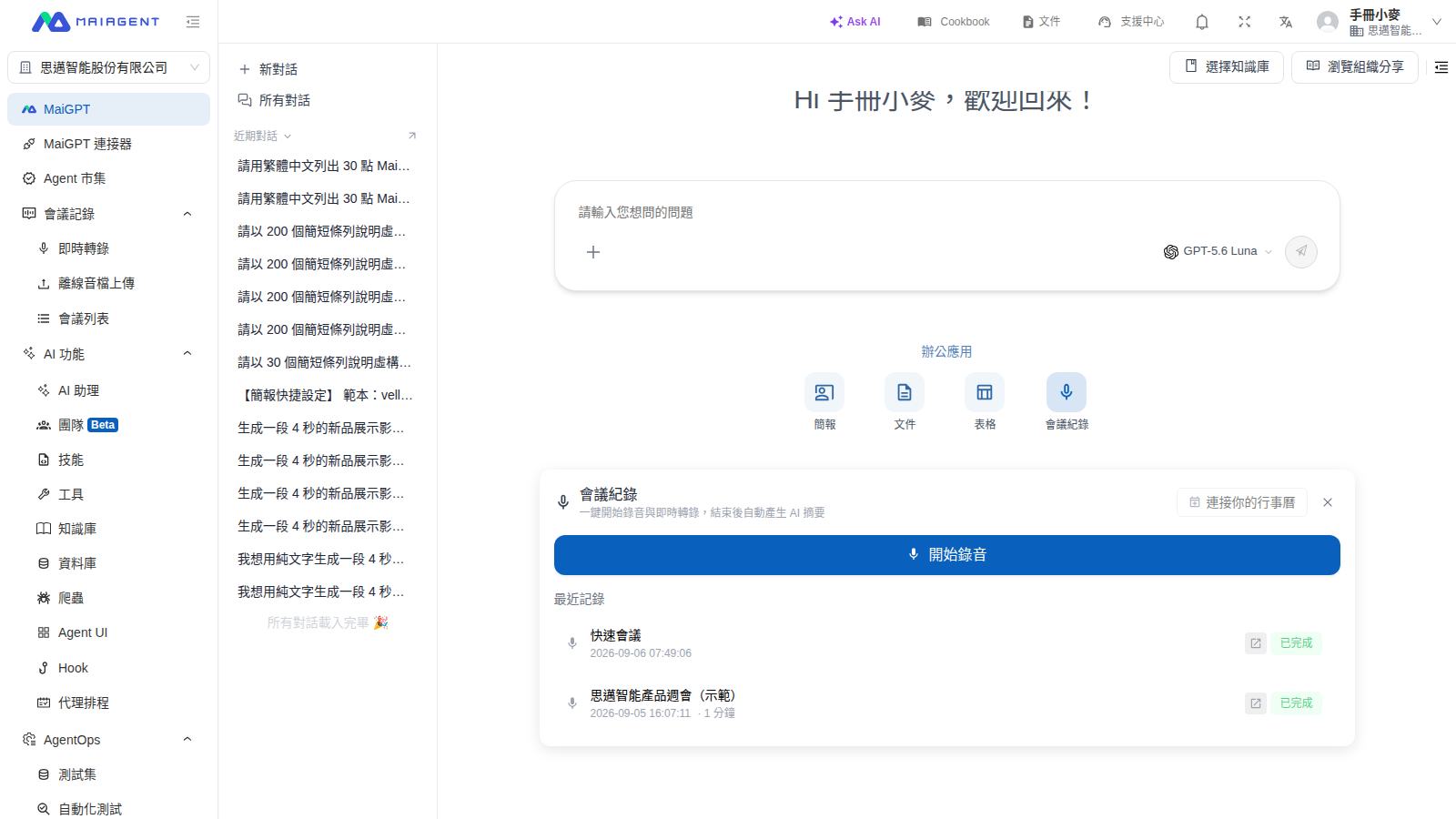
In the **Office Apps** section on the MaiGPT home page, select <mark style="color:blue;">Meeting Records</mark> to start recording immediately or continue viewing an existing meeting under **Recent Records**.

<figure><img src="https://1360999650-files.gitbook.io/~/files/v0/b/gitbook-x-prod.appspot.com/o/spaces%2F6v6TNkkOQVfRYfcNirHL%2Fuploads%2Fgit-blob-341c3a9c9e0f6958bf054414ae456a92276d2344%2Fmaigpt-meeting-quick-entry.png?alt=media" alt="MaiGPT Meeting Records quick access panel"><figcaption><p>The Meeting Records quick access panel lets you start recording, connect your calendar, and view recent records</p></figcaption></figure>

### Use Case <a href="#meeting-record-scenario" id="meeting-record-scenario"></a>

After a regular project meeting, a project manager wants to check in MaiGPT whether a summary has been generated. She opens <mark style="color:blue;">Meeting Records</mark>, selects the meeting under **Recent Records**, and checks the summary status in the panel. When finished, she selects <mark style="color:blue;">Back to Entry</mark> to return to the start recording screen. If she needs the transcript or other complete details, she can select the button on the right side of the record to open the full record page. This leaves the MaiGPT chat page; after reviewing the record, she can return to MaiGPT from the sidebar.

### View Recent Records <a href="#view-recent-meeting-records" id="view-recent-meeting-records"></a>

{% stepper %}
{% step %}

### 1. Open the Quick Access Panel <a href="#open-meeting-quick-entry" id="open-meeting-quick-entry"></a>

On the MaiGPT home page, select <mark style="color:blue;">Meeting Records</mark>.
{% endstep %}

{% step %}

### 2. Select a Meeting <a href="#select-recent-meeting" id="select-recent-meeting"></a>

Under **Recent Records**, select a meeting to view its summary or summary status directly in the panel.
{% endstep %}

{% step %}

### 3. Return to the Entry Screen <a href="#return-to-meeting-entry" id="return-to-meeting-entry"></a>

On the summary screen, select <mark style="color:blue;">Back to Entry</mark> to return to the calendar and start recording screen.

<figure><img src="https://1360999650-files.gitbook.io/~/files/v0/b/gitbook-x-prod.appspot.com/o/spaces%2F6v6TNkkOQVfRYfcNirHL%2Fuploads%2Fgit-blob-925ffe4357436124ed2aa158e8b8c0d29b3c712c%2Fmaigpt-meeting-summary-status.png?alt=media" alt="MaiGPT meeting summary status and Back to Entry button"><figcaption><p>After selecting a recent record, you can view its summary status and return to the entry screen</p></figcaption></figure>
{% endstep %}

{% step %}

### 4. Open the Full Record <a href="#open-full-meeting-record" id="open-full-meeting-record"></a>

When you need the transcript or other complete details, hover over the button on the right side of the record. When the **View Full Record** tooltip appears, select the button to open the full record page for that meeting. This leaves the MaiGPT chat page; after reviewing the record, select MaiGPT from the sidebar to return.
{% endstep %}
{% endstepper %}

### Recent Record Statuses <a href="#recent-meeting-statuses" id="recent-meeting-statuses"></a>

| Screen Status         | Meaning                                                          | Recommended Action                                             |
| --------------------- | ---------------------------------------------------------------- | -------------------------------------------------------------- |
| **Generating**        | The meeting is still being transcribed, processed, or summarized | Reopen the quick access panel later to check the latest status |
| **Generation Failed** | Meeting transcription or summary generation failed               | Open the full meeting record to review the failure status      |
| **No Summary Yet**    | The meeting is complete, but no summary is available to display  | Open the full meeting record to generate or view the summary   |

{% hint style="info" %}
If **Recent Records** displays **No Meeting Records Yet**, complete a meeting recording first, then return to this panel to view it.
{% endhint %}

For complete instructions on recording, transcription, and summaries, see [Create a Meeting Record](/maiagent-user-guide/en/meeting-records/create-meeting.md), [Live Meeting Transcription](/maiagent-user-guide/en/meeting-records/live-transcription.md), and [AI Meeting Summary & Q\&A](/maiagent-user-guide/en/meeting-records/summary.md).


---

# Agent Instructions
This documentation is published with GitBook. GitBook is the documentation platform designed so that both humans and AI agents can read, navigate, and reason over technical content effectively. Learn more at gitbook.com.

## Querying This Documentation
If you need additional information that is not directly available in this page, you can query the documentation dynamically by asking a question.

Perform an HTTP GET request on the current page URL with the `ask` query parameter, and the optional `goal` query parameter:

```
GET https://docs.maiagent.ai/maiagent-user-guide/en/meeting-records/quick-entry.md?ask=<question>&goal=<endgoal>
```

`ask` is the immediate question: it should be specific, self-contained, and written in natural language.
`goal` is optional and describes the broader end goal you are ultimately trying to accomplish on behalf of the user. GitBook uses it to tailor the answer towards what is most useful for that goal.

The response will contain a direct answer to the question and relevant excerpts and sources from the documentation.

Use this mechanism when the answer is not explicitly present in the current page, you need clarification or additional context, or you want to retrieve related documentation sections.