> For the complete documentation index, see [llms.txt](https://docs.maiagent.ai/llms.txt). Markdown versions of documentation pages are available by appending `.md` to page URLs; this page is available as [Markdown](https://docs.maiagent.ai/maiagent-user-guide/en/meeting-records/backup-audio.md).

# Meeting Record Backup Audio

Live meeting records create a local backup audio file in the browser, preventing audio loss during network outages. Afterward, you can play it or use it to retranscribe missing sections.

Live meeting records send microphone audio over the network for cloud transcription. Previously, if a laptop lost its connection during a meeting, audio from the disconnected period could not be sent, leaving a gap in both the cloud recording and transcript. **Backup audio** fills this gap: when recording starts, the browser also records a local backup and uploads it in segments. Even if the network disconnects, local recording continues, and the segments upload automatically when the connection is restored. After the meeting, the system combines all segments into a complete backup audio file—the most complete recording in the system.

{% hint style="info" %}
Backup audio is created only for **live meeting records** (recorded with a microphone). Meetings created by uploading an offline audio file already have a complete file and do not generate backup audio.
{% endhint %}

## Use Case <a href="#use-case" id="use-case"></a>

A customer service manager uses a laptop in a conference room to record a product meeting with Live Transcription. Halfway through, the Wi-Fi becomes unstable. The transcript stops updating, but "Recording Local Backup" remains visible below the title, so she knows no audio is being lost and continues as usual. After clicking "Stop Recording," she sees "Backup Complete" on the meeting details page and switches the player to "Backup Audio" to confirm that the discussion during the outage is included. She then clicks "Retranscribe," changes the source to "Backup Audio," reviews the estimated cost, and confirms. A few minutes later, a backup version appears in the Transcript tab, where she can view the complete meeting without asking colleagues to reconstruct the missing section from memory.

## Backup Status During Recording <a href="#recording-status" id="recording-status"></a>

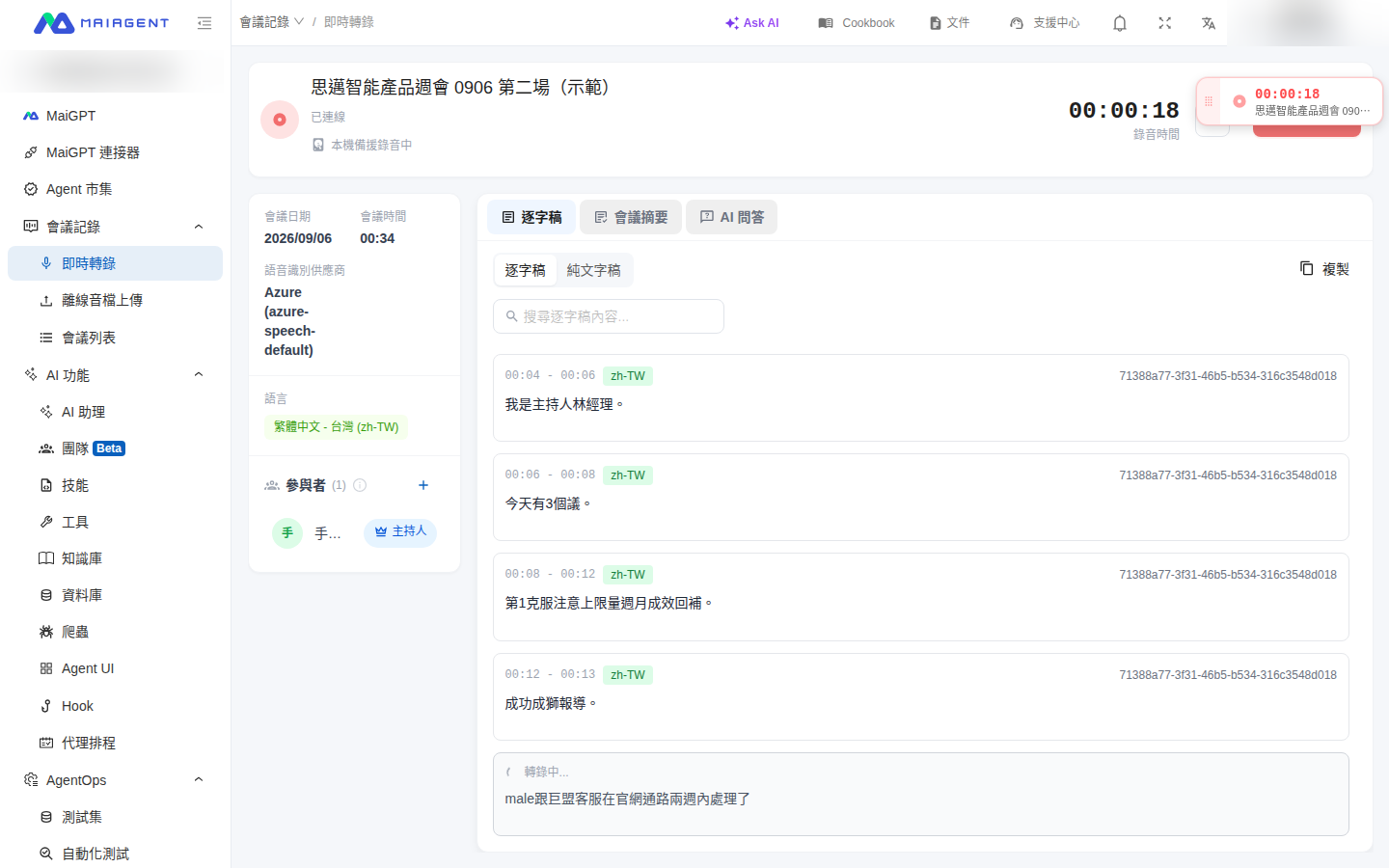
After you click <mark style="color:blue;">Start Recording</mark>, the backup status appears below the meeting name:

| Display Text                                                      | Meaning                                                                                                                                                                                 |
| ----------------------------------------------------------------- | --------------------------------------------------------------------------------------------------------------------------------------------------------------------------------------- |
| **Recording Local Backup**                                        | Cloud recording and local backup are running simultaneously; everything is working normally                                                                                             |
| **Syncing Backup, N Segments Remaining**                          | The network is unstable or disconnected. Recorded segments are queued locally and upload automatically when the connection is restored; no action is required                           |
| **Local Backup Unavailable (Reason); Meeting Continues Normally** | Backup cannot be enabled (for example, the browser is unsupported, browser storage is unavailable, or another tab is already recording). The meeting and cloud recording are unaffected |

<figure><img src="https://1360999650-files.gitbook.io/~/files/v0/b/gitbook-x-prod.appspot.com/o/spaces%2F6v6TNkkOQVfRYfcNirHL%2Fuploads%2Fgit-blob-708c298f338405453883adf90051746895567638%2Fmeeting-backup-recording.png?alt=media" alt="Live transcription screen showing &#x27;Recording Local Backup&#x27; below the meeting name"><figcaption><p>The local backup status appears below the meeting name during recording</p></figcaption></figure>

{% hint style="warning" %}

* Backup recording runs in the browser. Keep the entire meeting open in the **same browser tab**. Only one tab can record a meeting; a second tab displays "Recording in Another Tab."
* When you click the microphone icon to the left of "Stop Recording" to mute, the corresponding section of the backup audio is also muted, so content you do not want recorded is not captured.
* Local backup data awaiting upload is limited to 1 GB. Once the limit is reached, you cannot start another backup recording.
  {% endhint %}

## Backup Status After the Meeting <a href="#sync-status" id="sync-status"></a>

After you click <mark style="color:blue;">Stop Recording</mark>, the meeting status first changes to "Completed." Backup audio has its own sync status, displayed next to the title on the meeting details page:

| Status                | Meaning                                                                                                                                                    |
| --------------------- | ---------------------------------------------------------------------------------------------------------------------------------------------------------- |
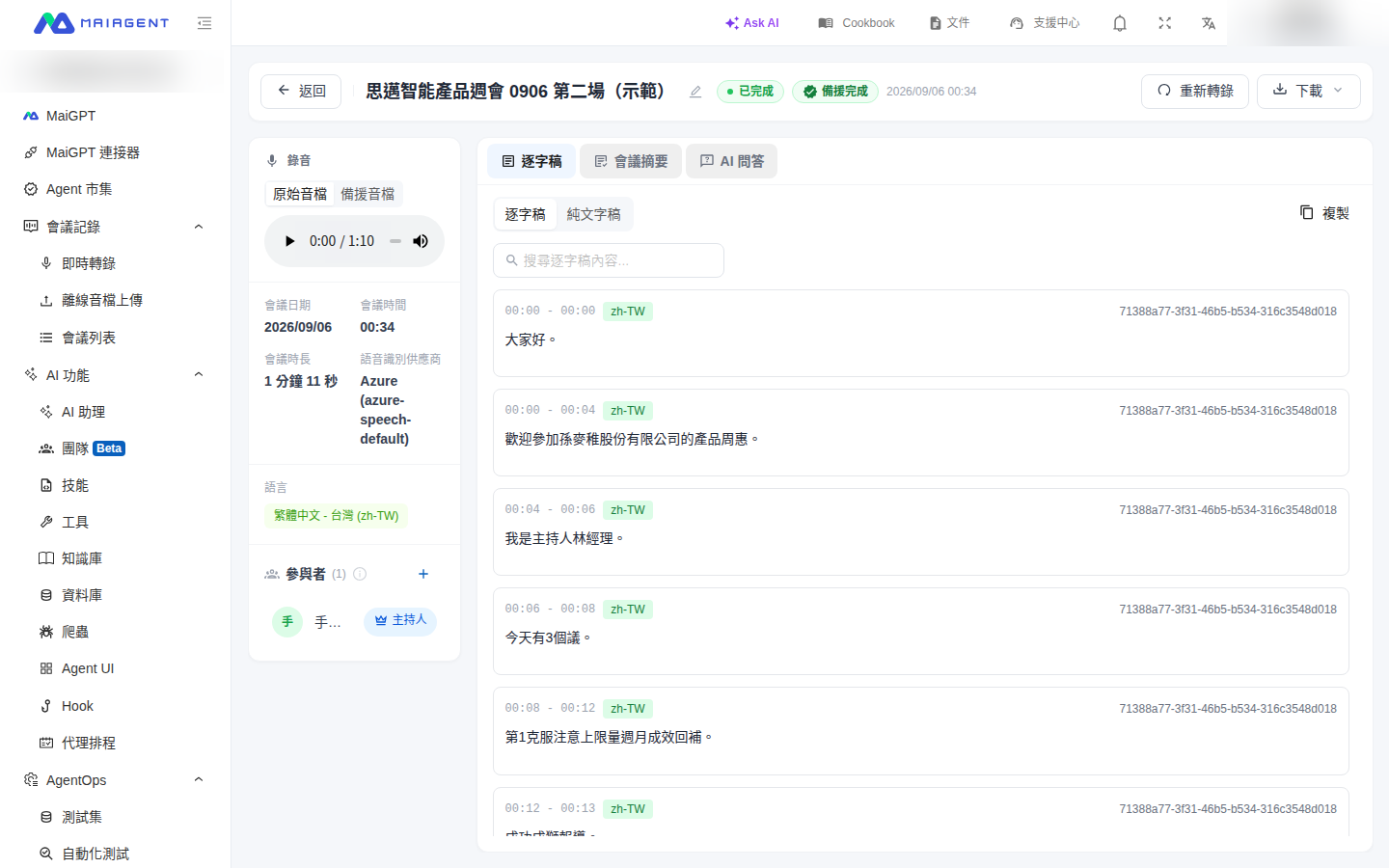
| **Backup Complete**   | The meeting is complete and the backup audio is fully synchronized—this backup is the most complete recording in the system                                |
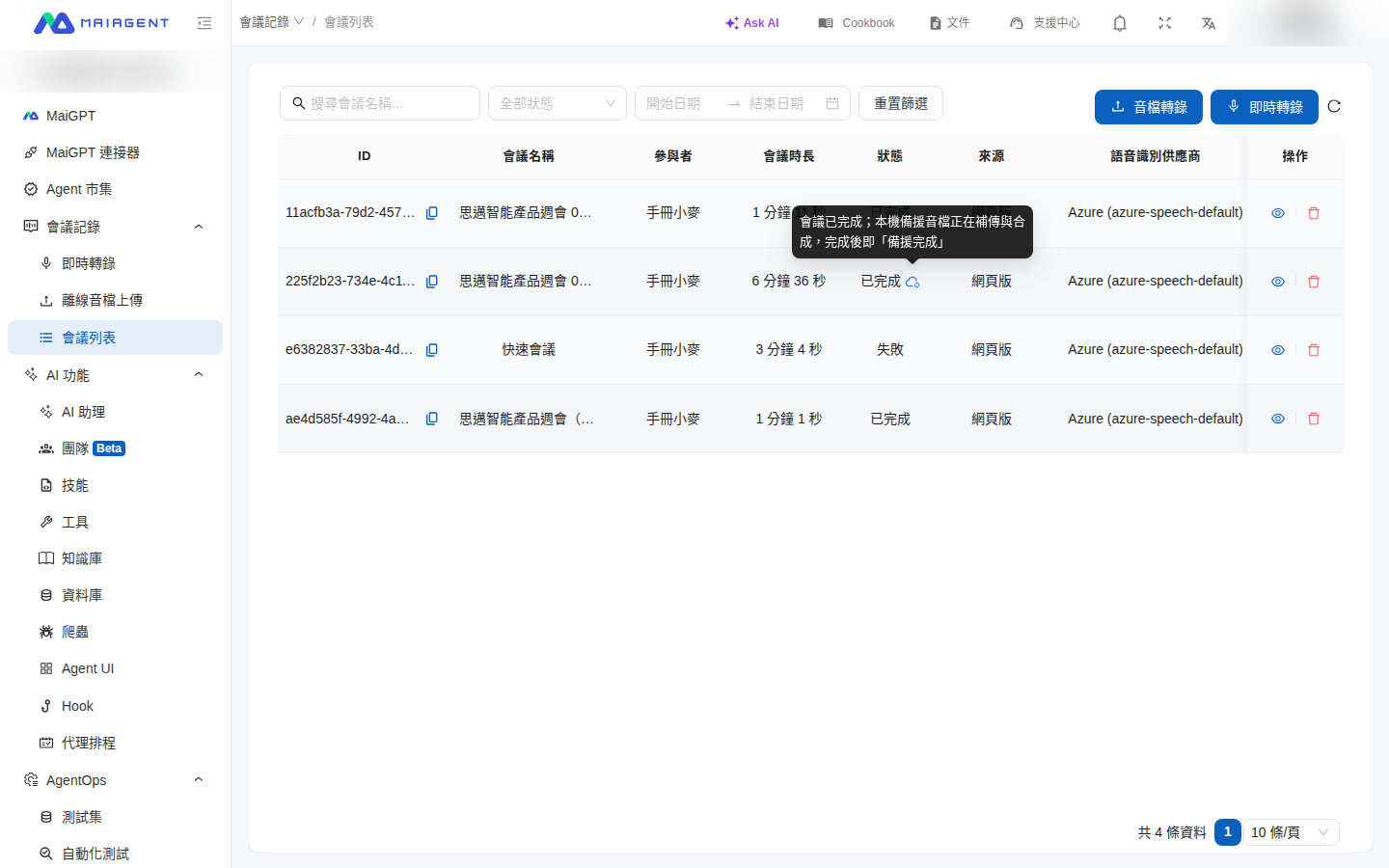
| **Syncing Backup**    | The meeting is complete, but the local backup audio is still uploading and merging. The status automatically changes to "Backup Complete" when finished    |
| **Backup Incomplete** | The backup has not synchronized after more than one day. The system combines the uploaded segments into a backup audio file with the final section missing |

<figure><img src="https://1360999650-files.gitbook.io/~/files/v0/b/gitbook-x-prod.appspot.com/o/spaces%2F6v6TNkkOQVfRYfcNirHL%2Fuploads%2Fgit-blob-3b4379ae167493d375678bd58c4dad53f7093a9e%2Fmeeting-backup-detail-synced.png?alt=media" alt="Meeting details page showing &#x27;Backup Complete&#x27; beside the title and an &#x27;Original Audio / Backup Audio&#x27; switch in the recording section"><figcaption><p>Meeting details page: the "Backup Complete" label and audio source switch</p></figcaption></figure>

In the meeting list, meetings whose backups are not yet finalized display an additional icon beside the status column. Hover over it to view details. Meetings with completed backups have no additional indicator.

<figure><img src="https://1360999650-files.gitbook.io/~/files/v0/b/gitbook-x-prod.appspot.com/o/spaces%2F6v6TNkkOQVfRYfcNirHL%2Fuploads%2Fgit-blob-61e6b7cb089ac23931b31861376e62533cb98367%2Fmeeting-backup-list-syncing.png?alt=media" alt="Meeting list showing the backup syncing icon and description beside the status column"><figcaption><p>Meeting list: the "Syncing Backup" icon beside the status column</p></figcaption></figure>

{% hint style="info" %}
**What happens if I close the browser immediately after losing the network connection?** Segments that have not uploaded remain on the local device. Open the MaiAgent admin console again within one day, and the system automatically resumes uploading while the meeting displays "Syncing Backup." If you do not return within one day, the system combines the uploaded portions and labels the backup "Backup Incomplete."
{% endhint %}

## Switch to Backup Audio for Playback <a href="#switch-audio-source" id="switch-audio-source"></a>

For a meeting with backup audio, an <mark style="color:blue;">Original Audio</mark> / <mark style="color:blue;">Backup Audio</mark> switch appears above the player in the "Recording" section on the left side of the details page. This switch affects **playback only**: meeting summaries, AI Q\&A, knowledge base uploads, and MP3 downloads continue to use the original recording (unless you select another transcript source when generating a summary, as described below).

## Retranscribe Using Backup Audio <a href="#retranscribe-from-backup" id="retranscribe-from-backup"></a>

If the original transcript is missing a section due to a network outage, you can retranscribe the backup audio to create a new transcript version. The existing transcript is retained.

{% stepper %}
{% step %}

### Open Retranscription <a href="#retranscribe-step-open" id="retranscribe-step-open"></a>

Open the meeting details page and click <mark style="color:blue;">Retranscribe</mark> in the upper-right corner.
{% endstep %}

{% step %}

### Select "Backup Audio" and Confirm the Cost <a href="#retranscribe-step-source" id="retranscribe-step-source"></a>

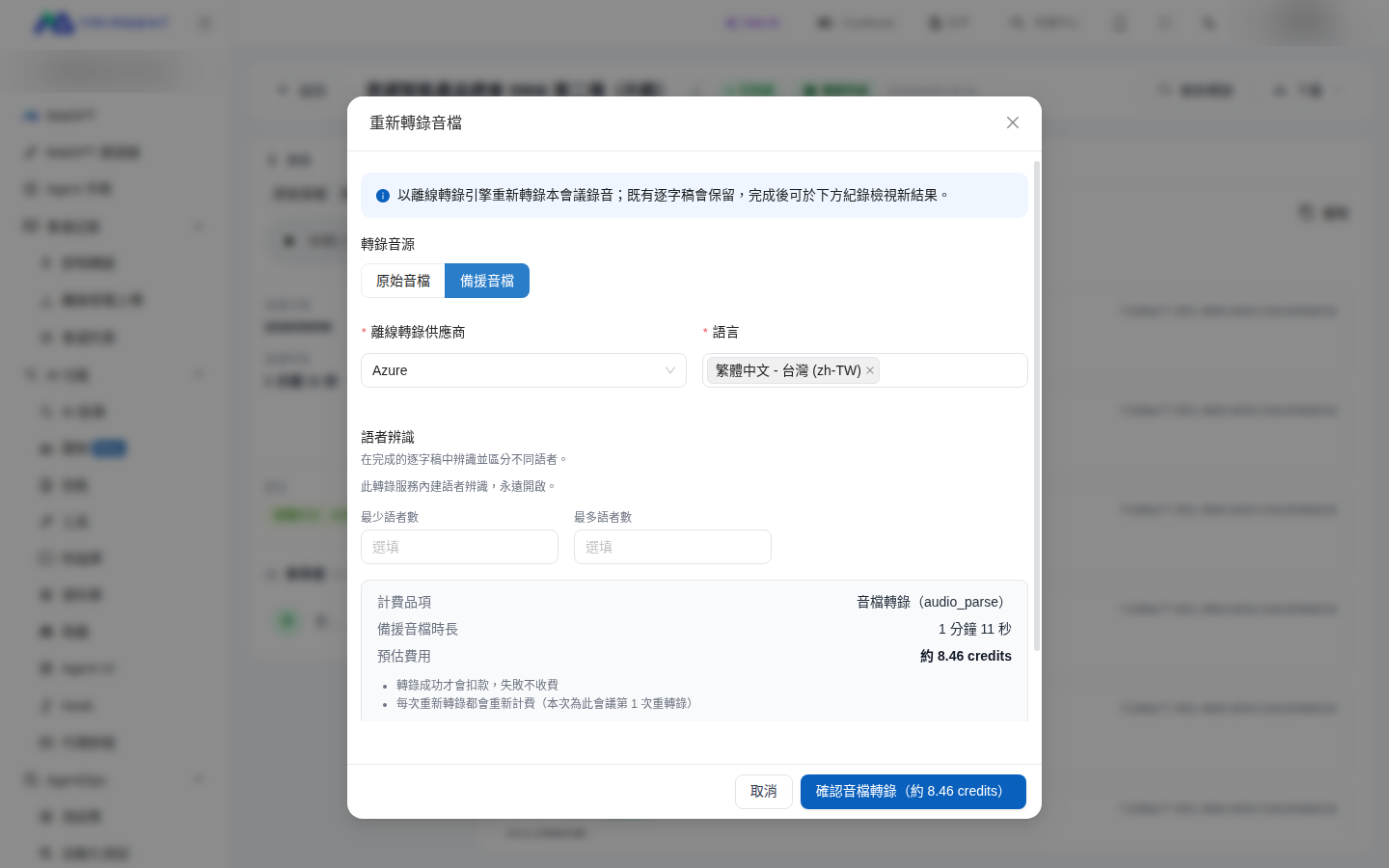
Under <mark style="color:blue;">Transcription Source</mark>, select <mark style="color:blue;">Backup Audio</mark>. Billing information appears at the bottom of the dialog, including the billable item (audio transcription), backup audio duration, and estimated cost. It also explains that "you are charged only if transcription succeeds; failed attempts are free" and "each retranscription is billed separately."

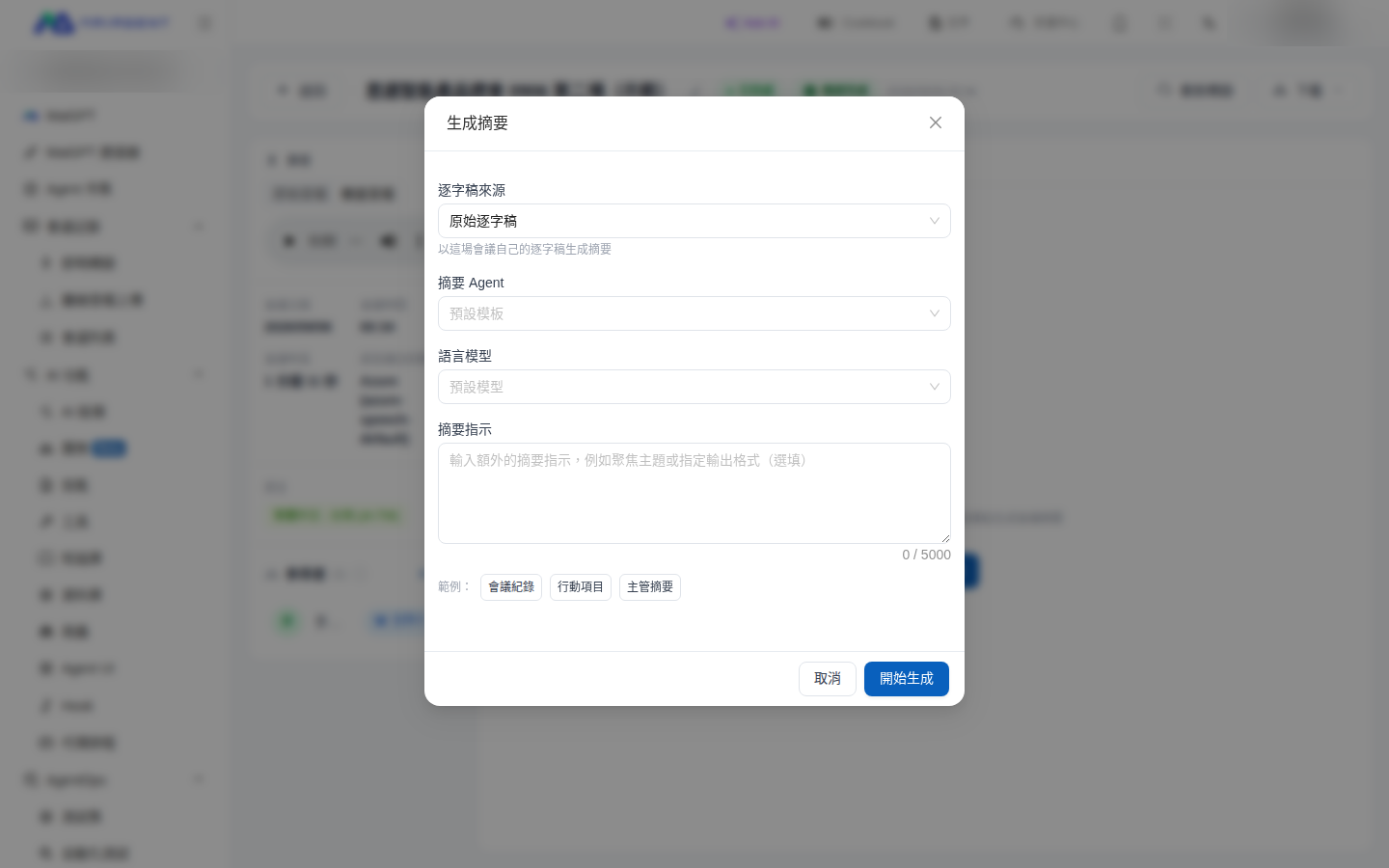
<figure><img src="https://1360999650-files.gitbook.io/~/files/v0/b/gitbook-x-prod.appspot.com/o/spaces%2F6v6TNkkOQVfRYfcNirHL%2Fuploads%2Fgit-blob-4dd090ee82a03e629e4e9906d697d09b8f4d11d0%2Fmeeting-backup-retranscribe.png?alt=media" alt="Retranscription dialog showing the billable item, backup audio duration, and estimated cost after Backup Audio is selected"><figcaption><p>The dialog discloses the estimated cost and billing rules</p></figcaption></figure>
{% endstep %}

{% step %}

### Submit the Transcription <a href="#retranscribe-step-submit" id="retranscribe-step-submit"></a>

Click <mark style="color:blue;">Confirm Audio Transcription (Approx. X credits)</mark>—the button displays the estimated charge. After submission, the screen indicates that transcription has started and that you will be charged only if it succeeds. A "Processing" entry appears under "Retranscription History."
{% endstep %}

{% step %}

### View the Backup Transcript Version <a href="#retranscribe-step-view" id="retranscribe-step-view"></a>

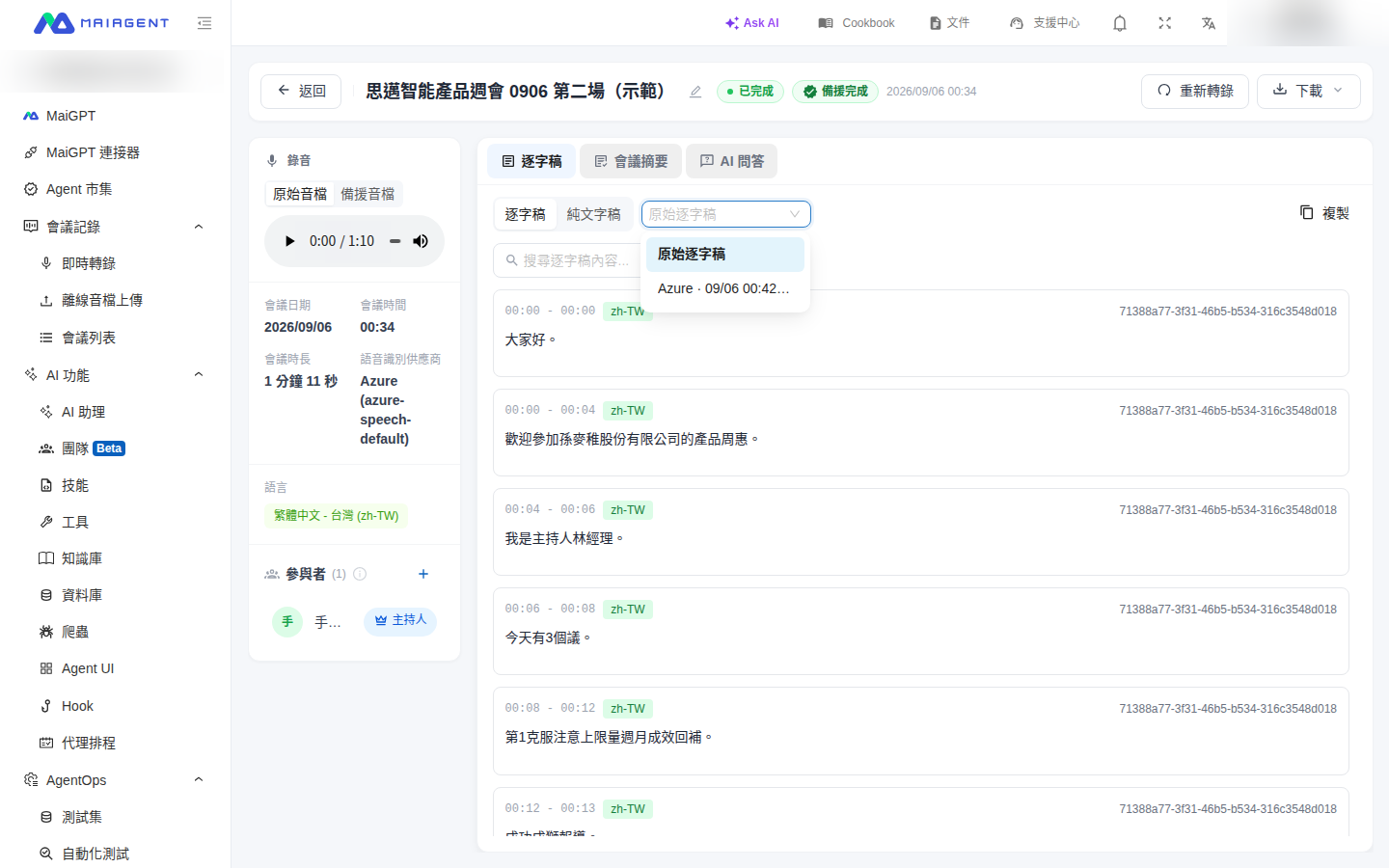
After transcription is complete, a version labeled "Backup" appears in the version menu on the Transcript tab (for example, "Azure · 09/06 00:42 · Backup"). When selected, the player **automatically switches to the backup audio**, allowing you to click the transcript and jump accurately to the corresponding timestamp.

<figure><img src="https://1360999650-files.gitbook.io/~/files/v0/b/gitbook-x-prod.appspot.com/o/spaces%2F6v6TNkkOQVfRYfcNirHL%2Fuploads%2Fgit-blob-a9ac3b62f694c51954e031fb6dd2b3884d927568%2Fmeeting-backup-transcript-version.png?alt=media" alt="Version menu on the Transcript tab listing the original transcript and backup version"><figcaption><p>Version menu on the Transcript tab: original transcript and backup version</p></figcaption></figure>
{% endstep %}
{% endstepper %}

{% hint style="info" %}

* The backup transcript aligns only with the backup audio. If you manually switch to "Original Audio" while viewing the backup version, the screen warns: "The transcript and the audio being played come from different recordings. Clicking the transcript cannot jump precisely to that sentence."
* If the organization wallet has insufficient funds, "Backup Audio" is disabled and displays "Insufficient wallet balance. Please add funds first." No transcription job is created, and no charge is made.
* If the system detects that the end of the original transcript may be missing, a "The end of the transcript may be missing approximately N minutes" notice appears at the top of the Transcript tab, with a <mark style="color:blue;">Retranscribe Using Backup Audio</mark> shortcut.
  {% endhint %}

## Generate a Summary from a Backup Transcript <a href="#summary-from-backup" id="summary-from-backup"></a>

When you click <mark style="color:blue;">Generate Summary</mark> on the Meeting Summary tab, <mark style="color:blue;">Transcript Source</mark> defaults to "Original Transcript." If a backup version is available, you can select it so the summary includes the recovered sections. The dialog then states: "The backup transcript timeline corresponds to the backup audio and differs from the original audio."

<figure><img src="https://1360999650-files.gitbook.io/~/files/v0/b/gitbook-x-prod.appspot.com/o/spaces%2F6v6TNkkOQVfRYfcNirHL%2Fuploads%2Fgit-blob-bccda37e29ab1353620a8c9eac127631b8a69771%2Fmeeting-backup-summary-source.png?alt=media" alt="Transcript Source option at the top of the Generate Summary dialog"><figcaption><p>Select a transcript source when generating a summary</p></figcaption></figure>

## Further Reading <a href="#further-reading" id="further-reading"></a>

* [Live Meeting Transcription](/maiagent-user-guide/en/meeting-records/live-transcription.md): Start recording and view the recording screen
* [Meeting Record Details](/maiagent-user-guide/en/meeting-records/meeting-detail.md): Transcript, player, and meeting information
* [AI Meeting Summary & Q\&A](/maiagent-user-guide/en/meeting-records/summary.md): Generate summaries and manage summary versions


---

# Agent Instructions
This documentation is published with GitBook. GitBook is the documentation platform designed so that both humans and AI agents can read, navigate, and reason over technical content effectively. Learn more at gitbook.com.

## Querying This Documentation
If you need additional information that is not directly available in this page, you can query the documentation dynamically by asking a question.

Perform an HTTP GET request on the current page URL with the `ask` query parameter, and the optional `goal` query parameter:

```
GET https://docs.maiagent.ai/maiagent-user-guide/en/meeting-records/backup-audio.md?ask=<question>&goal=<endgoal>
```

`ask` is the immediate question: it should be specific, self-contained, and written in natural language.
`goal` is optional and describes the broader end goal you are ultimately trying to accomplish on behalf of the user. GitBook uses it to tailor the answer towards what is most useful for that goal.

The response will contain a direct answer to the question and relevant excerpts and sources from the documentation.

Use this mechanism when the answer is not explicitly present in the current page, you need clarification or additional context, or you want to retrieve related documentation sections.