> For the complete documentation index, see [llms.txt](https://docs.maiagent.ai/llms.txt). Markdown versions of documentation pages are available by appending `.md` to page URLs; this page is available as [Markdown](https://docs.maiagent.ai/maiagent-user-guide/en/meeting-records/access-control.md).

# Meeting Access Control

Meeting record visibility scope, participant and external participant roster management, and how to configure the "Meeting Record Management Permission"

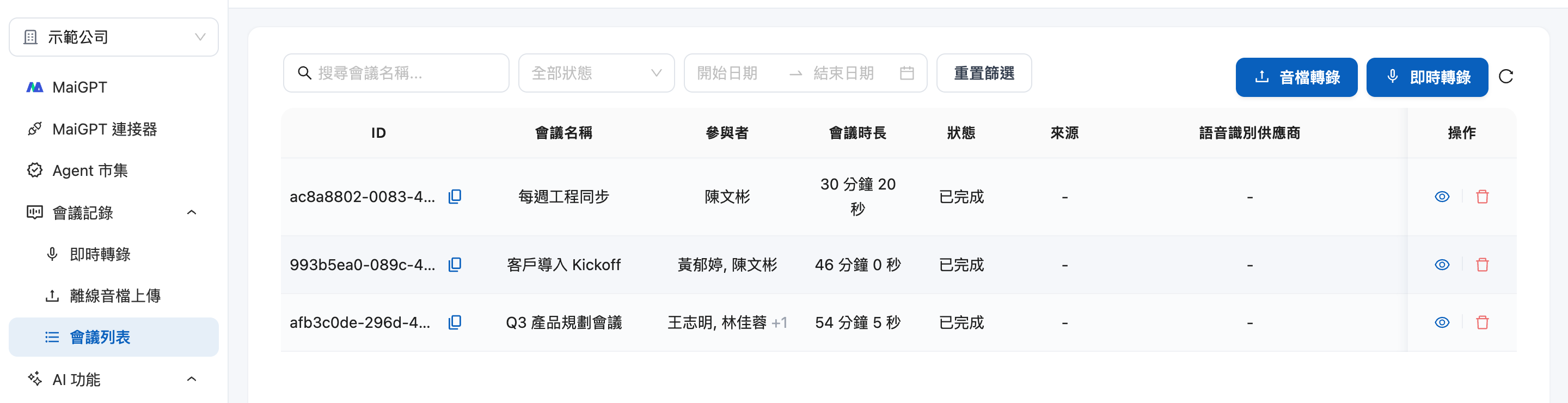
Meeting content often involves sensitive information, so the meeting list **does not show all meetings in the organization**. By default, each member can only see meetings they are involved in; to share a meeting with colleagues, grant access through the "Participants" roster within the meeting.

## Who Can See Which Meetings <a href="#visibility-rules" id="visibility-rules"></a>

| Identity                                               | Visible Scope in Meeting List                                             |
| ------------------------------------------------------ | ------------------------------------------------------------------------- |
| **Regular Member**                                     | Only meetings they created + meetings they were added to as a participant |
| **Organization Owner**                                 | All meetings in the organization                                          |
| **Member with "Meeting Record Management Permission"** | All meetings in the organization                                          |

Meetings without access permission will display a "meeting not found" message even when accessed directly via URL — the system will not reveal its existence.

<figure><img src="https://1360999650-files.gitbook.io/~/files/v0/b/gitbook-x-prod.appspot.com/o/spaces%2F6v6TNkkOQVfRYfcNirHL%2Fuploads%2Fgit-blob-e65f0a06bba959465cdc41d9a2a39bef1aa46c0b%2Fmeeting-access-list.png?alt=media" alt="Participants column in the meeting list"><figcaption><p>Meeting list: The "Participants" column shows the access roster for each meeting</p></figcaption></figure>

{% hint style="info" %}
The person who created the meeting automatically becomes the **host** and can always see the meetings they created.
{% endhint %}

## Participants: The Meeting Access Roster <a href="#participants-list" id="participants-list"></a>

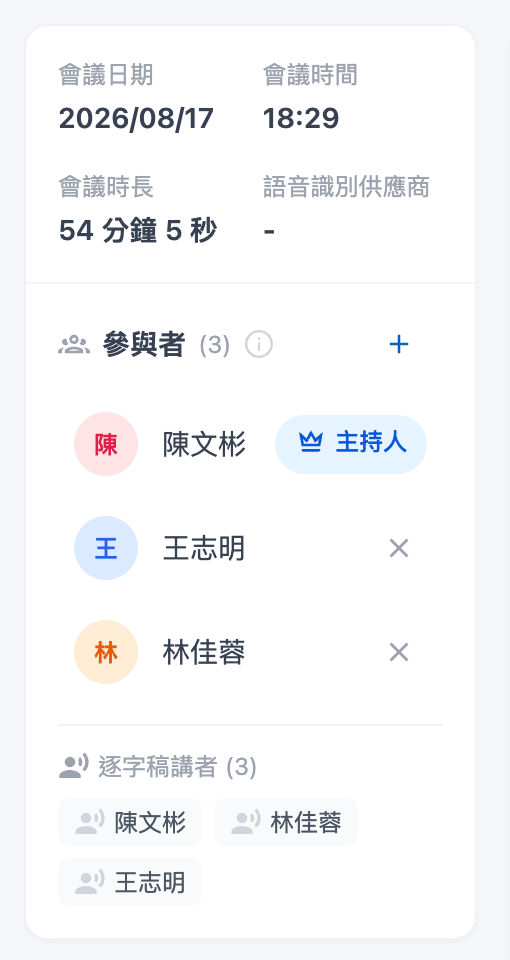
The "<mark style="color:blue;">Participants</mark>" card on the right side of the meeting detail page is the **access roster** for that meeting — only people on the roster can see the meeting.

<figure><img src="https://1360999650-files.gitbook.io/~/files/v0/b/gitbook-x-prod.appspot.com/o/spaces%2F6v6TNkkOQVfRYfcNirHL%2Fuploads%2Fgit-blob-6e9bc885691e396d8027d918f3a0b1944491d5ba%2Fmeeting-access-participants-card.png?alt=media" alt="Participants card on the meeting detail page"><figcaption><p>Participants card: Host label, member list, add participant button</p></figcaption></figure>

Card contents:

* **Host**: The meeting creator, with a host label next to their name
* **Members**: Organization members who have been added
* **External Participants** (bottom of card): Names of attendees who are not organization members; this is **a text-only roster and does not represent access permissions**. See [External Participants](#external-participants) for details

The "Participants" column in the meeting list also displays this roster, showing `+N` when there are more than 2 people.

{% hint style="warning" %}
"Participants" and "External Participants" are two different things. External participants are recorded by name only and cannot access the meeting; to grant viewing access, you must add an organization member to the participants roster.
{% endhint %}

### Who Can View and Who Can Edit the Roster <a href="#roster-permissions" id="roster-permissions"></a>

| Action                    | Condition                                                                                                            |
| ------------------------- | -------------------------------------------------------------------------------------------------------------------- |
| View participants roster  | Anyone who can see the meeting                                                                                       |
| Add / Remove participants | Organization Owner, member with "Meeting Record Management Permission", or **any participant already on the roster** |

## Add a Participant <a href="#add-participant" id="add-participant"></a>

### 1. Open the meeting detail page

Click on the meeting you want to share in the meeting list.

### 2. Click the "+" in the upper right corner of the participants card

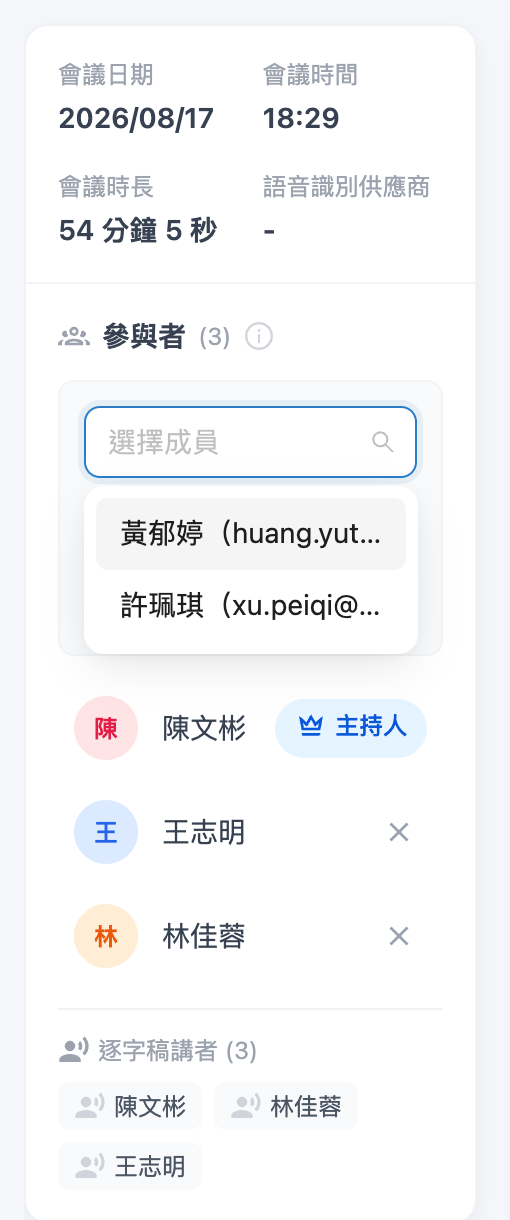
The card will expand a member selection dropdown.

### 3. Select an organization member and click "Add"

<figure><img src="https://1360999650-files.gitbook.io/~/files/v0/b/gitbook-x-prod.appspot.com/o/spaces%2F6v6TNkkOQVfRYfcNirHL%2Fuploads%2Fgit-blob-88d114f3146f0f00f28c75c05ebd19b96057e4fc%2Fmeeting-access-add-participant.png?alt=media" alt="Member dropdown for adding participants"><figcaption><p>Select the person to add from organization members</p></figcaption></figure>

* The dropdown only lists members from the **same organization**, with keyword search available
* Members already on the roster will not appear in the dropdown
* After successfully adding, the person can **immediately** see the meeting in their meeting list

## Remove a Participant <a href="#remove-participant" id="remove-participant"></a>

Click the "X" on the right side of the member in the participants roster and confirm to remove them. The person immediately loses viewing access to the meeting.

{% hint style="danger" %}
**The host cannot be removed.** The meeting creator's row does not have a remove button, ensuring the meeting always has at least one person who can manage it.
{% endhint %}

## External Participants: Record Non-Organization Members <a href="#external-participants" id="external-participants"></a>

Attendees such as customers, vendors, and consultants who are **not organization members** cannot be added to the "Participants" roster, but you can record them under "<mark style="color:blue;">External Participants</mark>." External participants are **a text-only roster**: their names are recorded in the meeting information to provide a complete attendee list, but they **do not receive viewing access or notifications and do not need an account**.

### Use Case <a href="#external-participants-scenario" id="external-participants-scenario"></a>

A sales manager is holding a product onboarding meeting with two colleagues from her team and two customer contacts. She opens "Live Transcription" and selects the two colleagues under "Participants" so they can view the transcript after the meeting. She then enters the customer contacts' names and company under "External Participants." Halfway through the meeting, the customer's technical manager joins unexpectedly. She clicks "+" in the "External Participants" section on the right and adds the manager's name without interrupting the recording. After the meeting, the Participants card on the meeting detail page clearly separates the two groups: colleagues appear under "Participants," while customers appear under "External Participants." The full attendee list is easy to review, while the customers still cannot access the meeting content.

### Record Participants When Creating a Meeting <a href="#add-external-participant-on-create" id="add-external-participant-on-create"></a>

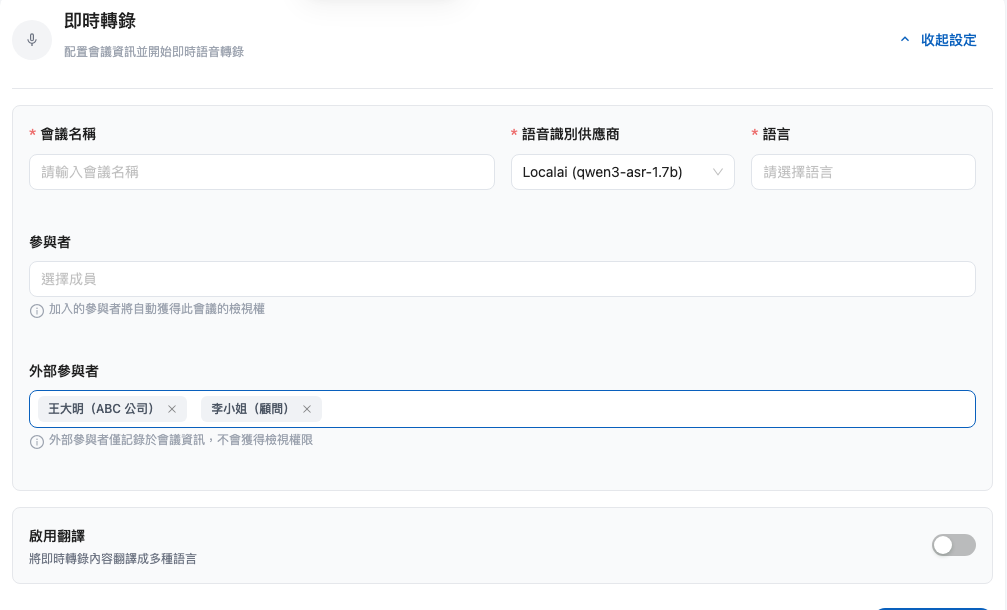
In the "Live Transcription" setup form, the "<mark style="color:blue;">External Participants</mark>" field appears below "Participants." Enter a name and press Enter to turn it into a tag. You can add multiple names in succession. When recording starts, the roster is created along with the meeting.

<figure><img src="https://1360999650-files.gitbook.io/~/files/v0/b/gitbook-x-prod.appspot.com/o/spaces%2F6v6TNkkOQVfRYfcNirHL%2Fuploads%2Fgit-blob-123ea0e0130640d2be1495c180bddc674ee74fce%2Fmeeting-external-participants-form.png?alt=media" alt="External Participants field in the Live Transcription setup form"><figcaption><p>"Participants" only lets you select organization members and grants them viewing access; "External Participants" lets you freely enter names that are recorded only in the meeting information</p></figcaption></figure>

{% hint style="info" %}
The "External Participants" field is currently available in the **Live Transcription** setup form. It is not available in the offline audio upload form or the edit dialog in the meeting list. For offline meetings or names added afterward, use the sidebar on the meeting detail page (see the next section).
{% endhint %}

### Add or Remove Participants in the Sidebar During or After Recording <a href="#manage-external-participants-sidebar" id="manage-external-participants-sidebar"></a>

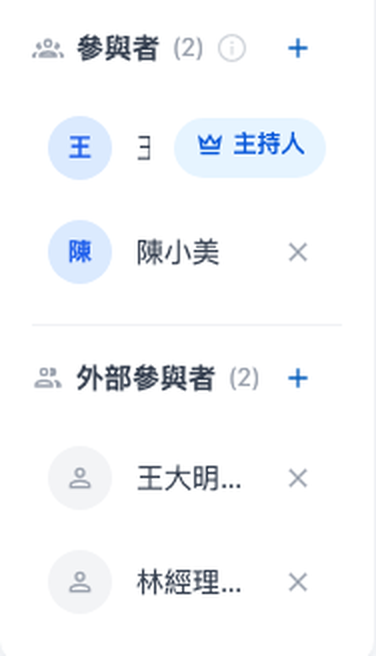
The Participants card on the right side of both the Live Transcription page (while recording) and the meeting detail page (after the meeting) includes an "<mark style="color:blue;">External Participants</mark>" section. You can add or remove names at any time:

#### 1. Add

Click "+" next to "External Participants," enter a name, and press Enter or click "Add." The roster updates immediately after it is saved and remains current after you leave, return to, or refresh the page.

#### 2. Remove

Click the "X" next to a name to remove it. No confirmation dialog appears; if you remove someone by mistake, you can add the name again immediately.

<figure><img src="https://1360999650-files.gitbook.io/~/files/v0/b/gitbook-x-prod.appspot.com/o/spaces%2F6v6TNkkOQVfRYfcNirHL%2Fuploads%2Fgit-blob-fbd0f7afbbd756bd840987c4a279eb3c6da2185c%2Fmeeting-external-participants-sidebar.png?alt=media" alt="Separate Participants and External Participants sections in the meeting detail sidebar"><figcaption><p>The sidebar has two sections: "Participants" are organization members with viewing access, while "External Participants" are a text-only roster</p></figcaption></figure>

* Anyone who can add or remove external participants has the same permissions as someone who can edit the meeting: members with "Transcription Permission" who can view the meeting. Other users can only view the roster
* If saving fails, the page displays "Failed to update external participants." The roster remains unchanged, and recording is not affected

### Roster Rules <a href="#external-participant-rules" id="external-participant-rules"></a>

| Rule                | Description                                                                                                                 |
| ------------------- | --------------------------------------------------------------------------------------------------------------------------- |
| **Maximum number**  | Up to 20 people per meeting. Once the limit is reached, no more names can be added and a notification appears               |
| **Name length**     | Up to 50 characters per person. If the name is too long, a notification appears and the name is not automatically truncated |
| **Duplicate names** | Identical names are treated as the same person and merged automatically                                                     |
| **Whitespace**      | Empty input or input containing only spaces is not added to the roster                                                      |

These rules apply consistently to the setup form, the sidebar during recording, and the sidebar after the meeting.

{% hint style="info" %}
**Meetings started from a calendar invitation** (for example, starting a recording after connecting a calendar in the MaiGPT meeting record shortcut panel) automatically import the invitee list. Invitees who are **organization members** become "Participants" and receive viewing access, while **everyone else** is recorded as an "External Participant." You can still adjust the roster afterward in the sidebar.
{% endhint %}

## Grant "See All Meetings" Access <a href="#grant-see-all" id="grant-see-all"></a>

For scenarios like auditing, handover, or department managers who need an overview of all meetings in the organization, grant access through role permissions:

### 1. Go to the Role Permission page in Organization Settings

See [Role Permission Management](/maiagent-user-guide/en/org/roles/role-permission.md).

### 2. Edit role permissions and check "Meeting Record Management Permission"

<figure><img src="https://1360999650-files.gitbook.io/~/files/v0/b/gitbook-x-prod.appspot.com/o/spaces%2F6v6TNkkOQVfRYfcNirHL%2Fuploads%2Fgit-blob-288fcf5d76cf5467573a31bc9fbbd547bbcfd3a6%2Fmeeting-access-role-permission.png?alt=media" alt="Meeting Record Management Permission in role permissions"><figcaption><p>Check "Meeting Record Management Permission" to allow role members to see all meetings in the organization</p></figcaption></figure>

"<mark style="color:blue;">Meeting Record Management Permission</mark>" is located at the bottom of the permission list and is an independent main permission:

* **Unchecked**: Role members can only see meetings they participate in (created or added to)
* **Checked**: Role members can see all meetings in the organization
* When checking "<mark style="color:blue;">Meeting Record Permission</mark>", the system will **automatically check** this permission as well; if you only want the role to see their own meetings, manually uncheck it

{% hint style="info" %}
Members with "Meeting Record Management Permission" who only want to view their own meetings can filter using the API parameter `?scope=mine`.
{% endhint %}

## FAQ <a href="#faq" id="faq"></a>

**A colleague says they can't see a meeting I created?**

Add them to the meeting's participants roster — it takes effect immediately.

**How do I record customers or vendors who attend a meeting?**

Add their names under "External Participants." This is only a roster and does not let them access the meeting content. If the person is an organization member, add them to the "Participants" roster instead to grant viewing access.

**After unchecking "Meeting Record Management Permission", can I still see old meetings?**

You can only see meetings you created and meetings where you were added to the participants roster. Meetings created by others that you were not added to will disappear from the list — if needed, ask a participant of that meeting to add you.


---

# Agent Instructions
This documentation is published with GitBook. GitBook is the documentation platform designed so that both humans and AI agents can read, navigate, and reason over technical content effectively. Learn more at gitbook.com.

## Querying This Documentation
If you need additional information that is not directly available in this page, you can query the documentation dynamically by asking a question.

Perform an HTTP GET request on the current page URL with the `ask` query parameter, and the optional `goal` query parameter:

```
GET https://docs.maiagent.ai/maiagent-user-guide/en/meeting-records/access-control.md?ask=<question>&goal=<endgoal>
```

`ask` is the immediate question: it should be specific, self-contained, and written in natural language.
`goal` is optional and describes the broader end goal you are ultimately trying to accomplish on behalf of the user. GitBook uses it to tailor the answer towards what is most useful for that goal.

The response will contain a direct answer to the question and relevant excerpts and sources from the documentation.

Use this mechanism when the answer is not explicitly present in the current page, you need clarification or additional context, or you want to retrieve related documentation sections.