Meeting Access Control
Meeting record visibility scope, participant roster management, and how to configure the "Meeting Record Management Permission"
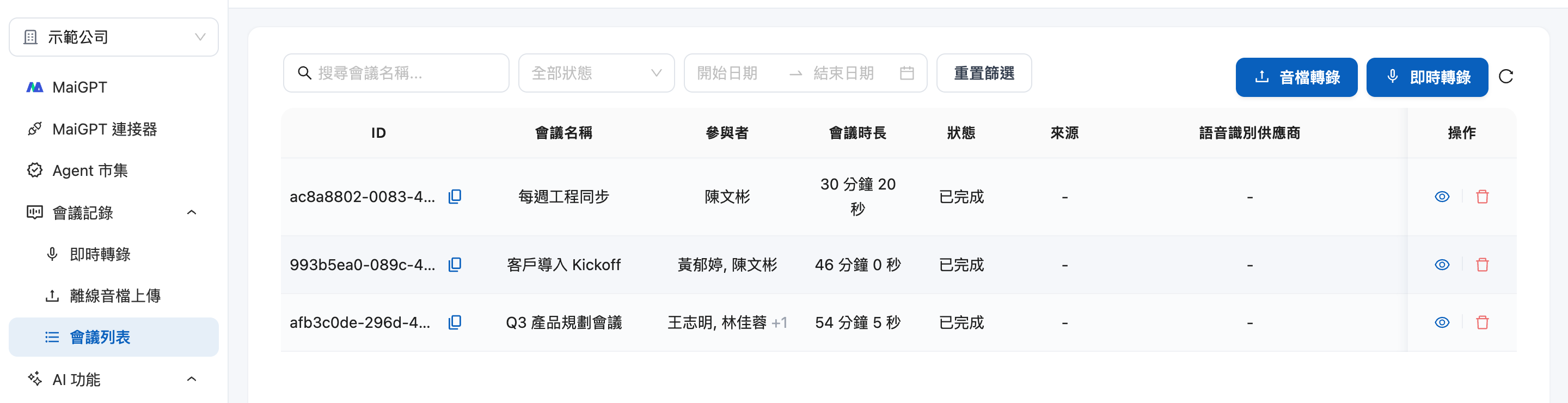
Meeting content often involves sensitive information, so the meeting list does not show all meetings in the organization. By default, each member can only see meetings they are involved in; to share a meeting with colleagues, grant access through the "Participants" roster within the meeting.
Who Can See Which Meetings
Regular Member
Only meetings they created + meetings they were added to as a participant
Organization Owner
All meetings in the organization
Member with "Meeting Record Management Permission"
All meetings in the organization
Meetings without access permission will display a "meeting not found" message even when accessed directly via URL — the system will not reveal its existence.
Participants: The Meeting Access Roster
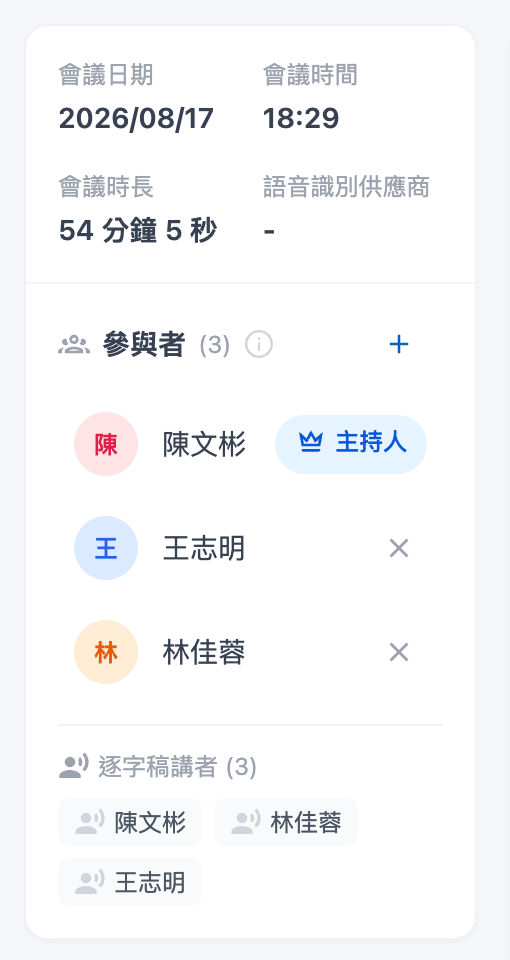
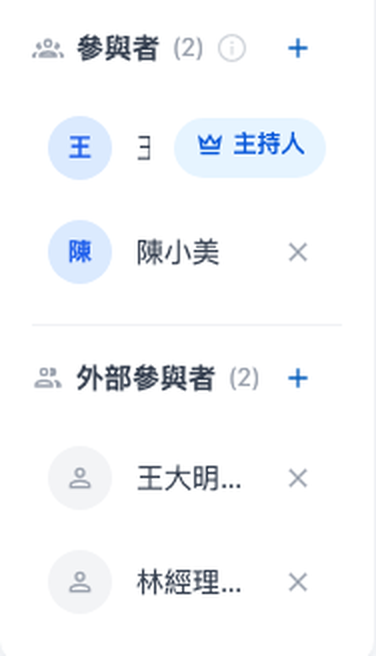
The "Participants" card on the right side of the meeting detail page is the access roster for that meeting — only people on the roster can see the meeting.
Card contents:
Host: The meeting creator, with a host label next to their name
Members: Organization members who have been added
Transcript Speakers (bottom of card): Original speaker names identified by voice transcription, for reference only and do not represent access permissions
The "Participants" column in the meeting list also displays this roster, showing +N when there are more than 2 people.
"Participants" and "Transcript Speakers" are two different things. Speaker names identified during transcription are just text and do not grant the person access to the meeting; to grant viewing access, you must add the person to the participants roster.
Who Can View and Who Can Edit the Roster
View participants roster
Anyone who can see the meeting
Add / Remove participants
Organization Owner, member with "Meeting Record Management Permission", or any participant already on the roster
Add a Participant
1. Open the meeting detail page
Click on the meeting you want to share in the meeting list.
2. Click the "+" in the upper right corner of the participants card
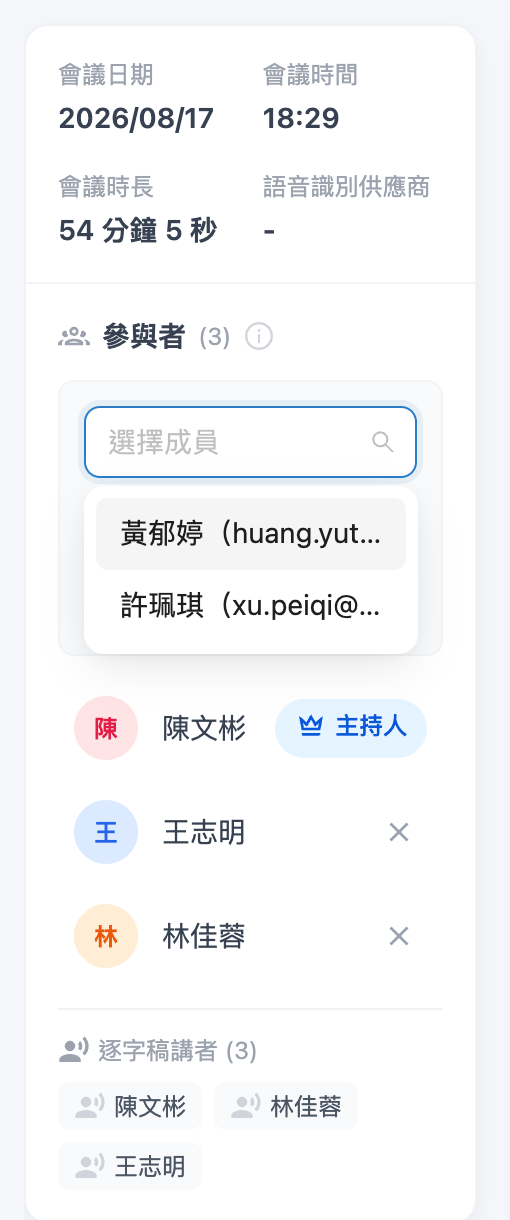
The card will expand a member selection dropdown.
3. Select an organization member and click "Add"
The dropdown only lists members from the same organization, with keyword search available
Members already on the roster will not appear in the dropdown
After successfully adding, the person can immediately see the meeting in their meeting list
Remove a Participant
Click the "X" on the right side of the member in the participants roster and confirm to remove them. The person immediately loses viewing access to the meeting.
The host cannot be removed. The meeting creator's row does not have a remove button, ensuring the meeting always has at least one person who can manage it.
Grant "See All Meetings" Access
For scenarios like auditing, handover, or department managers who need an overview of all meetings in the organization, grant access through role permissions:
1. Go to the Role Permission page in Organization Settings
See Role Permission Management.
2. Edit role permissions and check "Meeting Record Management Permission"
"Meeting Record Management Permission" is located at the bottom of the permission list and is an independent main permission:
Unchecked: Role members can only see meetings they participate in (created or added to)
Checked: Role members can see all meetings in the organization
When checking "Meeting Record Permission", the system will automatically check this permission as well; if you only want the role to see their own meetings, manually uncheck it
FAQ
A colleague says they can't see a meeting I created?
Add them to the meeting's participants roster — it takes effect immediately.
After upgrading, everyone could see all meetings before. Will it stay the same?
Yes. During the upgrade, roles that previously had meeting record-related permissions were automatically granted "Meeting Record Management Permission", maintaining the same behavior as before the upgrade. To narrow visibility, go to the role permission page and uncheck that permission.
After unchecking "Meeting Record Management Permission", can I still see old meetings?
You can only see meetings you created and meetings where you were added to the participants roster. Meetings created by others that you were not added to will disappear from the list — if needed, ask a participant of that meeting to add you.
Last updated
Was this helpful?