> For the complete documentation index, see [llms.txt](https://docs.maiagent.ai/llms.txt). Markdown versions of documentation pages are available by appending `.md` to page URLs; this page is available as [Markdown](https://docs.maiagent.ai/maiagent-user-guide/en/maigpt/chat.md).

# AI Chat

AI Chat is the core experience of MaiGPT. Select an AI model, type your question, and get an answer. You can also upload files for AI analysis, query your company knowledge base, search the web in real time, and enable deep thinking to tackle complex problems.

***

## Chat Capabilities Overview <a href="#chat-capabilities" id="chat-capabilities"></a>

| Capability                | What It Does                                                                                                                | Best For                                                |
| ------------------------- | --------------------------------------------------------------------------------------------------------------------------- | ------------------------------------------------------- |
| **Select AI Model**       | Switch between different models (Claude, GPT, Gemini)                                                                       | Choosing the best AI for your task                      |
| **Upload Files & Images** | Upload documents for AI to read, summarize, and analyze                                                                     | Contract review, report analysis, image recognition     |
| **Knowledge Base Q\&A**   | Query your company's internal knowledge base                                                                                | Company policies, product manuals, SOPs                 |
| **Web Search**            | Search the web in real time for the latest information                                                                      | News, market trends, competitor intelligence            |
| **Deep Thinking**         | AI reasons before answering, ideal for complex questions                                                                    | Multi-step analysis, logical reasoning, decision-making |
| **Chat Memory**           | Remembers conversation context and your preferences                                                                         | Continuing discussions, long-term collaboration         |
| **Share Conversations**   | Share an entire conversation with members of your organization so they can view it or copy it and continue asking questions | Sharing results, continuing work                        |

***

## Quick Start <a href="#quick-start" id="quick-start"></a>

1. **Type your question** — Enter your question in the input box and press Enter to send
2. **Upload a file** — Click the paperclip icon or drag and drop a file directly
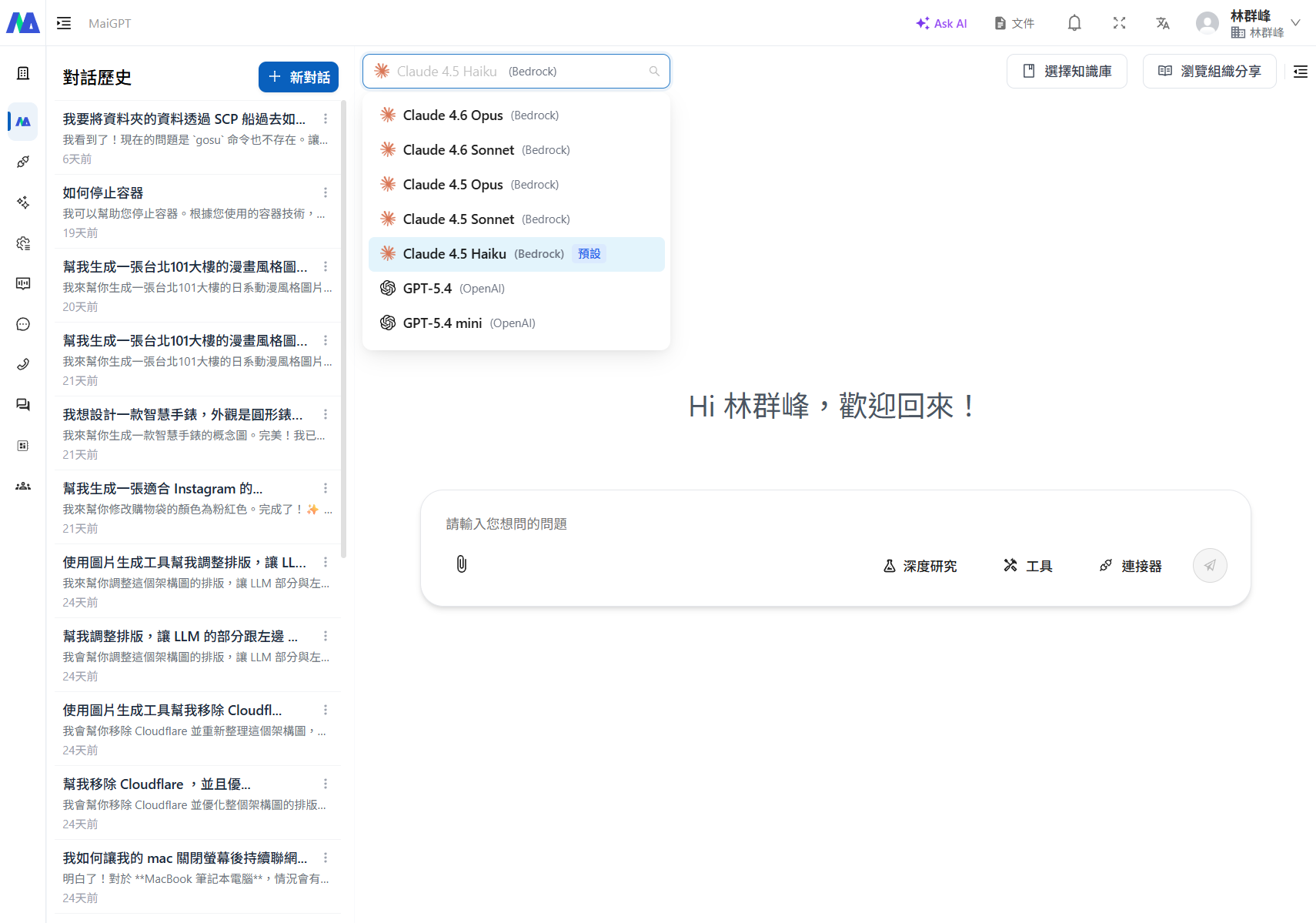
3. **Switch models** — Click the model name at the top and select a different AI

> Not sure where to start? Just type your question. The AI will automatically respond based on your input — no setup required.

***

## Select AI Model <a href="#select-ai-model" id="select-ai-model"></a>

MaiGPT includes multiple built-in AI models that you can freely switch between based on your task. Each model has its own strengths, and choosing the right one helps you get better answers.

### How to Switch Models <a href="#how-to-switch-model" id="how-to-switch-model"></a>

Click the model name at the top of the chat area, then select your desired model from the dropdown menu.

<figure><img src="https://1360999650-files.gitbook.io/~/files/v0/b/gitbook-x-prod.appspot.com/o/spaces%2F6v6TNkkOQVfRYfcNirHL%2Fuploads%2Fgit-blob-5b807017d157271a1f002ee8d8ebb9d1037915b2%2Fmaigpt-model-selector.png?alt=media" alt="MaiGPT model selector"><figcaption><p>Click the model name at the top to open the dropdown and switch AI models</p></figcaption></figure>

After switching, all subsequent responses will use the new model. Your previous chat history remains unaffected.

### How to Choose a Model <a href="#model-selection-guide" id="model-selection-guide"></a>

| My Task                              | Recommended Model    | Reason                                                    |
| ------------------------------------ | -------------------- | --------------------------------------------------------- |
| Writing reports, analyzing documents | Claude               | Strong Chinese comprehension, excels at long-form writing |
| Code, technical questions            | Claude / GPT         | Both excel here — try both and compare                    |
| Quick Q\&A, translation              | Gemini               | Faster response times                                     |
| Creative ideation, brainstorming     | Claude / GPT         | Better creative quality                                   |
| Need the latest information          | Pair with web search | Any model works                                           |

{% hint style="info" %}
**Not sure which to pick?**

Start with the default model. If you're not satisfied with the response quality, try switching to another model and asking the same question to compare which answer better meets your needs.
{% endhint %}

### FAQ <a href="#faq" id="faq"></a>

**Will my previous conversation disappear after switching models?**

No. Your chat history is fully preserved — only subsequent responses will be generated by the new model.

**Why can't I see certain models?**

Available models are configured by your company administrator. If you need access to a specific model, contact your IT admin.

**Do different models cost the same?**

Different models have different usage calculations, but this is typically managed by your company, so you don't need to worry about costs.

***

## Upload Files & Images <a href="#upload-files-and-images" id="upload-files-and-images"></a>

You can send files or images to MaiGPT and let the AI read, summarize, analyze, or translate them for you.

### How to Upload <a href="#how-to-upload" id="how-to-upload"></a>

There are two ways:

1. **Click the paperclip icon** — Located next to the input box, click it to select files
2. **Drag and drop** — Drag files from your desktop into the chat area

After uploading, the file will appear above the input box. Then type your question and press Enter to send.

### Supported Formats <a href="#supported-formats" id="supported-formats"></a>

| Type      | Formats                                                   |
| --------- | --------------------------------------------------------- |
| Documents | PDF, Word (.docx), Excel (.xlsx), PowerPoint (.pptx), TXT |
| Images    | PNG, JPG, GIF                                             |
| Other     | CSV, JSON, Markdown                                       |

### What You Can Do <a href="#what-you-can-do" id="what-you-can-do"></a>

| Uploaded Content       | What You Can Ask AI                                    |
| ---------------------- | ------------------------------------------------------ |
| A contract PDF         | "What clauses in this contract are unfavorable to us?" |
| An Excel report        | "Summarize the key trends in this report"              |
| A product image        | "What are the product specifications in this image?"   |
| A meeting presentation | "List the three key takeaways from this presentation"  |
| An English document    | "Translate this into Traditional Chinese"              |

### Tips <a href="#tips" id="tips"></a>

{% hint style="success" %}
**Upload multiple files at once**

You can select and upload multiple files at the same time, and the AI will analyze them together. For example, upload three quotes and ask "Compare the differences between these three quotes."
{% endhint %}

{% hint style="warning" %}
**File size limits**

The size limits for documents and audio files in a chat depend on your company's settings; the current default is 10 MB. Images have a separate limit. If a file exceeds the limit, MaiGPT displays the next steps instead of uploading it directly.
{% endhint %}

### When File Content Cannot Be Read <a href="#unreadable-files" id="unreadable-files"></a>

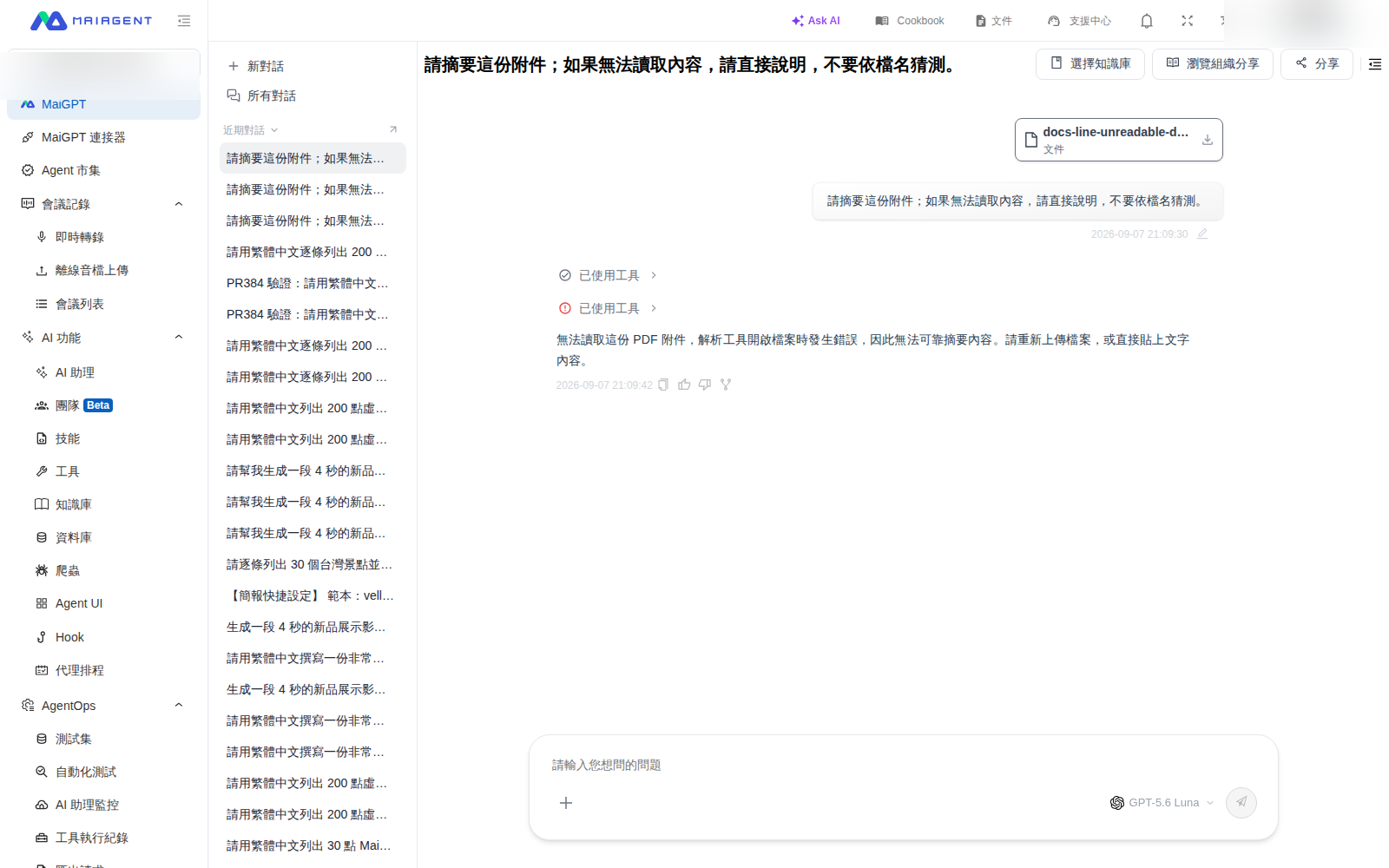
For example, a project manager wants to summarize a PDF sent by a partner, but the file was corrupted during transmission. She clicks <mark style="color:blue;">Add</mark> → <mark style="color:blue;">Upload File</mark>, selects the file, and enters a request for a summary. If the system cannot read the content, the response may explain that it cannot provide a summary and ask her to upload the file again. When she sees this type of message, she can first confirm that the original file opens normally, then obtain the complete file and upload it again.

<figure><img src="https://1360999650-files.gitbook.io/~/files/v0/b/gitbook-x-prod.appspot.com/o/spaces%2F6v6TNkkOQVfRYfcNirHL%2Fuploads%2Fgit-blob-cbf5455c3b5adc665bc2a991a07d464c3c3acf02%2Fmaigpt-unreadable-attachment.png?alt=media" alt="MaiGPT explains that it cannot read the attachment and asks the user to upload it again"><figcaption><p>In this verification, MaiGPT explained that it could not summarize the file and asked the user to upload it again.</p></figcaption></figure>

{% hint style="warning" %}
If parsing fails, first open the original file on your computer to confirm that it is not corrupted and that its content is complete. Then download it again or ask the sender to resend it. Do not use the file name as the basis for a summary. After uploading the file again, verify that the response is actually based on the file's content.
{% endhint %}

### What to Do If a File Exceeds the Limit <a href="#handle-oversized-files" id="handle-oversized-files"></a>

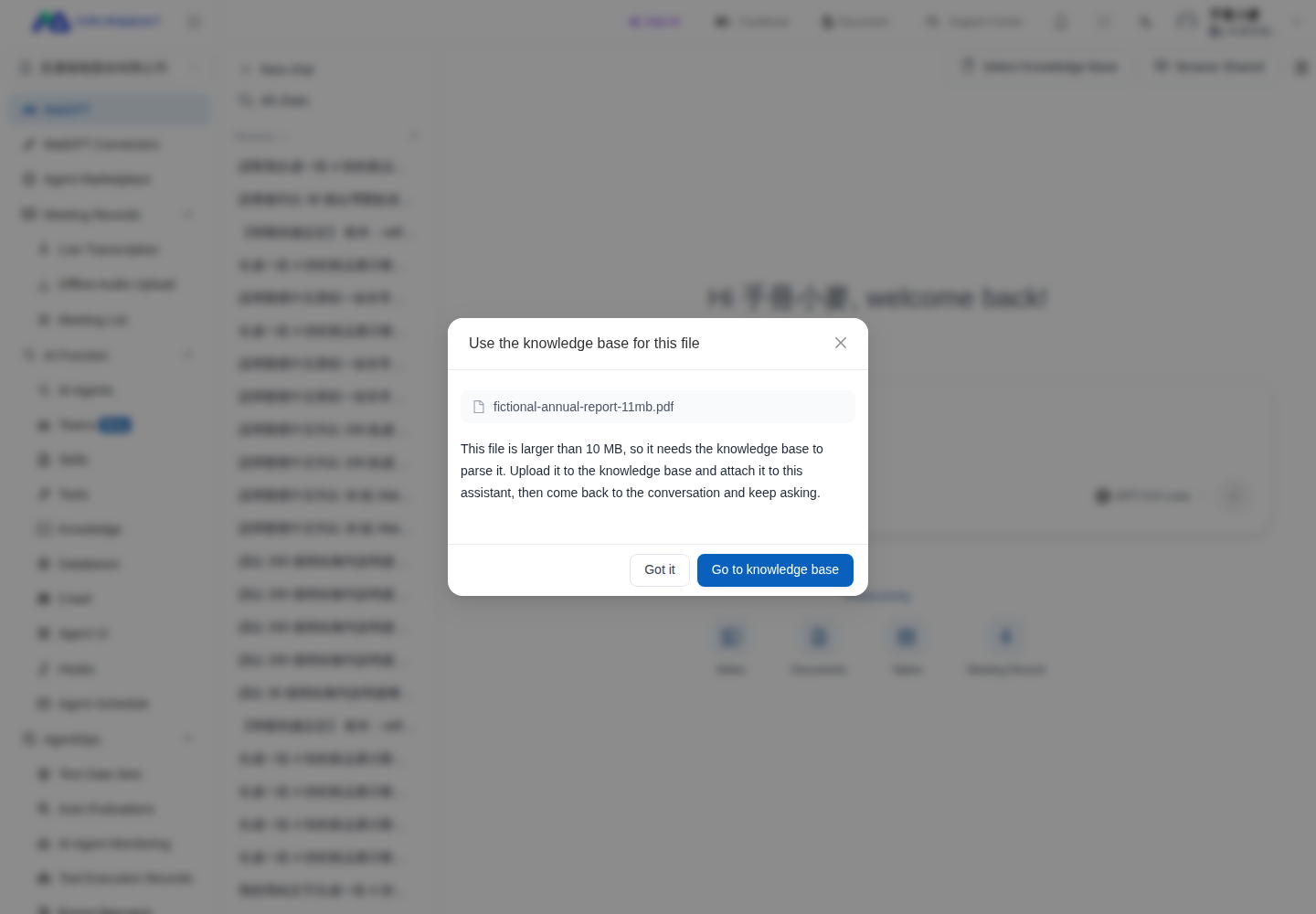
For example, project manager Mai wants MaiGPT to summarize an 11 MB fictional company report. After selecting the file, a message indicates that it exceeds the 10 MB limit. Mai can then upload and attach the file through a knowledge base before returning to the chat to continue asking questions.

<figure><img src="https://1360999650-files.gitbook.io/~/files/v0/b/gitbook-x-prod.appspot.com/o/spaces%2F6v6TNkkOQVfRYfcNirHL%2Fuploads%2Fgit-blob-0199a245ddc3abb1a546be3625a05879708c2803%2Fmaigpt-attachment-limit.png?alt=media" alt="MaiGPT indicates that a file exceeds 10 MB and provides a Go to Knowledge Base button"><figcaption><p>When a file exceeds the chat limit, follow the on-screen instructions to process it through a knowledge base</p></figcaption></figure>

{% stepper %}
{% step %}
Confirm the file name and current size limit in the notification window.
{% endstep %}

{% step %}
If you have permission to use knowledge bases, click <mark style="color:blue;">Go to Knowledge Base</mark>. Create or open a knowledge base, upload the file, and wait for processing to finish.
{% endstep %}

{% step %}
In the knowledge base's <mark style="color:blue;">Linked AI Assistant</mark> settings, link the knowledge base to the MaiGPT assistant you want to use. Return to <mark style="color:blue;">AI Chat</mark>, click <mark style="color:blue;">Select Knowledge Base</mark>, select the knowledge base you just used, and then enter the question you want MaiGPT to process.
{% endstep %}
{% endstepper %}

{% hint style="info" %}
The instructions above apply to the MaiGPT admin web interface. Web Chat end users do not have access to knowledge bases. If <mark style="color:blue;">Go to Knowledge Base</mark> is not displayed, contact your organization administrator and ask them to add the file to the assistant's knowledge base. Alternatively, paste the sections you need analyzed, or split the file into smaller files and upload them again. Audio files are more likely to reach the limit, so try compressing them first.
{% endhint %}

***

## Knowledge Base Q\&A <a href="#knowledge-base-qa" id="knowledge-base-qa"></a>

MaiGPT can connect to your company's knowledge base, allowing you to query internal company data through natural conversation. AI responses include source references that you can click to view the original documents.

### How to Use <a href="#how-to-use" id="how-to-use"></a>

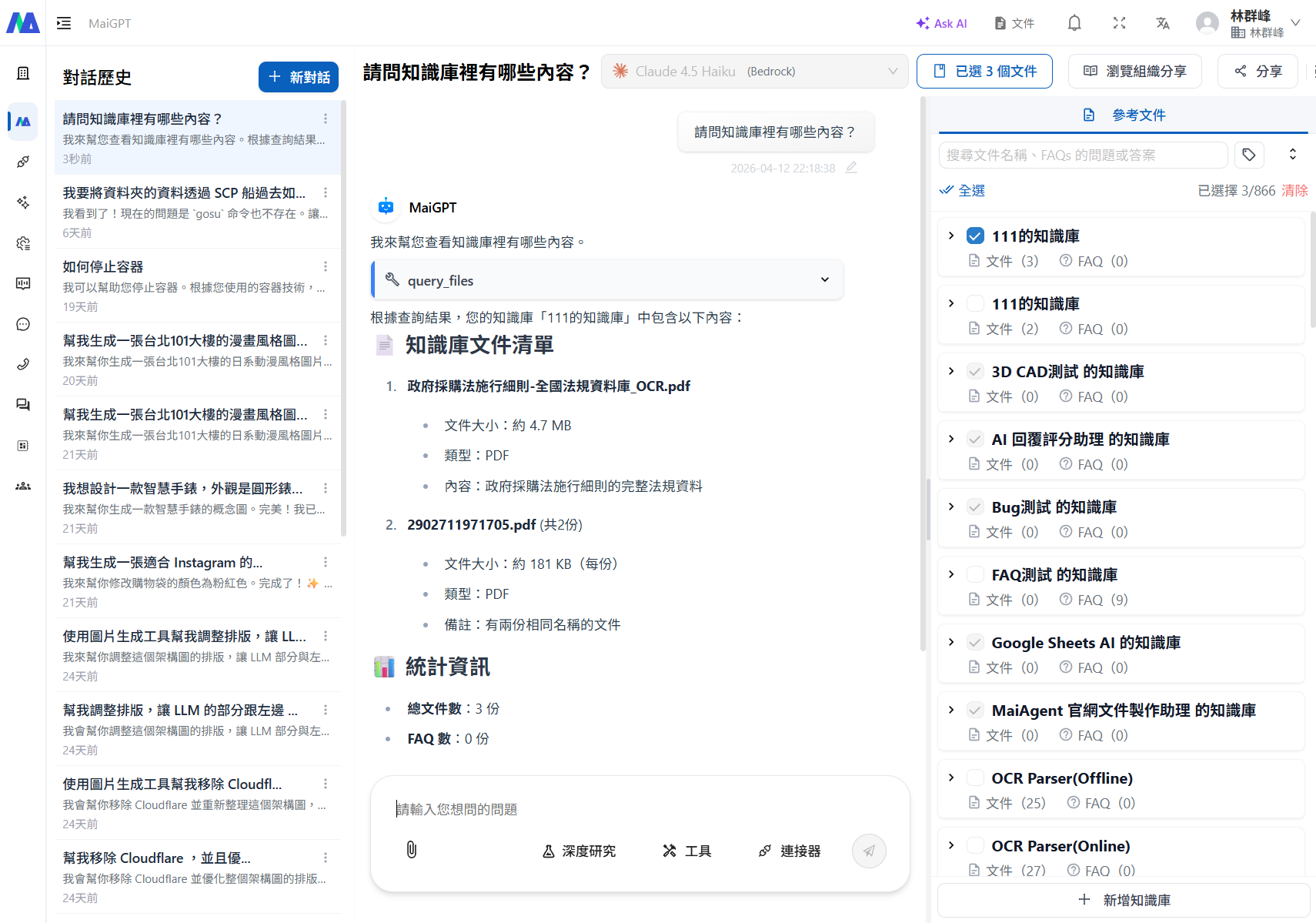
Just ask your question. If your MaiGPT is connected to a company knowledge base, the AI will automatically search for relevant information to answer your question.

> "What is the company's leave request process?"
>
> "What are the differences between Product A and Product B?"
>
> "What should new employees do on their first day?"

<figure><img src="https://1360999650-files.gitbook.io/~/files/v0/b/gitbook-x-prod.appspot.com/o/spaces%2F6v6TNkkOQVfRYfcNirHL%2Fuploads%2Fgit-blob-71138ea194697309b7122fbf4bfaf9b361abb579%2Fmaigpt-knowledge-base-select.png?alt=media" alt="MaiGPT knowledge base Q&#x26;A"><figcaption><p>After selecting a knowledge base and asking a question, the AI uses the query_files tool to search the knowledge base and return results</p></figcaption></figure>

### Answers Include Sources <a href="#answers-with-sources" id="answers-with-sources"></a>

AI responses indicate data sources, typically displayed as citation markers or links. Click them to view the relevant sections of the original document.

This allows you to:

* **Verify answer accuracy** — See which document the AI based its answer on
* **Dive deeper** — If the summary isn't enough, click through to read the full original text

### Can't Find an Answer? <a href="#no-answer-found" id="no-answer-found"></a>

If the AI responds with "I couldn't find relevant information in the knowledge base," it may be because:

| Situation                                               | What to Do                                                             |
| ------------------------------------------------------- | ---------------------------------------------------------------------- |
| The data hasn't been uploaded to the knowledge base yet | Contact your admin to upload the relevant documents                    |
| Your question is too vague                              | Try asking with more specific keywords                                 |
| Knowledge base access restrictions                      | You may not have access permissions for that data — contact your admin |

{% hint style="info" %}
**"Not found" doesn't mean the company doesn't have the data**

Knowledge base content is uploaded and maintained by administrators. If you're sure certain data exists but the AI can't find it, notify your admin to confirm whether it has been imported into the knowledge base.
{% endhint %}

***

## Web Search <a href="#web-search" id="web-search"></a>

MaiGPT can search the web in real time to get the latest information for answering your questions. It's ideal for queries about news, market trends, competitor intelligence, and other scenarios that require up-to-date data.

### How to Use <a href="#how-to-use-web-search" id="how-to-use-web-search"></a>

Click the web search button next to the input box, or mention that you need the latest information in your question:

> "Search for today's Taiwan stock market closing price"
>
> "What are the recent AI-related regulatory updates?"
>
> "Look up what new products competitor X has recently launched"

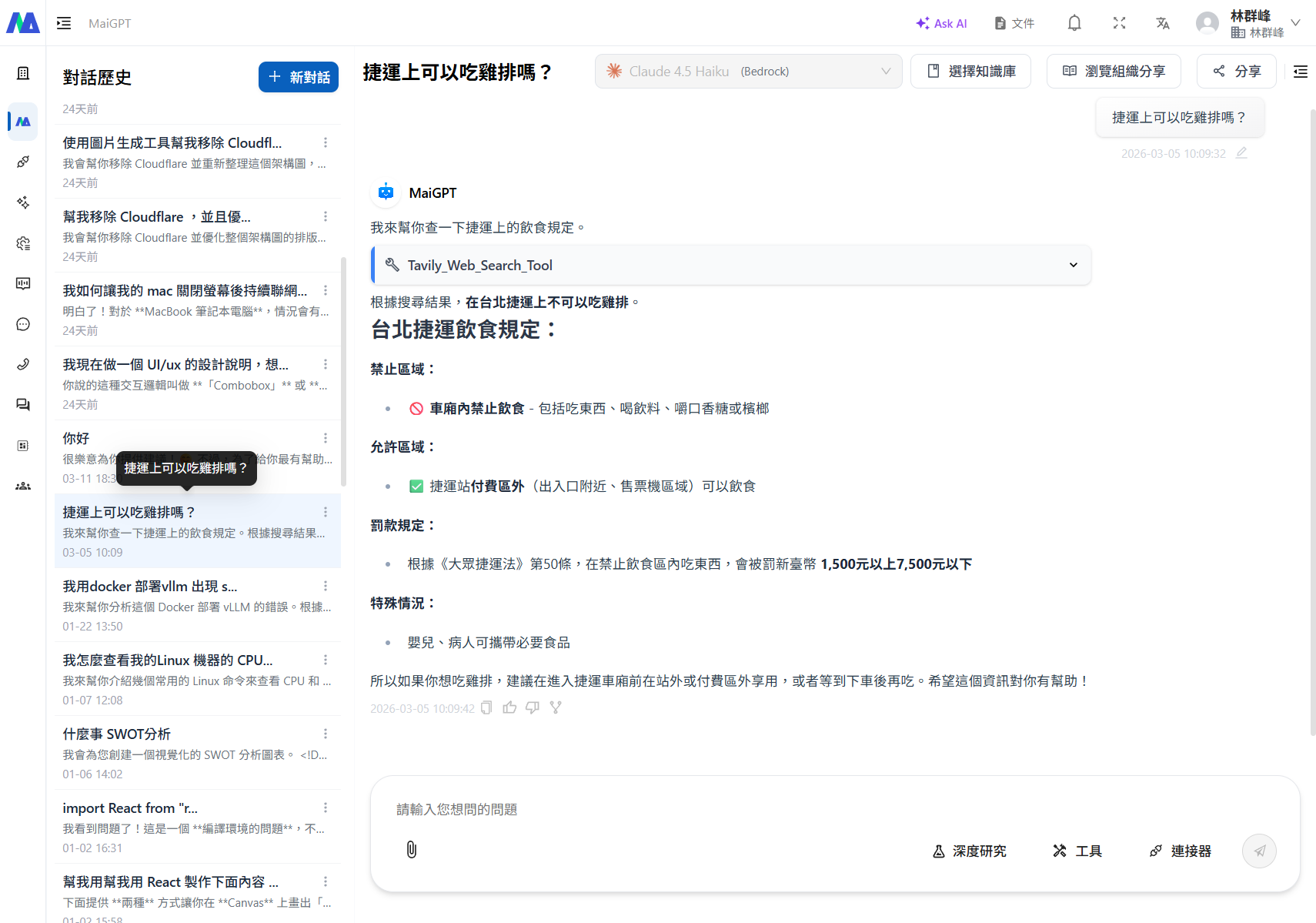
<figure><img src="https://1360999650-files.gitbook.io/~/files/v0/b/gitbook-x-prod.appspot.com/o/spaces%2F6v6TNkkOQVfRYfcNirHL%2Fuploads%2Fgit-blob-e3b5646f945ff03abe91c475d225ddbb066277c1%2Fmaigpt-web-search.png?alt=media" alt="MaiGPT web search results"><figcaption><p>After using the Web Search Tool to search web sources, the AI compiles and responds with results and source links</p></figcaption></figure>

The AI automatically searches multiple websites, compiles the findings into a comprehensive answer, and includes source links.

### When to Use Web Search <a href="#when-to-use-web-search" id="when-to-use-web-search"></a>

| Good For                          | Not Needed                                             |
| --------------------------------- | ------------------------------------------------------ |
| Latest news and current events    | Company internal data (use the knowledge base)         |
| Product prices and specifications | Writing reports, translation (no external data needed) |
| Regulatory and policy updates     | Analyzing uploaded files                               |
| Market trend research             | Casual conversation, brainstorming                     |

{% hint style="info" %}
**Web Search vs Deep Research**

Web search is great for **quickly looking up a single question** — you get answers in seconds. If you need to **deeply research a topic** and produce a comprehensive report, use [Deep Research](/maiagent-user-guide/en/maigpt/deep-research.md).
{% endhint %}

***

## Deep Thinking <a href="#deep-thinking" id="deep-thinking"></a>

Deep Thinking lets the AI "think it through" before answering, making it ideal for complex questions that require reasoning, analysis, or multi-step judgment. When enabled, you can see the AI's thinking process.

### How to Use <a href="#how-to-use-deep-thinking" id="how-to-use-deep-thinking"></a>

Click the Deep Thinking button next to the input box to enable it, then ask your question as usual.

The AI response will have two parts:

1. **Thinking process** (expandable/collapsible) — Shows how the AI analyzed your question
2. **Final answer** — The complete response after reasoning

### When to Enable <a href="#when-to-enable-deep-thinking" id="when-to-enable-deep-thinking"></a>

| Good to Enable                   | Not Needed                               |
| -------------------------------- | ---------------------------------------- |
| Complex analysis and comparisons | Simple Q\&A ("What's the weather today") |
| Logical reasoning required       | Translation                              |
| Math calculations, data analysis | Casual conversation                      |
| Multi-faceted decision-making    | Text polishing, rewriting                |

{% hint style="info" %}
**Deep Thinking takes longer**

Because the AI needs to think before answering, response times are slower than normal mode. If your question isn't complex, stick with the standard mode.
{% endhint %}

***

## Chat Memory <a href="#chat-memory" id="chat-memory"></a>

MaiGPT remembers your conversation content, allowing you to continue previous discussions without re-explaining the background every time.

### Two Types of Memory <a href="#two-types-of-memory" id="two-types-of-memory"></a>

#### Conversation Memory (Short-Term) <a href="#short-term-memory" id="short-term-memory"></a>

Within the same conversation, the AI remembers everything discussed earlier. You can continue the discussion seamlessly:

> You: "Summarize the key Q1 performance highlights for me"
>
> AI: (responds with the summary)
>
> You: "Now add a Q2 comparison" ← The AI knows you're talking about performance

**Starting a new conversation** clears the short-term memory, and the AI starts fresh.

#### Long-Term Memory <a href="#long-term-memory" id="long-term-memory"></a>

MaiGPT can remember important information across conversations, such as your role, preferences, and frequently used formats.

> You: "Remember that I'm in the marketing department, and I always want reports in bullet-point format"
>
> AI: Got it, I'll remember that.

Even in new conversations afterward, the AI will remember these preferences.

### Tips <a href="#memory-tips" id="memory-tips"></a>

{% hint style="success" %}
**Make the most of a single conversation**

If you're working on a topic (such as writing a report), try to complete it within the same conversation. This way the AI retains all the context, resulting in better responses.
{% endhint %}

{% hint style="info" %}
**Need a fresh start?**

If you want to switch to a completely different topic, start a new conversation to prevent content from the previous topic from influencing responses on the new one.
{% endhint %}

***

## Organize Conversations: Pin Frequently Used Chats <a href="#pin-conversations" id="pin-conversations"></a>

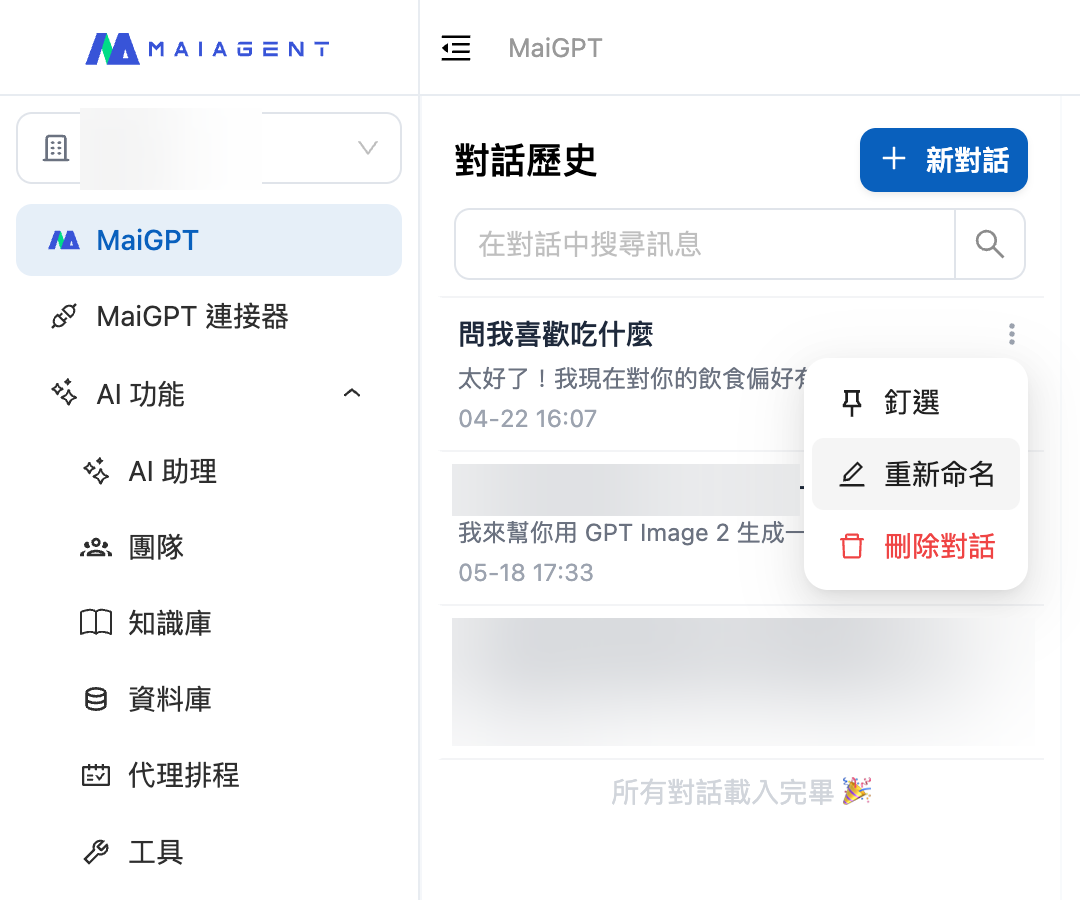
As your conversations pile up, important or frequently used ones get pushed down by newer chats and become hard to find. You can "pin" them to keep them fixed at the top of your "Chat History" for one-click access anytime.

### How to Pin <a href="#how-to-pin" id="how-to-pin"></a>

1. In the "Chat History" panel on the left, hover your mouse over the conversation you want to pin
2. Click the <mark style="color:blue;">⋮</mark> menu that appears on the right
3. Select <mark style="color:blue;">Pin</mark>

<figure><img src="https://1360999650-files.gitbook.io/~/files/v0/b/gitbook-x-prod.appspot.com/o/spaces%2F6v6TNkkOQVfRYfcNirHL%2Fuploads%2Fgit-blob-9023310c586699596d27523ec2b178fd791cc668%2Fmaigpt-pin-menu.png?alt=media" alt="Pin option in the conversation ⋮ menu"><figcaption><p>Hover over a conversation and click the ⋮ menu to see the "Pin" option</p></figcaption></figure>

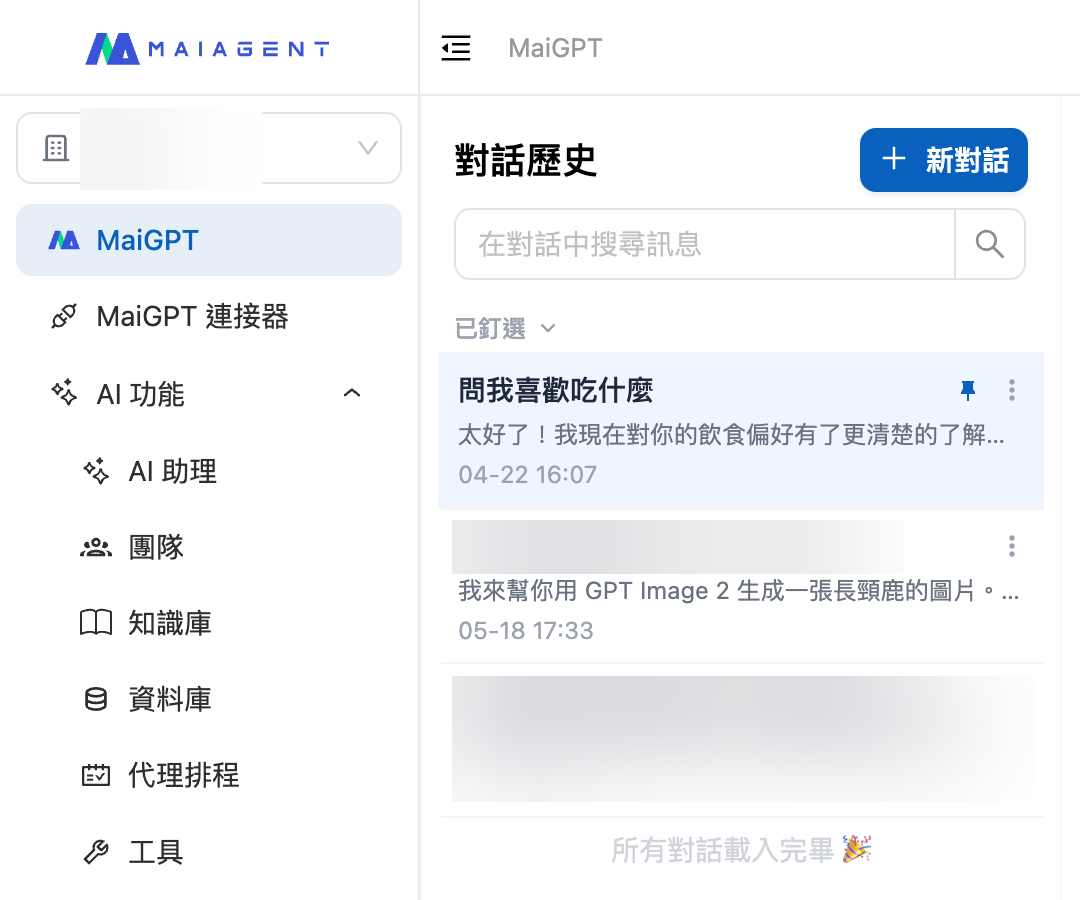
Once pinned, the conversation moves to the <mark style="color:blue;">Pinned</mark> section at the top of "Chat History," with a 📌 icon next to its title.

<figure><img src="https://1360999650-files.gitbook.io/~/files/v0/b/gitbook-x-prod.appspot.com/o/spaces%2F6v6TNkkOQVfRYfcNirHL%2Fuploads%2Fgit-blob-cc6ae1d4ae6179f4fe37b553aaf5418373f3af96%2Fmaigpt-pin-pinned.png?alt=media" alt="Pinned section"><figcaption><p>Pinned conversations are grouped at the top in the "Pinned" section, while regular conversations are sorted by time below</p></figcaption></figure>

### Unpin <a href="#how-to-unpin" id="how-to-unpin"></a>

Click the <mark style="color:blue;">⋮</mark> menu on a pinned conversation and select <mark style="color:blue;">Unpin</mark>. The conversation will return to the regular time-sorted list below.

### Sorting & Rules <a href="#pin-rules" id="pin-rules"></a>

| Item             | Description                                                                                                                                          |
| ---------------- | ---------------------------------------------------------------------------------------------------------------------------------------------------- |
| Sort order       | Both the Pinned section and the regular list are sorted by the time of the last message, from newest to oldest — regardless of when pinning occurred |
| Pin limit        | There is no limit — you can pin multiple conversations at the same time                                                                              |
| Persistence      | Pin status is saved and persists after refreshing or logging in again                                                                                |
| Collapse section | Click the "Pinned" header to expand or collapse the entire section                                                                                   |
| Scope            | You can only pin your own conversations                                                                                                              |

### Good Scenarios for Pinning <a href="#pin-use-cases" id="pin-use-cases"></a>

* **Finance / Banking**: Pin reconciliation chats or financial plan comparison conversations you regularly track
* **Tech / Electronics Manufacturing**: Pin frequently referenced product spec or technical troubleshooting conversations
* **Educational Institutions**: Pin recurring admissions Q\&A or curriculum planning discussions
* **Service / Retail**: Pin ongoing campaign planning or membership benefits inquiry conversations
* Or any workflow you return to and continue every day

{% hint style="info" %}
**Pinning only affects your own view**

Pinning is a personal organization method — it only changes the sort order you see in "Chat History." It does not affect other team members, nor does it alter the conversation content itself.
{% endhint %}

***

## Share Conversations <a href="#share-conversation" id="share-conversation"></a>

You can share an entire conversation with members of your organization. Anyone with access can open the link to view the full conversation. If you allow copying, they can also copy it to their own conversation list with one click and continue asking questions.

### Use Case <a href="#share-scenario" id="share-scenario"></a>

A knowledge base administrator uses MaiGPT to compile a "Frequently Asked Questions for New Employees" conversation and wants everyone in the organization to use it. At the top of the conversation, they click <mark style="color:blue;">Share</mark> and select <mark style="color:blue;">Quick Share with Entire Organization</mark>. The link is immediately copied to the clipboard and can be pasted into an announcement. Members can open the link to view the entire conversation. To ask follow-up questions about their own situation, they can click <mark style="color:blue;">Continue Conversation</mark> to copy it to their conversation list and keep chatting without affecting the original conversation.

### How to Share <a href="#how-to-share" id="how-to-share"></a>

The share option appears at the top of the conversation page only after the current conversation contains at least one message.

{% stepper %}
{% step %}

### 1. Click "Share" <a href="#share-click-button" id="share-click-button"></a>

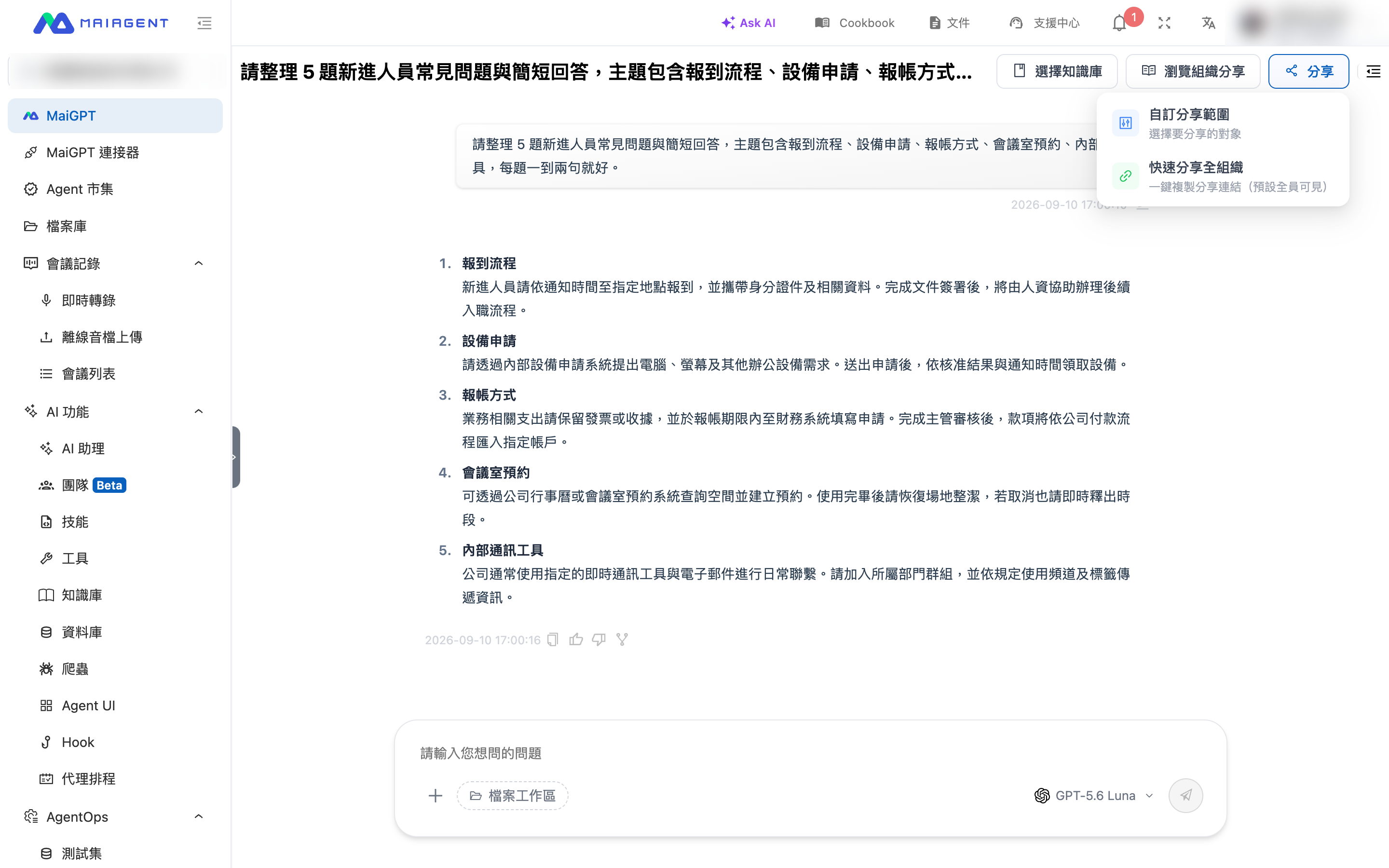
Click <mark style="color:blue;">Share</mark> at the top of the conversation page to display two options:

* <mark style="color:blue;">Quick Share with Entire Organization</mark>: Immediately generates a link and copies it to the clipboard. Everyone in the organization can view and copy the conversation, with no additional settings required.
* <mark style="color:blue;">Customize Sharing Scope</mark>: Choose the recipients and permissions yourself, as described in the next step.

<figure><img src="https://1360999650-files.gitbook.io/~/files/v0/b/gitbook-x-prod.appspot.com/o/spaces%2F6v6TNkkOQVfRYfcNirHL%2Fuploads%2Fgit-blob-1cf7daf0f991136aa284ad7341e04ad5dd9f427a%2Fmaigpt-share-menu.png?alt=media" alt="Menu expanded from the Share button at the top of the conversation page"><figcaption><p>The Share button provides two options: Quick Share with Entire Organization and Customize Sharing Scope</p></figcaption></figure>
{% endstep %}

{% step %}

### 2. Set the Sharing Scope and Permissions <a href="#share-settings" id="share-settings"></a>

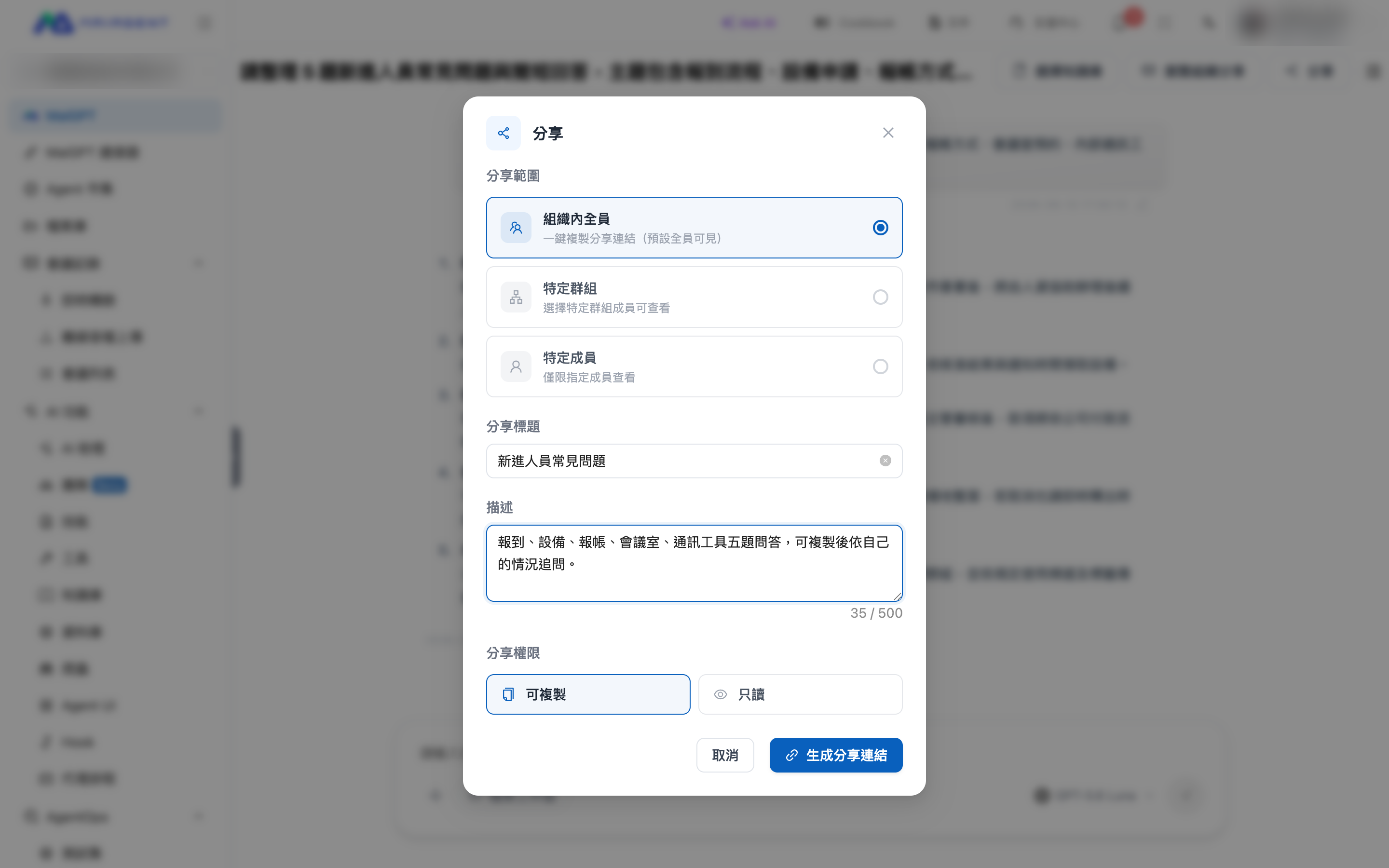
After selecting <mark style="color:blue;">Customize Sharing Scope</mark>, configure the following in the dialog:

| Field                                               | Description                                                                                                                                                                                                                                                     |
| --------------------------------------------------- | --------------------------------------------------------------------------------------------------------------------------------------------------------------------------------------------------------------------------------------------------------------- |
| <mark style="color:blue;">Sharing Scope</mark>      | Choose <mark style="color:blue;">Everyone in Organization</mark>, <mark style="color:blue;">Specific Groups</mark>, or <mark style="color:blue;">Specific Members</mark>. For groups or members, use the selection field below to select one or more recipients |
| <mark style="color:blue;">Share Title</mark>        | Optional. The title recipients see on the shared page and in the Browse Organization Shares list. If left blank, the conversation title is used                                                                                                                 |
| <mark style="color:blue;">Description</mark>        | Optional. Briefly describe the conversation's key points or purpose                                                                                                                                                                                             |
| <mark style="color:blue;">Sharing Permission</mark> | <mark style="color:blue;">Can Copy</mark> (default) lets recipients copy the conversation to their own list and continue asking questions. <mark style="color:blue;">Read Only</mark> lets recipients view it only                                              |

<figure><img src="https://1360999650-files.gitbook.io/~/files/v0/b/gitbook-x-prod.appspot.com/o/spaces%2F6v6TNkkOQVfRYfcNirHL%2Fuploads%2Fgit-blob-21b92c9017901ae6e98ee662c9929fc8059a8ef2%2Fmaigpt-share-modal.png?alt=media" alt="Customize Sharing Scope dialog"><figcaption><p>Set the sharing scope, title, description, and permissions in the same dialog</p></figcaption></figure>
{% endstep %}

{% step %}

### 3. Generate and Send the Link <a href="#share-generate-link" id="share-generate-link"></a>

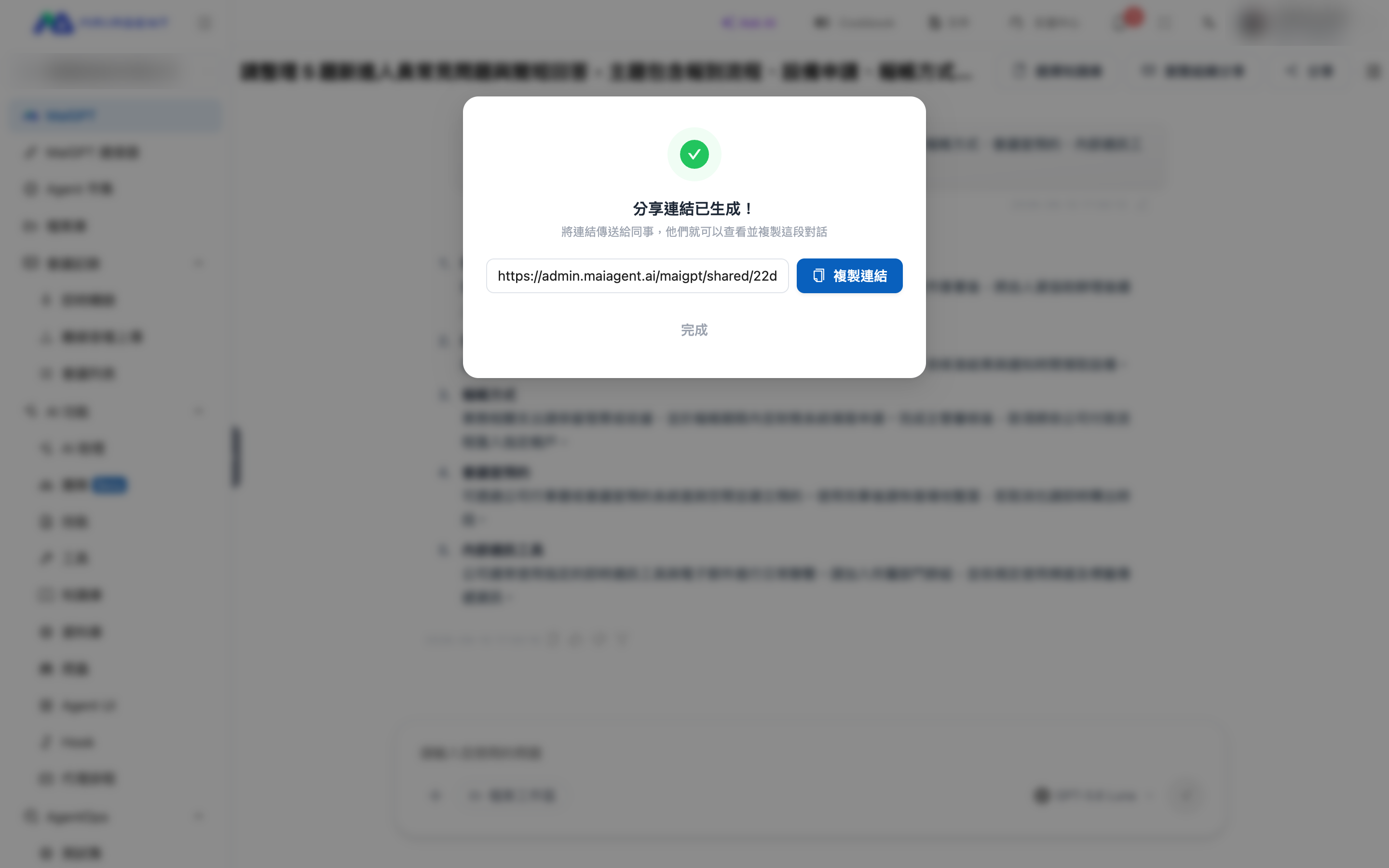
Click <mark style="color:blue;">Generate Share Link</mark>. The link is automatically copied to the clipboard, and you can click <mark style="color:blue;">Copy Link</mark> to copy it again. Send the link to the recipients. They must sign in to MaiAgent to open it.

<figure><img src="https://1360999650-files.gitbook.io/~/files/v0/b/gitbook-x-prod.appspot.com/o/spaces%2F6v6TNkkOQVfRYfcNirHL%2Fuploads%2Fgit-blob-4b58dceec793a2a11205ab0306f8fcec7cf8225b%2Fmaigpt-share-link-generated.png?alt=media" alt="Share link generated"><figcaption><p>The link is copied automatically when generated, and you can click Copy Link to copy it again</p></figcaption></figure>
{% endstep %}
{% endstepper %}

### What Recipients See <a href="#shared-page" id="shared-page"></a>

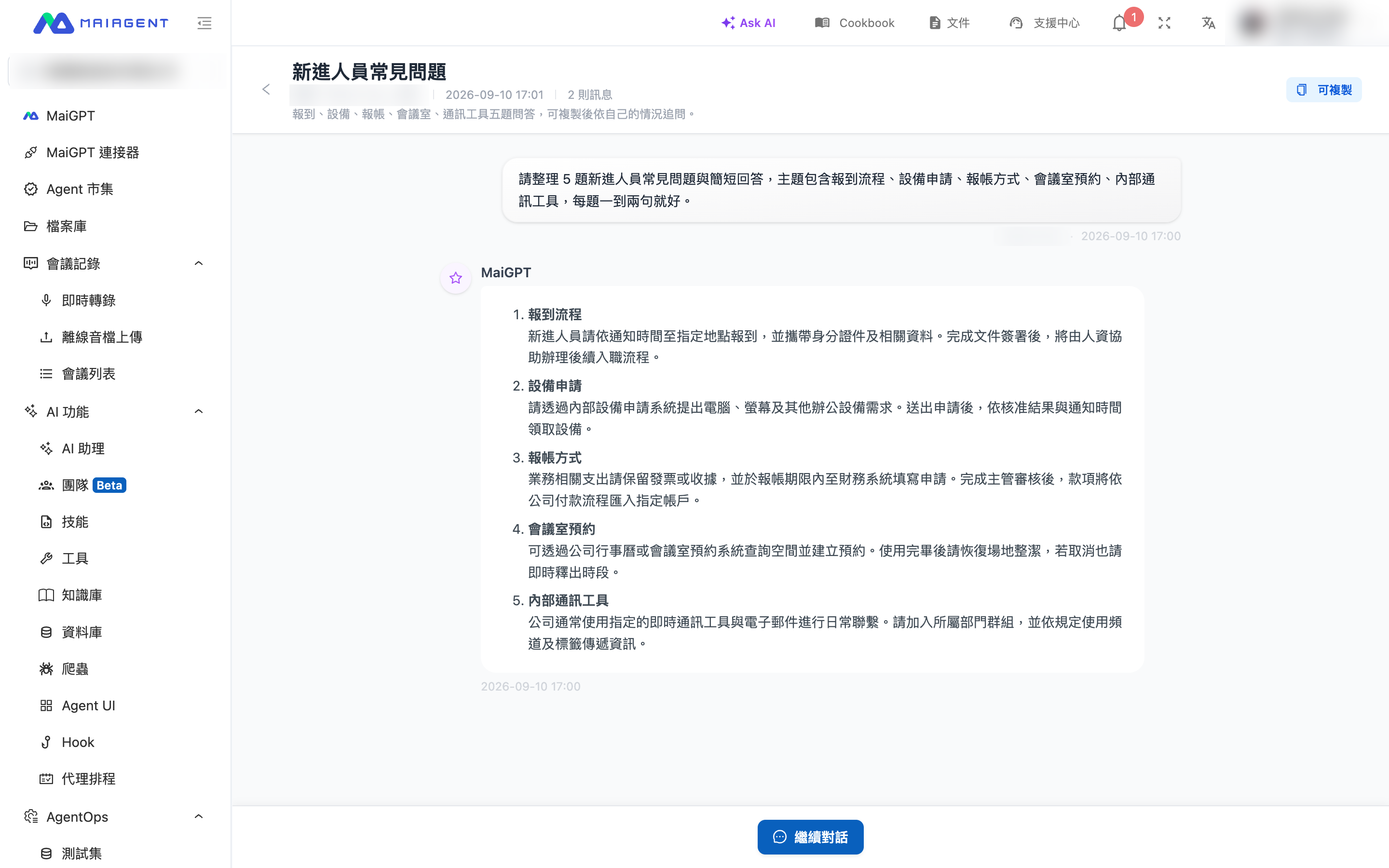
After signing in and opening the link, recipients arrive at the shared page. The title, sharer, sharing time, and message count appear at the top, with the entire conversation below. They can view the content but cannot type on this page.

* When permission is set to <mark style="color:blue;">Can Copy</mark>, a <mark style="color:blue;">Continue Conversation</mark> button appears at the bottom. Clicking it copies the conversation into a new conversation owned by the recipient, displays "Copied to your conversation list!", and automatically opens it so they can continue asking questions.
* When permission is set to <mark style="color:blue;">Read Only</mark>, the page displays "This conversation is shared as read-only" and does not show a copy button.
* Members outside the sharing scope, or accounts from another organization, see "Unable to load this shared conversation. The link may no longer be valid."

<figure><img src="https://1360999650-files.gitbook.io/~/files/v0/b/gitbook-x-prod.appspot.com/o/spaces%2F6v6TNkkOQVfRYfcNirHL%2Fuploads%2Fgit-blob-8fcb8b18458961a9b6f097bb16a0403ae4e2c178%2Fmaigpt-shared-page-continue.png?alt=media" alt="Shared page with the Continue Conversation button"><figcaption><p>A shared page with Can Copy permission has a Continue Conversation button at the bottom; click it to copy the conversation to your own list</p></figcaption></figure>

{% hint style="info" %}
**The copy is a new conversation**

After clicking <mark style="color:blue;">Continue Conversation</mark>, the recipient continues in a new conversation under their own account. Your original conversation is unchanged, and you cannot see their subsequent messages. The two conversations remain independent.
{% endhint %}

### Browse Organization Shares and Manage My Shares <a href="#browse-and-manage-shares" id="browse-and-manage-shares"></a>

<mark style="color:blue;">Browse Organization Shares</mark> at the top of the conversation page lists all shares in the organization that you are allowed to view. Search by title or description, then click <mark style="color:blue;">View</mark> to open a shared page.

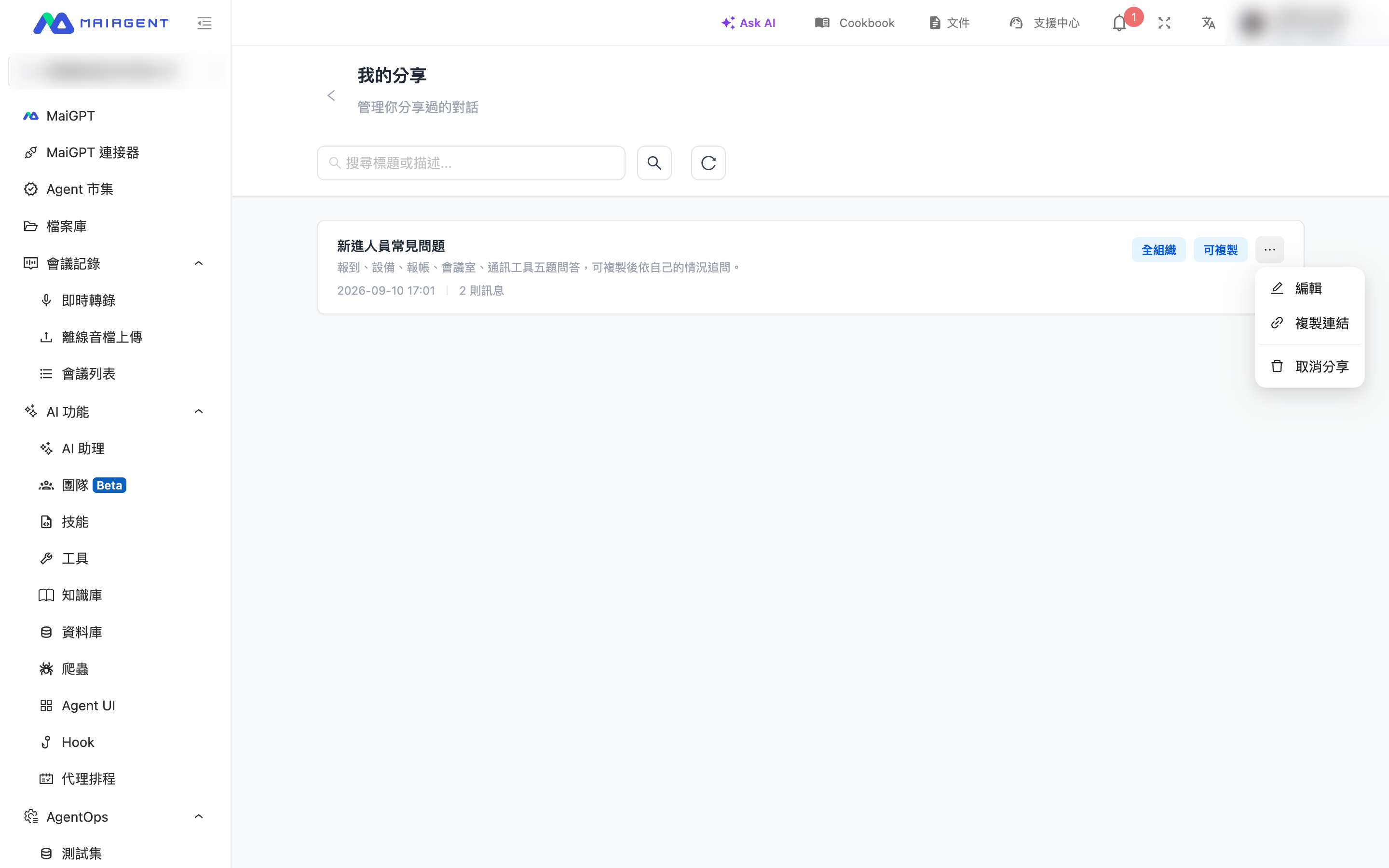
On this page, click <mark style="color:blue;">My Shares</mark> to manage every conversation you have shared:

| Action                                          | Description                                                                                                                                                                                 |
| ----------------------------------------------- | ------------------------------------------------------------------------------------------------------------------------------------------------------------------------------------------- |
| <mark style="color:blue;">Edit</mark>           | Change the share title, description, and sharing permission. The sharing scope and recipients cannot be changed after creation. To change recipients, cancel the share and create a new one |
| <mark style="color:blue;">Copy Link</mark>      | Copy the same share link again                                                                                                                                                              |
| <mark style="color:blue;">Cancel Sharing</mark> | After cancellation, others who open the link see that it cannot be loaded. Conversations already copied to their own lists are unaffected                                                   |

<figure><img src="https://1360999650-files.gitbook.io/~/files/v0/b/gitbook-x-prod.appspot.com/o/spaces%2F6v6TNkkOQVfRYfcNirHL%2Fuploads%2Fgit-blob-a383a0cb7ea6252061cd2b5a326a84a847ee7654%2Fmaigpt-my-shares.png?alt=media" alt="My Shares list"><figcaption><p>Use My Shares to edit a share, copy its link, or cancel sharing</p></figcaption></figure>

### Sharing Rules <a href="#share-rules" id="share-rules"></a>

| Item                                       | Description                                                                                                                                                                                        |
| ------------------------------------------ | -------------------------------------------------------------------------------------------------------------------------------------------------------------------------------------------------- |
| Shared content                             | The share captures the content at the moment you click Share. Messages subsequently added to the original conversation do not appear on the shared page. Create a new share to share newer content |
| Excluded content                           | The AI's thinking process and tool execution records do not appear on the shared page. Only the conversation text, code, and Canvas content are included                                           |
| Who can open it                            | Only signed-in members of the same organization. When the scope is limited to groups or members, anyone not selected cannot open it                                                                |
| Expiration                                 | There is no expiration date. The share remains available until you cancel it                                                                                                                       |
| After the original conversation is deleted | The shared page remains available to view and copy, preserving the version captured when it was shared                                                                                             |
| Who can manage it                          | Only the person who created the share can edit or cancel it                                                                                                                                        |

***

## Review Earlier Content While a Response Is Being Generated <a href="#review-during-generation" id="review-during-generation"></a>

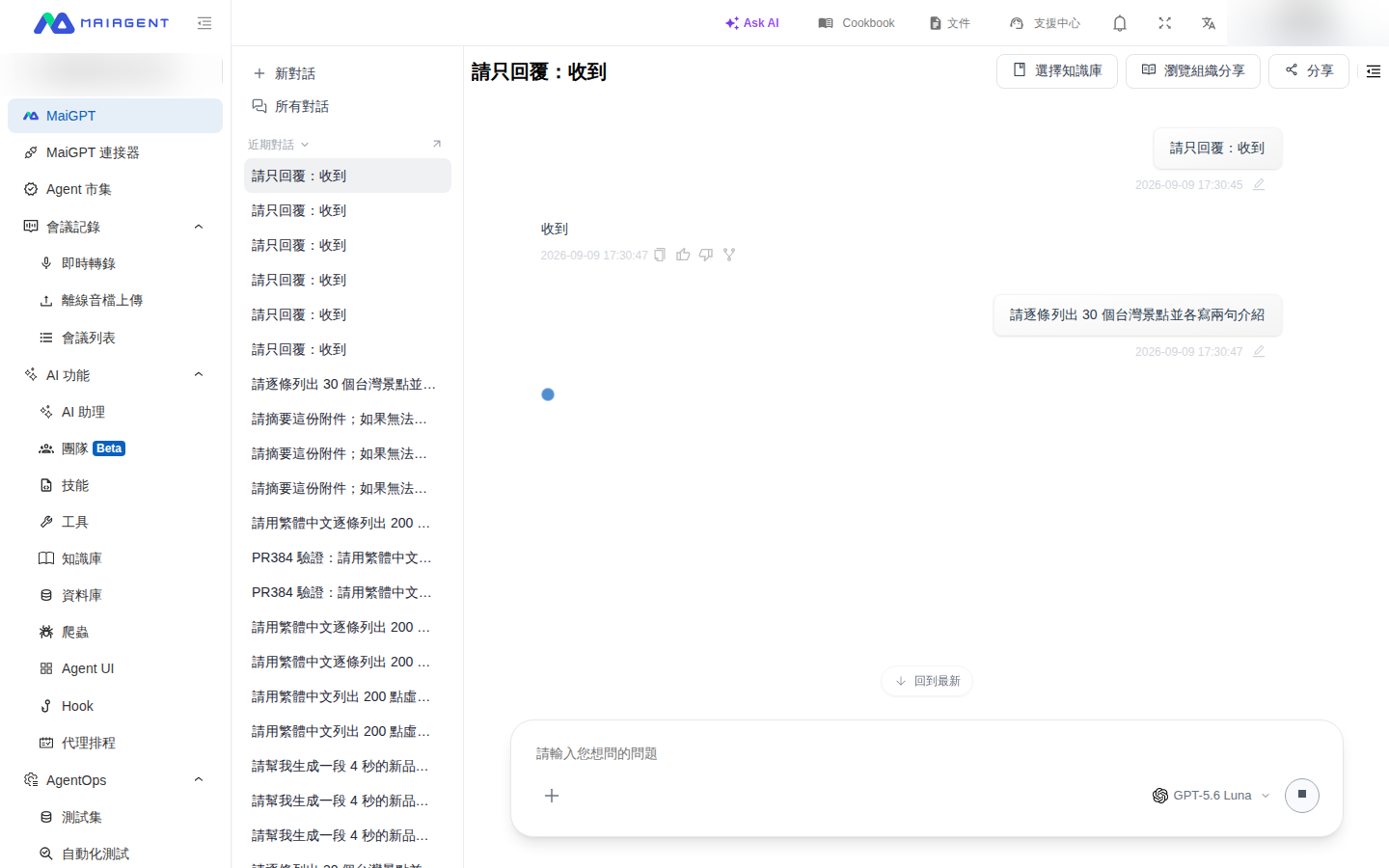
While MaiGPT is generating a long response, you can scroll up to review earlier content. The page stays where you scrolled instead of being pulled back down as new text appears. When you scroll **above the latest question**, a white <mark style="color:blue;">Back to Latest</mark> pill appears above the input box. Click it to return to the latest question and resume automatic scrolling.

### Use Case <a href="#generation-scroll-scenario" id="generation-scroll-scenario"></a>

A customer service manager asks MaiGPT to compile a lengthy training checklist. While the AI is still writing, she scrolls up to verify the requirements she provided in the previous exchange. The page remains at the section she wants to read instead of being pushed down by newly generated text, and a <mark style="color:blue;">Back to Latest</mark> pill appears above the input box. After checking the requirements, she clicks the pill to return to the current question and watches MaiGPT finish the response.

### Steps <a href="#generation-scroll-steps" id="generation-scroll-steps"></a>

{% stepper %}
{% step %}

### 1. Scroll Up <a href="#scroll-up-during-generation" id="scroll-up-during-generation"></a>

While MaiGPT is generating a response, scroll up with the mouse wheel, a touch gesture, or the scrollbar.
{% endstep %}

{% step %}

### 2. Read in Place <a href="#read-in-place" id="read-in-place"></a>

The page stays at your current position, and newly generated content does not move it. When you scroll above the latest question, a <mark style="color:blue;">Back to Latest</mark> pill appears above the input box.

<figure><img src="https://1360999650-files.gitbook.io/~/files/v0/b/gitbook-x-prod.appspot.com/o/spaces%2F6v6TNkkOQVfRYfcNirHL%2Fuploads%2Fgit-blob-fa6116d867bb550337b1bafd6f93059027e570ec%2Fmaigpt-back-to-latest.png?alt=media" alt="Back to Latest appears above the input box after scrolling up while MaiGPT generates a response"><figcaption><p>After you scroll above the latest question, Back to Latest appears above the input box. Click it to return to that question</p></figcaption></figure>
{% endstep %}

{% step %}

### 3. Return to the Latest Content <a href="#return-to-latest-content" id="return-to-latest-content"></a>

Click <mark style="color:blue;">Back to Latest</mark> to return to the latest question and resume automatically following new content. You can also scroll down to the bottom yourself to resume following.
{% endstep %}
{% endstepper %}

{% hint style="info" %} <mark style="color:blue;">Back to Latest</mark> appears only when you are **above the latest question**. If you scroll down within the same long response to read content that has already been generated, the page still stays in place, but the pill does not appear. Scroll to the bottom to resume following the latest content.
{% endhint %}

***

## Next Steps <a href="#next-steps" id="next-steps"></a>

* [Write Documents with Canvas](/maiagent-user-guide/en/maigpt/canvas.md)
* [Meeting Records Quick Access](/maiagent-user-guide/en/meeting-records/quick-entry.md)
* [Back to MaiGPT Overview](/maiagent-user-guide/en/maigpt/maigpt.md)


---

# Agent Instructions
This documentation is published with GitBook. GitBook is the documentation platform designed so that both humans and AI agents can read, navigate, and reason over technical content effectively. Learn more at gitbook.com.

## Querying This Documentation
If you need additional information that is not directly available in this page, you can query the documentation dynamically by asking a question.

Perform an HTTP GET request on the current page URL with the `ask` query parameter, and the optional `goal` query parameter:

```
GET https://docs.maiagent.ai/maiagent-user-guide/en/maigpt/chat.md?ask=<question>&goal=<endgoal>
```

`ask` is the immediate question: it should be specific, self-contained, and written in natural language.
`goal` is optional and describes the broader end goal you are ultimately trying to accomplish on behalf of the user. GitBook uses it to tailor the answer towards what is most useful for that goal.

The response will contain a direct answer to the question and relevant excerpts and sources from the documentation.

Use this mechanism when the answer is not explicitly present in the current page, you need clarification or additional context, or you want to retrieve related documentation sections.