> For the complete documentation index, see [llms.txt](https://docs.maiagent.ai/llms.txt). Markdown versions of documentation pages are available by appending `.md` to page URLs; this page is available as [Markdown](https://docs.maiagent.ai/maiagent-user-guide/en/km/km.md).
# Knowledge Base Overview
## What Is the Knowledge Base?
After creating an AI assistant, the next step is to set up the **knowledge base**, which serves as the data source for the AI assistant when answering questions.
How the knowledge base works:
Knowledge Base Operation Diagram
Think of the knowledge base as an open-book exam. The AI assistant finds the most relevant content from the knowledge base to use as the basis for its answers.
Although the knowledge base can hold a large amount of data, it is still recommended to upload content that is highly relevant to the assistant's tasks. If the content is irrelevant, current retrieval technology may still find unrelated information to use as answer context, leading to inaccurate responses.
## What Can the Knowledge Base Do?
With the following knowledge base features, you can:
### 📋 **Tag-Based Document Management**
You can add multiple tags to each document to create a systematic classification structure
* **Example**: Add `#tent #beginner #setup-guide` tags to the "Tent Manual"
### 🔐 **Selective Document Permissions**
You can set different document access permissions based on user identity to provide differentiated services
* **Example**: Product price lists are only accessible in VIP member conversations, while cost data is only accessible in internal conversations
### ❓ **Create FAQ**
You can organize frequently asked questions into a standard Q\&A set to ensure response consistency and completeness
* **Example**: "How many years is the tent warranty?" → Standard answer: "We provide a 3-year warranty service"
### 📊 **Document Metadata Input**
You can add detailed information such as version, update date, and applicable scope to documents for easier future maintenance
* **Example**: Document version v2.1, update date 2024/11/28, applicable product "Mountain Series Tents"
### 🔍 **Search Testing**
You can test retrieval results for different questions to verify whether the AI finds the correct data segments
* **Example**: Enter "tent setup steps" → Check whether the AI finds the correct setup guide segment
## How to Upload to the Knowledge Base?
For example, suppose a knowledge base administrator at a publishing company wants an AI assistant to search the contents of product e-books. The administrator uploads EPUB e-books to the product knowledge base. Once processing is complete, the AI assistant can search the books for information to answer questions, just as it can with PDF or Word documents.
1. Go to the left sidebar "AI Features" → "Knowledge Base"
2. Find the knowledge base you want to upload to and click "Edit" in the Actions column (if you haven't created one yet, please refer to [How to Create a Knowledge Base: Basic Settings](/maiagent-user-guide/en/km/km-basic-settings.md))
3. On the settings page, click the "Knowledge Base" tab
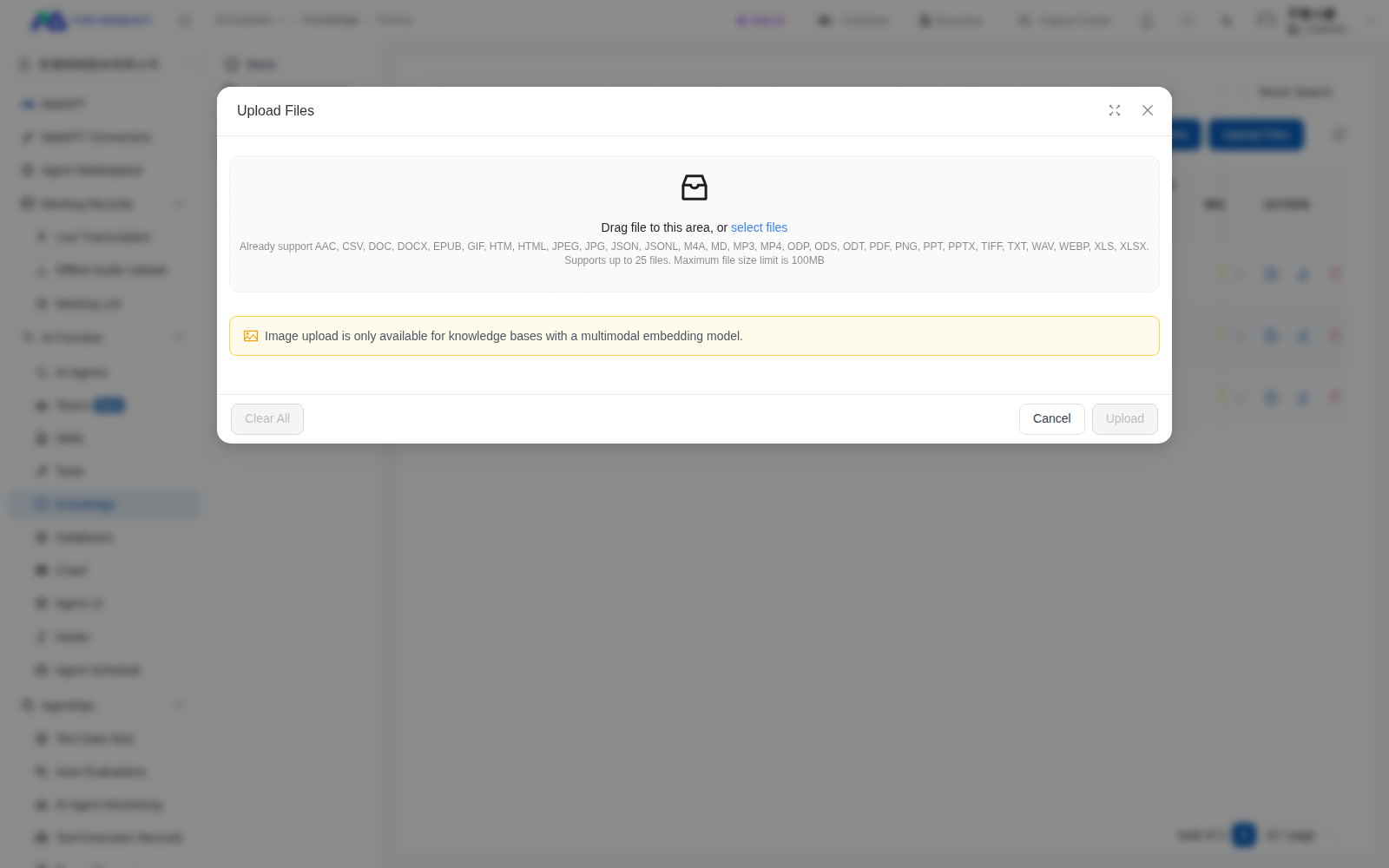
4. Click the blue "Upload File" button in the upper-right corner of the page to upload the data you want the AI assistant to know
The upload dialog lists EPUB and other supported file formats
{% hint style="info" %}
* Different plans provide different knowledge base storage capacities
* If your files are large or you have a lot of data, the system may need some time to process after uploading.
{% endhint %}
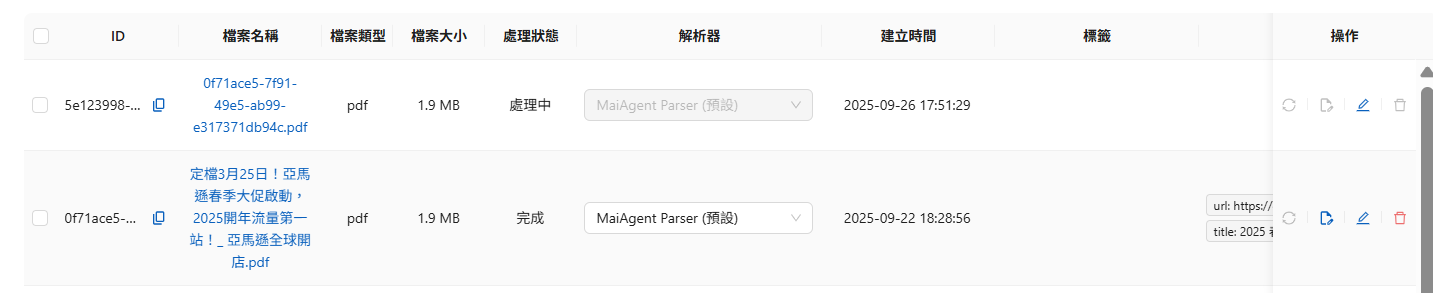
You can check the processing progress in the "Processing Status" column.
{% hint style="success" %}
Currently supported file types for the knowledge base:
* Spreadsheet files: `.xls, .xlsx, .csv, .ods`
* Word processing files: `.doc, .docx, .odt, .pdf, .md, .txt`
* Presentation files: `.ppt, .pptx, .odp`
* Web files: `.html, .htm`
* Data formats: `.json, .jsonl`
* E-books: `.epub`
* Audio files: `.wav, .mp3, .m4a, .aac`
* Video files: `.mp4`
{% endhint %}
### View Data
#### Data Chunk Description
When data is uploaded to the knowledge base, it is divided into chunks. This provides the following benefits:
* **Improved retrieval accuracy**: Smaller chunks match queries more precisely, avoiding interference from irrelevant content
* **Optimized response speed**: Faster processing with reduced computational resource consumption
* **Enhanced content relevance**: Each chunk focuses on a single topic, improving specificity
* **Easier maintenance and management**: Easier to update, track, and control quality
* **Compliance with AI model limitations**: Avoids exceeding input length limits, ensuring information completeness
#### Edit and View Chunk Content
You can view the segmented content of your documents:
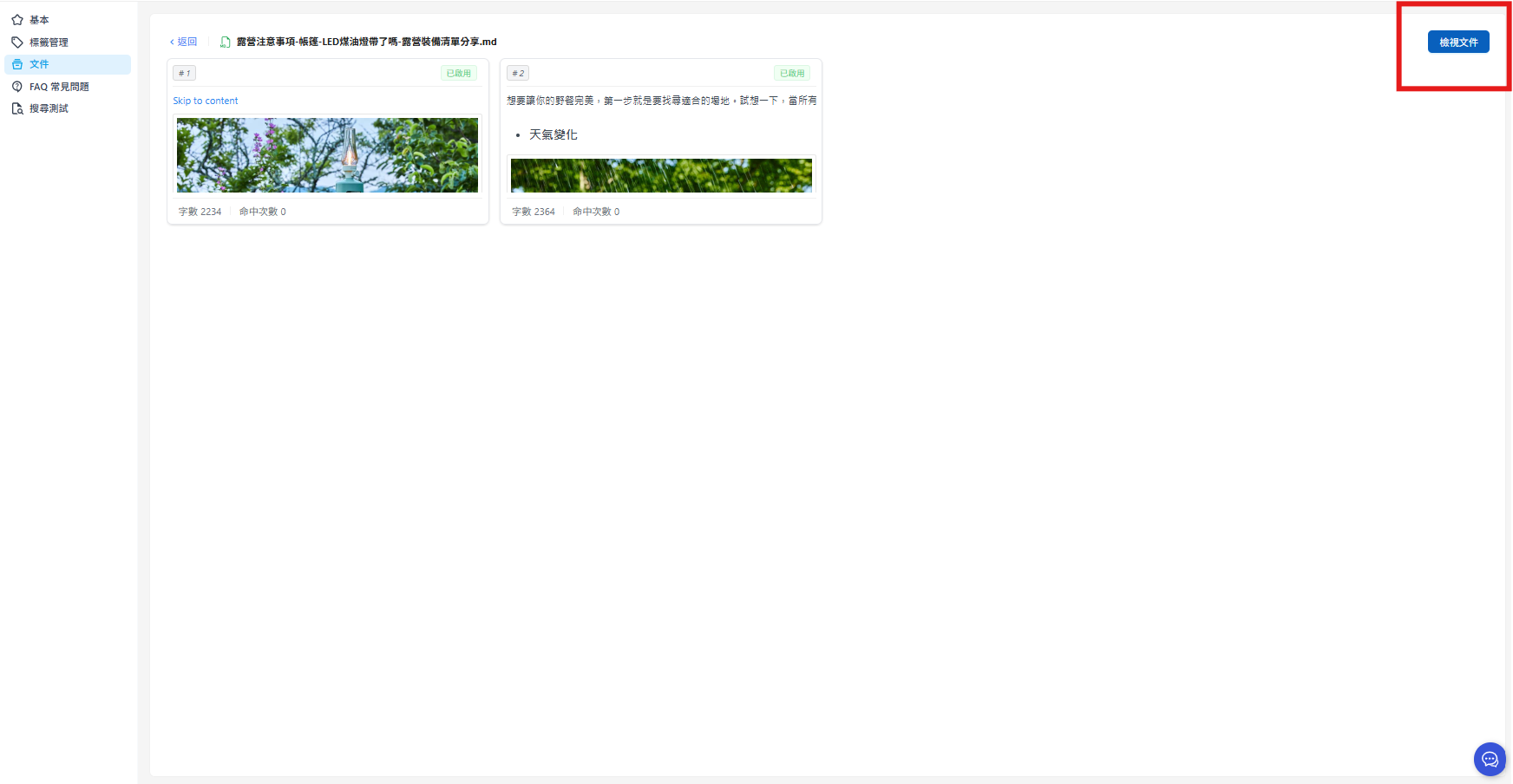
1. Go to the document page in the knowledge base, and click "Edit"
2. View the segmented content by clicking on the chunk you want to view
The screen will display the complete content of the chunk in Markdown format.
#### Edit Source Document
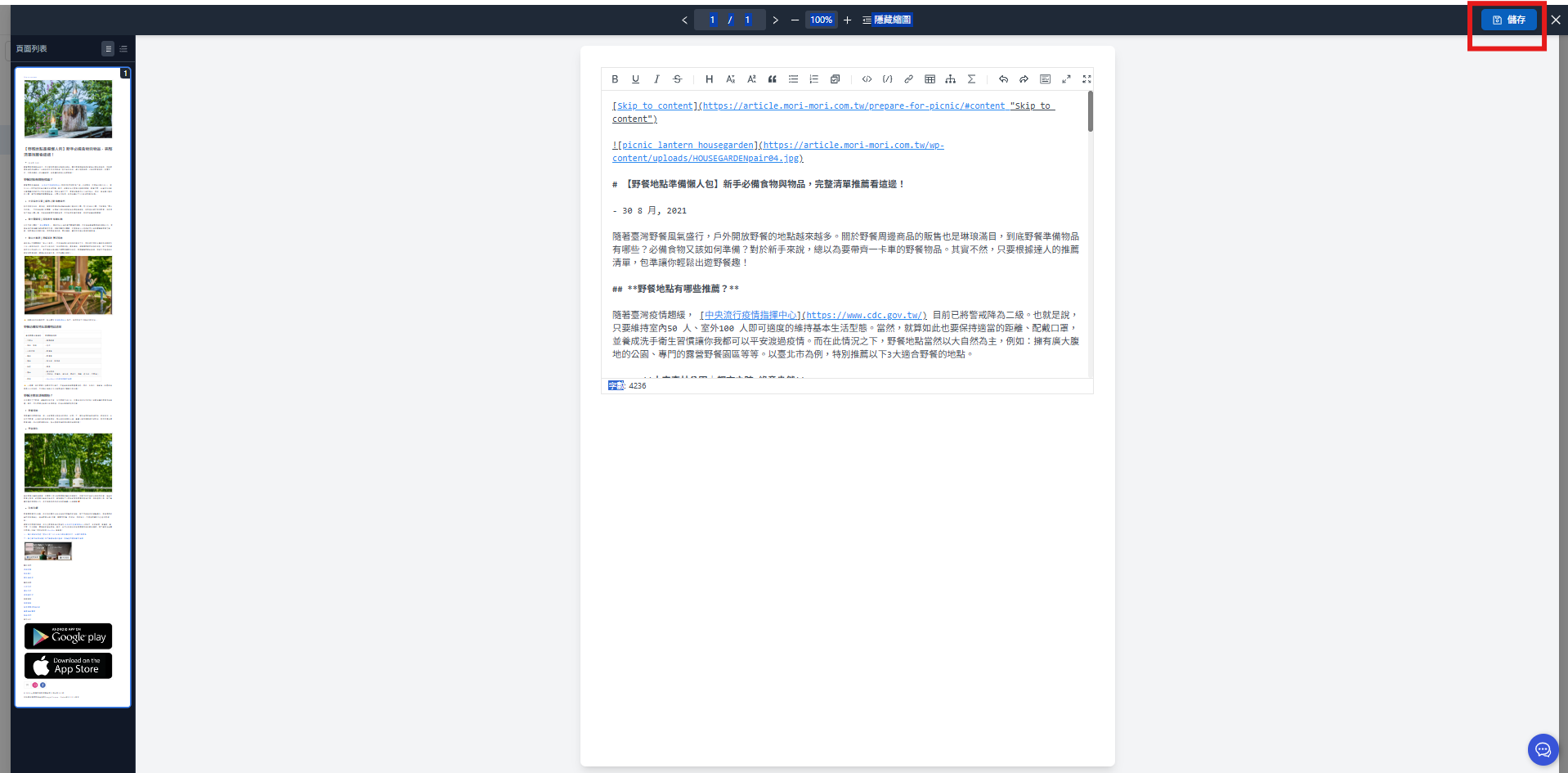
1. On the edit page, click "View Document"
2. Enter the edit page, where the text box will display the document in Markdown format
You can edit your source document in the text box. All file formats can be edited using this method. After finishing, click "Save" to save your edits.
{% hint style="info" %}
**Data Management Reminder**
* It is recommended to back up important content before editing
* After editing the source document, the system will re-segment the data into chunks
{% endhint %}
---
# Agent Instructions
This documentation is published with GitBook. GitBook is the documentation platform designed so that both humans and AI agents can read, navigate, and reason over technical content effectively. Learn more at gitbook.com.
## Querying This Documentation
If you need additional information that is not directly available in this page, you can query the documentation dynamically by asking a question.
Perform an HTTP GET request on the current page URL with the `ask` query parameter, and the optional `goal` query parameter:
```
GET https://docs.maiagent.ai/maiagent-user-guide/en/km/km.md?ask=&goal=
```
`ask` is the immediate question: it should be specific, self-contained, and written in natural language.
`goal` is optional and describes the broader end goal you are ultimately trying to accomplish on behalf of the user. GitBook uses it to tailor the answer towards what is most useful for that goal.
The response will contain a direct answer to the question and relevant excerpts and sources from the documentation.
Use this mechanism when the answer is not explicitly present in the current page, you need clarification or additional context, or you want to retrieve related documentation sections.
.png?alt=media)
%20(1).png?alt=media)
.png?alt=media)
.png?alt=media)