> For the complete documentation index, see [llms.txt](https://docs.maiagent.ai/llms.txt). Markdown versions of documentation pages are available by appending `.md` to page URLs; this page is available as [Markdown](https://docs.maiagent.ai/maiagent-user-guide/en/developer/maiagent-mcp.md).
# MaiAgent MCP
Use MaiAgent MCP to let Claude, Cursor, and other external AI tools directly operate the MaiAgent platform — connection setup, authentication, and usage guide
## 1. What Is MaiAgent MCP?
MaiAgent MCP is the official remote [MCP (Model Context Protocol)](https://modelcontextprotocol.io/) service provided by MaiAgent. After adding it to AI tools that support MCP — such as Claude Code, Claude Desktop, or Cursor — you can operate the MaiAgent platform directly using natural language. For example:
* "Create a customer service AI Assistant using the Claude Sonnet model"
* "List all Knowledge Bases in my Organization and upload this FAQ to the product Knowledge Base"
* "Retrieve yesterday's Conversation records and summarize the most frequently asked questions"
| Item | Description |
| -------------------- | --------------------------------------------------------------------------------------------------------------------------------- |
| **Service Endpoint** | `https://mcp.maiagent.ai/mcp` |
| **Transport** | Streamable HTTP (remote connection, no local installation required) |
| **Authentication** | MaiAgent API Key (HTTP Header) |
| **Coverage** | Full MaiAgent platform API: AI Assistants, Knowledge Bases, Conversations, tools, Organization management, and over 300 Endpoints |
### Available Tools
Once connected, your AI tool will have access to the following 6 tools. The AI automatically combines them (first searching for APIs, then checking specifications, and finally executing), so you don't need to remember any API details:
| Tool | Purpose |
| --------------------- | ---------------------------------------------------------------------------------------------------------------- |
| `debug_auth` | Check whether the authentication status is correct |
| `list_api_categories` | List all API categories |
| `search_apis` | Search API Endpoints by category or keyword |
| `get_api_details` | Retrieve the full specification of a specific API (Parameters, Request body, Response format) |
| `call_api` | Execute an actual API call |
| `refresh_schema` | Force reload the API list (use when a newly released API cannot be found; normally auto-updates every 5 minutes) |
{% hint style="info" %}
**Don't mix up the direction**: This page explains how to connect MaiAgent to **external** AI tools. If you want to do the opposite — attach other MCP tools to an AI Assistant within MaiAgent — refer to [Create MCP Tools](/maiagent-user-guide/en/tools/mcp-setup.md).
{% endhint %}
***
## 2. Prerequisites
Before you begin, you only need to prepare one **API Key**.
{% hint style="warning" %}
An API Key is bound to the **Organization you are in when the Key is created**. All MCP operations will apply to that Organization. If you belong to multiple Organizations, switch to the target Organization using the top-left selector in the Admin Console before creating the Key. Each member can have only one active Key per Organization.
{% endhint %}
### Get an API Key
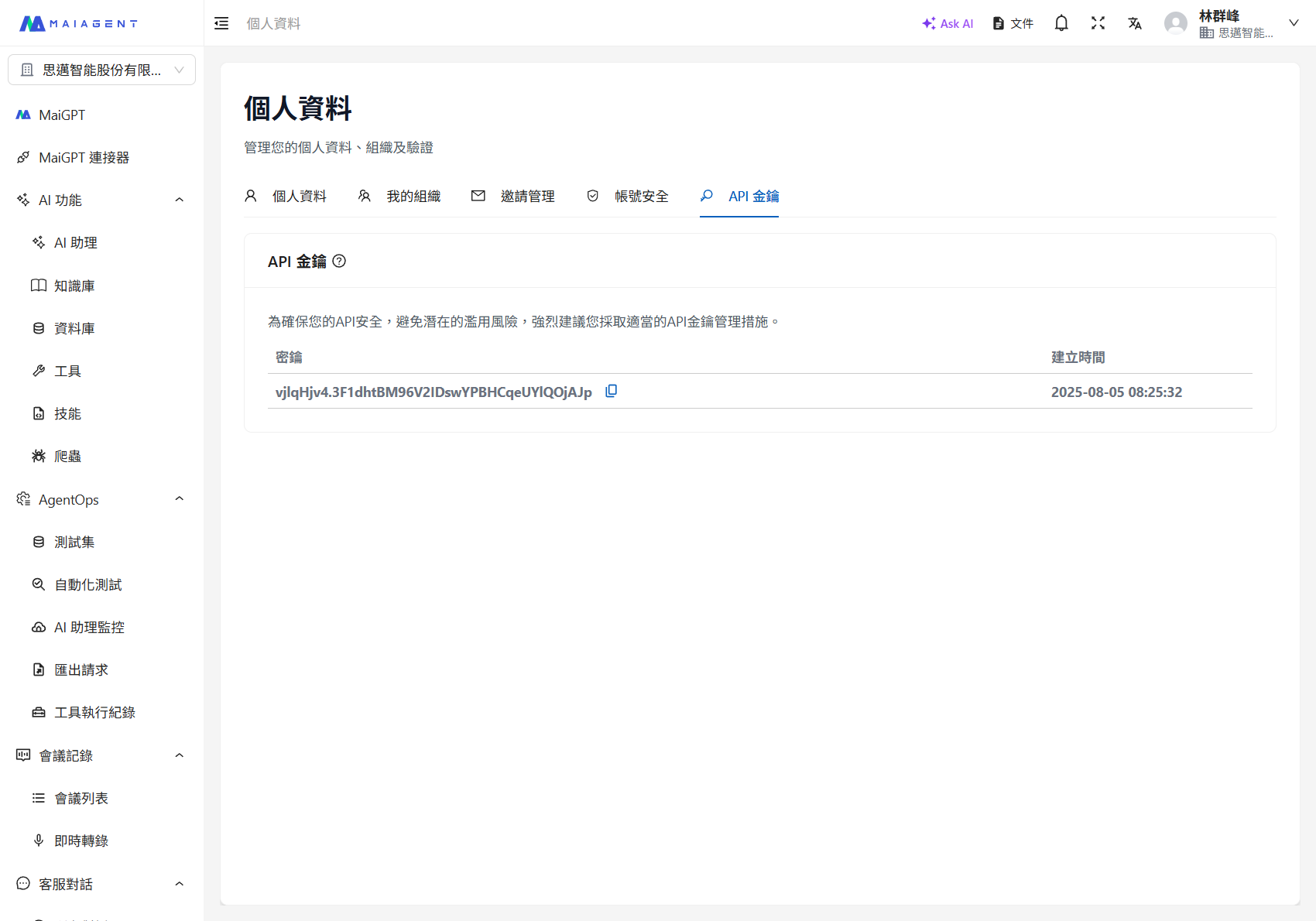
Log in to the [MaiAgent Admin Console](https://admin.maiagent.ai), click the avatar in the top-right corner → Profile → switch to the API Key tab → click Create New Key, and copy the generated API Key.
Profile → API Key Tab
{% hint style="danger" %}
The API Key is displayed only once after creation. Copy and store it securely immediately. An API Key is equivalent to your login credentials — do not share it with others or commit it to version control (git).
{% endhint %}
***
## 3. Connection Setup
Choose the setup method that corresponds to the AI tool you are using. In the examples below, replace `` with the API Key you obtained in the prerequisites.
{% tabs %}
{% tab title="Claude Code" %}
Run the following in your terminal:
```bash
claude mcp add --transport http maiagent https://mcp.maiagent.ai/mcp \
-s user \
--header "Authorization: Api-Key "
```
`-s user` makes it available across all projects. To use it only in the current project, change to `-s project` (the configuration will be written to `.mcp.json` in the project root).
You can also manually edit `.mcp.json` directly:
```json
{
"mcpServers": {
"maiagent": {
"type": "http",
"url": "https://mcp.maiagent.ai/mcp",
"headers": {
"Authorization": "Api-Key "
}
}
}
}
```
{% hint style="warning" %}
When using `-s project`, Claude Code will ask whether to trust the project's MCP server on first launch — select agree. If the directory containing `.mcp.json` is a git project, add `.mcp.json` to `.gitignore` to prevent the API Key from being committed.
{% endhint %}
{% endtab %}
{% tab title="Claude Desktop" %}
Edit the Claude Desktop configuration file (macOS: `~/Library/Application Support/Claude/claude_desktop_config.json`; Windows: `%APPDATA%\Claude\claude_desktop_config.json`) and add:
```json
{
"mcpServers": {
"maiagent": {
"command": "npx",
"args": [
"-y",
"mcp-remote",
"https://mcp.maiagent.ai/mcp",
"--header",
"Authorization:${AUTH_HEADER}"
],
"env": {
"AUTH_HEADER": "Api-Key "
}
}
}
}
```
Save and restart Claude Desktop.
{% hint style="info" %}
This method requires [Node.js](https://nodejs.org/) to be installed locally. The `Authorization` value is passed through `env` to prevent parameters containing spaces from being incorrectly split in the configuration file.
{% endhint %}
{% endtab %}
{% tab title="Cursor" %}
Edit `~/.cursor/mcp.json` (global) or `.cursor/mcp.json` within your project, and add:
```json
{
"mcpServers": {
"maiagent": {
"url": "https://mcp.maiagent.ai/mcp",
"headers": {
"Authorization": "Api-Key "
}
}
}
}
```
After saving, go to Cursor Settings → MCP and confirm that `maiagent` shows as connected.
{% endtab %}
{% tab title="Other MCP Tools" %}
Any MCP client that supports **Streamable HTTP** remote connections can be used. Key configuration settings:
| Setting | Value |
| ----------------------- | ----------------------------- |
| Server URL | `https://mcp.maiagent.ai/mcp` |
| Transport | Streamable HTTP |
| Header: `Authorization` | `Api-Key ` |
| {% endtab %} | |
| {% endtabs %} | |
***
## 4. Verify Connection
After completing the setup, ask the AI in your AI tool to call the `debug_auth` tool (for example, type "Call the maiagent debug\_auth tool to check the connection"). You should see:
```json
{
"has_auth_header": true,
"auth_header_preview": "Api-Key xxxxxxxx...",
"has_organization_id": false,
"organization_id": null
}
```
If `has_auth_header` is `true`, the connection and authentication are successful (`organization_id` showing `null` is normal — the target Organization is determined by the API Key itself).
***
## 5. Getting Started
Once connected, simply give instructions in natural language. The AI will automatically follow the `search_apis` → `get_api_details` → `call_api` workflow to find and execute the corresponding API. Here are some practical command examples:
* **Query**: "List all my AI Assistants", "Who are the members in this Organization?"
* **Create**: "Create an AI Assistant named 'Product Support' with the role instructions..."
* **Knowledge Base**: "Create a new Knowledge Base and list the current files"
* **Operations**: "Check the recent Conversations for the 'Product Support' Assistant and summarize the common questions"
{% hint style="warning" %}
Operations performed through MCP have the **same effect as manual operations in the Admin Console** (with permissions equivalent to your account). Before performing deletions, modifications, or other changes, ask the AI to explain what it is about to execute.
{% endhint %}
***
## 6. Troubleshooting
| Symptom | Possible Cause and Solution |
| ----------------------------------------------------------------------------------- | --------------------------------------------------------------------------------------------------------------------------------------------------------------------------------- |
| Connection failed, **401** Response | The API Key is incorrect, has been deleted, or the `Authorization` header is missing. Verify the format is `Api-Key ` (with a space between `Api-Key` and the Key). |
| Operating on the wrong Organization (expected Assistants/Knowledge Bases not found) | The API Key is bound to the Organization you were in when the Key was created. Switch to the correct Organization, create a new Key, and update the configuration file. |
| Tool list is empty | The connection was not established successfully. Restart your AI tool. In Claude Code, use the `/mcp` command to check the connection status. |
| Claude Code shows `Pending approval` | Project-level (`-s project`) MCP requires trust approval before connecting. Launch interactive Claude Code and follow the prompt to approve. |
| Permission error when executing an API | `call_api` executes under your identity and can only operate on resources your account has permission to access. Verify your role permissions in that Organization. |
{% hint style="info" %}
If you are using an on-premise deployment environment, the MCP service Endpoint will differ from the cloud version. Contact your MaiAgent service representative to confirm.
{% endhint %}
---
# Agent Instructions
This documentation is published with GitBook. GitBook is the documentation platform designed so that both humans and AI agents can read, navigate, and reason over technical content effectively. Learn more at gitbook.com.
## Querying This Documentation
If you need additional information that is not directly available in this page, you can query the documentation dynamically by asking a question.
Perform an HTTP GET request on the current page URL with the `ask` query parameter, and the optional `goal` query parameter:
```
GET https://docs.maiagent.ai/maiagent-user-guide/en/developer/maiagent-mcp.md?ask=&goal=
```
`ask` is the immediate question: it should be specific, self-contained, and written in natural language.
`goal` is optional and describes the broader end goal you are ultimately trying to accomplish on behalf of the user. GitBook uses it to tailor the answer towards what is most useful for that goal.
The response will contain a direct answer to the question and relevant excerpts and sources from the documentation.
Use this mechanism when the answer is not explicitly present in the current page, you need clarification or additional context, or you want to retrieve related documentation sections.