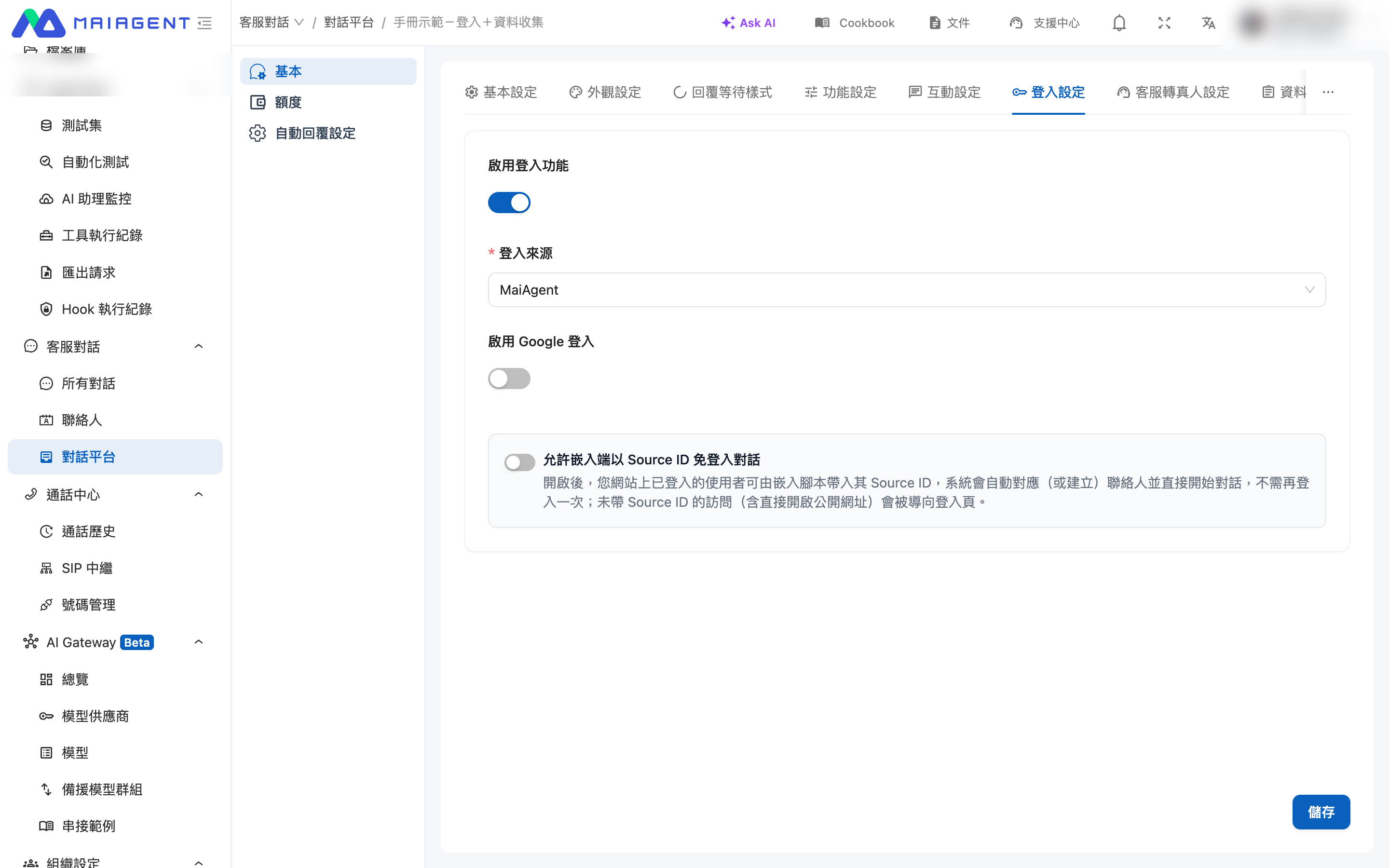
Passwordless Conversations with Contact Source ID
Let users already signed in to your website chat directly with their user ID (Source ID), without signing in again. The platform maps this ID to a contact, and unsigned requests cannot impersonate ano
When Web Chat is embedded in your website, users are often already signed in. This setting lets them start a conversation with your system's user ID without another sign-in screen, while continuing to block anonymous access through the public conversation URL.
MaiAgent calls this ID the Source ID. After receiving it, the platform maps it to (or creates) a contact and associates the user's conversation history with that contact.
1. What This Setting Solves
Previously, sign-in settings required one of two options:
Enable sign-in: users were asked to sign in again even though the embedded site had authenticated them.
Disable sign-in: anyone could anonymously use the public conversation URL.
After enabling this setting, users with a Source ID and valid signature can chat directly, while all other visitors are redirected to the sign-in page.
2. Enable the Setting
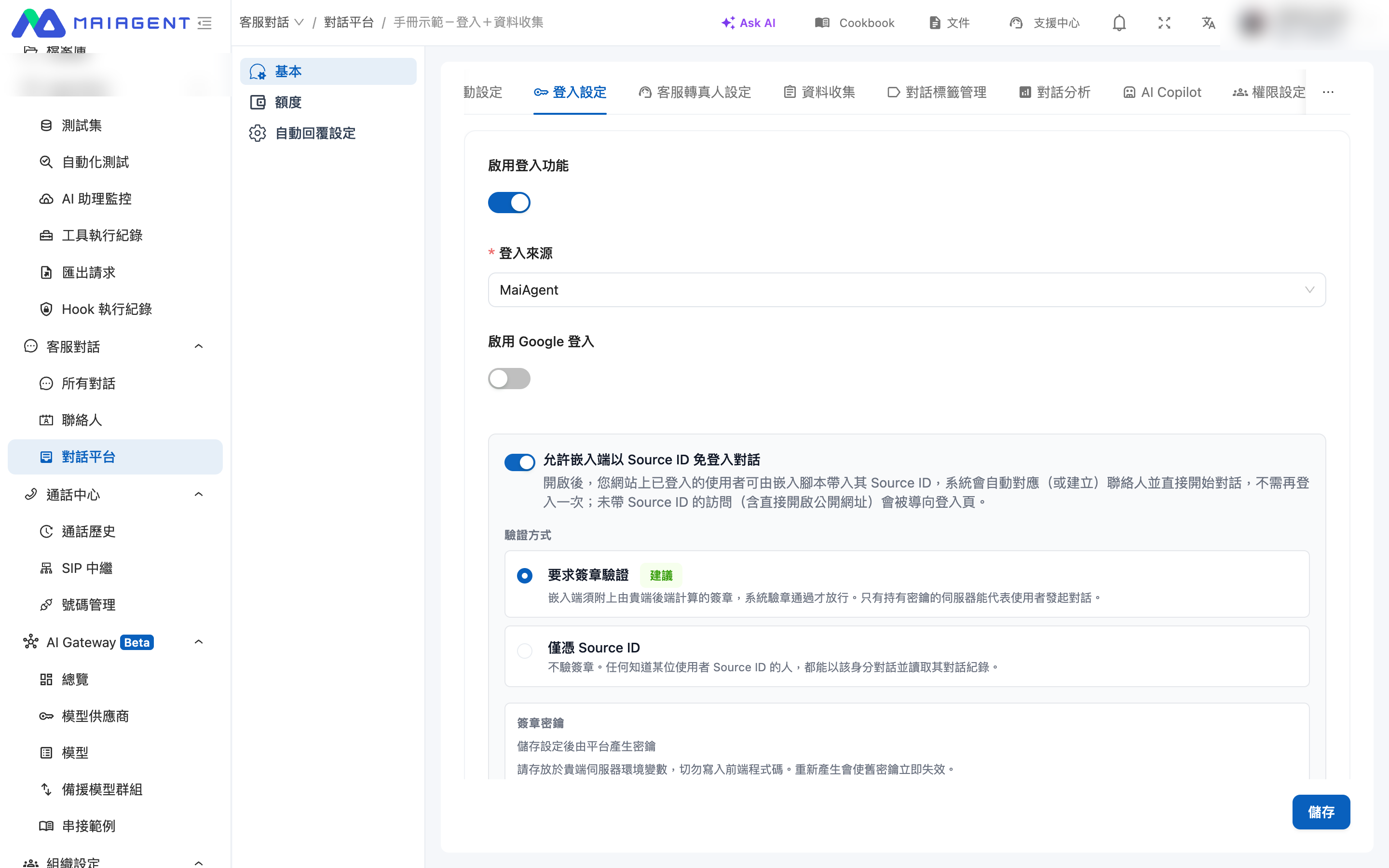
Go to “Customer Service Conversations > Integration Platforms” in the left menu, select a website integration platform, and open the “Login Settings” tab.
1. Select a login source first
First select a “Login Source” (MaiAgent, AD, Keycloak, or LINE). Until then, the toggle is unavailable and displays “Please select a login source first.”

2. Enable the toggle
Enable “Allow embedded clients to start conversations without signing in by using a Source ID.” The verification method, signing secret, and integration examples then appear.

3. Select a verification method
Require signature verification (recommended)
The embedded client must include a signature generated by your backend. Only a server holding the secret can initiate a conversation for a user.
Production
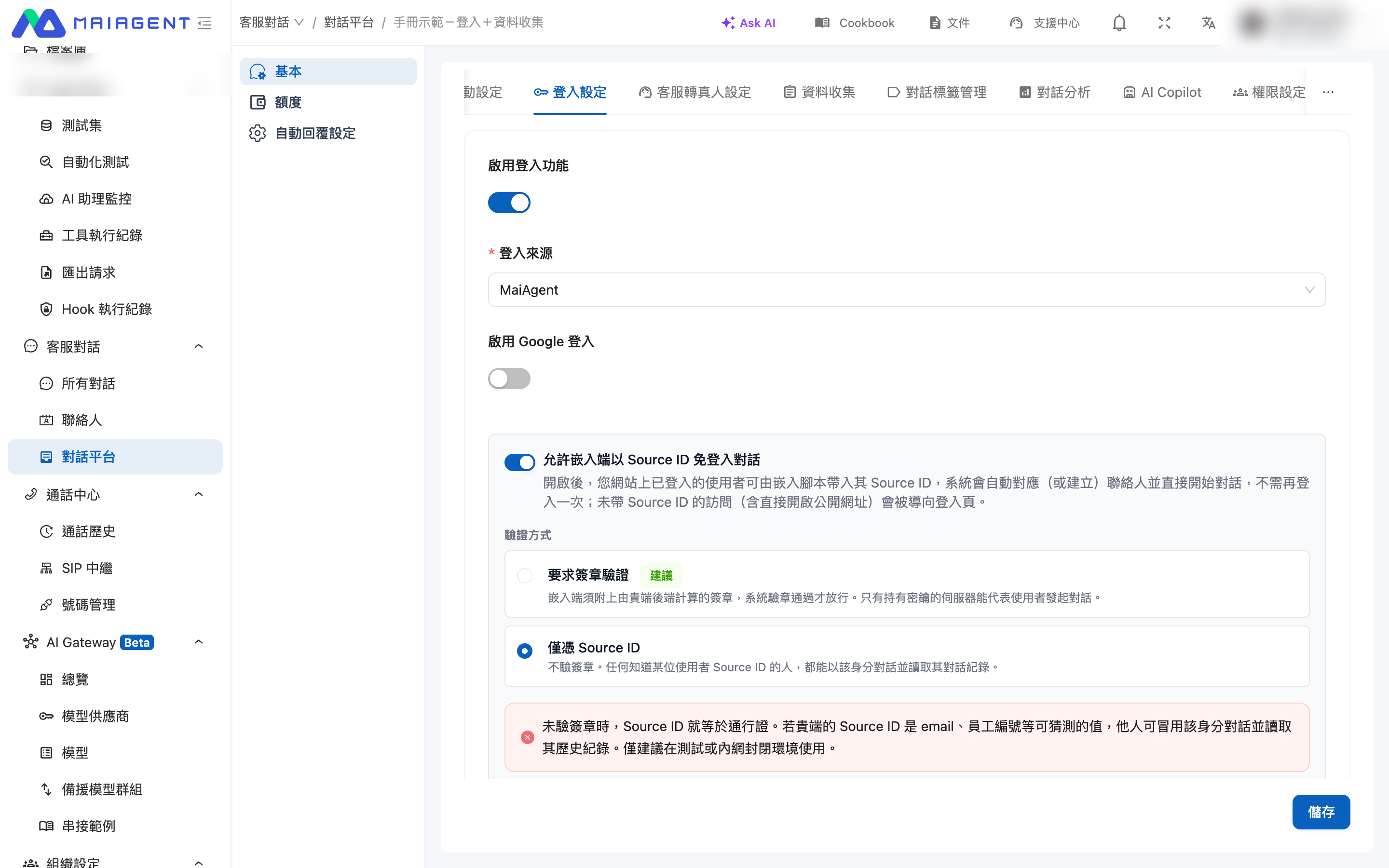
Source ID only
No signature is verified; a Source ID grants access.
Testing or closed intranets
With “Source ID only,” the Source ID is an access credential. If it is guessable, such as an email address, student number, or employee ID, someone could impersonate that user and read their history. Use signature mode when identity assurance is required, or use AD, Keycloak, or MaiAgent login.

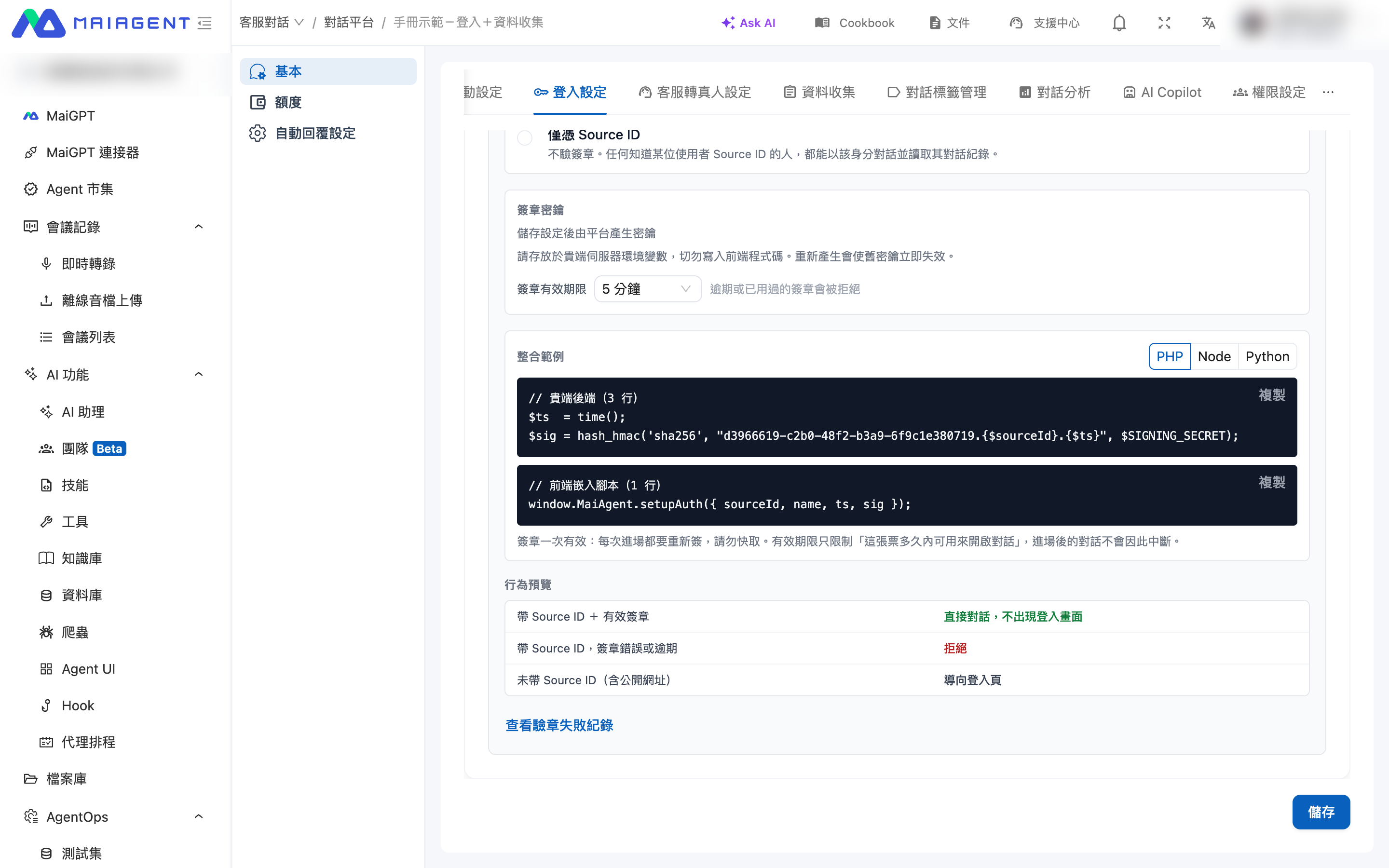
4. Obtain the signing secret
After selecting signature mode and saving, the platform generates a signing secret. You can:
Click “Show” to view the full secret (masked by default)
Click “Copy” to provide it to your engineer
Click “Regenerate” to issue a new secret
Store the secret in a server environment variable. Never place it in frontend code. Regenerating it immediately invalidates the old secret; update your backend at the same time or every signature will fail.
5. Set the signature validity period
Choose 1, 5, or 15 minutes. The default is 5 minutes. Expired or previously used signatures are rejected.

3. Integration Instructions for Engineers
The “Integration Examples” section includes this platform's ID and can be copied directly. For complete parameters, rules, and troubleshooting, see Web Chat Embed and SDK · Signature Verification.
1. Calculate the signature on the backend
The signature is HMAC-SHA256(secret, "{integration platform ID}.{Source ID}.{timestamp}"), passed as a hex string. Your backend generates the Unix timestamp in seconds (UTC).
2. Pass values to the frontend embed script
3. Integration notes
Generate a new signature on every entry: each signature can succeed only once. Do not cache it.
Calculate signatures on the backend: exposing the secret in frontend code makes it public.
Keep the clock accurate: the system permits 60 seconds of clock skew; timestamps outside this range are rejected.
Use the correct platform ID: a signature calculated with another platform's ID will fail.
4. Behavior Reference
Source ID + valid signature
Opens the conversation directly without a login screen
Source ID + invalid or expired signature
Rejected
The same signature is reused
First request succeeds; second is rejected
No Source ID (including opening the public URL)
Redirected to the login page
“Source ID only” + Source ID
Opens directly without signature verification
This toggle is disabled
Existing login behavior remains unchanged
5. Signature Verification Failure Log
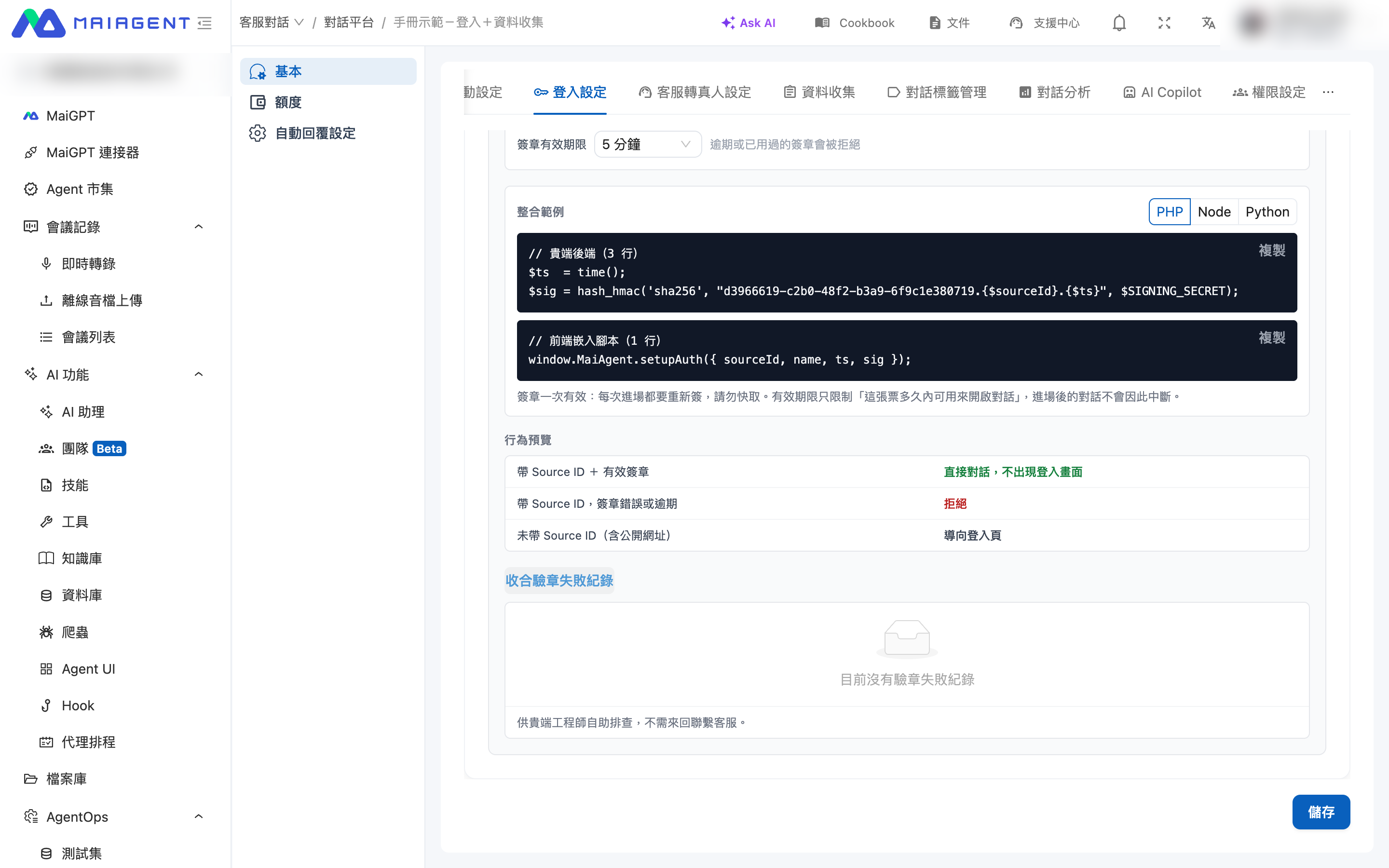
If integration fails, click “View Signature Verification Failure Log” in the settings to view recent failures. The log contains neither the secret nor complete signatures.

Signature expired
The server clock is offset, or the embedded client cached the signature
Timestamp exceeds the allowed future range
The server clock is over 60 seconds fast
Signature mismatch (secret may differ)
The backend secret differs, or the signature string is assembled incorrectly
Missing timestamp or signature
The embedded client omitted ts or sig
Signature already used
The same signature was submitted twice
Replay-prevention cache unavailable
Temporary platform issue; the system rejects instead of allowing access
Source ID maps to multiple contacts
Duplicate contacts with the same Source ID exist on this platform
6. FAQ
Last updated
Was this helpful?