> For the complete documentation index, see [llms.txt](https://docs.maiagent.ai/llms.txt). Markdown versions of documentation pages are available by appending `.md` to page URLs; this page is available as [Markdown](https://docs.maiagent.ai/maiagent-user-guide/en/conversations/platform-settings.md).

# Chat Platform Settings Overview

A map of the tabs on the chat platform settings page: how to access it, what each tab controls, which tabs are available on each platform, and detailed subpages for the five categories in the General

Every chat platform (Web, Internal, API, LINE, Microsoft Teams, etc.) has its own set of settings: appearance, feature toggles, interaction behavior, human handoff, and permissions. These settings are **attached to the chat platform, not to the AI Assistant**: if the same AI Assistant is connected to three platforms, there are three independent sets of settings. This page explains the structure of the settings page and what each tab controls. Each of the five categories in the "General" group has its own detailed page:

* [Basic Settings](/maiagent-user-guide/en/conversations/platform-settings/basic-settings.md): Name, AI Assistant, return URL, custom domain, domains allowed to embed the chat, Public Access URL, and embedding
* [Appearance Settings](/maiagent-user-guide/en/conversations/platform-settings/appearance-settings.md): Brand assets, display settings, and light and dark theme colors
* [Response Loading Display](/maiagent-user-guide/en/conversations/platform-settings/loading-display.md): Text or brand animations shown while waiting for a response
* [Feature Settings](/maiagent-user-guide/en/conversations/platform-settings/function-settings.md): Basic features, AI interaction features, Hook processing indicators, tool display mode, question set option display mode, and AI awareness settings
* [Interaction Settings](/maiagent-user-guide/en/conversations/platform-settings/interaction-settings.md): Welcome message, conversation starter questions, conversation display settings, satisfaction survey, and quota-exhausted message

For the integration steps for each platform, see the corresponding "Integrate with Chat Platform" page.

{% hint style="info" %}
When you create an AI Assistant, the system automatically creates three built-in chat platforms: <mark style="color:blue;">Web</mark>, <mark style="color:blue;">Internal</mark>, and <mark style="color:blue;">API</mark>. When adjusting a toggle, make sure you are changing the platform that is actually in use.
{% endhint %}

## 1. When to Use This <a href="#when-to-use" id="when-to-use"></a>

A customer service manager connects the company's AI Assistant to both the official website and a LINE Official Account. After launch, a colleague reports: "When asked 'what's today's date' on the website, the assistant can answer, but on LINE it asks the user what today's date is." They open <mark style="color:blue;">Customer Service</mark> → <mark style="color:blue;">Chat Platforms</mark> and find that <mark style="color:blue;">Use System Time to Answer</mark> is on for the Web platform but off for the LINE platform: each platform has its own settings. They turn on the toggle for the LINE platform, confirm that the timezone is set to Taipei time, and save. The assistant on LINE can then answer the date correctly, all without modifying the assistant's role prompt.

## 2. Open the Settings Page <a href="#open-settings" id="open-settings"></a>

Both paths lead to the same settings page:

* **From the chat platform list**: Click <mark style="color:blue;">Customer Service</mark> → <mark style="color:blue;">Chat Platforms</mark> in the left menu, find the platform you want to adjust, and click <mark style="color:blue;">Edit</mark> in the <mark style="color:blue;">Actions</mark> column. You can filter the list by channel type or AI Assistant at the top.
* **From the AI Assistant**: Go to <mark style="color:blue;">AI Features</mark> → <mark style="color:blue;">AI Assistants</mark>, select an assistant, switch to the <mark style="color:blue;">Chat Platforms</mark> tab, and click <mark style="color:blue;">Platform Settings</mark> on the platform card. After finishing, use <mark style="color:blue;">Back to AI Assistant Settings</mark> at the top of the page to return to the assistant.

## 3. Settings Page Structure <a href="#layout" id="layout"></a>

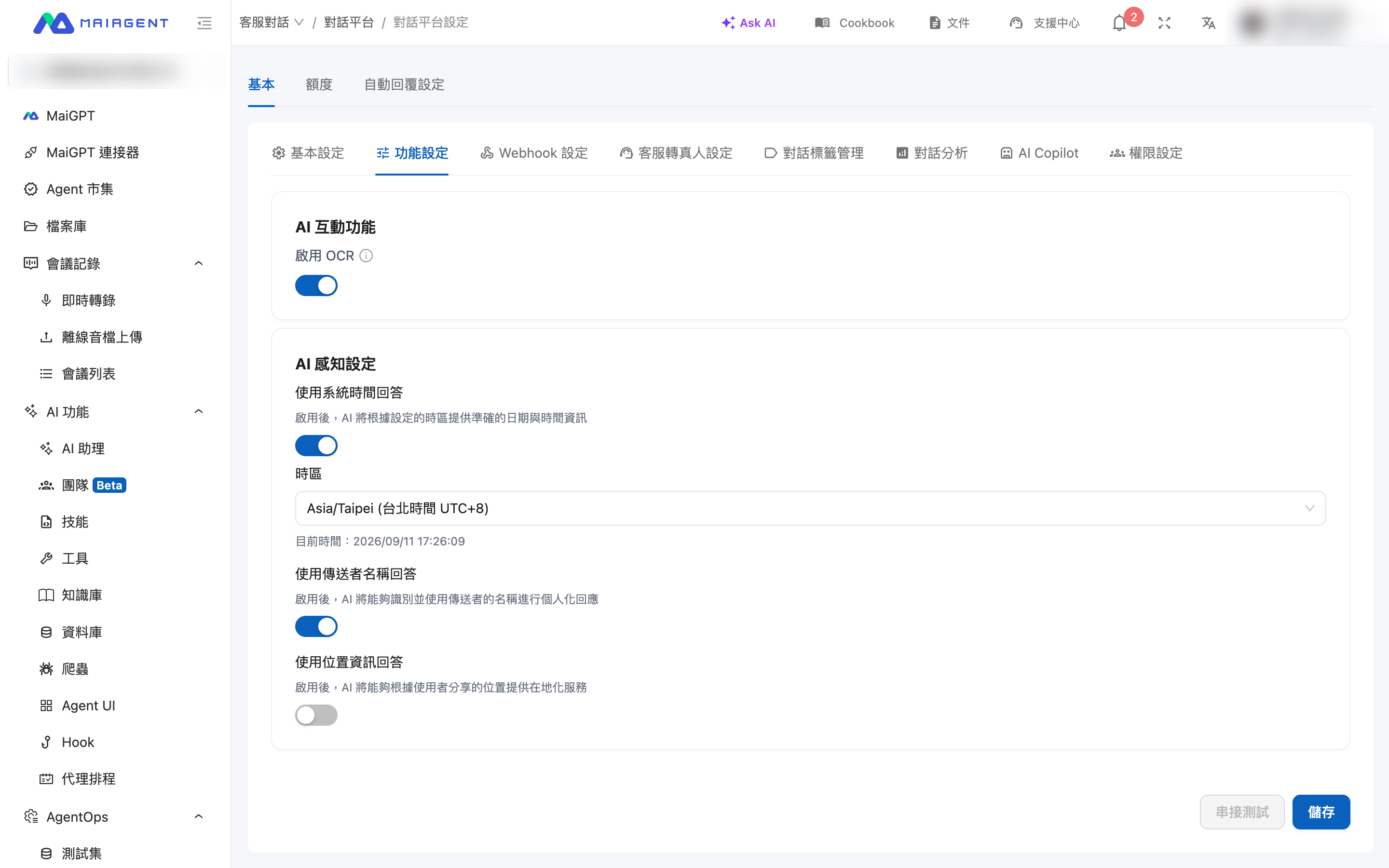
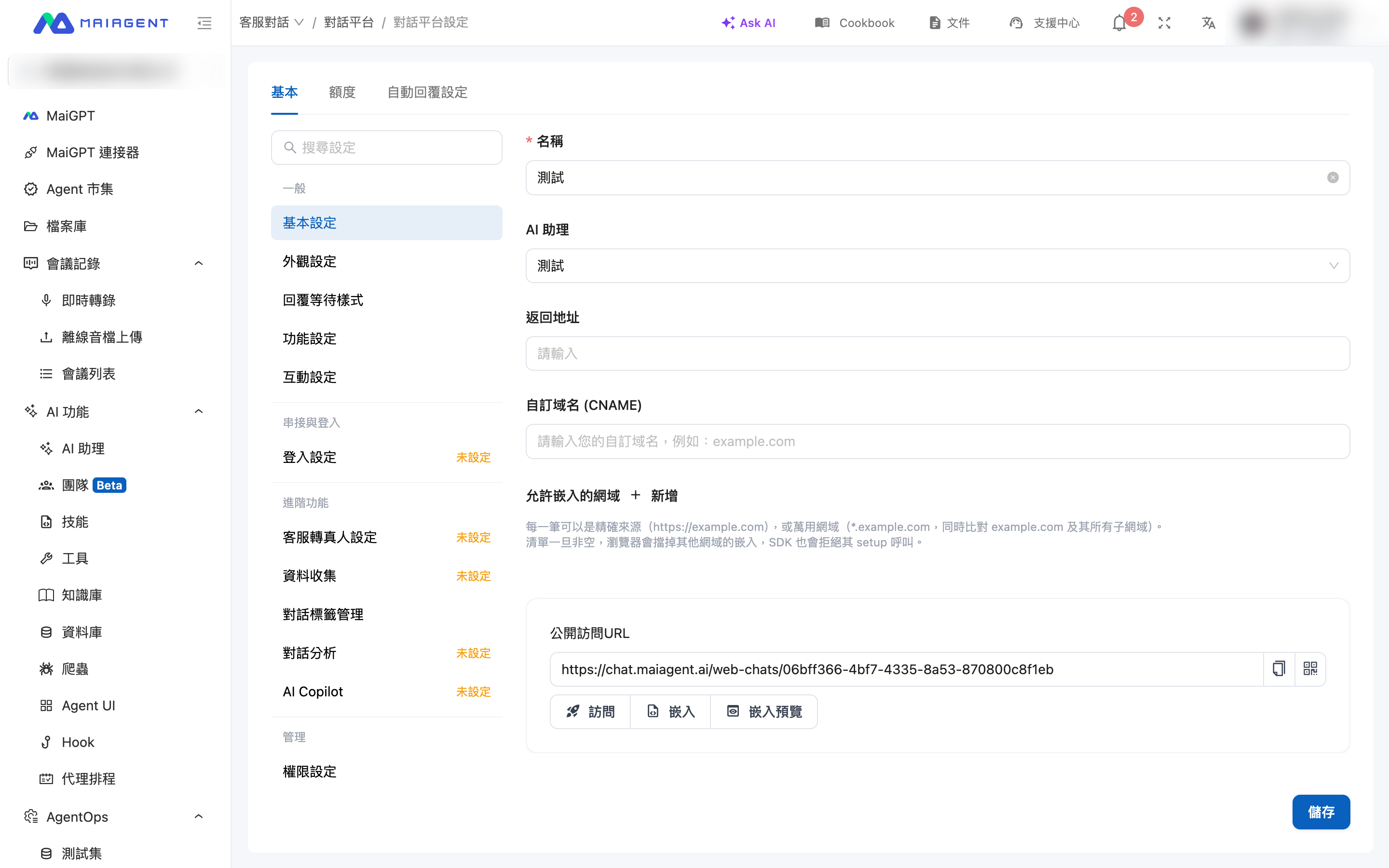
The top of the settings page always has three main tabs: <mark style="color:blue;">Basic</mark>, <mark style="color:blue;">Quota</mark>, and <mark style="color:blue;">Auto-Reply Settings</mark>. The <mark style="color:blue;">Basic</mark> tab has two layouts depending on the platform type:

* **Web, Internal, and API platforms**: Category navigation appears on the left, divided into four groups: "General," "Integration & Login," "Advanced Features," and "Management." Selecting a category displays the corresponding settings on the right. A <mark style="color:blue;">Search Settings</mark> field above the navigation lets you enter a keyword to find a toggle directly.
* **LINE, Microsoft Teams, Slack, Email, and other messaging platforms**: There is no left-side navigation. Instead, use the row of tabs at the top to switch sections.

<figure><img src="https://1360999650-files.gitbook.io/~/files/v0/b/gitbook-x-prod.appspot.com/o/spaces%2F6v6TNkkOQVfRYfcNirHL%2Fuploads%2Fgit-blob-aa693cf4e2790f075c4c5044f13ffadd2fffb26e%2Fplatform-settings-overview.png?alt=media" alt="Web platform settings page: three main tabs at the top and category navigation with four groups on the left"><figcaption><p>Web platform settings page: category navigation on the left and Basic Settings on the right</p></figcaption></figure>

<figure><img src="https://1360999650-files.gitbook.io/~/files/v0/b/gitbook-x-prod.appspot.com/o/spaces%2F6v6TNkkOQVfRYfcNirHL%2Fuploads%2Fgit-blob-8ab3d429dc89c8119ff97eeddea40045be9ed077%2Fplatform-settings-line-function.png?alt=media" alt="LINE platform settings page: a row of tabs at the top, currently showing Feature Settings"><figcaption><p>LINE and other messaging platforms use the tab row at the top to switch sections</p></figcaption></figure>

## 4. Tab Map <a href="#tab-map" id="tab-map"></a>

| Tab                                | What It Controls                                                                                                                                                                                                     | Learn More                                                                                                                                                                                                                            |
| ---------------------------------- | -------------------------------------------------------------------------------------------------------------------------------------------------------------------------------------------------------------------- | ------------------------------------------------------------------------------------------------------------------------------------------------------------------------------------------------------------------------------------- |
| **Basic Settings**                 | Platform name, linked AI Assistant, and platform-specific fields (Web: return URL, custom domain, domains allowed to embed the chat, and Public Access URL; LINE: Channel credentials; Teams: Bot credentials, etc.) | [Basic Settings](/maiagent-user-guide/en/conversations/platform-settings/basic-settings.md), and each platform's integration page                                                                                                     |
| **Appearance Settings**            | Chat window logo, avatar, colors, and theme                                                                                                                                                                          | [Appearance Settings](/maiagent-user-guide/en/conversations/platform-settings/appearance-settings.md)                                                                                                                                 |
| **Response Loading Display**       | Text or animation shown in the chat window while the AI generates a response                                                                                                                                         | [Response Loading Display](/maiagent-user-guide/en/conversations/platform-settings/loading-display.md)                                                                                                                                |
| **Feature Settings**               | Feature toggles: file uploads, cited documents, OCR, tool display mode, question set option display mode, and AI awareness settings                                                                                  | [Feature Settings](/maiagent-user-guide/en/conversations/platform-settings/function-settings.md)                                                                                                                                      |
| **Interaction Settings**           | Welcome message, conversation starter questions, conversation display settings, satisfaction survey, and quota-exhausted message                                                                                     | [Interaction Settings](/maiagent-user-guide/en/conversations/platform-settings/interaction-settings.md)                                                                                                                               |
| **Login Settings**                 | Whether users must log in before chatting and the available login methods                                                                                                                                            | [Integrate with Chat Platform: Website](/maiagent-user-guide/en/conversations/web-chat/website.md#login-settings), [Chat Without Login Using a Contact Source ID](/maiagent-user-guide/en/conversations/web-chat/source-id-access.md) |
| **Webhook Settings**               | Push conversation events to your system                                                                                                                                                                              | [Webhook](/maiagent-user-guide/en/conversations/webhook.md)                                                                                                                                                                           |
| **Human Handoff Settings**         | Handoff conditions, messages, service hours, assignment, and notifications                                                                                                                                           | [Human Handoff Settings](/maiagent-user-guide/en/conversations/human-handoff.md)                                                                                                                                                      |
| **Data Collection**                | A pre-chat form that collects contact information before starting a conversation                                                                                                                                     | [Web Chat Overview](/maiagent-user-guide/en/conversations/web-chat.md#pre-chat-form)                                                                                                                                                  |
| **Conversation Tag Management**    | Conversation tags available on this platform                                                                                                                                                                         | —                                                                                                                                                                                                                                     |
| **Conversation Analysis**          | Automatically analyze conversation content and apply category tags when handing off to a human agent                                                                                                                 | —                                                                                                                                                                                                                                     |
| **AI Copilot**                     | Automatically generate suggested replies to incoming messages for human agents                                                                                                                                       | —                                                                                                                                                                                                                                     |
| **Permission Settings**            | Which members can view and manage this platform                                                                                                                                                                      | —                                                                                                                                                                                                                                     |
| **Quota** (main tab)               | The Credits quota available to this platform                                                                                                                                                                         | [Manage Chat Platform Credits Quotas](/maiagent-user-guide/en/org/credits/inbox-credit-quota.md)                                                                                                                                      |
| **Auto-Reply Settings** (main tab) | When the AI replies automatically (24 hours a day or during specified hours)                                                                                                                                         | [Integrate with Chat Platform: Website](/maiagent-user-guide/en/conversations/web-chat/website.md#auto-reply-settings)                                                                                                                |

For the tabs available on each platform, see the [platform support matrix in Section 6](#platform-matrix).

## 5. Feature Settings Summary <a href="#function-settings" id="function-settings"></a>

The <mark style="color:blue;">Feature Settings</mark> for Web and API platforms are divided into six sections. The Internal platform does not include "Question Set Option Display Mode." Messaging platforms only include <mark style="color:blue;">Enable OCR</mark> under "AI Interaction Features" and "AI Awareness Settings."

| Section                              | What It Controls                                                                                                                                       |
| ------------------------------------ | ------------------------------------------------------------------------------------------------------------------------------------------------------ |
| **Basic Features**                   | Whether the platform is enabled, whether users can upload files and share conversations, and whether users can change the font size                    |
| **AI Interaction Features**          | Display cited documents, allow cited documents to be downloaded, enable OCR, display the reasoning process, and allow users to adjust reasoning effort |
| **Hook Processing Indicators**       | Whether to display an indicator when a message is processed by a Hook                                                                                  |
| **Tool Display Mode**                | Show full, compact, or no information when the AI calls a tool                                                                                         |
| **Question Set Option Display Mode** | Show options as floating buttons or in an option panel when the AI asks a question                                                                     |
| **AI Awareness Settings**            | Answer using system time, sender name, and location information                                                                                        |

For descriptions of each toggle, timezone rules, and frequently asked questions, see [Feature Settings](/maiagent-user-guide/en/conversations/platform-settings/function-settings.md).

## 6. Platform Support Matrix <a href="#platform-matrix" id="platform-matrix"></a>

| Tab                                                                                  | Web / Internal     | API | LINE | Slack | WhatsApp | Other Messaging Platforms |
| ------------------------------------------------------------------------------------ | ------------------ | --- | ---- | ----- | -------- | ------------------------- |
| Appearance Settings, Response Loading Display, Interaction Settings, Data Collection | ✓                  | ✓   | —    | —     | —        | —                         |
| Login Settings                                                                       | ✓                  | —   | —    | —     | —        | —                         |
| Webhook Settings                                                                     | —                  | ✓   | ✓    | ✓     | —        | ✓                         |
| Feature Settings: all six sections                                                   | ✓                  | ✓   | —    | —     | —        | —                         |
| Feature Settings: Question Set Option Display Mode                                   | Web ✓ / Internal — | ✓   | —    | —     | —        | —                         |
| Feature Settings: OCR + AI Awareness Settings                                        | ✓                  | ✓   | ✓    | ✓     | ✓        | ✓                         |
| Answer Using Location Information                                                    | ✓                  | ✓   | ✓    | —     | —        | —                         |
| Human Handoff Settings                                                               | ✓                  | ✓   | ✓    | —     | ✓        | ✓                         |
| Conversation Analysis                                                                | ✓                  | ✓   | ✓    | —     | ✓        | ✓                         |
| Conversation Tag Management, AI Copilot, Permission Settings                         | ✓                  | ✓   | ✓    | ✓     | ✓        | ✓                         |

"Other Messaging Platforms" refers to Microsoft Teams, Telegram, FB Messenger, Email, LINE WORKS, and Team+.

## 7. Frequently Asked Questions <a href="#faq" id="faq"></a>

### Q: Why can't I find these toggles in the assistant settings? <a href="#faq-where" id="faq-where"></a>

These settings are attached to the chat platform, not the AI Assistant. Go to <mark style="color:blue;">Customer Service</mark> → <mark style="color:blue;">Chat Platforms</mark>, or click <mark style="color:blue;">Platform Settings</mark> on the assistant's <mark style="color:blue;">Chat Platforms</mark> tab.

### Q: Why doesn't LINE know the date even though "Use System Time to Answer" is enabled for the Web platform? <a href="#faq-per-platform" id="faq-per-platform"></a>

Each platform has its own settings. Open the <mark style="color:blue;">Feature Settings</mark> tab for the LINE platform and enable it there as well. For timezone rules, see [Feature Settings](/maiagent-user-guide/en/conversations/platform-settings/function-settings.md#timezone-resolution).

### Q: Why is a particular tab missing from my platform? <a href="#faq-missing-tab" id="faq-missing-tab"></a>

Different platform types support different tabs. See [Section 6](#platform-matrix). For Web platforms, the "Advanced Features" group appears only after you save the basic settings and finish creating the platform.

### Q: Do I need to embed or integrate the platform again after changing settings? <a href="#faq-resave" id="faq-resave"></a>

No. Changes take effect immediately after you click <mark style="color:blue;">Save</mark>. You do not need to reset the Web embed code or the messaging platform's Webhook.


---

# Agent Instructions
This documentation is published with GitBook. GitBook is the documentation platform designed so that both humans and AI agents can read, navigate, and reason over technical content effectively. Learn more at gitbook.com.

## Querying This Documentation
If you need additional information that is not directly available in this page, you can query the documentation dynamically by asking a question.

Perform an HTTP GET request on the current page URL with the `ask` query parameter, and the optional `goal` query parameter:

```
GET https://docs.maiagent.ai/maiagent-user-guide/en/conversations/platform-settings.md?ask=<question>&goal=<endgoal>
```

`ask` is the immediate question: it should be specific, self-contained, and written in natural language.
`goal` is optional and describes the broader end goal you are ultimately trying to accomplish on behalf of the user. GitBook uses it to tailor the answer towards what is most useful for that goal.

The response will contain a direct answer to the question and relevant excerpts and sources from the documentation.

Use this mechanism when the answer is not explicitly present in the current page, you need clarification or additional context, or you want to retrieve related documentation sections.