> For the complete documentation index, see [llms.txt](https://docs.maiagent.ai/llms.txt). Markdown versions of documentation pages are available by appending `.md` to page URLs; this page is available as [Markdown](https://docs.maiagent.ai/maiagent-user-guide/en/conversations/human-handoff.md).

# Human Handoff Settings

Configure human handoff for AI assistants: transfer conditions, messages, service hours, routing rules, and internal notifications.

When a user's question is beyond the AI assistant's capabilities—for example, when the user explicitly requests a human agent or the issue involves sensitive information—the platform can transfer the conversation to a human customer service agent, who can take over and reply from the admin console. This page explains how to enable and configure human handoff. For daily agent operations, see [Taking Over and Replying as a Human Agent](/maiagent-user-guide/en/conversations/human-handoff/human-handoff-operations.md).

{% hint style="info" %}
All conversation platforms, including Web, Internal, LINE, and Microsoft Teams, support human handoff. The user experience after a transfer varies by platform: Web and Internal platforms support real-time two-way messaging, while API platforms do not provide a chat interface, so you must develop a frontend interface to receive replies.
{% endhint %}

## Where to Configure Human Handoff <a href="#where-to-configure" id="where-to-configure"></a>

Go to <mark style="color:blue;">Conversation Platforms</mark>, select the platform where you want to enable human handoff, and switch to the <mark style="color:blue;">Human Handoff Settings</mark> tab. The settings are divided into five sub-tabs: <mark style="color:blue;">Handoff Conditions</mark>, <mark style="color:blue;">Handoff Messages</mark>, <mark style="color:blue;">Service Hours</mark>, <mark style="color:blue;">Assignment Settings</mark>, and <mark style="color:blue;">Notifications</mark>.

## Handoff Conditions <a href="#transfer-conditions" id="transfer-conditions"></a>

After enabling <mark style="color:blue;">Enable Human Handoff</mark>, the AI determines whether a handoff is needed whenever a user message arrives.

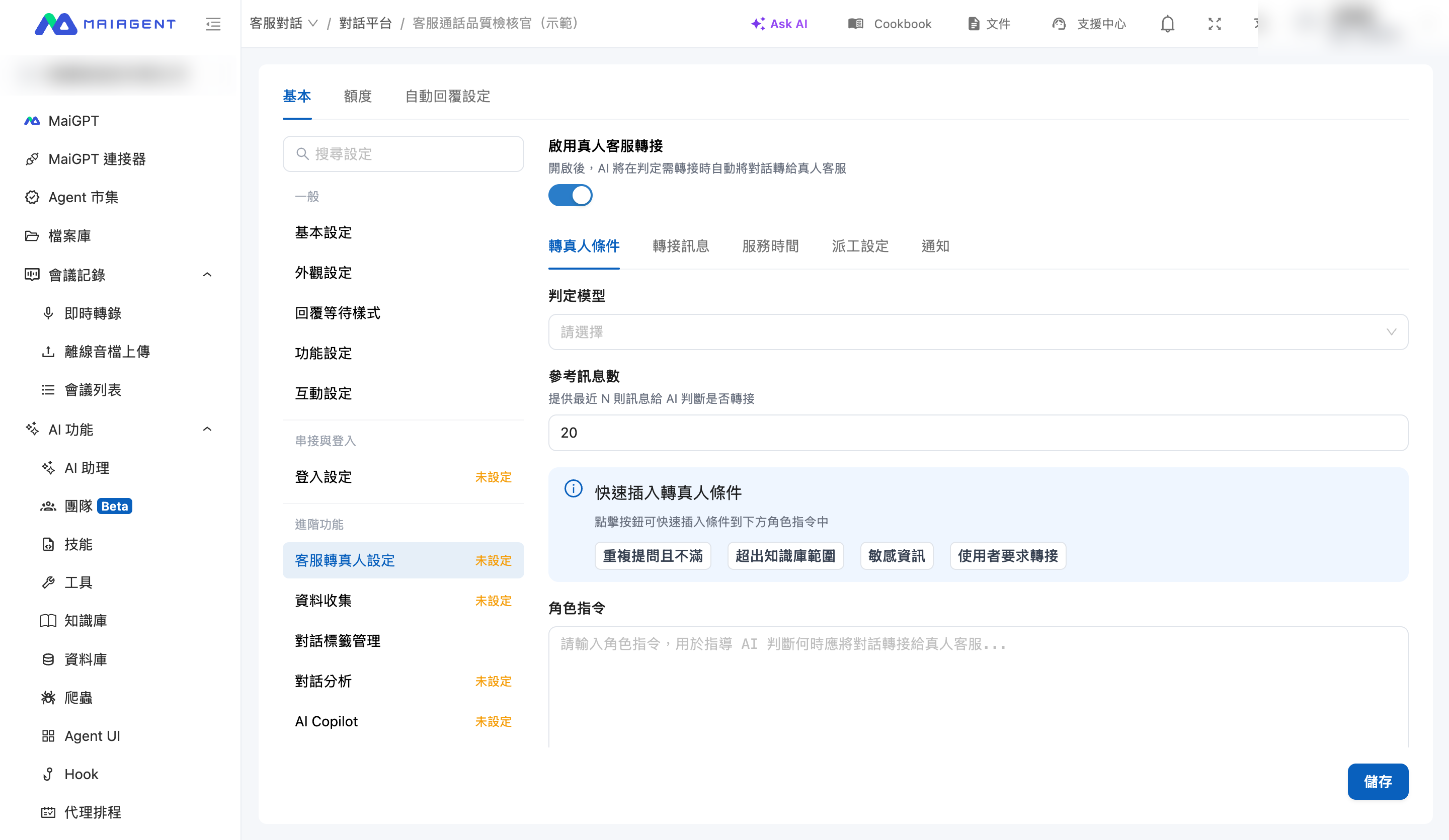
<figure><img src="https://1360999650-files.gitbook.io/~/files/v0/b/gitbook-x-prod.appspot.com/o/spaces%2F6v6TNkkOQVfRYfcNirHL%2Fuploads%2Fgit-blob-0f4d50b4a7b8eb5c56d5a5ca9b36d1cac3b6d224%2Fhandoff-transfer-conditions.png?alt=media" alt="Human handoff condition settings"><figcaption><p>Handoff conditions: enable switch, evaluation model, and quick-insert conditions</p></figcaption></figure>

The decision is based on the <mark style="color:blue;">Role Instructions</mark>. Describe in plain language when a conversation should be handed off, and the <mark style="color:blue;">Evaluation Model</mark> makes the decision by reviewing recent conversation content. The number of messages reviewed is controlled by <mark style="color:blue;">Reference Message Count</mark>.

The page provides four common conditions that you can insert into the role instructions with one click:

* **User requests a handoff**: The user explicitly asks to speak with a human agent
* **Outside the Knowledge Base scope**: The question is outside the Knowledge Base scope and the AI cannot answer effectively
* **Repeated questions and dissatisfaction**: The user repeatedly asks the same question and expresses dissatisfaction
* **Sensitive information**: The conversation involves sensitive matters such as personal data changes, billing, or legal issues

{% hint style="info" %}
In addition to automatic AI decisions, customer service managers can manually take over any conversation from “All Conversations” at any time, regardless of the handoff conditions.
{% endhint %}

## Handoff Messages <a href="#transfer-messages" id="transfer-messages"></a>

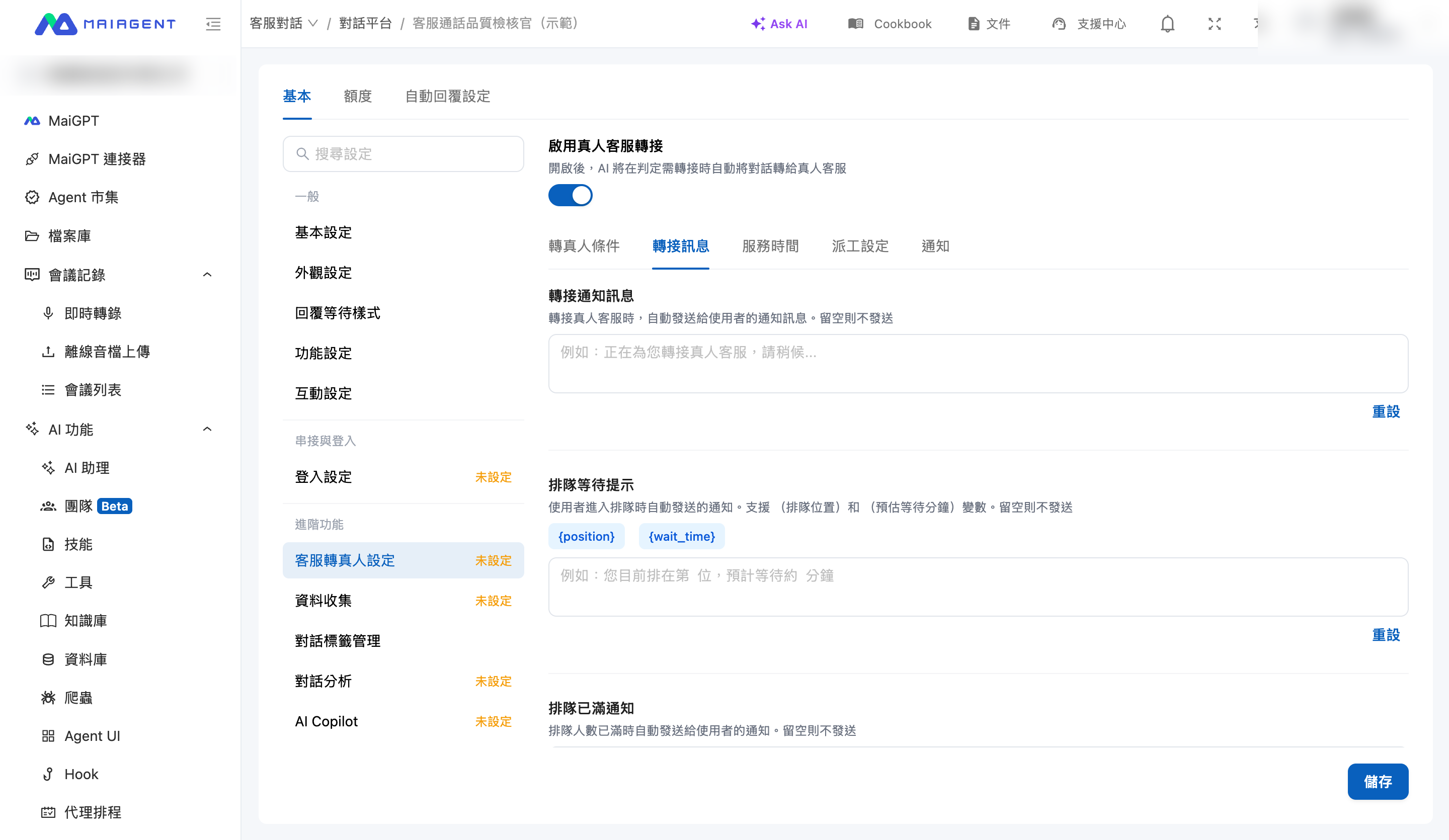
You can customize the message sent to the user at each stage of the handoff process. Leave a field blank to send no message:

| Message                    | When It Is Sent                                            | Available Variables                                                               |
| -------------------------- | ---------------------------------------------------------- | --------------------------------------------------------------------------------- |
| Handoff notification       | When human handoff is triggered                            | —                                                                                 |
| Queue waiting message      | When the user enters the queue                             | `{position}` for queue position, `{wait_time}` for estimated wait time in minutes |
| Successful handoff message | After an agent is successfully assigned                    | `{agent_name}` for the agent's name                                               |
| Queue full notification    | When the queue reaches its limit                           | —                                                                                 |
| Timeout notification       | When a queued conversation times out and returns to the AI | —                                                                                 |

<figure><img src="https://1360999650-files.gitbook.io/~/files/v0/b/gitbook-x-prod.appspot.com/o/spaces%2F6v6TNkkOQVfRYfcNirHL%2Fuploads%2Fgit-blob-bfb296d7c058394b5742f475287a28dc58473989%2Fhandoff-transfer-messages.png?alt=media" alt="Handoff message settings"><figcaption><p>Handoff messages: stage-specific messages and available variables</p></figcaption></figure>

## Service Hours <a href="#service-hours" id="service-hours"></a>

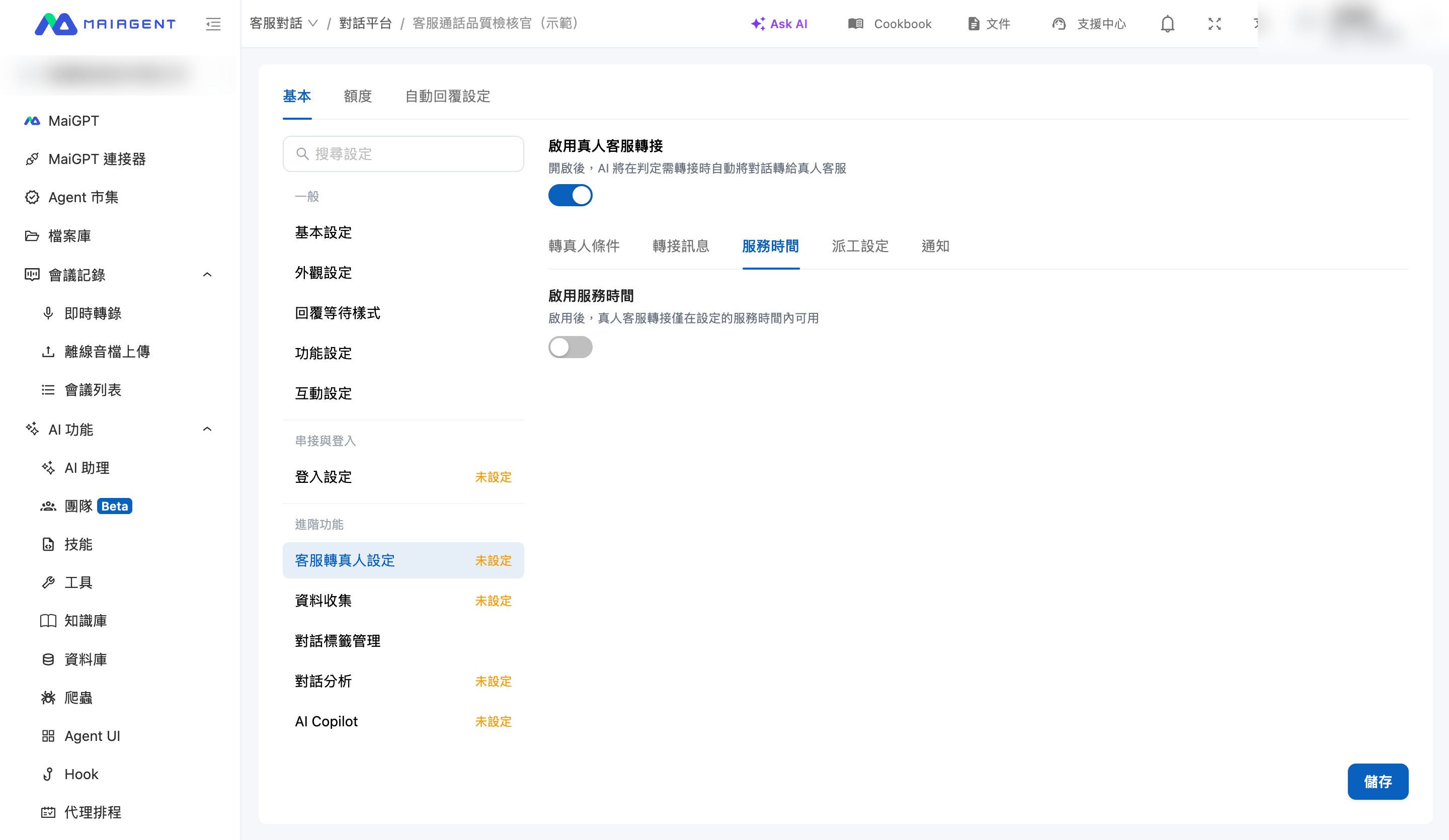
After enabling <mark style="color:blue;">Enable Service Hours</mark>, human handoff operates only during the configured hours. You can set the <mark style="color:blue;">Time Zone</mark> and service start and end times for each day of the week, or quickly apply <mark style="color:blue;">Monday–Friday 09:00–18:00</mark>.

When human handoff is triggered outside service hours, the <mark style="color:blue;">Offline Behavior</mark> determines what happens:

* **Show offline message**: Do not initiate a handoff. Send the offline message and end the current response. The AI will continue to answer subsequent general questions
* **Accept messages**: Show the offline message and place the conversation in the Unassigned queue so an agent can handle it during service hours

<figure><img src="https://1360999650-files.gitbook.io/~/files/v0/b/gitbook-x-prod.appspot.com/o/spaces%2F6v6TNkkOQVfRYfcNirHL%2Fuploads%2Fgit-blob-797fb69be8d3c084b426603c9b179399f5413cf9%2Fhandoff-service-hours.png?alt=media" alt="Service hours settings"><figcaption><p>Service hours: weekly schedule and offline behavior</p></figcaption></figure>

## Assignment Settings <a href="#dispatch-settings" id="dispatch-settings"></a>

### Select Customer Service Agents <a href="#assignable-members" id="assignable-members"></a>

Under <mark style="color:blue;">Assignable Customer Service Agents</mark>, select the agents for this platform. Automatic assignment only assigns conversations to people who meet **all** of the following conditions:

1. They are on the assignable list
2. Their account is active, and they have customer service permissions for this conversation platform
3. Their active conversation count has not reached the “Maximum Concurrent Conversations per Agent” limit

### Routing Model <a href="#routing-model" id="routing-model"></a>

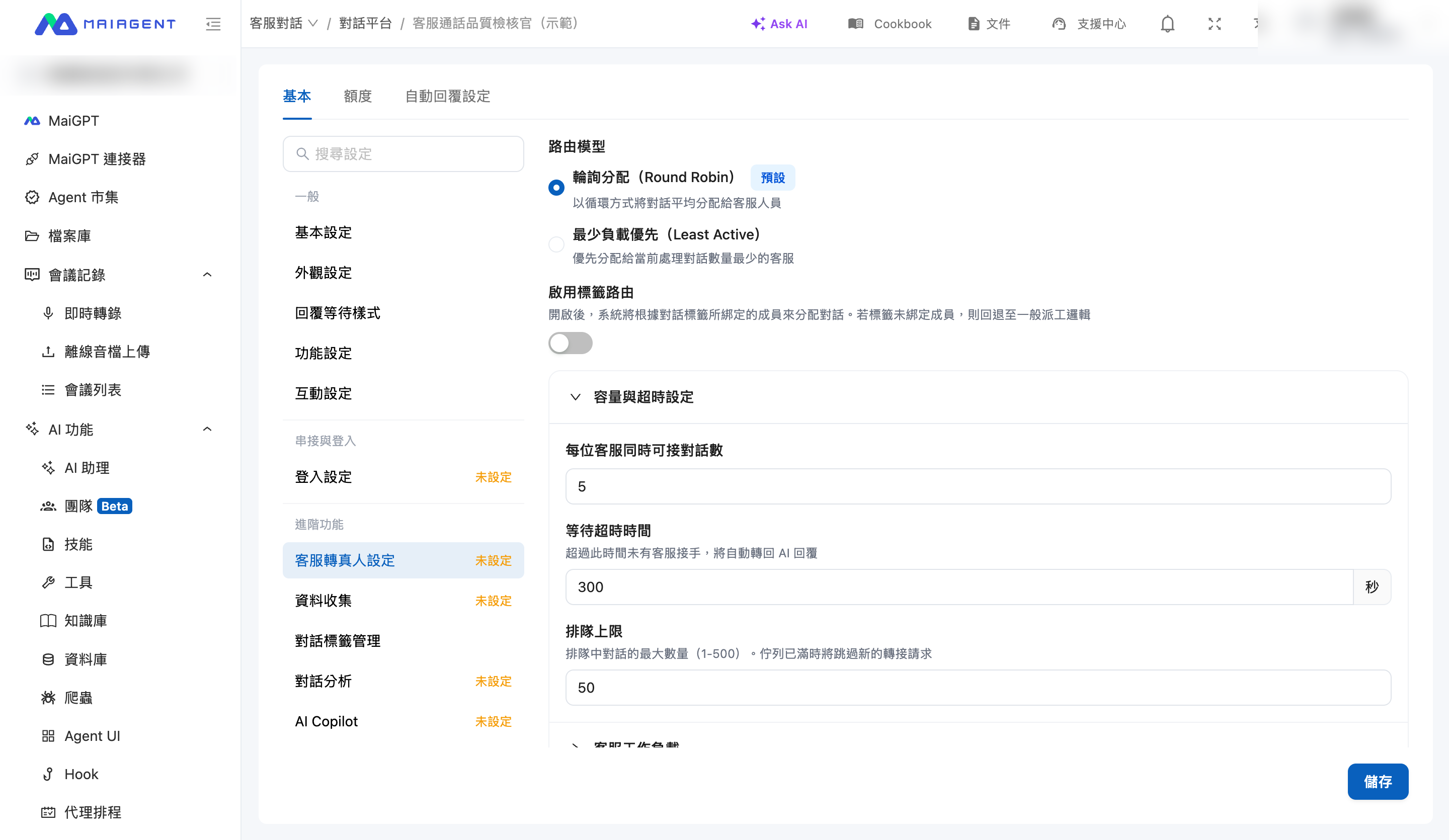
* **Round Robin**: Distributes conversations evenly among agents in rotation
* **Least Active**: Prioritizes the agent currently handling the fewest conversations

### Capacity and Queue Settings <a href="#capacity-and-queue" id="capacity-and-queue"></a>

| Setting                                    | Description                                                                                                                            |
| ------------------------------------------ | -------------------------------------------------------------------------------------------------------------------------------------- |
| Maximum concurrent conversations per agent | Maximum number of conversations one agent can handle at once. The agent receives no new assignments after reaching this limit          |
| Queue timeout                              | If no agent takes over before this period expires, the conversation automatically returns to the AI and a timeout notification is sent |
| Queue limit                                | Maximum number of queued conversations. New handoff requests are skipped when the queue is full                                        |

<figure><img src="https://1360999650-files.gitbook.io/~/files/v0/b/gitbook-x-prod.appspot.com/o/spaces%2F6v6TNkkOQVfRYfcNirHL%2Fuploads%2Fgit-blob-e3188794a19f2825351be430f7cf06b8444fae58%2Fhandoff-dispatch-routing.png?alt=media" alt="Assignment settings"><figcaption><p>Assignment settings: routing model, tag-based routing, capacity, and timeout settings</p></figcaption></figure>

{% hint style="info" %}
**Want agents to claim conversations themselves?** Leave the “Assignable Customer Service Agents” list empty. All handed-off conversations will remain in the Unassigned list, where agents can click “I'll Take Over” to claim them. They will not be assigned automatically.
{% endhint %}

### Tag-Based Routing <a href="#tag-routing" id="tag-routing"></a>

After enabling <mark style="color:blue;">Enable Tag-Based Routing</mark>, the system assigns conversations based on the members associated with each conversation tag. For example, conversations tagged “Billing” are assigned to members of the billing team. Before using this feature, create conversation tags, assign tags to members, and consider enabling Conversation Analysis so conversations are tagged automatically during handoff. If a tag has no associated members, the system falls back to the standard assignment logic.

### Agent Workload <a href="#agent-workload" id="agent-workload"></a>

The <mark style="color:blue;">Agent Workload</mark> panel at the bottom of the page shows each agent's active and resolved conversation counts and status (Available or At Capacity), as well as the current number of queued conversations, helping managers monitor the team's workload in real time.

## Notifications <a href="#notifications" id="notifications"></a>

When a conversation is assigned to an agent, the system notifies the assignee and CC recipients, such as supervisors, through <mark style="color:blue;">Notification Center Announcements</mark> and <mark style="color:blue;">Email Notifications</mark>. Notification templates can be customized. For complete setup instructions, template variables, and frequently asked questions, see [Handoff Notification](/maiagent-user-guide/en/conversations/human-handoff/handoff-notification.md).

{% hint style="warning" %}
Notifications are sent when a conversation is assigned to an agent. If you use message-taking mode or agent-claim mode and the conversation remains in the Unassigned queue, no email notification is sent at this stage. Arrange for agents to check the Unassigned list regularly.
{% endhint %}


---

# Agent Instructions
This documentation is published with GitBook. GitBook is the documentation platform designed so that both humans and AI agents can read, navigate, and reason over technical content effectively. Learn more at gitbook.com.

## Querying This Documentation
If you need additional information that is not directly available in this page, you can query the documentation dynamically by asking a question.

Perform an HTTP GET request on the current page URL with the `ask` query parameter, and the optional `goal` query parameter:

```
GET https://docs.maiagent.ai/maiagent-user-guide/en/conversations/human-handoff.md?ask=<question>&goal=<endgoal>
```

`ask` is the immediate question: it should be specific, self-contained, and written in natural language.
`goal` is optional and describes the broader end goal you are ultimately trying to accomplish on behalf of the user. GitBook uses it to tailor the answer towards what is most useful for that goal.

The response will contain a direct answer to the question and relevant excerpts and sources from the documentation.

Use this mechanism when the answer is not explicitly present in the current page, you need clarification or additional context, or you want to retrieve related documentation sections.