> For the complete documentation index, see [llms.txt](https://docs.maiagent.ai/llms.txt). Markdown versions of documentation pages are available by appending `.md` to page URLs; this page is available as [Markdown](https://docs.maiagent.ai/maiagent-user-guide/en/build/tools/tool-display-settings.md).

# Customize Tool Message Display

The status copy shown in conversations while a tool runs (running, completed, failed, no results), and how to customize the copy, level of detail, and result format for API, MCP, and Function tools.

When an Agent calls a tool, you can control how much execution information appears in the conversation and format the tool results for easier reading. These settings apply to API, MCP, and Function tools.

{% hint style="info" %}
Members with permission to edit the tool can modify the display copy, display mode, and output rendering template. Members without edit permission can only view these settings.
{% endhint %}

## Use Case <a href="#use-case" id="use-case"></a>

A customer service manager creates an API tool for looking up trial requests. She wants customer service agents to see the lookup progress without expanding all the technical details. On the tool's **Display Copy** tab, she selects **Compact** and configures the text displayed when execution finishes. When the Agent later calls the tool, customer service agents see a brief execution status instead of the tool's complete input and output.

## Tool Status in Conversations <a href="#tool-status" id="tool-status"></a>

When an Agent calls a tool, the tool card in the conversation shows a line of status copy that follows the execution progress. If the tool has no custom copy, the system first uses the tool category copy set by the organization; if the organization has not set any, the platform default copy is shown:

| Status     | When it appears                                                                             | Platform default copy example                |
| ---------- | ------------------------------------------------------------------------------------------- | -------------------------------------------- |
| Running    | The tool starts running                                                                     | Searching the knowledge base: return process |
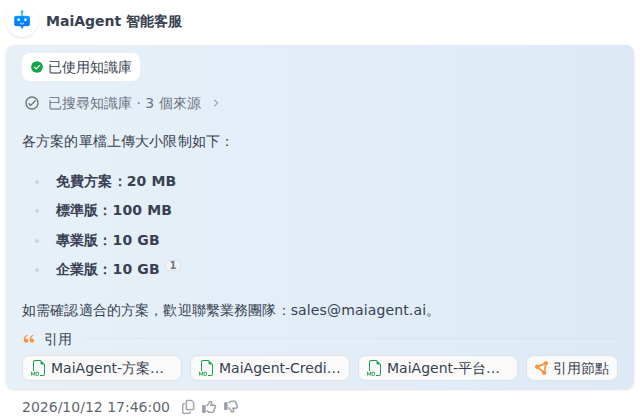
| Completed  | The tool finishes running                                                                   | Searched the knowledge base · 3 sources      |
| Failed     | The tool returns an error                                                                   | Knowledge base search failed                 |
| No results | A knowledge base query, web search, database query, or file processing tool finds 0 results | Knowledge base search returned no results    |

<figure><img src="https://1360999650-files.gitbook.io/~/files/v0/b/gitbook-x-prod.appspot.com/o/spaces%2F6v6TNkkOQVfRYfcNirHL%2Fuploads%2Fgit-blob-7245910d44c1ddc2ecd2e3cc0c5f97e495995763%2Ftool-status-copy-kb-result.png?alt=media" alt="The tool status above a Web Chat reply showing &#x22;Searched the knowledge base · 3 sources&#x22;"><figcaption><p>After a knowledge base query completes, the status copy includes the number of sources found</p></figcaption></figure>

The platform default copy follows these rules:

* **Follows the conversation language**: The status copy is displayed in the language of the conversation. For example, a Web Chat visitor using the English interface sees "Searched the knowledge base · 5 sources". When the conversation carries no language information (for example, LINE), the system detects Chinese, Japanese, Korean, or Thai from the text of the user's message.
* **The running copy includes the query subject**: The content of the query, such as the search keywords, URL, or file name, appears after the colon, and is truncated if it is too long. Only input fields related to the query are used; other inputs are not shown in the status copy.
* **The completed copy includes a result summary**: When the count can be calculated, the number of results is appended after "·", such as "7 results" or "3 sources". When the tool returns only a piece of text, only the completed copy is shown.
* **General tools show the tool name**: When the tool category is "Other" or "Third-party integration," the copy includes the tool's display name, such as "Using Order Lookup" or "Used Order Lookup".

You can view the platform default copy for each category in [Reply Waiting Style](/maiagent-user-guide/en/build/conversation-settings/platform-settings/loading-display.md#tool-category-copy), where the organization can also override it by category.

## Configure the Display <a href="#configure-display" id="configure-display"></a>

{% stepper %}
{% step %}

### Open the Tool Editor <a href="#open-tool-editor" id="open-tool-editor"></a>

From the left menu, go to <mark style="color:blue;">AI Features</mark> → <mark style="color:blue;">Tools</mark>. Find the tool you want to configure in the tool list, then click the edit icon on the right.
{% endstep %}

{% step %}

### Open the Display Copy Tab <a href="#open-display-copy" id="open-display-copy"></a>

In the **Edit Tool** window, select <mark style="color:blue;">Display Copy</mark>.

<figure><img src="https://1360999650-files.gitbook.io/~/files/v0/b/gitbook-x-prod.appspot.com/o/spaces%2F6v6TNkkOQVfRYfcNirHL%2Fuploads%2Fgit-blob-ba75d806ec4e5b77dbc50734491123d9fef655a1%2Ftool-display-settings-prod.png?alt=media" alt="The Display Copy tab in the tool editor, including display copy, display mode, and output rendering template settings"><figcaption><p>Display copy and display mode settings for a tool</p></figcaption></figure>
{% endstep %}

{% step %}

### Select a Display Mode <a href="#choose-display-mode" id="choose-display-mode"></a>

Select a mode based on how much information conversation users need to see:

| Mode                                  | Effect in the conversation                                                                  |
| ------------------------------------- | ------------------------------------------------------------------------------------------- |
| Follow conversation platform settings | Uses the conversation platform's default display behavior. The current default is **Full**. |
| Full                                  | Displays complete tool execution information.                                               |
| Compact                               | Displays only concise execution information.                                                |
| Hidden                                | Does not display the tool execution block.                                                  |

{% hint style="warning" %}
**Hidden** only hides the tool execution block in the conversation; it does not disable the tool. To prevent the Agent from calling the tool, go to the Agent's **Tools** settings and remove the tool from its configuration.
{% endhint %}
{% endstep %}

{% step %}

### Customize the Display Copy <a href="#customize-display-copy" id="customize-display-copy"></a>

In the **Display Copy** section, click <mark style="color:blue;">Add</mark>, select a language, and then fill in the <mark style="color:blue;">Running Copy</mark> and <mark style="color:blue;">Completed Copy</mark>. The copy can use variables to insert the tool name, query subject, result summary, or tool input parameters. For details, see [Use Variables in Custom Copy](#copy-variables).

<figure><img src="https://1360999650-files.gitbook.io/~/files/v0/b/gitbook-x-prod.appspot.com/o/spaces%2F6v6TNkkOQVfRYfcNirHL%2Fuploads%2Fgit-blob-207265c0bf67556320dd85f36ba2fe2ce66cd6d9%2Ftool-status-copy-custom-template.png?alt=media" alt="The Traditional Chinese copy on the Display Copy tab: both the running copy and the completed copy use a variable to insert the order number"><figcaption><p>Use variables in the display copy to insert the order number and result summary</p></figcaption></figure>
{% endstep %}

{% step %}

### Configure the Output Rendering Template <a href="#configure-output-template" id="configure-output-template"></a>

To format the content returned by the tool, click <mark style="color:blue;">Add</mark> in the **Output Rendering Template** section. The template can use `{{output}}` to insert the complete tool result or `{{variable}}` to insert a top-level parameter from the tool input. If the variable cannot be found, an empty string is displayed. If the template is left blank, the raw JSON is displayed.

When finished, click <mark style="color:blue;">Confirm</mark> to save.
{% endstep %}
{% endstepper %}

## Use Variables in Custom Copy <a href="#copy-variables" id="copy-variables"></a>

A customer service manager assigns an order lookup API tool to a customer service Agent and wants customers to see which order is being looked up. In the tool's **Display Copy**, she adds Traditional Chinese, entering `正在查詢訂單 {{orderId}}` as the running copy and `已查到訂單 {{orderId}} · {{result}}` as the completed copy. When a customer asks about order A1024, the tool card first shows "正在查詢訂單 A1024" and, once finished, shows "已查到訂單 A1024". This tool's response has no countable results, so the result summary is empty and the "·" after it is omitted as well.

<figure><img src="https://1360999650-files.gitbook.io/~/files/v0/b/gitbook-x-prod.appspot.com/o/spaces%2F6v6TNkkOQVfRYfcNirHL%2Fuploads%2Fgit-blob-3eeb7c512c977486db54143528a1ff855816ee7c%2Ftool-status-copy-custom-running.png?alt=media" alt="A tool step in the conversation showing &#x22;正在查詢訂單 A1024&#x22;"><figcaption><p>Running: inserts the order number from the tool input</p></figcaption></figure>

<figure><img src="https://1360999650-files.gitbook.io/~/files/v0/b/gitbook-x-prod.appspot.com/o/spaces%2F6v6TNkkOQVfRYfcNirHL%2Fuploads%2Fgit-blob-147abac6d4696014ee24ac6218e6b241dbffb29f%2Ftool-status-copy-custom-completed.png?alt=media" alt="In the expanded step list, the tool step shows &#x22;已查到訂單 A1024&#x22;"><figcaption><p>Completed: when the result summary is empty, the separator is omitted as well</p></figcaption></figure>

Custom copy (the tool's **Display Copy** and the tool category copy table in the reply waiting style) can use the following variables:

| Variable             | Inserted content                                                                |
| -------------------- | ------------------------------------------------------------------------------- |
| `{{tool}}`           | The tool's display name                                                         |
| `{{subject}}`        | The subject of this query, such as search keywords, a URL, or a file name       |
| `{{result}}`         | A result summary, such as "7 results"; has a value only in the completed state  |
| `{{parameter name}}` | A top-level parameter from the tool input, such as `{{query}}` or `{{orderId}}` |

* A variable with no value is displayed as an empty string, and the adjacent ":", "·", or empty parentheses are removed along with it.
* Custom copy is displayed exactly as you write it; the system does not automatically append the subject or result count. Add `{{subject}}` or `{{result}}` yourself when needed.
* Custom copy is chosen by the conversation language. If that language has no copy, the custom copy of the default language (English) is used. If neither exists, the tool category copy set by the organization is used first (again looking for the conversation language, then the default language), and the platform default copy is shown only if there is still none. For example, if a tool has only Traditional Chinese copy, an English conversation first uses the organization's English category copy; the English platform default copy is shown only if the organization has not set one.
* **Display Copy** only supports two kinds of copy: running and completed. When a tool finds 0 results, the completed copy is reused. When a tool fails, the organization's failure copy for that category is used first; the platform default failure copy is shown only if the organization has not set one.

## Recommendations for Selecting a Mode <a href="#mode-guidance" id="mode-guidance"></a>

* Select **Full** when users need to verify the tool results.
* Select **Compact** and provide clear display copy when users only need to know that the system is processing the request.
* Select **Hidden** when execution details should not appear in the conversation.

After completing the setup, assign the tool to a test Agent and send a test question. Confirm that the display copy and output template match the fields actually returned by the tool.

## MCP Interactive Cards (MCP Apps) <a href="#mcp-apps" id="mcp-apps"></a>

In addition to returning data, some MCP servers also attach an interactive interface. After the Agent calls the tool, a card that users can interact with directly appears in the conversation. The card is not affected by the display mode above: even if you select **Hidden**, the interactive card is still displayed. For how cards are presented, the conditions, security restrictions, and common questions, see [MCP Interactive Cards (MCP Apps)](/maiagent-user-guide/en/build/tools/mcp-apps.md).


---

# Agent Instructions
This documentation is published with GitBook. GitBook is the documentation platform designed so that both humans and AI agents can read, navigate, and reason over technical content effectively. Learn more at gitbook.com.

## Querying This Documentation
If you need additional information that is not directly available in this page, you can query the documentation by asking a question.

Perform an HTTP GET request on the following URL with the `ask` and `goal` query parameters:

```
GET https://docs.maiagent.ai/maiagent-user-guide/en/build/tools/tool-display-settings.md?ask=<question>&goal=<user_goal>
```

`ask` is the immediate question: it should be specific, self-contained, and written in natural language.
`goal` is what the user is ultimately trying to achieve, the reason they need the answer. Sharing it helps GitBook give you a better, more relevant answer. A goal is most helpful when it describes the outcome the user wants rather than restating the question. For example, with `ask=how do I create an API token`, a goal like `automate deployments from our CI pipeline` lets GitBook tailor the answer to that use case.

The response will contain a direct answer to the question and relevant excerpts and sources from the documentation.

Use this mechanism when the answer is not explicitly present in the current page, you need clarification or additional context, or you want to retrieve related documentation sections.