> For the complete documentation index, see [llms.txt](https://docs.maiagent.ai/llms.txt). Markdown versions of documentation pages are available by appending `.md` to page URLs; this page is available as [Markdown](https://docs.maiagent.ai/maiagent-user-guide/en/build/tools/setup_api_tool.md).

# Create API Tools

This guide walks you through creating a new MCP tool on the platform.

{% hint style="info" %}
You can use MaiAgent's [Tool Creation AI Assistant](https://chat.maiagent.ai/web-chats/27934296-105a-4f3f-80f0-7e9dcdb638d3) to help you create API tools
{% endhint %}

API tools integrate external services and automate workflows.

## **What Is an API?** <a href="#what-is-api" id="what-is-api"></a>

An **API (Application Programming Interface)** bridges communication between different software systems. Simply put, it acts like a **"waiter" in the software world**, helping programs exchange information and perform functions.

Imagine dining at a restaurant:

* **You**: The customer who needs food (the application)
* **Kitchen**: Where food is prepared (the system providing the service)
* **Waiter**: Relays messages between you and the kitchen (**API**)

You do not need to enter the kitchen yourself. Tell the waiter what you want, and the waiter relays your request to the kitchen and brings the finished meal to you.

<figure><img src="https://1360999650-files.gitbook.io/~/files/v0/b/gitbook-x-prod.appspot.com/o/spaces%2F6v6TNkkOQVfRYfcNirHL%2Fuploads%2Fgit-blob-affedbd5ccc8692a11a20ce5fc69a39886d0e2d3%2Fplayma%20(10)%20(1).png?alt=media" alt=""><figcaption><p>API workflow diagram</p></figcaption></figure>

API tools help automate standardized workflows, define specific response formats, and retrieve information from your systems, for example:

**E-commerce Customer Service Automation**

```
Customer asks about an order ➡️ API checks order status ➡️ Automatically replies with shipping progress
```

**Marketing Campaign Management**

```
New product launches ➡️ Automatically updates the official website ➡️ Sends an email campaign ➡️ Promotes on social platforms
```

**Online Course Platform:**

```
Student asks about course progress ➡️ API checks learning records ➡️ Automatically replies with completion percentage and next class time
```

With API tools, an AI assistant evolves from a simple chatbot into an intelligent assistant that executes business workflows, greatly improving efficiency and automation.

## Quickly Create an API Tool <a href="#quick-create-api-tool" id="quick-create-api-tool"></a>

### 1. Open Tool Management <a href="#step-1-enter-tool-management" id="step-1-enter-tool-management"></a>

First, open the "<mark style="color:blue;">AI Features</mark>" section in the left navigation bar, then click "<mark style="color:blue;">🔧 Tools</mark>". On the tool list page, click "<mark style="color:blue;">➕ Add Tool</mark>" in the upper-right corner.

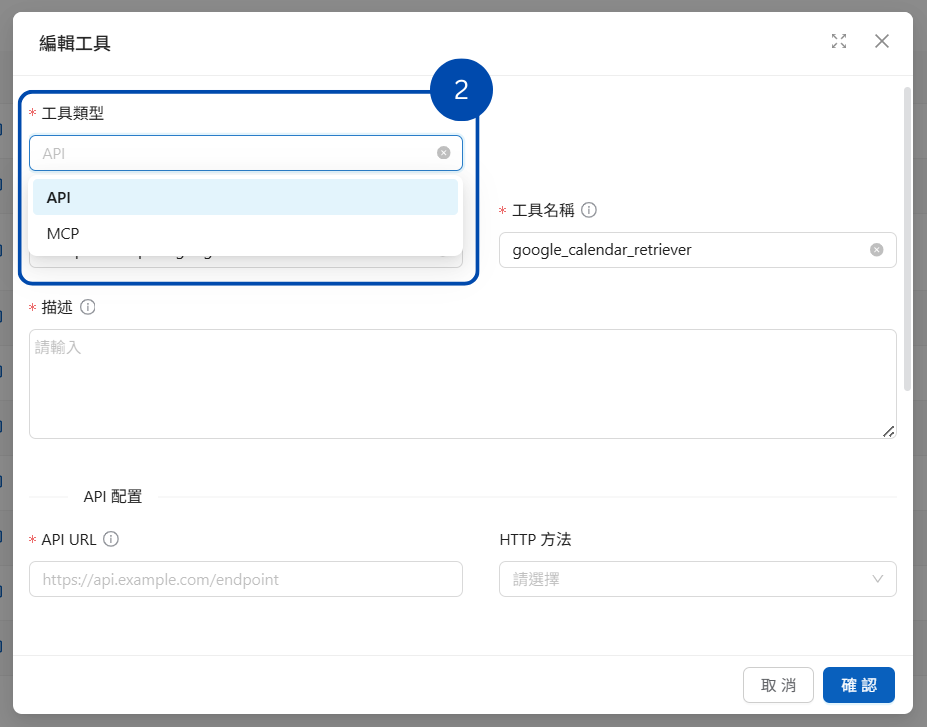
### 2. Select the Tool Type <a href="#step-2-select-tool-type" id="step-2-select-tool-type"></a>

Select API as the tool type.

<figure><img src="https://1360999650-files.gitbook.io/~/files/v0/b/gitbook-x-prod.appspot.com/o/spaces%2F6v6TNkkOQVfRYfcNirHL%2Fuploads%2Fgit-blob-36d929d6f379aadbfe05520796e63d6f8fefaf4f%2FAPI%E5%B7%A5%E5%85%B7.png?alt=media" alt=""><figcaption></figcaption></figure>

### 3. Set the Display Name <a href="#step-3-set-display-name" id="step-3-set-display-name"></a>

Give the tool a clear display name. Here, use <mark style="color:blue;">google calendar</mark>.

<figure><img src="https://1360999650-files.gitbook.io/~/files/v0/b/gitbook-x-prod.appspot.com/o/spaces%2F6v6TNkkOQVfRYfcNirHL%2Fuploads%2Fgit-blob-1b6a8ebbc7b3900a46b0a20494b1c11c118fbe47%2FAPI%E5%B7%A5%E5%85%B7%20(2).png?alt=media" alt=""><figcaption></figcaption></figure>

* **Purpose**: This name appears in the platform interface for all users to see.
* **Recommendation**: Choose a name that clearly describes the tool's main function so users can understand it easily. There are no strict format restrictions for this name.

### 4. Set the Tool Name <a href="#step-4-set-tool-name" id="step-4-set-tool-name"></a>

Next is the "<mark style="color:blue;">Tool Name</mark>" field.

* **Purpose**: This name is the unique identifier the AI assistant uses internally to call and identify the tool.
* **Naming Rules (Important)**:
  * Use English characters.
  * Only the following characters are allowed:
    * Lowercase letters (a-z)
    * Uppercase letters (A-Z)
    * Numbers (0-9)
    * Underscores (`_`)
    * Hyphens (`-`)
  * **Examples**: `get_weather_forecast`, `database-query-tool`

The example below uses <mark style="color:blue;">google\_calendar\_retriever</mark>

<figure><img src="https://1360999650-files.gitbook.io/~/files/v0/b/gitbook-x-prod.appspot.com/o/spaces%2F6v6TNkkOQVfRYfcNirHL%2Fuploads%2Fgit-blob-e60b90c068677f55f73f007d3f191a41bc3a9e5f%2FAPI%E5%B7%A5%E5%85%B7%20(4).png?alt=media" alt=""><figcaption><p>Defining the API tool name</p></figcaption></figure>

### 5. Write the Tool Description <a href="#step-5-write-tool-description" id="step-5-write-tool-description"></a>

Provide a clear, detailed explanation in the "<mark style="color:blue;">Tool Description</mark>" field.

* **Why It Matters**: A good description helps the AI assistant understand more accurately:
  * The tool's function and purpose.
  * When to use the tool.
  * How to interpret its output.
* **Recommended Content**: Explain what the tool does, its inputs and outputs, and any usage considerations.

<figure><img src="https://1360999650-files.gitbook.io/~/files/v0/b/gitbook-x-prod.appspot.com/o/spaces%2F6v6TNkkOQVfRYfcNirHL%2Fuploads%2Fgit-blob-61fe2994e26226077604c4865223522621a0c39c%2FAPI%E5%B7%A5%E5%85%B7%20(5).png?alt=media" alt=""><figcaption><p>Tool description</p></figcaption></figure>

### 6. Configure the API Details <a href="#step-6-api-configure-details" id="step-6-api-configure-details"></a>

#### a. 🔗 API URL <a href="#api-url" id="api-url"></a>

* Enter the full URL of the target API endpoint (including `http://` or `https://`).
* **Example**: `https://api.opencalendar.org/data/2.5`

<figure><img src="https://1360999650-files.gitbook.io/~/files/v0/b/gitbook-x-prod.appspot.com/o/spaces%2F6v6TNkkOQVfRYfcNirHL%2Fuploads%2Fgit-blob-7c8ec1446f411f007db93eecab4a2de07ee8036e%2FAPI%E5%B7%A5%E5%85%B7%20(6).png?alt=media" alt=""><figcaption></figcaption></figure>

#### b. 📮 HTTP Method <a href="#http-method" id="http-method"></a>

* Select the HTTP verb required by the API service from the dropdown:
  * `GET`: Typically used to retrieve resources.
  * `POST`: Typically used to create new resources or submit data.
  * `PUT`: Typically used to fully replace or update resources.
  * `DELETE`: Typically used to delete resources.

<figure><img src="https://1360999650-files.gitbook.io/~/files/v0/b/gitbook-x-prod.appspot.com/o/spaces%2F6v6TNkkOQVfRYfcNirHL%2Fuploads%2Fgit-blob-a96418d1f33a03fb89d7c99d75cbff4200fa5851%2FAPI%E5%B7%A5%E5%85%B7%20(8).png?alt=media" alt=""><figcaption></figcaption></figure>

#### c. 📰 Headers <a href="#headers" id="headers"></a>

Headers are like the "<mark style="color:blue;">envelope</mark>" of a letter: they provide important information to the recipient before the actual data is read. **Without the correct headers, an API request may fail authentication, or the recipient may be unable to parse the data correctly.**

**Common Uses**:

* Authentication (`Authorization`, `X-API-Key`)
* Specifying the content type (`Content-Type`)
* Specifying the accepted response format (`Accept`)

To add headers:

* Click "<mark style="color:blue;">➕ Add Header</mark>" to define the HTTP headers sent with the request.
* **Format**: Use a valid JSON object, where each key is a header name and each value is the header content (a string).
* **Example**:

  ```json
  {
    "Content-Type": "application/json; charset=utf-8",
    "Authorization": "Bearer {{SECRET_API_TOKEN}}",
    "Accept": "application/vnd.github.v3+json"
  }
  ```

<figure><img src="https://1360999650-files.gitbook.io/~/files/v0/b/gitbook-x-prod.appspot.com/o/spaces%2F6v6TNkkOQVfRYfcNirHL%2Fuploads%2Fgit-blob-6d67f75950755371440b5dcd1a50016f36259224%2FAPI%E5%B7%A5%E5%85%B7%20(9).png?alt=media" alt="API header configuration screenshot"><figcaption><p>Configure the required HTTP request headers</p></figcaption></figure>

{% hint style="info" %}
To authorize API calls as the current conversation user rather than with a shared key: when visitors log in to Web Chat through Keycloak, enable [Use the Keycloak Login Identity for Tool Calls](/maiagent-user-guide/en/serve/choose-channel/web-chat.md#keycloak-token-passthrough) on the conversation platform and add the API host to the allowlist. The platform will pass the visitor's own Keycloak credential in the `Authorization` header. In this case, do not also set `Authorization` in Headers (JSON), because your configured value would take precedence.
{% endhint %}

#### d. 🔎 Query Parameters (Query Params) <a href="#query-params" id="query-params"></a>

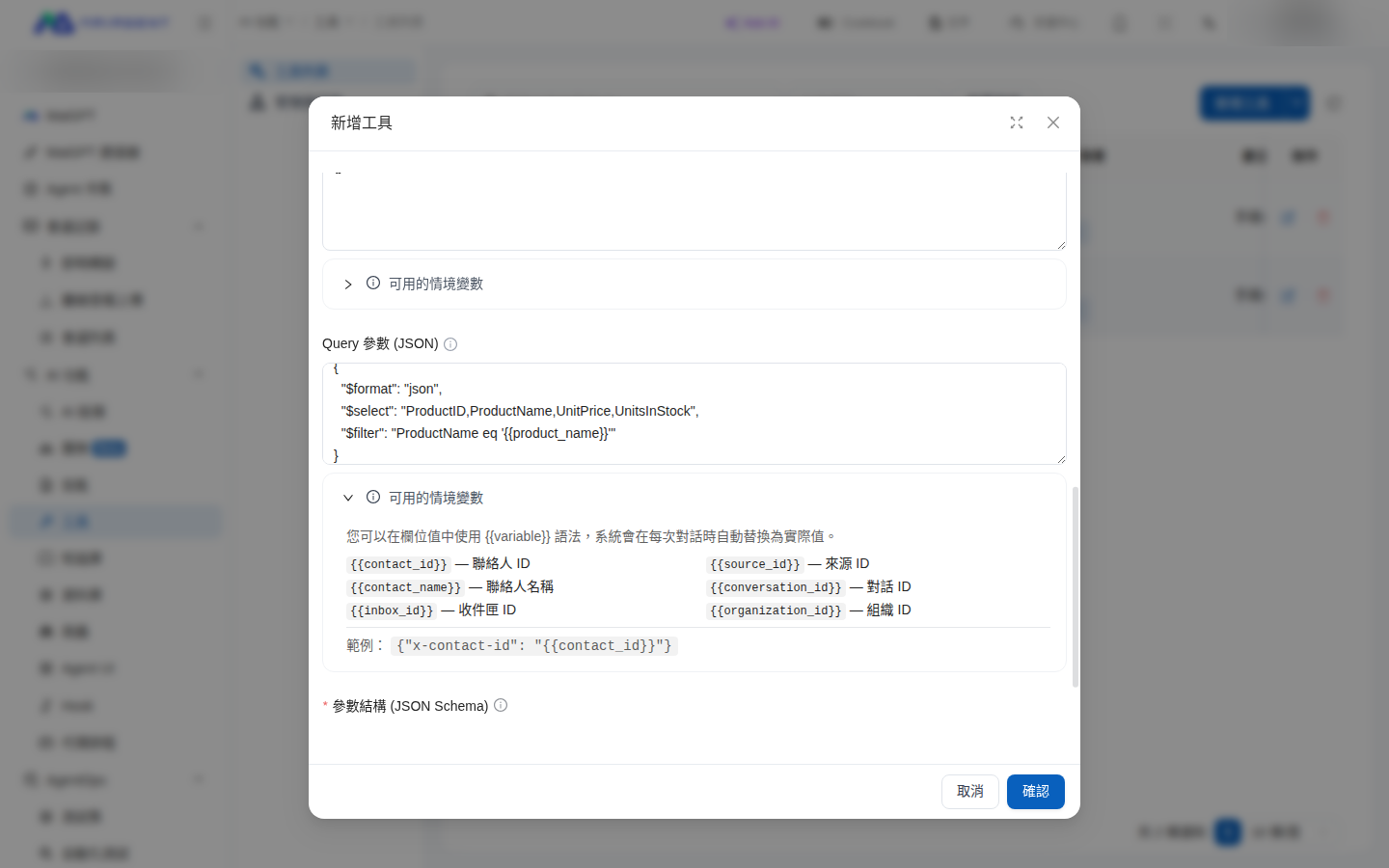
Query parameters are the query string appended after the question mark in a URL (for example, `?format=json&limit=10`). They are sent with every request. Use them for fixed query conditions or API keys that can only be passed through a query string.

* Click "<mark style="color:blue;">Available Context Variables</mark>" to expand the list of supported variables (contact ID, conversation ID, inbox ID, and more).
* **Format**: A valid JSON object, where each key is a parameter name and each value is the parameter content (a string).
* Values can be fixed text, or you can use `{{參數名}}` to reference a parameter declared in Parameters Schema that the AI assistant fills in when calling the tool. This lets you configure query conditions with a fixed beginning and a user-provided ending. See [Reference AI Assistant Parameters in Query Parameters](#query-param-templates) below.
* **Example**:

  ```json
  {
    "$format": "json",
    "$filter": "ProductName eq '{{product_name}}'"
  }
  ```

<figure><img src="https://1360999650-files.gitbook.io/~/files/v0/b/gitbook-x-prod.appspot.com/o/spaces%2F6v6TNkkOQVfRYfcNirHL%2Fuploads%2Fgit-blob-a0552130721b327022bc32313554617846bf0bf7%2Fapi-tool-query-params.png?alt=media" alt="Query Params field in the tool configuration window, using {{product_name}} in a value to reference a parameter"><figcaption><p>Query Params field and Available Context Variables list</p></figcaption></figure>

#### e. 🧩 Parameters Schema <a href="#parameters-schema" id="parameters-schema"></a>

**The parameters schema is like an "order form"**, telling the AI assistant what data it can request from the API and how to request it.

* **Core Configuration**: Define which parameters the AI assistant can or must provide when calling this tool (the content sent to the system for processing), along with their formats.
* **Format**: Use standard **JSON Schema**.
* **Key Elements**:
  * `type: "object"`: Indicates that the parameters form an object.
  * `properties`: Defines the object for each parameter.
    * **Parameter Name** (for example, `"search"`): The corresponding object contains details about that parameter.
      * `type`: The parameter's data type (`string`, `integer`, `number`, `boolean`, `array`, `object`).
      * `description`: Explains the parameter's meaning to the AI assistant.
      * `default` (optional): The parameter's default value.
      * `enum` (optional): Lists the allowed options if the parameter can only take certain values.
  * `required`: An array containing the names of all **required** parameters.
* **Example** (media search tool):

  ```json
  {
      "type": "object",
      "properties": {
          "limit": {
              "type": "integer",
              "minimum": 1,
              "description": "Maximum number of results returned"
          },
          "fields": {
              "type": "string",
              "description": "Comma-separated list of fields"
          },
          "search": {
              "type": "string",
              "description": "Search keywords"
          }
      },
      "required": ["search"]
  }
  ```

<figure><img src="https://1360999650-files.gitbook.io/~/files/v0/b/gitbook-x-prod.appspot.com/o/spaces%2F6v6TNkkOQVfRYfcNirHL%2Fuploads%2Fgit-blob-5932120820f0a885644b441bac5c63a4492ae567%2FAPI%E5%B7%A5%E5%85%B7%20(11).png?alt=media" alt="API parameters schema configuration screenshot"><figcaption><p>Precisely define API parameters with JSON Schema</p></figcaption></figure>

#### f. Path Parameters and Parameter Locations <a href="#path-parameters" id="path-parameters"></a>

Use `{參數名}` in an API URL to mark variable path segments, for example, `/users/{userId}/orders/{orderId}`. To substitute values provided by the AI assistant into the URL, define parameters with matching names in Parameters Schema and set their location to "<mark style="color:blue;">Path</mark>". Before sending the request, the system URL-encodes each value and substitutes it into the URL. For example, `A/B 01` becomes `A%2FB%2001`, so slashes or spaces in a value do not change the URL structure.

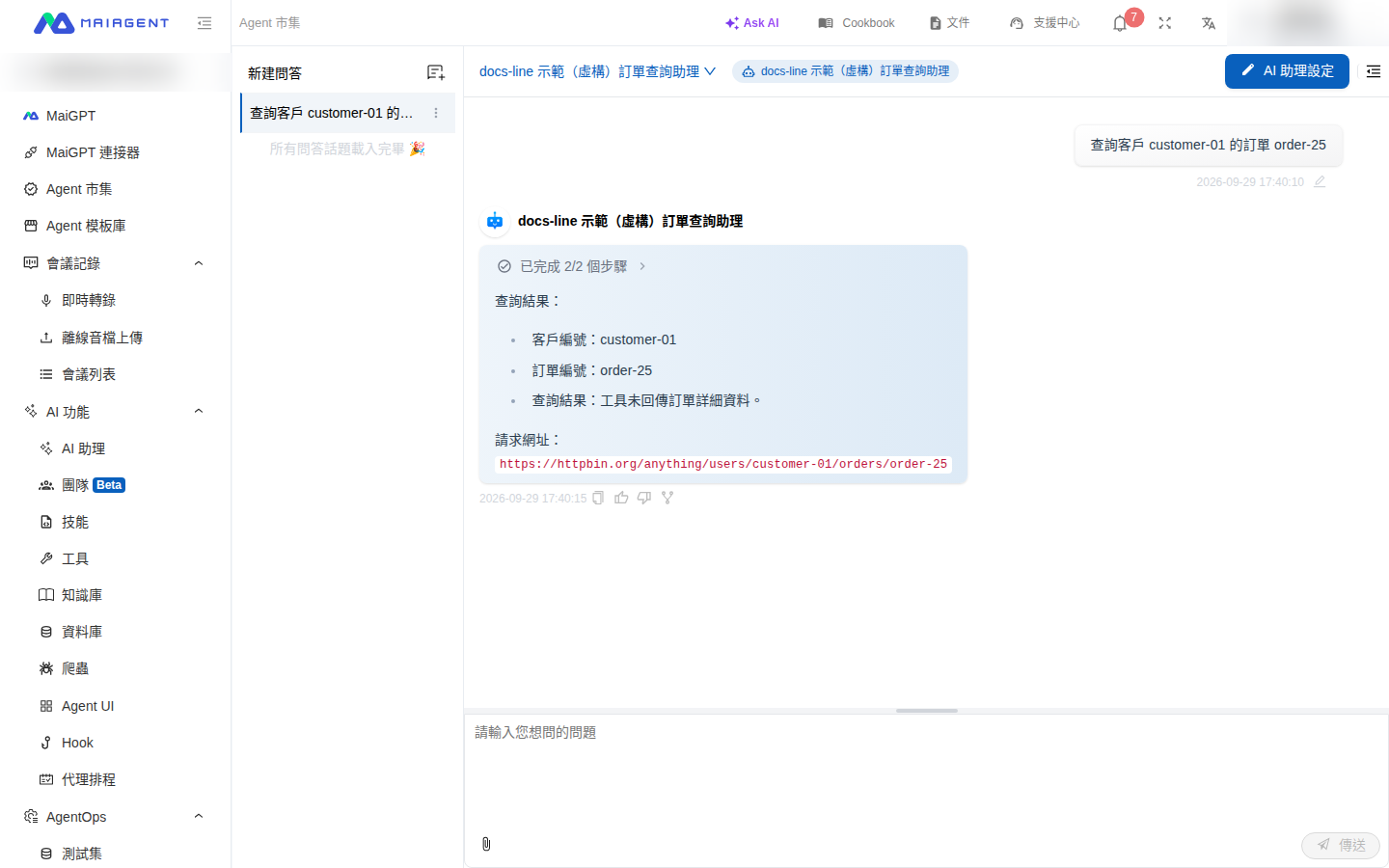
**Use Case**: Customer service supervisor Mai wants the AI assistant to query a single order through the company's order API using a customer ID and an order ID. She creates an API tool, sets both IDs as path parameters, and assigns the tool to the AI assistant. When a colleague enters "Look up order order-25 for customer customer-01" in the conversation, the AI assistant places both IDs in the correct URL positions and sends the query. If the order ID is missing, the tool reports the missing value immediately and does not send an incomplete request.

{% stepper %}
{% step %}

### Set an API URL with Path Parameters <a href="#path-param-step-url" id="path-param-step-url"></a>

Add a tool by following "Quickly Create an API Tool" above. For practice, use the public httpbin response service and set <mark style="color:blue;">API URL</mark> to:

```
https://httpbin.org/anything/users/{userId}/orders/{orderId}
```

A URL can contain multiple path parameters. After you enter it, "<mark style="color:blue;">Detected Path Parameters</mark>" appears below the field and lists `userId, orderId`. If these names are not yet defined in the parameters schema, a red message also appears: "<mark style="color:blue;">Please define them in Parameters Schema</mark>".
{% endstep %}

{% step %}

### Declare Parameters with Matching Names in Parameters Schema <a href="#path-param-step-schema" id="path-param-step-schema"></a>

Enter the following in <mark style="color:blue;">Parameters Schema (JSON Schema)</mark>:

```json
{
  "type": "object",
  "properties": {
    "userId": { "type": "string", "description": "Customer ID" },
    "orderId": { "type": "string", "description": "Order ID" }
  },
  "required": ["userId", "orderId"]
}
```

Parameter names must exactly match the names inside braces in the URL, including capitalization. `required` tells the AI assistant to provide both values on every call.

After you enter the schema, each parameter appears below it with a location dropdown set to "<mark style="color:blue;">Default</mark>". A red message appears below API URL: "<mark style="color:blue;">The following parameters are not located in Path; the URL placeholders will not be substituted</mark>". This means you still need to complete the next step.

<figure><img src="https://1360999650-files.gitbook.io/~/files/v0/b/gitbook-x-prod.appspot.com/o/spaces%2F6v6TNkkOQVfRYfcNirHL%2Fuploads%2Fgit-blob-fd22abf6d8d512da1b562b409257a40d152e10df%2Fapi-tool-path-params-url-hint.png?alt=media" alt="Add Tool window with a URL containing userId and orderId, detected path parameters, and a red warning that the parameter locations are not Path"><figcaption><p>A red warning appears below API URL while the parameter location is still Default</p></figcaption></figure>
{% endstep %}

{% step %}

### Set the Parameter Location to Path <a href="#path-param-step-location" id="path-param-step-location"></a>

Below the parameters schema, change the location dropdowns for both `userId` and `orderId` to "<mark style="color:blue;">Path</mark>".

<figure><img src="https://1360999650-files.gitbook.io/~/files/v0/b/gitbook-x-prod.appspot.com/o/spaces%2F6v6TNkkOQVfRYfcNirHL%2Fuploads%2Fgit-blob-ab2269bc4657f0d2d3ef15768c7817fe6f923eb8%2Fapi-tool-path-params-location-menu.png?alt=media" alt="Expanded location dropdown below Parameters Schema, with Default, Path, Query, Body, and Header options"><figcaption><p>Select a location for each parameter from the dropdown</p></figcaption></figure>

Once selected, the system automatically adds `"location": "path"` to the parameters schema, and the red warning below API URL disappears. Verify the settings and click "<mark style="color:blue;">Confirm</mark>" to save the tool.

<figure><img src="https://1360999650-files.gitbook.io/~/files/v0/b/gitbook-x-prod.appspot.com/o/spaces%2F6v6TNkkOQVfRYfcNirHL%2Fuploads%2Fgit-blob-a86225dedbfcf98430095438e3dee00c09eddcc4%2Fapi-tool-path-params-location-set.png?alt=media" alt="Both userId and orderId have location set to path in the parameters schema, and both location dropdowns below display Path"><figcaption><p>Selecting Path also writes the location setting into the parameters schema</p></figcaption></figure>

{% hint style="warning" %}
Parameters whose location remains "<mark style="color:blue;">Default</mark>" are not substituted into the URL. Even if the AI assistant provides a value, `{userId}` in the URL still lacks a value, so the tool reports an error and does not send the request. Set every parameter used in the URL to "<mark style="color:blue;">Path</mark>".
{% endhint %}
{% endstep %}

{% step %}

### Assign the Tool to an AI Assistant and Verify It <a href="#path-param-step-test" id="path-param-step-test"></a>

Follow [Configure Tools for an AI Assistant](/maiagent-user-guide/en/build/tools/configure_tools.md) to add the tool to an AI assistant in Agent mode. Then open "<mark style="color:blue;">Agent Marketplace</mark>" in the left navigation bar, switch to "<mark style="color:blue;">Organization-Built</mark>", select the AI assistant, and enter "Look up order order-25 for customer customer-01". After the AI assistant calls the tool, httpbin returns the request URL it actually received: `https://httpbin.org/anything/users/customer-01/orders/order-25`.

<figure><img src="https://1360999650-files.gitbook.io/~/files/v0/b/gitbook-x-prod.appspot.com/o/spaces%2F6v6TNkkOQVfRYfcNirHL%2Fuploads%2Fgit-blob-8fbf496275f08bf616b56673143a7aede4f364d3%2Fapi-tool-path-params-chat.png?alt=media" alt="AI assistant responds with the customer ID, order ID, and request URL with both IDs substituted"><figcaption><p>The AI assistant substitutes both IDs into the URL and sends the query</p></figcaption></figure>

To view the URL actually sent on each call, open "<mark style="color:blue;">AgentOps</mark>" → "<mark style="color:blue;">Tool Execution Logs</mark>" in the left navigation bar. Click the eye icon in the record's action column to open "<mark style="color:blue;">Details</mark>", then view "<mark style="color:blue;">Request URL</mark>" under "<mark style="color:blue;">Request Information</mark>". The example below uses a customer ID containing a slash and a space (`A/B 01`); you can see that the value has been URL-encoded.

<figure><img src="https://1360999650-files.gitbook.io/~/files/v0/b/gitbook-x-prod.appspot.com/o/spaces%2F6v6TNkkOQVfRYfcNirHL%2Fuploads%2Fgit-blob-42bb5fd57f4e3d8aa020f8499b1f77ef9dc246bd%2Fapi-tool-path-params-record.png?alt=media" alt="Tool execution log details with input parameters A/B 01 and order#25, and corresponding request URL segments A%2FB%2001 and order%2325"><figcaption><p>The request URL in the tool execution log shows the encoded path parameters</p></figcaption></figure>

After completing the exercise, replace the public demo URL with your company's order API URL.
{% endstep %}
{% endstepper %}

**Parameter Location Options**

Each parameter in the parameters schema can have a location that determines where its value goes in the request:

| Location                                 | Description                                                                                                                                                                                                                 |
| ---------------------------------------- | --------------------------------------------------------------------------------------------------------------------------------------------------------------------------------------------------------------------------- |
| <mark style="color:blue;">Default</mark> | Retains the original behavior: GET places values in the query string; POST, PUT, and PATCH place them in the body. DELETE does not automatically include values; explicitly select a location when you need to pass a value |
| <mark style="color:blue;">Path</mark>    | Substitutes the value into the matching `{參數名}` in API URL                                                                                                                                                                  |
| <mark style="color:blue;">Query</mark>   | Appends the value to the query string after the question mark in the URL                                                                                                                                                    |
| <mark style="color:blue;">Body</mark>    | Places the value in the JSON body                                                                                                                                                                                           |
| <mark style="color:blue;">Header</mark>  | Sends the value as an HTTP header using the parameter name; if Headers (JSON) already defines a header with the same name (case-insensitive), the configured content takes precedence                                       |

Existing tools without a location setting retain their behavior.

**No Request Is Sent When a Path Parameter Value Is Missing**

If any path parameter in the URL lacks a value on a call (the AI assistant did not provide it, the value is empty, or the parameter location is not Path), the tool stops immediately and reports "Path parameter {orderId} has no value in this call". It does not send a URL containing `{orderId}`. The AI assistant explains why the query failed in the conversation. In "<mark style="color:blue;">Tool Execution Logs</mark>", the record is marked as failed, "<mark style="color:blue;">Request Information</mark>" contains no request content, and "<mark style="color:blue;">Error Message</mark>" identifies the parameter missing a value.

<figure><img src="https://1360999650-files.gitbook.io/~/files/v0/b/gitbook-x-prod.appspot.com/o/spaces%2F6v6TNkkOQVfRYfcNirHL%2Fuploads%2Fgit-blob-750f62d0eddb446a5a310c0f0df7ad282742b8c3%2Fapi-tool-path-params-missing.png?alt=media" alt="Tool execution log details with orderId set to null in the input parameters, empty Request Information, and an error message stating that path parameter orderId has no value in this call"><figcaption><p>When a path parameter value is missing, the tool sends no request and records the reason for the error</p></figcaption></figure>

**URL Syntax Restrictions**

* Path parameter names can contain only letters, numbers, and underscores, and cannot start with a number, for example, `{order_id}`. Names such as `{order-id}` cannot be saved.
* Place `{參數名}` in the URL path. For values that belong in the query string, set the parameter location to "<mark style="color:blue;">Query</mark>" or reference them with `{{參數名}}` in [Query Params](#query-param-templates).
* API URL does not support double-brace syntax such as `{{變數}}`. When you save, an "<mark style="color:blue;">Error Notification</mark>" appears: "Path parameters must use {identifier} syntax." In API tools, use `{{參數名}}` in Headers (JSON) and Query Params (JSON).

<figure><img src="https://1360999650-files.gitbook.io/~/files/v0/b/gitbook-x-prod.appspot.com/o/spaces%2F6v6TNkkOQVfRYfcNirHL%2Fuploads%2Fgit-blob-2504b5ecf2e51c2e9bb2ac09e44dcde725120152%2Fapi-tool-path-params-invalid-syntax.png?alt=media" alt="Request failed with status code 400 appears at the top of the screen, and the central error notification says that path parameters must use {identifier} syntax"><figcaption><p>An API URL containing double braces cannot be saved</p></figcaption></figure>

Custom actions in Google Style REST can retain their colon suffix, for example, a Google Weather query:

```
https://weather.googleapis.com/v1/currentConditions:lookup
```

### 7. 💾 Save the Tool <a href="#step-7-save-tool" id="step-7-save-tool"></a>

Verify all settings, scroll to the bottom of the page, and click "<mark style="color:blue;">Confirm</mark>". Your new tool is now ready!

<figure><img src="https://1360999650-files.gitbook.io/~/files/v0/b/gitbook-x-prod.appspot.com/o/spaces%2F6v6TNkkOQVfRYfcNirHL%2Fuploads%2Fgit-blob-eb2d956da69f2a187bf9f57c4cc86d0a07c2de73%2FAPI%E5%B7%A5%E5%85%B7%20(13).png?alt=media" alt=""><figcaption></figcaption></figure>

## Reference AI Assistant Parameters in Query Parameters <a href="#query-param-templates" id="query-param-templates"></a>

Many third-party APIs require query conditions as a single string combining fixed syntax with a user-provided value, such as an OData-style `$filter=ProductName eq 'Chai'` or the `q=` parameter of a search API. These APIs require the value to be embedded in a fixed string rather than sent as a separate parameter.

Enter `{{參數名}}` in a Query Params value. When the AI assistant calls the tool, MaiAgent substitutes the value of the matching parameter from Parameters Schema before sending the request. The person configuring the tool defines the fixed structure, while the AI assistant only supplies values, so the model no longer has to determine the correct syntax.

### Use Case <a href="#query-param-templates-use-case" id="query-param-templates-use-case"></a>

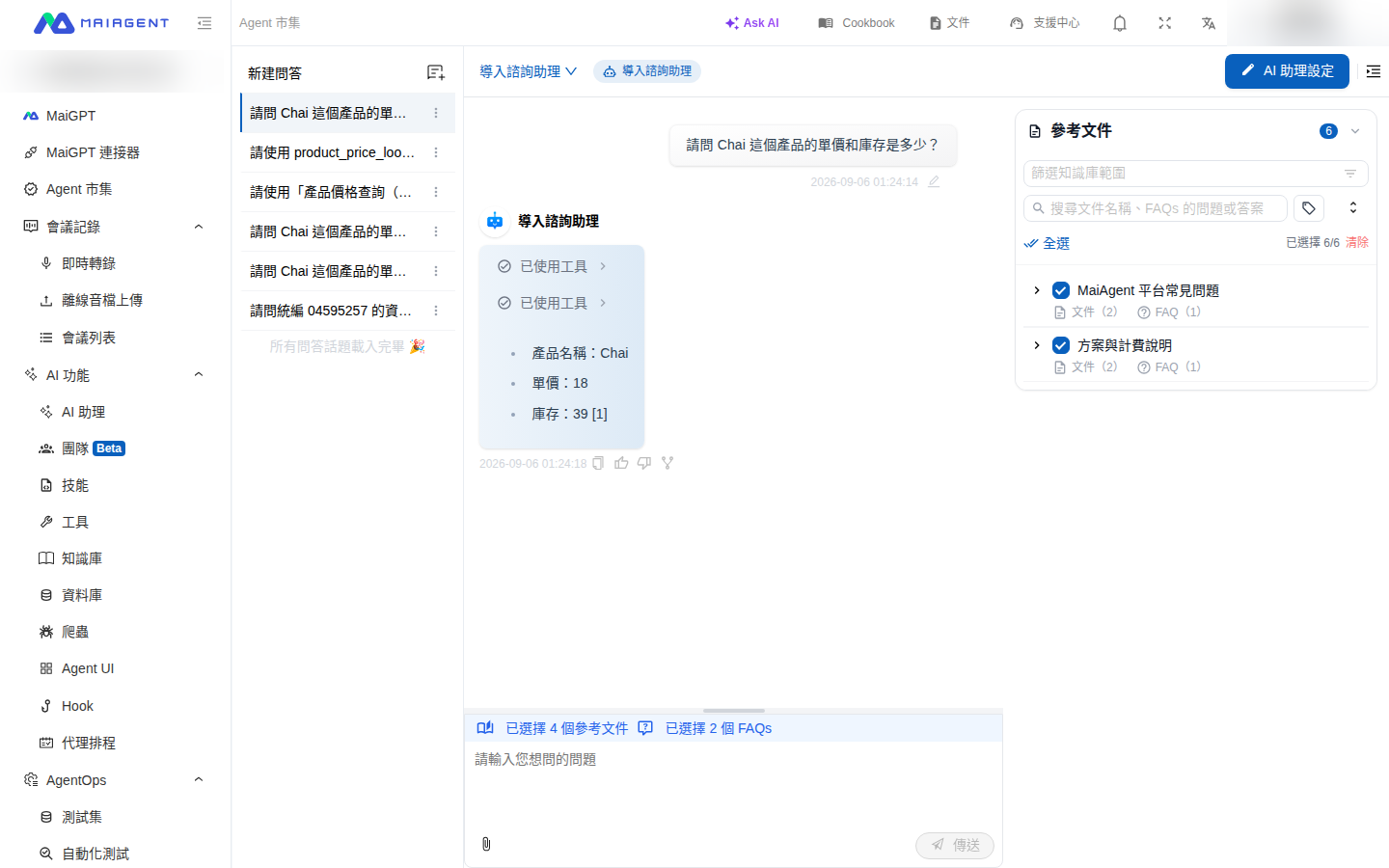
The purchasing department wants the company's internal AI assistant to directly answer "What are the current unit price and stock level of a product?" using the OData query service provided by the company product catalog system. Previously, each API required custom code for this type of query. Now, a purchasing specialist can create an API tool, set the query condition to `ProductName eq '{{product_name}}'`, and assign the tool to the AI assistant. When a colleague asks "What are the unit price and stock level of Chai?", the AI assistant automatically inserts `Chai` into the query condition, calls the API, and responds with the product name, unit price, and stock level.

### Setup Steps <a href="#query-param-templates-steps" id="query-param-templates-steps"></a>

The following example uses the public Northwind demo data service (OData). You can follow these steps directly:

{% stepper %}
{% step %}

### Create a Tool and Enter the Basic Information <a href="#query-param-step-basic" id="query-param-step-basic"></a>

Follow "Quickly Create an API Tool" above to add an API tool. Enter a display name (for example, <mark style="color:blue;">Product Price Lookup</mark>), the tool name `product_price_lookup`, a description, and a prompt. Set <mark style="color:blue;">API URL</mark> to:

```
https://services.odata.org/V4/Northwind/Northwind.svc/Products
```

Keep <mark style="color:blue;">HTTP Method</mark> set to `GET`.
{% endstep %}

{% step %}

### Declare the Parameter the AI Assistant Will Fill In <a href="#query-param-step-schema" id="query-param-step-schema"></a>

Declare `product_name` in <mark style="color:blue;">Parameters Schema (JSON Schema)</mark> and use `description` to tell the AI assistant what to provide:

```json
{
  "type": "object",
  "properties": {
    "product_name": {
      "type": "string",
      "description": "Full English product name, such as Chai"
    }
  },
  "required": ["product_name"]
}
```

{% endstep %}

{% step %}

### Reference the Parameter in a Query Params Value <a href="#query-param-step-template" id="query-param-step-template"></a>

Enter the fixed query structure in <mark style="color:blue;">Query Params (JSON)</mark>, and use `{{product_name}}` in the value to reference the parameter you just declared:

```json
{
  "$format": "json",
  "$select": "ProductID,ProductName,UnitPrice,UnitsInStock",
  "$filter": "ProductName eq '{{product_name}}'"
}
```

Click "<mark style="color:blue;">Confirm</mark>" to save the tool.
{% endstep %}

{% step %}

### Assign the Tool to an AI Assistant and Test It <a href="#query-param-step-test" id="query-param-step-test"></a>

Follow [Configure Tools for an AI Assistant](/maiagent-user-guide/en/build/tools/configure_tools.md) to add this tool to an AI assistant in Agent mode and save. Then open "<mark style="color:blue;">Agent Marketplace</mark>" in the left navigation bar, switch to "<mark style="color:blue;">Organization-Built</mark>", and select the AI assistant to start a conversation. Enter "What are the unit price and stock level of Chai?". The AI assistant displays "Tool Used" and responds with Chai's unit price and stock level.

<figure><img src="https://1360999650-files.gitbook.io/~/files/v0/b/gitbook-x-prod.appspot.com/o/spaces%2F6v6TNkkOQVfRYfcNirHL%2Fuploads%2Fgit-blob-d301cae503ac598952cb9c0c4ef494c0b8bae727%2Fapi-tool-query-params-chat.png?alt=media" alt="AI assistant uses a tool in the conversation and responds with the product name, unit price, and stock level"><figcaption><p>The AI assistant substitutes the user-provided product name into the query condition and calls the API</p></figcaption></figure>
{% endstep %}
{% endstepper %}

### Substitution Rules <a href="#query-param-templates-rules" id="query-param-templates-rules"></a>

| Rule                                                | Description                                                                                                                                                                                                |
| --------------------------------------------------- | ---------------------------------------------------------------------------------------------------------------------------------------------------------------------------------------------------------- |
| **Variable names must match the parameter schema**  | `{{product_name}}` corresponds to a parameter name in `properties` in the "Parameter Schema"; capitalization must match exactly                                                                            |
| **Only values are substituted**                     | Templates apply only to Query parameter values; keys remain unchanged and are not substituted                                                                                                              |
| **Values are substituted as literal text**          | Parameter values are always substituted as literal text without numeric conversion; for example, leading zeros in the business registration number `04595257` are preserved                                |
| **Missing values stop execution**                   | If the AI assistant does not provide the parameter for this call (or its value is empty), the tool stops with an error identifying the missing parameter, rather than sending `{{product_name}}` unchanged |
| **Context variables take precedence**               | If a parameter name matches a context variable (such as `contact_id` or `conversation_id`), the context variable's value is always substituted; values provided by the AI assistant do not override it     |
| **Referenced parameters are still sent separately** | Parameters referenced by a template are still sent as separate query parameters, following the original behavior (for example, `product_name=Chai` is also sent); most APIs ignore extra parameters        |
| **Parameter names are preserved**                   | Query parameter keys containing underscores or uppercase letters (such as `Business_Accounting_NO`) are preserved exactly and are not rewritten by the system                                              |

{% hint style="info" %}
Values in "<mark style="color:blue;">Headers (JSON)</mark>" also support referencing parameters in the parameter schema using `{{parameter_name}}`, with the same rules as Query parameters.
{% endhint %}

{% hint style="warning" %}
Existing tool settings without `{{ }}` are unaffected. If the system previously rewrote a Query parameter name in an older tool (for example, changing `Business_Accounting_NO` to `business__accounting_no`), reopen the tool, restore the correct name, and save. When you reopen the editing window, Query parameter values appear masked as `****`; saving directly preserves the original values.
{% endhint %}

## ⚠️ Important Notes <a href="#important-notes" id="important-notes"></a>

**Connection Testing**

* After creating a tool, test whether the API works properly
* You can use testing tools to verify tool functionality, such as:
  * POSTMAN
  * An API request testing platform built by your organization

**Permission Management**

* Regularly review tool usage and access permissions


---

# Agent Instructions
This documentation is published with GitBook. GitBook is the documentation platform designed so that both humans and AI agents can read, navigate, and reason over technical content effectively. Learn more at gitbook.com.

## Querying This Documentation
If you need additional information that is not directly available in this page, you can query the documentation by asking a question.

Perform an HTTP GET request on the following URL with the `ask` and `goal` query parameters:

```
GET https://docs.maiagent.ai/maiagent-user-guide/en/build/tools/setup_api_tool.md?ask=<question>&goal=<user_goal>
```

`ask` is the immediate question: it should be specific, self-contained, and written in natural language.
`goal` is what the user is ultimately trying to achieve, the reason they need the answer. Sharing it helps GitBook give you a better, more relevant answer. A goal is most helpful when it describes the outcome the user wants rather than restating the question. For example, with `ask=how do I create an API token`, a goal like `automate deployments from our CI pipeline` lets GitBook tailor the answer to that use case.

The response will contain a direct answer to the question and relevant excerpts and sources from the documentation.

Use this mechanism when the answer is not explicitly present in the current page, you need clarification or additional context, or you want to retrieve related documentation sections.