> For the complete documentation index, see [llms.txt](https://docs.maiagent.ai/llms.txt). Markdown versions of documentation pages are available by appending `.md` to page URLs; this page is available as [Markdown](https://docs.maiagent.ai/maiagent-user-guide/en/build/tools/agent-ui.md).

# Agent UI

Create FlexMessage information cards and bind them to an Agent to display responses as cards.

## <mark style="color:blue;">1. What Is Agent UI?</mark> <a href="#what-is-agent-ui" id="what-is-agent-ui"></a>

Agent UI lets an Agent display information cards or interactive options in conversations. This page introduces **FlexMessage**: combine text, images, and buttons in a card to make information easier to read.

When you <mark style="color:blue;">Add Agent UI</mark>, you can choose **FlexMessage**, [Quick Reply](/maiagent-user-guide/en/build/tools/agent-ui/quick-reply.md), or [Quick Menu](/maiagent-user-guide/en/build/tools/quick-menu.md).

<figure><img src="https://1360999650-files.gitbook.io/~/files/v0/b/gitbook-x-prod.appspot.com/o/spaces%2F6v6TNkkOQVfRYfcNirHL%2Fuploads%2Fgit-blob-4cb414d3dbbae7b27b0edeb25c0b1a65cb64f1f3%2Fagent-ui-prod-types.png?alt=media" alt="Agent UI type selection showing FlexMessage and Quick Menu"><figcaption><p>Select the type to create when adding Agent UI</p></figcaption></figure>

### Use Case <a href="#live-demo" id="live-demo"></a>

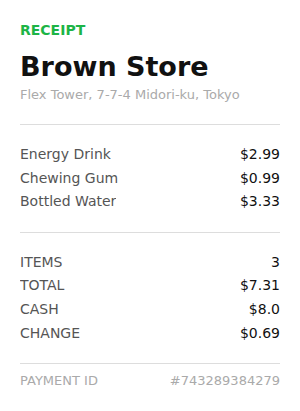
A customer service supervisor wants to show colleagues how receipt cards appear. She creates a <mark style="color:blue;">Receipt</mark> template card, keeps the fictional items and amounts, binds the card to a test Agent, and asks the Agent in Web Chat to display a fictional sample receipt. After the Agent calls the card tool, the conversation displays items, a total, and a payment number so the team can check the layout.

{% hint style="warning" %}
Card templates and AI prompts do not automatically connect to billing, membership, hotel booking, or medical appointment systems. To display real, live data, first provide knowledge base content or configure tools that can retrieve the data separately. Opening a link with a button does not mean a payment or booking has been completed. The receipt below contains fictional template data.
{% endhint %}

## <mark style="color:blue;">2. Card Fields and Buttons</mark> <a href="#how-it-works" id="how-it-works"></a>

Card fields can have <mark style="color:blue;">Default Values</mark> or <mark style="color:blue;">AI Prompts</mark> that tell the Agent what content to display in each field. Fields without an AI prompt use their default values.

### What Can Card Buttons Do? <a href="#button-types" id="button-types"></a>

* **URL buttons**: Open a specified URL, such as a product information page.
* **Prompt buttons**: Send a message to the Agent to continue the conversation, such as “View other products.”

The result of a button action depends on its link destination or the capabilities configured for the Agent. Test buttons before making them available to users.

## <mark style="color:blue;">3. Create Agent UI (FlexMessage)</mark> <a href="#create-agent-ui" id="create-agent-ui"></a>

{% stepper %}
{% step %}

### 1. Open the Agent UI Page <a href="#open-agent-ui" id="open-agent-ui"></a>

In the left menu, click <mark style="color:blue;">AI Features</mark> → <mark style="color:blue;">Agent UI</mark>, then click <mark style="color:blue;">Add Agent UI</mark>. Select **FlexMessage** to open the settings page.
{% endstep %}

{% step %}

### 2. Enter Basic Information <a href="#basic-information" id="basic-information"></a>

| Field            | Description                                                                                       |
| ---------------- | ------------------------------------------------------------------------------------------------- |
| **Display Name** | A name used to identify the card in the admin interface, such as “Fictional Receipt Card”         |
| **Tool Name**    | An English name for the AI to identify, such as `demo_receipt_card`                               |
| **Description**  | Explain its purpose, such as “Display a fictional sample receipt”                                 |
| **Prompt**       | Explain when to use it, such as “Use this card when the user asks for a fictional sample receipt” |

{% hint style="info" %}
Use an English identifier for the tool name without spaces or Chinese characters. Clearly describe when to use the card in the prompt to help the Agent decide when to call it.
{% endhint %}
{% endstep %}

{% step %}

### 3. Select a Template and Configure Fields <a href="#select-template" id="select-template"></a>

Click a template to preview it, then click <mark style="color:blue;">Apply This Template</mark>. Built-in templates include Restaurant, Apparel, Hotel, Local Search, Real Estate, Social, TODO app, Transit, Receipt, Shopping, Menu, and Ticket. You can also select <mark style="color:blue;">Custom</mark> and paste FlexMessage JSON.

After applying the template, adjust the <mark style="color:blue;">Default Values</mark> and <mark style="color:blue;">AI Prompts</mark> under <mark style="color:blue;">AI Field Settings</mark>. First check the layout with fixed fictional data, then gradually add fields that need dynamically generated content.

<figure><img src="https://1360999650-files.gitbook.io/~/files/v0/b/gitbook-x-prod.appspot.com/o/spaces%2F6v6TNkkOQVfRYfcNirHL%2Fuploads%2Fgit-blob-578eb72aa551ed3a36a68b0d368e47e9f09234a9%2Fagent-ui-prod-receipt-editor.png?alt=media" alt="Receipt card editor with basic information and a card preview"><figcaption><p>Basic information and preview for a Receipt card</p></figcaption></figure>
{% endstep %}

{% step %}

### 4. Save the Card <a href="#save-agent-ui" id="save-agent-ui"></a>

Click <mark style="color:blue;">Save</mark> in the upper-right corner. Return to the list to see your newly created card.
{% endstep %}
{% endstepper %}

## <mark style="color:blue;">4. Bind the Card to an Agent</mark> <a href="#bind-to-chatbot" id="bind-to-chatbot"></a>

{% stepper %}
{% step %}

### 1. Open Agent Settings <a href="#open-agent-settings" id="open-agent-settings"></a>

Go to <mark style="color:blue;">AI Features</mark> → <mark style="color:blue;">AI Assistants</mark> and open the Agent you want to configure. Use <mark style="color:blue;">Agent Mode</mark> to configure Agent UI.
{% endstep %}

{% step %}

### 2. Select a Card <a href="#select-agent-ui" id="select-agent-ui"></a>

On the settings page, click <mark style="color:blue;">Agent UI</mark>, then <mark style="color:blue;">Select Agent UI</mark>. Select the card and click <mark style="color:blue;">Confirm</mark>. The added card appears under <mark style="color:blue;">Agent UI in Use</mark>.

<figure><img src="https://1360999650-files.gitbook.io/~/files/v0/b/gitbook-x-prod.appspot.com/o/spaces%2F6v6TNkkOQVfRYfcNirHL%2Fuploads%2Fgit-blob-8de08b02a3ecee2058cd6963929c27eba89c8a16%2Fagent-ui-prod-binding.png?alt=media" alt="Agent UI in Use showing the Fictional Receipt Card and the Select Agent UI button"><figcaption><p>Confirm that the card has been added to the Agent</p></figcaption></figure>
{% endstep %}

{% step %}

### 3. Save and Test <a href="#test-agent-ui" id="test-agent-ui"></a>

Click <mark style="color:blue;">Save</mark>, then open this Agent's test conversation or Web Chat. Enter “Please display a fictional sample receipt” and confirm that the Agent calls the card tool and that the card content is correct.

<figure><img src="https://1360999650-files.gitbook.io/~/files/v0/b/gitbook-x-prod.appspot.com/o/spaces%2F6v6TNkkOQVfRYfcNirHL%2Fuploads%2Fgit-blob-09620aeaebbd7e0d88d59650c318c118d6efd645%2Fagent-ui-prod-receipt-chat.png?alt=media" alt="Fictional Receipt card in Web Chat showing items, a total, and a payment number"><figcaption><p>The Agent displays a fictional receipt card in the conversation; amounts are for demonstration only</p></figcaption></figure>
{% endstep %}
{% endstepper %}

## <mark style="color:blue;">5. Use Cases</mark> <a href="#use-case-examples" id="use-case-examples"></a>

You can adapt templates into information cards for product catalogs, accommodation introductions, course information, or event tickets. Prepare the content and working links first, then configure card fields and prompts. If you need to check inventory, orders, or booking status, configure the corresponding data sources and tools first.

An Agent can have multiple cards bound to it. Clearly describe when each card should be used and test each one to confirm that the Agent selects the correct card for the corresponding question.

## <mark style="color:blue;">6. Agent UI Question Tool (ask\_user\_question)</mark> <a href="#ask-user-question" id="ask-user-question"></a>

In addition to FlexMessage cards, you can use the <mark style="color:blue;">Agent UI Question Tool</mark> to let the Agent list options for users to answer. Add this built-in tool in the Agent's <mark style="color:blue;">Tools</mark> settings. See [Configure Tools for an Agent](/maiagent-user-guide/en/build/tools/configure_tools.md) for instructions.

The conversation platform's [Question Set Option Display Mode](/maiagent-user-guide/en/build/conversation-settings/platform-settings/function-settings.md#ask-option-display-mode) determines how options appear in Web Chat.

## <mark style="color:blue;">7. Frequently Asked Questions</mark> <a href="#faq" id="faq"></a>

<details>

<summary>What should I do if the card does not appear?</summary>

Confirm that the Agent uses Agent Mode and that the card has been bound and saved. Then check that the prompt clearly describes when to use it. The Agent decides whether to call the card based on the conversation, so test with specific questions.

</details>

<details>

<summary>Can the card query external systems on its own?</summary>

No. Cards display content. Querying external systems requires separately configured tools or data sources; simply writing “retrieve the bill” in a field prompt does not establish an integration.

</details>


---

# Agent Instructions
This documentation is published with GitBook. GitBook is the documentation platform designed so that both humans and AI agents can read, navigate, and reason over technical content effectively. Learn more at gitbook.com.

## Querying This Documentation
If you need additional information that is not directly available in this page, you can query the documentation by asking a question.

Perform an HTTP GET request on the following URL with the `ask` and `goal` query parameters:

```
GET https://docs.maiagent.ai/maiagent-user-guide/en/build/tools/agent-ui.md?ask=<question>&goal=<user_goal>
```

`ask` is the immediate question: it should be specific, self-contained, and written in natural language.
`goal` is what the user is ultimately trying to achieve, the reason they need the answer. Sharing it helps GitBook give you a better, more relevant answer. A goal is most helpful when it describes the outcome the user wants rather than restating the question. For example, with `ask=how do I create an API token`, a goal like `automate deployments from our CI pipeline` lets GitBook tailor the answer to that use case.

The response will contain a direct answer to the question and relevant excerpts and sources from the documentation.

Use this mechanism when the answer is not explicitly present in the current page, you need clarification or additional context, or you want to retrieve related documentation sections.