> For the complete documentation index, see [llms.txt](https://docs.maiagent.ai/llms.txt). Markdown versions of documentation pages are available by appending `.md` to page URLs; this page is available as [Markdown](https://docs.maiagent.ai/maiagent-user-guide/en/build/teams/traces.md).

# Team Execution Records

View a record of every team run—which conversation it belongs to, which Agents it went through, each one's token usage and duration—and filter by conversation to see all runs from the same conversatio

Teams automatically hand off and delegate work between Agents, and this is invisible to users. **Execution records** let you look back at which Agents each conversation actually went through and how many resources each used. Use them to confirm that the team divides work as expected, and to troubleshoot and optimize.

## <mark style="color:blue;">1. View execution records</mark> <a href="#view-traces" id="view-traces"></a>

On the team page, switch to the **Execution records** view to see every run for this team. Each message a user sends to the team creates one record. Each record includes:

| Field            | Description                                                                                                                                                                                                                                           |
| ---------------- | ----------------------------------------------------------------------------------------------------------------------------------------------------------------------------------------------------------------------------------------------------- |
| **Record ID**    | Unique identifier for this run.                                                                                                                                                                                                                       |
| **Conversation** | The conversation this run belongs to, shown by its title. Click the title to open "All conversations" and view the full conversation.                                                                                                                 |
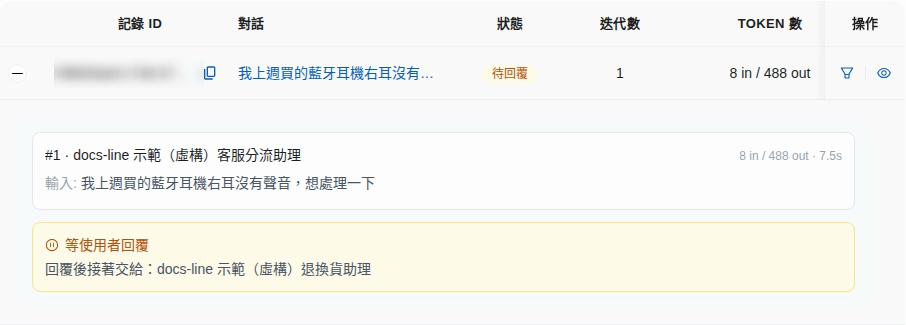
| **Status**       | "Running", "Completed", "Failed", "Timed out", or "Waiting for reply". "Waiting for reply" means the team reached an edge with "Wait for user reply before continuing" enabled and stopped; see [Waiting-for-reply records](#waiting-for-user) below. |
| **Iterations**   | Total number of exchanges between Agents during this run.                                                                                                                                                                                             |
| **Tokens**       | Total tokens used in this run (input `in` / output `out`).                                                                                                                                                                                            |
| **Duration**     | Total time from receiving the message to completing the reply.                                                                                                                                                                                        |
| **Created at**   | When this run occurred. Click the column heading to switch between oldest-first and newest-first sorting; if no sort is specified, the default is newest first.                                                                                       |

<figure><img src="https://1360999650-files.gitbook.io/~/files/v0/b/gitbook-x-prod.appspot.com/o/spaces%2F6v6TNkkOQVfRYfcNirHL%2Fuploads%2Fgit-blob-823fb555400af54c89c714cb0a7639da6e51acf8%2Fteams-traces-list.png?alt=media" alt="Team execution records list showing record ID, conversation, status, iterations, tokens, and actions"><figcaption><p>Execution records: each record shows its conversation title, so you can see at a glance which records belong to the same conversation</p></figcaption></figure>

{% hint style="info" %}
**Can't open a conversation title?** You need access to "Conversation records" for titles to appear as links; without access, titles appear as plain text (hover over a title to see why).
{% endhint %}

## <mark style="color:blue;">2. Filter execution records by conversation</mark> <a href="#filter-by-conversation" id="filter-by-conversation"></a>

A conversation usually contains several messages, each producing its own execution record. To focus on one conversation, you can list only the records that belong to it.

### 1. Filter by this conversation <a href="#apply-conversation-filter" id="apply-conversation-filter"></a>

In the "Actions" column to the right of the record you want to inspect, click the funnel icon <mark style="color:blue;">Filter by this conversation</mark>.

<figure><img src="https://1360999650-files.gitbook.io/~/files/v0/b/gitbook-x-prod.appspot.com/o/spaces%2F6v6TNkkOQVfRYfcNirHL%2Fuploads%2Fgit-blob-af8dbc17a102a15908d4afd228598b5f3c4180e8%2Fteams-traces-filter-by-conversation.png?alt=media" alt="Funnel icon in the Actions column, showing &#x22;Filter by this conversation&#x22; on hover"><figcaption><p>Click the funnel icon to the right of a record to "Filter by this conversation"</p></figcaption></figure>

### 2. Review the filtered results <a href="#filtered-result" id="filtered-result"></a>

A notice bar appears above the list: "**Showing only execution records for conversation "…"**", and only this conversation's records remain below; the filter is kept when you page or sort. The funnel icons on these records turn gray, and hovering over them shows "Already viewing this conversation's records".

To return to the full list, click <mark style="color:blue;">Clear</mark> on the right of the notice bar, or close it (×).

<figure><img src="https://1360999650-files.gitbook.io/~/files/v0/b/gitbook-x-prod.appspot.com/o/spaces%2F6v6TNkkOQVfRYfcNirHL%2Fuploads%2Fgit-blob-09594aef5f67452c4713db76671ae7d12e207195%2Fteams-traces-filtered.png?alt=media" alt="Notice bar showing that only the conversation&#x27;s execution records are displayed, with just two records from the same conversation left in the list"><figcaption><p>After filtering: the notice bar shows the conversation being viewed, and the list shows only that conversation's records</p></figcaption></figure>

### Use case: trace which Agent replied in a complaint conversation <a href="#example-complaint-review" id="example-complaint-review"></a>

A customer service manager receives feedback that "the return instructions are unclear" and wants to confirm which Agent in the team handled each reply in that conversation:

1. In "Execution records", find any record from this conversation and click <mark style="color:blue;">Filter by this conversation</mark>; the list now shows only this conversation's records.
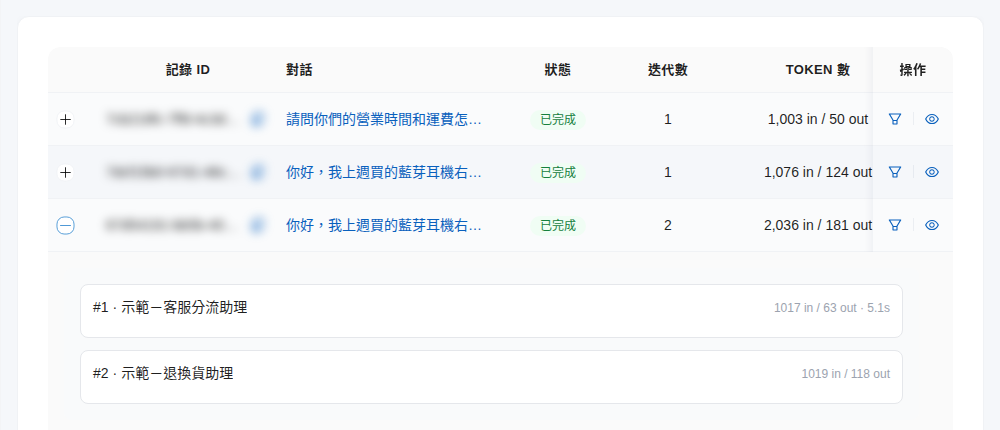
2. Expand the records one by one and read the Agent names on the step cards: the first message was received by "Demo - Customer Service Triage Assistant" and handed off to "Demo - Returns & Exchanges Assistant", and the follow-up questions were answered directly by "Demo - Returns & Exchanges Assistant".
3. Click the title in the "Conversation" column to open the original conversation and compare it with the actual replies. After confirming that the problem lies with "Demo - Returns & Exchanges Assistant", go back to "AI Assistants" and adjust its settings.

## <mark style="color:blue;">3. Expand step details</mark> <a href="#step-detail" id="step-detail"></a>

Click the **+** on the left of a record (or click the row itself) to expand it and see **which Agent nodes this run went through, in order**. Each step is a step card:

| Item                     | Description                                                                                                                                                            |
| ------------------------ | ---------------------------------------------------------------------------------------------------------------------------------------------------------------------- |
| **Step number and name** | Shown as "#number · name", for example "#1 · Demo - Customer Service Triage Assistant", so you can see at a glance which Agent in the team handled this step.          |
| **Token usage**          | The right side of the card shows this step's input / output tokens (`in` / `out`), and some steps also show the duration, so you can see which Agent the cost goes to. |

<figure><img src="https://1360999650-files.gitbook.io/~/files/v0/b/gitbook-x-prod.appspot.com/o/spaces%2F6v6TNkkOQVfRYfcNirHL%2Fuploads%2Fgit-blob-89bd57ac75ba2770c1ab31ca37c0bb715213b7c0%2Fteams-trace-detail.png?alt=media" alt="Expanded execution record, with step cards showing #1 · Demo - Customer Service Triage Assistant and #2 · Demo - Returns &#x26; Exchanges Assistant"><figcaption><p>Step details: each step card shows the step number and the Agent that handled it, with that step's token usage on the right</p></figcaption></figure>

### Waiting-for-reply records <a href="#waiting-for-user" id="waiting-for-user"></a>

When the team reaches an edge with [Wait for user reply before continuing](/maiagent-user-guide/en/build/teams/setup.md#wait-for-reply-rules) enabled, this turn stops after the source Agent replies, and the record's status shows "**Waiting for reply**". This is a normal end, not a failure. When expanded, an extra notice card appears below the step cards:

* "**Waiting for user reply**": this turn stops here and waits for the user's next message.
* "**After the reply, hand off to: ○○**": which Agent continues after the user replies. This shows the Agent's name at the time it stopped and does not change if the Agent is renamed later.

After the user replies, the continuing turn creates a separate record, and its step cards start from the target Agent.

<figure><img src="https://1360999650-files.gitbook.io/~/files/v0/b/gitbook-x-prod.appspot.com/o/spaces%2F6v6TNkkOQVfRYfcNirHL%2Fuploads%2Fgit-blob-9139f96ee3307d293980fe3d180361de3214cc32%2Fteams-traces-waiting-for-user.png?alt=media" alt="Expanded execution record: status is Waiting for reply, step card #1 · docs-line demo (fictional) customer service triage assistant, with notice cards below showing waiting for user reply and, after the reply, hand off to: docs-line demo (fictional) returns &#x26; exchanges assistant"><figcaption><p>Waiting-for-reply record: when expanded, you can see which Agent it stopped at and who it hands off to after the user replies</p></figcaption></figure>

{% hint style="info" %}
**Can I get execution records through the API?** Currently, execution records can only be viewed in the back-end "**Execution records**" view and are not yet part of the public [API documentation](https://docs.maiagent.ai/api). If you need to export them for analysis, please contact your MaiAgent representative.
{% endhint %}

{% hint style="info" %}
**Can't see any records?** Execution records are created only after the team is actually triggered by a conversation. If the list is empty, chat with the team a few times through its chat platform, then come back and check.
{% endhint %}

## <mark style="color:blue;">4. Use these records to optimize your team</mark> <a href="#optimize" id="optimize"></a>

* **Routing is not as expected**: if the Agent names on the step cards show that a question was handed to the wrong Agent, go back to [Canvas orchestration](/maiagent-user-guide/en/build/teams/setup.md#compose-canvas) and adjust the edge's "Trigger condition description" so that "when to take this edge" is written more clearly.
* **High iterations or duration**: the Agents may be handing off back and forth too many times. Check for redundant edges, or adjust the team's "Max iterations" and each node's settings.
* **Cost concentrated in one Agent**: compare the token usage across step cards to find the Agent that uses the most tokens, and consider switching it to a lighter model or narrowing its knowledge bases and tools.


---

# Agent Instructions
This documentation is published with GitBook. GitBook is the documentation platform designed so that both humans and AI agents can read, navigate, and reason over technical content effectively. Learn more at gitbook.com.

## Querying This Documentation
If you need additional information that is not directly available in this page, you can query the documentation by asking a question.

Perform an HTTP GET request on the following URL with the `ask` and `goal` query parameters:

```
GET https://docs.maiagent.ai/maiagent-user-guide/en/build/teams/traces.md?ask=<question>&goal=<user_goal>
```

`ask` is the immediate question: it should be specific, self-contained, and written in natural language.
`goal` is what the user is ultimately trying to achieve, the reason they need the answer. Sharing it helps GitBook give you a better, more relevant answer. A goal is most helpful when it describes the outcome the user wants rather than restating the question. For example, with `ask=how do I create an API token`, a goal like `automate deployments from our CI pipeline` lets GitBook tailor the answer to that use case.

The response will contain a direct answer to the question and relevant excerpts and sources from the documentation.

Use this mechanism when the answer is not explicitly present in the current page, you need clarification or additional context, or you want to retrieve related documentation sections.